Recap
The Recap feature automatically generates a summary of your recent work to speed up context restoration. It highlights what was done and provides contextual hints, helping you to retrace your steps and continue working from where you left off.
Review the prepared recap
Navigate to the
 Recap tool window and click Open Recap.
Scroll through the log and review the summary of your actions.
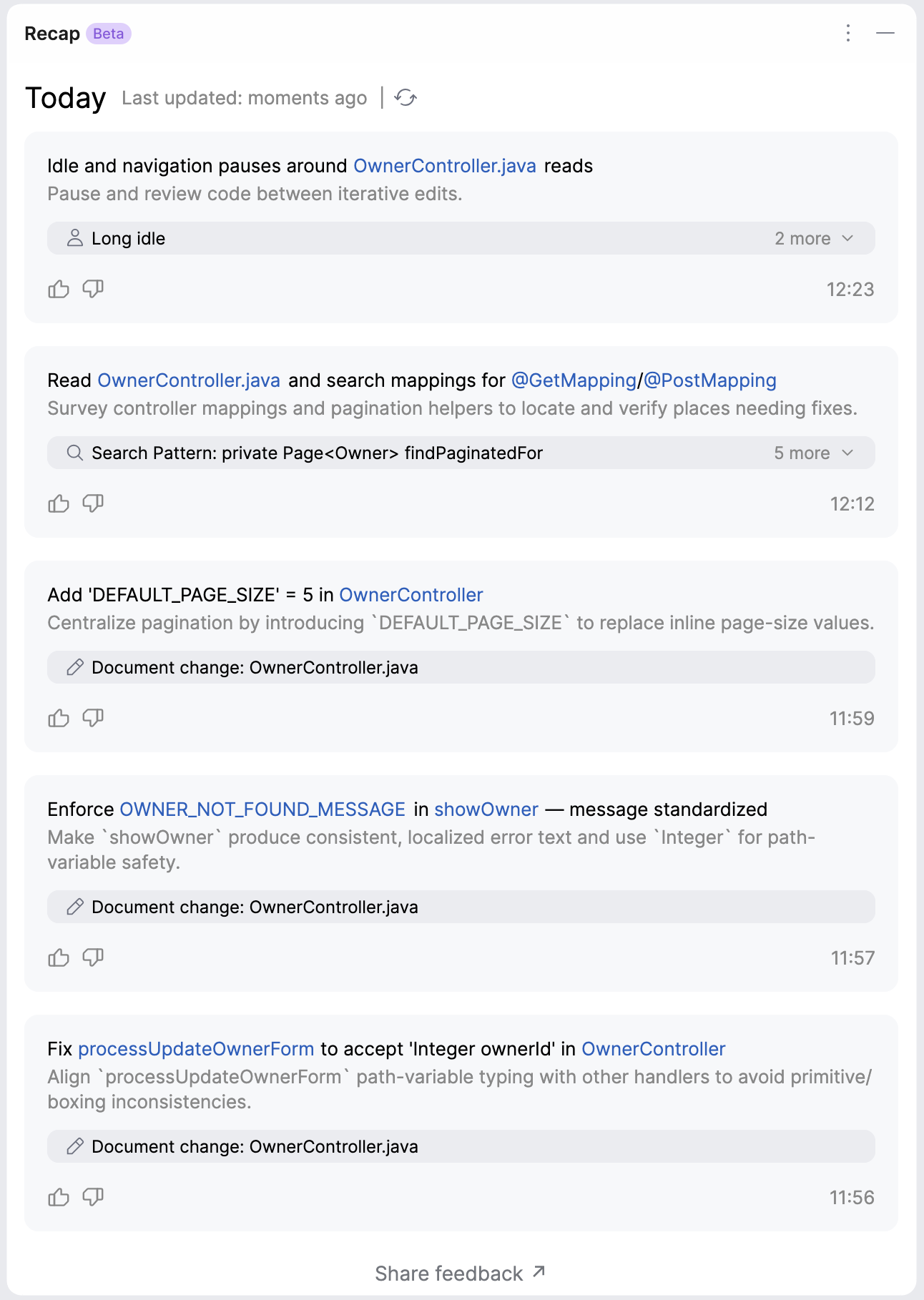
You can click the referenced items to navigate to the corresponding file or line.
If you want to update the log to include the most recent activities, click
 Update in the upper part of the Recap tool window.
Set Recap auto-update time
By default, Recap is set to update automatically after 5 minutes of inactivity. If you want to specify a different time period, do the following:
Navigate to .
In the Recap section, set the desired time interval for the Update Recap after setting.
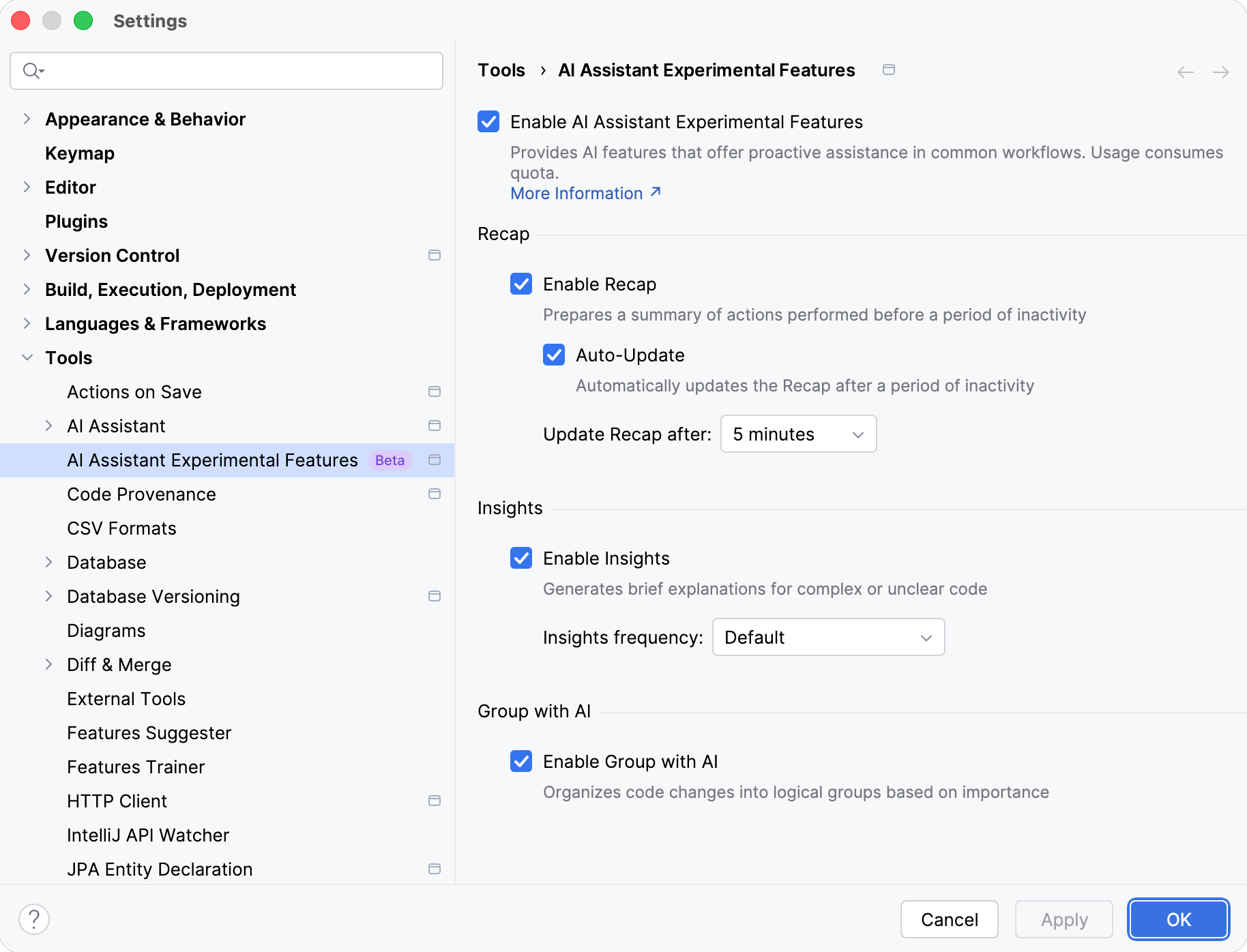
Click OK to save changes.
After the system detects inactivity that lasts for the specified period of time, the Recap gets automatically updated, listing the most recent activities.