Convert code to another language
With AI Assistant, you can convert your code from one programming language to another.
Convert Java to Kotlin
Available in: IntelliJ IDEA Ultimate
AI Assistant can convert Java code to Kotlin with the help of a large language model. Compared with static, rule-based conversion, AI-assisted conversion produces more idiomatic Kotlin and can refine framework-specific code. You can convert a single file or several files at once.
Before you start
Before you start the conversion, consider configuring the following:
Select a model used to perform the conversion on the Java to Kotlin settings page. You can use the models provided by JetBrains AI, or select your own provider.
Install the
kotlin-tooling-java-to-kotlinskill if you want framework-specific refinements. For more information, refer to Installed Skill.
Convert a single file
To convert a single open Java file to Kotlin using AI-assisted conversion:
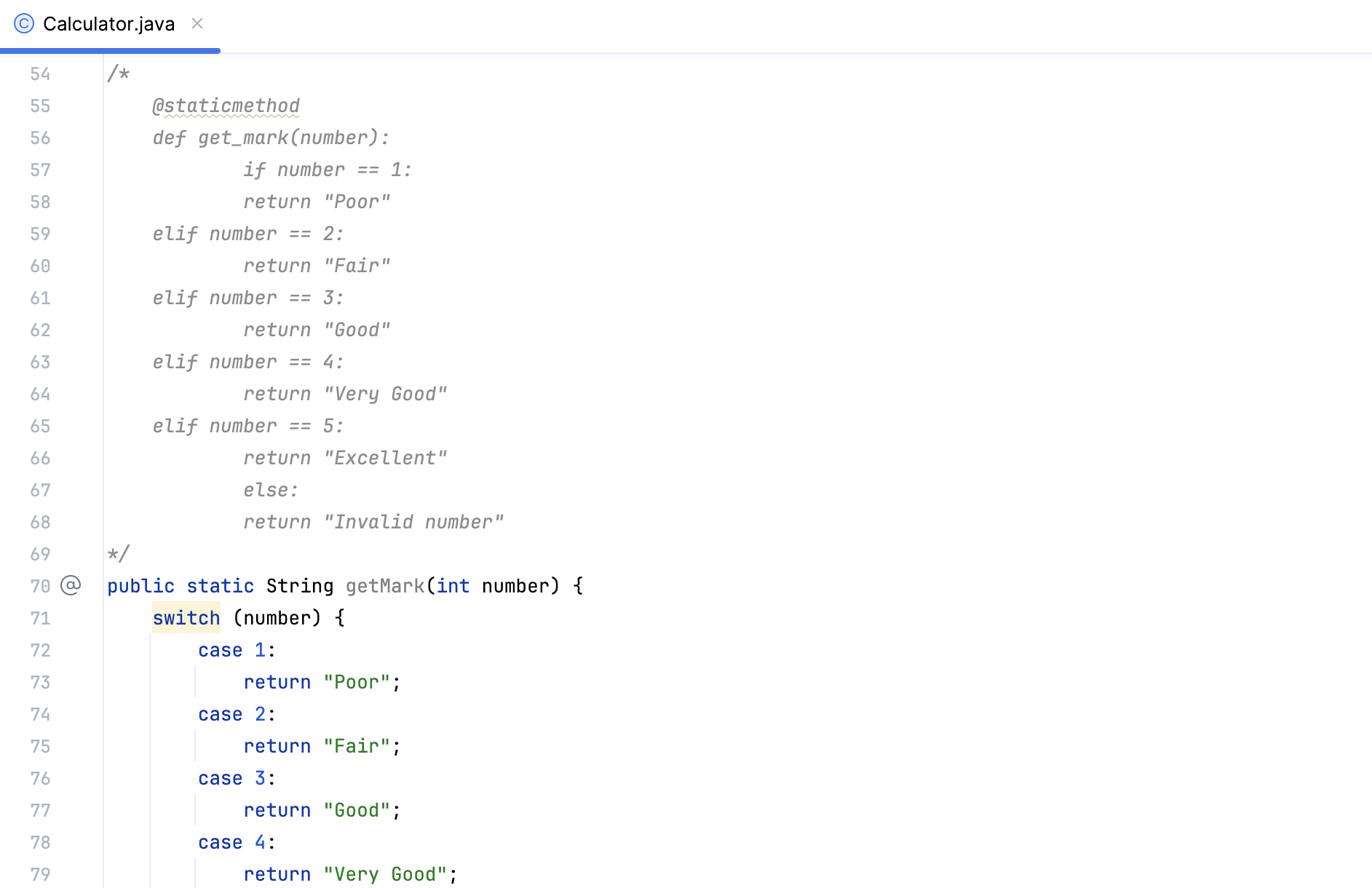
Open the Java file in the editor.
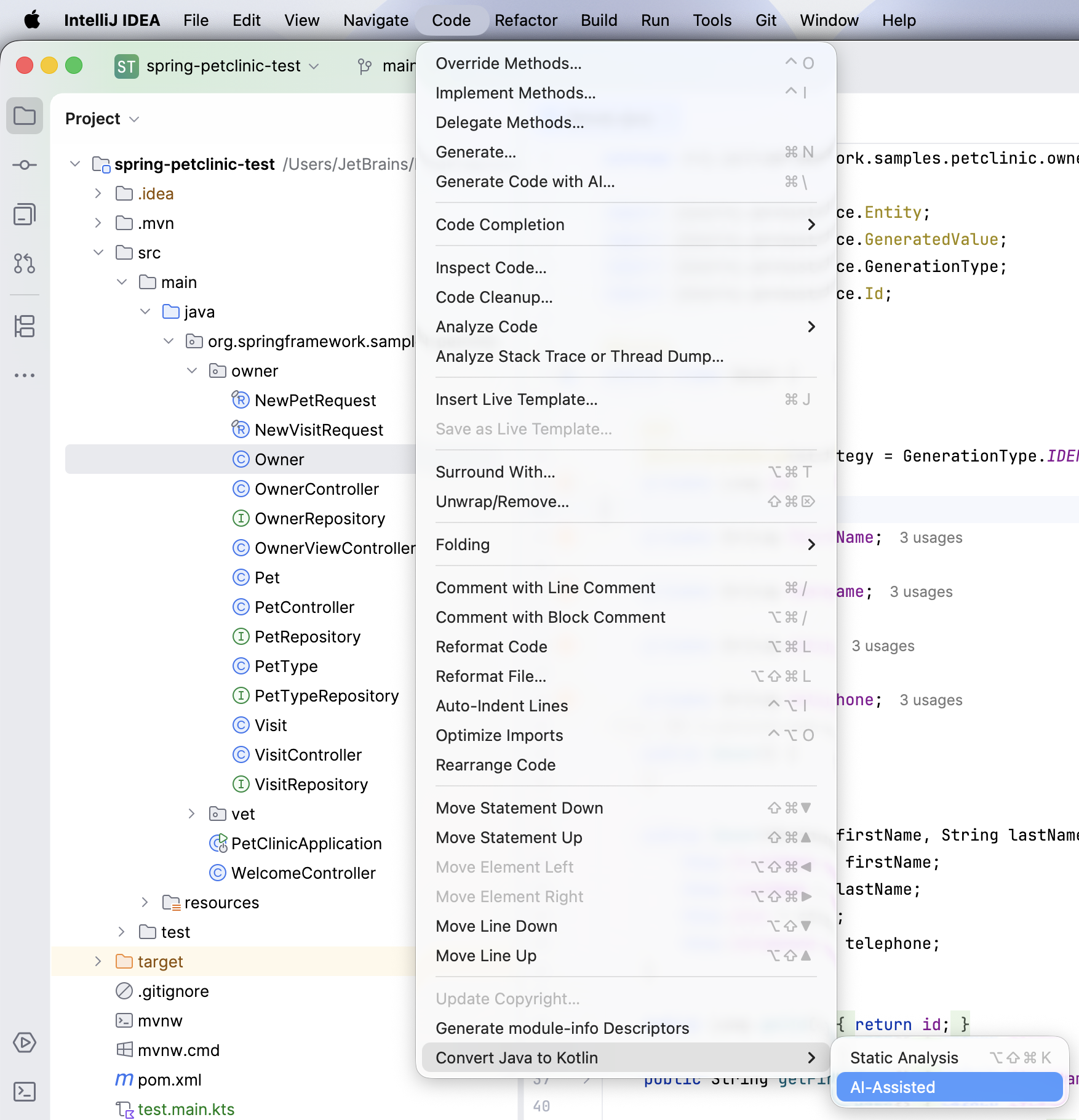
From the main menu, select .
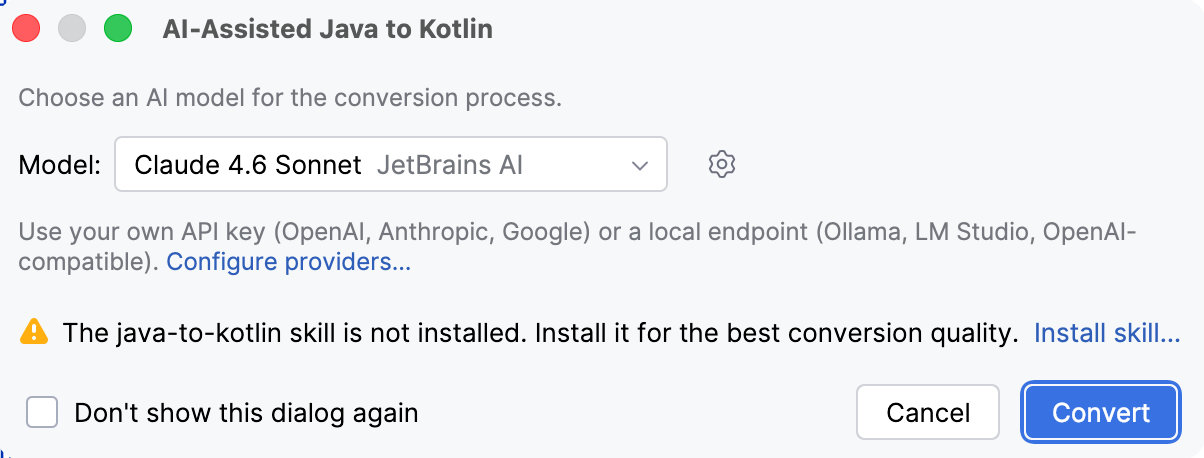
If you have not configured the conversion settings beforehand, configure them in the AI-Assisted Java to Kotlin dialog and click Convert.
Review the suggested Kotlin in the Java to Kotlin | AI-Assisted panel. Click Accept Translation to apply the result or Cancel Translation to discard it.
When you accept a conversion, AI Assistant creates a corresponding Kotlin file and deletes the original Java file. To roll back the changes, press Ctrl+Z.
Convert multiple files
AI-assisted conversion can process several files in one run. To do this:
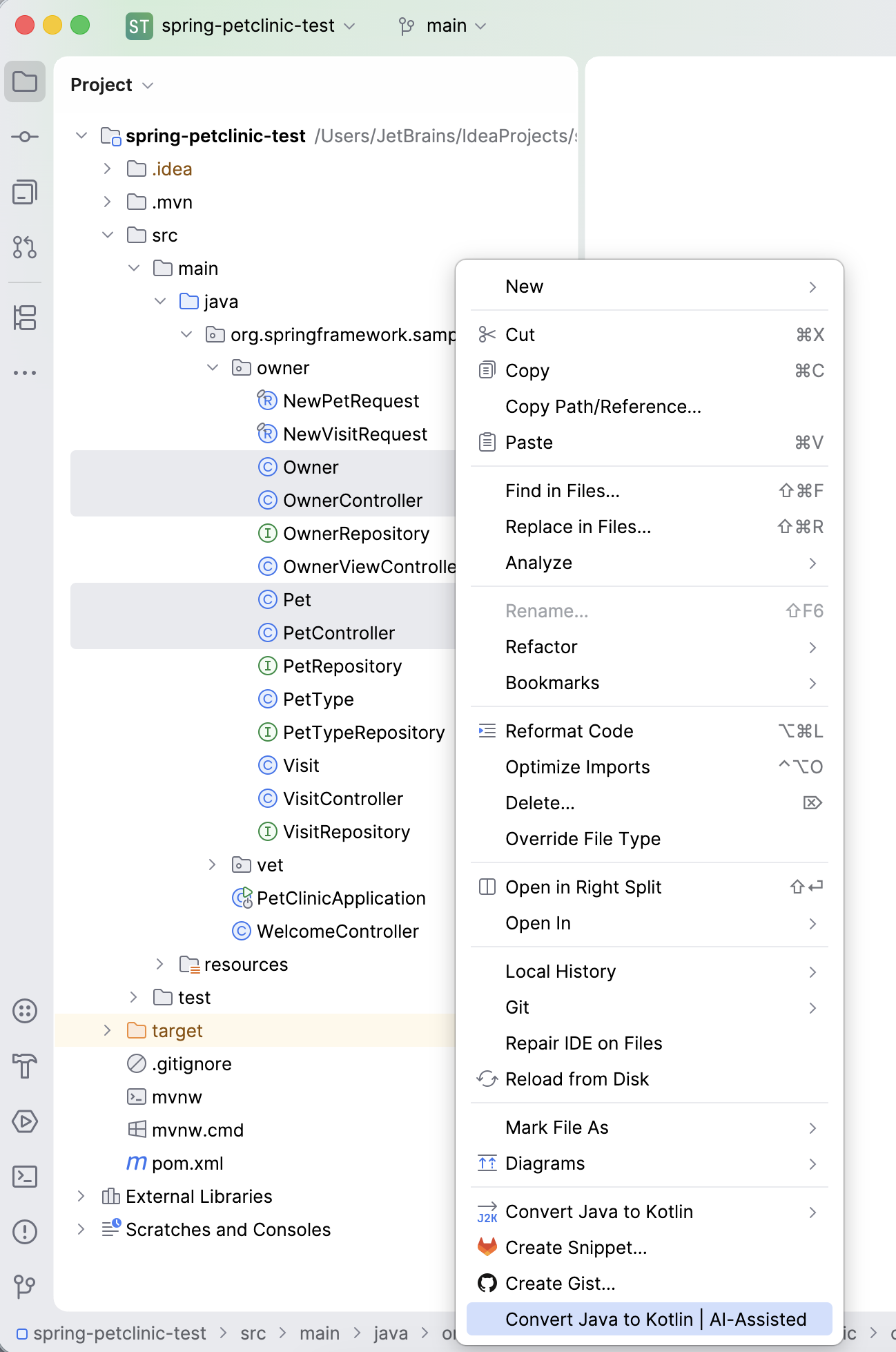
In the Project tool window, select what you want to convert: individual Java files, a package, a directory, or a source root.
Right-click the selection and select .
If you have not configured the conversion settings beforehand, configure them in the AI-Assisted Java to Kotlin dialog and click Convert.
AI Assistant then scans the selection for Java files and converts each one. Files that already have a matching Kotlin file, along with package-info.java and module-info.java, are skipped.
In the Java to Kotlin | AI Assisted tool window, review the results. Files are grouped as Successful conversions, Failed conversions, and Skipped files. Select a file to see the Java-to-Kotlin diff. Only successful conversions can be selected for applying.
Select the files to apply and click Accept Selected, or click Accept All to apply every successful conversion. To close the tool window without applying anything, click Cancel Migration.
When you accept a conversion, AI Assistant creates a corresponding Kotlin file and deletes the original Java file. Failed and skipped files are left unchanged. To roll back the changes, press Ctrl+Z.
Configure Kotlin during conversion
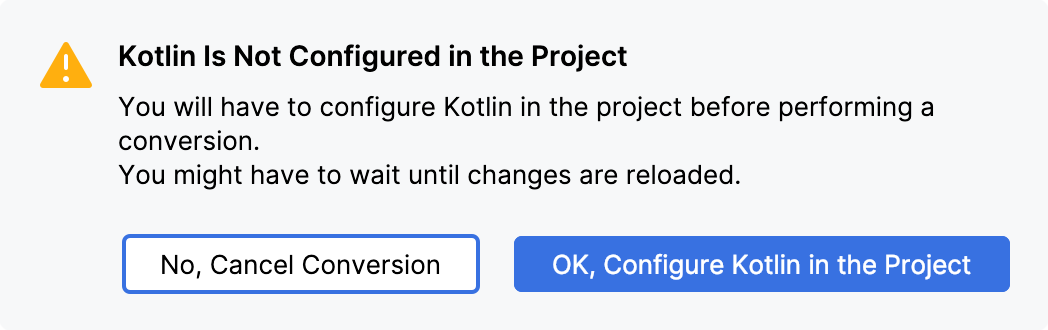
If the project does not have Kotlin configured yet, you will be offered to configure it before the conversion. In the Kotlin Is Not Configured in the Project dialog, click OK, Configure Kotlin in the Project to continue, or No, Cancel Conversion to stop.
Convert pasted code to another language
AI Assistant can suggest converting any code you paste into a file to the language of that file. This option is disabled by default. To use it:
Press Ctrl+Alt+S to open settings and then select .
Enable the Suggest converting pasted code to the language of the target file option and click Apply.

Now you can copy the piece of code you want to convert and paste it into the file you work on.
AI Assistant detects the language of the pasted code and suggests to convert it to the language of the opened file.
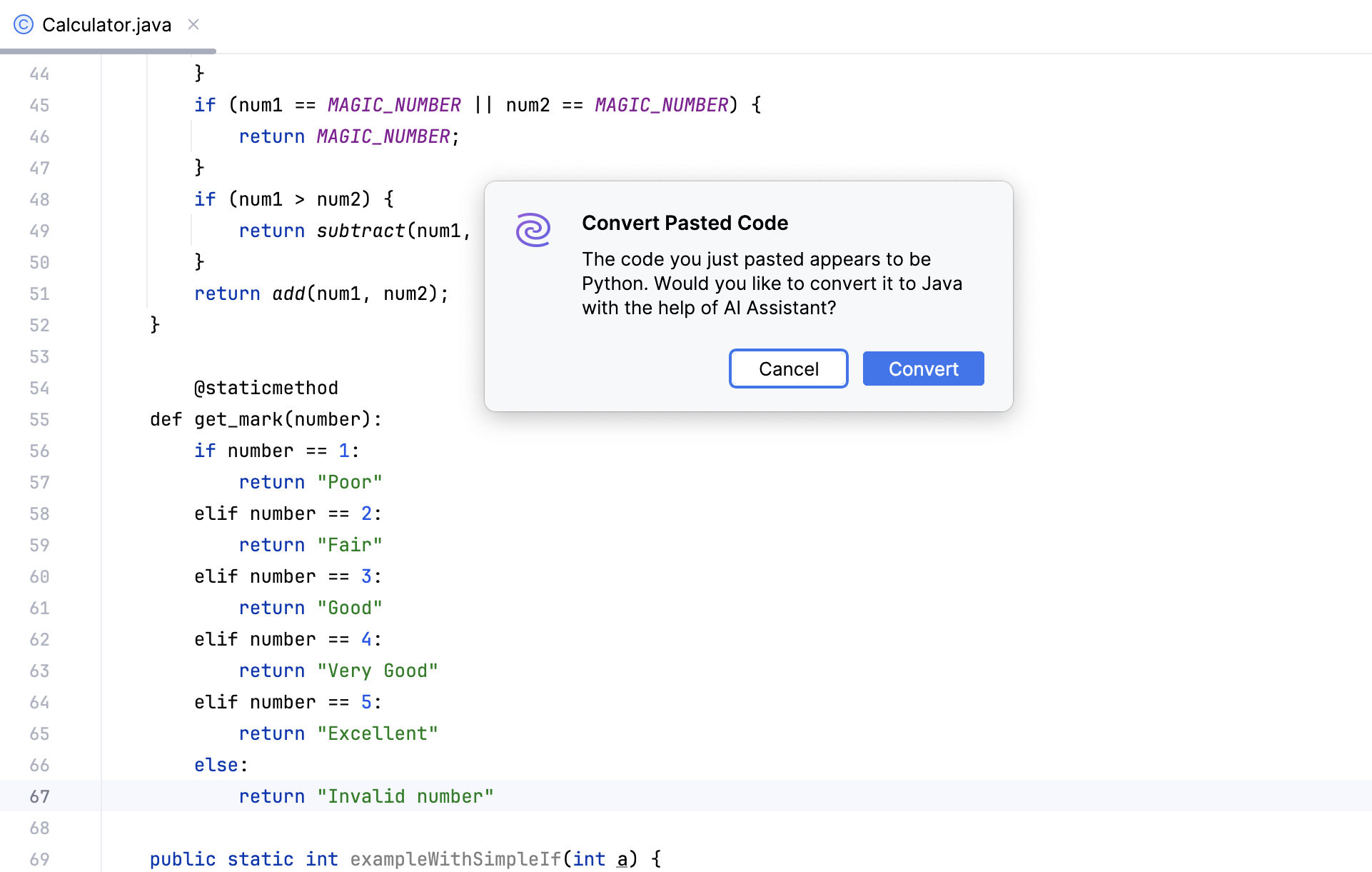
If you click Convert, the code will be converted to the language of the target file. The code in the original language will also be pasted, but commented out.