Providers & API keys
Use this page to configure access to models from third-party AI providers and locally hosted models and to manage authorization for integrated agents.
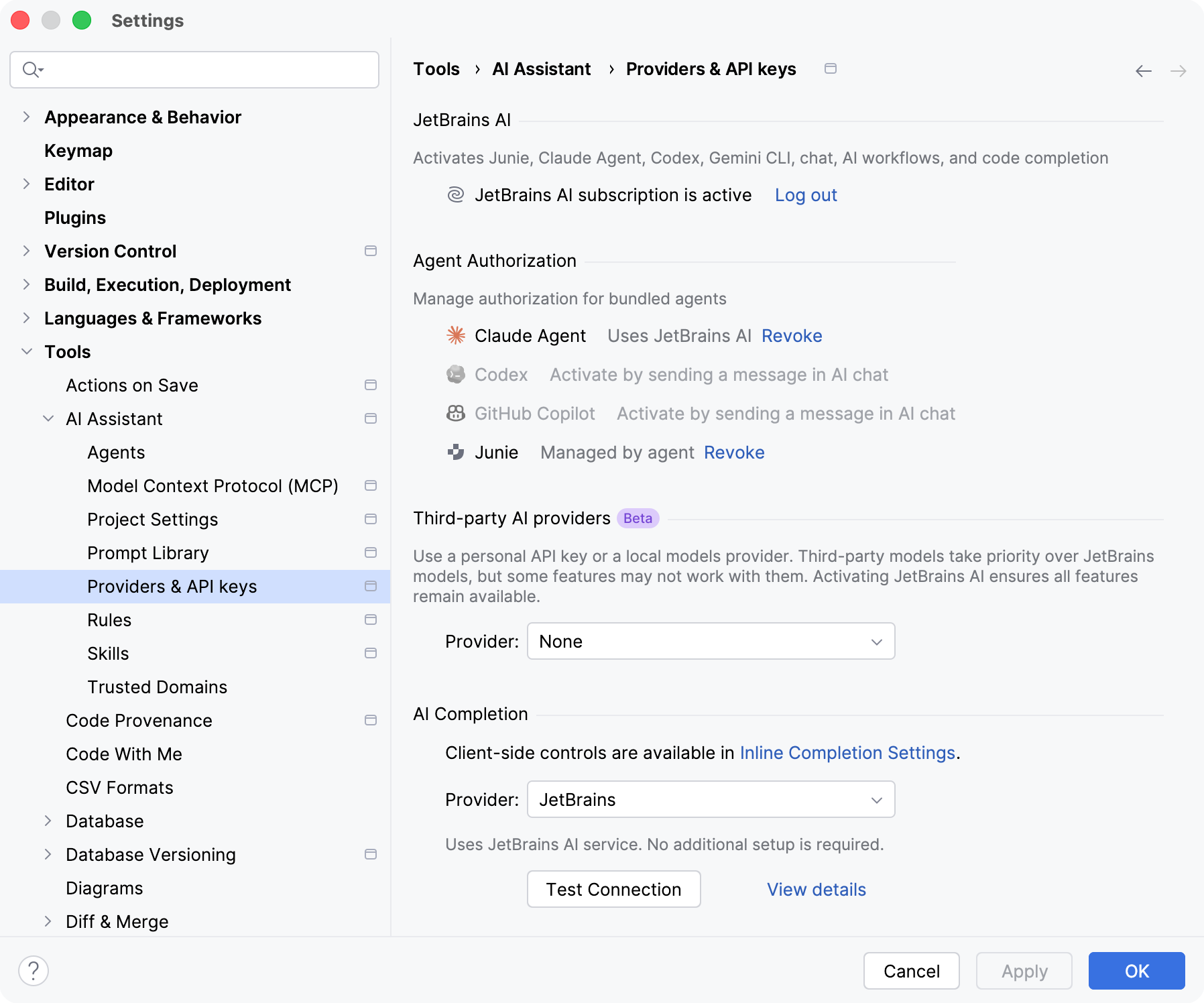
JetBrains AI
Item | Description |
|---|---|
Activate JetBrains AI | If you are using AI Assistant with models from third-party AI providers and want to additionally activate JetBrains AI to ensure full functionality, or if you previously logged out of JetBrains AI and need to log back in, click the Activate JetBrains AI button. |
Log out | If you want to use a different activation option, you can log out from your JetBrains AI subscription by clicking Log out. |
For additional information, refer to Enable JetBrains AI alongside custom models.
Agent Authorization
Item | Description |
|---|---|
Revoke | If you previously activated an agent using one of the supported authentication methods, click Revoke to remove the authorization. |
For additional information, refer to Activate agents.
Third-party AI providers
Item | Description |
|---|---|
Provider | Select the third-party AI provider (Anthropic, Google, OpenAI, OpenAI-compatible, LM Studio, or Ollama) whose custom models you want to use. |
API Key | Specify the API key to access the models provided by the selected third-party AI provider. |
ADC | Uses Application Default Credentials (ADC) to authenticate requests to Google Vertex AI with credentials configured in your environment, for example, from your local Google Cloud setup or a service account. Available only for Google Vertex AI. This method also requires you to specify Project ID and Location. |
URL | Specify the URL of the provider’s API endpoint. This can point to a local server (for example, |
Tool calling | Specify whether the model supports calling tools configured through the Model Context Protocol (MCP). Available only for OpenAI-compatible providers. |
For additional information, refer to Use third-party and local models.
AI Completion
Use this section to configure the provider for AI completion features, like inline code completion and next edit suggestions.
Item | Description |
|---|---|
Provider | Select the provider for AI completion features:
|
API key | Specify the API key for the selected endpoint. Available for the OpenAI Compatible provider. |
Base URL | Specify the URL of the endpoint. To check whether the connection is established, click Test Connection. |
Model | Specify the model to use for AI completion features. AI Assistant indicates whether the model is recognized and supported for AI completion. The model must be served by the endpoint specified in Base URL. |
Model context | Specify the size of the model context window, in tokens. |
Max output tokens | Specify the maximum number of tokens the model can return in a single completion. |
Prompt schema | Select the template used to format completion requests for the model. When AI Assistant recognizes the model, it sets the matching schema automatically. Select a specific schema only when the model isn't recognized. |
For additional information, refer to Use a custom model for AI completion.
Model Assignment
Item | Description |
|---|---|
Core features | Select the custom model that must be used for in-editor code generation, commit message generation, as a default model in chat, and other core features. |
Instant helpers | Select the custom model that must be used for lightweight features, such as chat context collection, chat title generation, and name suggestions. |
Context window | Specify the size of the model context window for local models. This setting determines how much context the model can process at once. A larger window allows more context, while a smaller one reduces memory usage and may improve performance. By default, the context window is set to 64 000 tokens. For additional information, refer to Choose models for AI Assistant features. |
For additional information, refer to Choose models for AI Assistant features.