Activate AI Assistant
AI Assistant provides flexible ways to access AI features and coding agents. You can use the JetBrains AI service, activate agents using different authentication methods, or connect external models using your own API key.
Activation options
After installation, you can choose how you want to use AI Assistant:
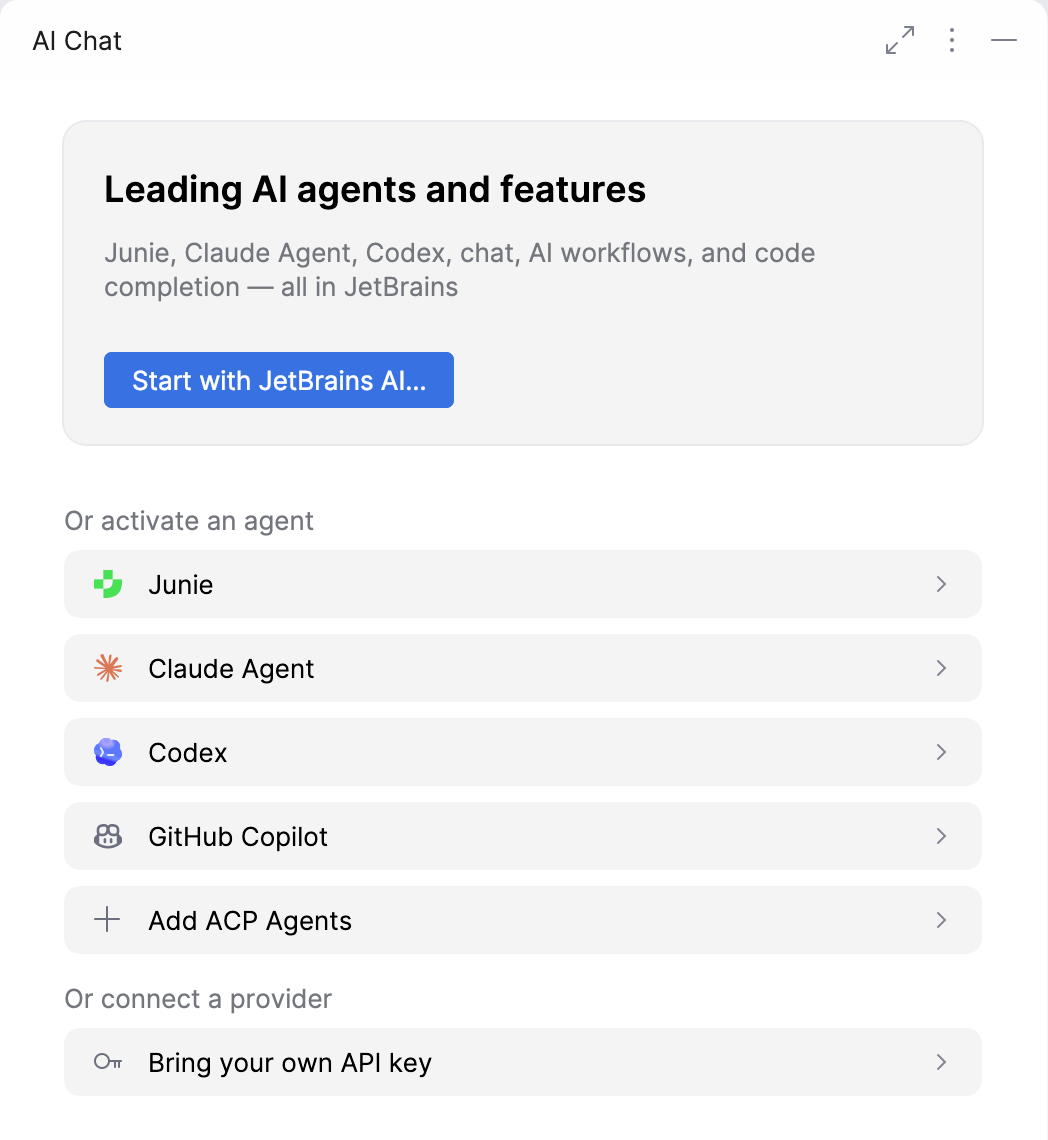
Start with JetBrains AI subscription – use the JetBrains-managed service with full access to AI Assistant features and supported agents.
Pick an agent – use a specific integrated agent – Junie, Claude Agent, Codex, or GitHub Copilot. Depending on the agent, activation may be available through a JetBrains AI subscription, a provider account (OAuth), an API key, or another supported method.
Add ACP-compatible agents – connect an external or custom agent using the Agent Client Protocol (ACP).
Use third-party provider – use AI Assistant with models from a supported third-party provider by connecting your API key.
When you choose one of these options, the corresponding activation procedure starts. The option you select determines which features are available and how usage is billed.
You can use these options independently or combine them to create a custom setup.
Differences between activation options
The selected activation option determines which AI Assistant features are available and how usage is billed. The following table summarizes the differences:
Activation option | Requires JetBrains AI subscription | Available features | Billing | |
|---|---|---|---|---|
JetBrains AI subscription | Yes | All AI Assistant features and supported agents | JetBrains AI subscription | |
Integrated agent[1] | JetBrains AI subscription | Yes | The activated agent and all other AI Assistant features. You can activate other integrated agents separately. | JetBrains AI subscription |
API key | No | The activated agent and AI Assistant features supported by the provider's models | Third-party AI provider | |
Provider account (OAuth) | No | The activated agent only | Provider account | |
Provider-specific method | No | The activated agent only | Agent provider | |
ACP-compatible agent | No | The connected external or custom agent only | Agent provider (if applicable) | |
Third-party provider (BYOK) | No | AI Assistant features supported by the provider's models[2] and agents that support the provided API key authentication | Third-party AI provider | |
Combined configurations
Multiple activation options can be enabled at the same time. When several options are active, AI Assistant selects a provider according to a predefined priority order.
Active options | Priority order | Behavior |
|---|---|---|
JetBrains AI subscription | JetBrains AI subscription | All features are available because the required models are provided by the JetBrains AI service. |
Third-party provider (BYOK) | BYOK | Features work only if compatible models are available from the configured third-party provider. Agents that support API key authentication are also available. |
Provider account (OAuth) | Provider account (OAuth) | The authorized agent uses the provider account. |
ACP-compatible agent | ACP-compatible agent | Requests to the ACP-compatible agent are handled by the agent provider. |
JetBrains AI + BYOK |
|
|
JetBrains AI + Provider account |
|
|
Provider account + BYOK |
|
|
JetBrains AI + BYOK + Provider account |
|
|
How data is handled in different scenarios
Depending on the selected activation scenario, data may be handled differently:
The IDE sends prompts and context to the JetBrains AI service, which coordinates the request but does not store or process the data. The request is then forwarded to the LLM provider, and the response returns along the same path.
Prompts and context are sent directly to the BYOK-configured LLM provider using your API key.
If the feature is supported by the models from a third-party provider, prompts and context are sent directly to the BYOK-configured LLM provider.
If the feature is not supported by the models from a third-party provider, prompts and context are sent to the JetBrains AI service, which coordinates the request but does not store or process the data. The request is then forwarded to the LLM provider, and the response returns along the same path.
Prompts and context are sent directly to the agent provider.
Prompts and context are sent directly to the ACP agent provider using your API key (if applicable).
Choose your setup
Pick the option that best matches your needs:
JetBrains AI subscription – if you want full feature access with a ready-to-use setup.
Third-party provider (BYOK) – if you want to use your own API keys and external models.
Activate an agent – if you want to use supported integrated agents with your provider account.
ACP-compatible agents – if you want to connect custom or external agents.