Use JetBrains AI subscription
You can activate AI Assistant using a JetBrains AI subscription for a fully integrated, ready-to-use experience.
This option gives you access to all AI Assistant features and all supported integrated agents.
You can start with a free trial or purchase a subscription.
For more information about available subscription plans, refer to the JetBrains AI plans and usage section.
Sign up for a trial
Before purchasing a JetBrains AI subscription, you can sign up for a limited trial that includes 30 days of AI Pro usage. This option is available to users with paid and complimentary JetBrains IDE licenses.
To start a trial:
Open the
 AI Chat tool window.
 Click Start Free Trial.
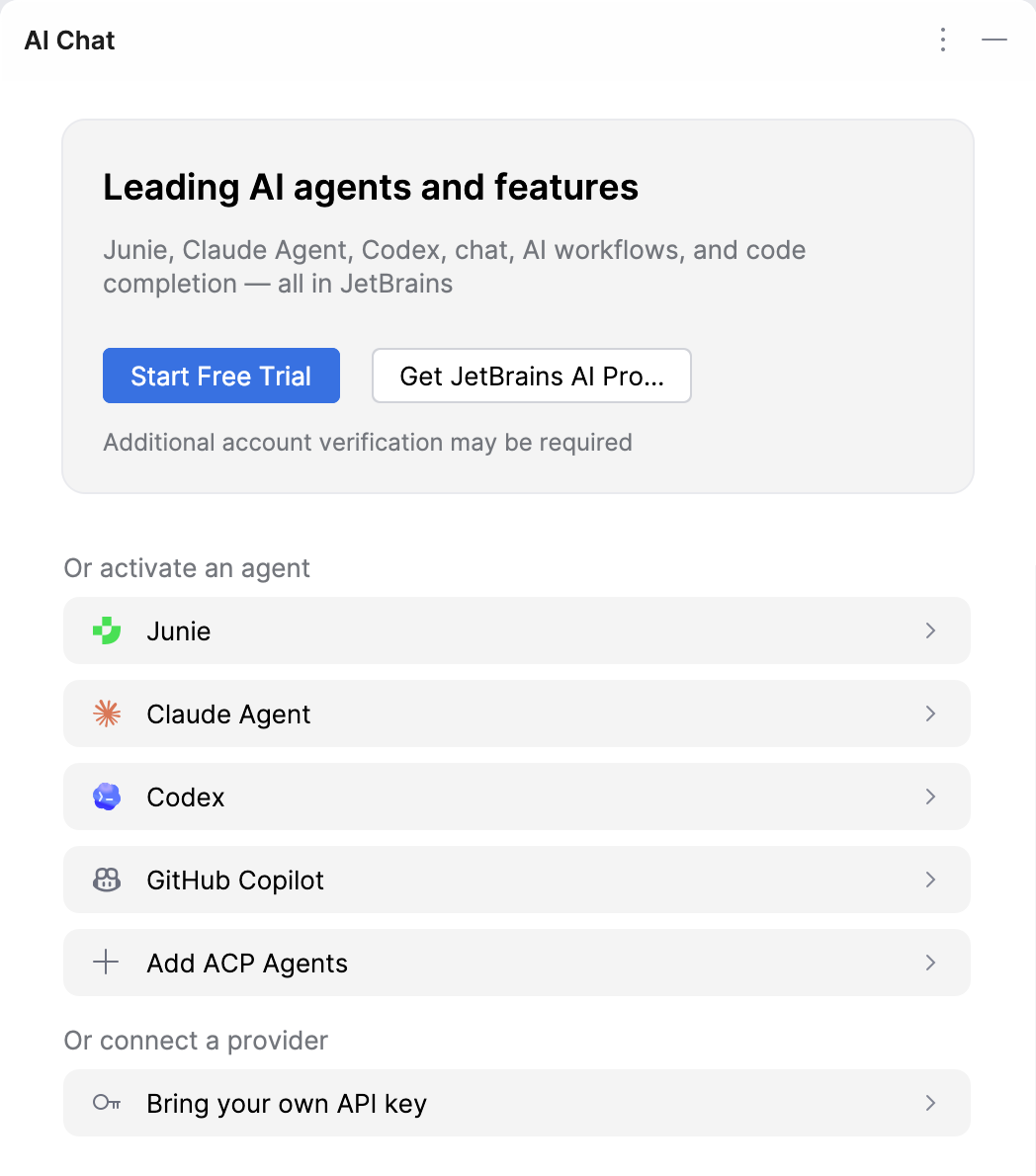
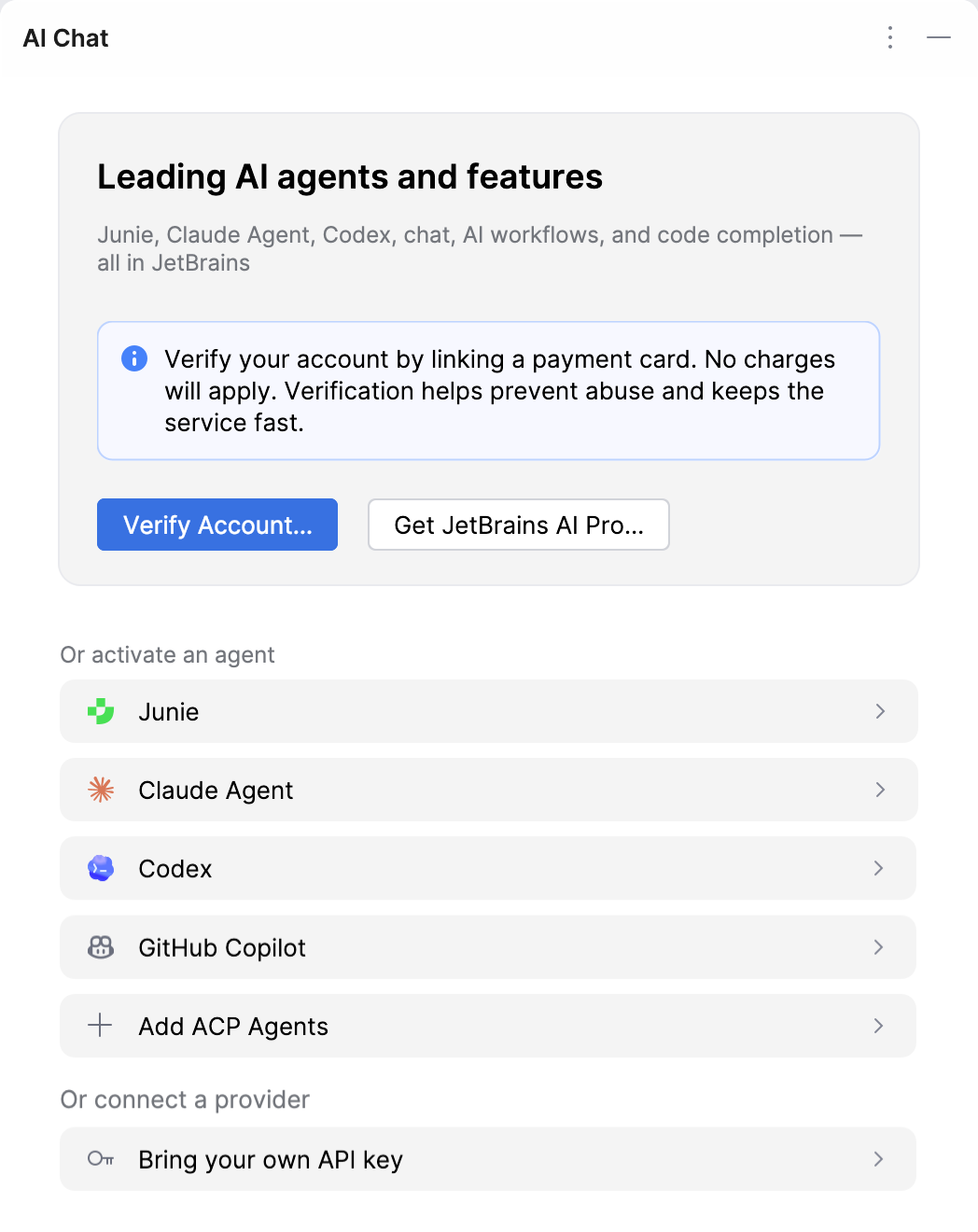
Click Verify Account. You will be redirected to your JetBrains Account, where you will need to link a payment card.
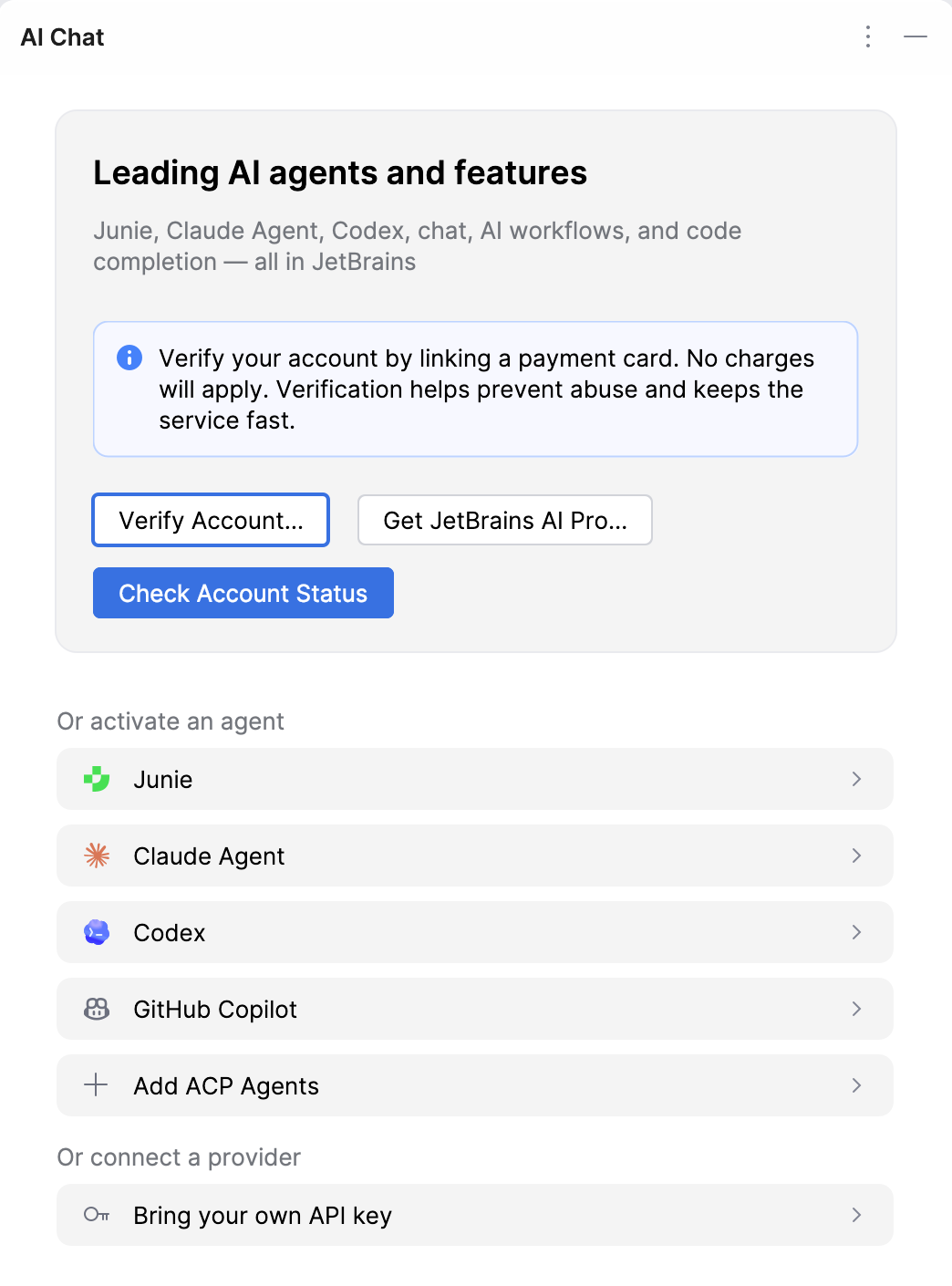
Link a payment card, then return to the IDE, and click Check Account Status.
After completing these steps, your free trial will be linked to your JetBrains Account. A Trial label will appear in the AI Chat tool window to indicate that the trial has been successfully activated.

When the trial expires, you can switch to a paid license of your choice. Otherwise, you will be automatically moved to the AI Free tier.
Trial FAQ
- Why can’t I start a free trial?
If you don’t see the option to start a free trial, check the following:
Outdated IDE version
AI Assistant requires IDE version 2023.3 or later (2024.1.1 or later for Community Editions and 2025.1 or later for PyCharm Unified). Updating your IDE to the latest version may resolve the issue.
IDE license incompatibility
In IDE versions 2023.3–2024.2, only users with a paid license can start a trial. Starting from version 2024.2.1, this limitation is removed, so updating your IDE to the latest version may resolve the issue.
Users with non-paid IDE licenses (trial, students, teachers, or classrooms, open-source, Community Edition IDEs, PyCharm Unified, or non-commercial licenses for RustRover, WebStorm, Rider) may be asked to add a payment method, but the trial remains free.
Organization-managed licenses
If you use IDE versions 2023.3–2024.2, and your license comes from License Vault, License Server, or IDE Services, you cannot start a personal trial. Ask your employer to request a corporate trial instead.
AI Assistant is disabled in your company
If JetBrains AI is disabled, contact your administrator to enable it. If it’s already enabled, but you still cannot use it, try refreshing your access settings.
- List of IDE license types eligible for a trial
The trial may not be available for certain IDE license types or in older IDE versions:
IDE license type
IDE versions 2024.2.1 and later
IDE versions prior to 2024.2.1
Paid license for individual use

Organizational license assigned by your employer
[1][1]Commercial license obtained from License Vault Cloud, License Server, or IDE Services
[2] [3]
[3]Free educational license for students and teachers
Free classroom license for educational institutions
JetBrains IDE free trial
Community Editions of PyCharm and IntelliJ IDEA
PyCharm Unified (starting from version 2025.1)
Early Access Program (EAP) license
Activate JetBrains AI
The activation process depends on whether you already have a JetBrains AI license.
If you have already purchased the license on the AI in IDEs webpage, do the following:
Open the
AI Chat tool window.Click Start with JetBrains AI subscription.
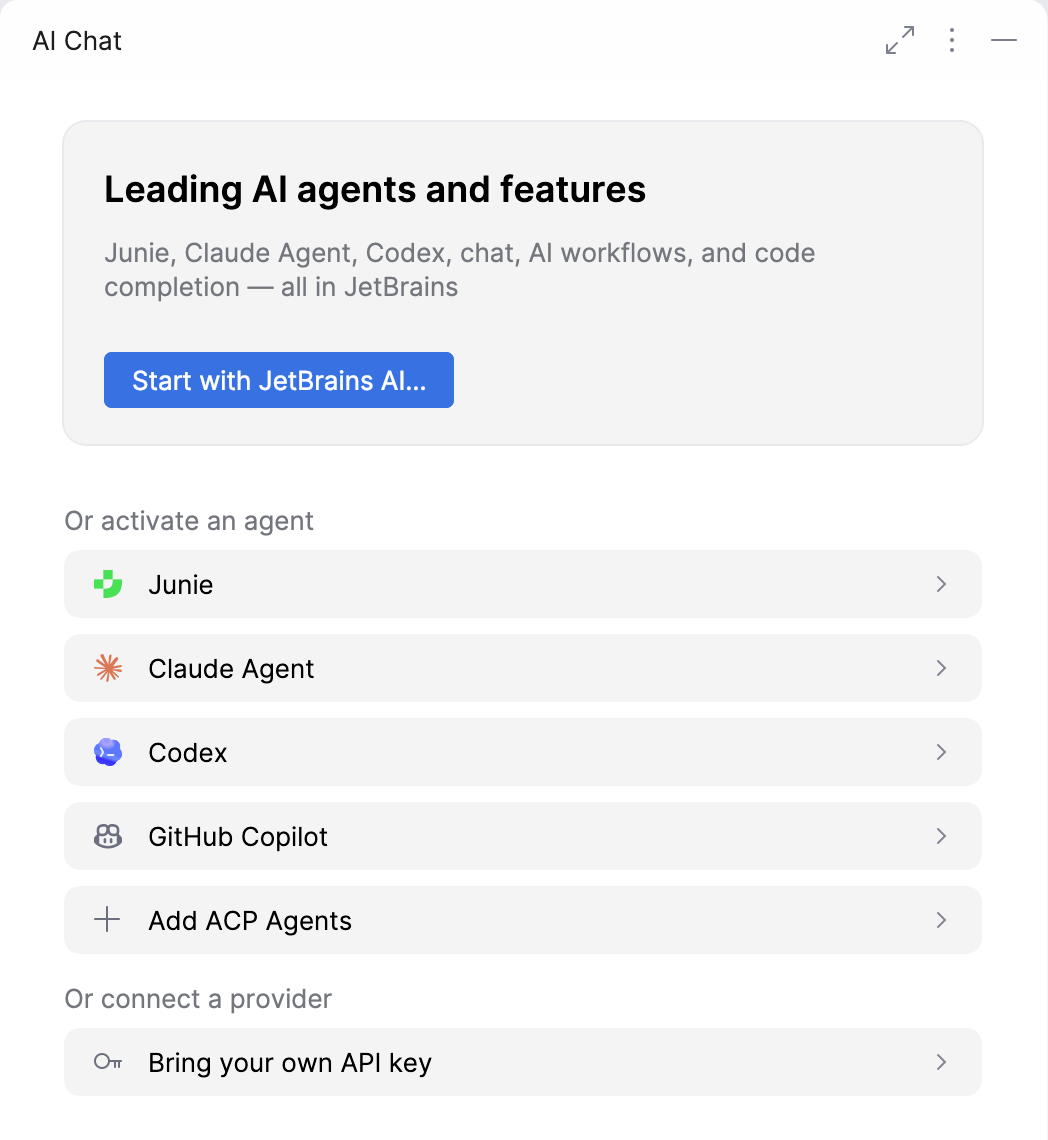
Log in to your JetBrains Account.
If you have not purchased a license yet, do the following:
Open the
AI Chat tool window. Click Get JetBrains AI Pro.
On the AI in IDEs webpage, select the license tier you want to purchase.
On the eStore Order Checkout page, enter all required information and submit your order.
Restart the IDE.
Open the
AI Chat tool window, and click Start with JetBrains AI.Log in to your JetBrains Account.
This will activate AI Assistant, and you will be able to start using it.