Install AI Assistant in Visual Studio Code
This section provides information on how to install and set up AI Assistant in Visual Studio Code to start using its AI-powered features in your development environment.
Install from the user interface
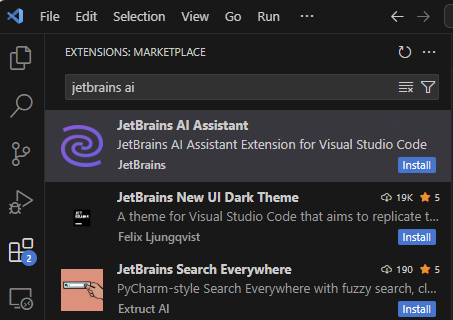
You can install AI Assistant from Visual Studio Code Marketplace: open the Extensions view, search for JetBrains AI Assistant, and click Install.
Install from VSIX
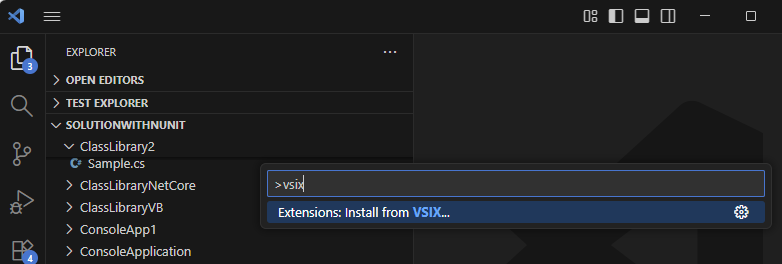
If the Visual Studio Code Marketplace is not available, download JetBrains AI Assistant as a .vsix file using one of the links below, type >vsix in the search box, and pick Extensions: Install from VSIX....
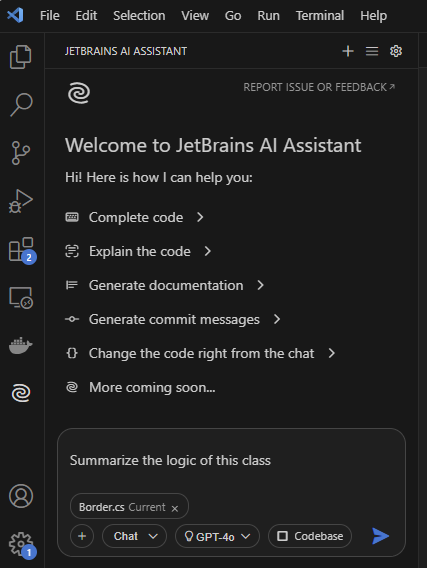
As soon as the installation is complete, you will see the JetBrains AI Assistant panel:
Licensing
To get started, log in with your JetBrains Account. While in Public Preview, you can either use your current JetBrains AI subscription or, in case you don’t have any, automatically get a free AI EAP license.
JetBrains AI Plans will apply after the full public release. JetBrains AI Assistant for Visual Studio Code preview is also available with AI Enterprise.