Share an environment configuration
Sharing grants access to the people you name, and you stay the owner. To hand the configuration over to a team instead, move it into a project.
Share an environment configuration
In , open the configuration you want to share, or create a new one.
Click Share.
In Search names, emails, or user groups, find a user, service account, or user group, then click Add.
To copy a link to the configuration page, click Copy link. The link only points to the configuration in Air Teams – it does not grant access.
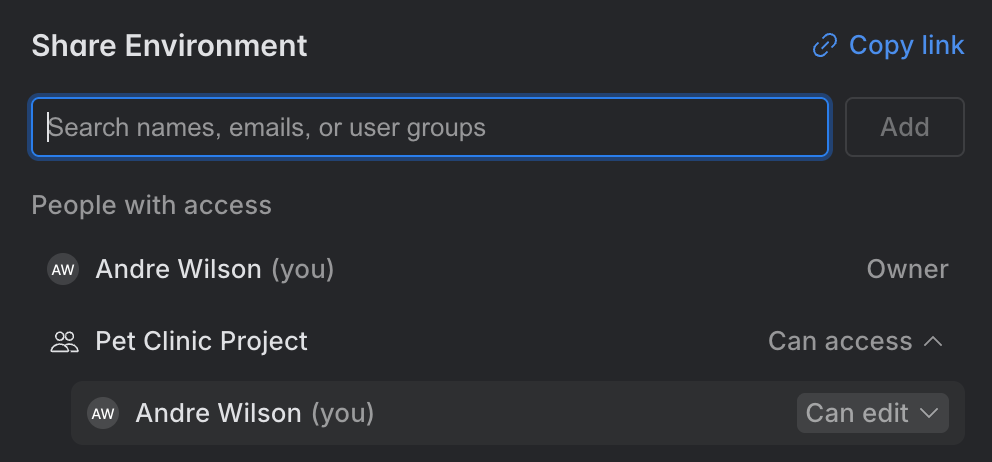
Set each person's access to Can edit or Can view.
Save the configuration.
Everyone you add appears under People with access. To change someone's access, open the access selector next to their name and choose Can edit or Can view. To revoke access, choose Remove.
Access levels
Each person with access to a shared configuration has one of these access levels.
Access level | What it allows |
|---|---|
Owner | Edit the configuration and share it with other users, service accounts, or user groups. When you create a configuration, you automatically become its owner and the configuration is tied to your account. |
Can edit | Edit the configuration and share it with other users, service accounts, or user groups. |
Can view | Run cloud tasks using the configuration. |
Secrets in a shared configuration
When you share a configuration, its plain environment variables, shared secrets, and secrets read from a secrets provider become available to everyone with access. Personal secrets behave differently: they are never shared, so the people you share the configuration with don't see them and must create their own.
For details on the variable types, see Add environment variables and secrets.