Add workspace files
When you add files to a workspace, they become available in all notebooks within that workspace. In your Private workspace, you need to explicitly attach files to individual notebooks to access them from code.
To view workspace files from within a notebook, select Attached data | [workspace_name] workspace files. To use workspace files in your code, specify the full file path, such as /data/workspace_files/<file_name>.
Add from the Home page
Upload workspace files from the Home page
In the sidebar on the Home page, select the workspace where you want to upload files.
In the expanded list of workspace resources, select
 Data.
Data.Click
 Upload files at the top right.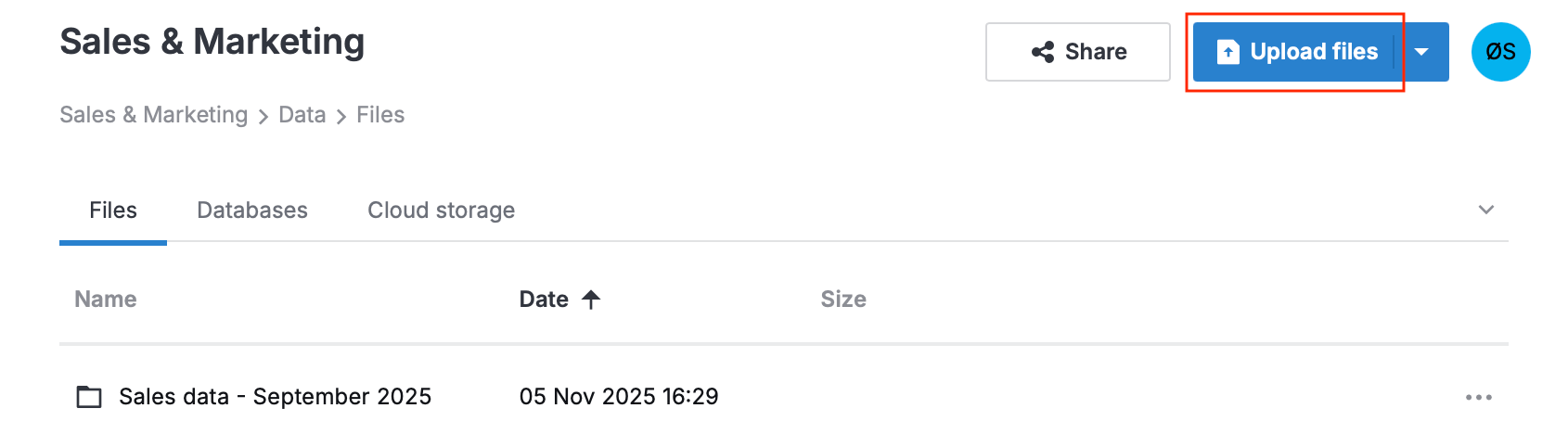
In the file dialog, select one or more files on your local machine.
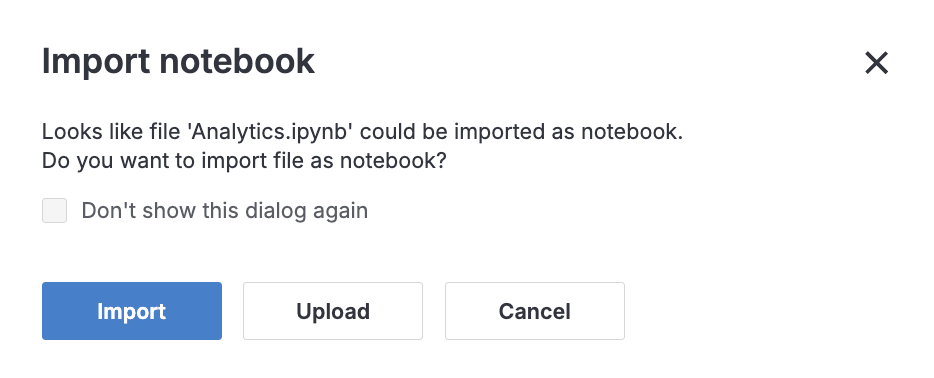
(Optional) If your upload includes
.ipynbfiles, you will see the Import... dialog suggesting you import them as notebooks. Select one of the following options:Import: Import these files as notebooks and add to the
 Notebooks section of the workspace.
Upload: Upload these files to the
Data section of the workspace.Cancel: Abort the uploading process.
Upload a folder from the Home page
In the sidebar on the Home page, select the workspace where you want to upload a folder.
In the expanded list of workspace resources, select
Data.Click
 (More) at the top right and select Upload folder.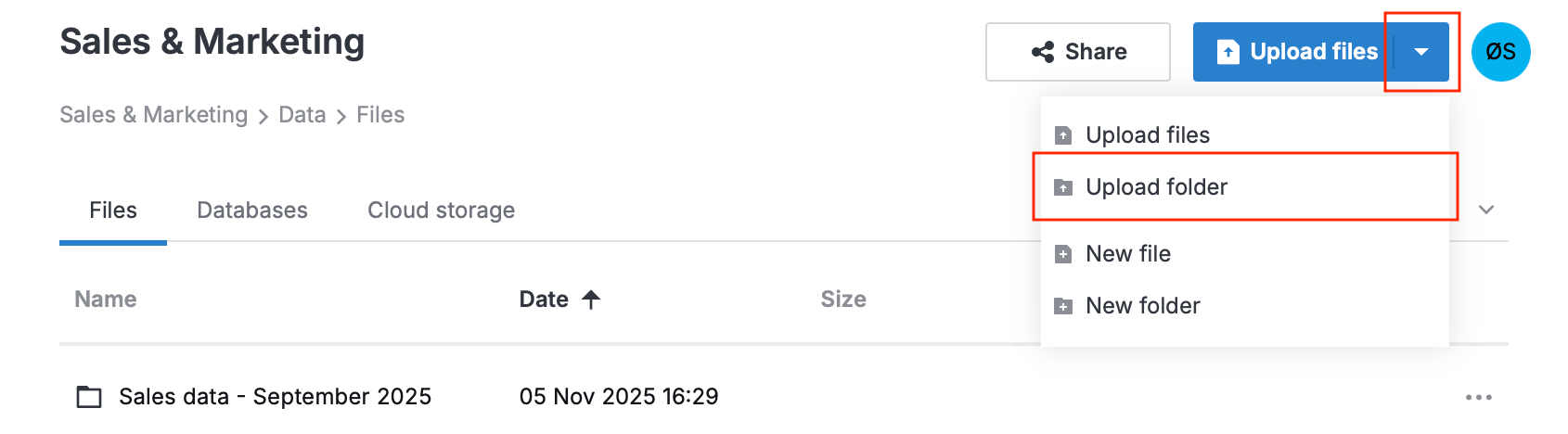
In the file dialog, select the folder on your local machine.
(Optional) In the Import... dialog, review how the files will be imported and adjust settings if needed.
To exclude a file from the upload, uncheck the corresponding checkbox.
To upload a notebook as a file, select File in the dropdown in the Import as column.
The notebook will be added to the
Data section.
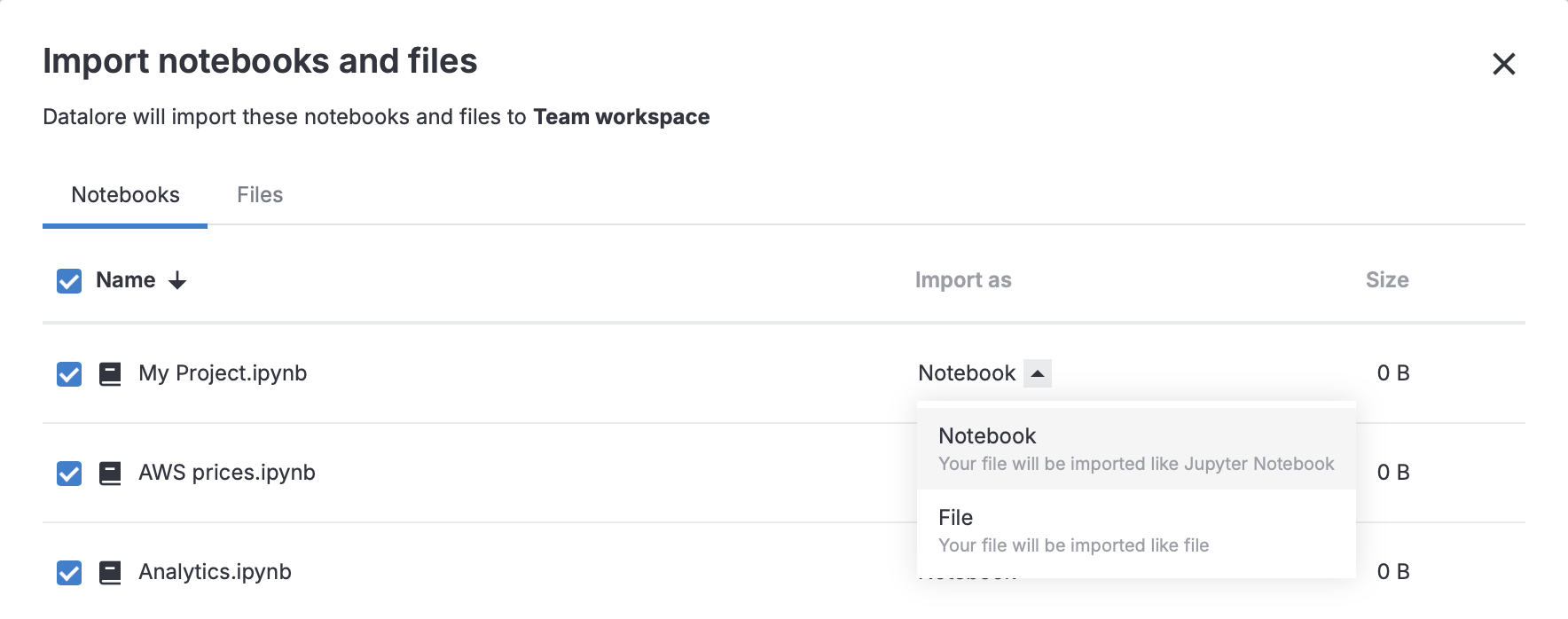
Click Import.
Create a file or folder in a workspace
In the sidebar on the Home page, select the workspace where you want to create a file or folder.
In the expanded list of workspace resources, select
Data.Click
(More) at the top right.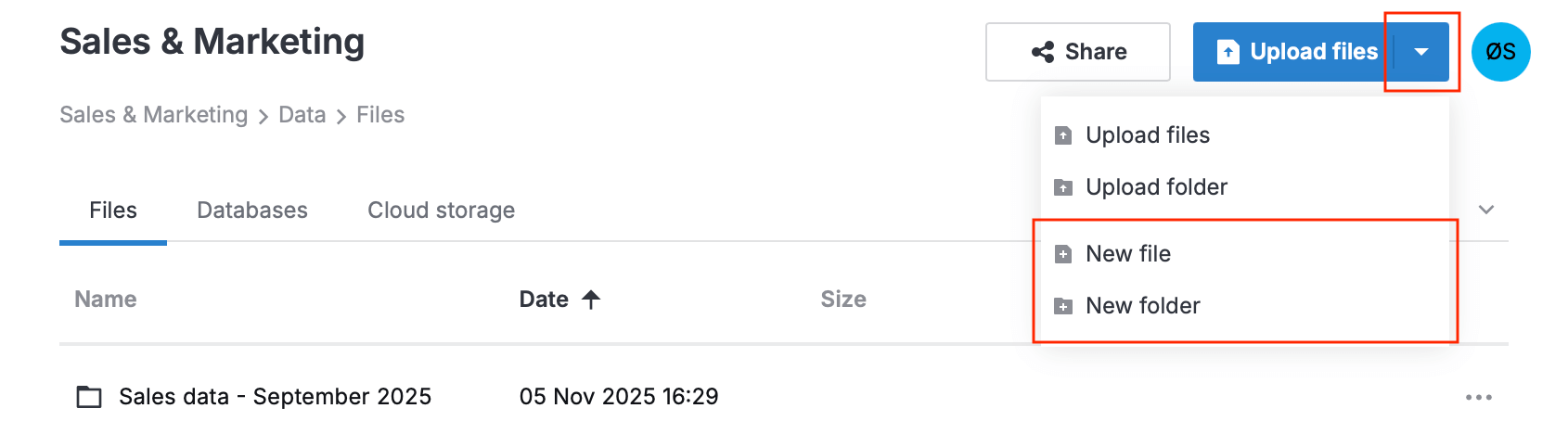
Select New file or New folder.
Enter a name for the new file or folder, then press Enter.
To open the file in the text editor, double-click the file name.
The changes that you make are saved automatically every ten seconds or when you press Ctrl+S.
Add workspace files from the editor
When you are working on a notebook in the editor, you can add files to the workspace in the  Attached data section.
Upload workspace files in the Attached data section
In your notebook, select
Attached data in the sidebar.Next to [Name]'s workspace files title, click + and select Upload files or Upload folder.
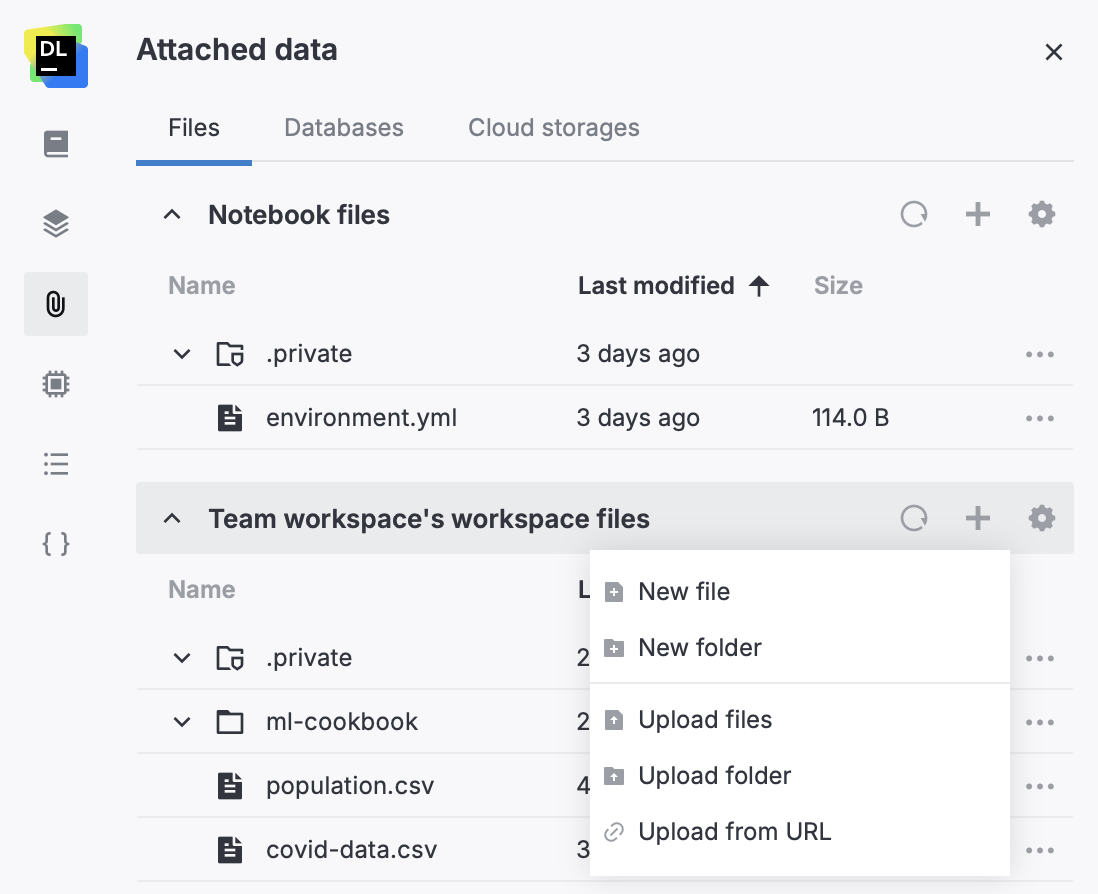
Select the file or folder on your local machine.
Create workspace files in the Attached data section
Instead of uploading a workspace file, you can create a file in Datalore and paste data or code into it.
You can create CSV, TSV, JSON, and other text files.
In your notebook, select
Attached data in the sidebar.Next to [Name]'s workspace files title, click
 and select New file.
Enter a name for the new file, then press Enter.
To open the file in the text editor, double-click the file name.
The changes that you make are saved automatically every ten seconds or when you press Ctrl+S.