Connect to a database using URL
Create a database connection by providing a pre-built URL with connection details.
- Before you begin
Make sure your database instance is configured to accept incoming connections from the following IP address:
63.33.83.29
Step 1. Configure a database connection
Open the New database connection dialog. The step depends on whether you want to add a new database connection in workspace resources or in a notebook.
In the sidebar on the Home page, select the workspace where you want to create a database connection.
In the workspace resources, select
 Data and switch to the Databases tab.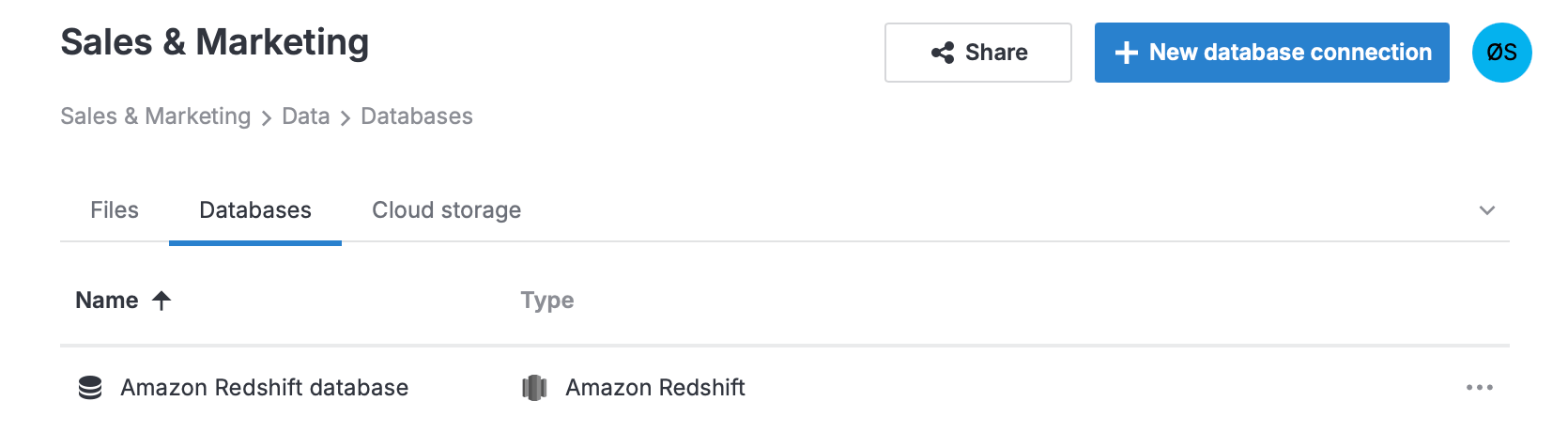
Click
 New database connection at the top right.
In the sidebar, select
 (Attached data).
Switch to the Databases tab.
Click
New database.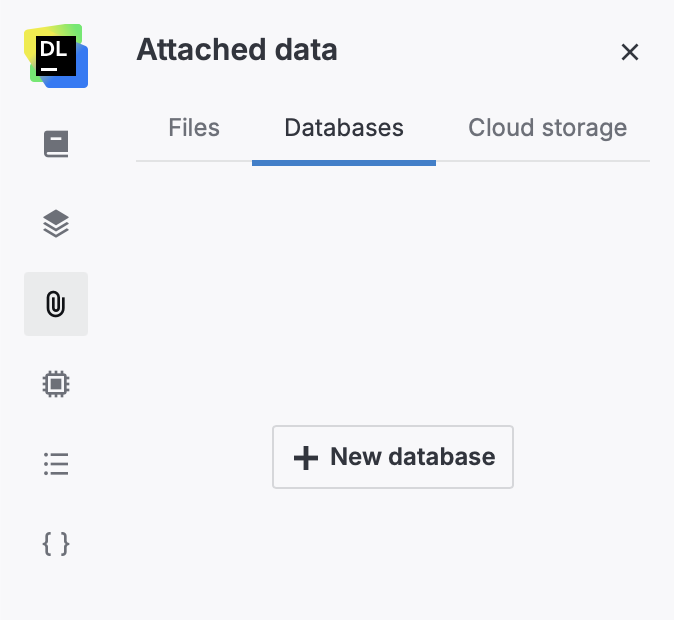
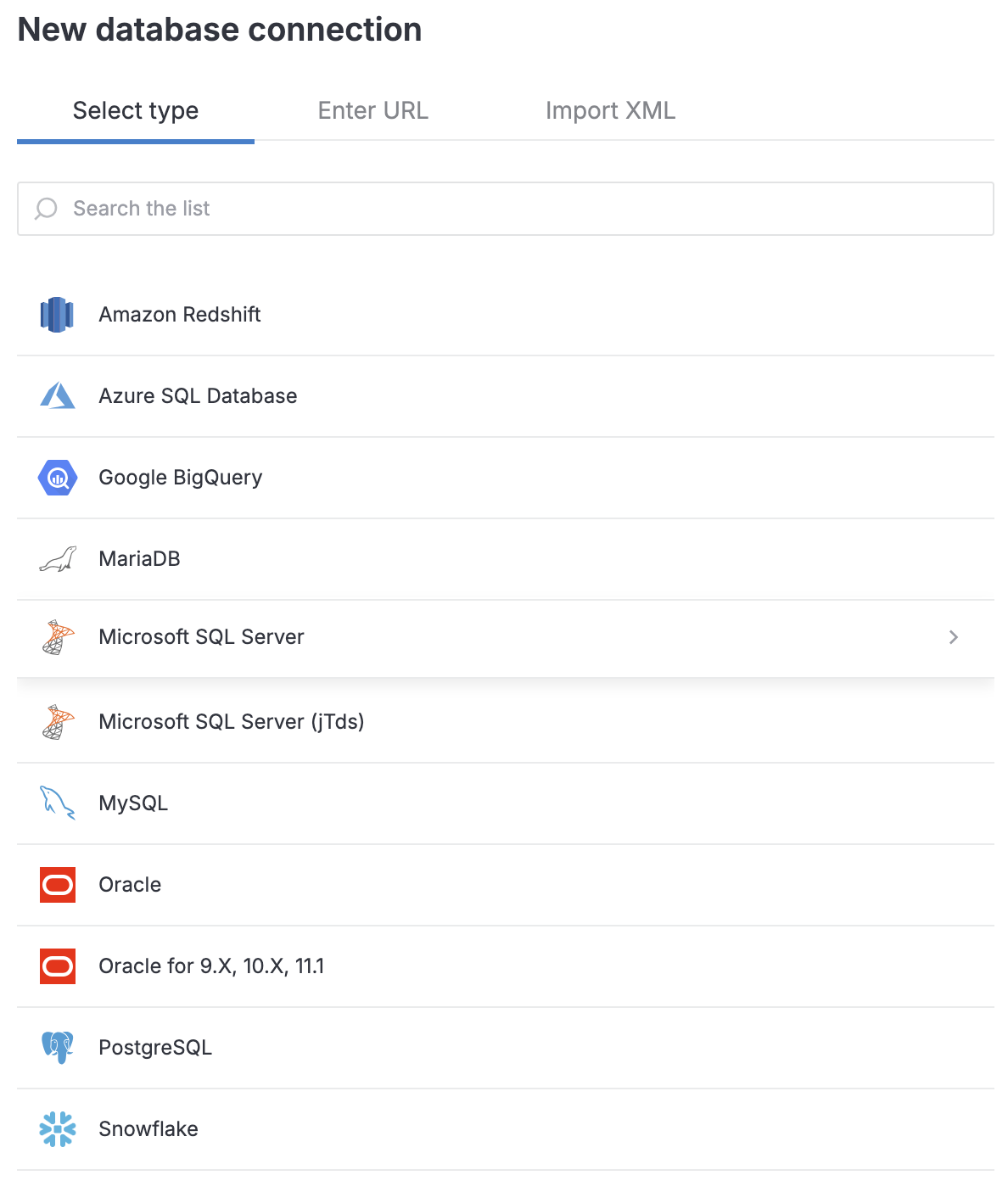
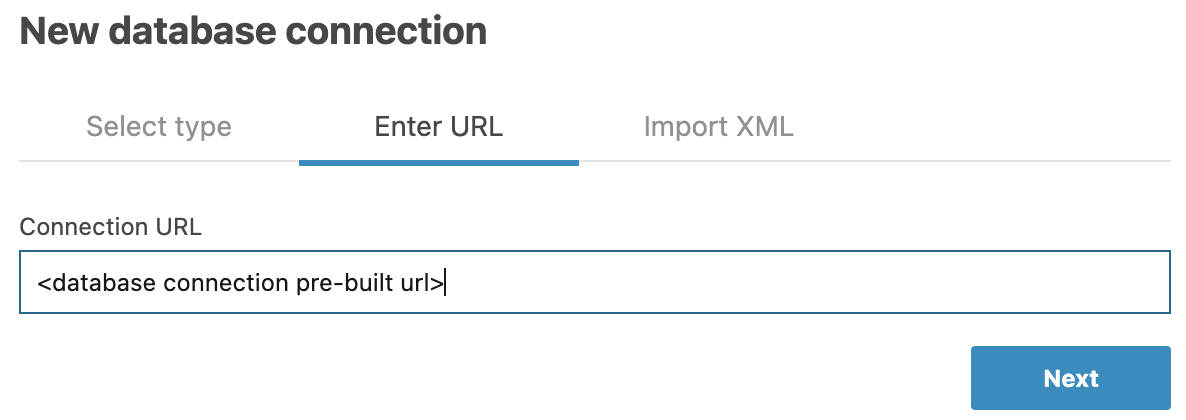
In the New database connection dialog, switch to the Enter URL tab.
Provide the URL in the Connection URL text field and click the Next button.
This will open the connection dialog for the respective database type with all the fields pre-filled.
Click the Test connection button at the bottom of the dialog.
Once successfully tested, click the Create and close button.
Step 2. Attach the connection to a notebook
Open the notebook you want to attach the connection to.
If the notebook is not running, start it by clicking .
In the sidebar, select Attached data and switch to the Databases tab.
Enable the toggle in your database connection.
If the notebook is not running, start it by clicking .
In the sidebar, select Attached data and switch to the Databases tab.
Enable the toggle in your database connection.
Next steps
If OAuth authentication was used for this connection, report users and notebook collaborators may be required to provide their credentials to access the database.
To retrieve and process data from the connected database, use Query data with SQL cells.
Learn how to manage and delete database connections in a workspace and in a notebook.
Keywords
database, database connection, attach data, data sources, configure connection, pre-built connection URL, prebuilt URL, prebuilt connection URL