Back up workspace to a Git repository
You can export your Datalore workspaces to Git repositories to back up your notebooks and files and track changes over time.
When you commit and push changes to a Git repository, both you and Datalore are marked as commit authors in the commit history. If conflicts occur, Datalore automatically resolves them using the ours strategy – changes made in Datalore are applied.
- Supported Git providers
Datalore supports backing up workspaces to GitHub, GitLab, and other Git providers that use standard Git commands and API.
Self-hosted providers are supported too, as long as they can accept SSH connections and do not use any non-standard configuration.
Configure a Git connection
If you have not already, add an SSH key to the workspace and your Git provider.
On the Home page, select the workspace that you want to back up to a Git repository.
Click
 (Settings).
Switch to the Git backup tab.
Click Connect a Git repository.
In the dialog, configure the following settings:
Repository SSH URL
SSH key: Select the SSH key you want to use for the connection. To learn how to add an SSH key to the workspace, see SSH keys.
Branch: (Optional) If you want to back up the notebooks and files to a non-default branch, select it from the dropdown.
Base directory: (Optional) If you want to back up the notebooks and files to a specific directory, enter the directory name. Leave blank to use the repository root.
Exclude cell outputs from backup: (Optional) Enable if you want to back up notebooks without outputs.
File structure: (Optional) Select how you want the notebooks and files to be stored.
Flat: Notebooks are stored at the root level and not grouped with their files. Workspace files are stored at the root level.
Grouped by notebook: Each notebook and its files are stored in a dedicated folder. Workspace files are stored separately.
To make sure the provided parameters are correct, click Test connection.
Click Create connection.
Once the connection is created, you can back up your workspace.
Back up your workspace
On the Home page, select the workspace that you want to back up to Git.
Select Other and switch to the Git backup tab.
(Optional) To refresh the origin state, click Refetch origin.
Select the files you want to include in the commit.
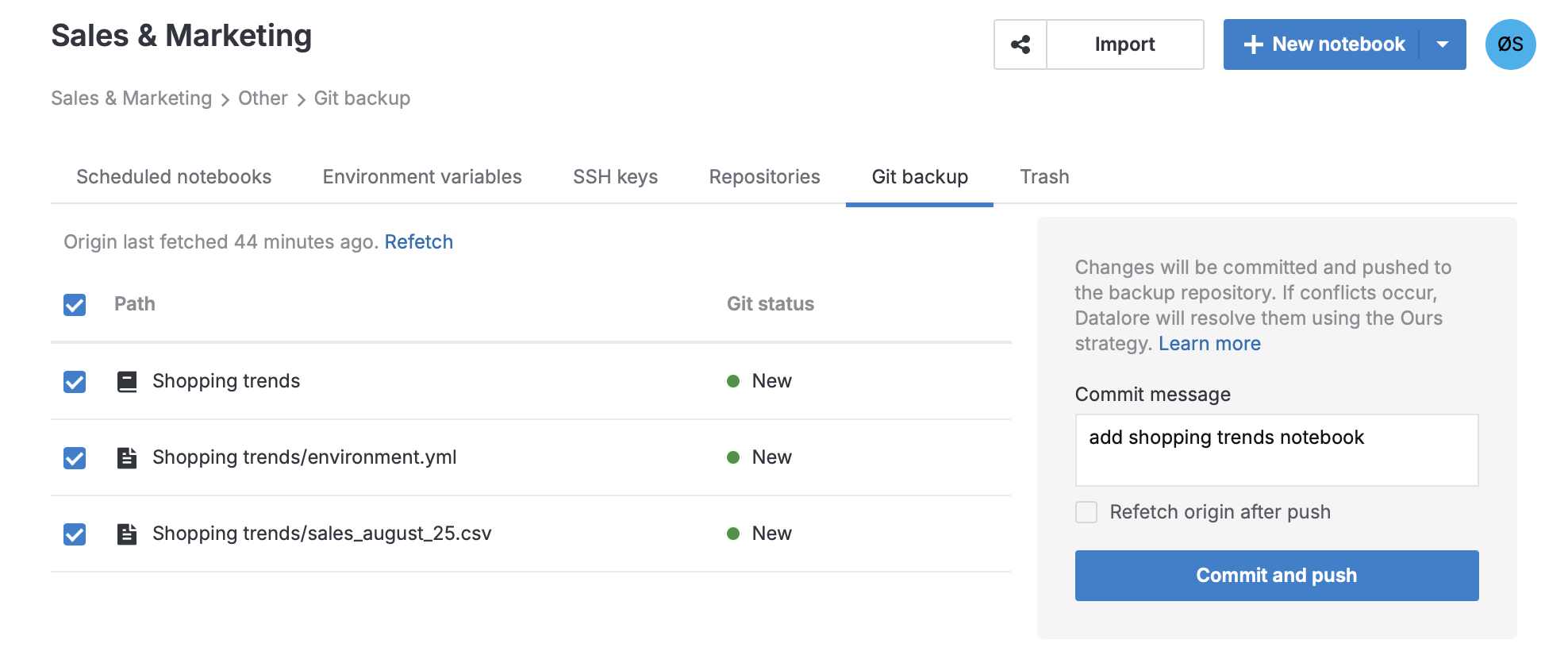
Enter a commit message.
Click Commit and push.
Restore a workspace
You cannot currently revert a workspace to a previous version. Instead, you can create a new workspace from a Git backup.
Edit the Git connection
On the Home page, select the workspace where you want to edit the Git repository connection.
Click
(Settings).Switch to the Git backup tab.
Click Edit the connection.
Edit the settings you want to change:
Repository SSH URL: If you want to change the repository for workspace backups, enter the new URL.
SSH key: Select the SSH key you want to use for the connection. To learn how to add an SSH key to the workspace, see SSH keys.
Branch: Select the branch to back up files and notebooks to.
Base directory: If you want to back up the notebooks and files to a specific directory, enter the directory name. Leave blank to use the repository root.
Exclude cell outputs from backup: Enable if you want to back up notebooks without outputs.
File structure: Select how you want the notebooks and files to be stored.
Flat: Notebooks are stored at the root level and not grouped with their files. Workspace files are stored at the root level.
Grouped by notebook: Each notebook and its files are stored in a dedicated folder. Workspace files are stored separately.
To make sure the provided parameters are correct, click Test connection.
Click Update connection.
Remove a Git connection
On the Home page, select the workspace where you want to remove the Git repository connection.
Click
(Settings).Switch to the Git backup tab.
Click Edit and then Remove connection.
To be able to back up this workspace again, configure a new connection.