Import a workspace from a Git repository
In Datalore, you can create workspaces from notebooks and files stored in Git repositories. You can import both repositories with Jupyter-compatible notebooks and repositories with workspaces previously exported or backed up from Datalore.
Workspace import works as follows:
The new workspace in Datalore gets its name from the imported Git repository. You can rename the workspace later in workspace settings.
All the imported .ipynb files are added to the
 Notebooks section.
If a file is stored in a folder that shares the same name as an imported notebook, it will be imported as part of that notebook.
All other files are added as workspace files. They are available in the
 Data section of the new workspace.
The folder structure of files imported as notebook files and workspace files is preserved.
- Supported Git providers
Datalore supports workspace import from GitHub, GitLab, and other Git providers that use standard Git commands and API.
Self-hosted providers are supported too, as long as they can accept SSH connections and do not use any non-standard configuration.
Import a workspace
On the Home page, click
 New workspace at the bottom left.
In the New workspace dialog, switch to the From repository tab.
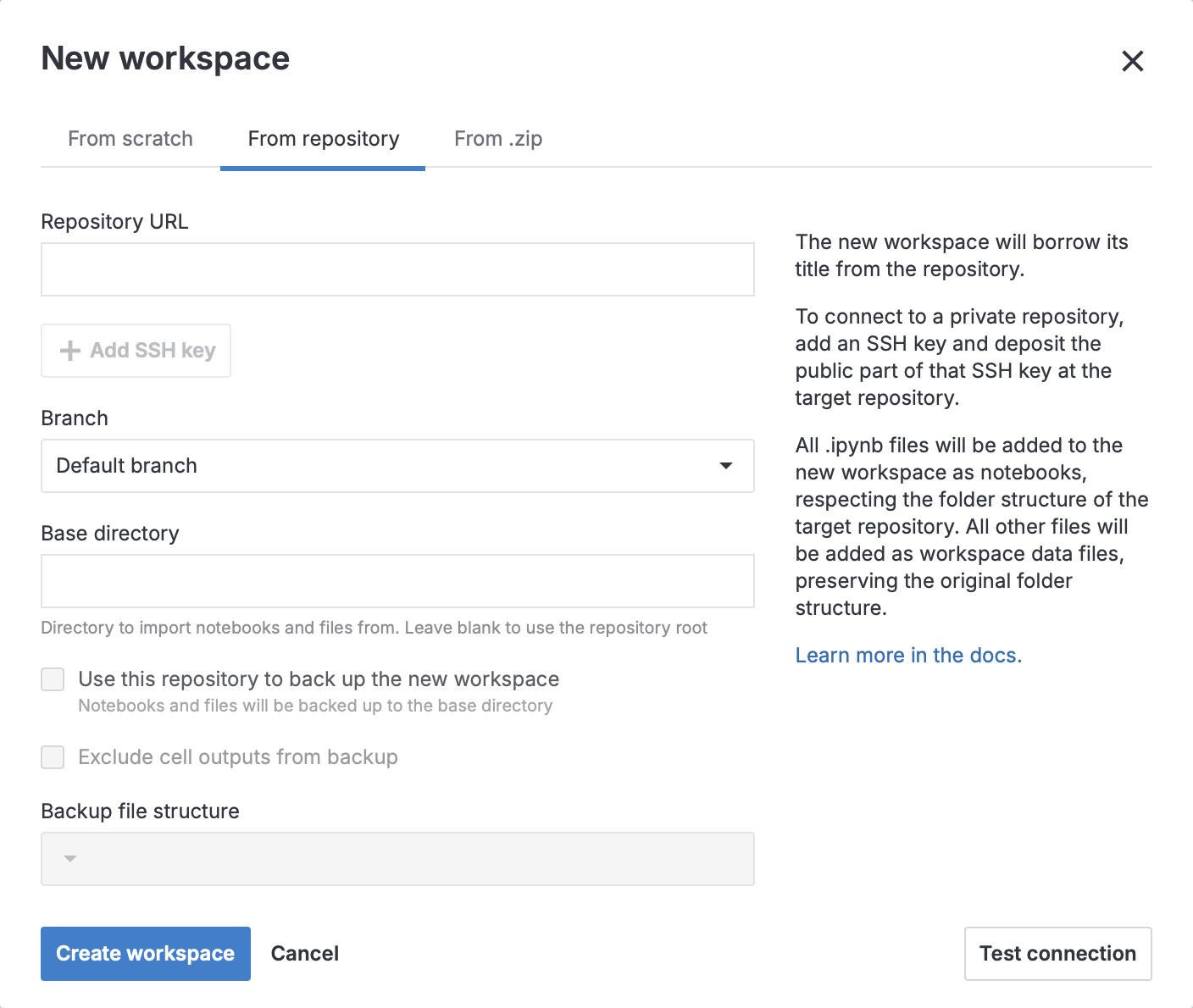
In Repository URL, enter the URL of your Git repository.
Configure the connection depending on the URL you provided:
(Optional) In Branch, select the branch to import notebooks and files from.
(Optional) In Base directory, enter the name of the directory to import notebooks and files from. If left empty, the repository root is used.
Click
Add SSH key.Paste the SSH private key you want to use for the connection and click Go to next step.
Click Add key.
(Optional) In Branch, select the branch to import notebooks and files from.
(Optional) In Base directory, enter the name of the directory to import notebooks and files from. If left empty, the repository root is used.
(Optional) To set up this repository connection for workspace backups, enable Use this repository to back up the new workspace.
(Optional) If you want to back up notebooks without outputs, enable Exclude cell outputs from backup.
(Optional) In Backup file structure, select how you want the notebooks and files to be stored in the backup.
Click Create workspace.
Next steps
Add files to your new workspace
Create connections to databases and cloud storage providers