Publish a report
After you have built a report from your notebook, you can publish it so that others can view the results and findings of your work.
You can choose the type of report, select who can access to it, and determine whether Reactive mode is enabled.
Publish a report
If you are not in the report builder, open it by clicking Build report at the top right of the notebook.
Click
 Publish report at the bottom left of the Report builder dialog.
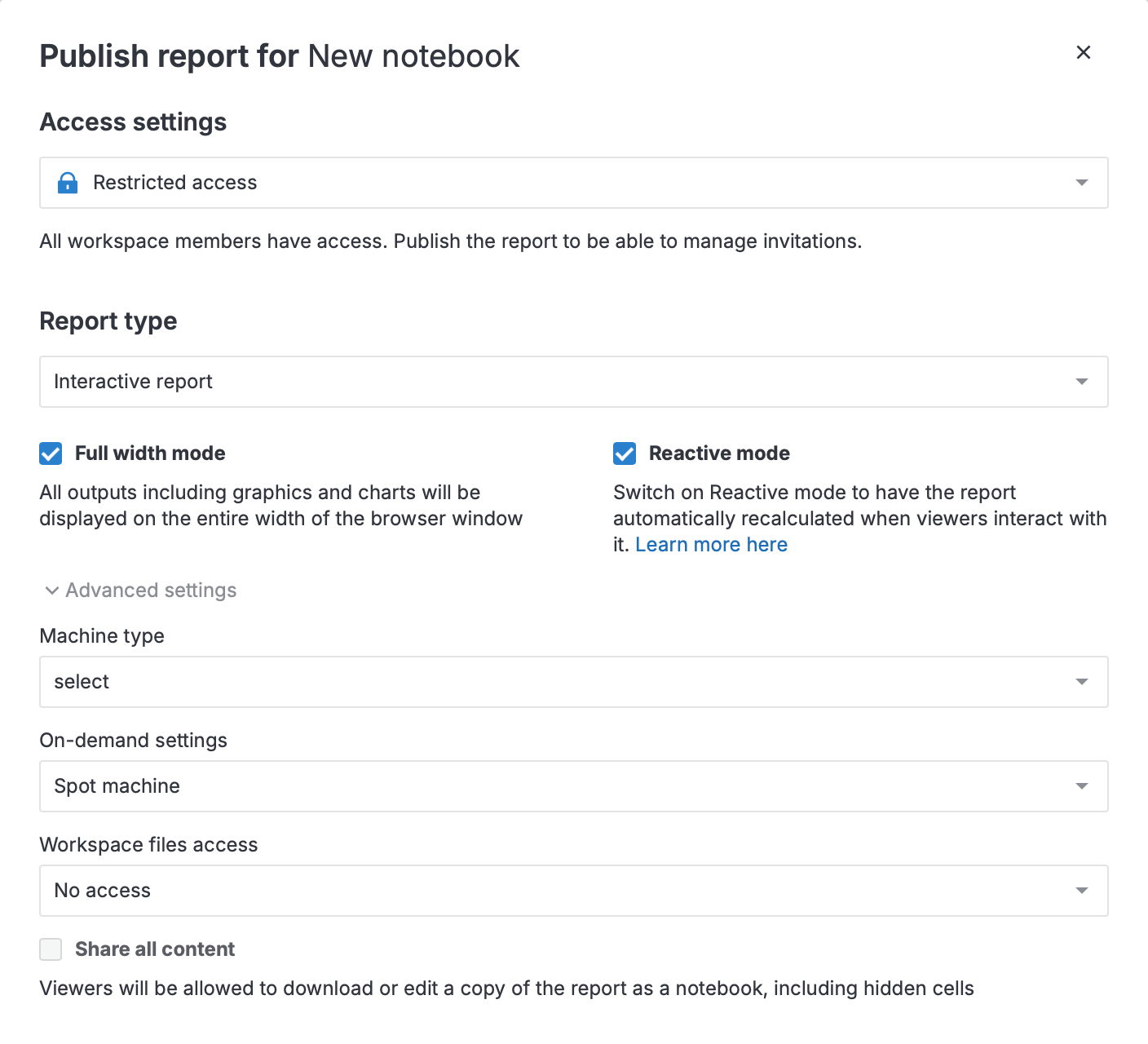
Under Access settings, select who can access the report:
Restricted access (default): Only those users who have access to the workspace with the report and the people you share the report directly with will have access.
Public access: Anyone with the link to the report will have access.
Under Report type, select one of the options:
Static report (default): Viewers will see the report with pre-calculated values.
Interactive report: Viewers can change the values of interactive controls and recalculate the report dynamically.
(Optional) To customize the report, enable or disable the following options:
Full-width mode: Allows the report content to take the whole width of the browser window.
Machine type (interactive reports only): Use a different machine type for report calculations than the one used by the source notebook. By default, the report runs on the same machine type as the source notebook.
On-demand settings (interactive reports only): Choose a spot machine or an on-demand machine for report calculations. By default, the report runs on the same machine type as the source notebook.
Reactive mode (interactive reports only): Automatically recalculates the report when viewers interact with it.
Workspace files access (interactive reports only): Select whether to allow read or write access to workspace files for code in reports.
Share all content: Allow the report viewers to download or edit a copy of the report as a notebook, including hidden cells.
Click
Publish report.