Register DataSpell
You can evaluate DataSpell free of charge for up to 30 days.
DataSpell offers the following activation options:
Free 30-day trial: a 30-day trial to explore all IDE features.
Activate License: a paid subscription for commercial use.
Extend Trial: an extended trial period for commercial use, available only for organizations.
Complimentary options: free access programs for students, teachers, and other eligible users.
Trial and subscription
If you are a new user and have not installed any JetBrains tools before, the IDE starts in anonymous trial mode. You do not need to log in or take any additional steps. The trial lasts for 30 days.
On the Welcome screen, you can open an existing project or create a new one. After you open a project, a popup appears, letting you know that you are using a trial version.
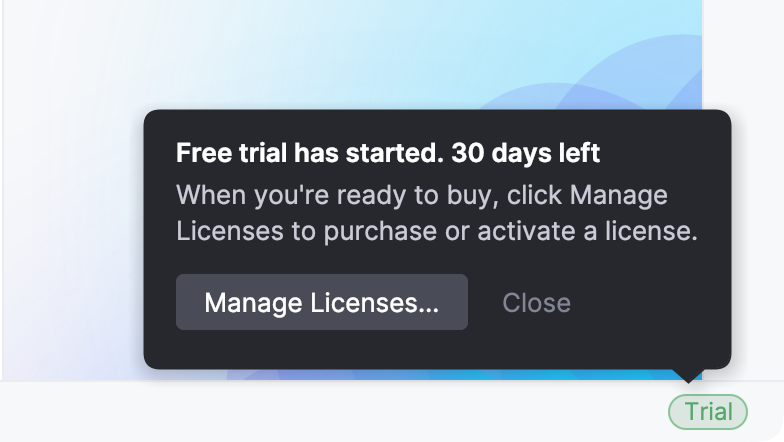
The trial also includes access to AI Assistant features. The AI promo is available to anonymous users as well.
If the IDE cannot start the trial automatically, it displays a dialog prompting you to start the trial manually. In this case, click Free 30-Day Trial. If starting the trial still fails, make sure you have an active internet connection.
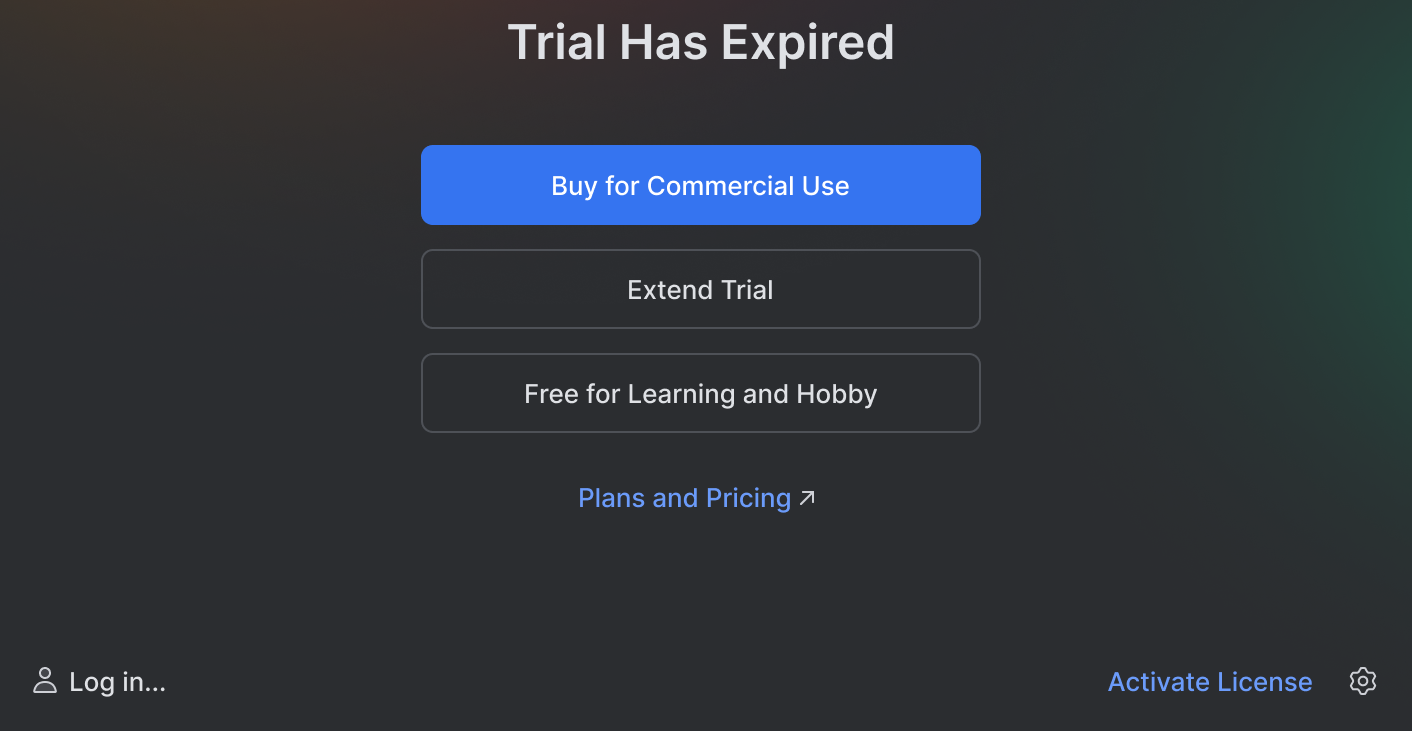
After the trial version expires, you need to buy and register a commercial license to continue using DataSpell. A new trial period will be available for the next major version of DataSpell.
Extend a trial period
At the end of the 30-day trial period, commercial customers can request extending of the trial period. Alternatively, visit the following page: https://www.jetbrains.com/shop/eform/extended-trial/GO.
Buy DataSpell license
Start DataSpell and select Help | Register... from the main menu.
In the Licenses dialog, click the Buy license link.
This link redirects you to the JetBrains website.
Select the option you need and complete the procedure following the respective instructions on the website.
Activate DataSpell license
Select from the main menu or click
 |Manage Subscriptions on the Welcome screen to open the Manage Subscriptions dialog.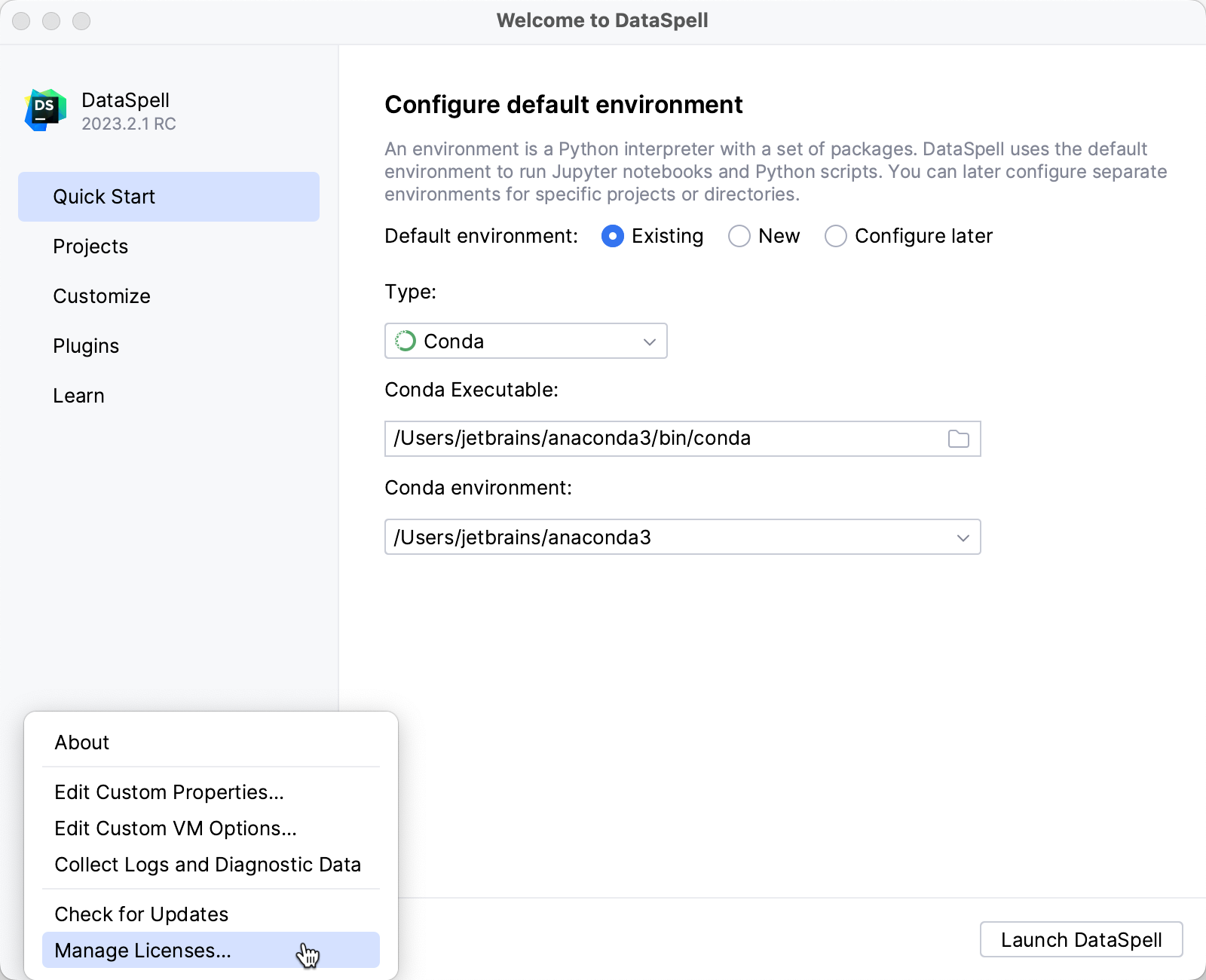
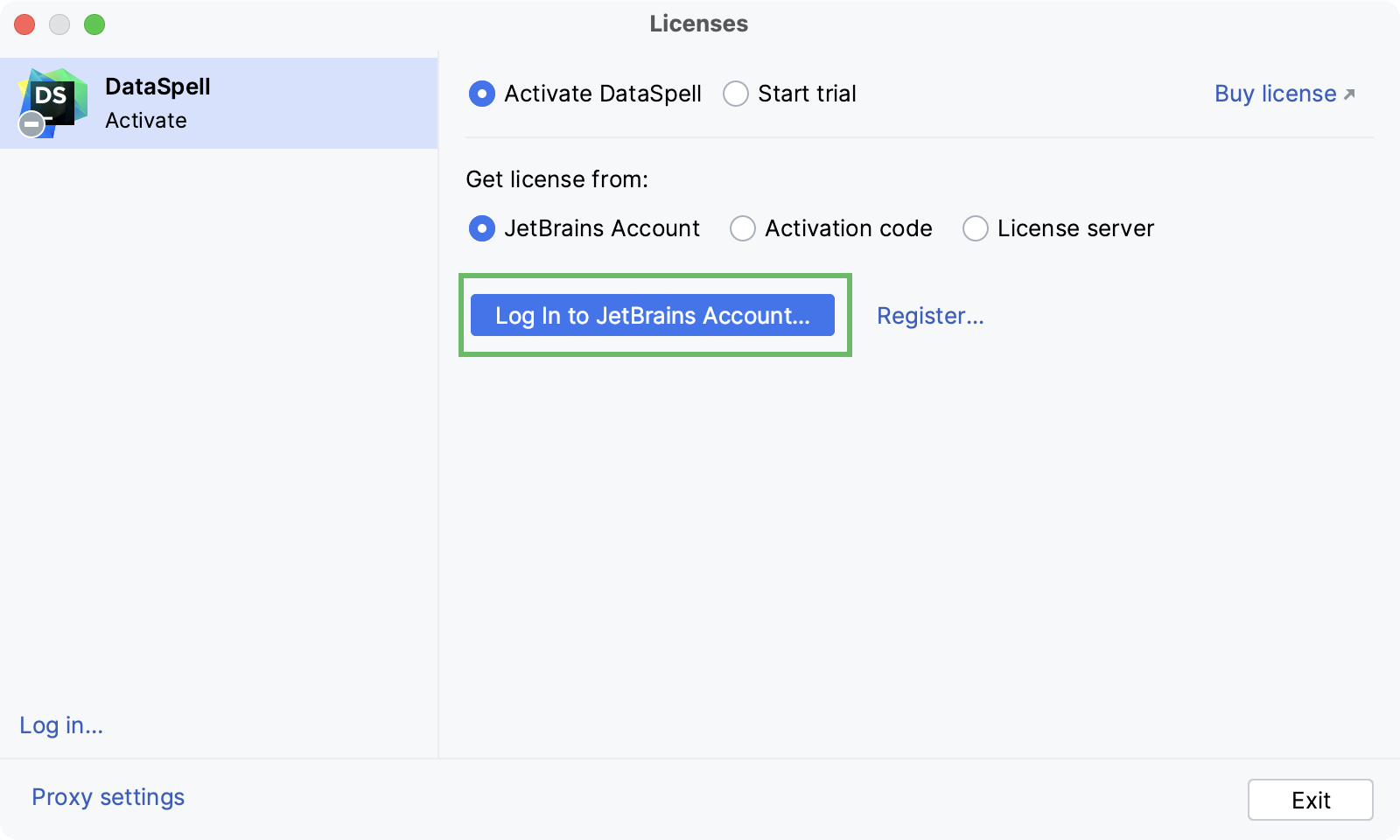
Choose how you want to register DataSpell or a plugin that requires a license:
Log in to your JetBrains Account and get licenses that you have purchased.
If you don't have a JetBrains Account yet, click Register.
DataSpell automatically shows the list of your licenses and their details like expiration date and identifier. Click Activate to start using your license.
If your license is not shown on the list, click Refresh license list.
Provide an activation code and click Activate.
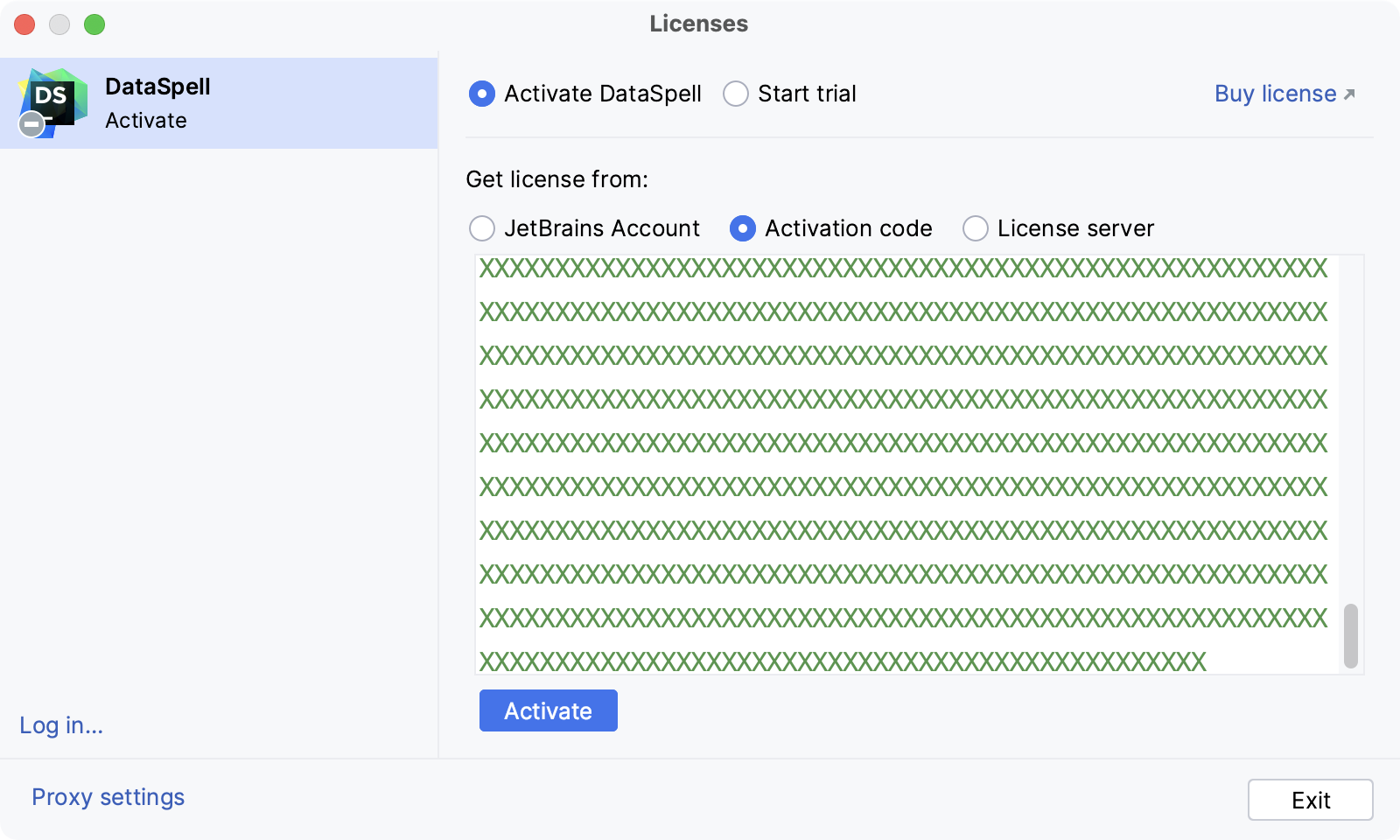
When purchasing a product license, you receive a code for its offline activation. You can always download available activation codes from your JetBrains Account.
Register using the Floating License Server or License Vault.
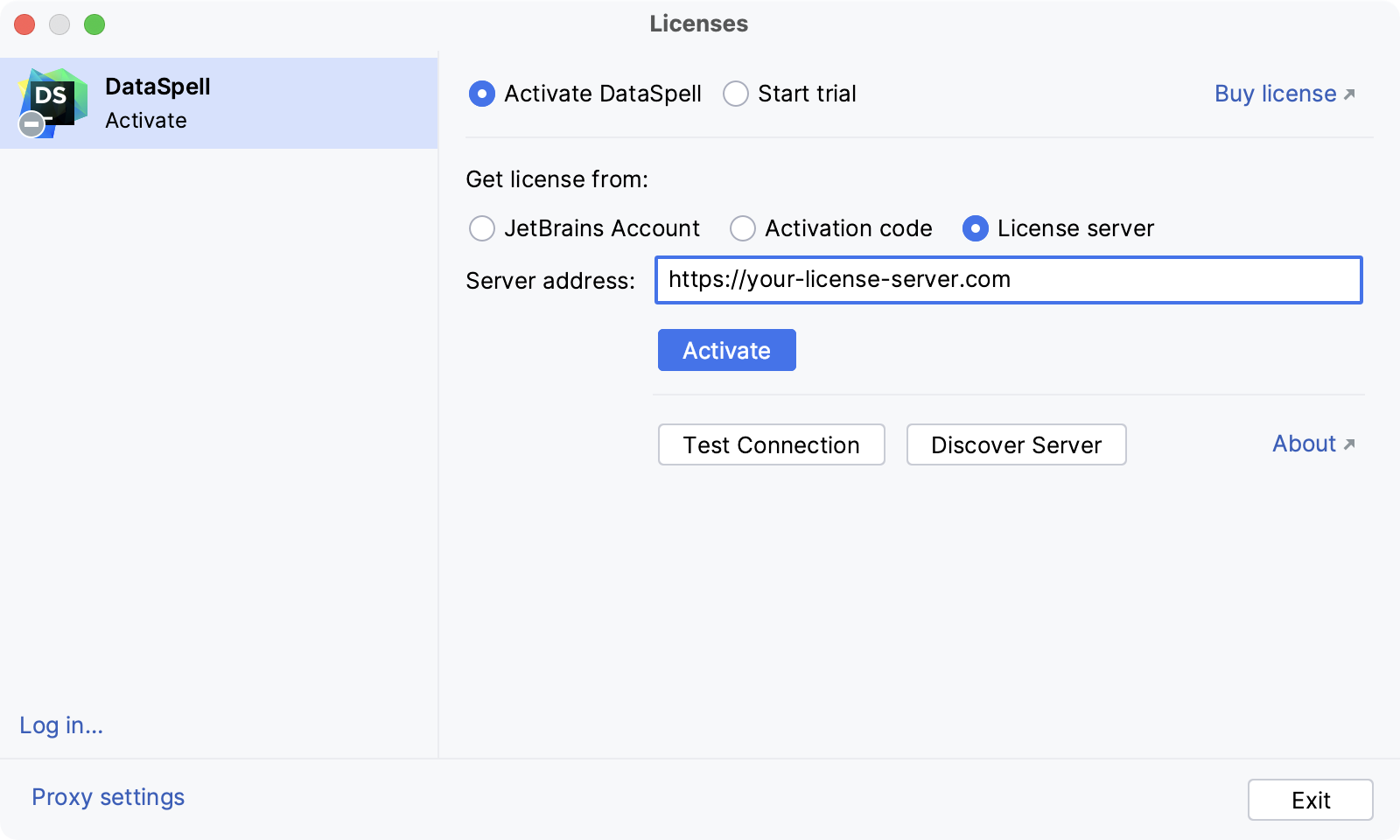
When performing a silent installation or managing DataSpell installations on multiple machines, you can set the
JETBRAINS_LICENSE_SERVERenvironment variable to point to the URL of the Floating License Server or License Vault.Alternatively, you can set the URL of the Floating License Server or License Vault by adding the
-DJETBRAINS_LICENSE_SERVERJVM option.
Activation with JetBrains Account
JetBrains Account is a convenient option to manage your licenses and activate DataSpell.
To link your JetBrains Account to your DataSpell installation, click Log in... in the bottom left corner of the Licenses dialog. After a successful login, your JetBrains Account username will be displayed in the bottom left corner of the dialog.
DataSpell will automatically log you into your JetBrains Account if you are using JetBrains Toolbox app to install JetBrains products and already logged in there.
If you use two-factor authentication for your JetBrains Account, you can specify the generated app password instead of the primary JetBrains Account password.
Change active user
Select from the main menu or click
|Manage Subscriptions on the Welcome screen to open the Manage Subscriptions dialog.Click your name in the bottom left corner of the dialog and select Log Out.
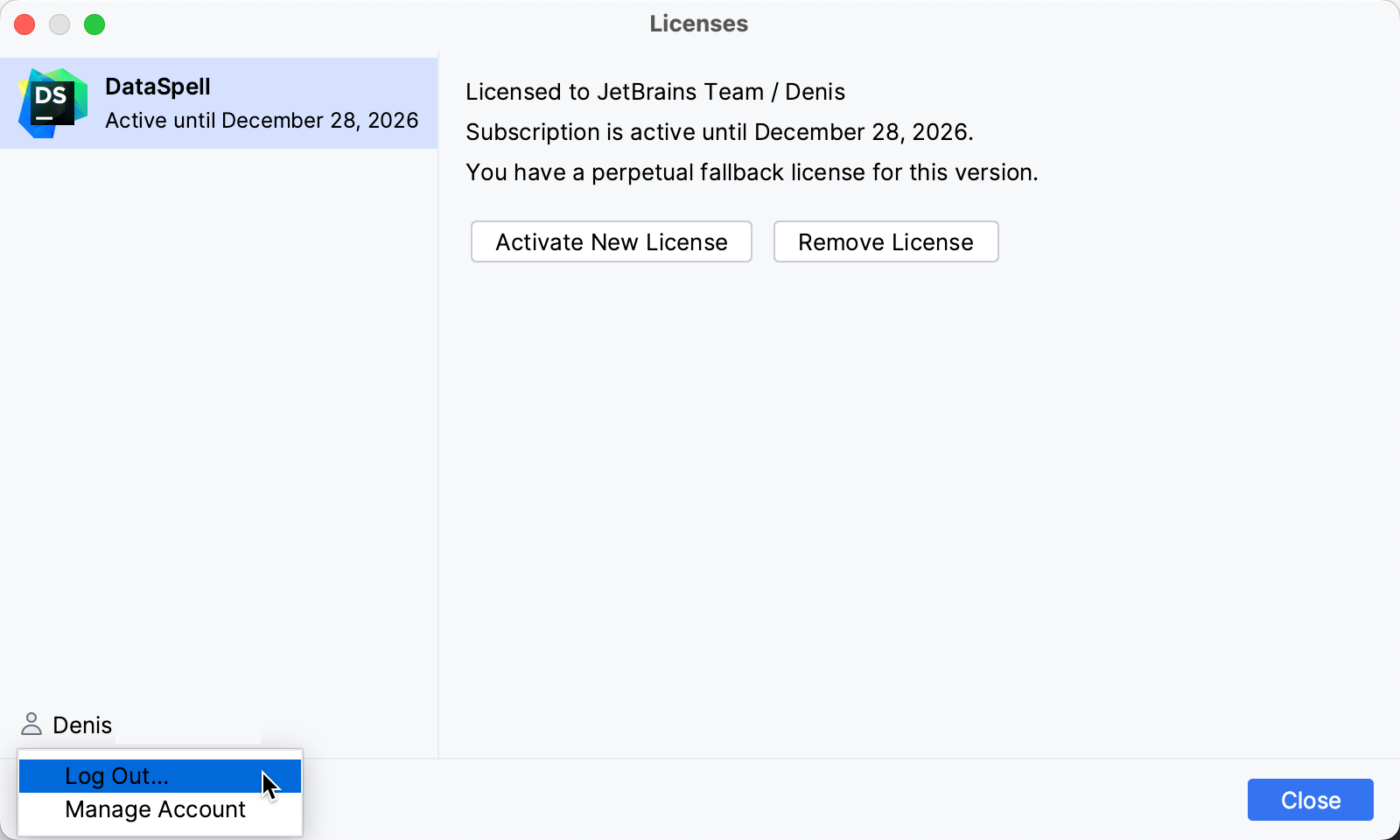
After logging out, you can log in using another JetBrains Account.
Access to JetBrains Account: Troubleshooting
If you encounter problems when attempting to log in to your JetBrains Account, this may be due to one of the following reasons:
No free ports
DataSpell waits for a response about successful login from the JetBrains Account website. If there are no ports available, DataSpell will suggest logging in with an authorization token.
Unable to open JetBrains Account in your browser
When you click Log in to JetBrains Account, DataSpell redirects you to the JetBrains Account website. If your system browser doesn't start, use the Troubles emergency button. DataSpell will suggest logging in with an authorization token.
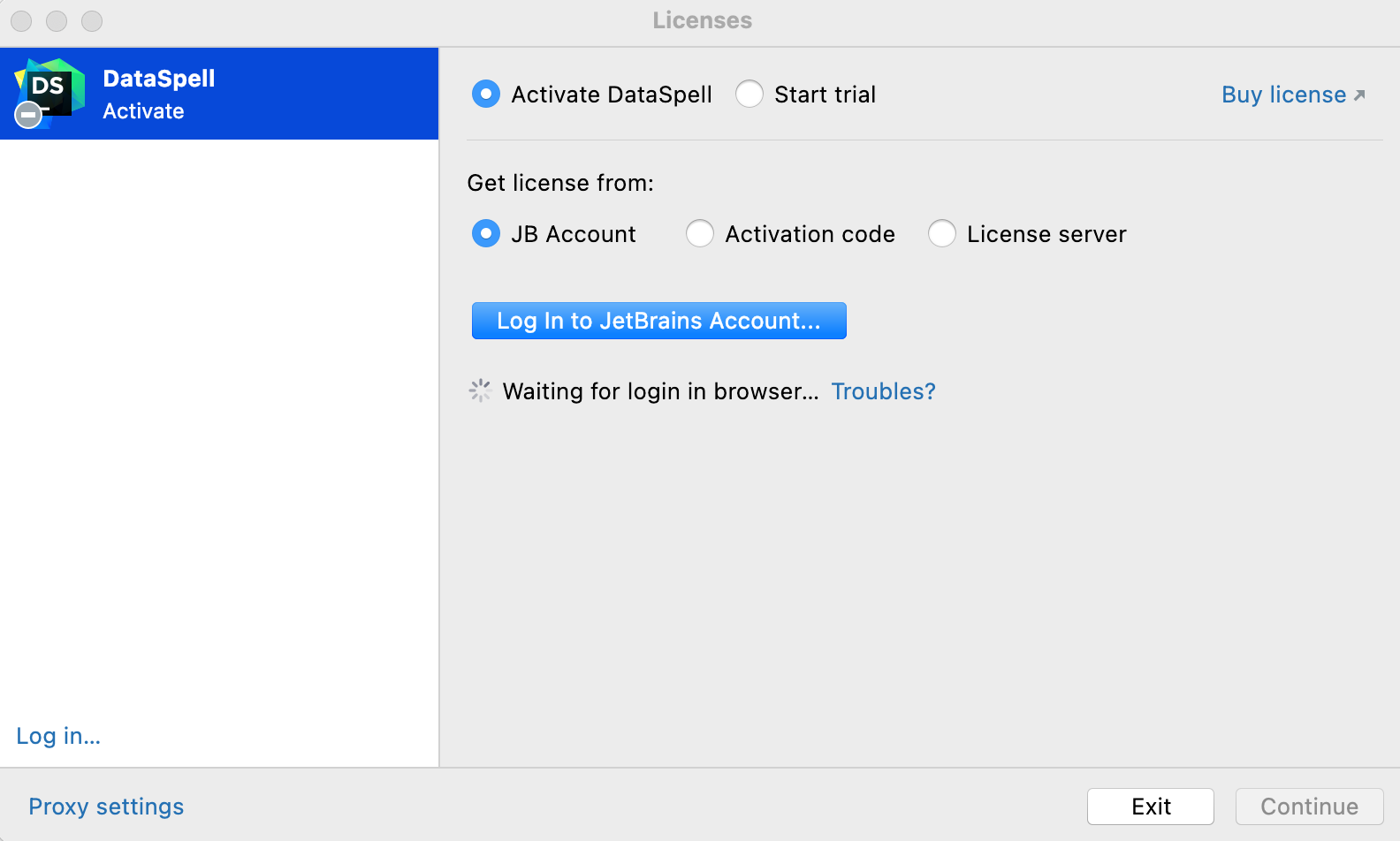
No access to JetBrains Account
The login process requires access to the JetBrains Account website. DataSpell automatically redirects you to the website or lets you log in with an authorization token. If both options don't work and you cannot access the website, contact your system administrator. Otherwise, it will not be possible for you to log in and start using DataSpell.
Log in with an authorization token
An authorization token is a way to log in to your JetBrains Account if your system doesn't allow for redirection from the IDE directly, for example, due to your company's security policy. DataSpell recognizes when redirection to the JetBrains Account website is impossible. It enables you to copy a link to generate an authorization token manually.
Click Copy link and open the copied link in your browser.
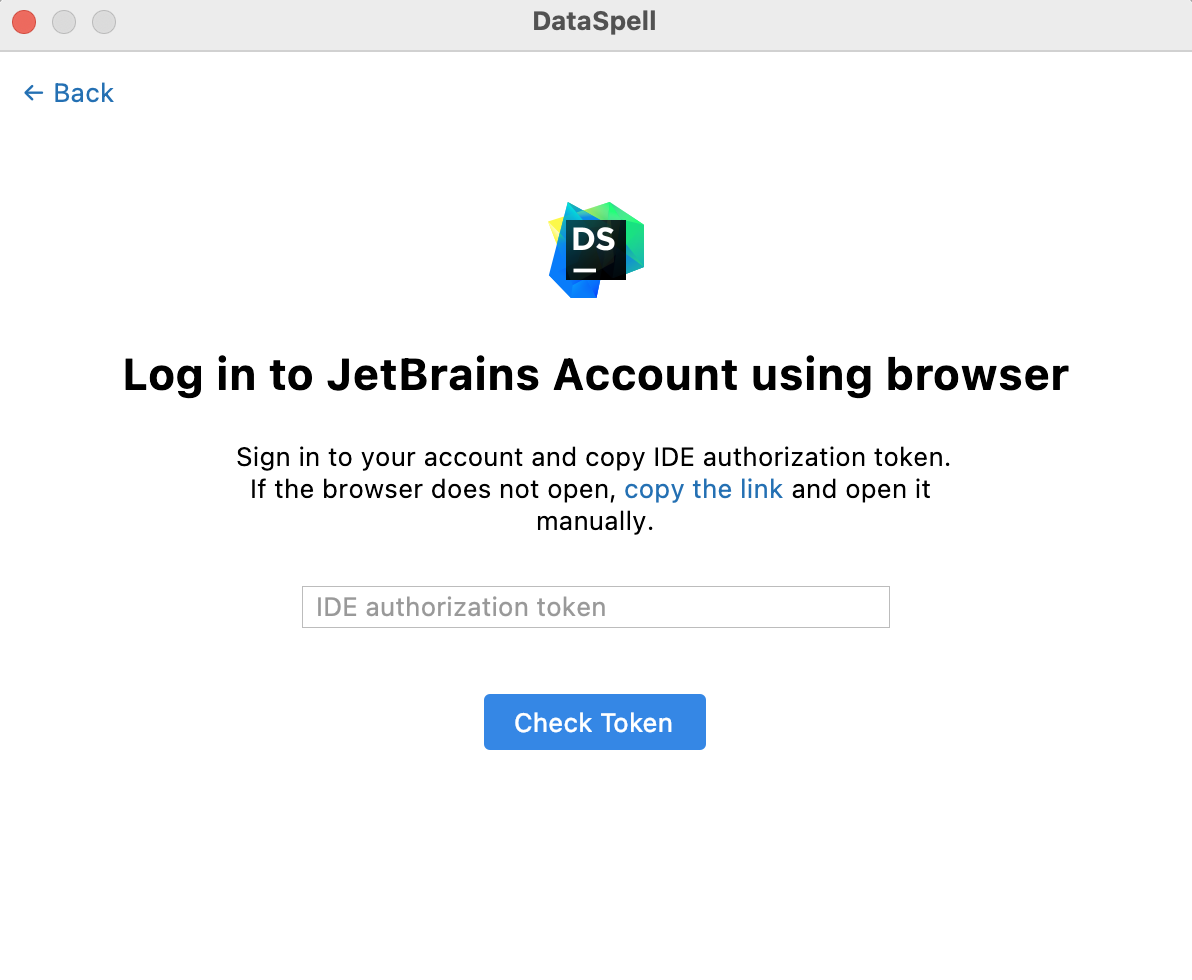
Log in to your JetBrains Account to generate an authorization token. After that, copy the token, paste it to the IDE authorization token field and click Check token. Once you've successfully logged in, you can start using DataSpell.