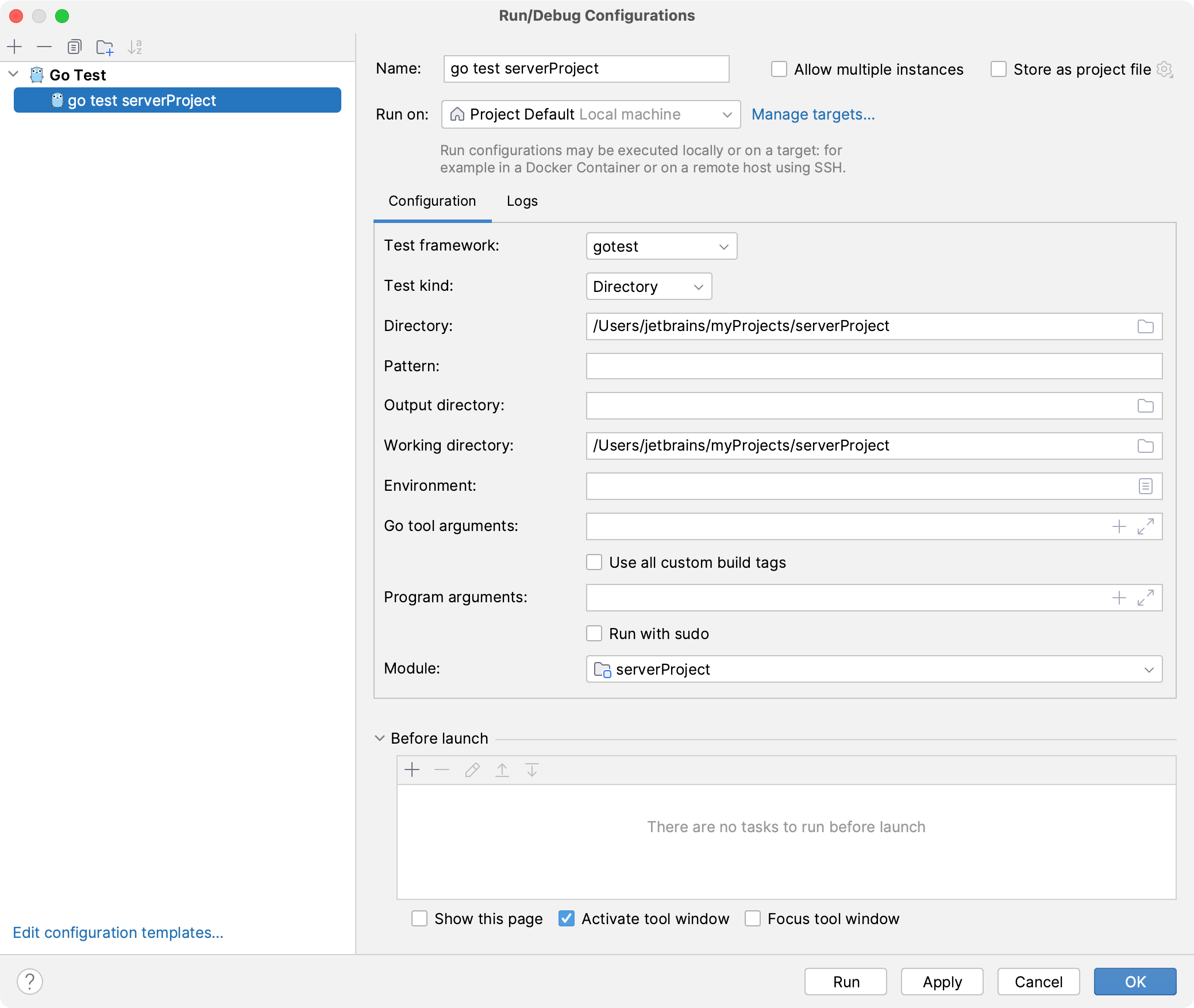
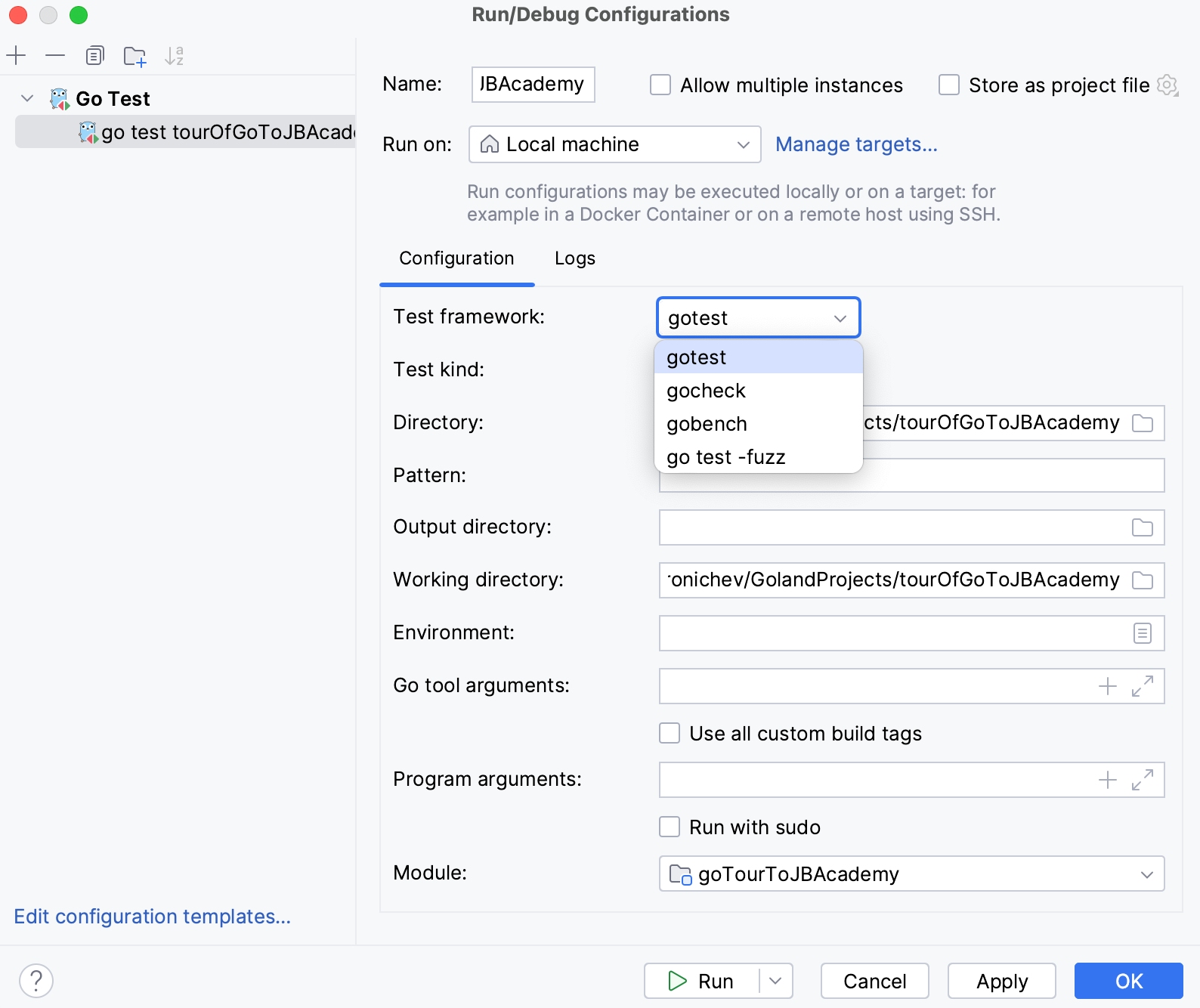
Select the package that you want to use to run tests.
gotest: use for running standard unit tests. For more information about go test, refer to Package testing.
gocheck: use to have extended functionality of go check and running more complex tests. For more information about go check, refer to go check.
gobench: use for running performance tests. For more information about gobench, refer to Package testing: Benchmarks.
go test -fuzz: use an automated testing technique that involves generating and feeding a large volume of random or semi-random data as input to a Go program. The goal of fuzzing is to explore the program's code and surface potential bugs, vulnerabilities, or unexpected behaviors that may not be apparent with traditional testing methods. For more information about gobench, refer to Go Fuzzing.
Test kind
Select the scope from which you want to run tests:
Directory: to run all the tests in the specified directory. In the Directory field, specify a path to a directory that includes an application file and a test file (for example, applicationFolder/ with main.go and main_test.go).
Package: to run all the tests that belong to a package. In the Package path field, select a path to the package with tests that you want to run (for example, github.com/rcrowley/go-metrics).
To enable package tests, open setting by pressing Ctrl+Alt+S, navigate to Go Go modules, and select the Enable Go modules integration checkbox.
File: to run all tests from a testing file. In the Files field, type a path to a testing file.
Ensure that the Files field does not include other paths.
Pattern
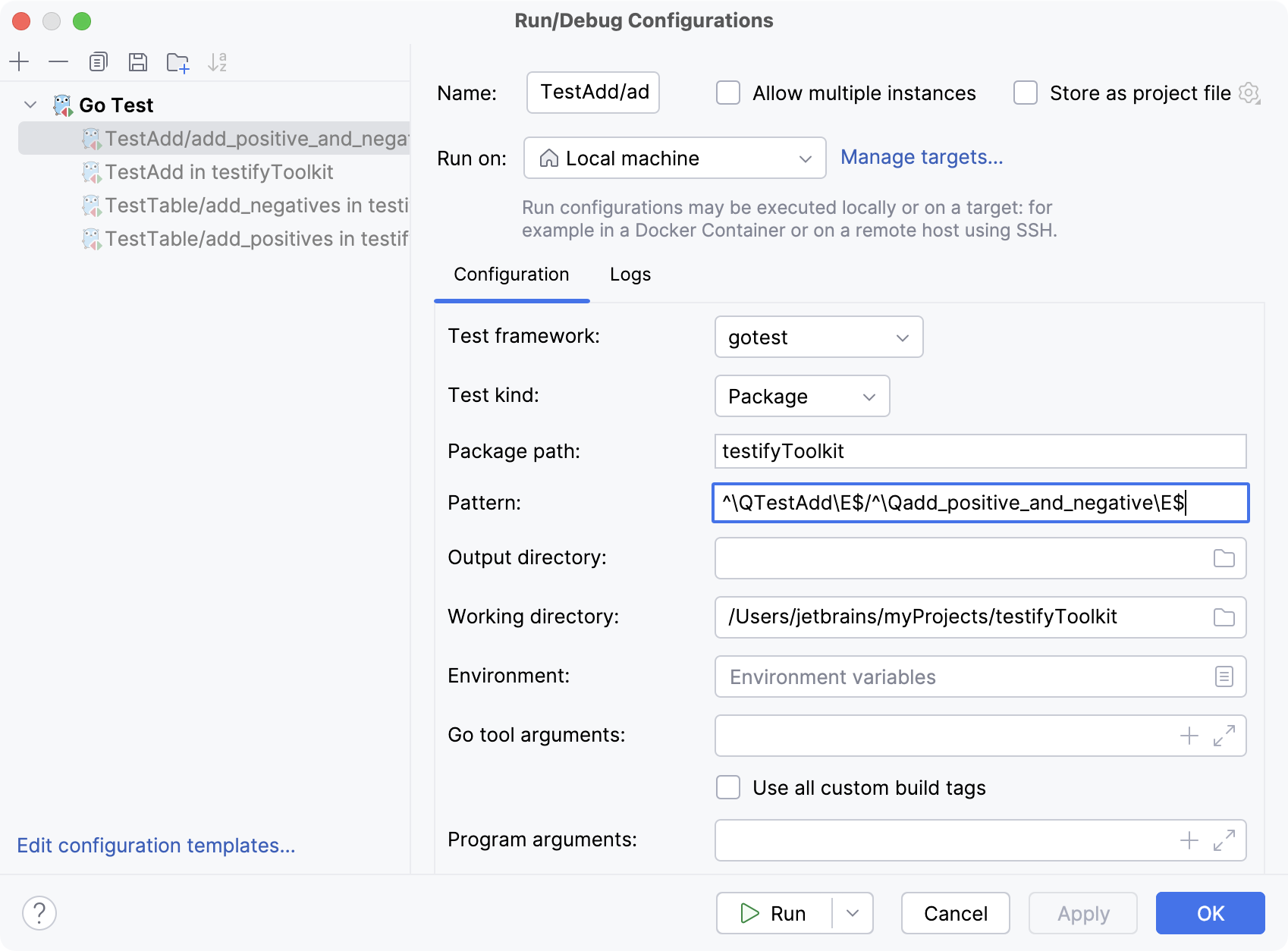
Type a regular expression that defines what tests to run. GoLand will execute only the tests, examples, and fuzz tests that conform to the regular expression provided. For tests, the expression is divided by slashes (/) not enclosed in brackets into a series of regular expressions. Each segment of a test's identifier must align with the corresponding part of the sequence.
For instance, to execute a specific test named add_positive_and_negative within the TestAdd table test, the regular expression would be: ^\QTestAdd\E$/^\Qadd_positive_and_negative\E$.
Working directory
Directory that is used for the built application. If you have any code that creates relative files or directories, they will be relative to this directory.
Output directory
Directory that stores your test results if any.
Run after build
Execute a test after the build.
Redirect input from
Path to the file that will to take program input instead of the console.
Working directory
Directory that is used for the built application. If you have any code that creates relative files or directories, they will be relative to this directory.
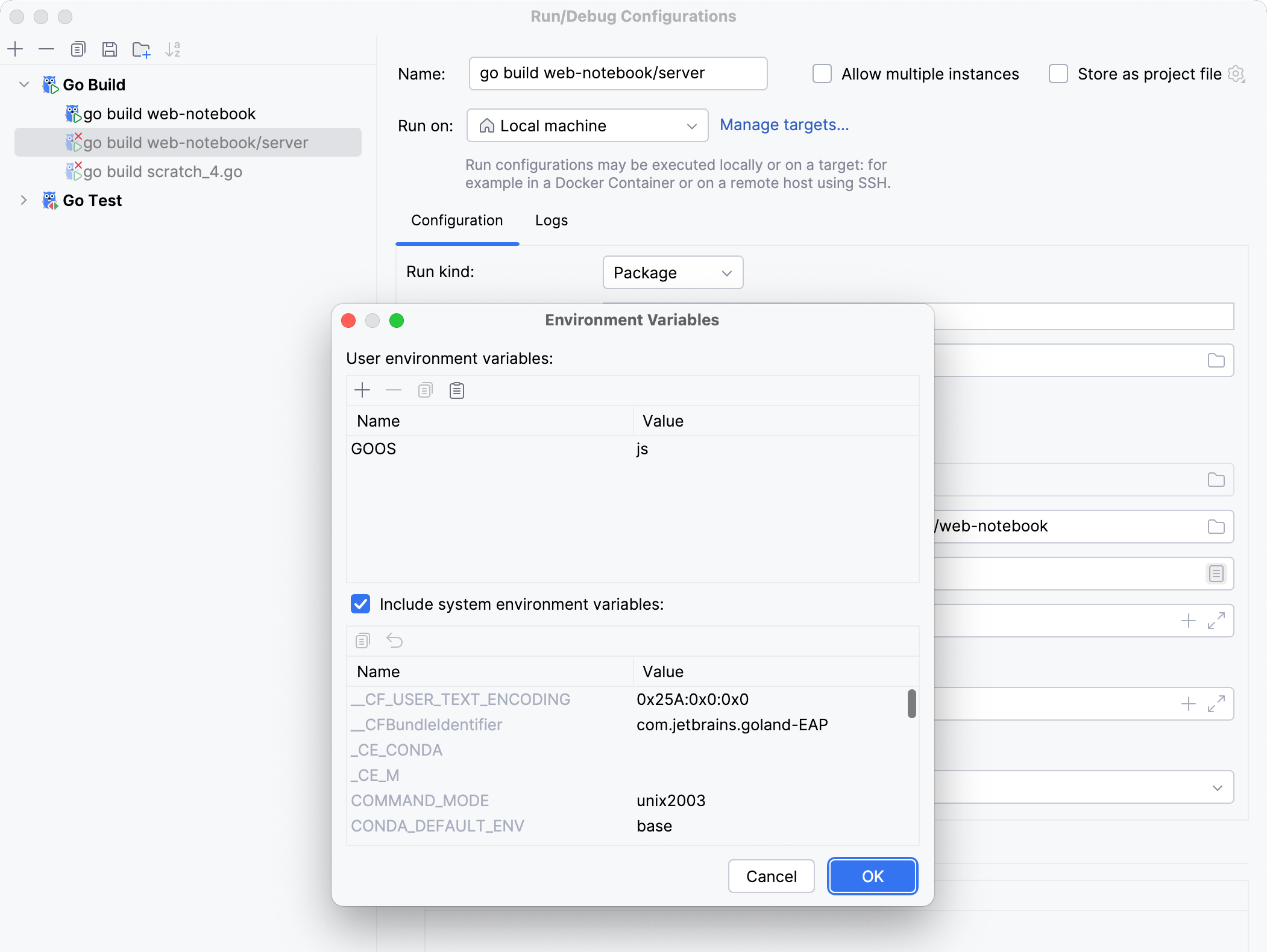
Environment
: environment variables that you need to run the test.
To edit environment variables, click the Browse button at the end of the field. In the Environment Variables dialog, click the Add button and add the environment variables that you need.
Go tool arguments
Arguments for the go tool (for example, -tags).
Use all custom build tags
All tags that are applied during the build. Tags are listed in settings Ctrl+Alt+S under Go Build Tags.
Program arguments
Arguments for the test.
Run with sudo
Grant sudo privileges to the test.
Before launch: Activate tool window
Add tasks that you want to launch before the launch of the selected run/debug configuration. To add a task, click the Add button Alt+Insert and select the tool that you want to add.
Common settings
When you edit a run configuration (but not a run configuration template), you can specify the following options:
Item
Description
Name
Specify a name for the run configuration to quickly identify it among others when editing or running.
Allow multiple instances
Allow running multiple instances of this run configuration in parallel.
By default, it is disabled, and when you start this configuration while another instance is still running, GoLand suggests stopping the running instance and starting another one. This is helpful when a run configuration consumes a lot of resources and there is no good reason to run multiple instances.
Store as project file
Save the file with the run configuration settings to share it with other team members. The default location is .idea/runConfigurations. However, if you do not want to share the .idea directory, you can save the configuration to any other directory within the project.
By default, it is disabled, and GoLand stores run configuration settings in .idea/workspace.xml.
Before launch
In this area, you can specify tasks to be performed before starting the selected run/debug configuration. The tasks are performed in the order they appear in the list.
Item
Shortcut
Description
Alt+Insert
Click this icon to add one of the following available tasks:
Launch Web Browser: select this option to have a browser started. In the dialog that opens, select the type of the browser and provide the start URL. Also, specify if you want the browser to be launched with the JavaScript debugger.
Run External tool: select to run an external application. In the dialog that opens, select one or multiple applications you want to run. If it is not defined in GoLand yet, add its definition.
Run Another Configuration: select to execute another run/debug configuration and wait until it finishes before starting the current configuration. If you want to run several configurations in parallel, use a compound run/debug configuration.
Run File Watchers: select this option to have GoLand apply all the currently active File Watchers.
Run Remote External Tool: adds a remote SSH external tool.
Run Grunt task: select this option to run a Grunt task.
In the Grunt task dialog that opens, specify the Gruntfile.js where the required task is defined, select the task to execute, and specify the arguments to pass to the Grunt tool.
Specify the location of the Node.js runtime, the parameters to pass to it, and the path to the grunt-cli package.
Run gulp task: select this option to run a Gulp task.
In the Gulp task dialog that opens, specify the Gulpfile.js where the required task is defined, select the task to execute, and specify the arguments to pass to the Gulp tool.
Specify the location of the Node.js runtime, the parameters to pass to it, and the path to the gulp package.
Run npm script: select this option to execute an npm script.
Compile TypeScript: select to run the built-in TypeScript compiler and thus make sure that all the changes you made to your TypeScript code are reflected in the generated JavaScript files. In the TypeScript Compile Settings dialog that opens, select or clear the Check errors checkbox to configure the behaviour of the compiler in case any errors are detected:
If the Check errors checkbox is selected, the compiler will show all the errors and the run configuration will not start.
If the Check errors checkbox is cleared, the compiler will show all the detected errors but the run configuration still will be launched.
Run Go Command: select to run a Go command before running your program. For example, you can run go generate to generate source code before compilation. In the Edit Go Command Task dialog, you can use auto-completion. Auto-completion supports the following commands generate, vet, test -i. You can use your own commands.
Disconnect Data Source: select this option if you want to disrupt the connection to a data source before the run/debug configuration is run.
Alt+Delete
Click this icon to remove the selected task from the list.
Enter
Click this icon to edit the selected task. Make the necessary changes in the dialog that opens.
Alt+Up
Alt+Down
Click these icons to move the selected task one line up or down in the list. The tasks are performed in the order that they appear in the list.
Show this page
Select this checkbox to show the run/debug configuration settings prior to actually starting the run/debug configuration.
Activate tool window
By default this checkbox is selected and the Run or the Debug tool window opens when you start the run/debug configuration.
Otherwise, if the checkbox is cleared, the tool window is hidden. However, when the configuration is running, you can open the corresponding tool window for it yourself by pressing Alt+4 or Alt+5.
Focus tool window
Select this checkbox to automatically move focus to the Run or the Debug tool window when you start the run/debug configuration.
Logs
The following options are related to logging the execution of this configuration. For more information, refer to Setting log options.
Item
Description
Specify logs to be shown in the console
Specify which log files to display while running the application.
Click to add a new log. In the Edit Log Files Aliases dialog, configure the following:
Alias: The name of the tab where the log will be displayed.
Log File Location: Specify the path to the log file or an Ant pattern. If several files of a rolling log match the pattern, GoLand will display the most recent one.
Show all files coverable by pattern: Show all logs that match the pattern.
For logs in the table, you can configure the following options:
Is Active: Display the specified log file.
Skip Content: Do not display old log messages from previous runs.
Save console output to file
Save the console output to the specified location. Type the path manually or click the browse button and point to the desired location in the dialog that opens.
Show console when a message is printed to stdout
Activate the console when the application writes to the standard output stream.
Show console when a message is printed to stderr
Activate the console when the application writes to the standard error stream.