Tutorial: Debug your first Java application
You have created and run your Java application. Let's imagine you have discovered that it functions not the way you expected. For example, it returns a wrong value or crashes with an exception. Seems like you have errors in your code, and it’s time to debug it.
In this tutorial, you will learn how to use the IntelliJ IDEA debugger to find and fix logic errors in a Java application.
You will get acquainted with the essential debugging workflow: from setting breakpoints and running a debug session to stepping through the code and analyzing the program state. Along the way, you will become familiar with the Debug tool window, and how to use variable inspection and inline debugging to validate program logic.
For this tutorial, you only need basic knowledge of Java. The tutorial uses Java 25 syntax.
What Is Debugging?
Broadly, debugging is the process of detecting and correcting errors in a program.
There are different types of errors that you are going to deal with. Some of them are easy to catch, like syntax errors, because they are taken care of by the compiler. Another easy case is when an error can be quickly identified by looking at the stack trace, which helps you figure out the cause.
However, there are errors that can be tricky and take a long time to find and fix it. For example, a subtle logic error that occurs early in the program, may not manifest itself until much later, making it a real challenge to sort things out.
This is where the debugger comes in handy. It is a tool that lets you find bugs efficiently by providing insight into the internal operations of a program. This is possible by pausing the execution at a specified point, analyzing the program state, and, if necessary, advancing the execution step-by-step. While debugging, you are in full control of the things. This tutorial covers a basic debugging scenario to get you started.
Examine the code
Let's try a simple debugging case.
Create a new project
Launch IntelliJ IDEA.
If the Welcome screen opens, click New Project. Otherwise, go to in the main menu.
In the New Project list, select Java. Give the project a name (for example, AverageFinder).
Select Maven as the Build system.
From the JDK list, select the latest available Oracle OpenJDK version.
If the JDK is installed on your computer, but not defined in the IDE, select Add JDK and specify the path to the JDK home directory.
If you do not have the necessary JDK on your computer, select Download JDK.
Select the Add sample code option. Click Create.
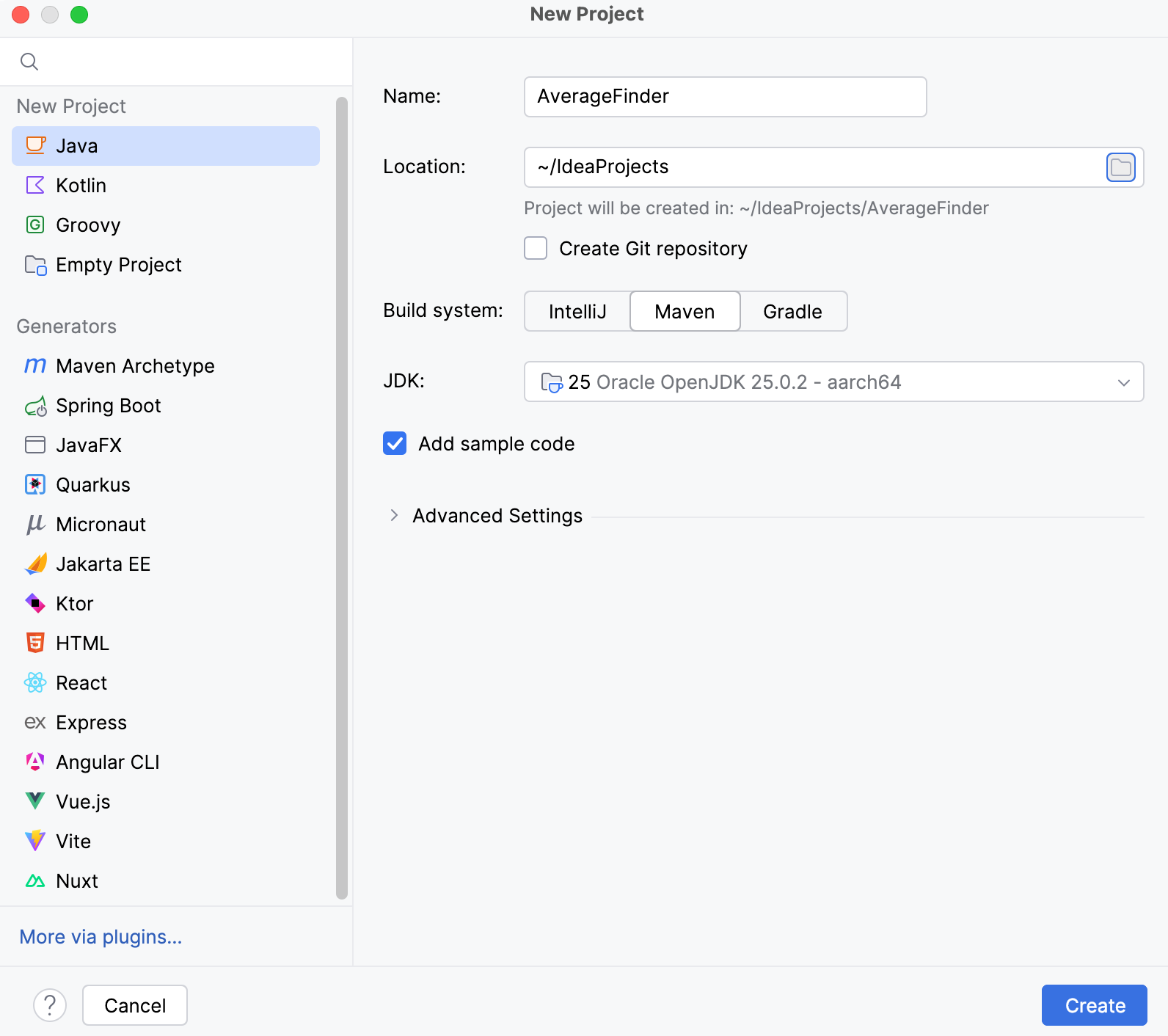
After that, the IDE will create and load the new project for you.
Write the code
When the project is created, in the Project tool window (Alt+1), locate the file and open it in the editor.
Replace the existing code with the following code sample:
void main(String[] args) { IO.println("Average finder v0.1"); double avg = findAverage(args); IO.println("The average is " + avg); } private static double findAverage(String[] input) { double result = 0; for (String s : input) { result += Integer.parseInt(s); } return result; }Run the application (Shift+F10).
Now you have a program that is supposed to calculate the average of all values passed as command-line arguments.
The program compiles and runs without issues; however, the result is not what one would expect. For instance, when you pass 1 2 3 as the input, the result is 6.0 instead of 2.0.
First of all, you need to think about where the error might be coming from. You can assume the problem is not in the print statements. Most likely, unexpected results are coming from findAverage method. In order to find the cause, let's examine its behavior in the runtime.
Set breakpoints
To investigate the bug, you need to pause the program when it reaches the piece of code that is producing a wrong result. This is done by setting breakpoints. Breakpoints indicate the lines of code where the program will be suspended for you to examine its state.
Click the gutter at the line where the
findAveragemethod is called.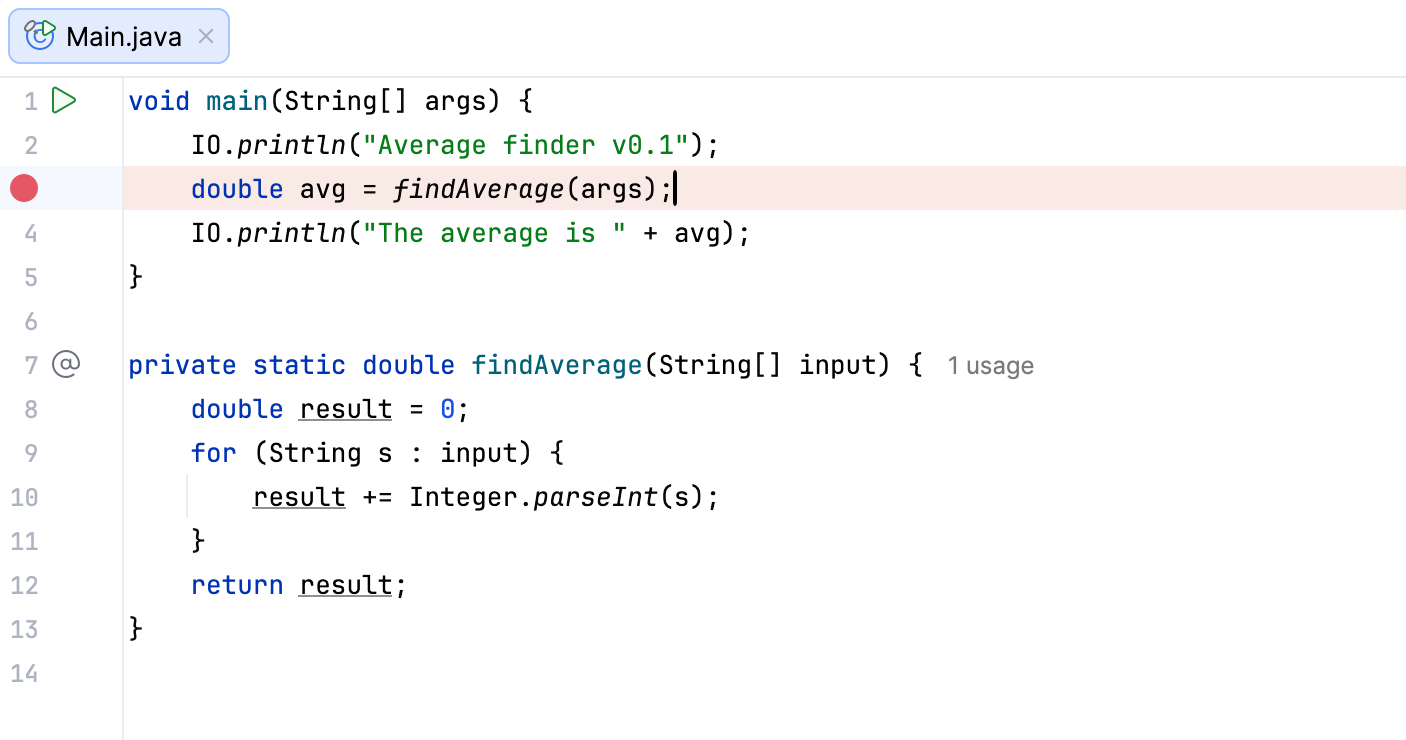
Now you can see a red dot in the gutter next to the line of code. This is a breakpoint. When the program reaches this line, the IntelliJ IDEA debugger suspends its execution, so that you can examine what is happening and check whether the program is working correctly at this point.
Run the program in debug mode
Now let’s start the program in debug mode.
Since you need to pass arguments when running and debugging the program, let's include them to the run/debug configuration.
Click the
 Run icon in the gutter, then select Modify Run Configuration.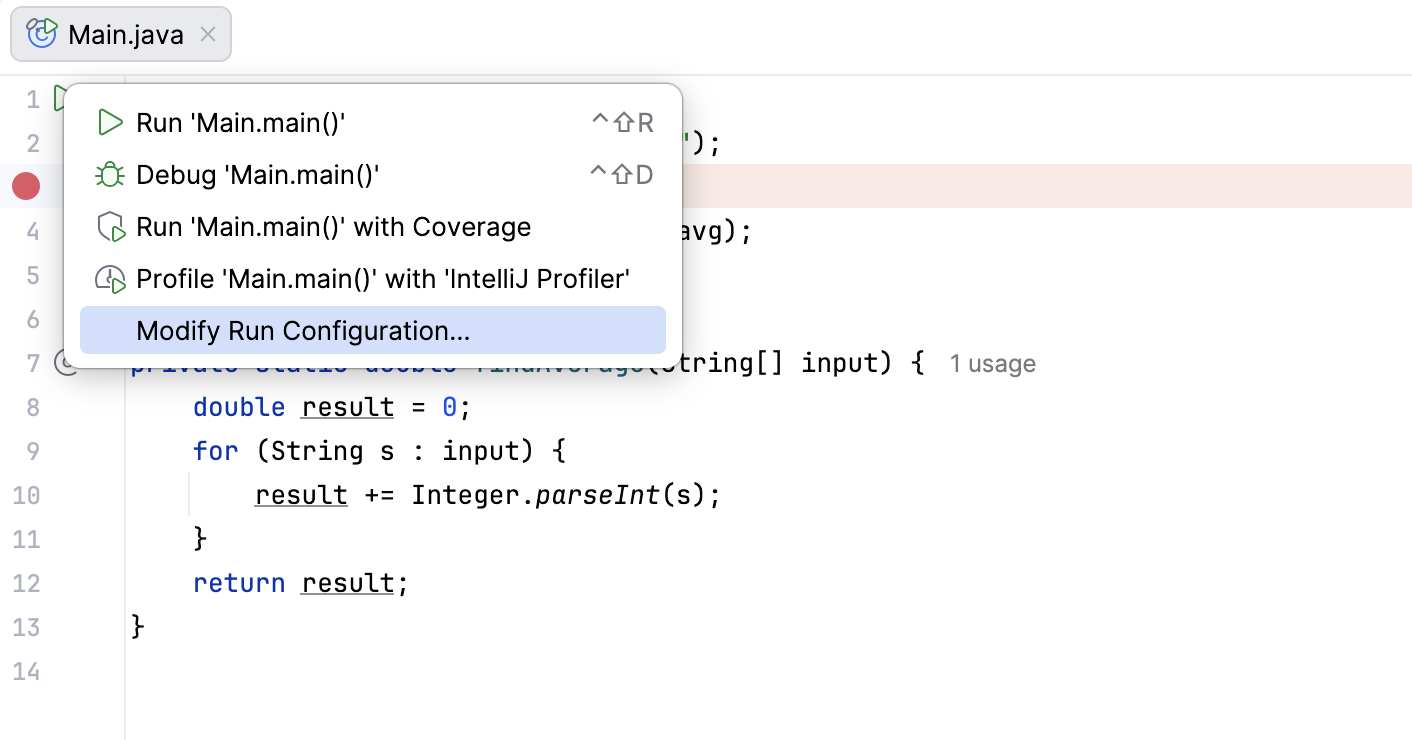
Enter
1 2 3in the Program arguments field. Apply changes and close the dialog.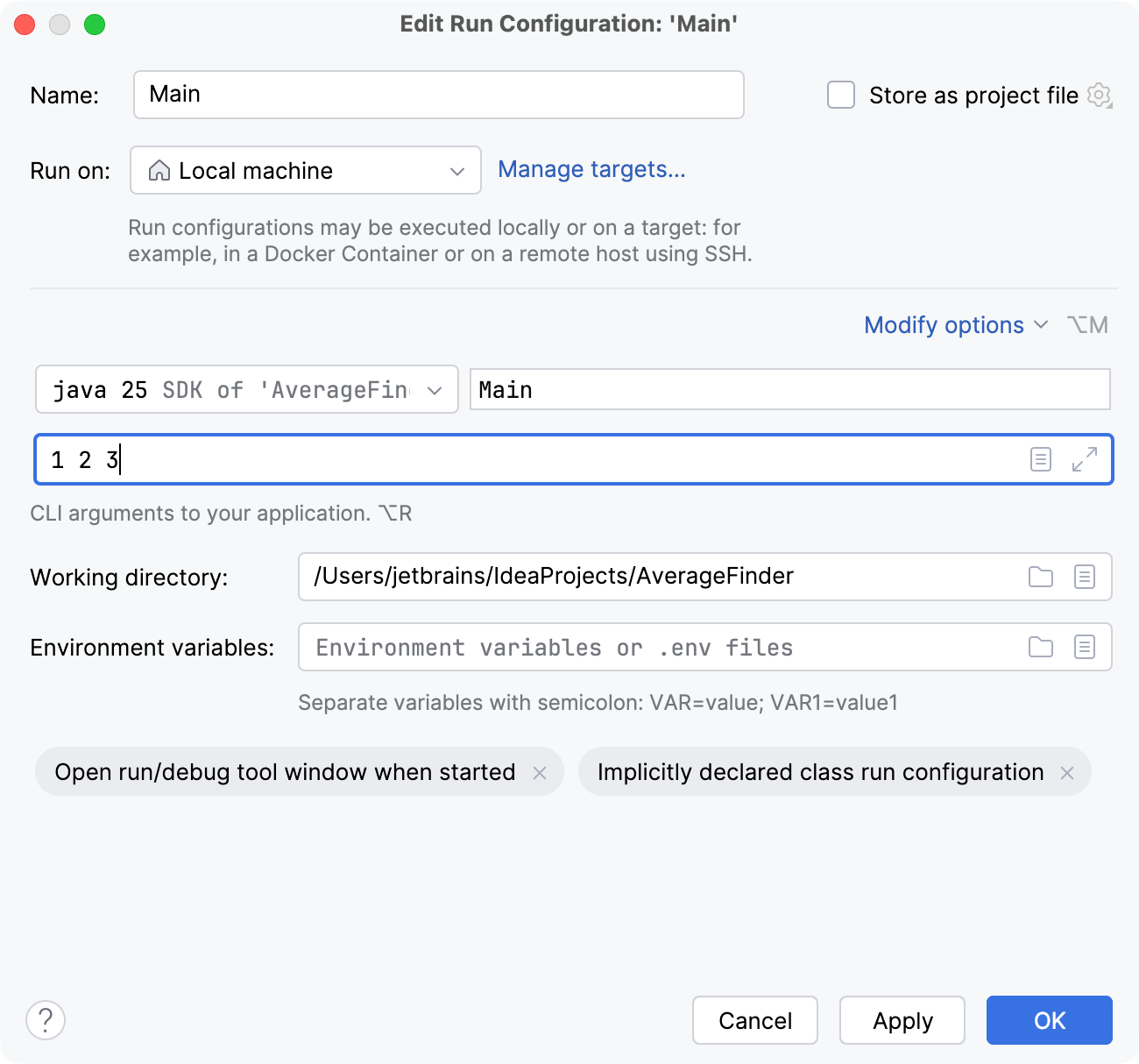
Click the
Run button near the mainmethod. From the menu, select Debug.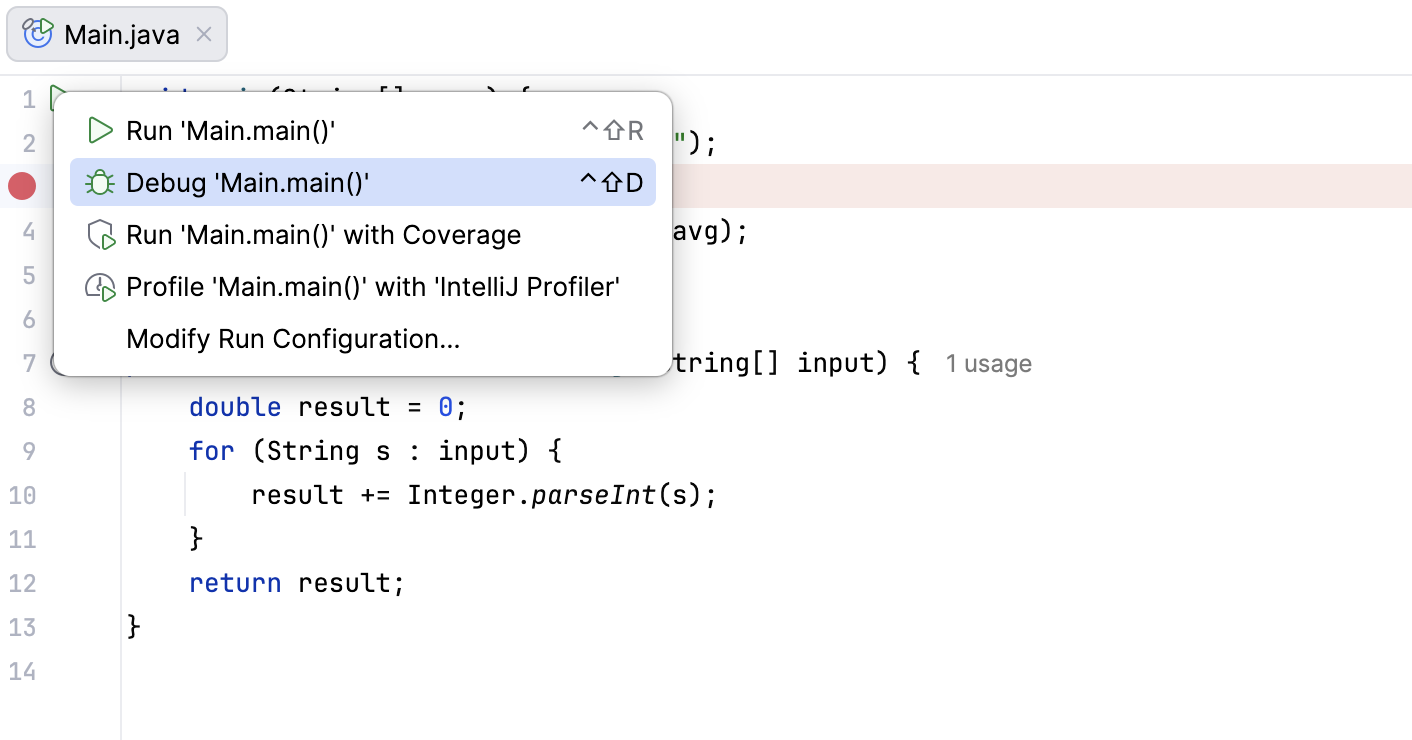
The debugger session starts, executing the program with the given arguments.
Analyze the program state
After the debugger session has started, the program runs normally until a breakpoint is hit. When this happens, IntelliJ IDEA pauses the program, highlights the line at which the program is suspended, and shows the Debug tool window.
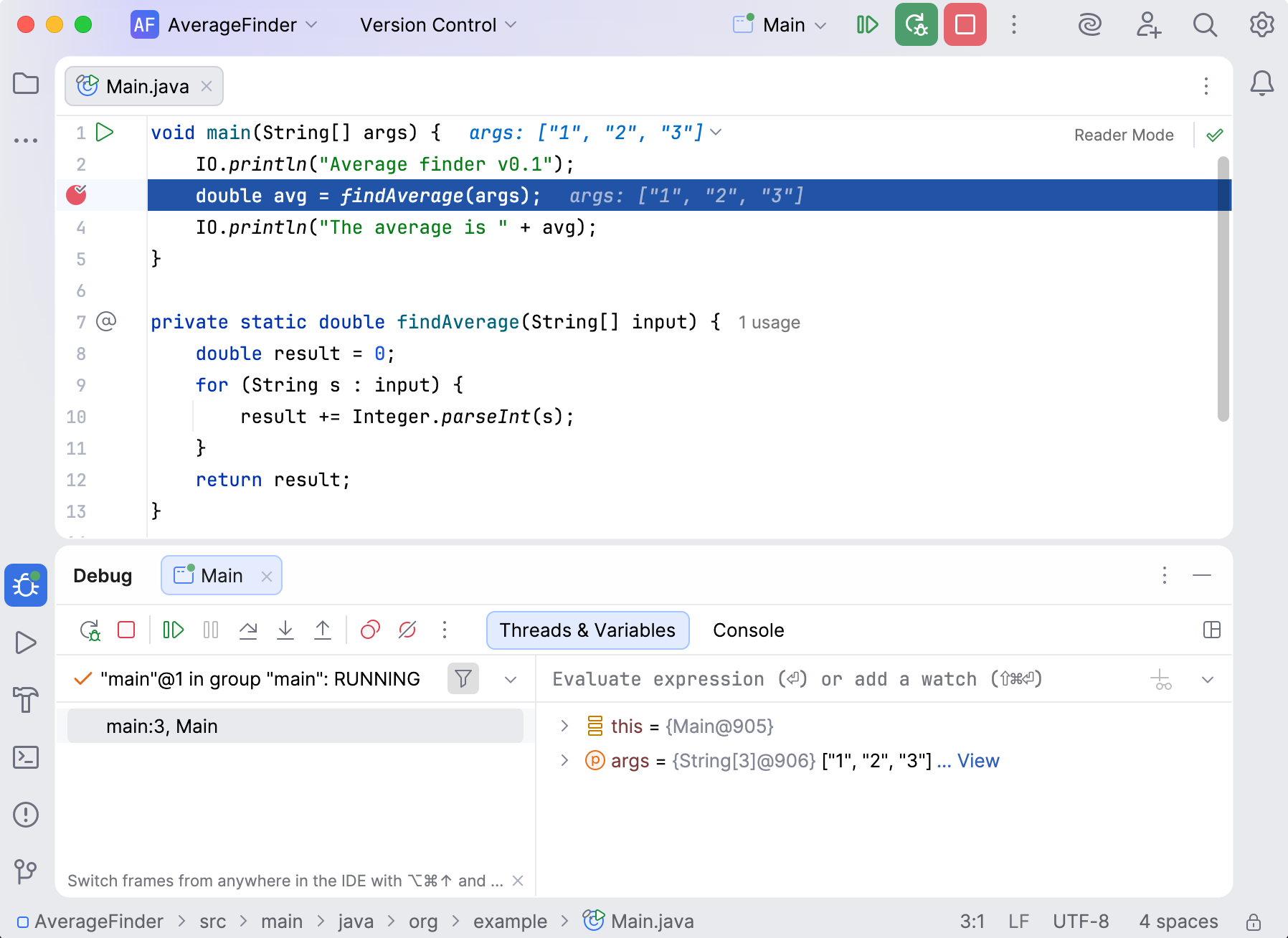
The highlighted line has not been executed yet. The program now waits for further instructions from you. The suspended state lets you examine variables, which hold the state of the program.
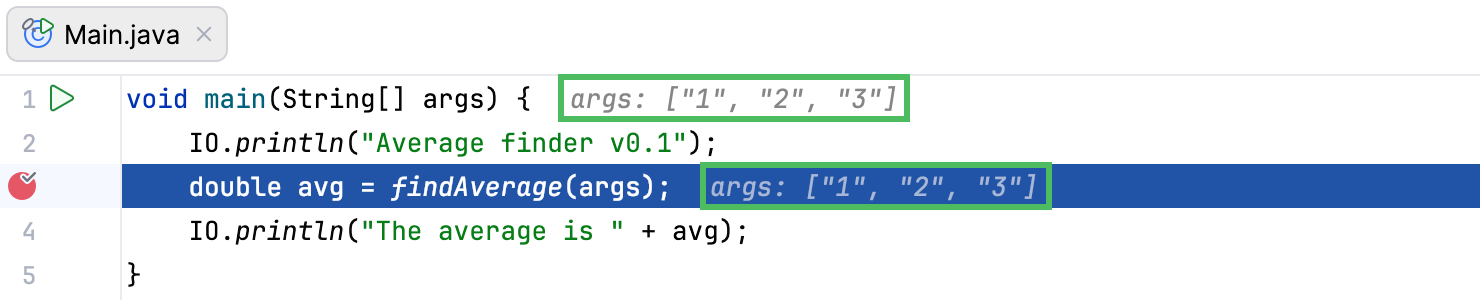
As the findAverage method has not been called yet, all its local variables like result are not yet in scope, however, you can examine the contents of the args array (args is in scope of the main method) . The contents of variables are displayed inline where args is used:
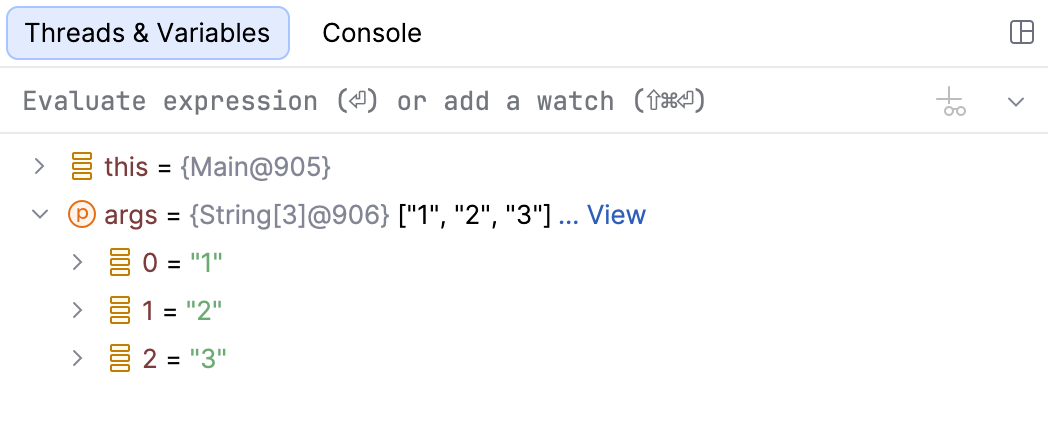
You can also get information about all variables that are currently in scope on the Threads & Variables tab on the Debug tool window.
Step through the program
Now that you are comfortable with the Debug tool window, it's time to step into the findAverage method and find out what is happening inside it.
To step into a method, click the
 Step Into button on the Debug tool window's toolbar or press F7.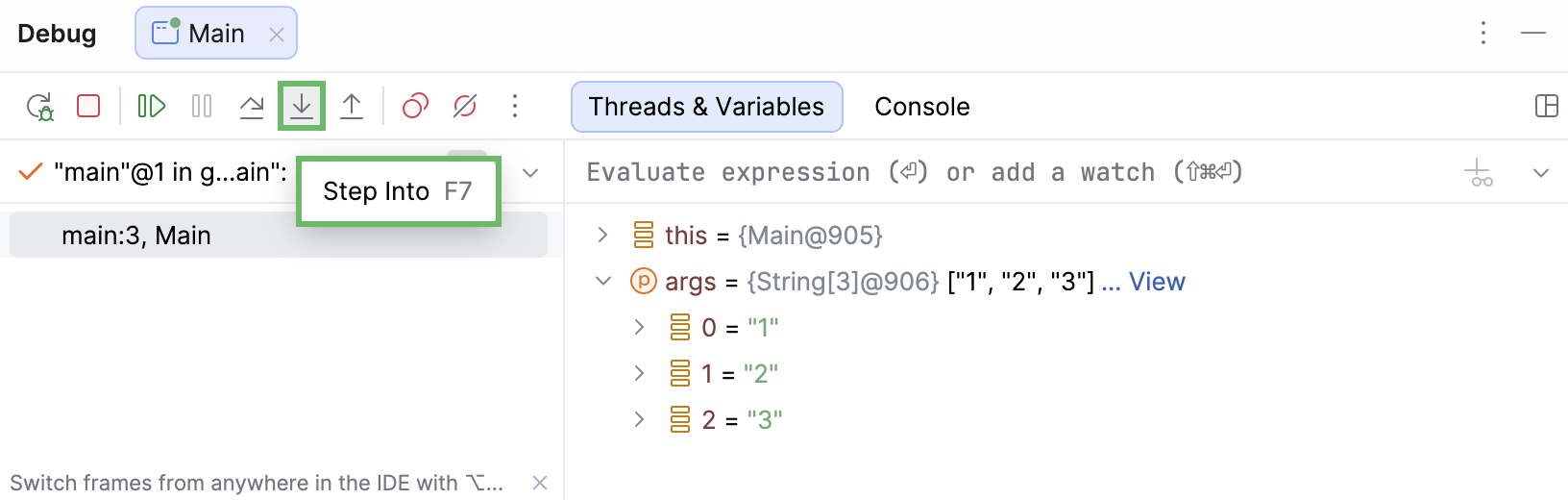
The highlighting in the editor moves to another line because you advanced the execution point one step further.
Let's keep stepping and see how the local variable
resultis declared and how it is changed with each iteration of the loop. Click Step Into until you see that the variable shas the value"3".
Right now the variable
scontains the value"3". It is going to be converted to Integer and be added toresult, which currently has the value of3.0. No errors so far. The sum is calculated correctly.Two more steps take you to the
returnstatement, and you see where the omission was. You are returningresult, which has the value of6.0, without dividing it by the number of inputs. This was the cause of incorrect program output.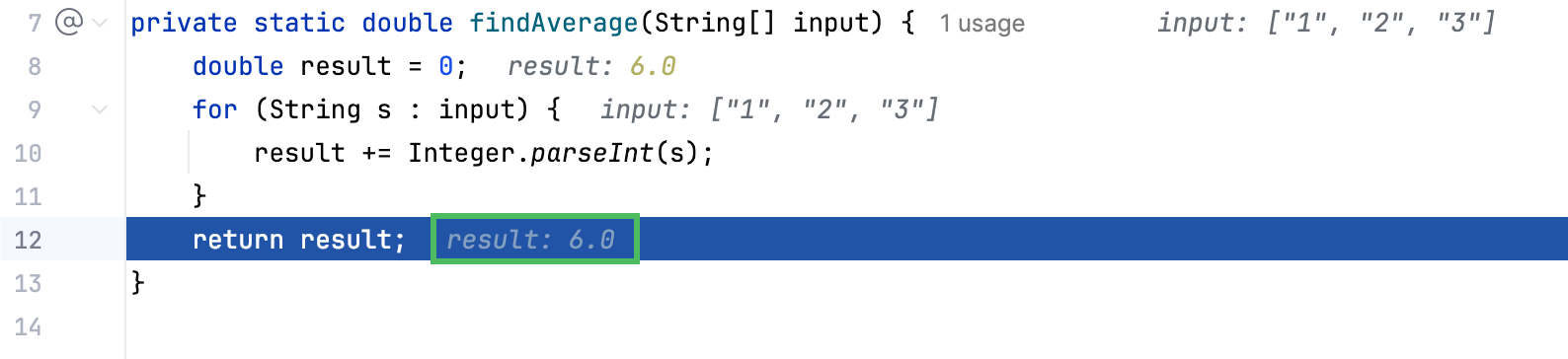
Let's correct the error. Replace the
return result;line with the code that contains the correct calculation formula:return result / input.length;
Stop the debugger session and rerun the program
To check that the program works fine, let's stop the debugger session and rerun the program.
In the Debug tool window toolbar, click
 Stop or press Ctrl+F2.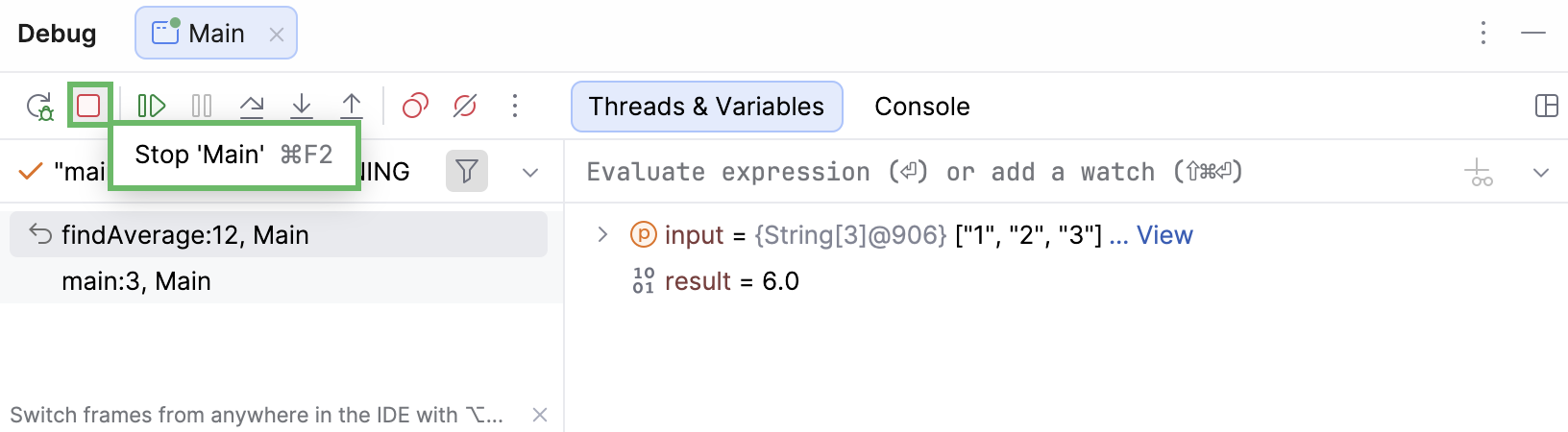
Click the
Run button near the mainmethod. From the menu, select Run.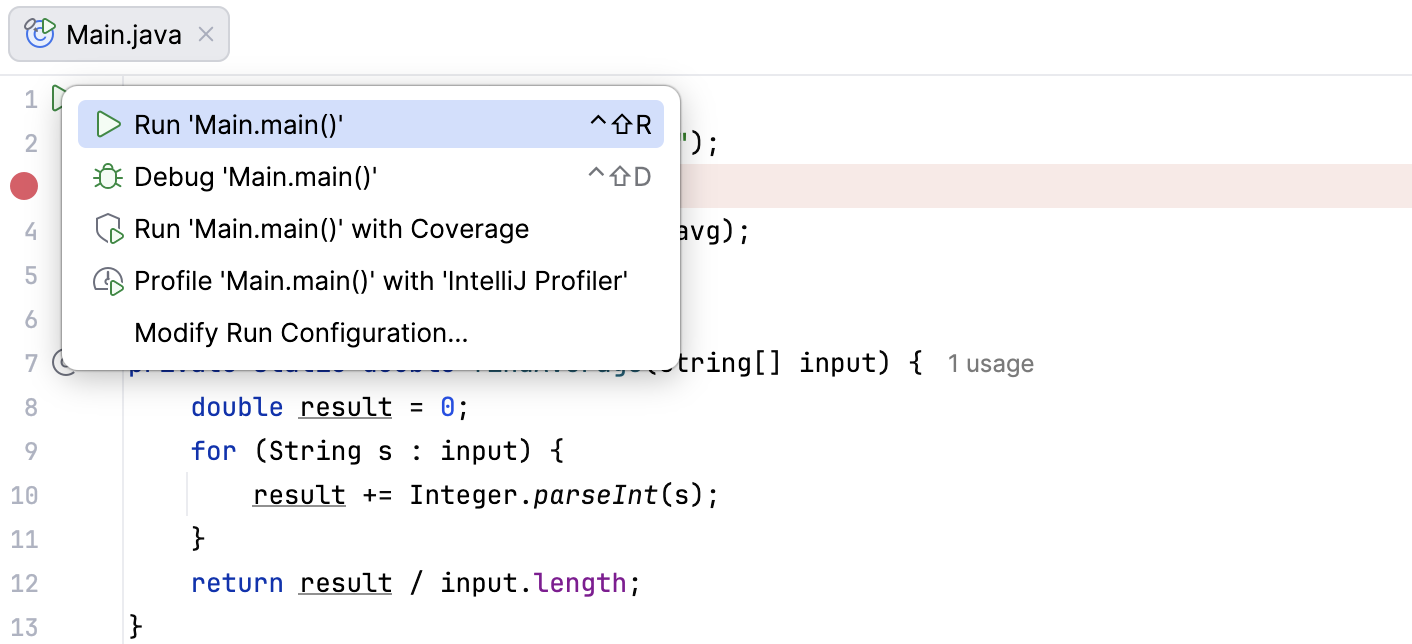
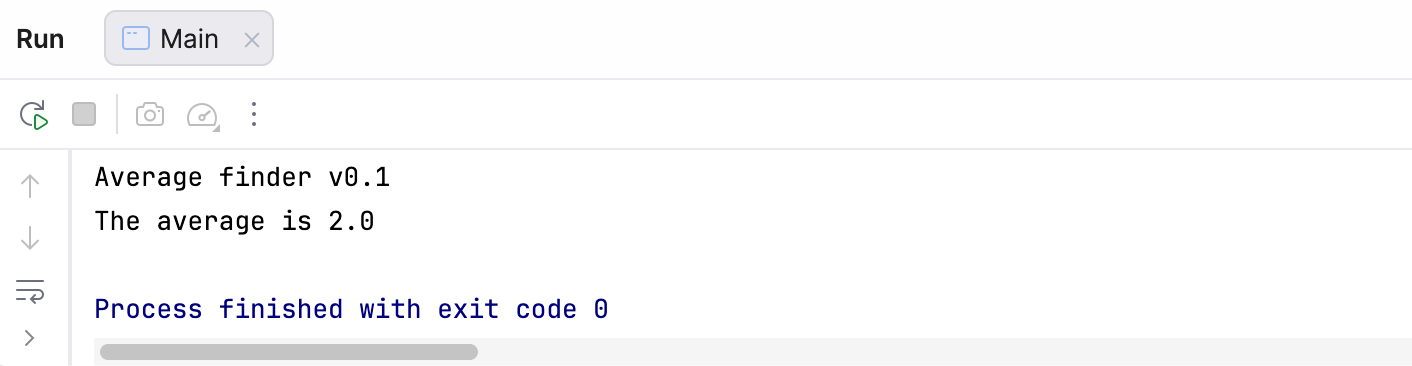
Verify that the program works correctly now.
Summary
In this tutorial, you have learned how to:
Set breakpoints to examine the code
Run the program in debug mode
Analyze the program state using the debugger
Step through the program code to find the reason of errors
Next steps
Learn how to complete other tasks in IntelliJ IDEA from these tutorials:
For a full list of available tutorials, refer to IntelliJ IDEA tutorials.