Tutorial: Run a Java application
This tutorial explains how to run a Java application in IntelliJ IDEA.
Along the way, you will learn how to use run/debug configurations to control how your application starts. You will also get familiar with key IntelliJ IDEA features for running applications, such as saving run configurations, saving program output to a file, and adding custom VM options.
For this tutorial, you only need basic knowledge of Java. The tutorial uses Java 25 syntax.
Create a new project
Launch IntelliJ IDEA.
If the Welcome screen opens, click New Project. Otherwise, go to in the main menu.
In the New Project list on the left, select Java. Give the project a name (for example, RunApplication).
Select Maven as the Build system and select the Add sample code checkbox.
From the JDK list, select the latest available Oracle OpenJDK version.
If the JDK is installed on your computer, but not defined in the IDE, select Add JDK and specify the path to the JDK home directory.
If you do not have the necessary JDK on your computer, select Download JDK.
Click Create.
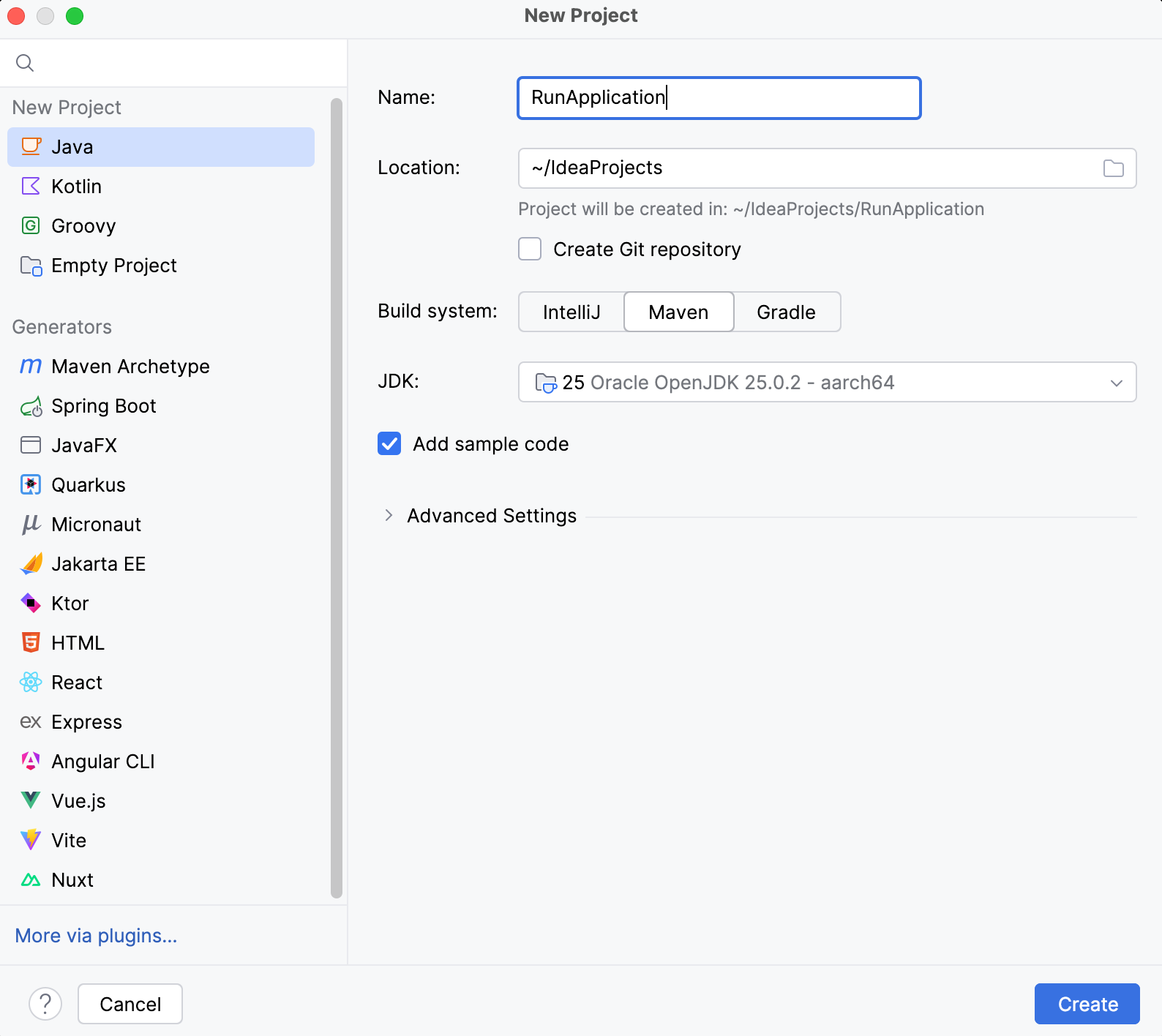
After that, the IDE will create and load the new project for you.
Run the application
When the project is created, in the Project tool window (Alt+1), locate the file and open it in the editor.
Replace the existing code with the following code sample:
package org.example; import java.util.stream.Stream; public class Main { static void main(String[] args) { Stream.iterate(1, i -> i + 1) .limit(10) .forEach(System.out::println); } }In the editor, click the
 gutter icon to run the application and select Run 'Main.main()'.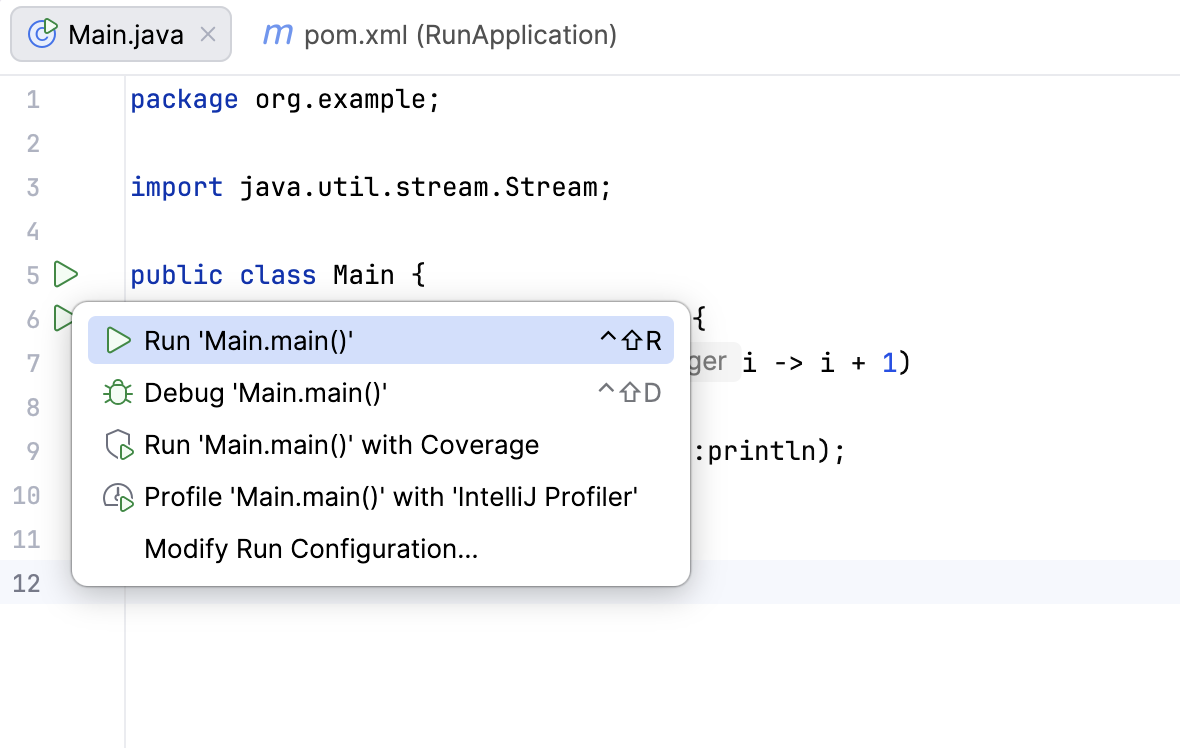
IntelliJ IDEA runs your code and shows its output in the Run tool window. The application has run successfully, that is why you will see the Process finished with exit code 0 message in the output.
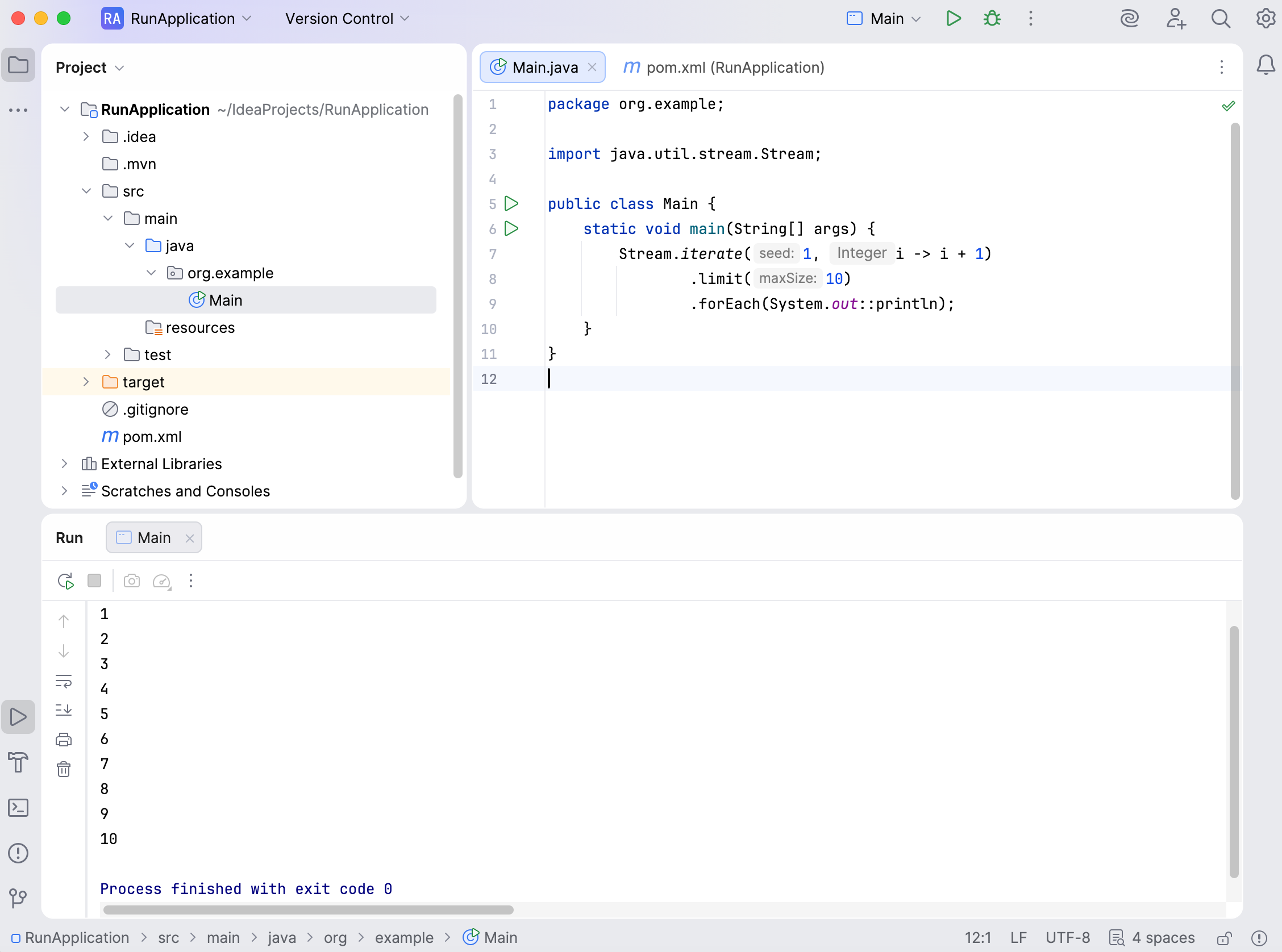
When you clicked Run, IntelliJ IDEA created a temporary run configuration named after the Main class. It defines the entry point and the parameters for running the application. So far, we have not used any startup parameters, but we will add them later.
The number of temporary configurations is limited to 5 by default, so the older ones are automatically deleted when new ones are added. That is why it makes sense to save the temporary configurations that you want to keep.
Save the run configuration
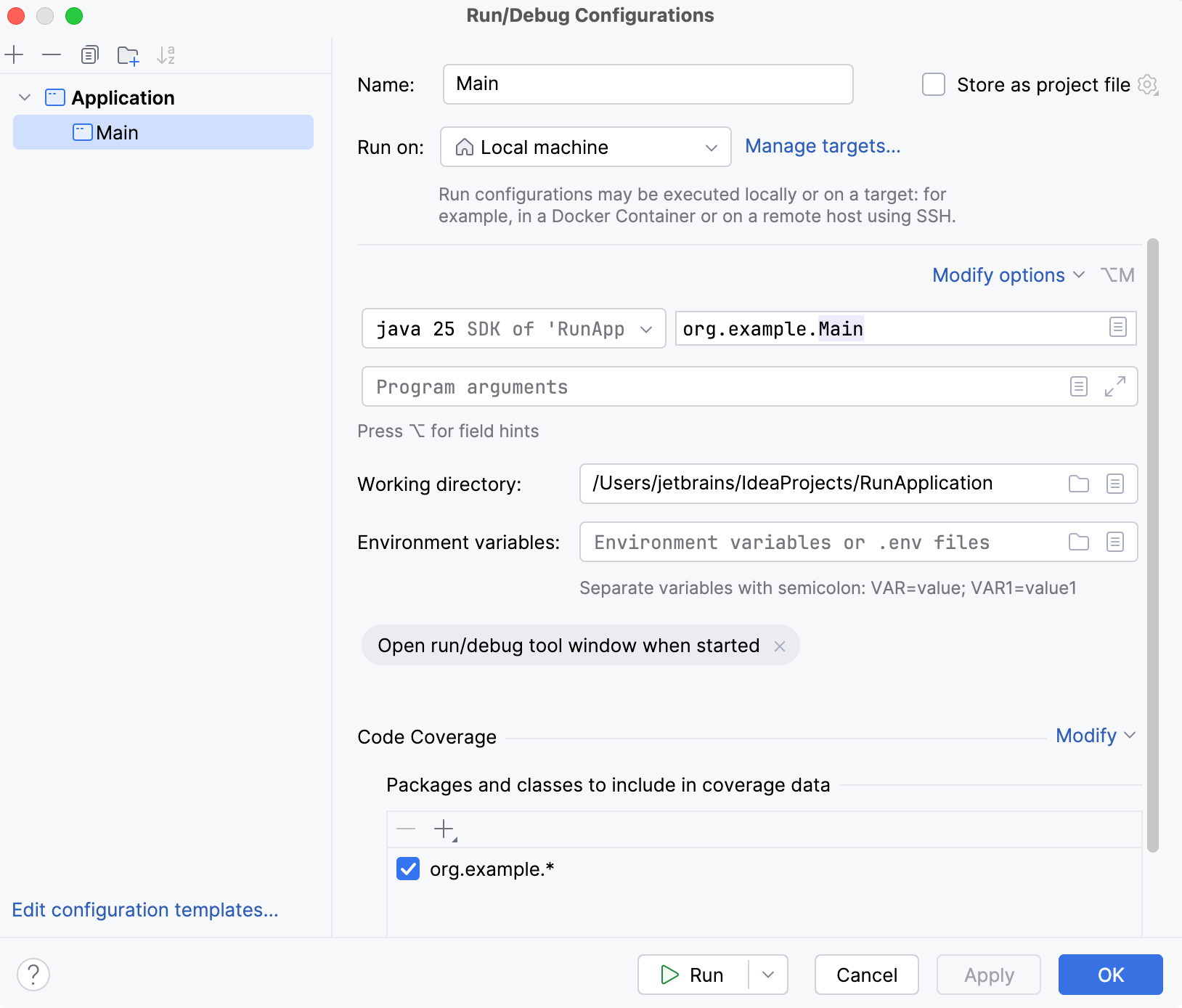
In the main menu, go to .
In the Application list, select the Main configuration and click
 Save Configuration on the toolbar above. The IDE will save the created run configuration. Do not close the dialog yet.
The icons of temporary configurations are transparent. After saving, Main's icon becomes solid.
Save console output to a file
Now let's copy this configuration and modify it so that the IDE saves the console output to a file every time you run the configuration. This might be useful if you use console output for logging.
In the Application list, select the Main configuration and click
 Copy Configuration on the toolbar. This will create a copy of the run configuration.
In the Name field, rename the configuration to
SaveConsoleOutput.Click Modify options and, in the Logs settings group, select Save console output to file. The new Save console output to file field appears in the dialog.
Specify the path to the file to which the IDE will write the output. If the file does not exist, it will be created automatically.
In our case, we will create a file in the project directory, so depending on your operating system and username, the path will look like this:
/Users/name/IdeaProjects/RunApplication/console.txt.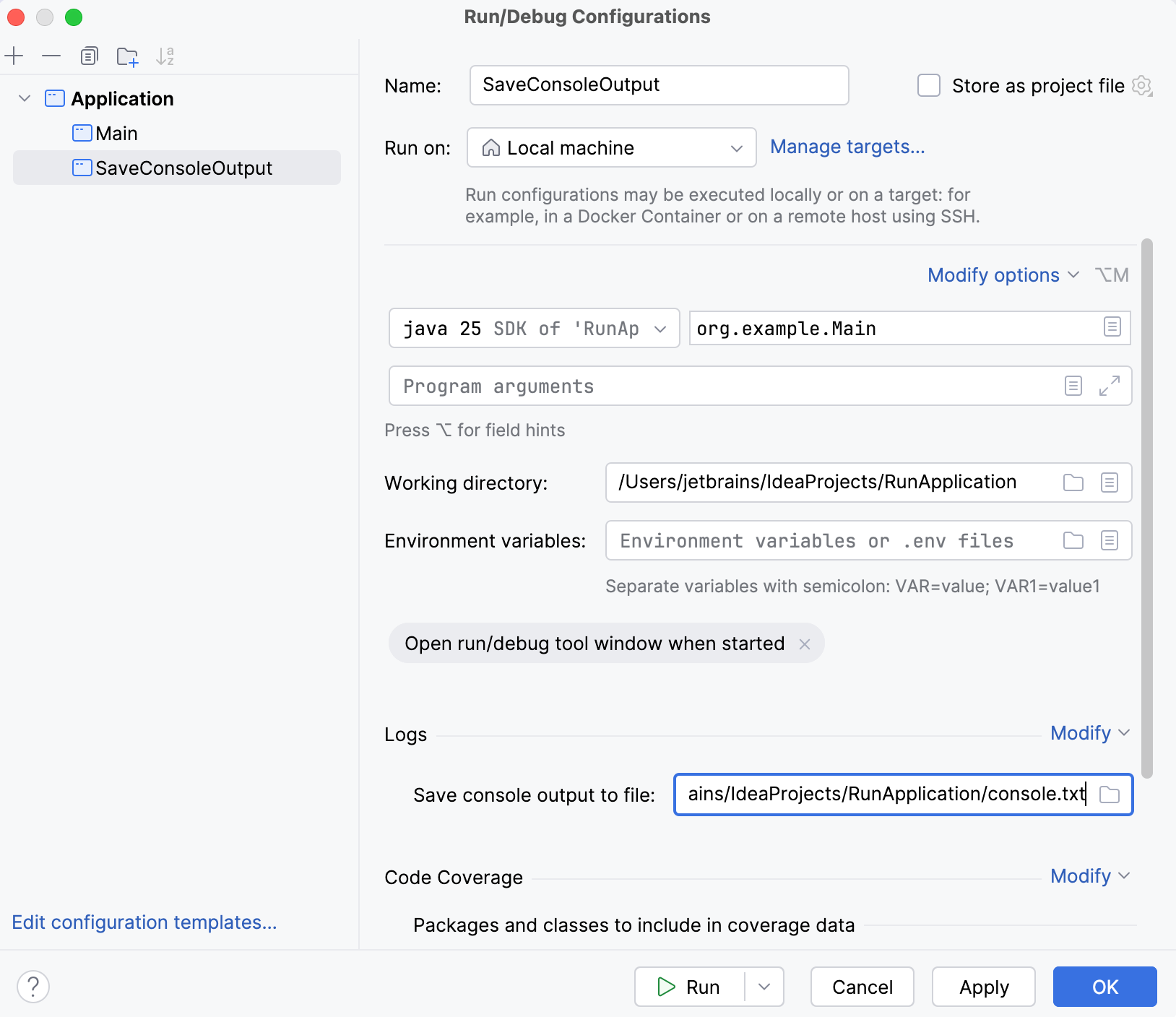
Apply the changes and close the dialog.
From now on, the IDE will save the console output to a console.txt file every time you run this configuration.
Run the saved configuration
Select
SaveConsoleOutputin the Run widget in the window header and click Run 'SaveConsoleOutput' next to it or press Shift+F10.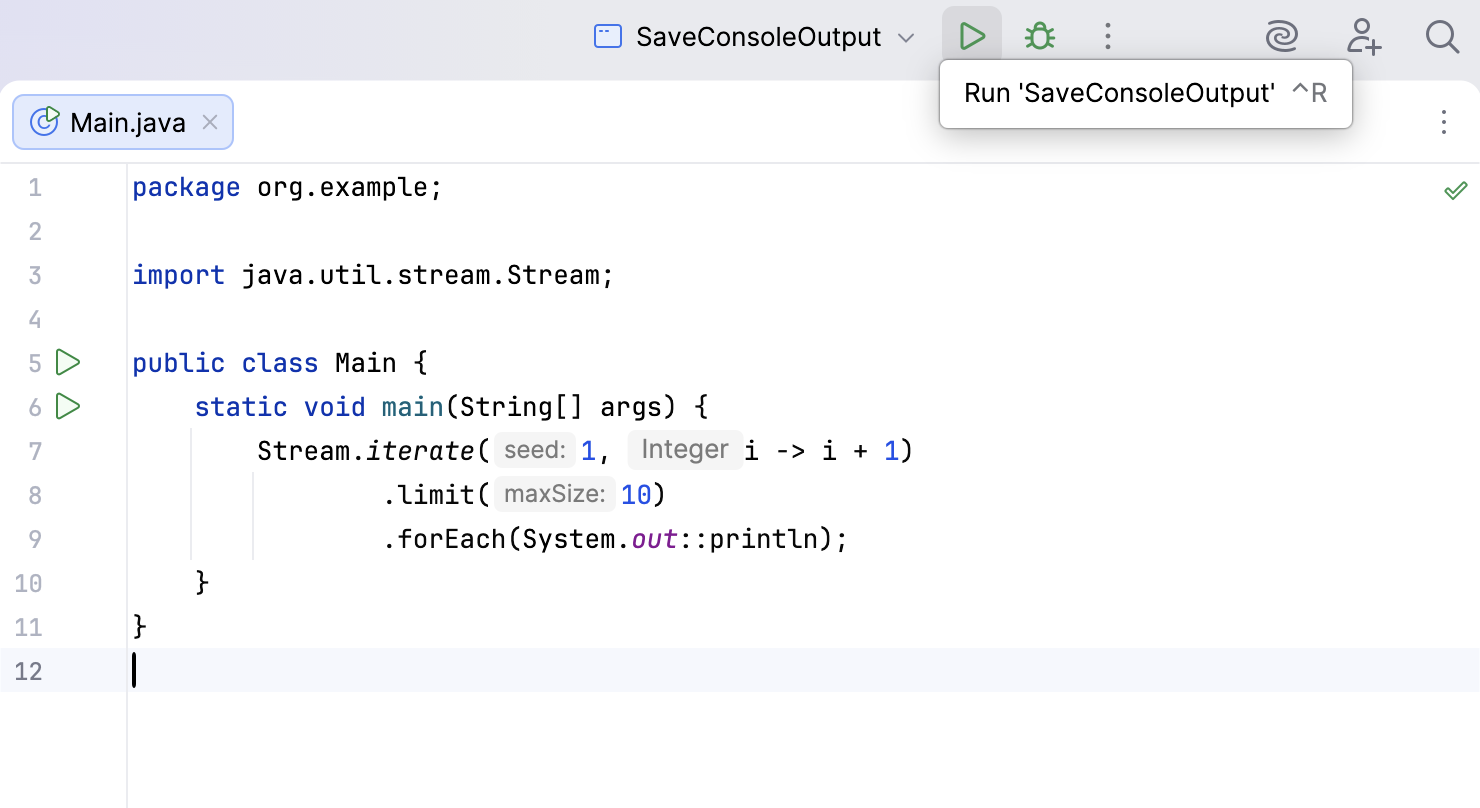
When the IDE finishes running the configuration, locate the new file with the console output in the Project tool window and make sure the application's output is there.
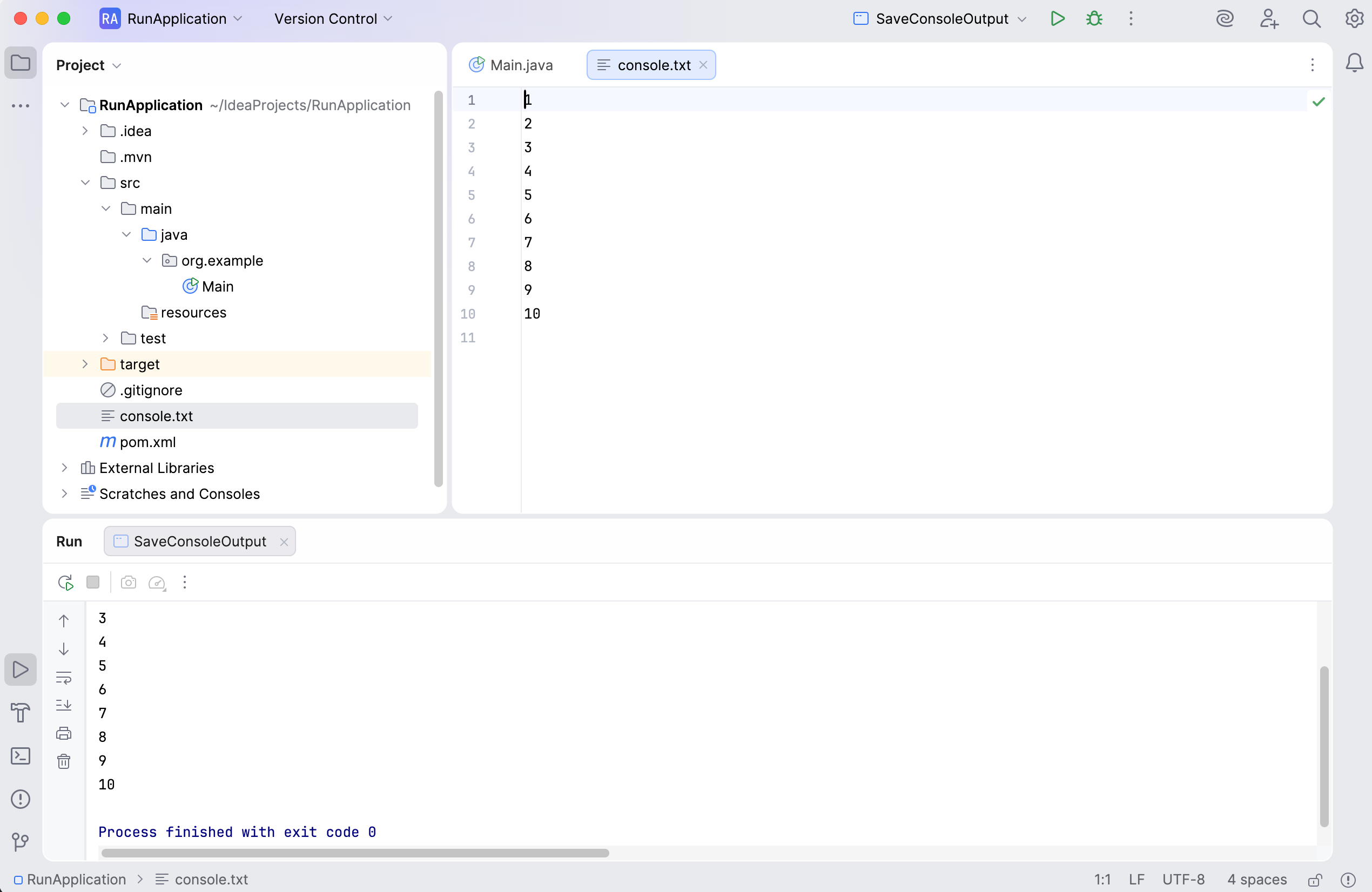
Run configurations allow you to run the same application with different parameters. Now that you have two configurations, you can choose between them according to your needs. For example, if you do not need to save the console output every single time you run the application, you can run the Main configuration that does not have this setting.
Press Alt+Shift+F10 or use the Run widget in the window header to switch between configurations:
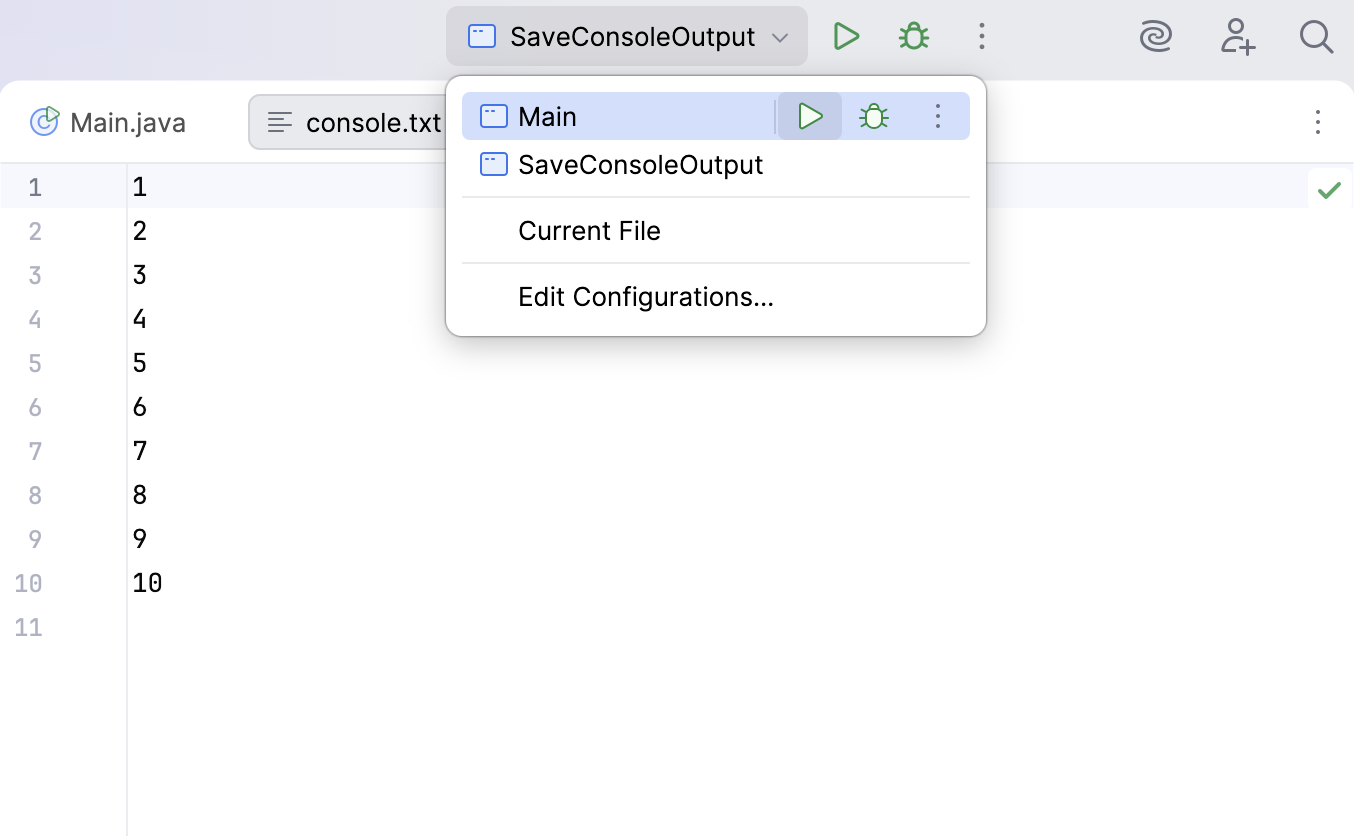
Let's take a look at another scenario.
Change the code
Imagine that our code sample has a problem.
In the Main.java file, remove:
Stream.iterate(1, i -> i + 1) .limit(10) .forEach(System.out::println);Instead, paste the following code:
var list = Stream.iterate(1, i -> i + 1) .toList(); System.out.println(list.size());In the editor, click the
gutter icon to run the application and select Run 'Main.main()'.
The application runs for several seconds and then fails with OutOfMemoryError. Our program creates an infinite stream of integers and then tries to collect it into a list using the toList() method. Since the stream is infinite, the toList() method will never return, and the program will keep consuming memory until it fails.
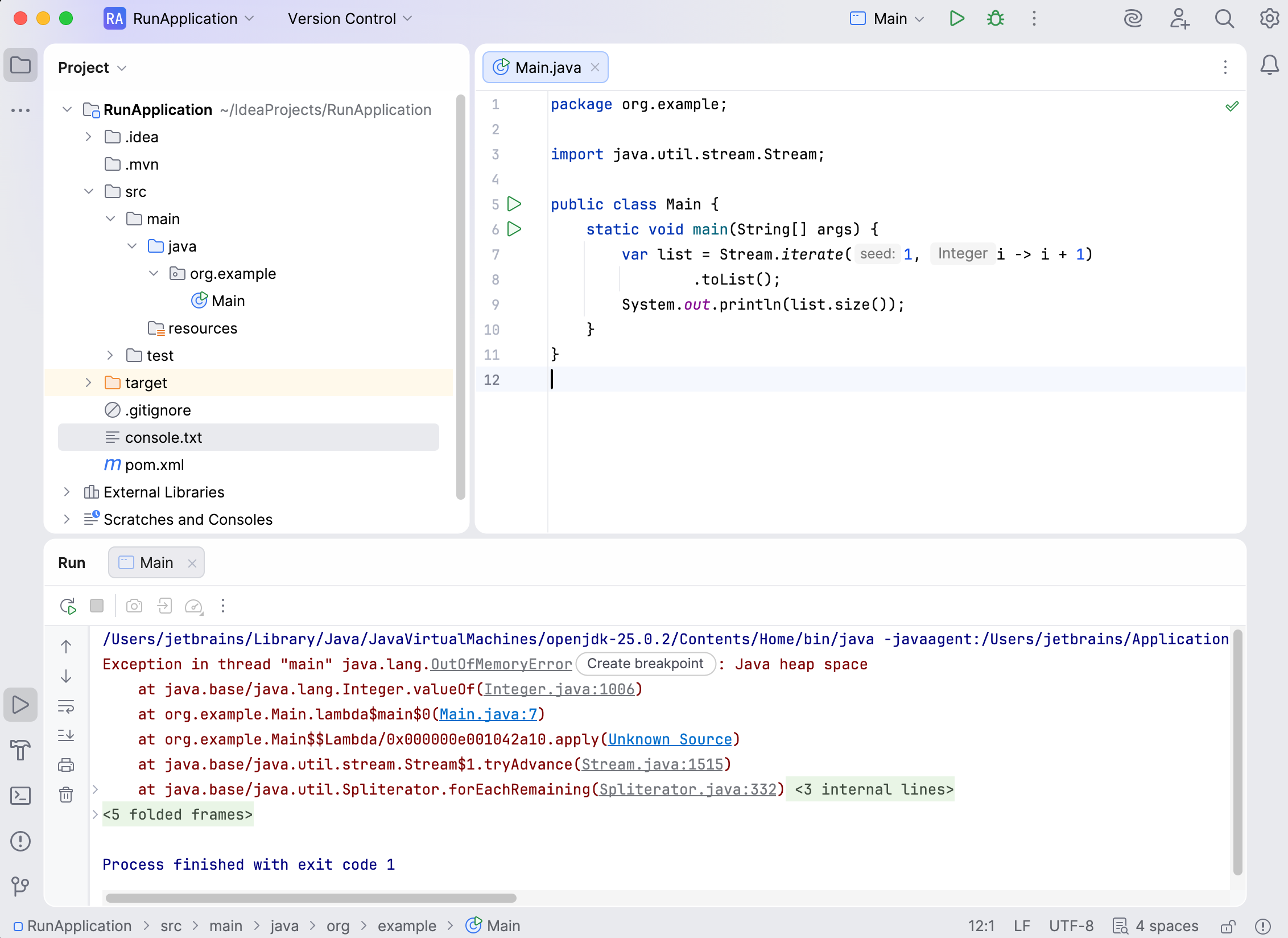
If an application fails with OutOfMemoryError, we can add a VM option that will dump the memory to a .hprof file before crashing. Later on, we will be able to analyze this file in detail using the built-in profiler.
Add the VM options
In the main menu, go to .
In the Application list, click the Main configuration and then click
Copy Configuration on the toolbar to clone the configuration. Rename the new configuration to OutOfMemory.Open the Modify options list and click Add VM options.
The VM Options field appears in the dialog. In this field, add the following options with a space between them:
-Xmx512m -XX:+HeapDumpOnOutOfMemoryError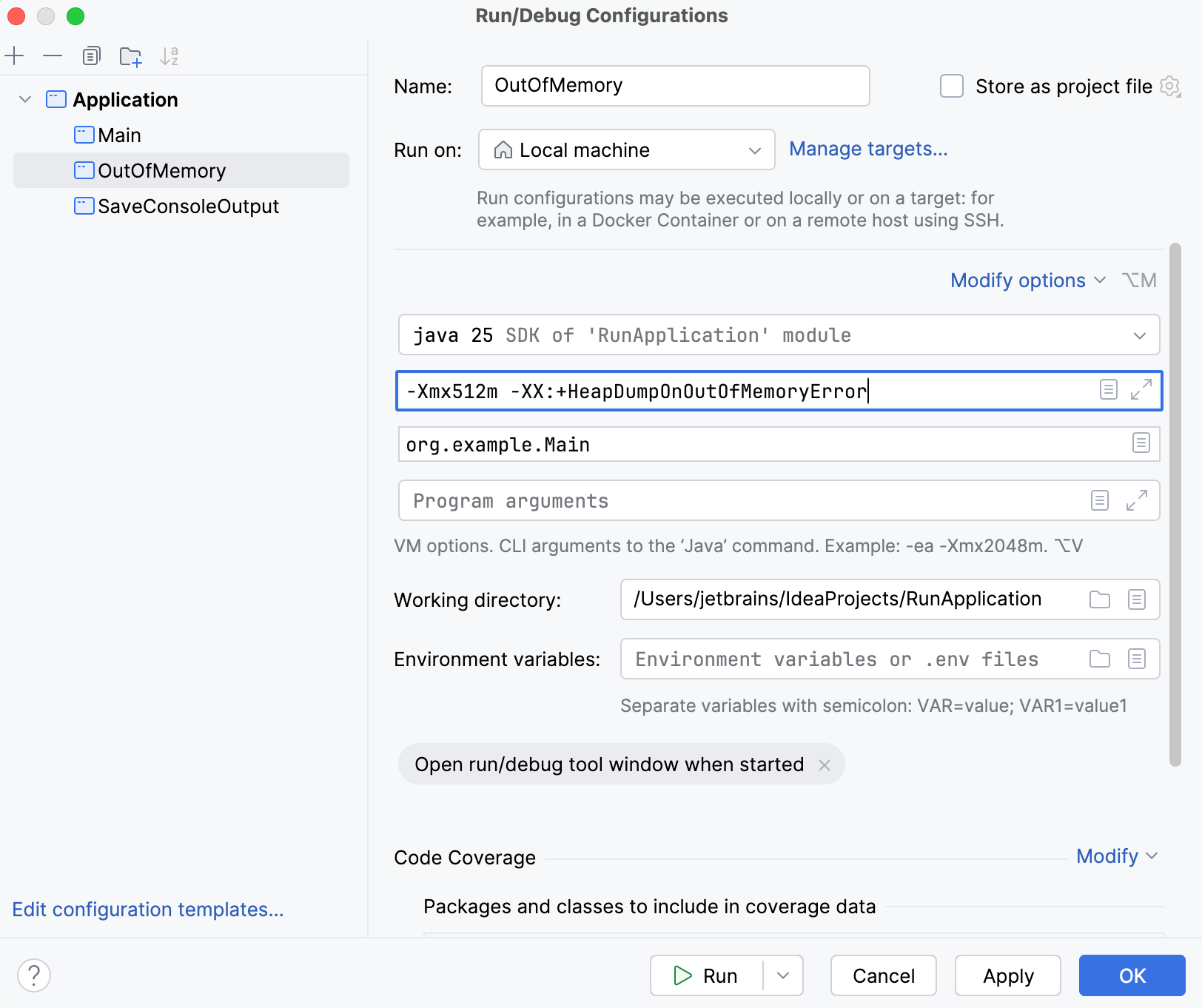
-XX:+HeapDumpOnOutOfMemoryErrorspecifies that a heap dump should be created in case the app crashes because ofOutOfMemoryError, and-Xmx512msets the size of the heap to 512 MB so that the heap dump will not be too large.Apply the changes and close the dialog.
Select OutOfMemory in the Run widget and click
Run 'OutOfMemory' next to it or press Shift+F10.
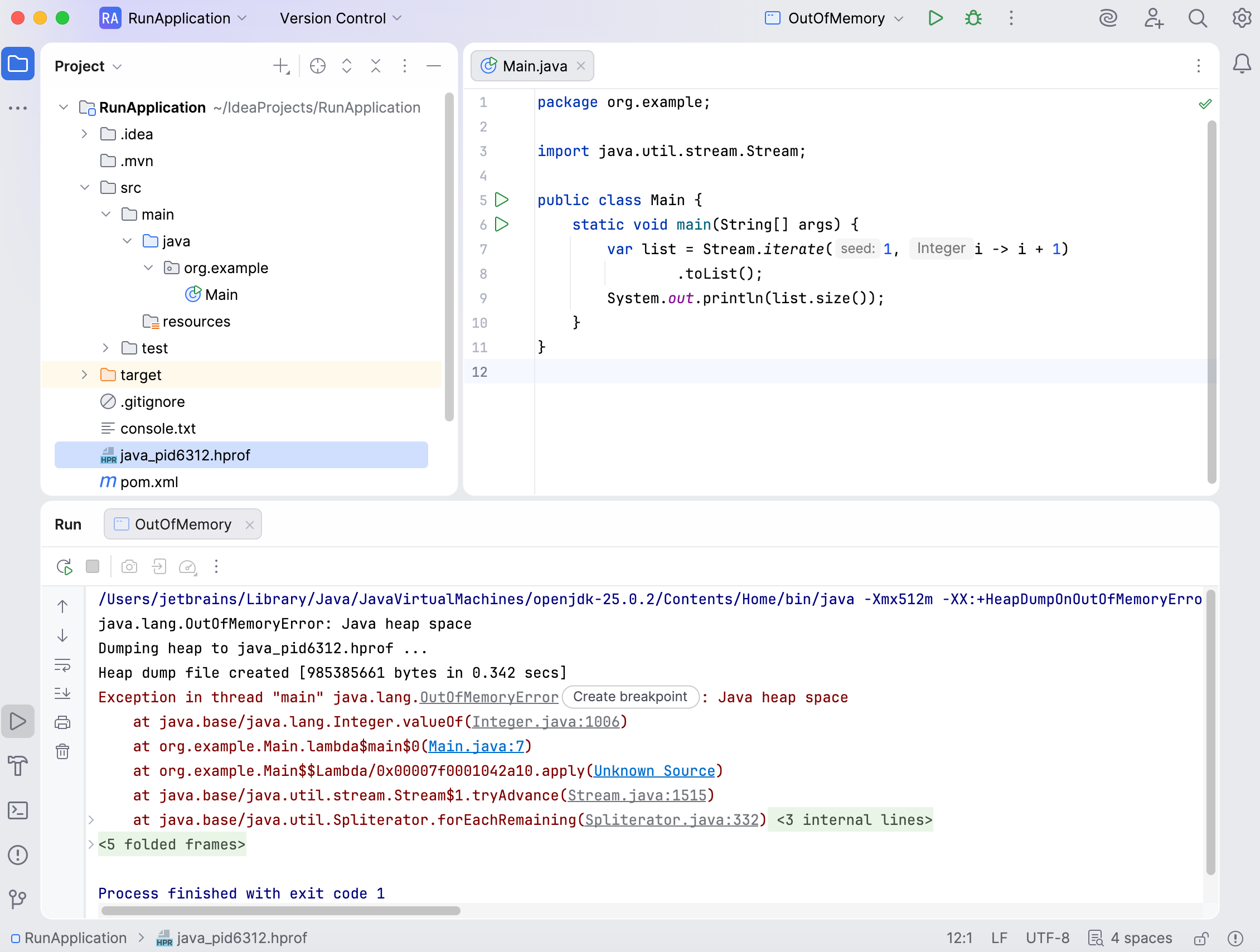
The Run tool window opens showing you that the OutOfMemoryError exception has been thrown. Since we have configured the corresponding VM option, the IDE has created an .hprof file in your project directory.
Summary
In this tutorial, you have learned how to:
Run Java applications in IntelliJ IDEA
Create and manage run configurations
Save console output to a file
Add VM options in run configurations
Next steps
Learn how to complete other tasks in IntelliJ IDEA from these tutorials:
For a full list of available tutorials, refer to IntelliJ IDEA tutorials.