Getting Started with Gradle
This tutorial will teach you how to create and manage Gradle-based projects in IntelliJ IDEA. You will learn how to create, run and test a Gradle application, and create and run an executable JAR file using Gradle.
You can find the project used in this tutorial on GitHub. The tutorial uses Java 25 syntax.
Step 1. Create a project
Let’s create a new Java project with the Gradle build system that will become the basis of our application.
Create a new Gradle Project
Launch IntelliJ IDEA.
If the Welcome screen opens, click New Project.
Otherwise, go to in the main menu.
In the New Project wizard, select Java from the New Project list.
Name the project (for example,
FizzBuzz) and change the default location if necessary.Select Gradle as the Build system.
From the JDK list, select the latest available Oracle OpenJDK version.
If the JDK is installed on your computer but not defined in the IDE, select Add JDK and specify the path to the JDK home directory.
If you do not have the necessary JDK on your computer, select Download JDK.
Select Kotlin as the Gradle DSL and leave the Add sample code option disabled.
Open the Advanced Settings node. Select the Auto-select option for the Gradle version.
Leave default values in the ArtifactId and GroupId fields. Click Create.
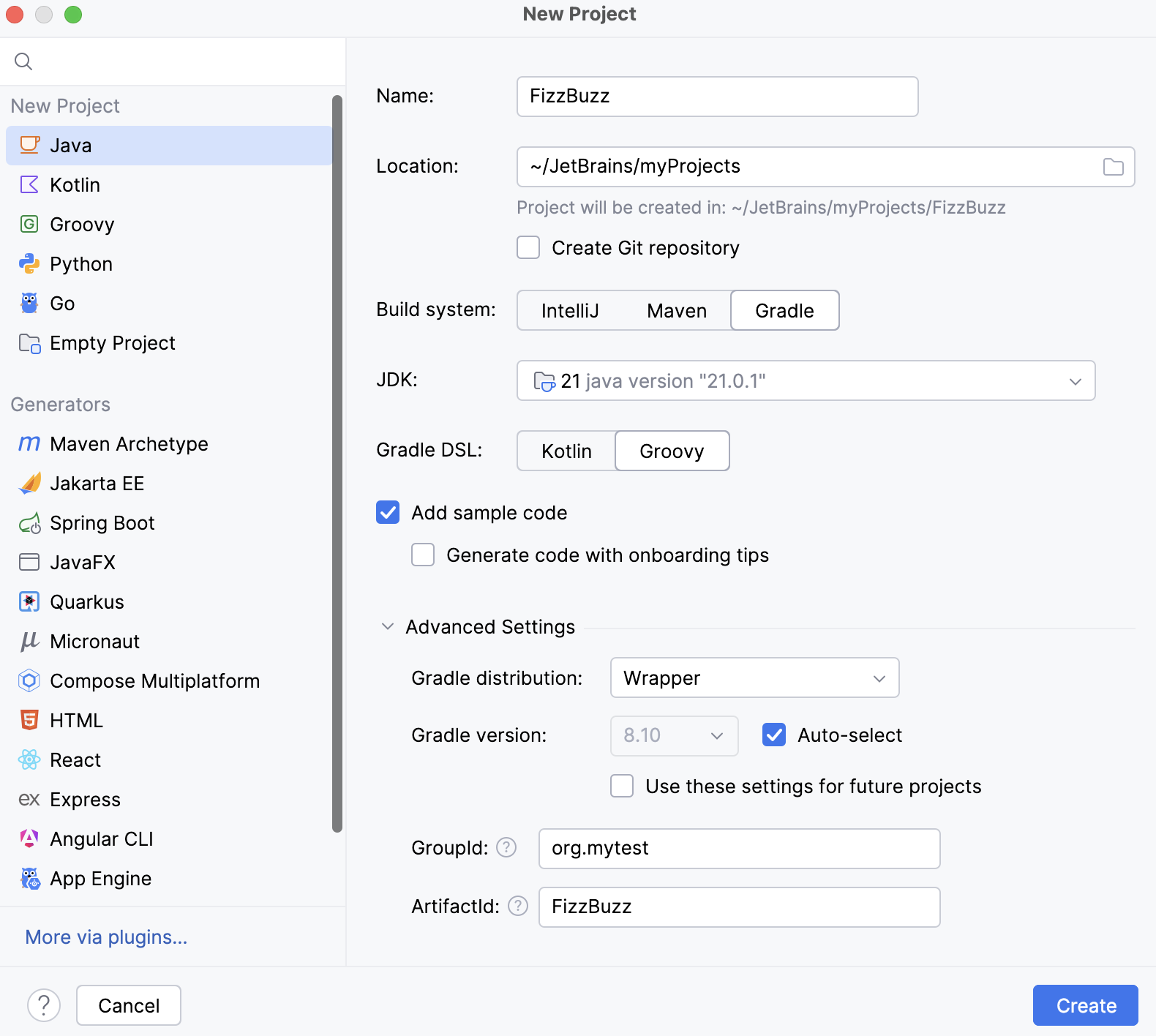
After that, IntelliJ IDEA will create and load the new Gradle-based project. Let’s examine its components in more detail:
IntelliJ IDEA creates a build.gradle.kts file with the following code:
plugins { id("java") } group = "org.example" version = "1.0-SNAPSHOT" repositories { mavenCentral() } dependencies { testImplementation(platform("org.junit:junit-bom:6.0.0")) testImplementation("org.junit.jupiter:junit-jupiter") testRuntimeOnly("org.junit.platform:junit-platform-launcher") } tasks.test { useJUnitPlatform() }IntelliJ IDEA automatically adds a test dependency when creating a project.
IntelliJ IDEA also creates the src directory with main and test subdirectories. You can find them in the Project tool window (Alt+1).
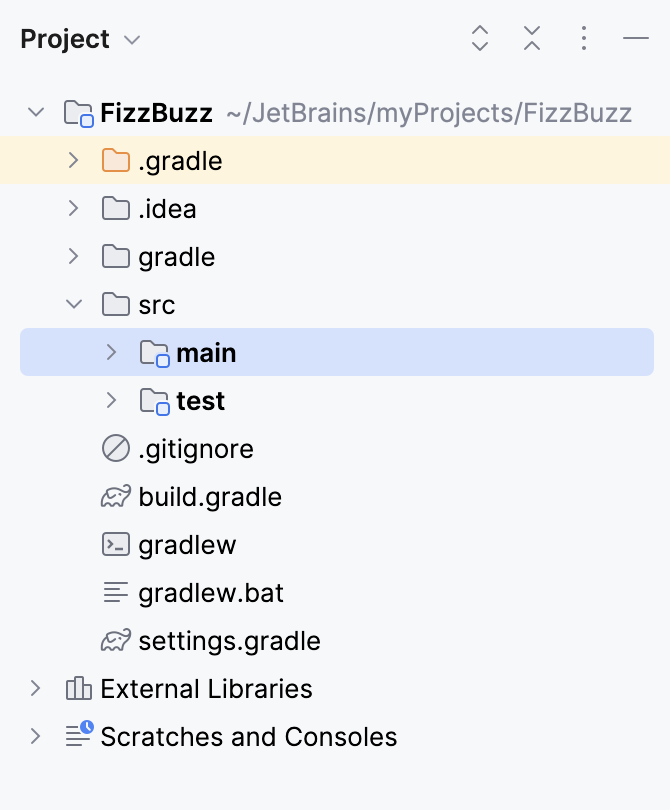
The dedicated Gradle tool window () with a linked project and its default tasks becomes available. We will use this tool window to run tutorial tasks.
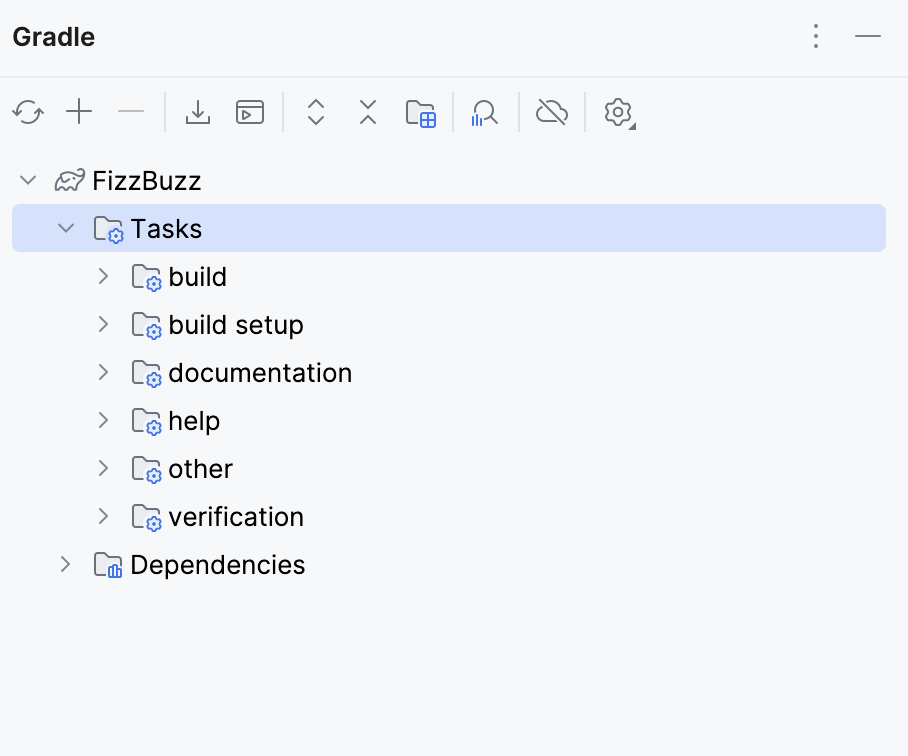
The Gradle settings in your project are used to store the information about the linked projects, Gradle JVM, and build actions. You can quickly access them from the Gradle tool window by clicking
 Build Tool Settings on the toolbar.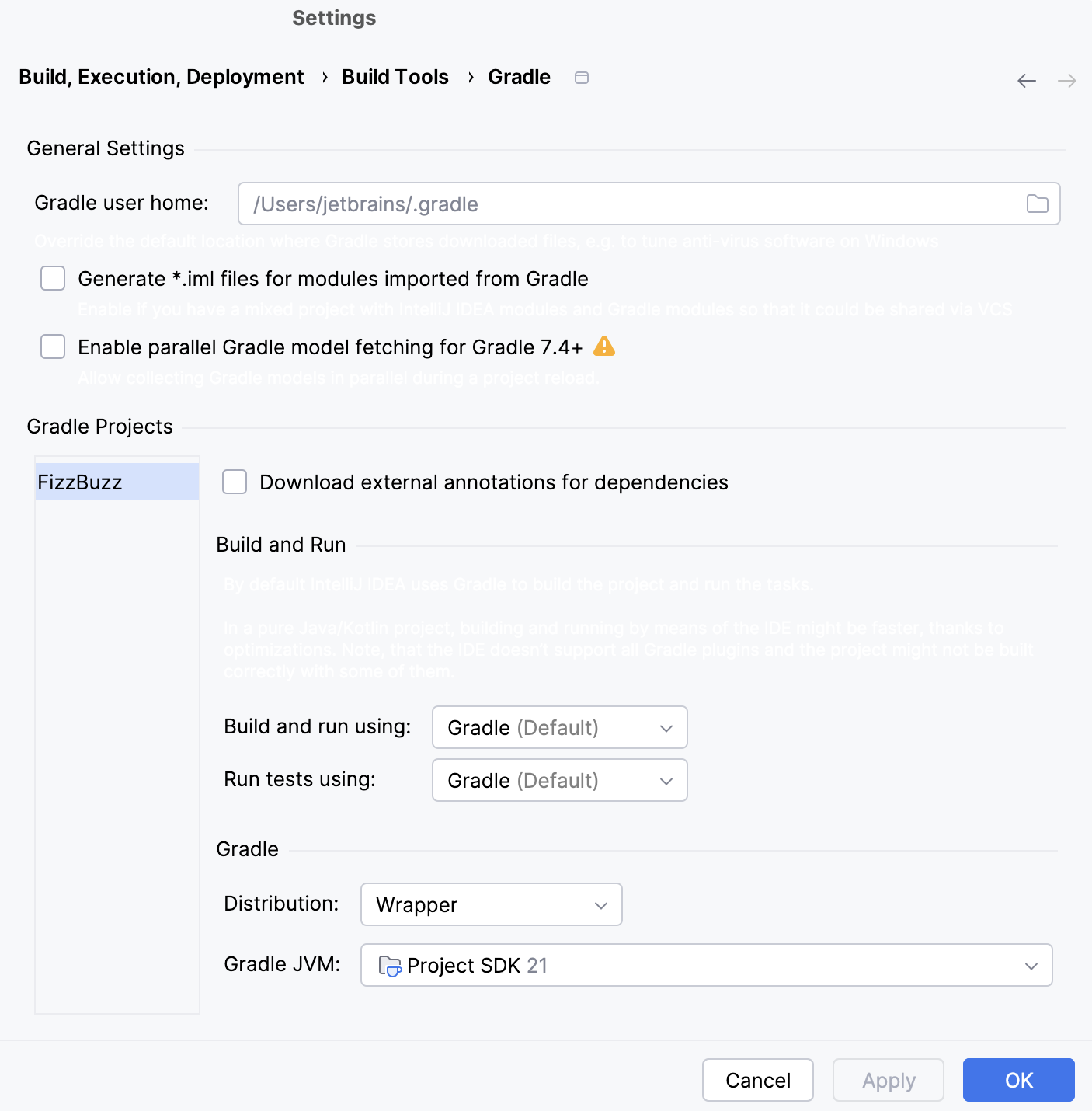
The build and test actions are delegated to Gradle. Also, the Gradle Wrapper ensures the project uses a specific Gradle version.
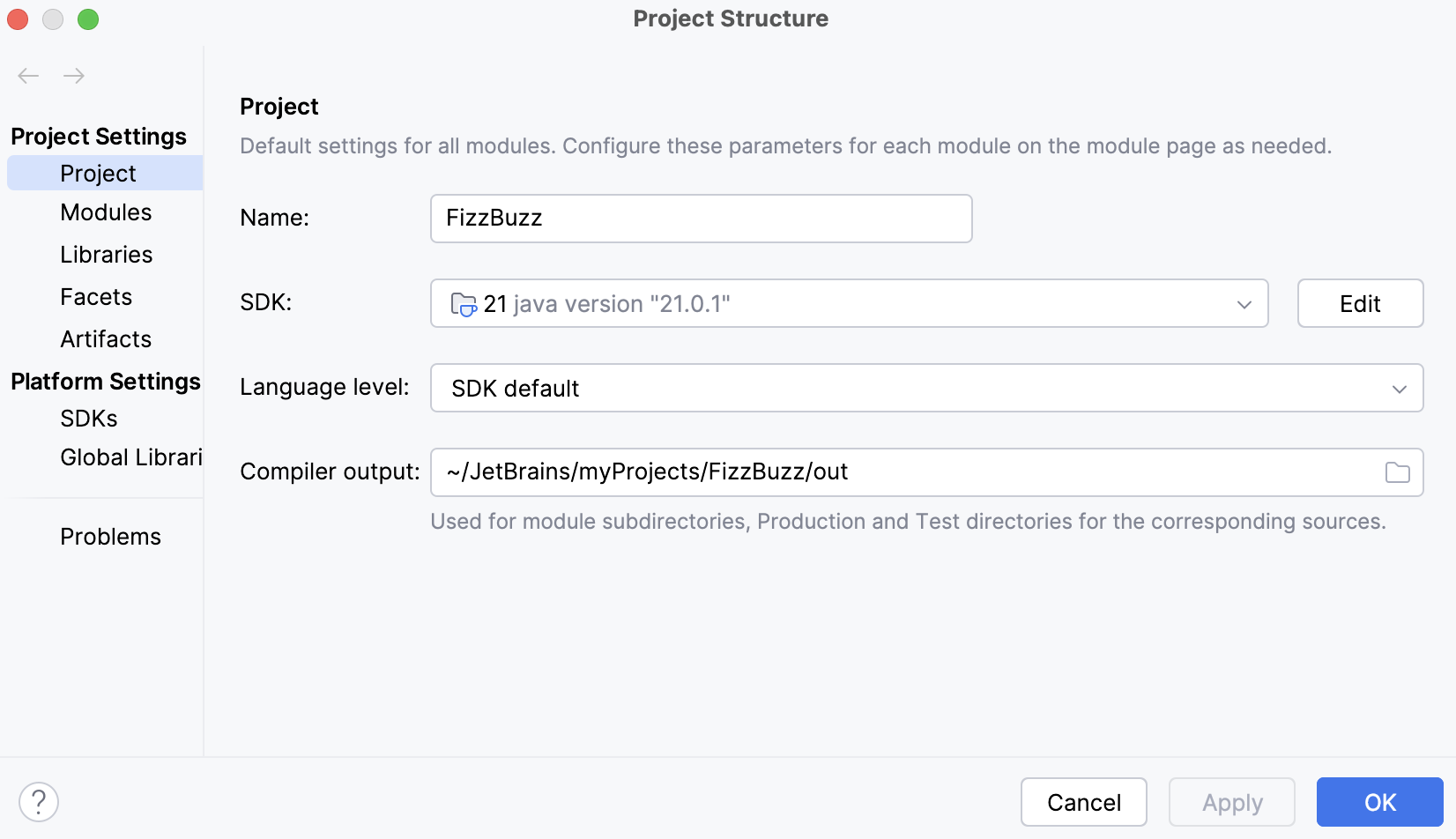
The project structure (Ctrl+Alt+Shift+S) contains information about the project's SDK and a language level used in the project.
Step 2. Add Java code
Now let's create a Java application that outputs the first 100 FizzBuzz numbers.
Add a Java class to the Gradle project
In the Project tool window (Alt+1), select the src/main/java directory.
Click
 New File or Directory on the tool window toolbar (or press Alt+Insert) and select Package.
In the New Package dialog, name the package
org.gradle.tutorialand press Enter.In the Project tool window, right-click the created package and select .
Specify a name for your Java class (for example,
FizzBuzzProcessor) and press Enter.Add the following code to the main
FizzBuzzProcessor.javaclass:package org.gradle.tutorial; public class FizzBuzzProcessor { private FizzBuzzProcessor() { } static void main(String[] args) { for (int i = 1; i <= 100; i++) { System.out.println(convert(i)); } } public static String convert(int fizzBuzz) { if (fizzBuzz % 15 == 0) { return "FizzBuzz"; } if (fizzBuzz % 3 == 0) { return "Fizz"; } if (fizzBuzz % 5 == 0) { return "Buzz"; } return String.valueOf(fizzBuzz); } }
Our application is ready. Let's create the necessary tests for it.
Create a test class
Open the
FizzBuzzProcessor.javaclass in the editor, place the caret at the class name, and go to (Ctrl+Shift+T). Click Create New Test.In the Create Test dialog, select
JUnit6as the Testing library and make sure thatorg.gradle.tutorialas the Destination package is selected.In the Class name field, specify a name for the test class (for example,
FizzBuzzTest) and leave the rest of the default options as is. Click OK.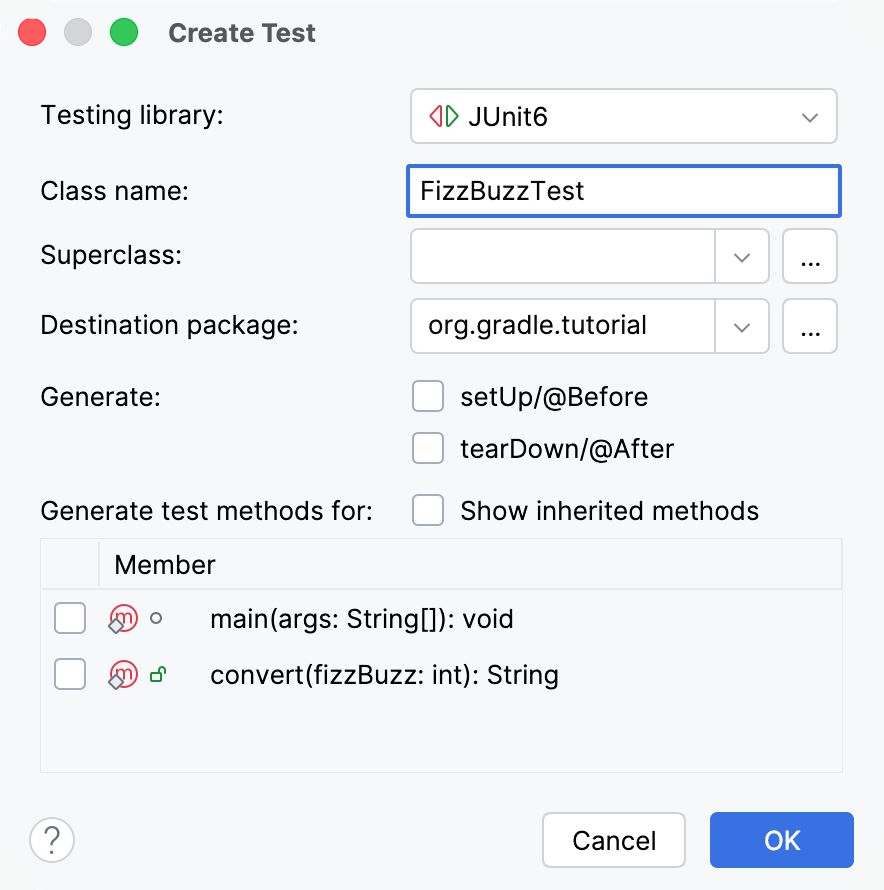
Open the created test class in the editor and add the following code:
package org.gradle.tutorial; import org.junit.jupiter.api.Assertions; import org.junit.jupiter.api.Test; public class FizzBuzzTest { @Test public void FizzBuzzNormalNumbers() { Assertions.assertEquals ("1", FizzBuzzProcessor.convert(1)); Assertions.assertEquals ("2", FizzBuzzProcessor.convert(2)); } @Test public void FizzBuzzThreeNumbers() { Assertions.assertEquals ("Fizz", FizzBuzzProcessor.convert(3)); } @Test public void FizzBuzzFiveNumbers() { Assertions.assertEquals ("Buzz", FizzBuzzProcessor.convert(5)); } @Test public void FizzBuzzThreeAndFiveNumbers() { Assertions.assertEquals ("FizzBuzz", FizzBuzzProcessor.convert(15)); } }
Step 3. Run the application with Gradle
Let's run the application to see if it works.
Run main class from the editor
Open the
FizzBuzzProcessor.javaclass in the editor. Click the gutter icon and select Run 'FizzBuzzProcessor.main()' to run the application.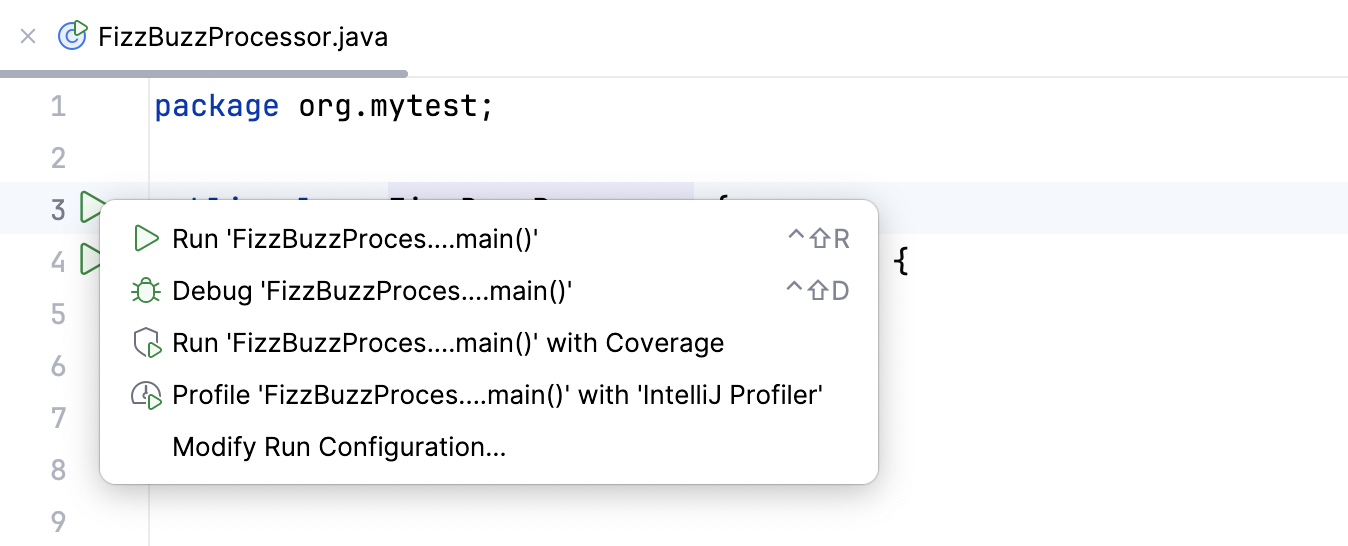
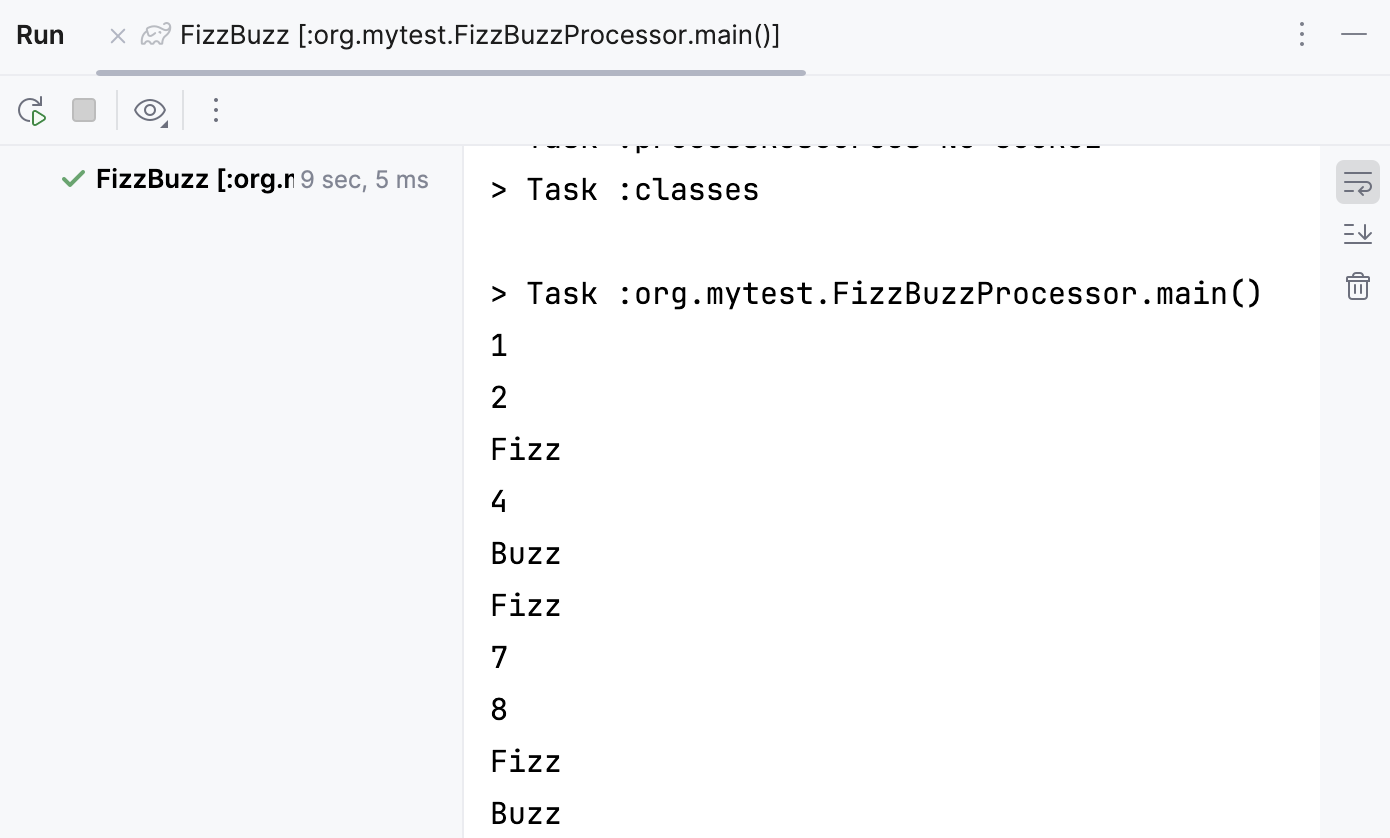
Check the result in the Run tool window.
Step 4. Run tests
Now, let's run the created test.
Run tests in a Gradle project
Open the FizzBuzzTest.java test class in the editor. Click the
 Run Test gutter icon next to class definition and select Run 'FizzBuzzTest'.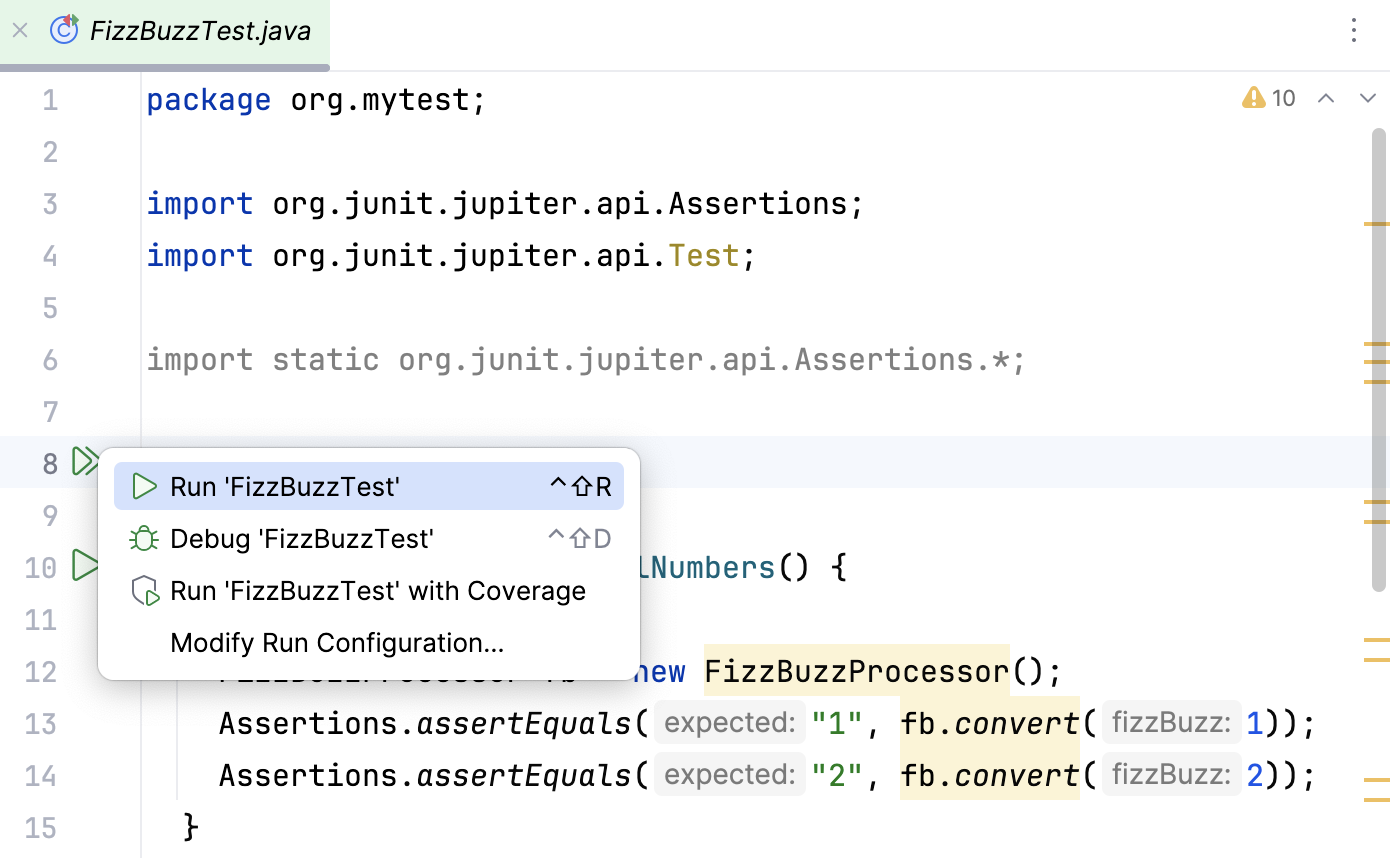
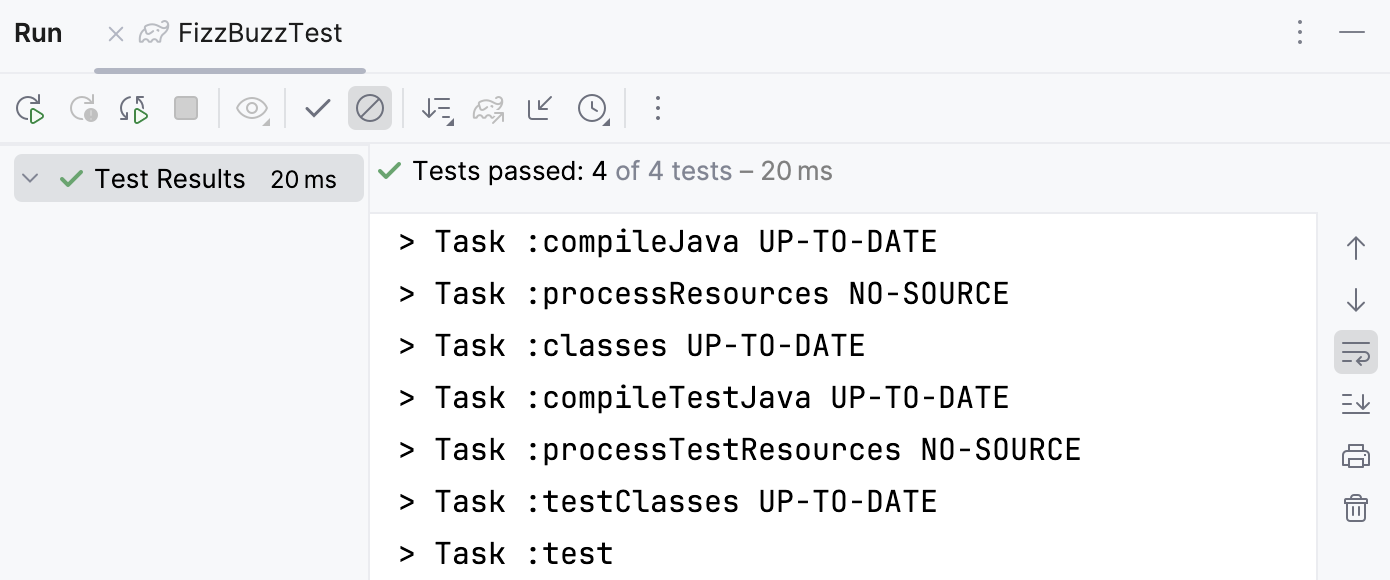
The result of the test will be displayed in the Run tool window.
If you change the default number in one of the tests, it will fail.
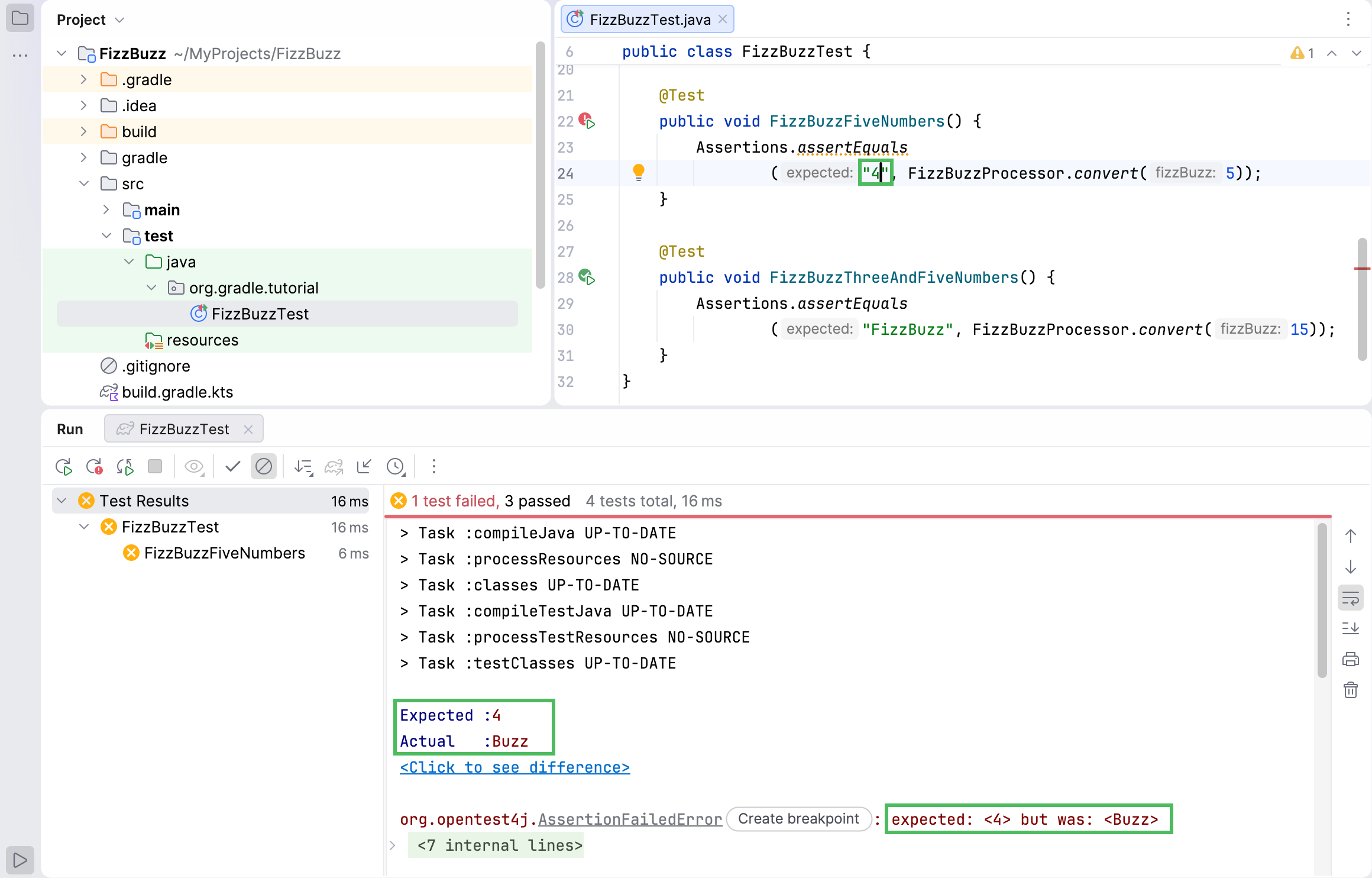
The Run tool window displays information about the failed test including the specific line of the code where the error occurred.
Step 5. Create an executable JAR file
Let's build our application to create an executable JAR file.
In the Project tool window, find the build.gradle.kts file and open it in the editor.
Add the following code as a separate element at the end of the file:
tasks.jar { manifest { attributes["Main-Class"] = "org.gradle.tutorial.FizzBuzzProcessor" } from({ configurations.runtimeClasspath.get().map { if (it.isDirectory) it else zipTree(it) } }) }Click
 Sync Gradle Changes in the editor to synchronize the changes to your project.
In the Gradle tool window, open the project's node, then go to the node, and double-click the build task to run it.
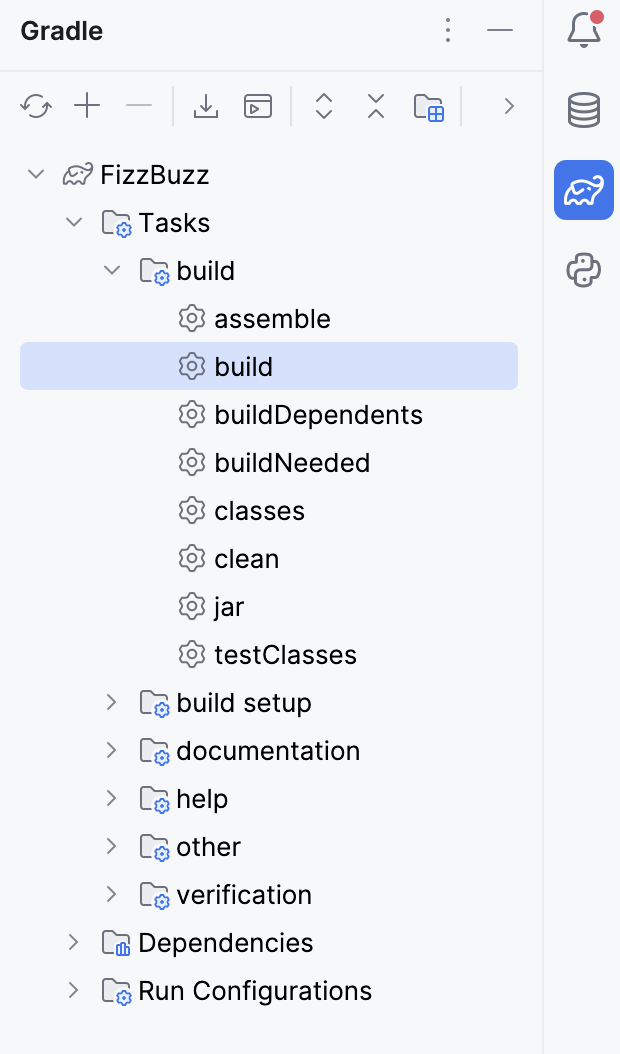
IntelliJ IDEA creates the build directory that contains your JAR file.
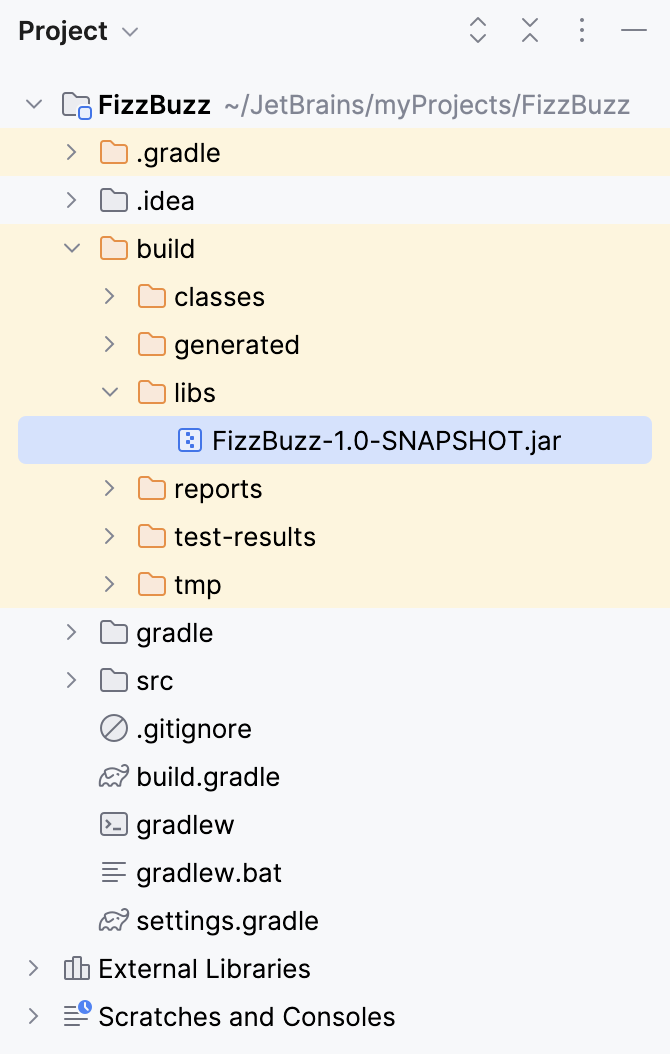
Check the Run tool window for the results.
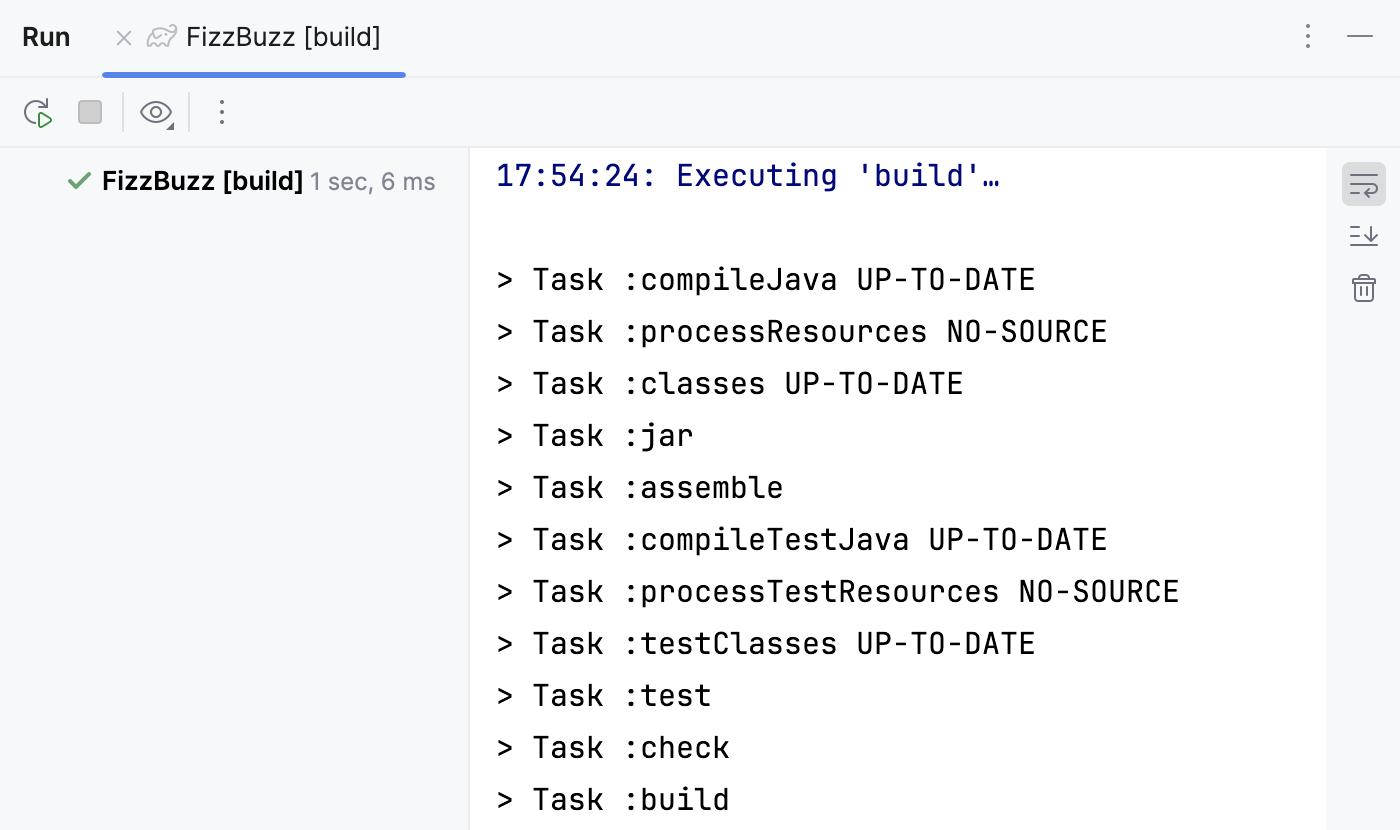
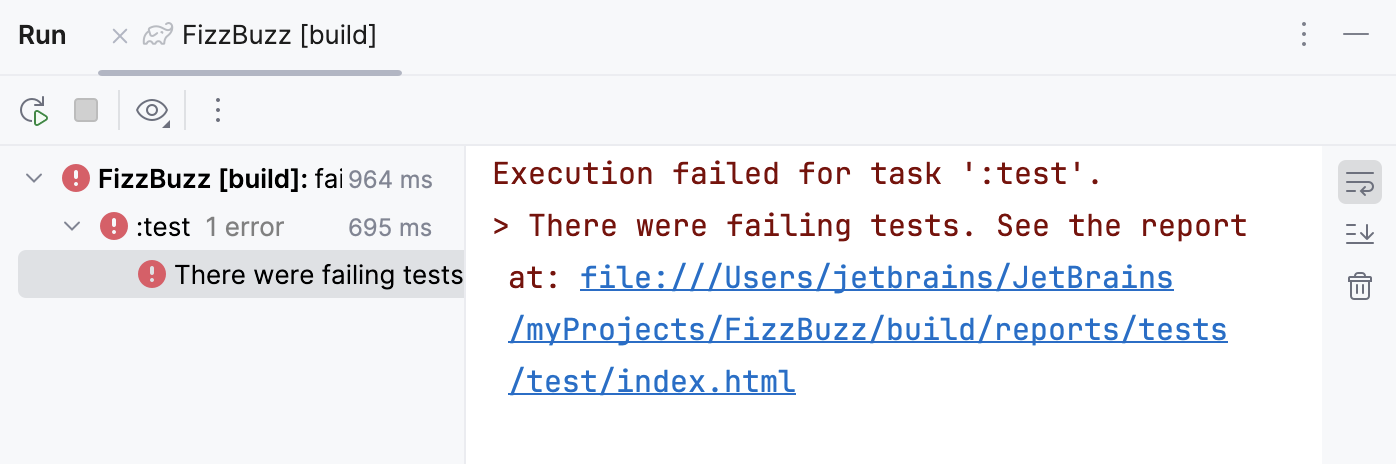
Note that the build task includes the test task that Gradle executes. So, if you make a mistake in one of the tests, the test task will fail and the build task will fail as well.
Step 6. Run the JAR file with Gradle
Let's make a few adjustments to the build.gradle.kts file so that you can execute your JAR file in the Run anything popup.
Run the JAR file
In the Project tool window, find the build.gradle.kts file and open it in the editor.
Change the code at the top of the file as follows:
plugins { id ("java") id ("application") } application { mainClass.set("org.gradle.tutorial.FizzBuzzProcessor") }The final version of the build.gradle.kts file, including all changes, is available on GitHub.
Click
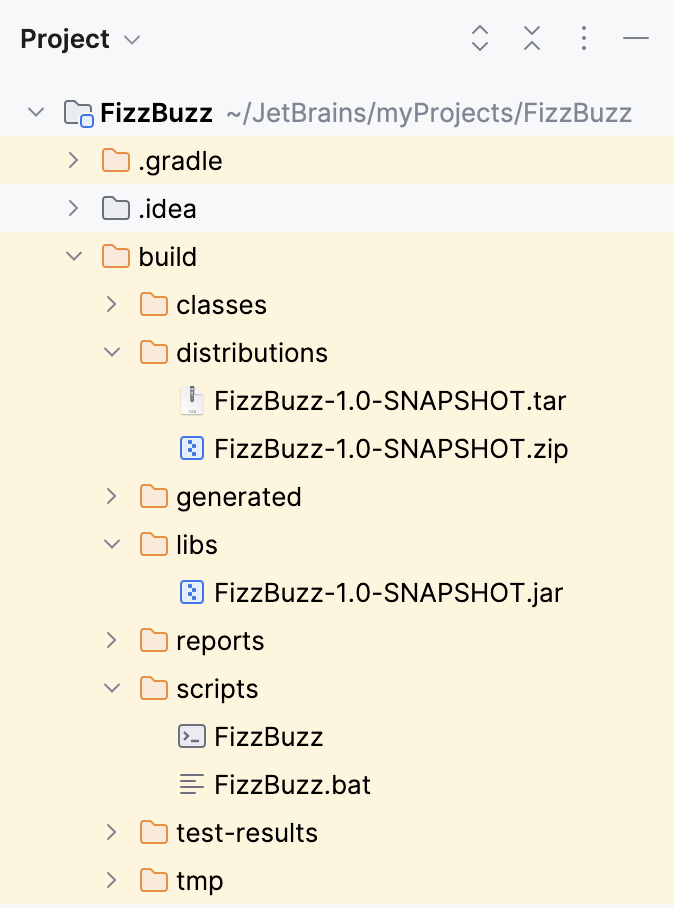
Sync Gradle Changes in the editor to synchronize the changes to your project.In the Gradle tool window, open the project's Tasks node. Gradle added the new distribution node here. Open this node and double-click the assembleDist task to run it.
IntelliJ IDEA creates additional subdirectories in the build directory.
In the Gradle tool window, click
 Execute Gradle Task on the toolbar.
In the Run Anything popup that opens, find the
gradlew :runcommand and double-click it.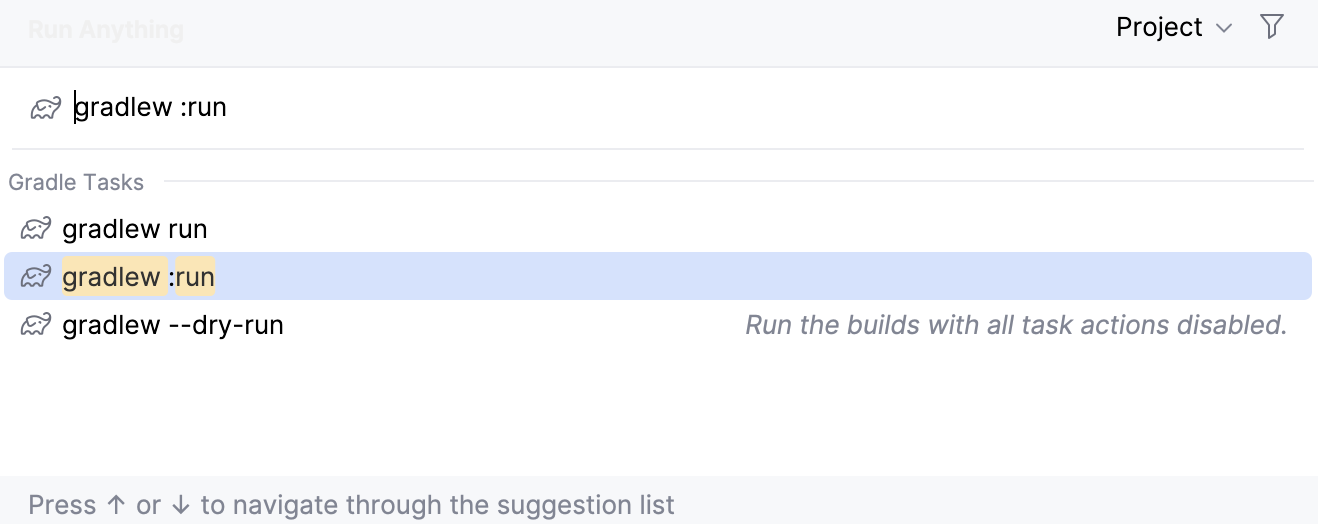
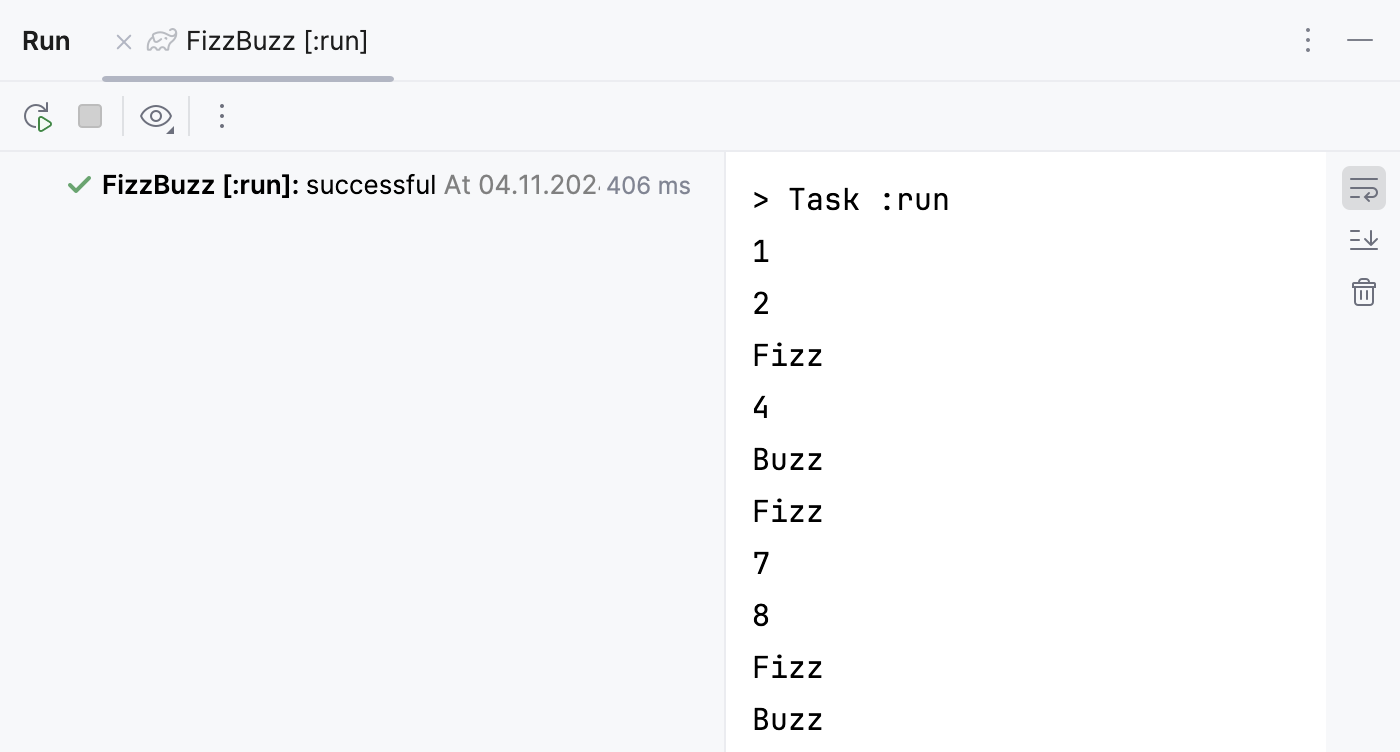
Check the result in the Run tool window. It should be the same as when you ran the application from the IntelliJ IDEA editor.
Summary
In this tutorial, you have learned how to:
Create and manage Gradle-based projects in IntelliJ IDEA
Create and run an executable JAR file using Gradle
Next steps
Learn how to complete other tasks using Gradle in IntelliJ IDEA from these tutorials:
For a full list of available tutorials, refer to IntelliJ IDEA tutorials.