Run/debug configuration: Ammonite
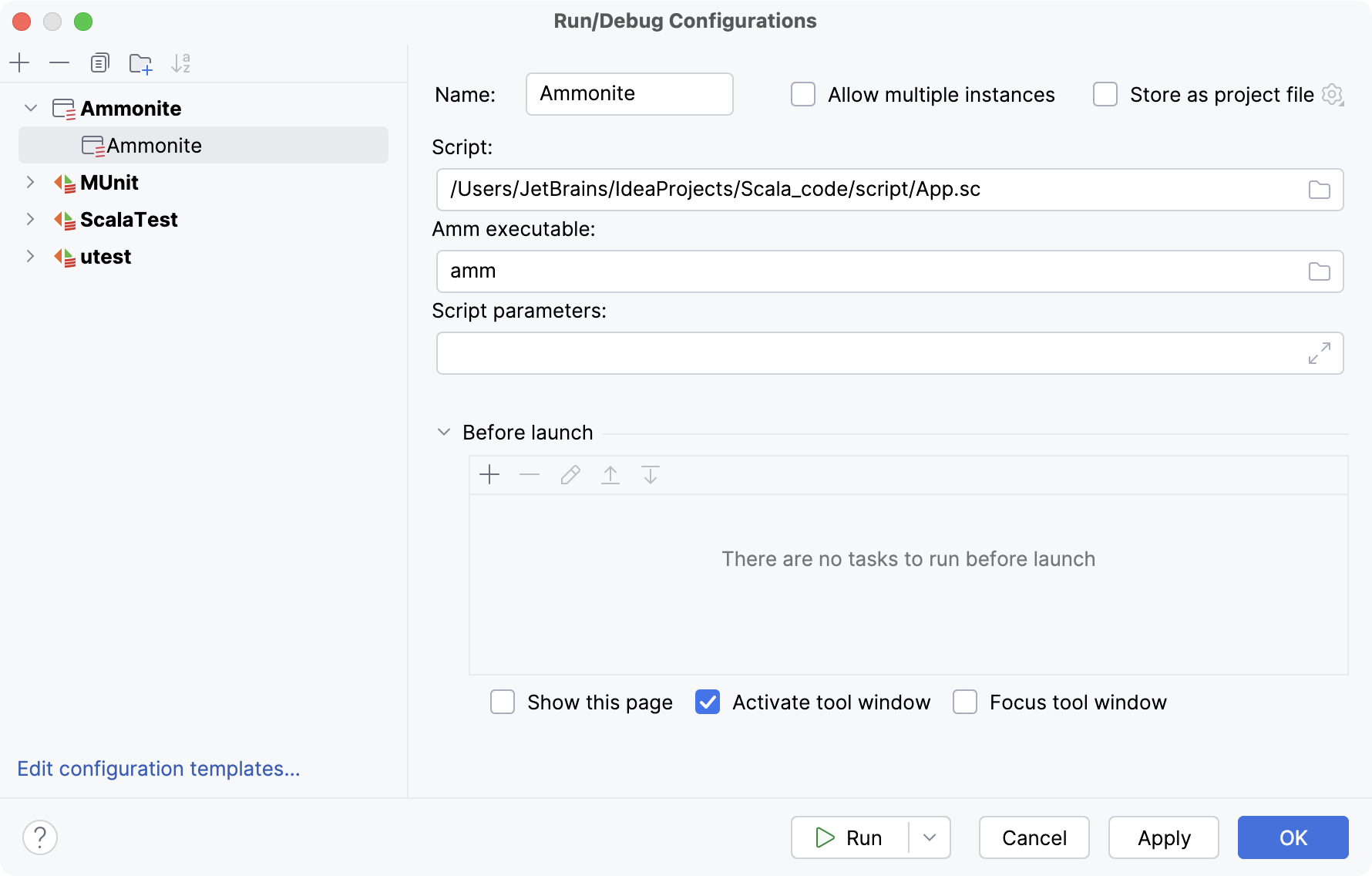
Use the Ammonite configuration to run and debug Ammonite scripts. It lets you run an Ammonite Scala script directly from the IDE, without creating a full Scala application or sbt task.
Create a new configuration for Ammonite
In the main menu, go to .
In the Run/Debug Configuration dialog, click
 on the toolbar or press Alt+Insert.
The list shows the run/debug configuration templates. Select Ammonite on the left.
On the right, you will see configuration options.
For more information about using Ammonite in IntelliJ IDEA, refer to Scala worksheet, Scala REPL and Ammonite.
Ammonite settings
Item | Description |
|---|---|
Script | Specify the location of the script file you want to execute. |
Amm executable | Specify the location of the Ammonite distribution on your machine. |
Script parameters | Specify additional parameters for the script execution. |
Common options
Item | Description |
|---|---|
Name | Specify a name for the run configuration to quickly identify it among others when editing or running. |
Allow multiple instances | Allow running multiple instances of this run configuration in parallel. By default, it is disabled, and when you start this configuration while another instance is still running, IntelliJ IDEA suggests stopping the running instance and starting another one. This is helpful when a run configuration consumes a lot of resources and there is no good reason to run multiple instances. |
Store as project file | Save the file with the run configuration settings to share it with other team members. The default location is .idea/runConfigurations. However, if you do not want to share the .idea directory, you can save the configuration to any other directory within the project. By default, it is disabled, and IntelliJ IDEA stores run configuration settings in .idea/workspace.xml. |
Before launch
In this area, you can specify tasks to be performed before starting the selected run/debug configuration. The tasks are performed in the order they appear in the list.
Item | Shortcut | Description |
|---|---|---|
| Alt+Insert | Click this icon to add one of the following available tasks:
|
| Alt+Delete | Click this icon to remove the selected task from the list. |
| Enter | Click this icon to edit the selected task. Make the necessary changes in the dialog that opens. |
| Alt+Up Alt+Down | Click these icons to move the selected task one line up or down in the list. The tasks are performed in the order that they appear in the list. |
Show this page | Select this checkbox to show the run/debug configuration settings prior to actually starting the run/debug configuration. | |
Activate tool window | By default this checkbox is selected and the Run or the Debug tool window opens when you start the run/debug configuration. Otherwise, if the checkbox is cleared, the tool window is hidden. However, when the configuration is running, you can open the corresponding tool window for it yourself by pressing Alt+4 or Alt+5. | |
Focus tool window | Select this checkbox to automatically move focus to the Run or the Debug tool window when you start the run/debug configuration. |


