Tutorial: Work with code in the editor
This tutorial covers the essential shortcuts and tips for working with code in the editor, which will speed up your workflow.
You will learn how to quickly copy, duplicate, and delete lines, split and join strings, move lines and code statements, and use multiple carets to edit several places at once. In this tutorial, we will explore these features using Java code.
By the end of the tutorial, you will be able to navigate your files and handle routine editing tasks faster using various editor shortcuts.
Create a new project
Let's create a new project that we will use to complete the tasks of this tutorial.
Launch IntelliJ IDEA.
If the Welcome screen opens, click New Project.
Otherwise, go to in the main menu.
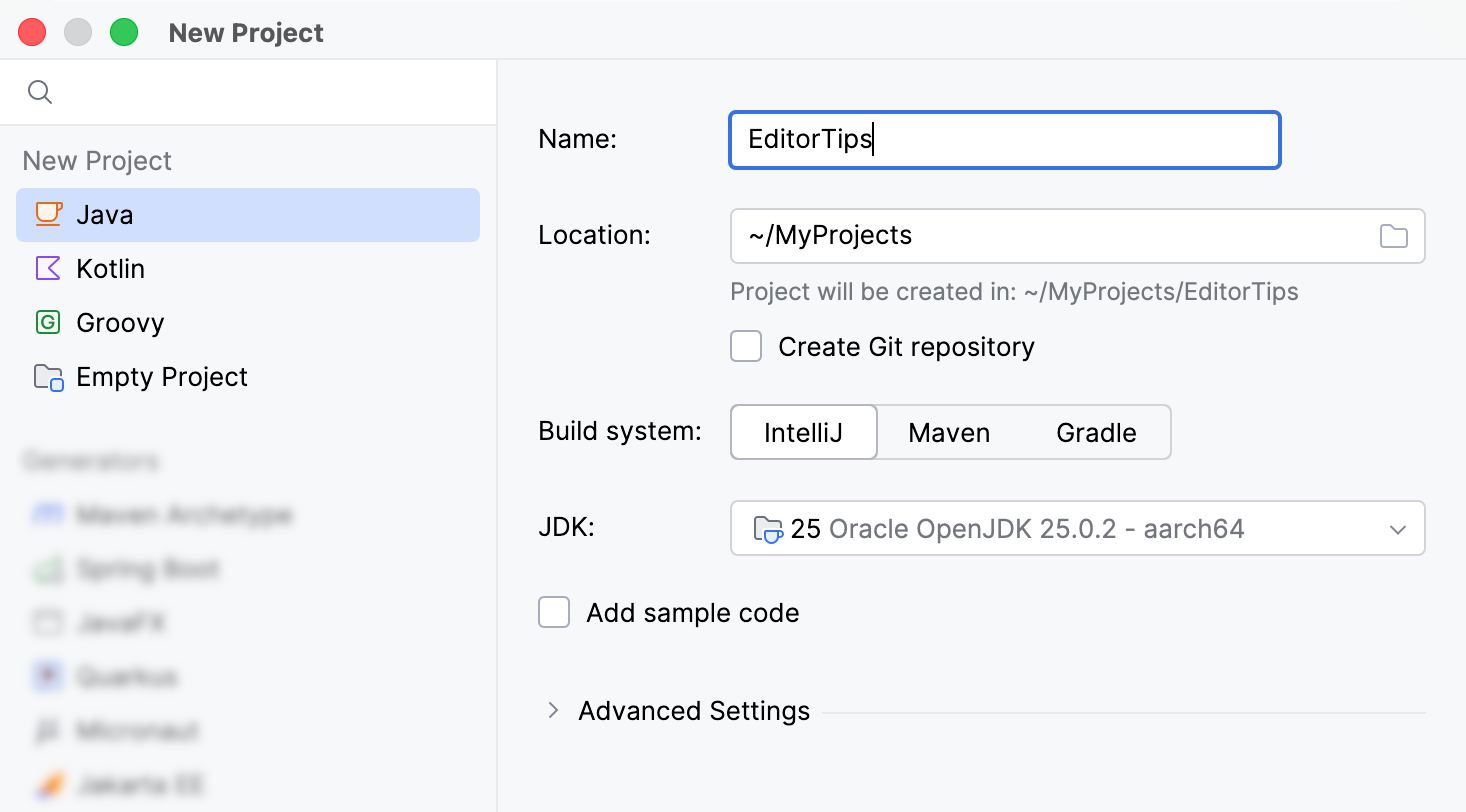
In the New Project wizard, select Java from the New Project list.
Name the project (for example,
EditorTips) and change the default location if necessary.Select IntelliJ as the Build system.
From the JDK list, select the latest available Oracle OpenJDK version.
If the JDK is installed on your computer, but not defined in the IDE, select Add JDK and specify the path to the JDK home directory.
If you do not have the necessary JDK on your computer, select Download JDK.
Leave the Add sample code option disabled. Click Create.
In the Project tool window (Alt+1) , make sure the src folder is selected.
Click
 New File or Directory on the tool window toolbar (Alt+Insert) and select Java Class.
Name the file (for example,
EditorTips) and press Enter.Open the newly created file in the editor and add the following code to it:
public class EditorTips { //This is an extra line that needs to be deleted public void editorTipsStrings() { //Press Enter to insert a line break //Press Ctrl+Shift+J (Windows) or ⌃Control+⇧Shift+J (Mac) to join lines String multipleLines = "This code can be written on a single line or across multiple lines, " + "and you can press to automatically insert a line break with '+' sign."; String copyPasteLines = "Let's " + "copy this line," + "and paste lines before this line." + "then cut this line," + "This is the end."; String duplicateLines = "Let's " + "duplicate this line," + "and move to the next one."; String orderList = "Here is a list of items:" + "Item 1" + "Item 3" + "Item 2" + "Item 4"; } }
Now you have a file which you will use through the entire tutorial.
Maximize editor pane
To fully focus on working with code, it is useful to maximize the editor pane so that other panes and tool windows do not take up workspace. Let's open the file that we will work with and maximize the editor pane.
Open the
EditorTips.javaclass file in the editor.Press Ctrl+Shift+F12.
IntelliJ IDEA hides all windows except the active editor.
Work with lines of code
Copy and paste lines
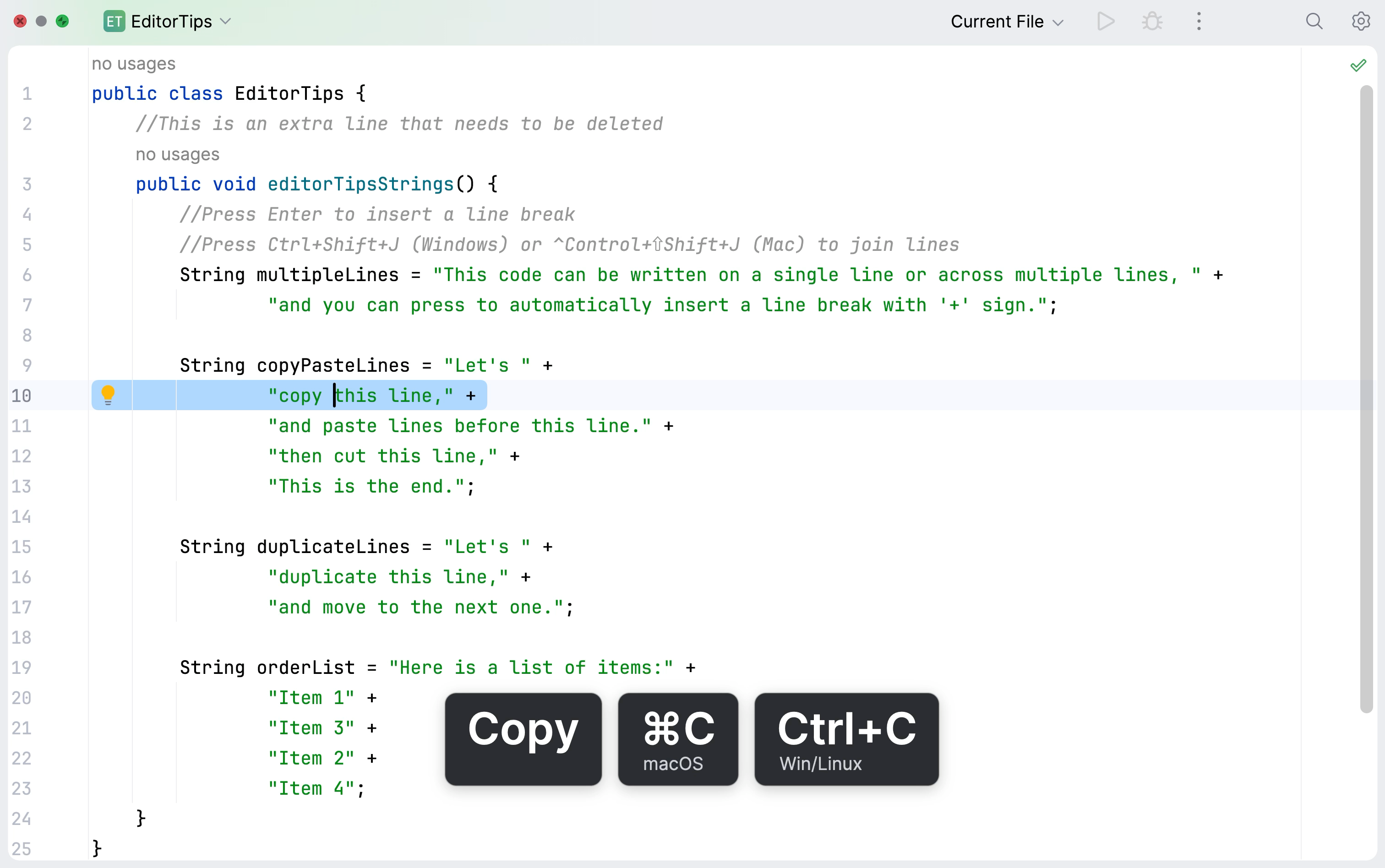
You can use the standard shortcuts to copy Ctrl+C, cut Ctrl+X and paste Ctrl+V any selected code fragment. If nothing is selected, IntelliJ IDEA automatically copies or cuts the entire line where the caret is located.
In
EditorTips.java, find thecopyPasteLinesvariable.Place the caret anywhere on a line you want to copy (for example,
"copy this line," +) and press Ctrl+C.Move the caret to the line where you want to insert the copied line (for example,
"and paste lines before this line." +) and press Ctrl+V.IntelliJ IDEA pastes the copied line above current position of the caret.
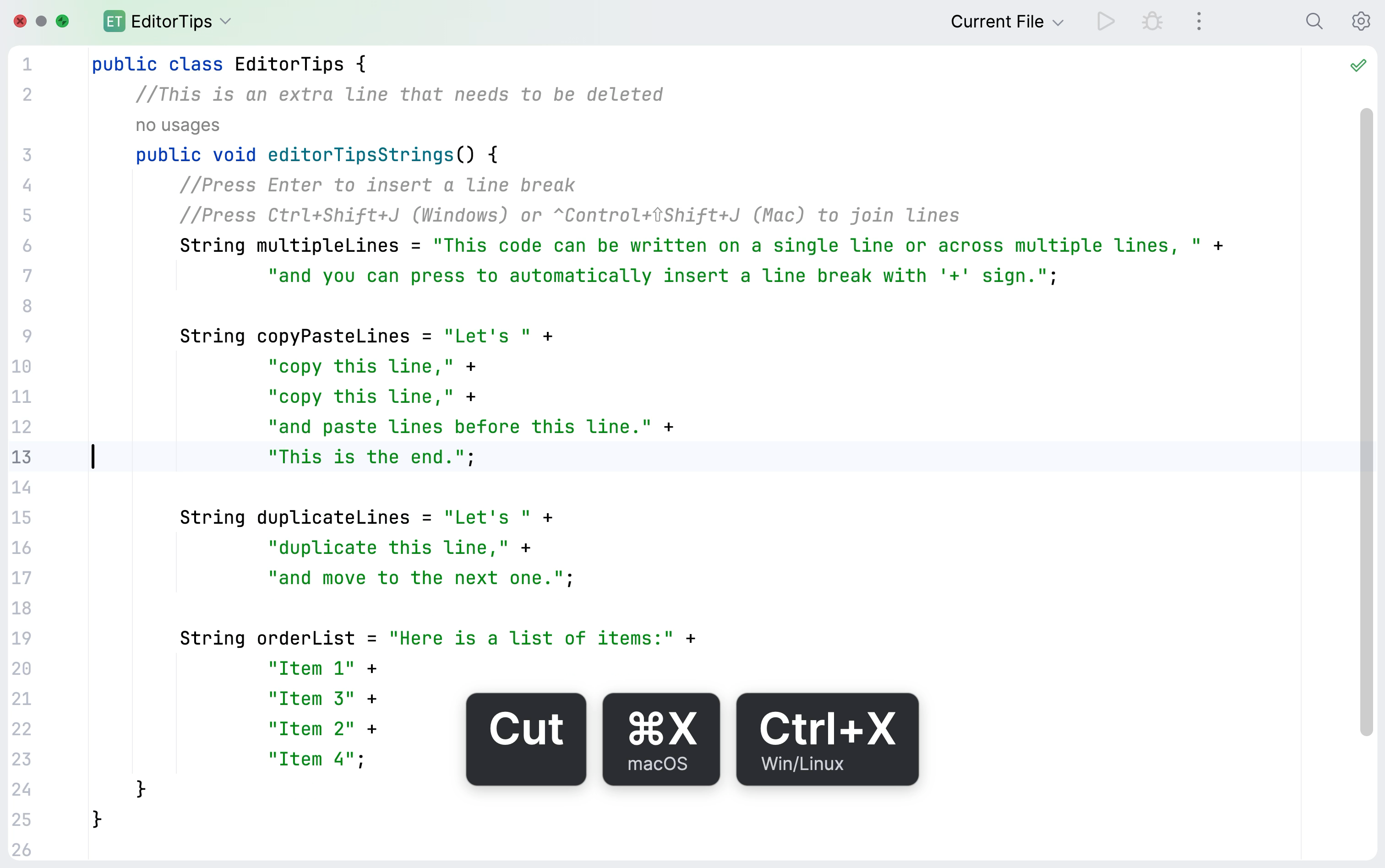
Place the caret on the line you want to cut (for example,
"then cut this line" +) and press Ctrl+X.Move the caret to the target line (for example,
"and paste lines before this line." +) and press Ctrl+V.IntelliJ IDEA pastes the cut line.
Duplicate a line
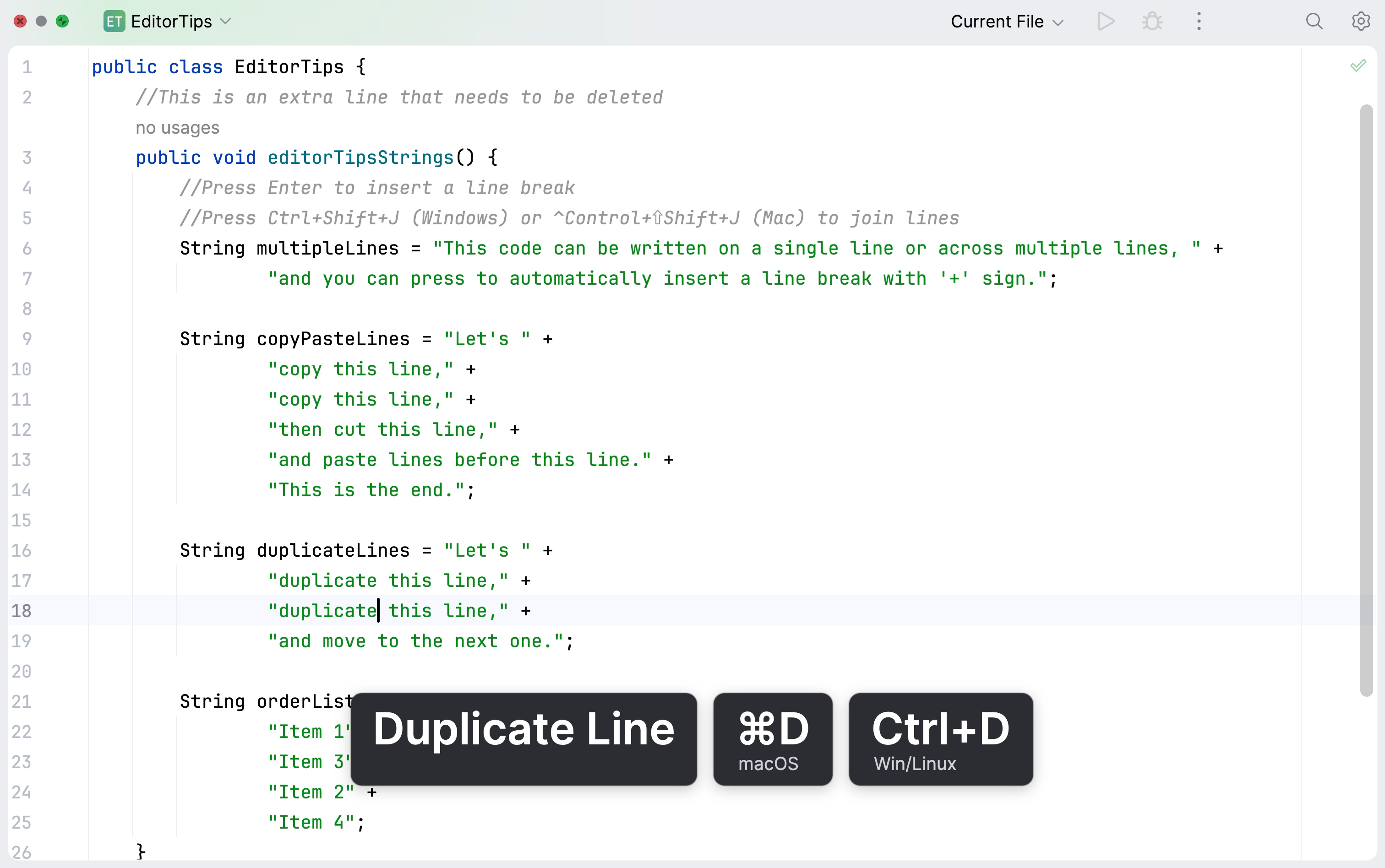
You can use the standard shortcut Ctrl+D to duplicate any selected code fragment. If nothing is selected, IntelliJ IDEA automatically duplicates the entire line where the caret is located.
In
EditorTips.java, find theduplicateLinesvariable.Place the caret on the line you want to duplicate (for example,
"duplicate this line," +) and press Ctrl+D.IntelliJ IDEA creates an exact copy of the line directly below it.
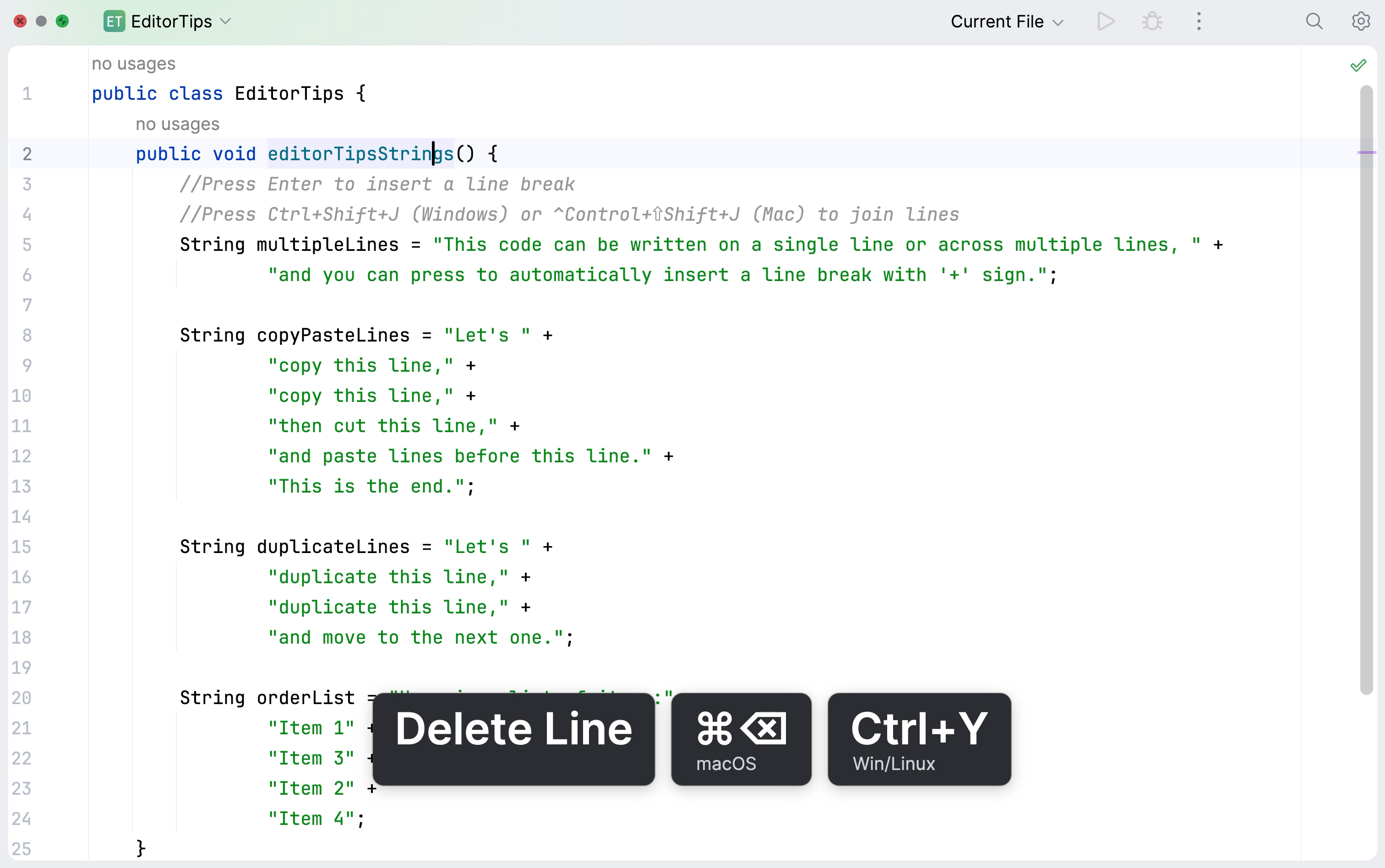
Delete a line
In IntelliJ IDEA, you can quickly remove an entire line of code without selecting it first.
In
EditorTips.java, find the line you want to delete (for example, the//This is an extra line that needs to be deletedcomment).Press Ctrl+Y.
IntelliJ IDEA deletes the line and moves the caret to the beginning of the next one.
Split lines
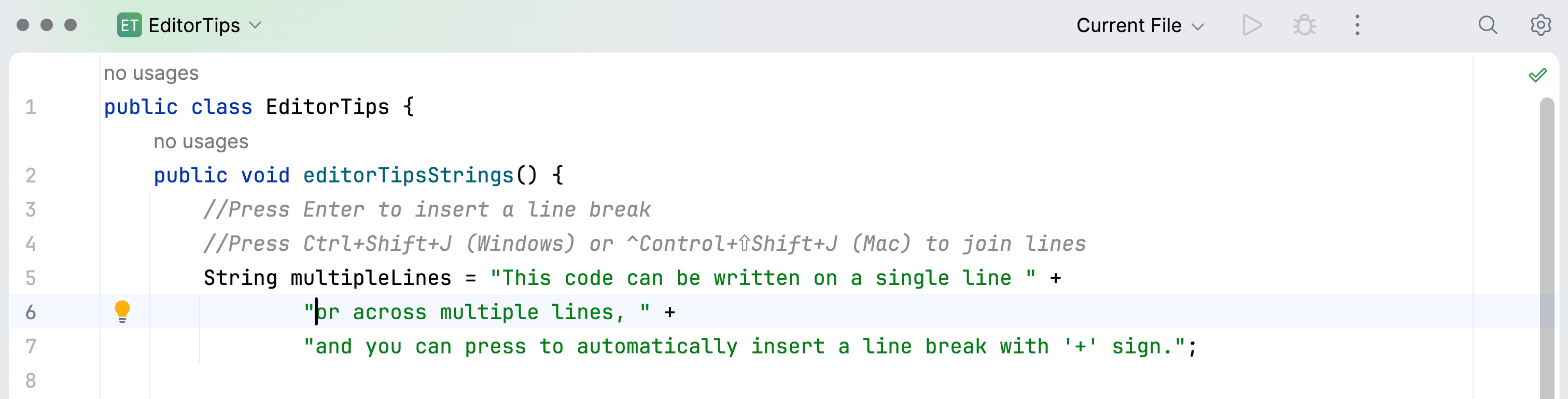
IntelliJ IDEA supports smart splitting for strings. If you press Enter in the middle of a string, the IDE automatically closes the quotes on the current line, adds a plus sign (+) for concatenation, and reopens the quotes on the new line.
In
EditorTips.java, find the line you want to split (for example,String multipleLines), place the caret where you want the split to begin (for example, beforeor acrosswords), and then press Enter.IntelliJ IDEA splits the string and moves the caret to the beginning of the new line.
Sometimes you need to split a string but stay on the current line to continue typing. Let's use the shortcut Ctrl+Enter to split our
multipleLinesstring and complete it with the missing name of key.In the same
multipleLinesvariable, place the caret after thepressword and press Ctrl+Enter.IntelliJ IDEA splits the line but leaves the caret on the current line, right before the closing quotation marks.
Type
Enter.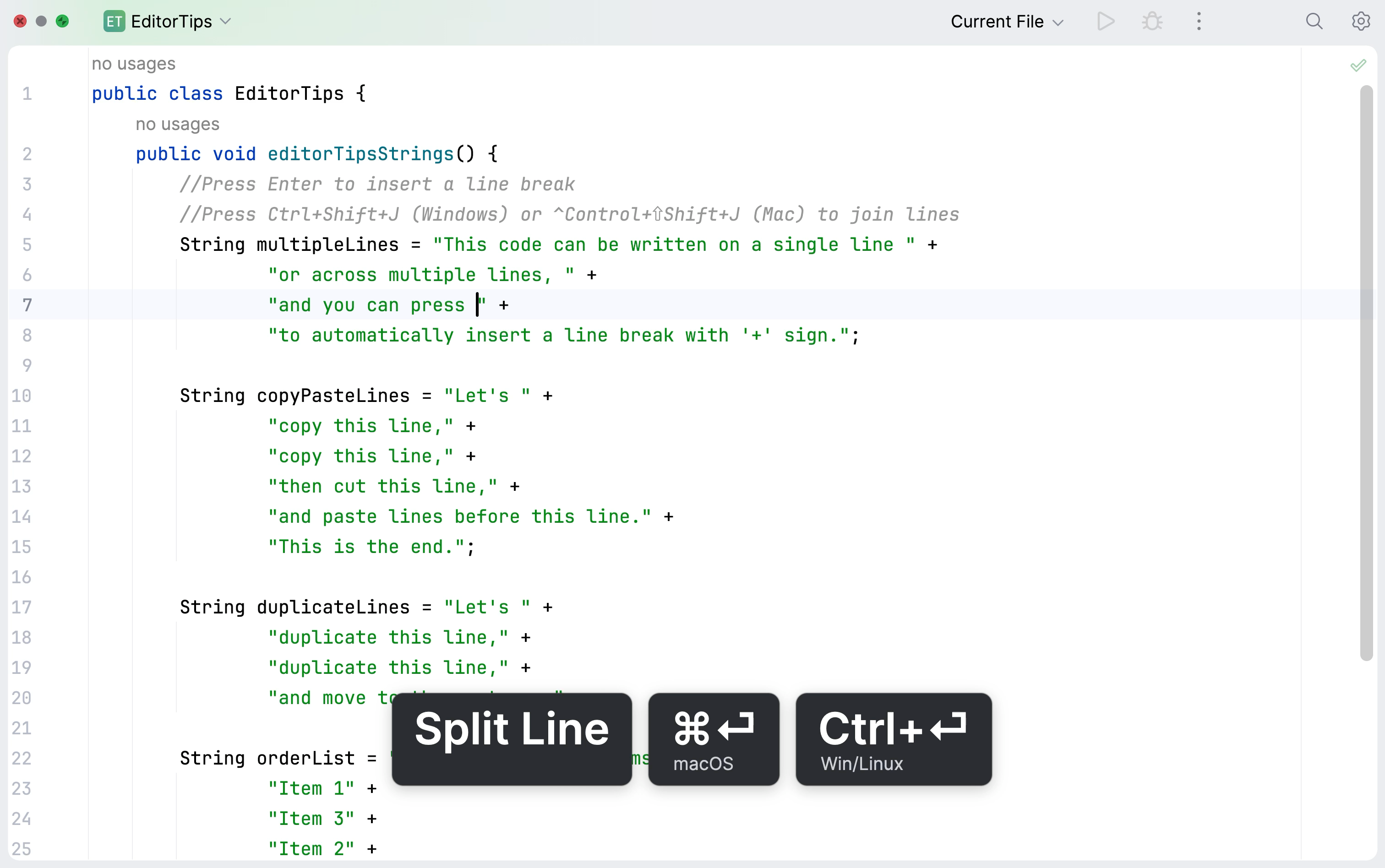
The string is now properly formatted and complete.
Join lines
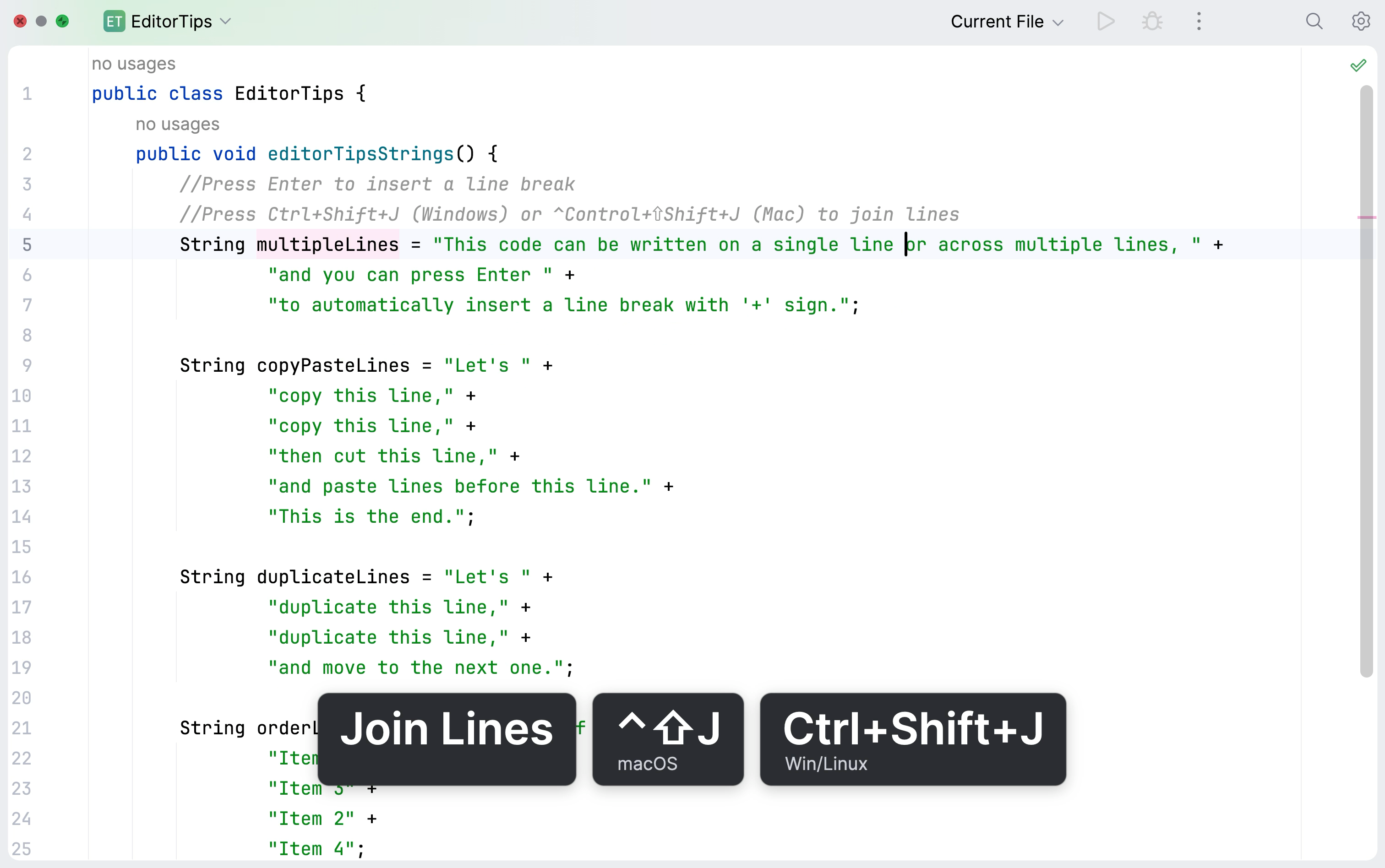
In IntelliJ IDEA, you can quickly join lines using a single shortcut. This is helpful for formatting multiple strings or laying out block comments.
In
EditorTips.java, place the caret on the line where you want to join next lines (for example, the first line of themultipleLinesvariable) and press Ctrl+Shift+J.IntelliJ IDEA adds the next line to the end of the current one, removes the concatenation (+) and quotes, merges everything into a single string, and puts the caret at the beginning of the joined part.
Keep pressing the shortcut until the entire
multipleLinesvariable is joined into one line.
Move the code
Move statements
A code statement is a complete instruction, such as a variable assignment or a function call. In IntelliJ IDEA you can move an entire statement through the file with a single shortcut. If a statement spans multiple lines, moving a statement declaration line will move the entire block.
In the editor, place the caret inside the code statement you want to move (for example, the
copyPasteLinesvariable declaration).Press Ctrl+Shift+Up to move a statement up or Ctrl+Shift+Down to move it down.
IntelliJ IDEA moves the statement while performing a syntax check to ensure it stays within the method.
Move the selected code statement to the end of the method.
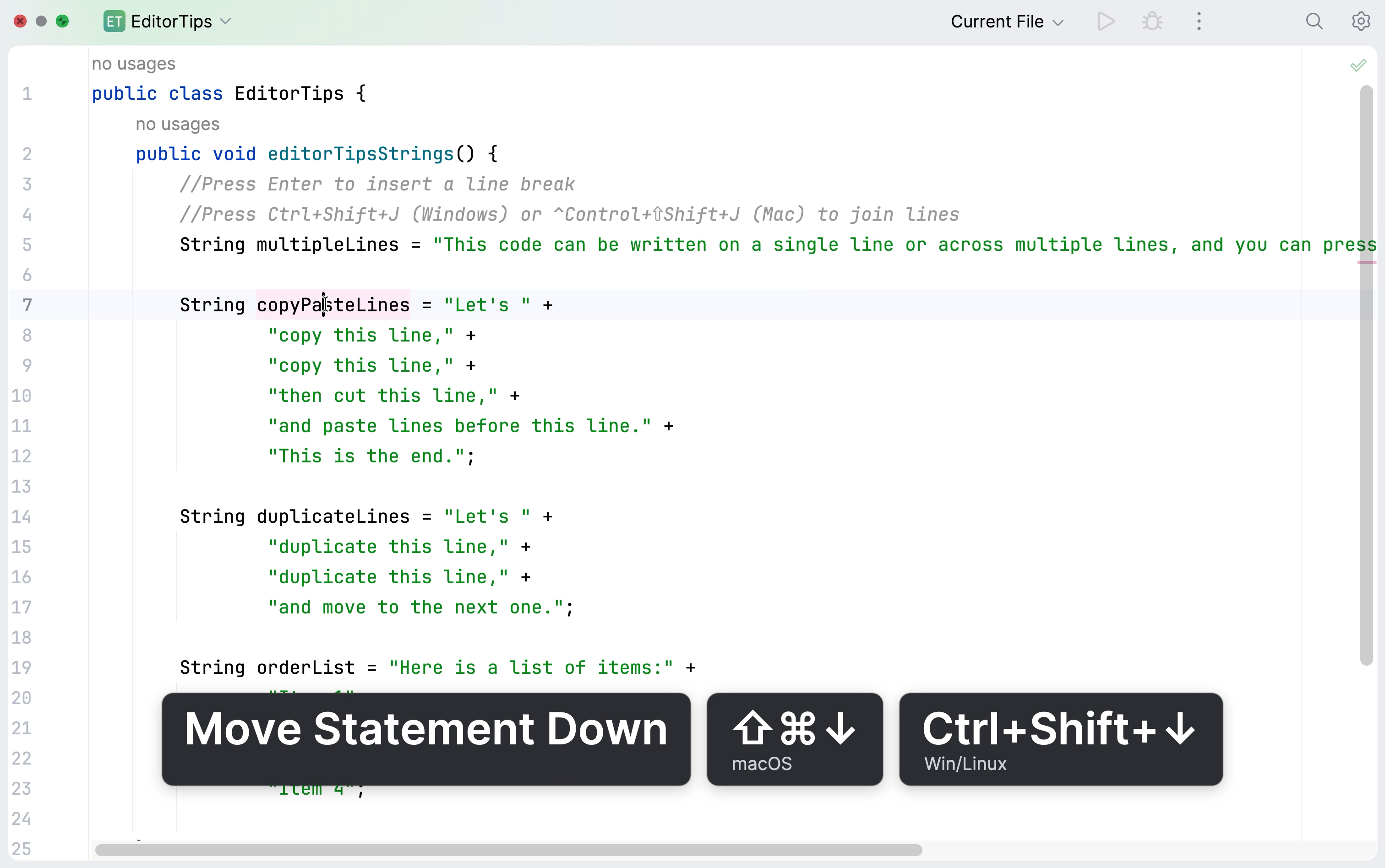
To learn more about working with code statements, refer to Code statements.
Move lines
You can also move a single or multiple lines regardless of the code syntax.
In the editor, place the caret on the line you want to move (for example, the
Item 2string in theorderListvariable).Press Alt+Shift+Up to move the line up or Alt+Shift+Down to move it down.
IntelliJ IDEA moves the line without performing a syntax check.
Use these shortcuts to fix the order of items in the
orderListvariable.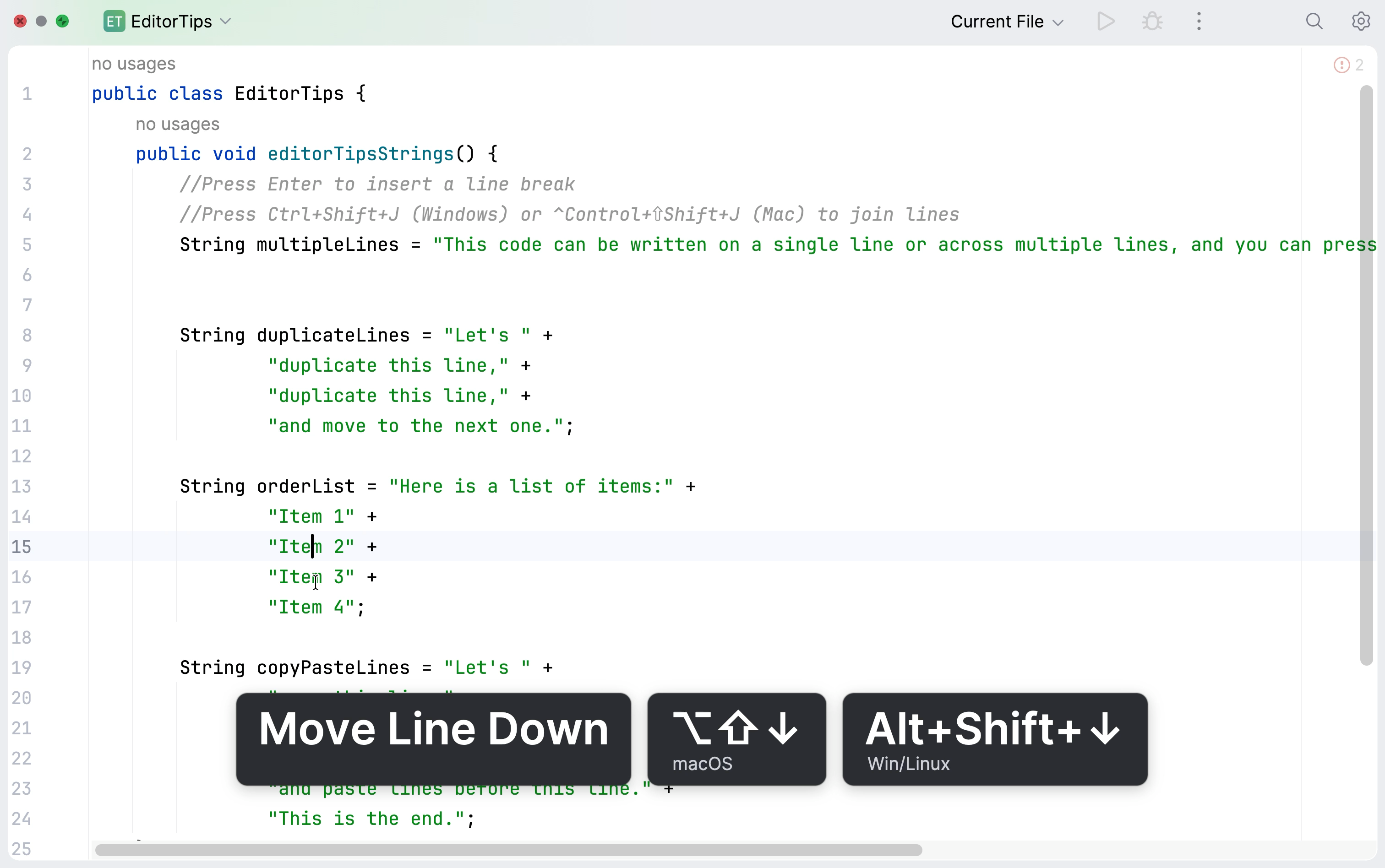
Work with multiple carets and selection ranges
When typing, copying, or pasting in IntelliJ IDEA editor, you can toggle multiple cursors so that your actions apply in several places simultaneously.
Add multiple carets
You can add the same text in several places at once using multiple carets. For example, you can quickly add all missing spaces in several strings at the same time.
In the editor, place the caret where you want to add content (for example, after the
duplicate this line,text inside quotes).Use Alt+Shift+Click at other locations to add additional carets. Place carets before all places with missing spaces.
Press Space to type spaces.
IntelliJ IDEA inserts a typed text at every caret position simultaneously.
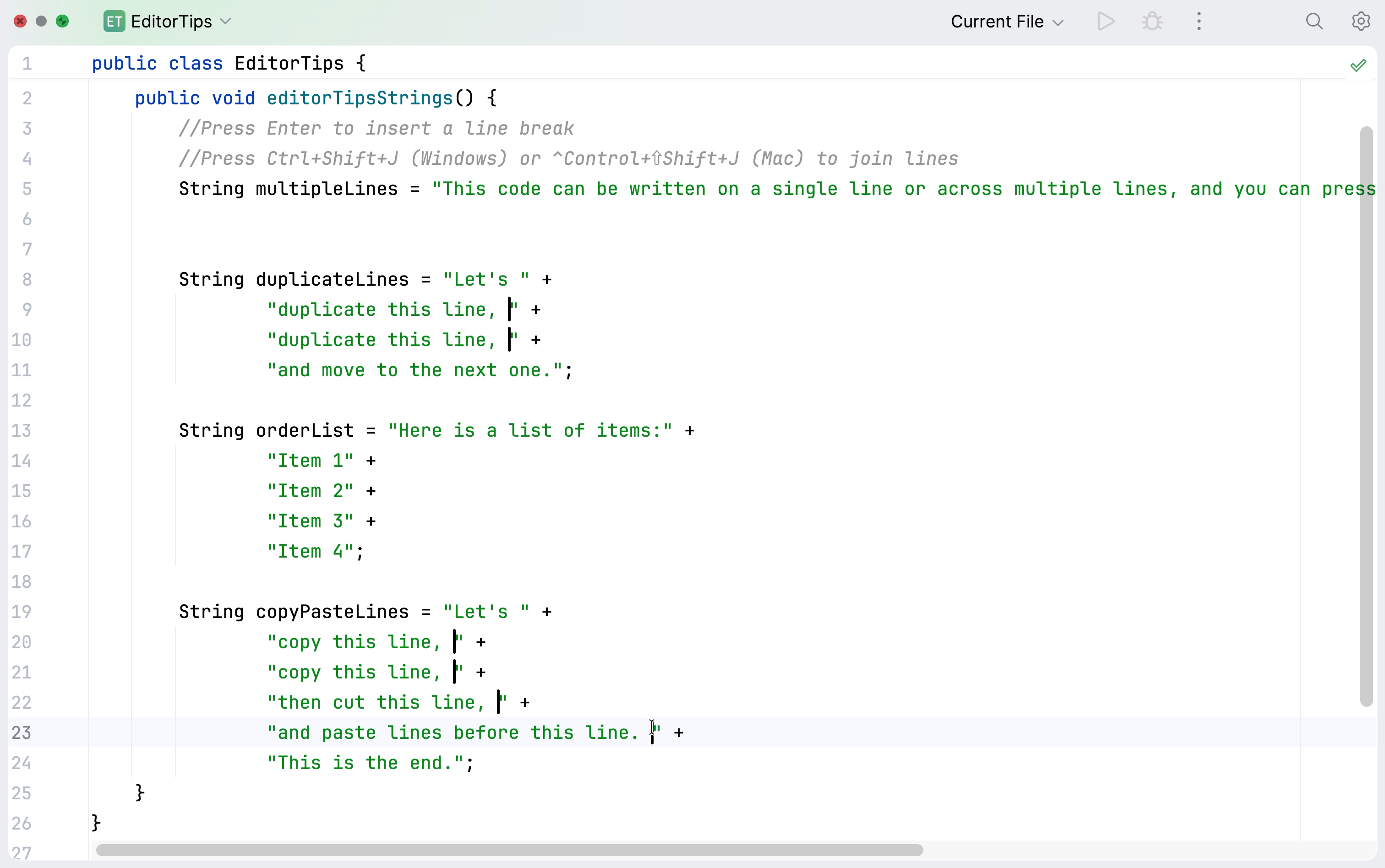
Press Escape to remove all extra carets, leaving only the most recent one.
Use column selection mode
Column selection mode allows you to edit code in a rectangular block rather than a continuous flow. It is useful for modifying lists or structured data quickly.
Let's add markers to our list using column selection mode.
In the main menu, go to (Alt+Shift+Insert) to toggle column selection mode.
Place the caret inside the quotes before one of the items in the
orderListvariable (for example, beforeItem 2).Press Shift+Up/Shift+Down to add new carets above or below the current one. Press shortcuts to place carets at the beginning of each string with list items.
Type a hyphen (
-). IntelliJ IDEA inserts a typed text at every caret position simultaneously.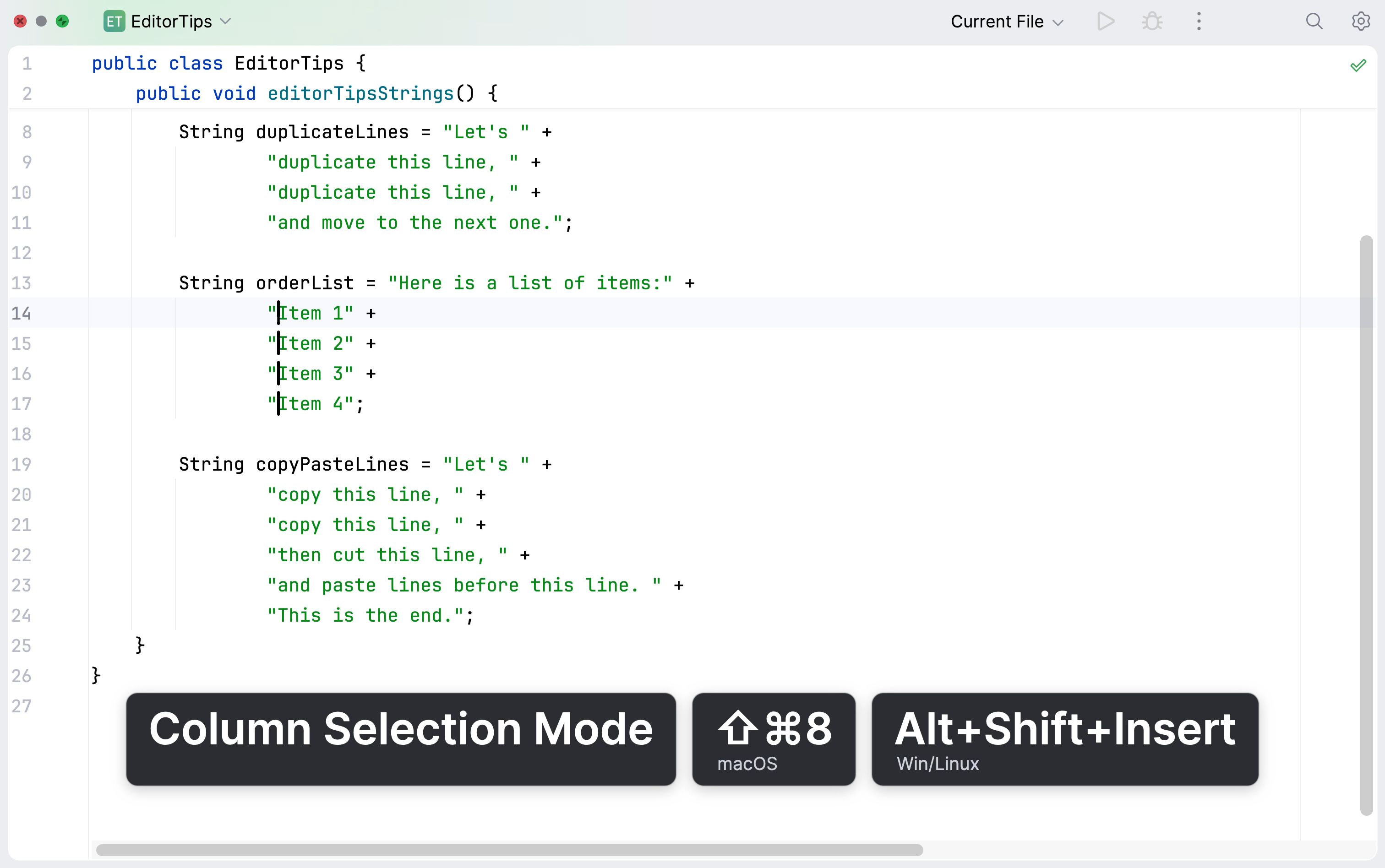
Press Escape to remove all extra carets, leaving only the recently added one.
In the main menu, go to (Alt+Shift+Insert) again to disable column selection mode and return to the default editing mode.
Clone carets
In IntelliJ IDEA, you can also clone your caret to the lines above or below. Let's add line break characters to our list using this feature.
In the editor, place the caret at the first place where you want to add content (for example, before
- Item 1).Press Ctrl twice and hold it down on the second press. While holding the key, press up or down arrow keys.
If column selection mode is enabled, new carets will be added exactly above or below the current caret position. Otherwise, if a line is shorter than the current position, the cloned caret will move to the end of that line.
Type \n. IntelliJ IDEA inserts a typed text at every caret position simultaneously.
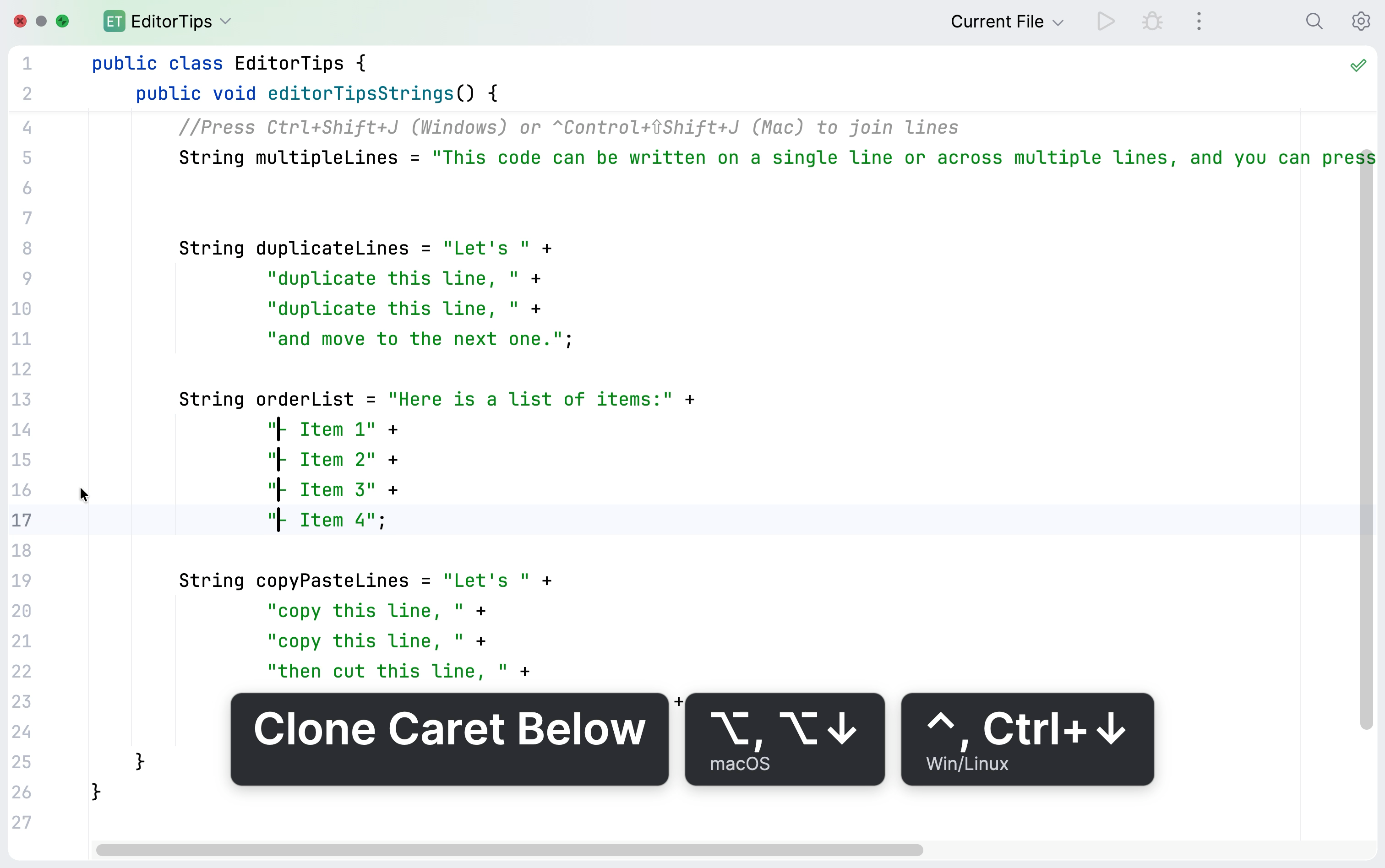
Press Escape to remove all extra carets, leaving only the recently added one.
Select multiple occurrences of the text
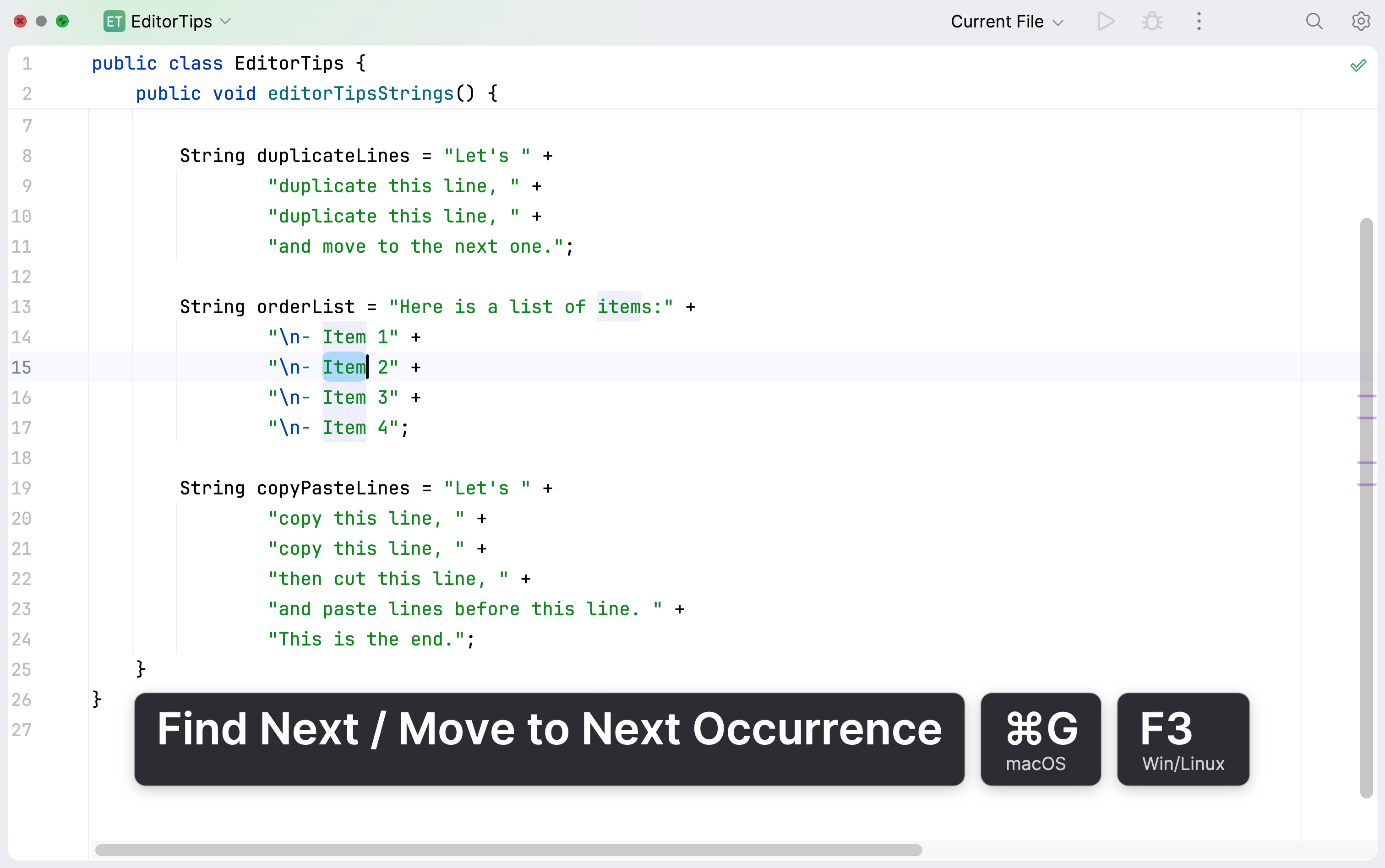
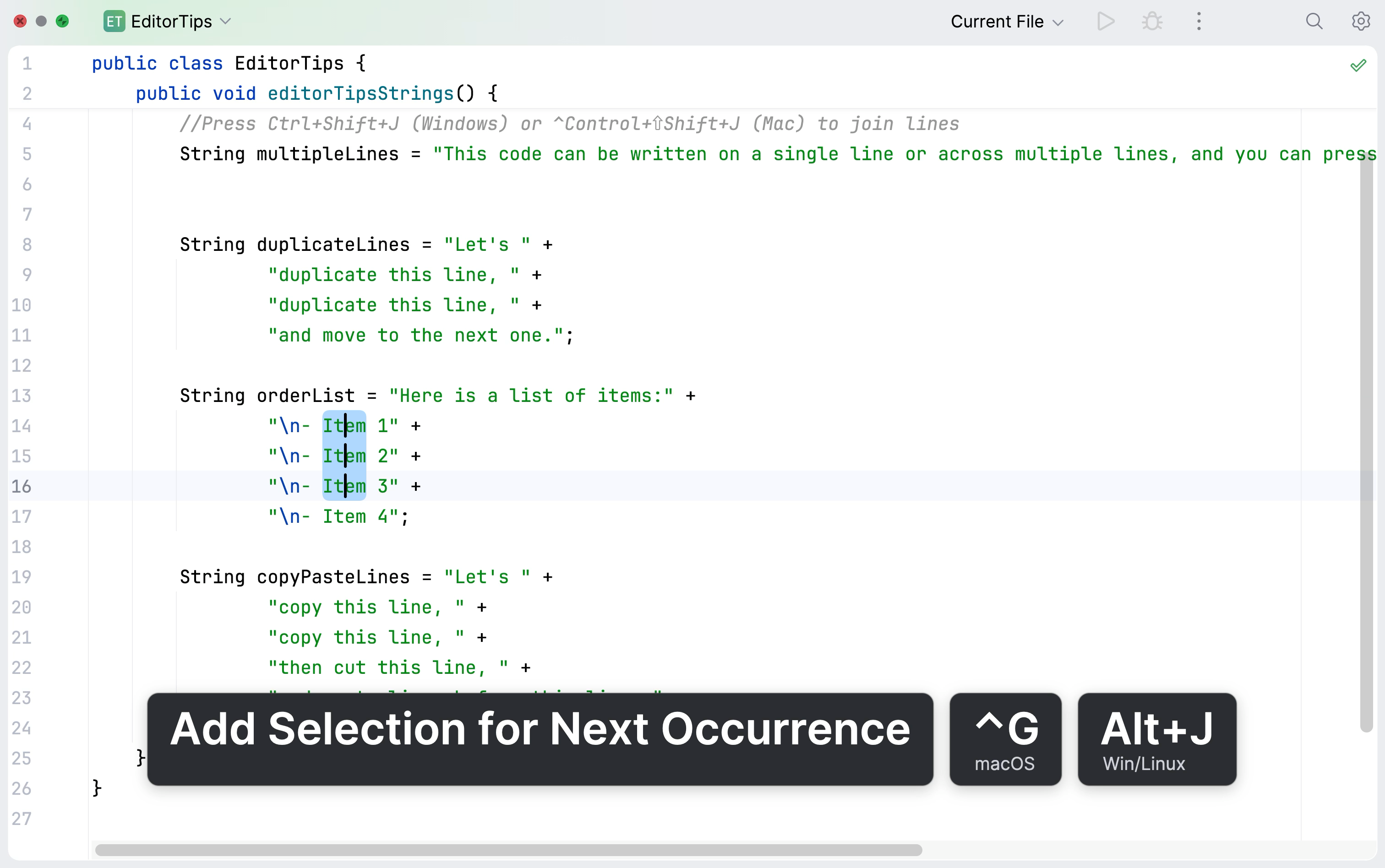
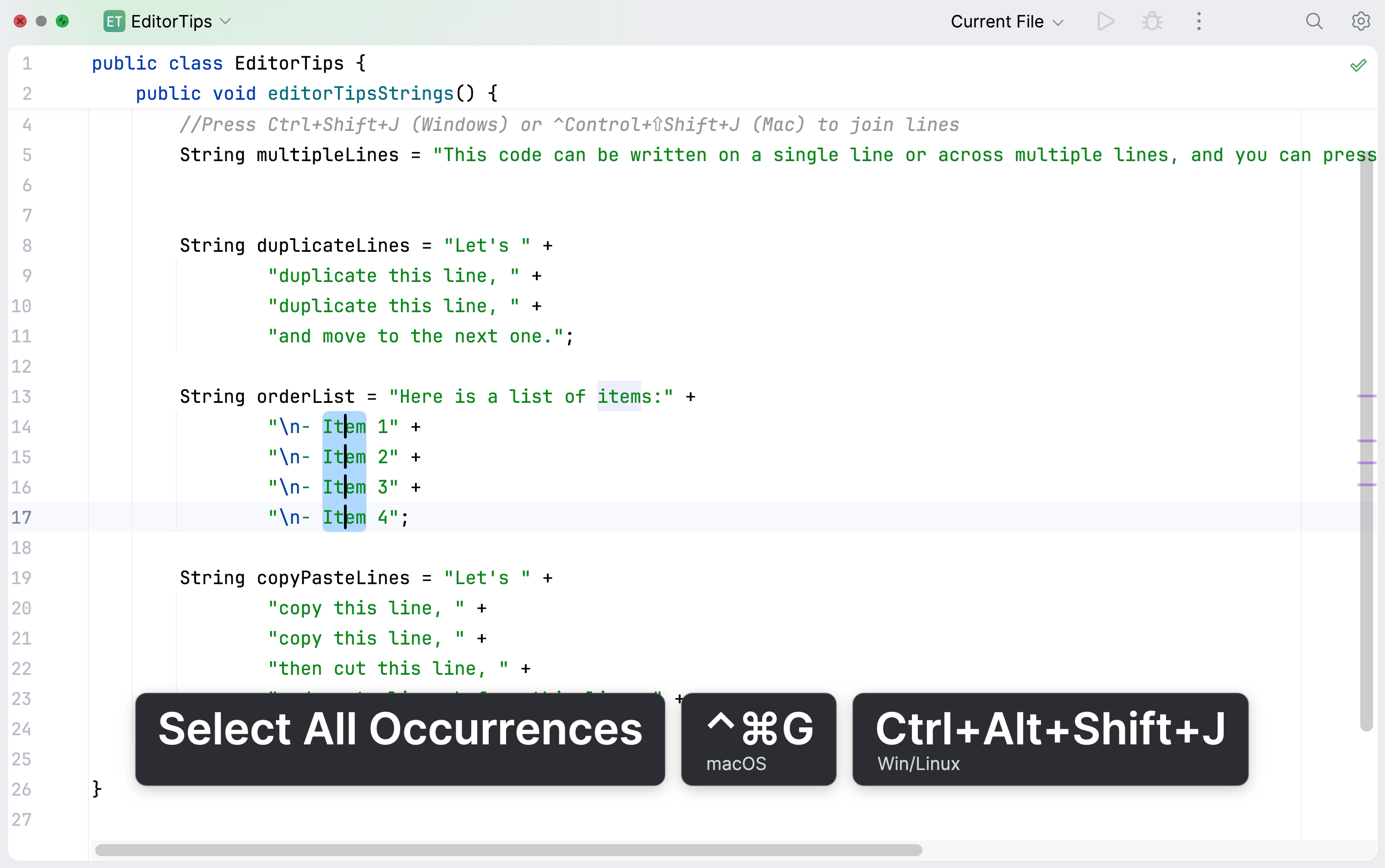
You can select and edit all matching words in a file one by one or simultaneously.
Place the caret at a word you want to select (for example,
Item).Do one of the following:
Press F3 to find and select the next occurrence of matching word or text range.
Press Alt+J to find and add to current selection the next occurrence of matching word or text range.
Press Ctrl+Alt+Shift+J to select all matching words or text ranges in the file.
Using multiple selections, replace some or all the occurrences of the word with another text.
To learn more about working with multiple carets and selection ranges, refer to Multiple cursors and selection ranges.
Summary
In this tutorial, you have learned how to:
Next steps
Learn how to set up your environment and create simple applications in IntelliJ IDEA from these tutorials:
For a full list of available tutorials, refer to IntelliJ IDEA tutorials.