Project import
Project import is how Java and Kotlin by IntelliJ IDEA turns a directory that you open in the editor into a project it can work with. During import, the extension reads the build configuration, resolves dependencies, and builds a project model that includes source roots, modules, and libraries. Code insight features rely on this model and become fully available after the import is complete.
Import runs automatically. As soon as you open a directory that contains a supported build file, the extension imports the project in the background. You do not need to run any commands or trigger the import manually. Once import finishes, Java and Kotlin by IntelliJ IDEA creates and maintains indexes for the workspace, and code insight becomes available.
If the workspace root contains build files of several build systems, import does not start until you select the build system to use or describe the project structure in the settings. Until then, the extension features are not available.
Java and Kotlin by IntelliJ IDEA detects and imports projects based on the following build systems:
Gradle
Maven
Bazel
When a directory contains a single project with one build system, Java and Kotlin by IntelliJ IDEA recognizes it and imports the project automatically.
Multiple build systems in a project
If a project can be imported using more than one build system, for example, it contains both a build.gradle.kts and a pom.xml file, the extension displays a notification where you can select which build system to use. Project import and indexing are paused until then.
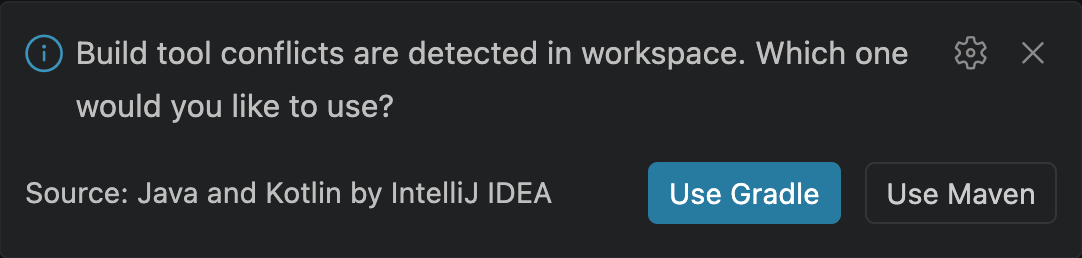
The notification provides the following options:
Click the button for the build system you want to use, such as Use Gradle or Use Maven.
Click Configure to open the workspace's .vscode/settings.json file, where you can describe the project structure.
Java and Kotlin by IntelliJ IDEA remembers the build system selected for the workspace and uses it after further reloads and restarts, unless you change the intellij.projects setting.
Monorepos and multiple projects
A directory does not always map to a single project. It can be a monorepo that holds many projects, or a directory that groups several independent projects. In these cases, the project you want to work with is not necessarily at the workspace root, and importing everything can use a significant amount of memory.
To keep import scoped to what you work on, list the projects to import in the intellij.projects setting. When you open a smaller subdirectory, only the projects it contains are imported, which matches your active working set rather than the entire repository.
Configure which projects to import
To import several projects using different build systems, describe them in the intellij.projects setting, configurable in the settings.json file.
Each entry declares a project type and a path. For Gradle and Maven, path points to the build file (build.gradle.kts or pom.xml); for Bazel, it points to the workspace root directory:
The path value is a file:// URI. To refer to a location inside the directory that is currently open in the editor, use the $PROJECT_DIR$ macro, which expands to that directory. Alternatively, you can specify an absolute path starting from the filesystem root, which depends on your operating system. VS Code variables such as ${workspaceFolder} are not expanded in this field.
Entries accept additional options depending on the project type:
- project-path (Bazel)
Path to the Bazel project file (for example, .bazelproject), relative to the workspace root.
- java-home (Maven)
Path to the JDK home used to run the import.
- env (Maven)
Extra environment variables for the import process, as a map of names to values.
- system-properties (Maven)
JVM system properties for the import process, as a map of names to values.
Indexing limitations
Java and Kotlin by IntelliJ IDEA creates and maintains indexes separately for each workspace.
- Reusing indexes
Workspace indexes can be reused across machines if the workspace is available at the same absolute path on both machines.
- Concurrent access
Only one Java and Kotlin by IntelliJ IDEA backend can access a workspace at a time. Running multiple backends against the same workspace is not supported.