Run tests
Java and Kotlin by IntelliJ IDEA runs and debugs JUnit and TestNG tests written in Java. You can run and debug tests from the editor or the Testing view (Test Explorer in Cursor).
Browse tests
After project import, the Testing view displays the modules that contain test sources. Expand a module to discover its test classes, grouped by package. Expand a test class to discover its test methods.
You can also run the module to discover and run its tests without opening the test files first.
The Testing view updates automatically when you add or delete tests in the editor. If test files change outside the editor, click Refresh Tests in the Testing view to update the tree.
Navigate to a test
To open the source of a test in the editor, right-click its node in the Testing view and select Go to Test (Alt+Enter).
To find a test from the editor in the Testing view, right-click the Run Test icon next to the test method or class and select Reveal in Test Explorer.
Run and debug tests
Java and Kotlin by IntelliJ IDEA runs tests directly on the JVM instead of using the Gradle test task or the Maven Surefire plugin. As a result, test settings from your build scripts do not apply.
Before each run or debug session, Java and Kotlin by IntelliJ IDEA compiles the changed code with your build tool. You do not need to run test compilation commands like mvn test-compile or gradle testClasses manually. The build compiles the files saved on disk, so make sure to save your changes before you start the test.
If compilation fails, the test run reports the failure, and the build output appears in the Test Results panel. If Java and Kotlin by IntelliJ IDEA cannot determine a build command, or the project has nothing to build, it runs the classes that are already compiled and reports the reason in the Test Results panel.
Run and debug tests from the editor
To run a test method or test class, click the Run Test icon (Ctrl+;, C) next to it.
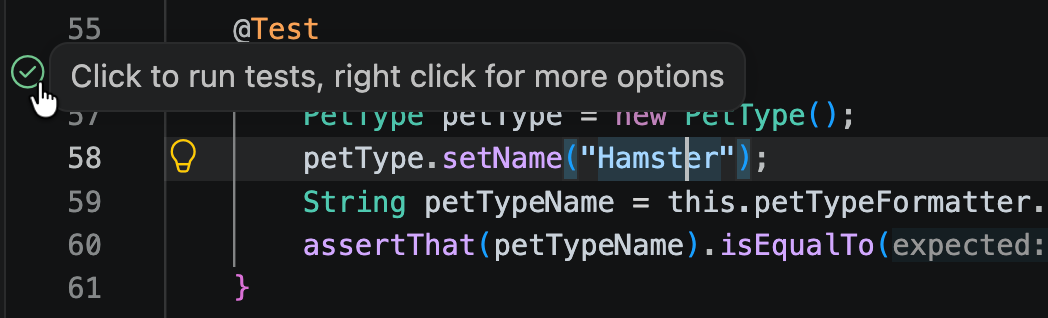
To run all tests in the current file, press Ctrl+;, F.
To debug a test method or test class, set breakpoints as needed, then right-click the Run Test icon, and select Debug Test (Ctrl+;, Ctrl+C).
To debug all tests in the current file, press Ctrl+;, Ctrl+F.
Run and debug tests from the Testing view
You can run a single test, a class, a package, a module, or all tests in the project. Tests from each module run with the classpath of that module.
To run tests, select a node in the Testing view (Test Explorer in Cursor) and click the Run Test icon.
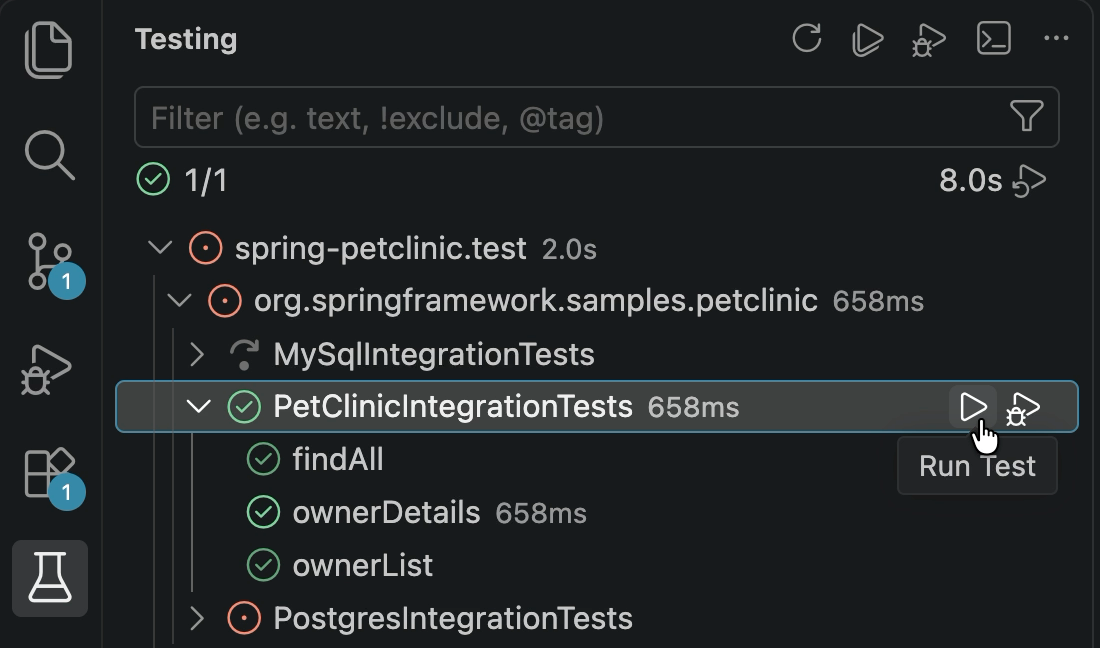
To run all tests in the project, press Ctrl+;, A.
To exclude a test from runs, right-click it in the Testing view and select Hide Test. When you run the parent node, the hidden test does not run.
To run debugging from the Testing view (Test Explorer in Cursor), select a node and click the Debug Test icon.
For more details on how to run and debug tests in VS code-based editors, refer to the VS Code documentation.
Analyze test results
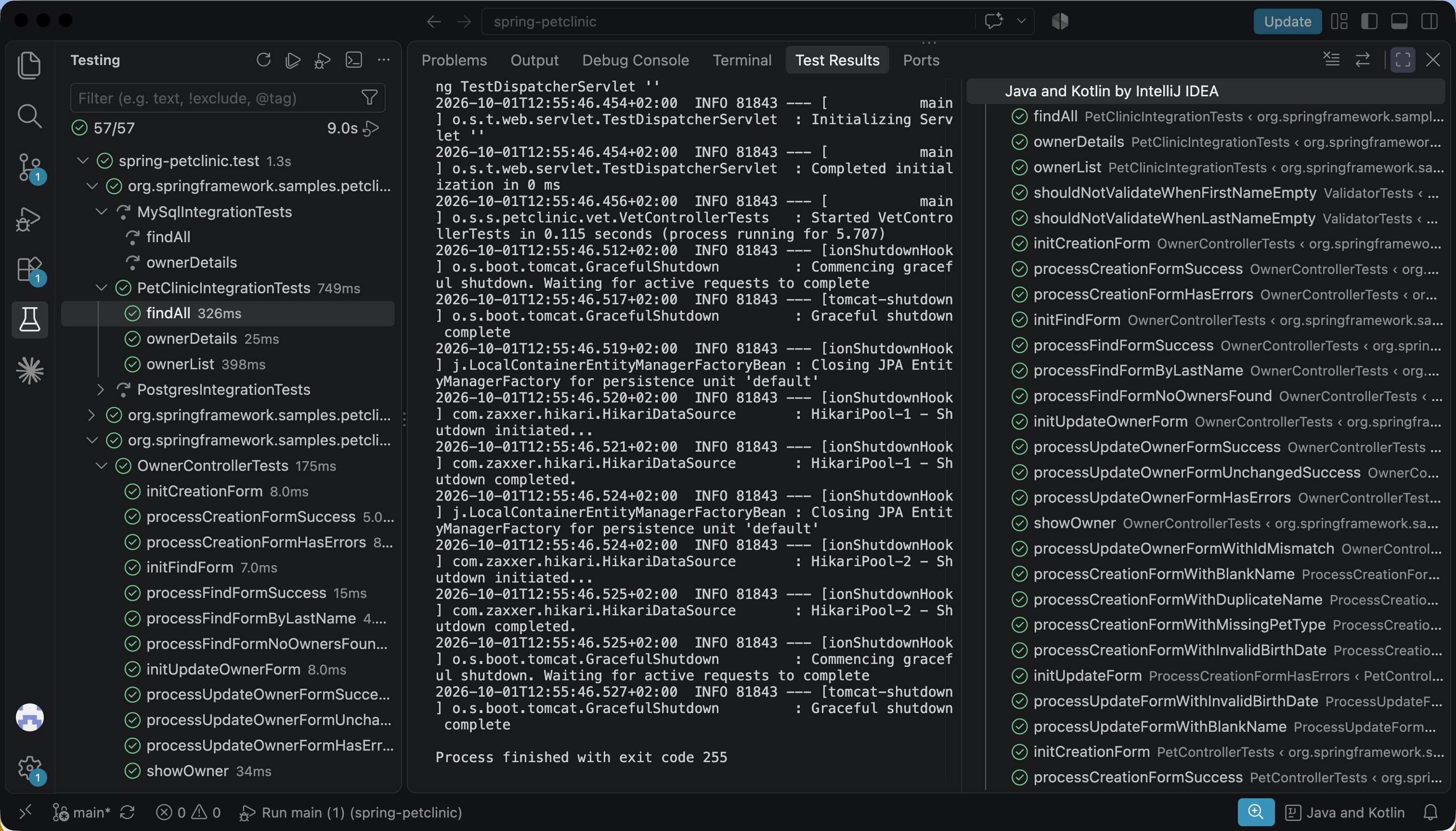
After you run tests, use the Test Results panel to review the results. It shows the status of each test, execution time, output, and failure details.
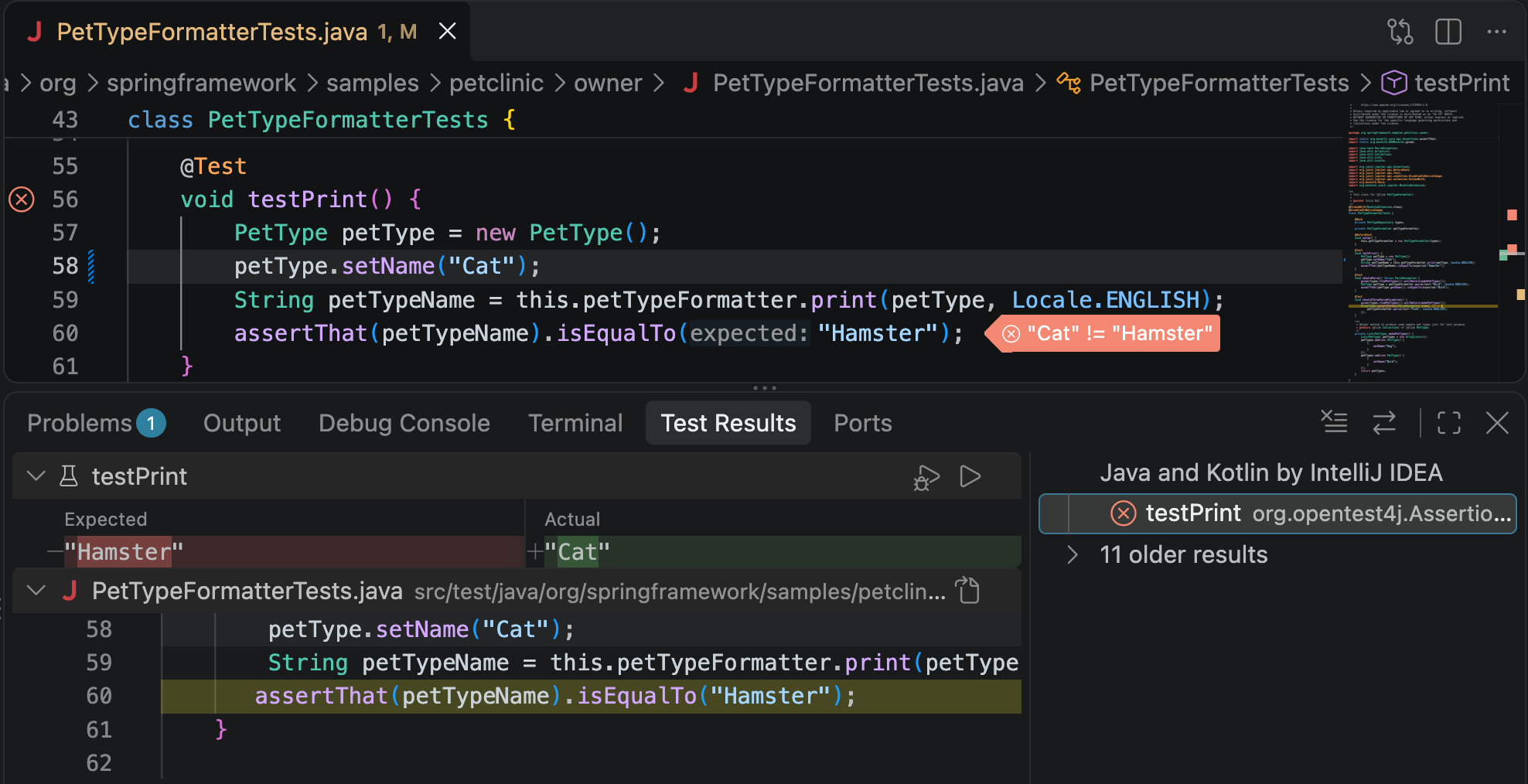
When an assertion fails, the Test Results panel shows the expected and actual values side by side. The editor also highlights the line where the failure occurred.