Authorize a team member to activate on-premises team tool licenses
Some of the JetBrains on-premises team tools require activation through JetBrains Central Console. The person performing the activation must have a role with the Manage licensing and billing or Manage organization permission, or team admin access to the team that holds the license.
If you purchased the license yourself as an individual or on behalf of an organization, you already have the required permissions. However, to delegate the activation to someone else, you need to grant them the required permissions. Depending on the level of access you’re prepared to share, you have two options to do so.
Option 1: Grant organization-wide license access
Assign a role that includes the Manage licensing and billing permission, such as the Licensing and billing manager role. This lets the person manage every license in the organization without granting full administrative access.
For more details about roles and permissions, see Roles.
Option 2: Grant team admin access
As a more granular solution, you can use the team admin role. A team admin can only manage the licenses that belong to a specific team within your organization’s profile.
Find the team that contains your team tool license. If you’re not sure which team that is, use the instructions below to locate it.
Follow the instructions to invite a new team admin.
Finding the team that contains a specific license
Log in to JetBrains Central Console.
In the sidebar, under Licensing, select Products and services.
If you don't see this page, or the controls on this page are inactive, your role doesn't have the necessary permissions.
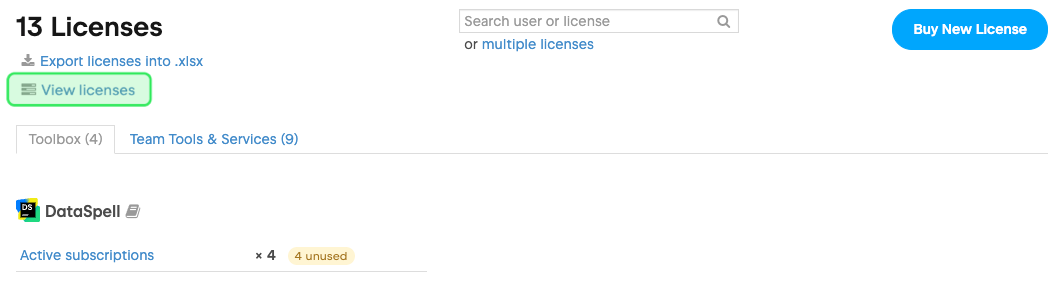
At the top of the page, click View licenses.
Find your license on the license view page. You can search for it by license ID or use the filters at the top of the page.
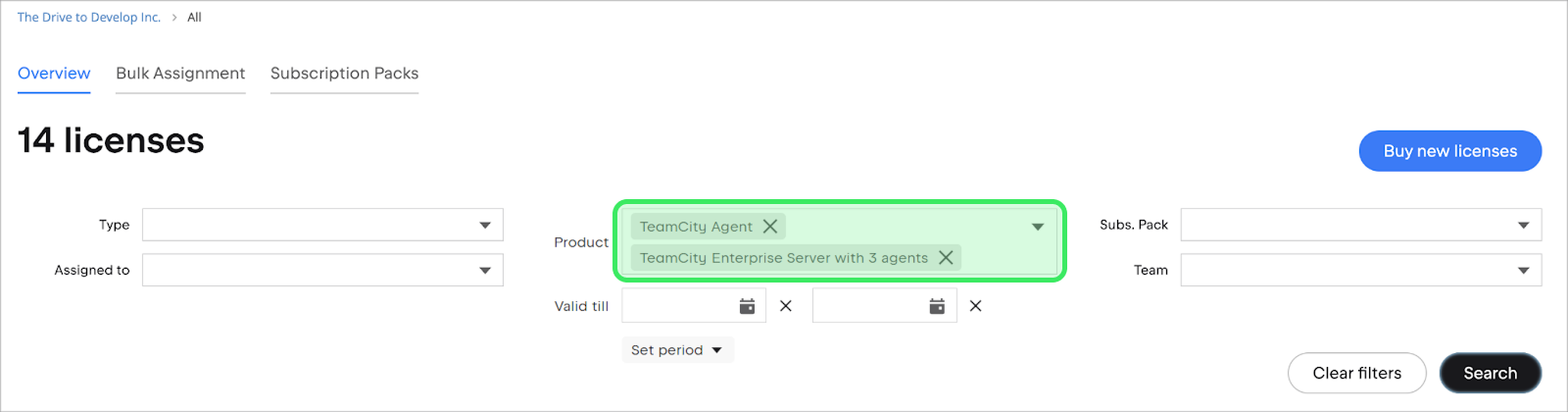
Once you locate the license in the license table, find the team’s name in the Team column of the license table.

That’s the team that contains your license. To give someone else access to this license, invite them to this team as an admin.