Team-based JetBrains AI access
If you don't want to enable access to JetBrains AI tools and features for all users in your organization, you can enable it only for specific teams. This means that JetBrains AI features will be available only for users with AI licenses assigned to those teams.
Here is how the whole process works:
An org admin allows managing JetBrains AI access per-team and specifies the teams that should be allowed to use JetBrains AI.
For more information, see Enable JetBrains AI.
An org admin also ensures that those teams have licenses with AI.
For more information, see Transfer licenses between teams.
An org admin or a team admin assigns team licenses with AI to specific users.
For more information, see Assigning licenses to users manually.
An org admin or a team admin also enables JetBrains AI access for a specific team.
Only users with AI licenses assigned to this team will be able to use JetBrains AI features.
Enable JetBrains AI access for specific teams
Make sure that JetBrains AI access is enabled with management on the team level (not for everyone in the organization) and is allowed for the team in question.
For more information, see Enable JetBrains AI.
In the sidebar, expand Licensing and click Teams.
On the Teams page, select the team for which you want to enable JetBrains AI.
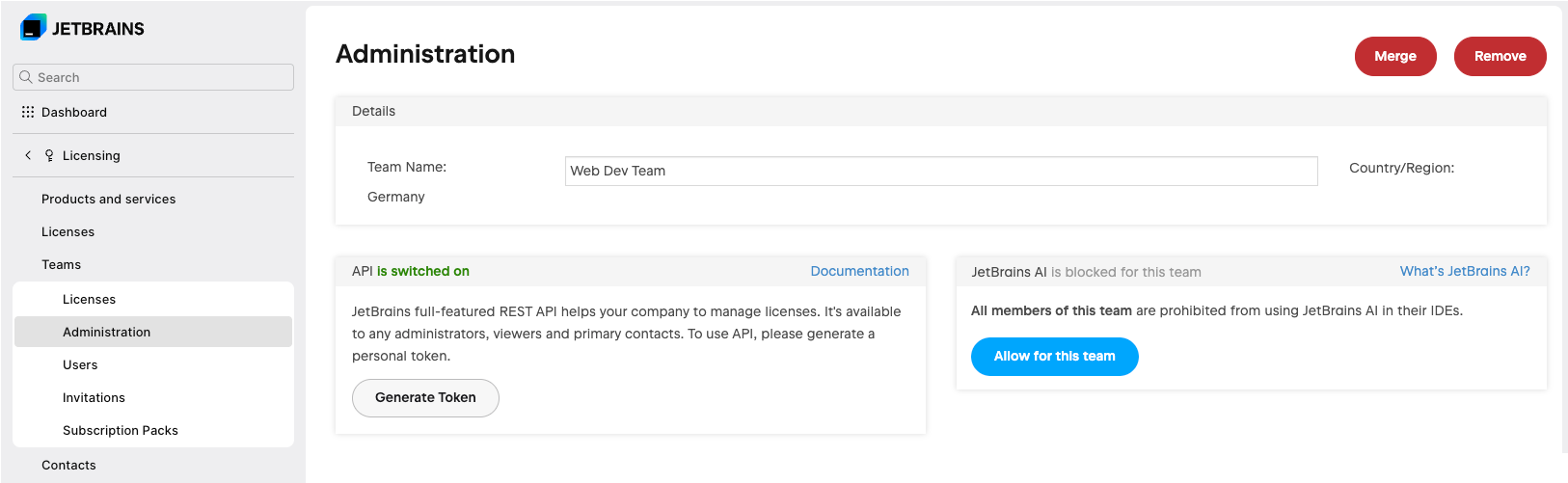
On the team's management page, click Administration.
On the team's Administration pane, under JetBrains AI, click Allow for this team.