Code inspections
ReSharper for Visual Studio Code provides over 2500 code inspections in C# . These inspections are applied to detect and highlight code issues at design time in all opened files.
Code inspections can be divided into the following groups:
Inspections with the fixed severity level 'Error'. These inspections detect compiler errors and there is no way to disable or configure them.
Inspections with configurable severity levels, which detect the rest of code issues (for example, compiler warnings, runtime and logical errors, code smells, redundancies, improvement suggestions, and so on). These inspections can be configured — you can disable them or change their severity level in the editor or in .editorconfig files.
Severity levels of code inspections
Each ReSharper for Visual Studio Code code inspection has one of the following severity levels:
Error
Code inspections with this severity level are aimed at code issues that either prevent your code from compiling or result in runtime errors. Most of these inspections are not configurable, that is you cannot disable them or change their severity level.
Warning
This severity level corresponds to compiler warnings and to other issues that do not prevent your code from compiling but may nevertheless represent serious coding inefficiencies. For example, ReSharper for Visual Studio Code informs you about redundant type casts or namespace import directives, incorrect format strings, declared but never used local variables or private fields, unused private methods, and so on.
Suggestion
Code issues with this severity level provide insights into code structure, drawing your attention to things that are not necessarily bad or wrong, but probably useful to know.
Hint
This is the lowest severity level. Code issues with this severity bring your attention to a particular code detail or recommends a way of improvement.
Configure code inspections
Change inspection severity from the editor
Place the caret to a code issue highlighted by a ReSharper's inspection.
Press Alt+Enter or click the action indicator to the left of the caret to open the action list.
In the action list, choose Inspection [name of inspection]...
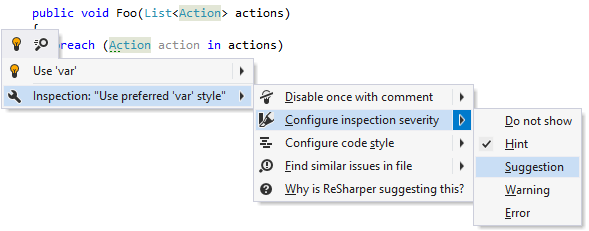
In the popup that opens, select Configure inspection severity... and then select a new severity level.
You can also change severity levels of code inspections or disable specific inspections with EditorConfig.
Inspection settings in .editorconfig files are configured similarly to other properties — by adding the corresponding lines:
For example, you can change the severity level of the Possible 'System.NullReferenceException' inspection to Error with the following line:
or you can disable the Redundant argument with default value inspection with the following line:
To find EditorConfig properties for each configurable inspection, refer to List of code inspections.
As EditorConfig convention suggests, ReSharper for Visual Studio Code applies inspection settings defined in files named .editorconfig in the directory of the current file and in all its parent directories until it reaches the root directory or finds an EditorConfig file with root=true. File masks specified in .editorconfig files, for example *Test.cs are also taken into account.
You can also mark some files as generated. For these files, ReSharper for Visual Studio Code runs only those code inspections that check code for compiler errors and warnings. Use generated_code property to mark such files. For example:
Switch context for multiple target frameworks
The results of code inspection can vary depending on the target .NET Framework because different versions of the framework have different features and capabilities, which can affect the behavior of the code.
The framework version of the current context appears in the bottom-right corner, and you can click it to switch the context to another version.
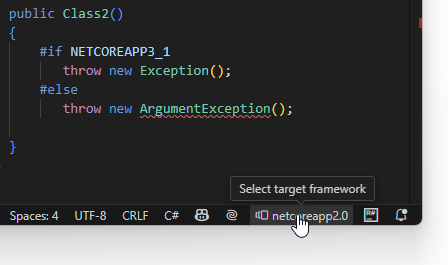
In the example above there are two unresolved calls in the file — Exception() and ArgumentException() — but only the second call is highlighted as an error. The analysis context is set to .NETCoreApp 2.0, and the first call is excluded from that context by an #if directive for .NETCoreApp 3.1.