Search code
ReSharper uses the existing set of VS Code navigation and search actions but enhances their default behavior. Through understanding your solution structure, ReSharper provides significantly more accurate results.
Find files
Ctrl+E or
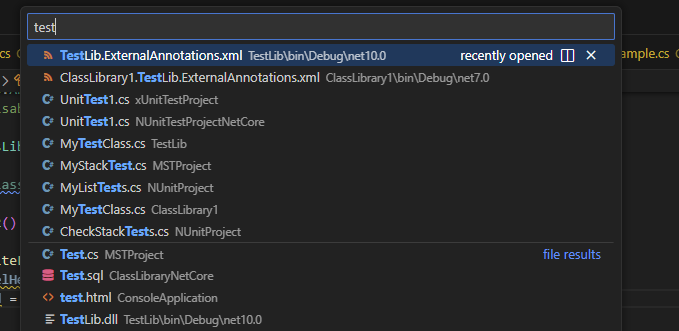
Use this command to find any file in your solution.
As an alternative to the menu action or shortcut, you can start typing in the search bar at the top.
Find symbols
Alt+Shift+T or
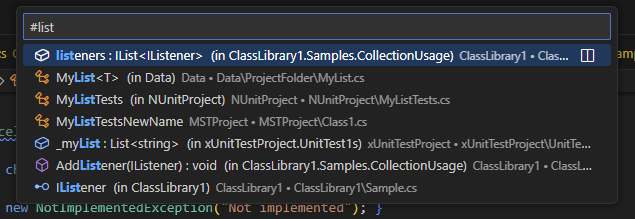
You can use this command to find any type, method, field, or property in your solution. When you invoke this command, you will see recently visited items. Start typing to narrow down the search.
As an alternative to the menu action or shortcut, you can type # in the search bar at the top and then type the search query.
Search by file structure
Alt+\ or
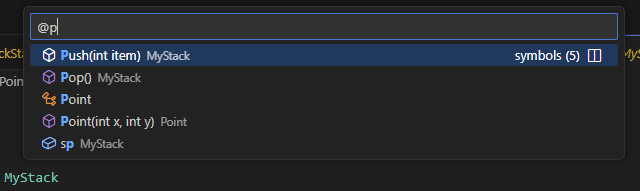
This command displays the logical structure of a file with all types and members in it. You can scroll and find the desired symbol or start typing to highlight all matching symbols.
As an alternative to the menu action or shortcut, you can type @ in the search bar at the top.
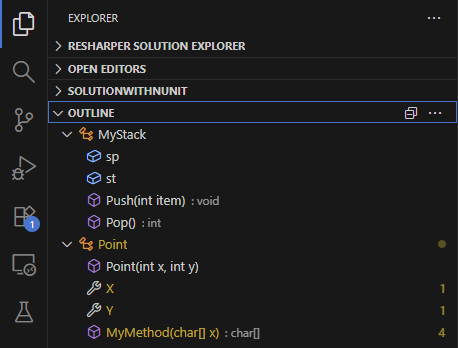
Another way to study the file structure is using the Outline view in the Explorer window: