Connect to Azure DevOps repositories
With JetBrains Rider, you can:
Access your Azure DevOps projects without leaving the IDE.
Create and complete pull requests hosted on Azure DevOps.
Prerequisites
Make sure the Azure DevOps plugin is installed and enabled. You can check that on the Plugins settings page Ctrl+Alt+S.
Make sure you have a project that is cloned from Azure DevOps or use JetBrains Rider to clone a project.
Log in to Azure DevOps
To work with Azure DevOps pull requests, you need to log in to your Azure DevOps account using a personal access token (PAT).
Press Ctrl+Alt+S to open settings and then select .
Click Add
 on the toolbar and choose Log in With Token.
In the dialog that opens, specify the server URL and your personal access token (PAT).
If you don't have a token yet, create one in your Azure DevOps account (you can open the corresponding Web page of your Azure DevOps portal by clicking Generate). Make sure the token has the following scopes: Code: Read & write, Graph: Read, Identity: Read, Work Items: Read.
See Use personal access tokens for more details on Azure DevOps tokens.
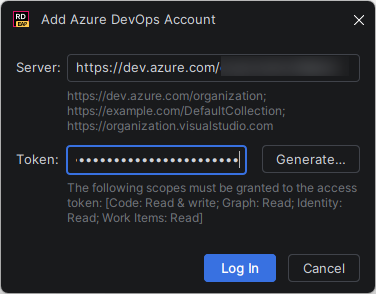
Click Log In.
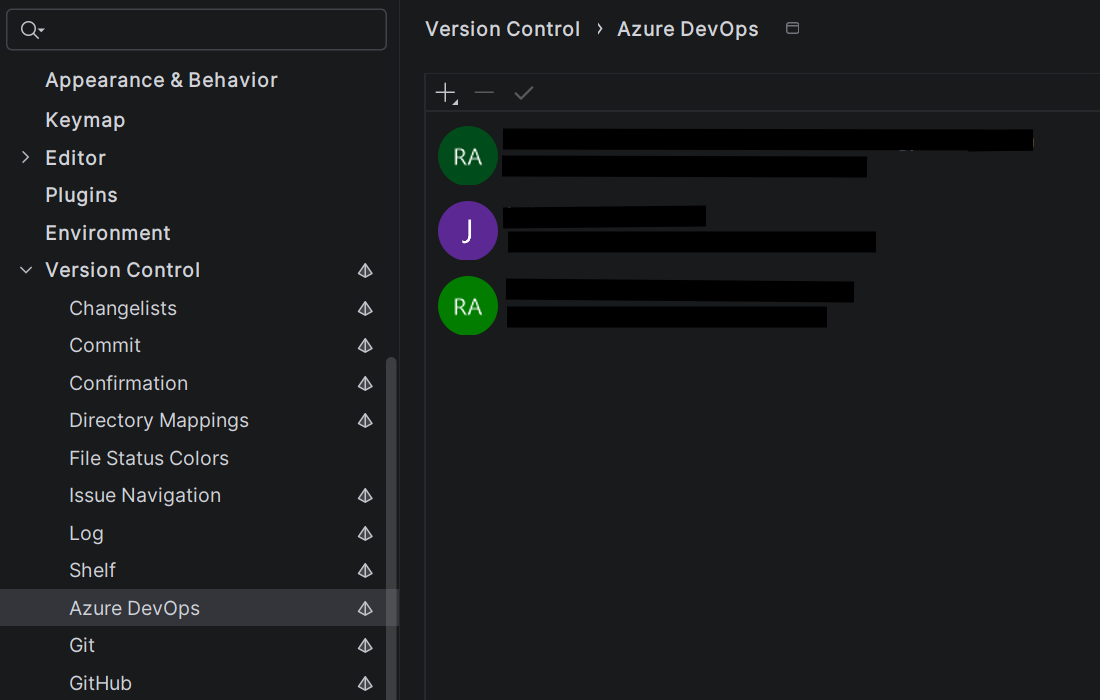
All logged-in profiles are listed on that settings page:
After you log in and open a project cloned from Azure DevOps, the Azure Pull Requests tool window becomes available, where repositories from logged-in accounts are listed in the drop-down:
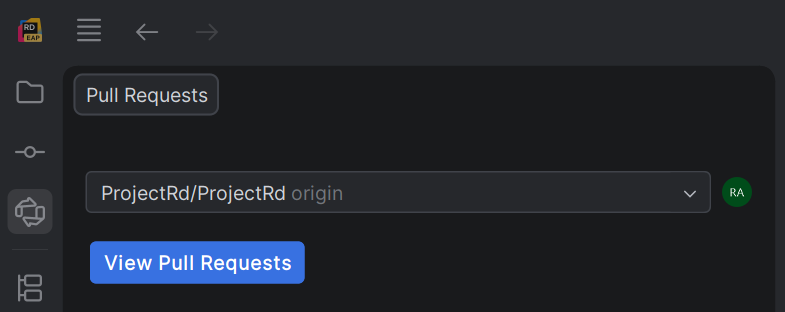
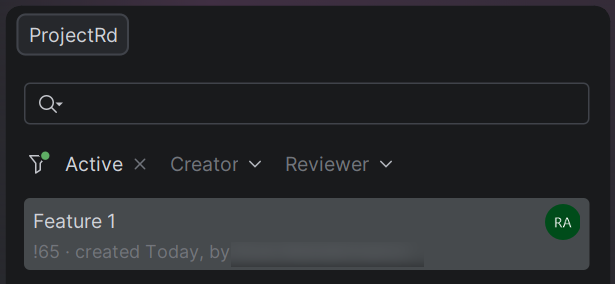
Click View Pull Requests to see the list of pull requests in the selected repository.
Clone an Azure DevOps project
You can clone an Azure DevOps Git repository that you want to contribute to directly from JetBrains Rider and create a new project based on it.
In the main menu, select .
The Clone Repository dialog will open.
If you have already logged in to Azure DevOps, you will see all connected servers with the available repositories. Otherwise, you will be able to login right from this dialog.
Select a remote project that you want to clone.
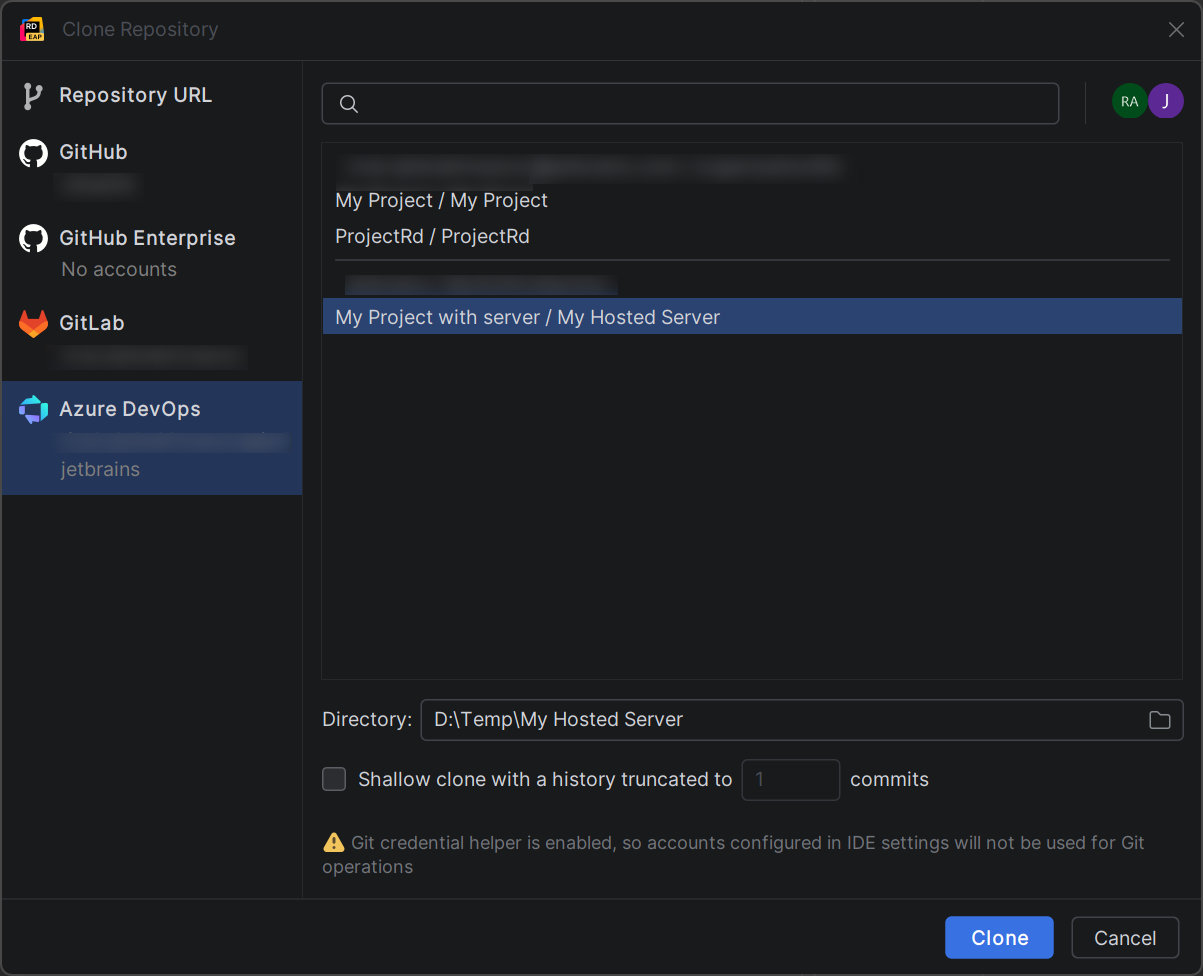
In the Directory field, enter the path to a local folder where your local Git project will be cloned.
If you want to perform shallow clone with a limited history, select the Shallow clone with a history truncated to checkbox and specify the number of commits that you want to clone.
You can fetch the rest of the history later by selecting Git | Unshallow Repository in the main menu.
Click Clone.
Troubleshooting
Pull Requests tool window doesn't appear
If you have logged in to Azure DevOps but don't see the Azure Pull Requests tool window, the account you logged in with may not match any remote URLs configured in your project.
The IDE matches your logged-in Azure DevOps account against the remote origin URLs stored in the .git/config file of your project. If the server URL of your account doesn't correspond to any of the configured remotes, the tool window won't appear.
Verify the remote URL
Open the .git/config file in your project folder and locate the
[remote "origin"]section. Note theurlvalue.Go to and check that the server URL of your logged-in account matches the organization and project in the remote URL.
If the URLs don't match, log in with the correct account or update the remote URL in .
Authentication fails or token is rejected
If you can't log in or your session expires unexpectedly, check the following:
Make sure your personal access token (PAT) hasn't expired. Azure DevOps tokens have a limited lifespan and need to be regenerated periodically.
Verify that the token has the required scopes: Code: Read & write, Graph: Read, Identity: Read, Work Items: Read. Tokens with insufficient permissions can't access pull request data.
If your organization uses conditional access policies or IP restrictions, make sure your current network is allowed.
Pull requests load but the list is empty
If the Azure Pull Requests tool window is visible but shows no pull requests, consider the following:
Check that pull requests exist in the repository on Azure DevOps. The tool window only displays pull requests for the repository that matches your current project.
Make sure you selected the correct repository in the drop-down at the top of the tool window if your account has access to multiple repositories.
Try refreshing the list manually by clicking the Refresh button in the tool window toolbar.
SSH remote URL isn't recognized
If you cloned the repository using a custom SSH alias (for example, a non-default Host entry in your .ssh/config), the IDE may not recognize the remote as an Azure DevOps repository.
To resolve this, switch the remote URL to HTTPS or use the standard SSH format. You can update the remote URL in .
Azure DevOps plugin is disabled or not installed
If none of the Azure DevOps features are available, the plugin may be disabled.
Go to , switch to the Installed tab, and search for Azure DevOps. Make sure the plugin is enabled and restart the IDE if prompted.