Review incoming Azure DevOps pull requests
Azure DevOps pull requests let teams review code before merging it into a target branch.
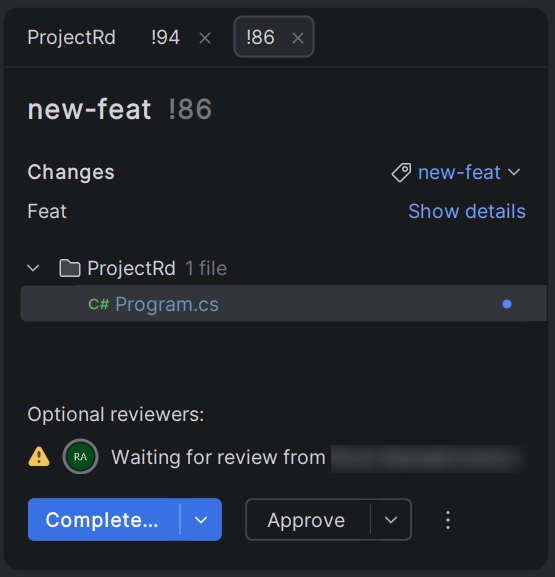
You can receive a request to review code changes from a colleague. As a pull request reviewer, you can examine the changes and vote directly in JetBrains Rider:
Select a pending review request in the Azure Pull Requests tool window.
Vote on the pull request.
Complete or abandon the pull request.
Manage incoming pull requests
If you have an Azure DevOps remote configured for your project, you can view and manage incoming pull requests directly from JetBrains Rider.
In the main menu, go to .
The Azure Pull Requests tool window lists pull requests from the current repository. Use the filters to find the pull request you need.
To sync with the latest pull requests on the configured Azure DevOps remotes, right-click anywhere in the tool window and select Refresh.
Double-click a pull request to open its details. Each pull request opens in a new tab, so you can switch between multiple pull requests in the Azure Pull Requests window.
Review changed files
Open the pull request details in the Azure Pull Requests tool window.
In the list of changed files, double-click a file to open the diff viewer.
The diff viewer shows the changes side by side, so you can examine what was added, modified, or removed.
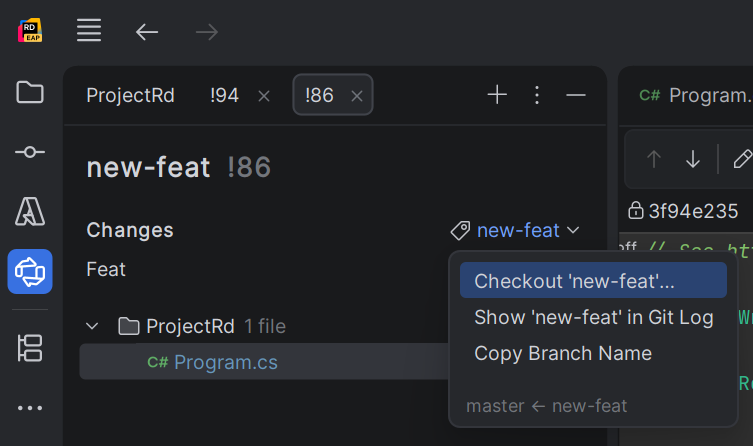
Note that reviewing a pull request does not require neither fetching nor checking out the corresponding remote branch. If necessary, you can check out the branch from its drop-down menu:
If the pull request consists of several commits, you can focus on a specific one by selecting it in the Changes from drop-down menu.
Vote on a pull request
Azure DevOps uses a voting system for pull request reviews. You can cast your vote directly from JetBrains Rider.
Open the pull request details in the Azure Pull Requests tool window.
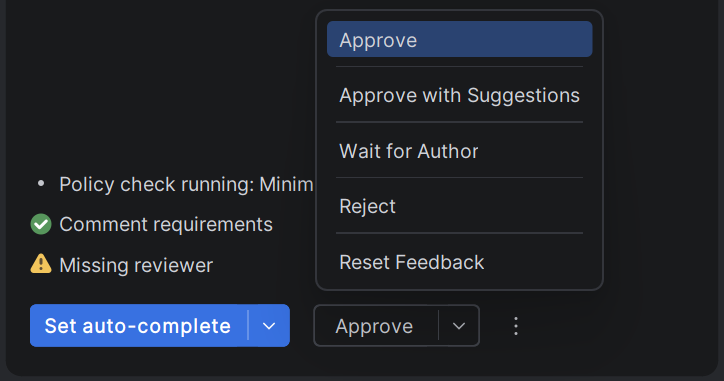
Select one of the voting options at the bottom of the tool window:
Approve: approve the changes.
Approve with suggestions: approve with optional feedback.
Wait for Author: request changes before the PR can be completed.
Reject: vote against the changes.
Complete or abandon an incoming pull request
If you have the necessary permissions, after reviewing the changes and casting your vote, you can complete or abandon the pull request.
Open the pull request details in the Azure Pull Requests tool window.
Click Complete to merge the pull request into the target branch.
If the pull request should be discarded, click the selector next to the Complete button and choose Abandon.