Get started with Avalonia in Rider
JetBrains Rider supports creating and working with Avalonia projects for Windows, macOS, Linux, iOS, Android, and WebAssembly. Avalonia is an open-source, cross-platform UI framework that uses its own rendering engine powered by Skia instead of native UI controls, which means your application looks and behaves the same on every platform.
JetBrains Rider provides built-in support for Avalonia XAML (.axaml files), including code completion, navigation, inspections, and quick-fixes. You can also install the AvaloniaRider plugin to get a live XAML previewer directly in the IDE.
In addition, you can benefit from code analysis, coding assistance, and debugging features in C# and other languages, as well as from general IDE features, such as the integrated VCS client.
Before you start
Install Avalonia templates
Make sure you have the .NET SDK (version 6.0 or later) installed on your machine.
Install the Avalonia project templates by running the following command in the terminal:
dotnet new install Avalonia.TemplatesThis adds several templates, including
avalonia.mvvm(MVVM application),avalonia.app(basic application), andavalonia.xplat(cross-platform application with iOS, Android, and browser targets).Optionally, install the AvaloniaRider plugin from the JetBrains Marketplace to enable the XAML previewer in JetBrains Rider.
If you plan to target mobile or web platforms, install the corresponding .NET workloads:
Create a new Avalonia project
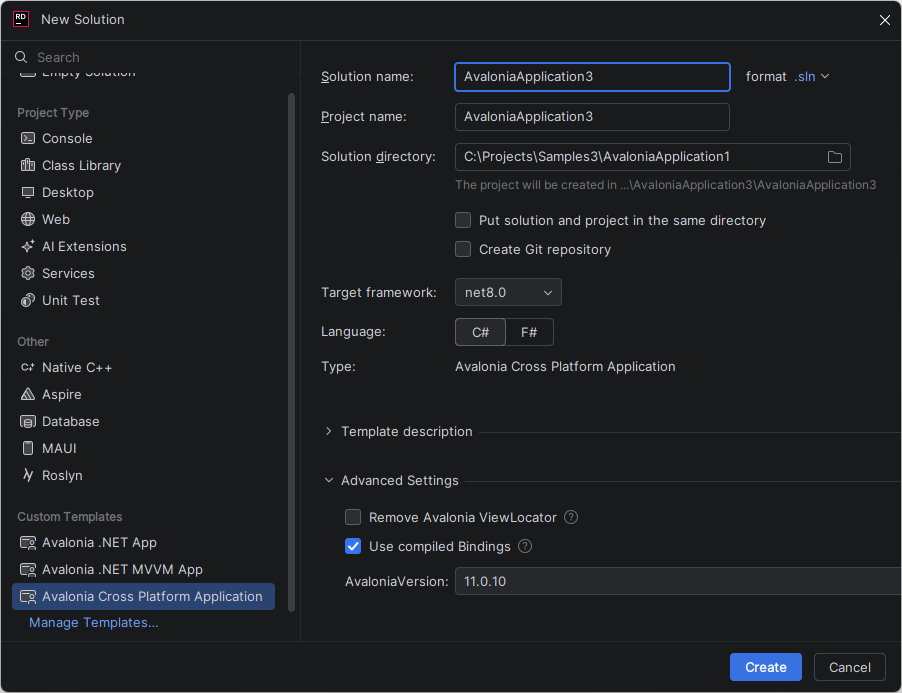
JetBrains Rider includes configurable project templates for new Avalonia projects.
You can create a new Avalonia project in a new solution using or add a new Avalonia project to the existing solution by right-clicking the solution or solution folder node in the Solution Explorer, and choosing .
Choose one of the available Avalonia templates:
Avalonia .NET MVVM App — a desktop application using the Model-View-ViewModel pattern. This is the recommended template for most projects.
Avalonia .NET App — a basic application with code-behind, similar to the WinForms development model.
Avalonia Cross Platform Application — includes projects for desktop, iOS, Android, and browser targets.
Edit AXAML
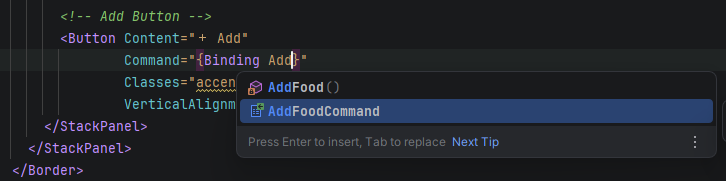
JetBrains Rider provides a rich editing experience for Avalonia XAML files (.axaml), including code completion, syntax highlighting, error analysis, and navigation.
Rider understands Avalonia-specific XAML syntax, such as CompiledBinding and the x:CompileBindings extension. Compiled bindings are enabled by default in Avalonia, which means that bindings are resolved at compile time for better performance and earlier error detection.
You can navigate from XAML to the underlying code and back:
Ctrl+B on a binding path to jump to the corresponding view model property.
Ctrl+B on an XAML namespace alias to navigate to the referenced .NET namespace.
Use Find Usages Alt+F7 to locate where Avalonia controls and properties are referenced throughout the codebase.
JetBrains Rider also provides Avalonia-specific inspections with quick-fixes to help you write correct and idiomatic AXAML markup.
AXAML previewer
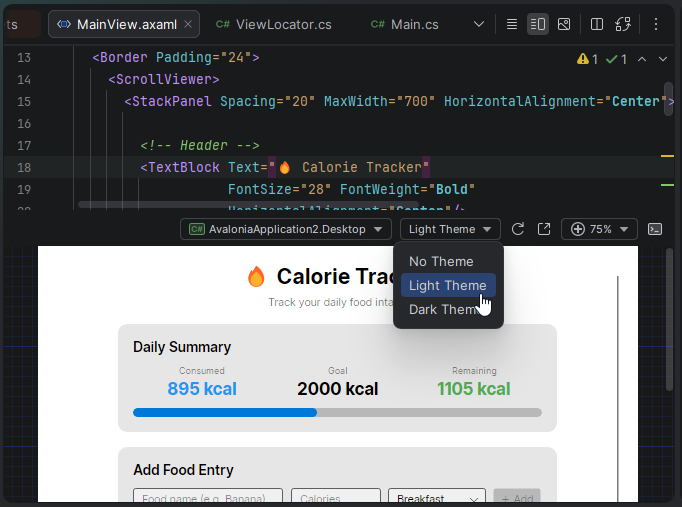
If you have the AvaloniaRider plugin installed, you can preview your AXAML in real time as you edit it. The previewer appears in a tool window next to the editor and updates live when you modify the markup.
To use the previewer, build the project at least once so that the previewer can resolve all types and resources. After that, changes in the AXAML editor are reflected in the preview immediately. If the previewer becomes unresponsive to your changes, rebuild the project.
Design-time properties
Avalonia supports design-time properties that are applied only in the XAML previewer and don't affect the running application. These properties help you style and position your UI without building the app repeatedly.
To use design-time properties, add the following namespace to your AXAML file:
With this namespace, the following properties become available:
d:DesignWidthandd:DesignHeight— set the width and height of the preview canvas.d:DataContext— assign a data context to the preview, typically used with the{x:Static}directive to reference a static property that returns a view model instance.
As an alternative to d:DataContext, you can use the Design.DataContext attached property directly in AXAML:
If your view model requires constructor parameters (for example, with dependency injection), use Design.SetDataContext in the code-behind:
For more details, refer to the Avalonia documentation on XAML preview and design-time settings.
Run and debug Avalonia applications
When you create or open an Avalonia project, JetBrains Rider automatically creates run/debug configurations that you can use to run the project.
For a desktop application, select the run configuration and click Run or Debug on the toolbar. The application starts on your current operating system.
If your solution includes platform-specific projects (for example, iOS or Android), you can choose the corresponding run configuration to deploy to a simulator or a connected device.
Set breakpoints anywhere in your C# code and run the application in debug mode. When a breakpoint is hit, execution pauses, and you can inspect variables, evaluate expressions, and step through the code.
Styling and theming
Avalonia uses a CSS-like styling system that differs from WPF's approach. Styles are defined in .axaml files and can be applied globally or scoped to specific controls.
Avalonia ships with a built-in Fluent theme that adapts to the operating system's light or dark mode automatically. You can also use community-provided themes, such as Material Design, or create a fully custom look for your application.
Because Avalonia renders everything through Skia rather than using native UI controls, your application looks identical on every platform. This gives you full control over the visual appearance without platform-specific customization.
Avalonia architecture overview
Unlike frameworks that abstract over native UI controls (such as .NET MAUI), Avalonia draws all UI elements itself using the Skia rendering engine — the same technology used by Google Chrome and Flutter.
This architecture provides several advantages:
Consistent rendering — your application looks the same on Windows, macOS, Linux, and other platforms.
Easier platform support — adding a new target platform requires only a windowing backend and user input handling. The rendering layer stays the same.
Embedded and low-power devices — Avalonia can run on devices like Raspberry Pi using the Linux framebuffer, without requiring a full desktop environment.
On Windows, Avalonia uses Win32 for windowing. On macOS, it uses its own native bindings (AppKit). On Linux, it uses X11 or the framebuffer for embedded scenarios.
Migrating from WPF
Avalonia is inspired by WPF and shares many concepts, including XAML markup, data binding, control templates, and the visual/logical tree model. If you have experience with WPF, you can apply most of your existing knowledge to Avalonia development.
Key differences to be aware of:
Avalonia XAML files use the .axaml extension (though .xaml also works).
The styling system is CSS-like rather than WPF's style/trigger model.
Compiled bindings are enabled by default for better performance.
Some WPF controls have different names or slightly different APIs in Avalonia.
For large-scale migrations, consider Avalonia XPF, which replaces WPF internals with Avalonia's rendering engine, allowing existing WPF applications to run on macOS and Linux with minimal code changes.