Compare Revisions
You can see how a certain commit changed the repository code base, what files were affected and what was changed in each of them.
Navigate to the repository you are interested in and open the Commits tab:
Scroll down the list to locate the commit you want to check, or find it using the search.
Click on the commit to pen it. All the files affected by this commit will be listed in the left pane:
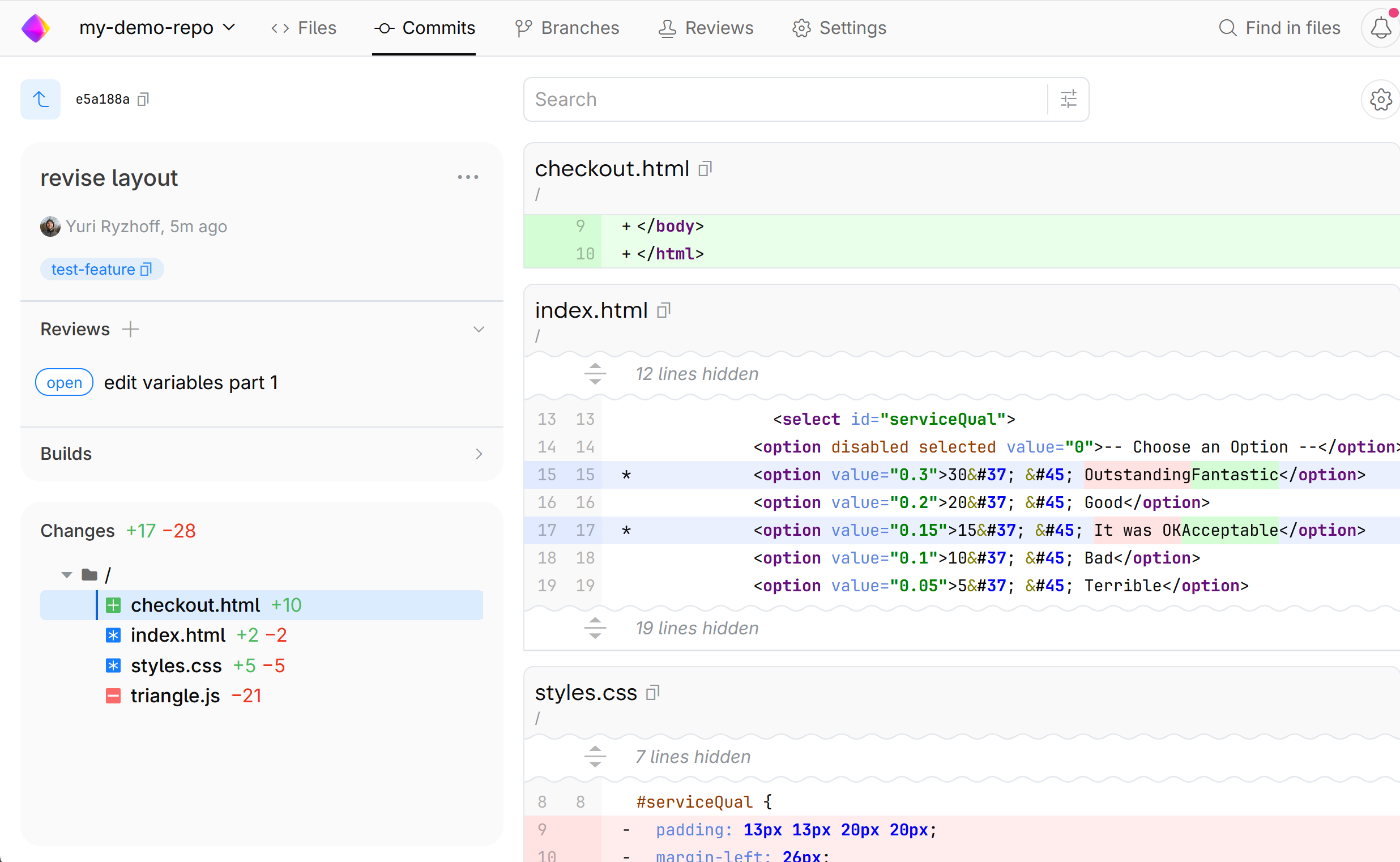
The list may contain files that were:
 Modified
 Added
Added Deleted
 Renamed
Now you can see what changes were made in each file. Click the file to display its diff and compare its two revisions:

Viewing preferences
Click the gear icon to change the diff type (Inline. Unified, or Split) and choose other viewing options:

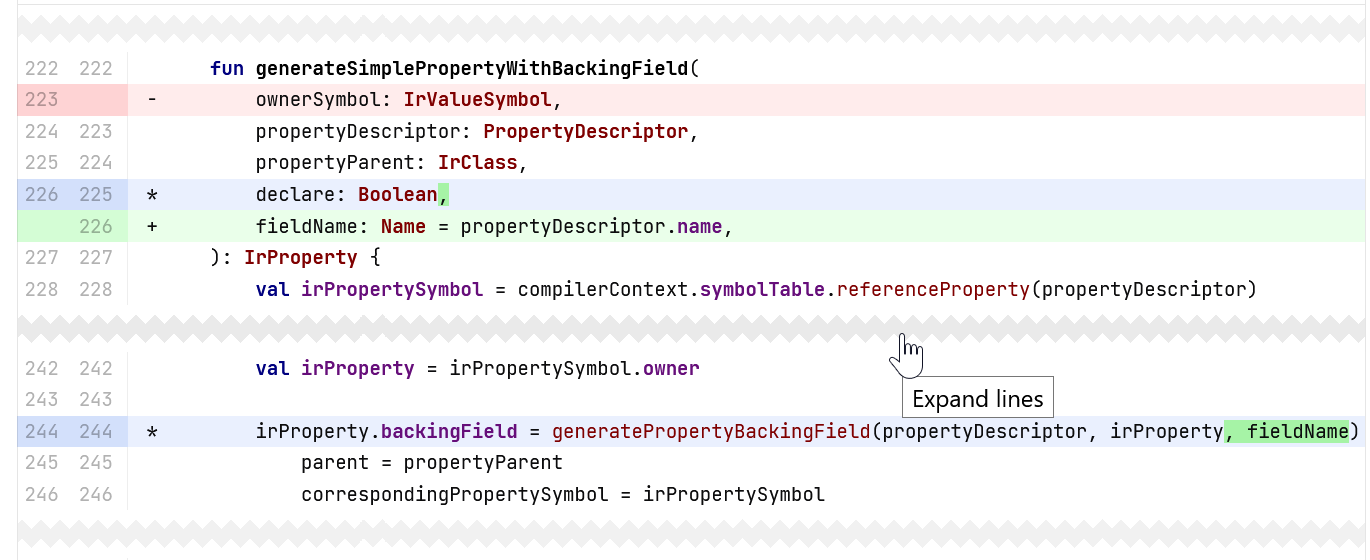
Unchanged blocks of code are hidden. You can reveal them by clicking on the cut lines:
Merge commit diffs
When comparing versions of a file included in a merge commit, you might notice that the diff is blank. This is perfectly normal for a file that has not been modified in both branches before the merge. Since merging doesn't usually involve intersecting changes or conflicts, the diffs will be empty most of the time.
The diff will display changes only if the merge commit contains a file that is changed relative to both parents (its versions from both branches).
Example:
Let's say there is a branch
Branch Awith a filesomefile.txtthat contains the following lines:
Create a branch
Branch BoffBranch Aand change the file (the third line) inBranch B:
In
Branch A, make some other change to the file (the first line):
Merge
Branch BintoBranch A.The resulting version of the file will include changes from both branches.
Now you can navigate to the merge commit in SpaceCode and open the diff:
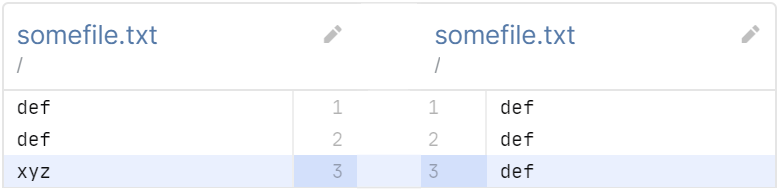
We can see the diff because the final version of
somefile.txtis different from its both parent versions:Branch AandBranch B.