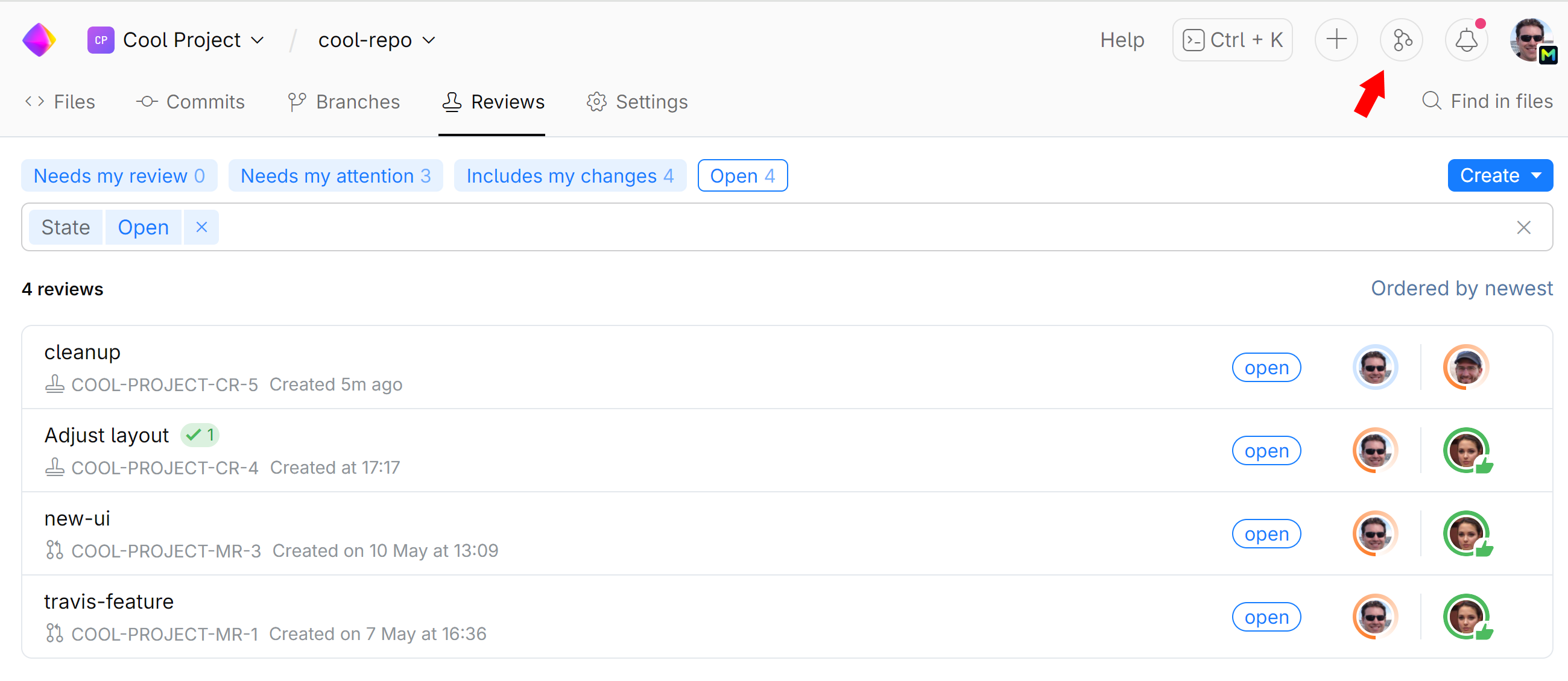
Start (Request) a Code Review
As someone who requests code review from your teammates, you typically perform the following sequence of tasks:
Commit and push changes to your Git repository.
Create a code review. If you have committed your changes to a feature branch and now would like to merge it to a base branch (main, master), create a merge request.
Invite reviewers and wait for their feedback.
Discuss issues, if any, by way of exchanging comments with the reviewer(s).
Work on resolving the issues, commit the fixes, and add the new revision(s) to the existing review.
As soon as the reviewer(s) approve your changes, you close the review. If the review is a merge request, you merge your branch.
Create a code review
Navigate to your repository.
On the top right, click
 and choose Code Review: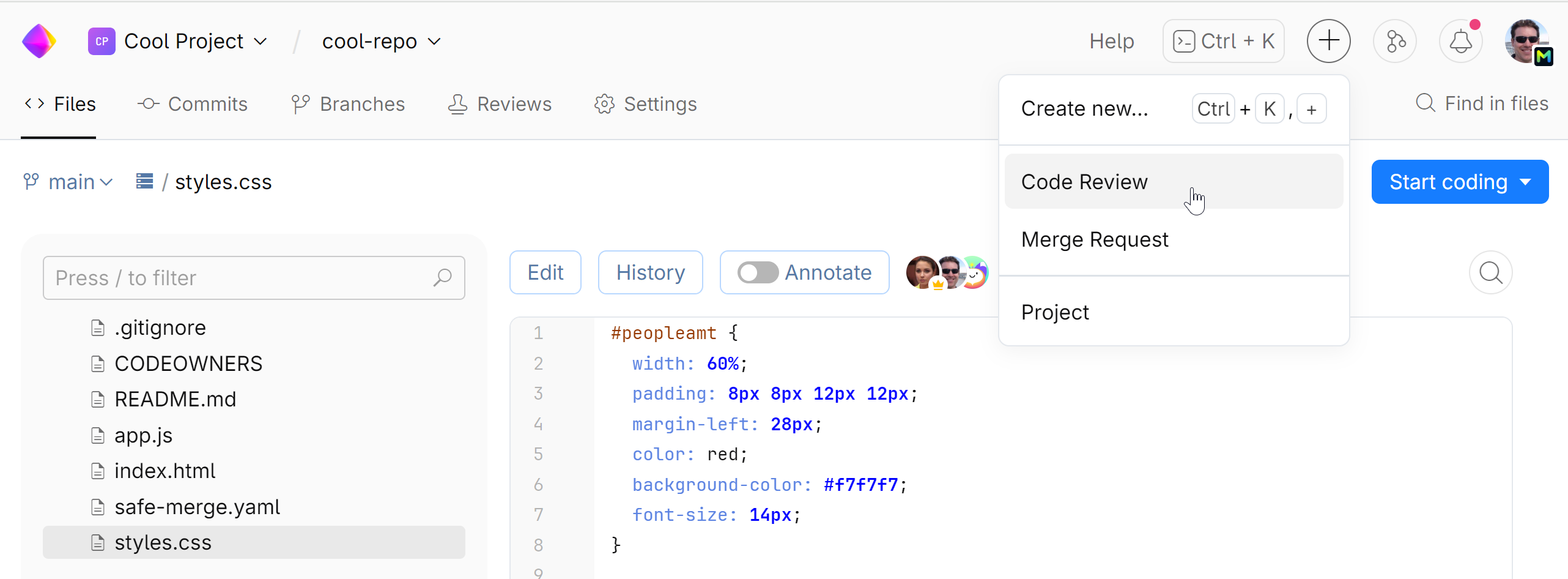
Select one or more commits which you want reviewed, then click New code review:
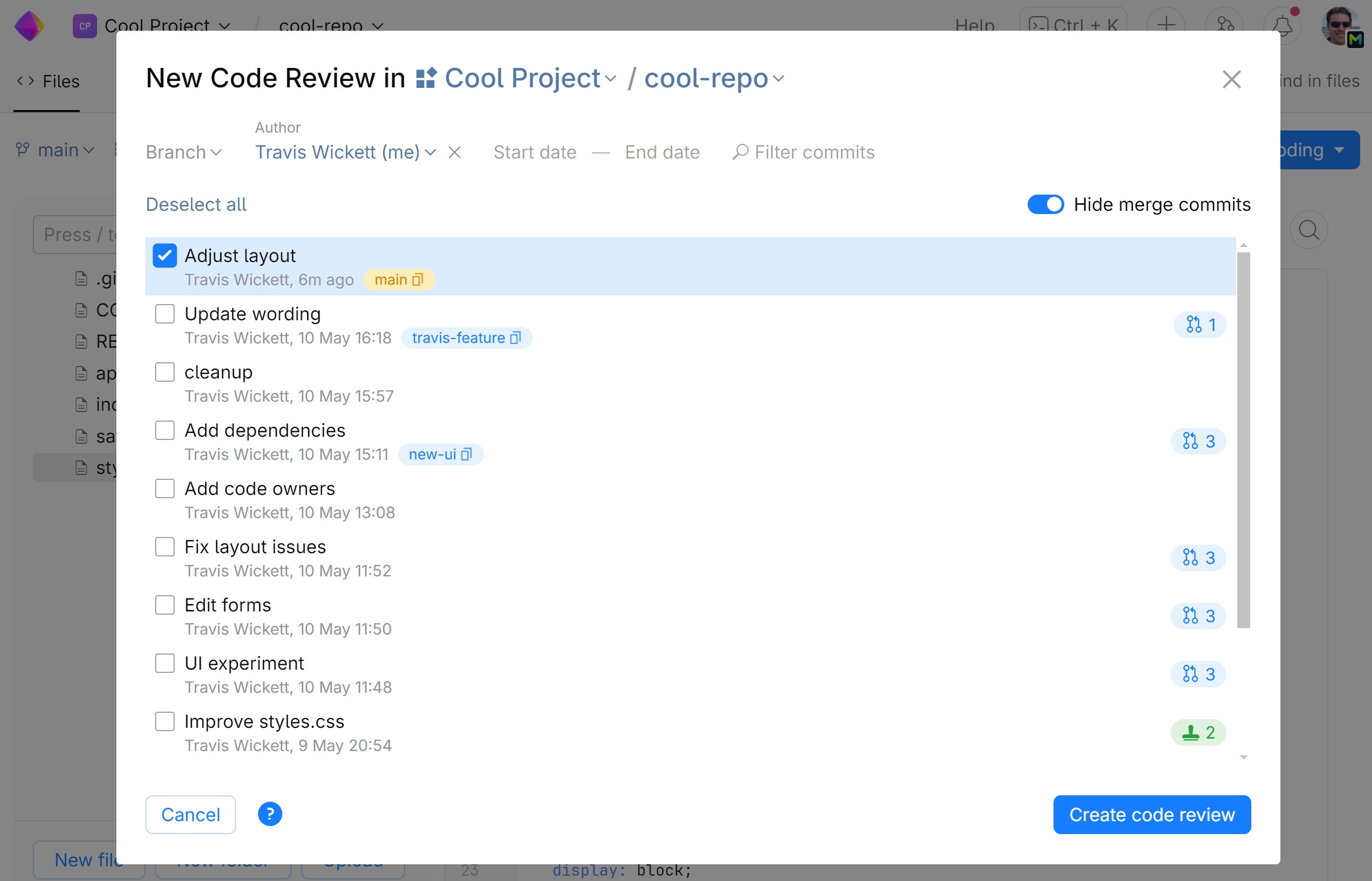
A new review is created and opened:
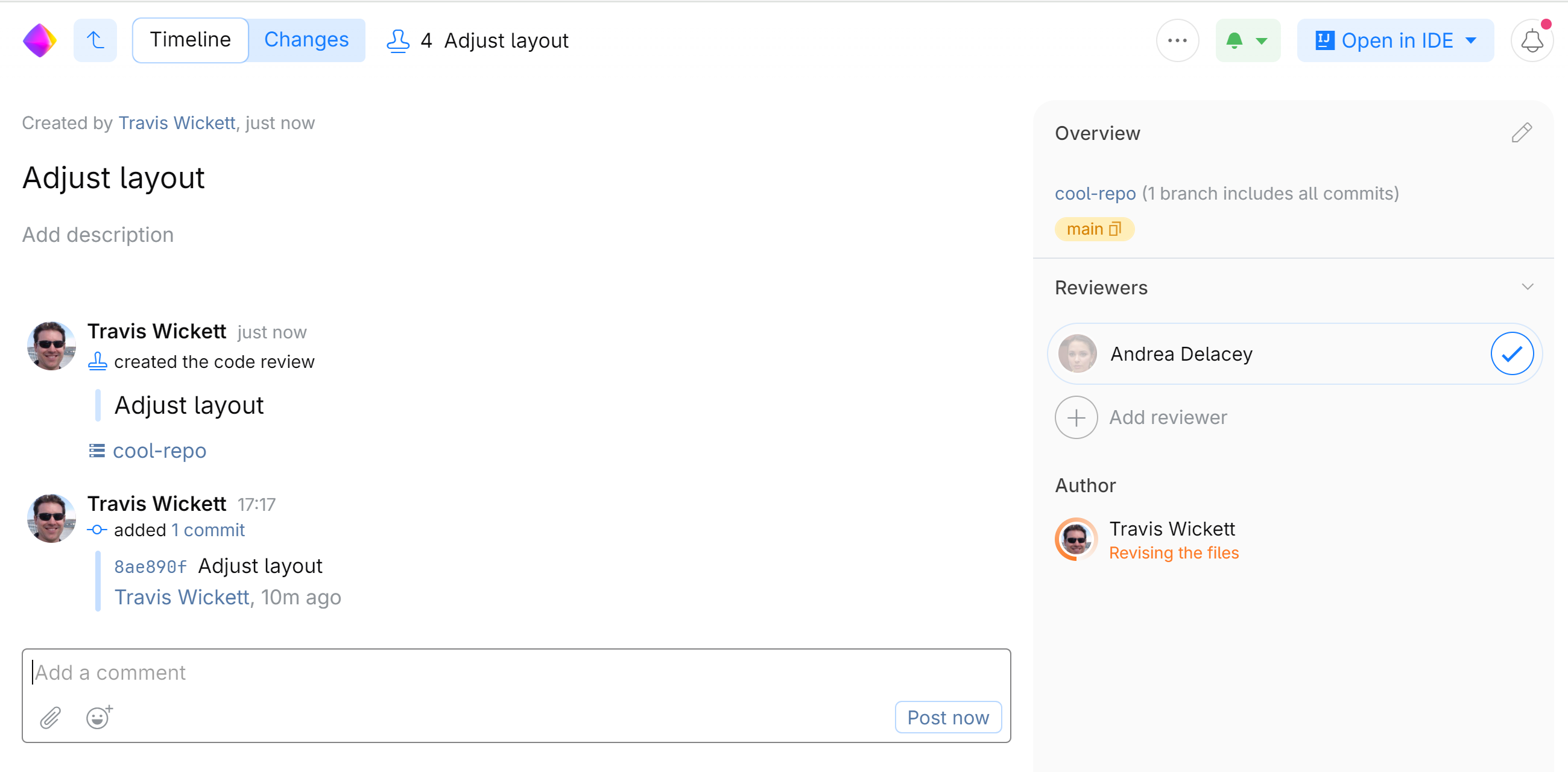
The default code review title is the same as your commit (or the last commit in a multi-commit review) included in the review.
To edit the code review title and add description to the review:
In the top right corner of the code review page, click

Edit the title and add description:
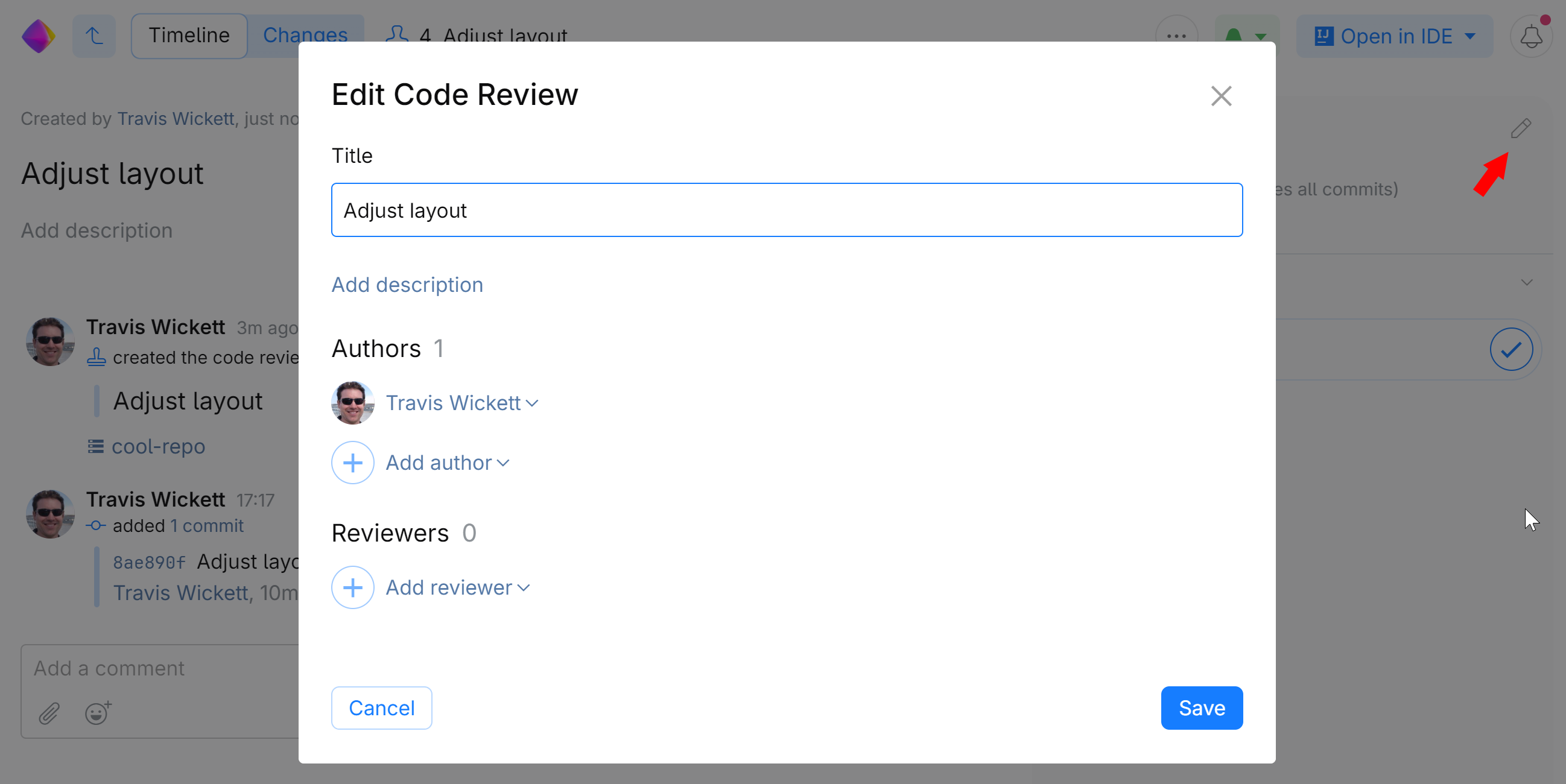
Click Save.
Description will be displayed in the Timeline tab, on top of review comments.
In the next step you need to assign at least one reviewer to the review.
Assign reviewers
Assign reviewers by adding them to the reviewers list.
If your code review includes changes in files owned by certain member, SpaceCode will suggest that member for a reviewer. Code ownership is based on the CODEOWNERS file which can be configured for your repository
To add a reviewer:
On the review page, click Add reviewer and select one or more reviewers from the drop-down list or choose a suggested reviewer:
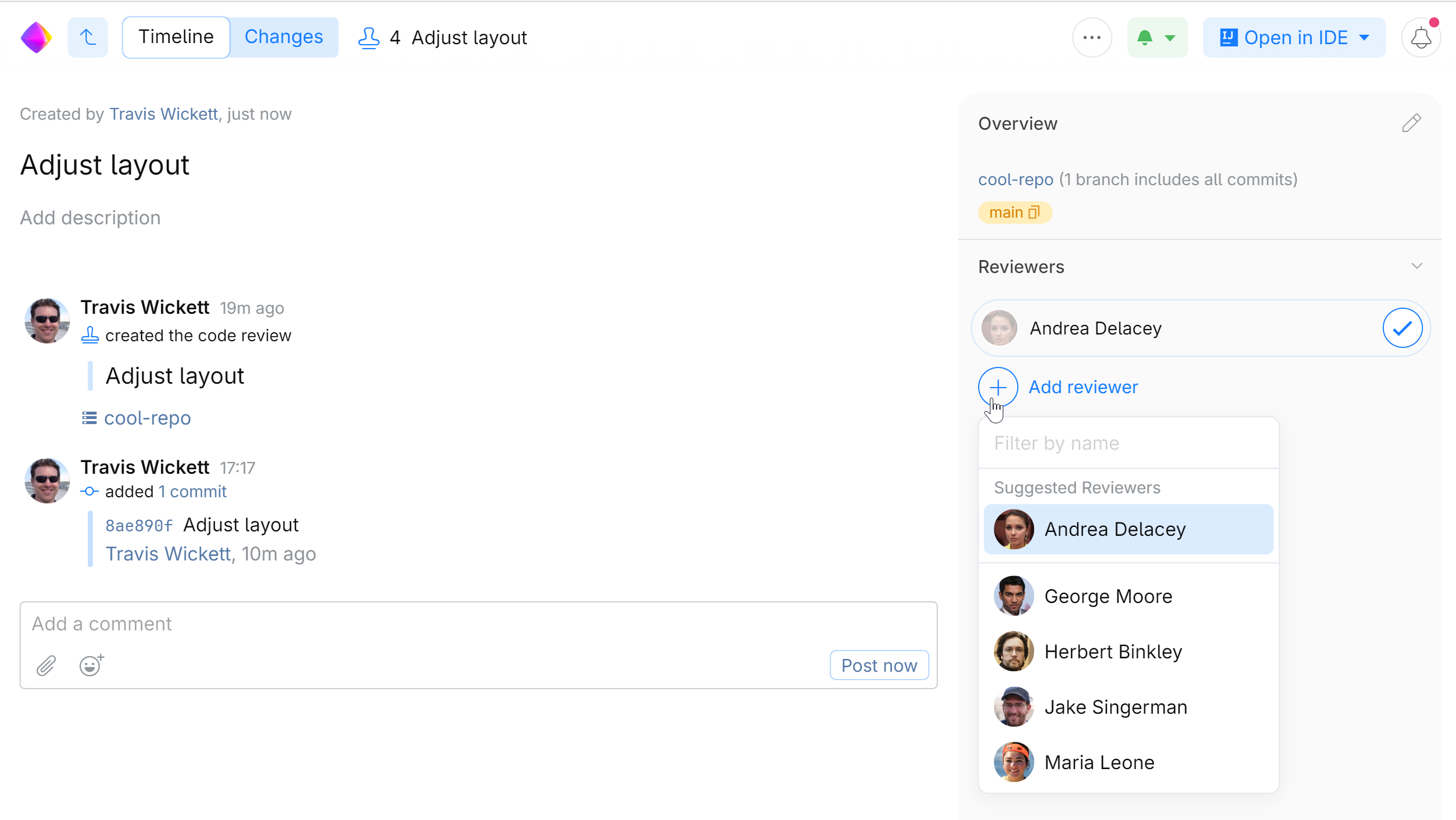
The assigned reviewers will be shown on top of the review page.
The people you add as reviewers will be notified.
Now you need to wait for the reviewer(s) to finish examining your changes. You'll be notified when they are done, and it's your turn to proceed.
To remove a reviewer:
Place your cursor over the reviewer then click
x: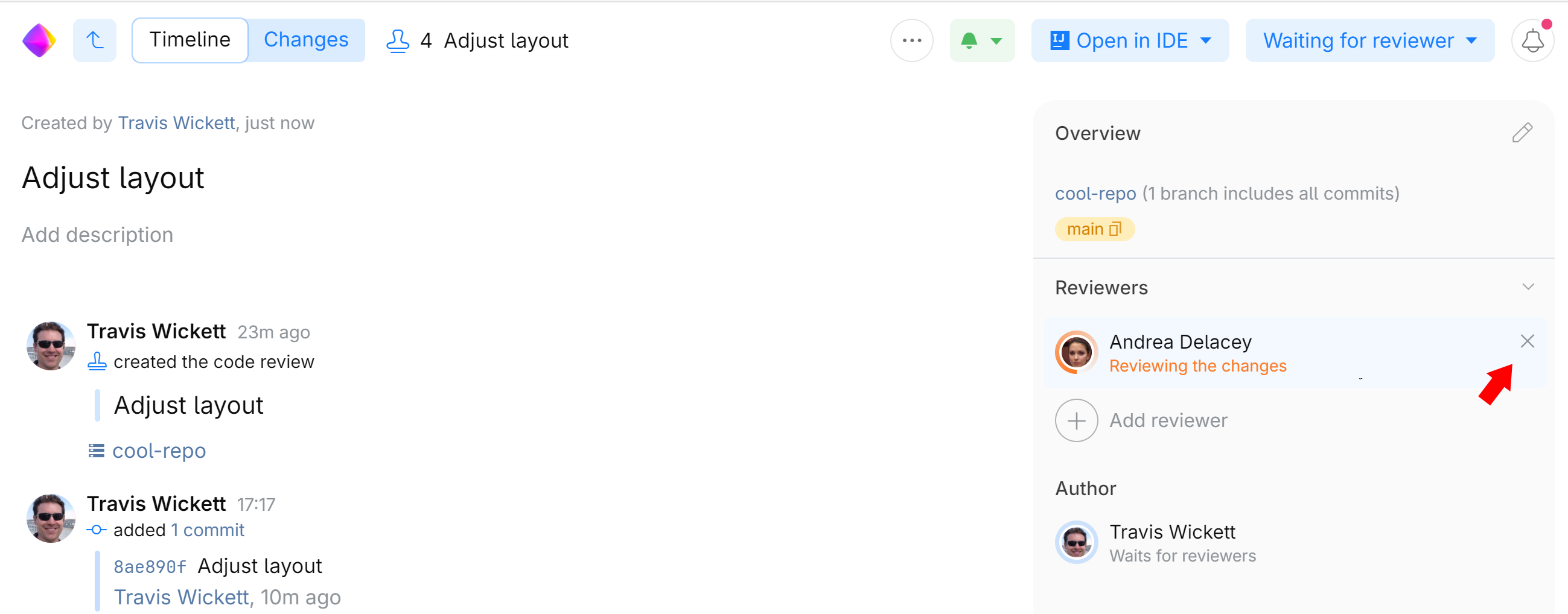
Subscribe others as watchers
You can invite others to watch updates and discuss changes by subscribing them to the review. Just mention them in a comment: type @ and pick a person from the list.
Check your status
In a code review, participants take turns to keep the process clear and orderly. The status indicator under your name in the right-hand panel will tell you whether you should wait or take action.
| Gray color indicates that no action is required, wait for the reviewer to finish their turn. |
| Orange color indicates that it's your turn, and you are expected to take some action such as:
Once you're finished, click the suggested action in the top right corner to change your status and pass the turn to the reviewer. |
| A blank status under your name indicates that the review is complete and can be closed. Click the Close review button in the top right corner. If the review is a merge request, click the Merge button to merge your branch and close the review. |



Post comments
You can post general comments to the timeline or pinpoint particular code fragments. See Comments and Suggested Changes for details.
Add more commits (revisions) to the review
A review can contain multiple commits when:
The changes you want to be reviewed are spread across several commits.
The commit you had originally submitted for review was not approved by the reviewers. You can then work on the issues, commit fixes, and attach one or several new commits to the original review for approval.
This way the entire commit and discussion history is contained within one review, and as long as the review is open it will always be visible throughout the different commits.
Attach another commit:
On the review page, go to the Changes tab.
Click
 next to Changes from commits: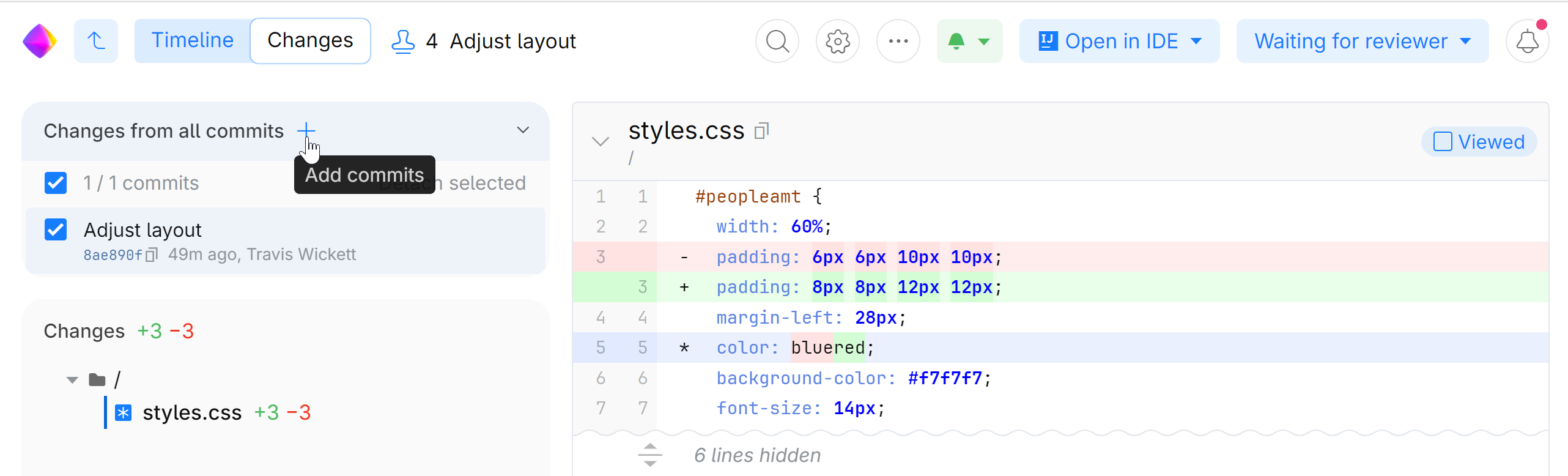
A list of commits will pop up.
Choose one or more commits from the list and click Add commits.
Detach a commit from the review:
On the review page, go to the Changes tab and expand the Changes from commits view.
Select the commits you want to detach.
Click Detach selected.
Reviewer's approval
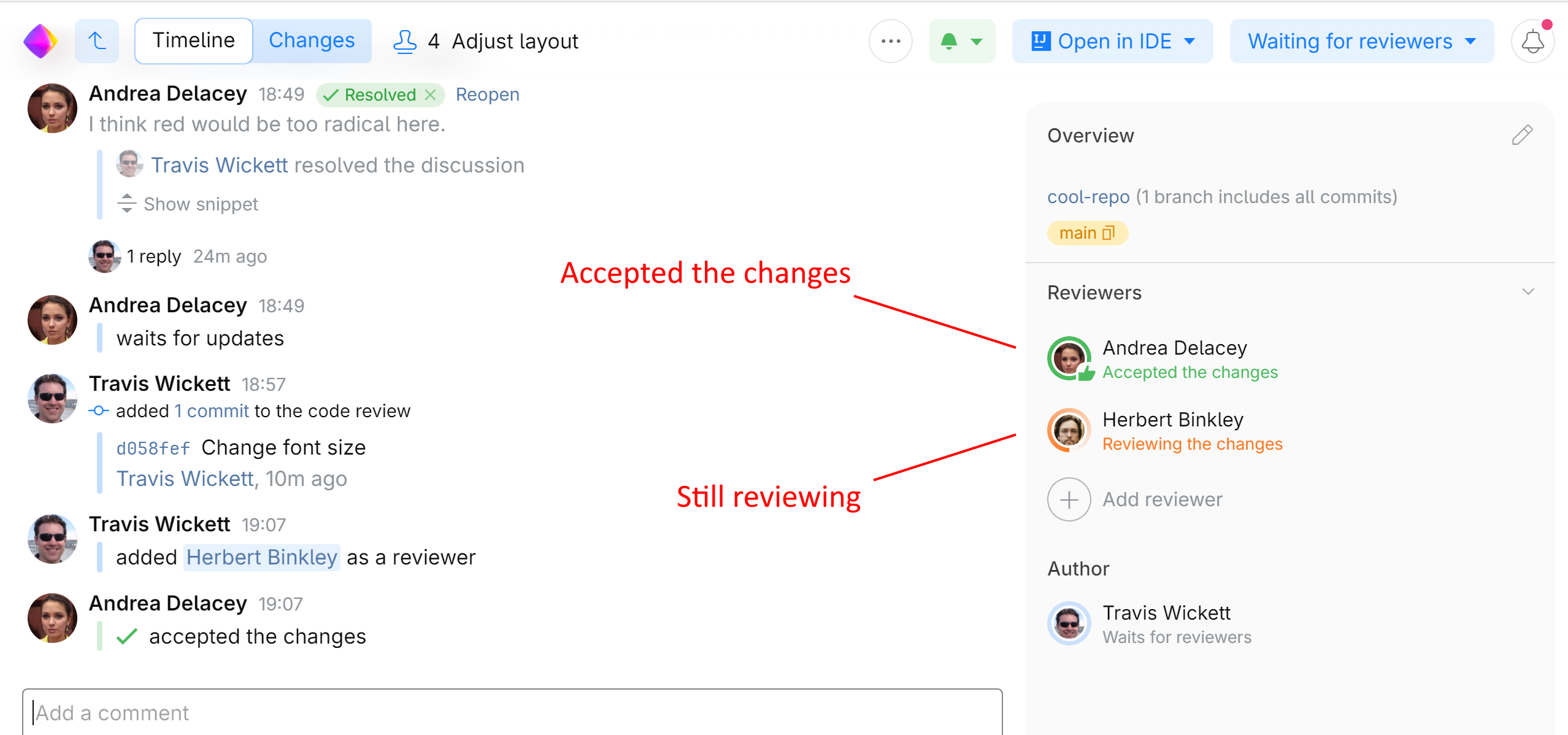
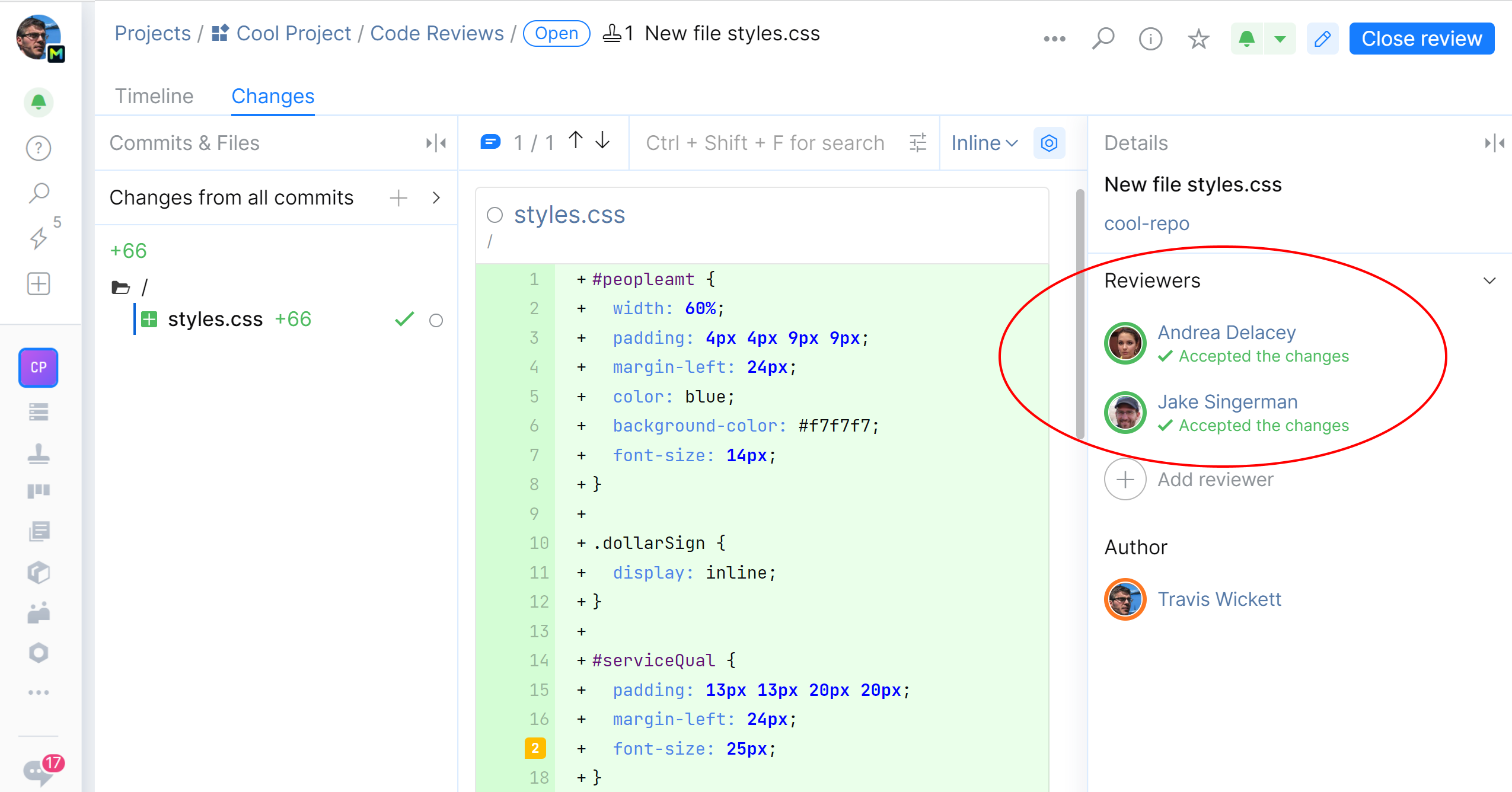
When reviewers accept your changes, you will be notified. Their resolution will be also posted on the review page under the Timeline tab, and indicated on their user icons (they will be encircled in green):
Close a code review
If all the reviewers have accepted your changes, the review is complete, and you are expected to close it. To close the review, click the corresponding button:
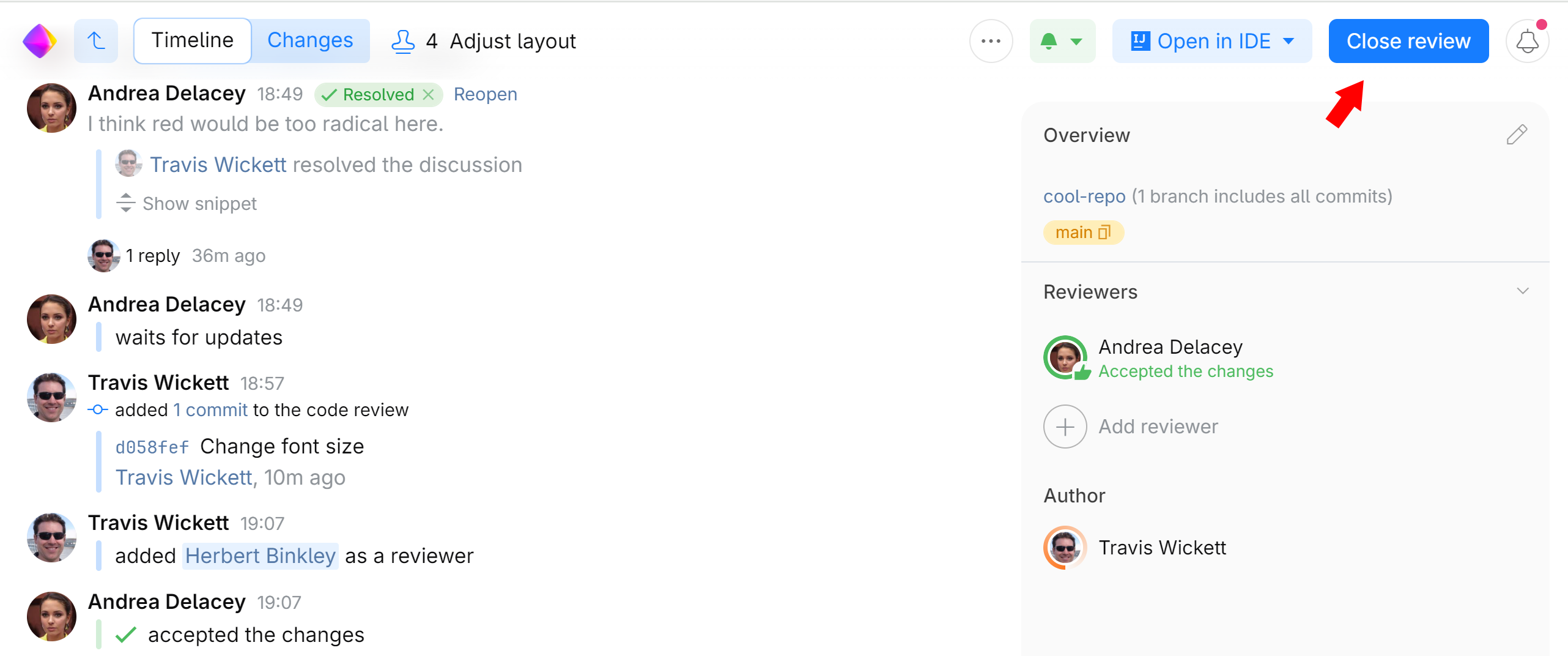
If all the discussions in the review have been marked Resolved, the review will close by itself when all the reviewers accept your changes.
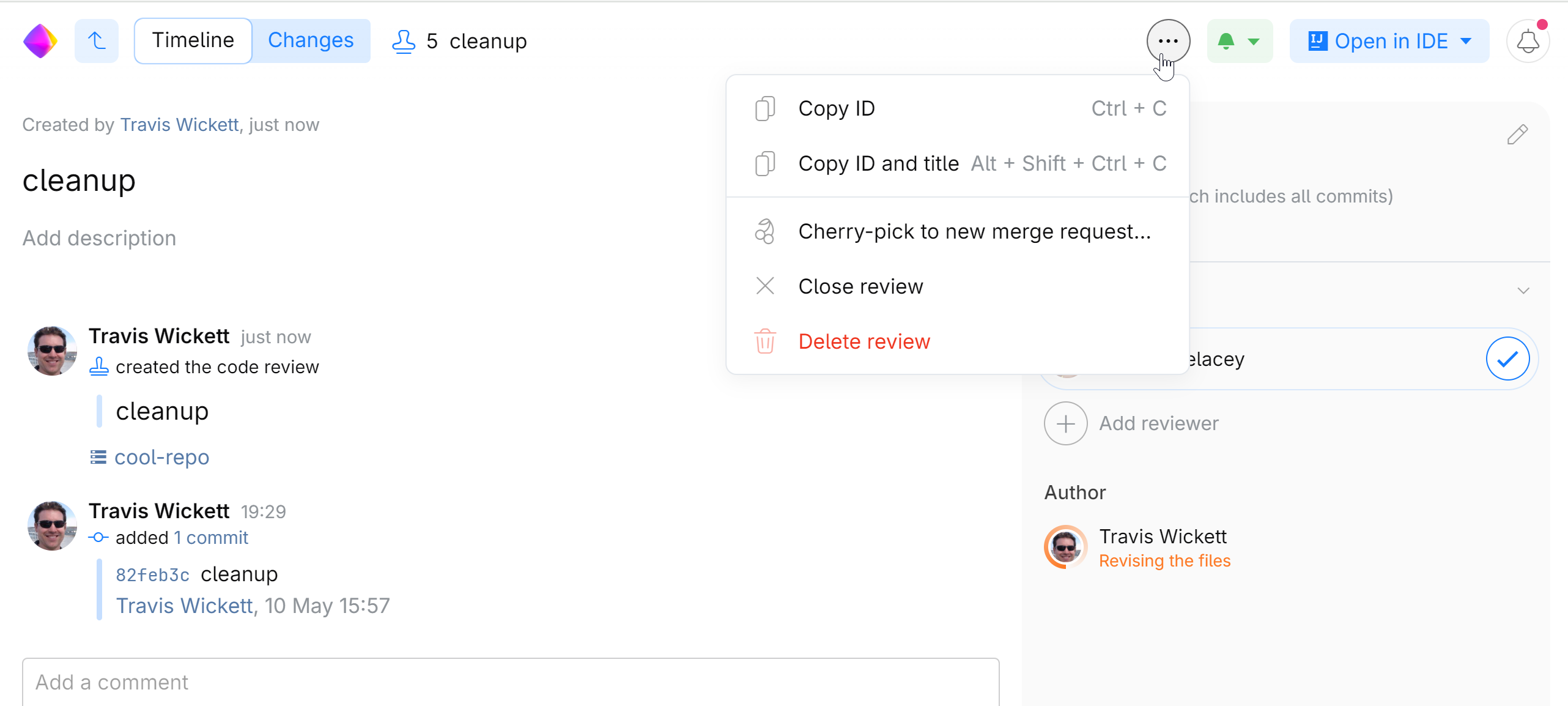
Technically, you can close a code review at any stage. For example, if it became obsolete or irrelevant. Just click  and choose Close review:
Keep track of reviews
Reviews that need your attentions either as author or reviewer will be shown on your dashboard (home page)
To see and search all reviews in the organization. go to the Code Reviews. Filter reviews by specific project, author, reviewer, etc.