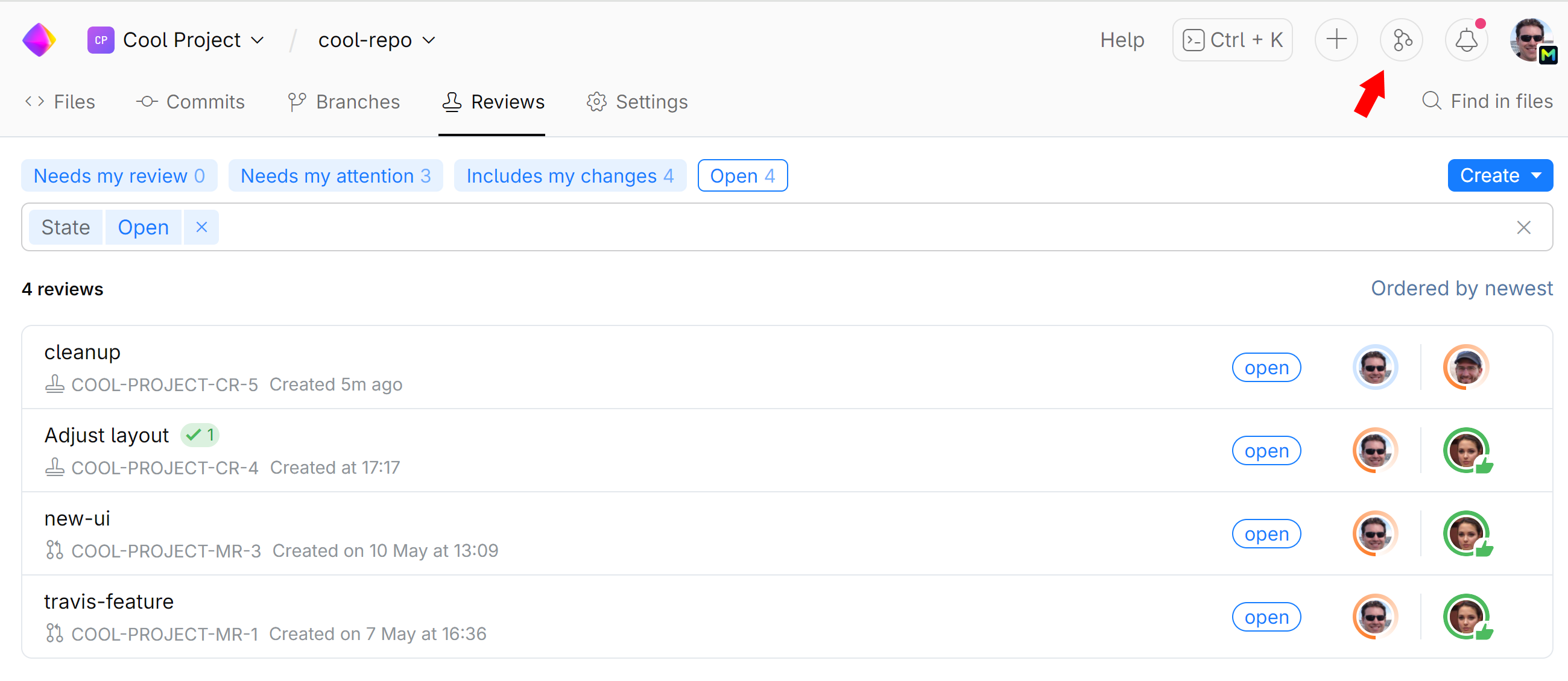
Review Changes Made by Others
As a reviewer you typically perform the following sequence of tasks:
When someone invites you to review their changes, you'll receive a notification in your Inbox containing a direct link to the review. Follow the link to proceed to the review page.
On the review page, you'll notice a status indicator under your user icon:

When its orange and says Reviewing the changes, it means that the author is waiting for your feedback or approval.
Examine changes
The Timeline tab lists all events and comments related to the review. To see the commits, files, and changes associated with this review, go to the Changes tab:

Click on the file name to display its diff.
If the review contains multiple commits, click Changes from commits to show them all. You can select any one of them to see the files it affected and inspect changes.

Diff settings
Click the gear icon to customise your diff view:

Finished reviewing?
If you have questions, concerns or suggestions, or some other reasons not to approve the changes, discuss them with the author. Leave your comments and let the author know that you're done and waiting for their response. Click the small arrow on the green button and choose Wait for updates or Submit drafts (if you have not already posted your comments):

The author will be notified, and your status will change to Waits for updates:

When the author is done replying or revising their changes, your status will turn to Reviewing the changes once again, indicating that you may need to review an additional commit or just respond to the comments.
If everything is okay, and you are ready to approve the changes, click :

If you are sure that any additional changes that the author might commit will not require your further review, you can click Accept and finalize approval. In this case your approval will be final and your status won't be reset when new commits are introduced.
Your status indicator will turn green, and no further action will be required:

Post comments
You can post general comments to the timeline or pinpoint particular code fragments. See Comments and Suggested Changes for details.
Assign other reviewers
You can invite other members to help you review the changes by assigning them to the review. On the right pane, click Add reviewer and select one or more reviewers from the drop-down list:
The assigned reviewers will be notified and displayed on the review page.
Subscribe others as watchers
You can invite others to watch updates and discuss changes by subscribing them to the review. Just mention them in a comment: type @ and pick a person from the list.
Keep track of reviews
Reviews that need your attentions either as author or reviewer will be shown on your dashboard (home page)
To see and search all reviews in the organization. go to the Code Reviews. Filter reviews by specific project, author, reviewer, etc.