Pipeline Settings
This article explains settings available for the entire pipeline that specify common pipeline behavior.
Edit Pipeline Settings
To view and edit core pipelines settings, click the Settings toggle in the top right corner, then click anywhere within the pipeline canvas area surrounding the jobs in the visual editor.
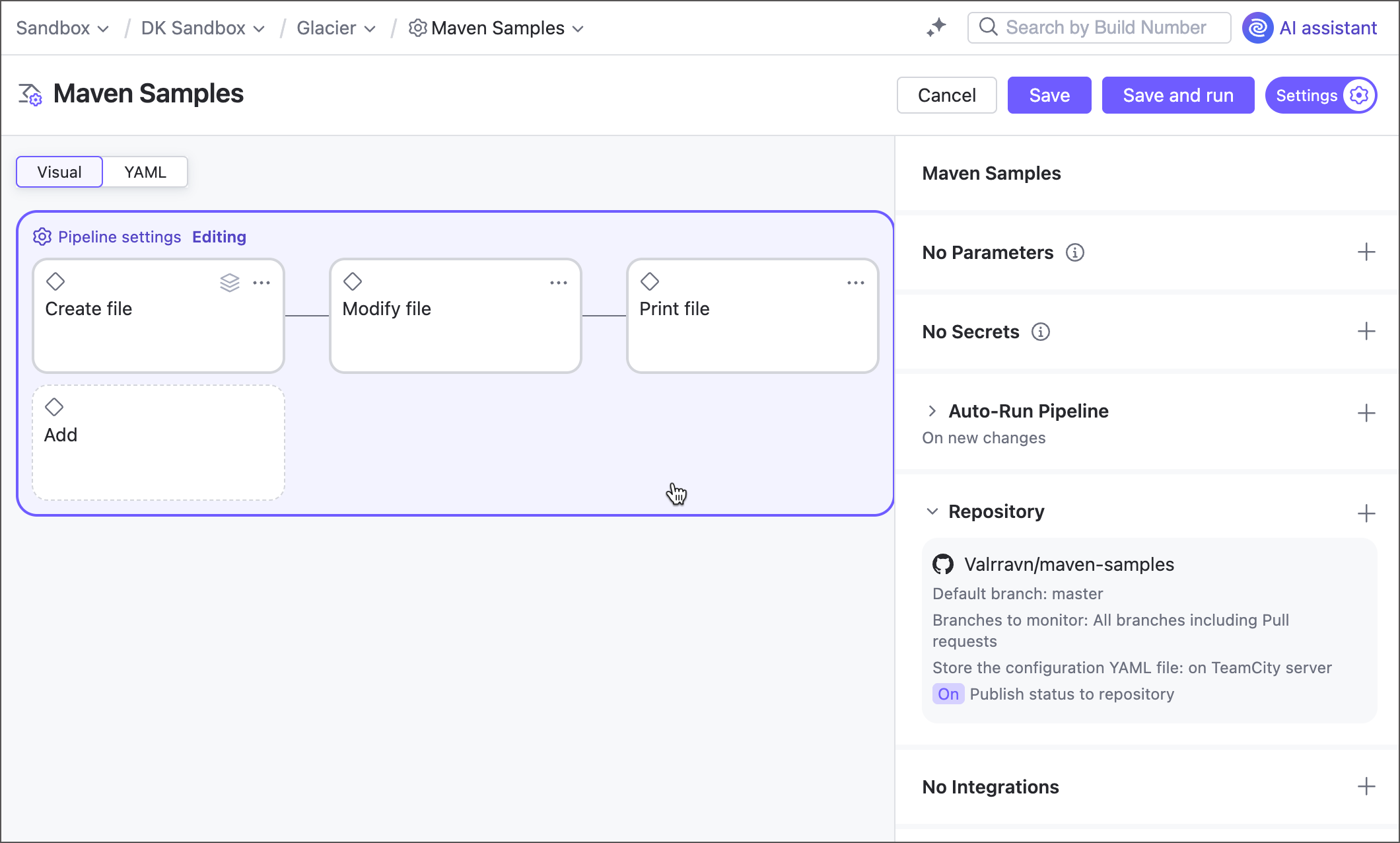
You can also switch from the visual editor to the code and edit the markup directly.
Parameters
Parameters are name-value pairs designed to substitute raw values with references. When TeamCity encounters a parameter reference (%param-name%), it substitutes it with the actual parameter value.
TeamCity supports two layers of parameters: pipeline parameters and job parameters. Pipeline parameters in their turn are available as input and output parameters.
Job parameters are designed to be used in these very jobs, and jobs that depend on it (via the
job.<source-job-ID>.<param-name>syntax). See Job parameters to learn more.Pipeline input parameters are shared across all jobs within a pipeline. The sample below illustrates a pipeline parameter propagated to two jobs.
parameters: PipelineParam: foo jobs: Job1: name: Job 1 steps: - type: script script-content: 'echo "Pipeline parameter: %PipelineParam%"' # prints 'foo' Job2: name: Job 2 dependencies: - Job1 parameters: env.Job2Param: '%PipelineParam% bar' # job parameter references pipeline input param steps: - type: script script-content: |- echo "Original pipeline parameter: %PipelineParam%" # prints 'foo' echo "Modified pipeline parameter: %env.Job2Param%" # prints 'foo bar'Pipeline output parameters are shared to downstream pipelines and build configurations when this pipeline is a part of a build chain. Having this separate type grants you more control over which parameters can be exposed and which should stay private.
Note that output parameters cannot be used inside the same pipeline.
parameters: PipelineInputParam: foo output-parameters: PipelineOutputParam: bar jobs: Job1: name: Job 1 steps: - type: script script-content: |- # Prints 'foo' echo "Input param: %PipelineInputParam%" # Unresolved reference: no compatible agents echo "Output param: %PipelineOutputParam%"See this section to learn more about parameters in build chains: Pipeline Dependencies.
Secrets
Secrets are protected parameters designed for storing sensitive data. You can reference in the same manner as with regular parameters, but their actual values are hidden from both TeamCity UI and build log.
If you switch to the code view of a pipeline, you will notice that secret values are replaced by names of tokens that store these values. TeamCity automatically creates these tokens to avoid leaking secret data via remotely stored configuration files.
The snippet below illustrates a secret that can be used instead of a password in the Integrations section of a pipeline. The command-line script that attempts to expose this secret prints the "Secret value: *******" line to the build log.
Pipeline Dependencies
This section allows you to link pipelines and build configurations in a single build chain.
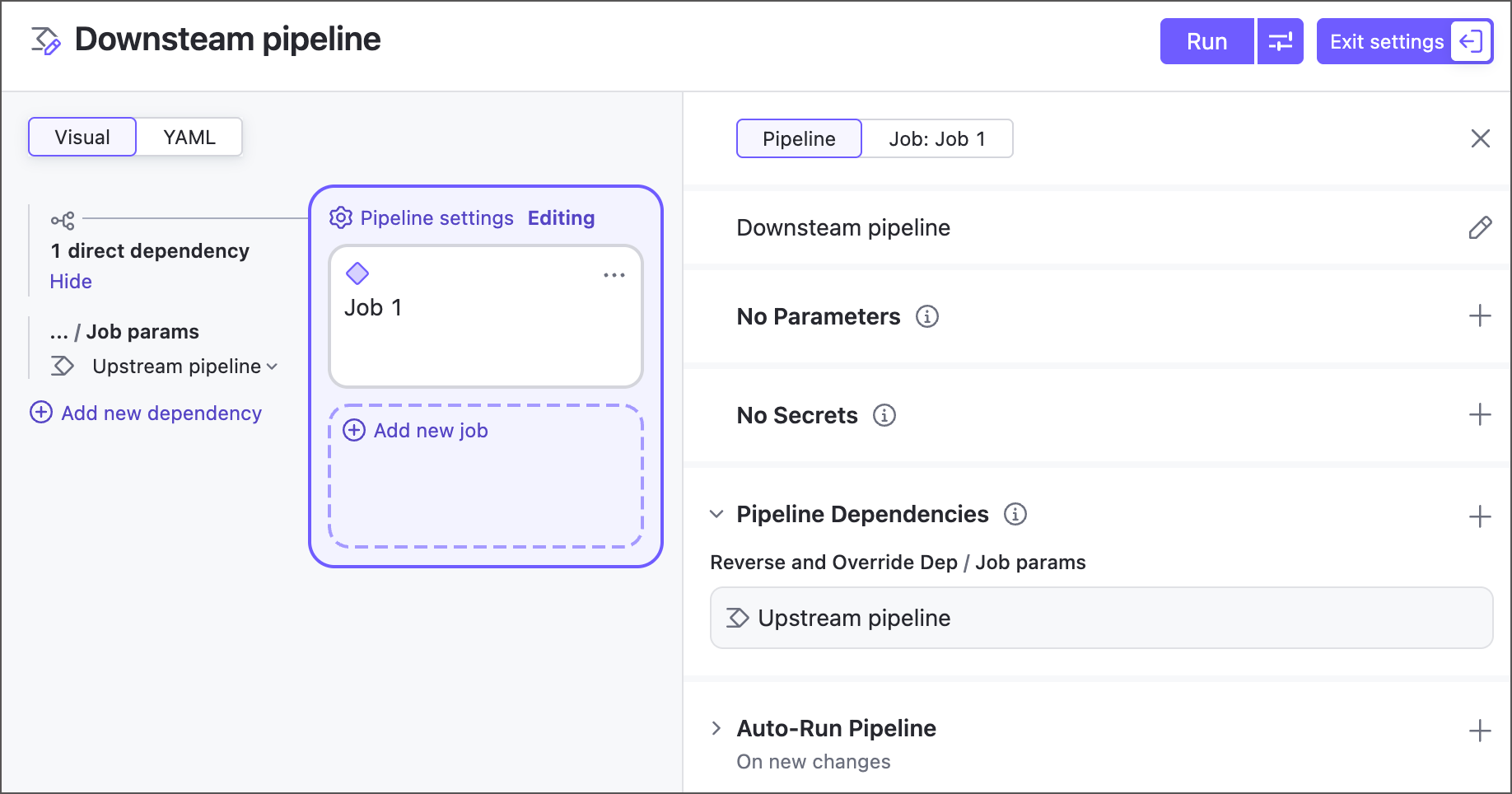
When you add a dependency to object "A" in pipeline "B" settings, you create the "A → B" chain where:
object A can run solo;
pipeline B automatically triggers object A when launched.
"A" can be both a classic build configuration or another pipeline.
Pipeline dependencies have the following settings:
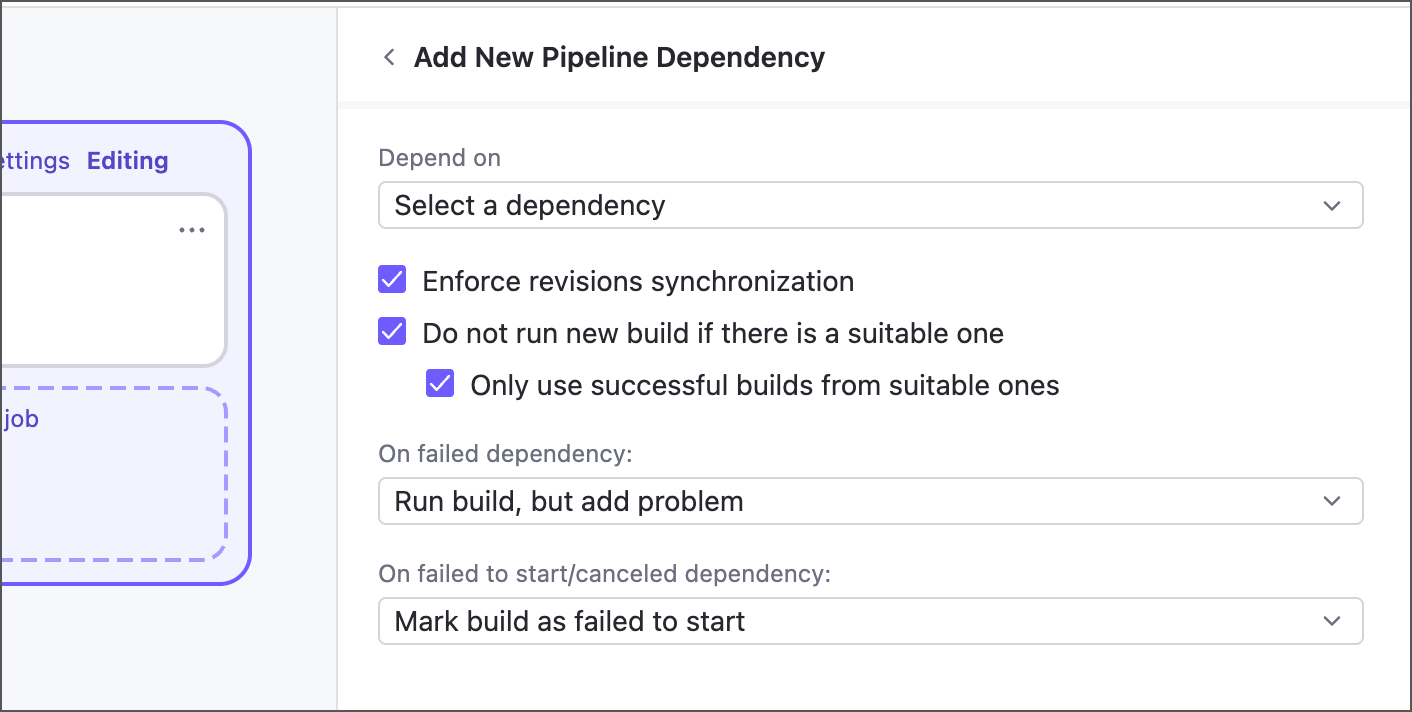
- Depend on
Choose an upstream configuration or pipeline that should finish before your currently edited pipeline can start.
- Enforce revisions synchronization
Specifies whether TeamCity should ensure both objects linked by a dependency use the same revision of code sources.
Revision synchronization enabled: recommended for setups that need to use the same state of the sources. For example, in the "A → B" chain: "A" starts on revision 1.2 and is promoted to "B" when finished. Build "B" will run on the same 1.2 revision even if its latest revision is 1.4.
Revision synchronization disabled: use this setup when builds do not have strict sources' dependencies (for example, as with package and deploy steps). In this case, a downstream build will use the latest available revision. For example, in the "A → B" chain: "A" starts on revision 1.2 and is promoted to "B" when finished. Build "B" will run on its latest 1.4 revision that does not match "A".
See the Turned off Enforced Revisions Synchronization section for more information on effects this setting has on a build chain.
- Do not run new build if there is a suitable one
If this option is enabled, TeamCity will not run a new dependency build, if another running or finished dependency build with the appropriate sources' revision already exists. See Suitable builds for more information on criteria TeamCity uses to determine a reusable build.
In this case, when a dependent (downstream) build is triggered, the dependency (upstream) build is also put into the queue. Then, when the changes for the build chain are collected, this dependency build is removed from the queue and the dependency is set to a suitable finished build.
- Only use successful builds from suitable ones
A new triggered build will only use successfully finished suitable builds as dependencies. If the latest finished suitable build fails, it will be rerun.
- On failed dependency, On failed to start/canceled dependency
These settings let you control whether a dependent (downstream) build should run if its dependency (upstream) build fails, and, if it should, whether the same build problem should appear in its results.
Run build, but add problem: the dependent build will be run and the problem will be added to it, changing its status to failed (if the problem was not muted earlier).
Run build, but do not add problem: the dependent build will be run and no problem will be added.
Mark build as failed to start: the dependent build will not run and will be marked as " Failed to start ".
Cancel build: the dependent build will not run and will be marked as " Canceled ".
The snippets below illustrate how to set up dependencies in code.
Auto-Run Pipeline
This section includes settings that allow TeamCity to automatically run your pipeline on certain conditions. This functionality is available as triggers.
On New Changes
These settings trigger new pipeline runs whenever TeamCity detects new changes in a repository. In classic TeamCity build configurations, similar functionality is available via VCS triggers.
Trigger settings define which changes should start a new run. Use the Branches toggle to select stable repository branches. In the example below, TeamCity runs the pipeline automatically only when changes are committed to the "production" branch.
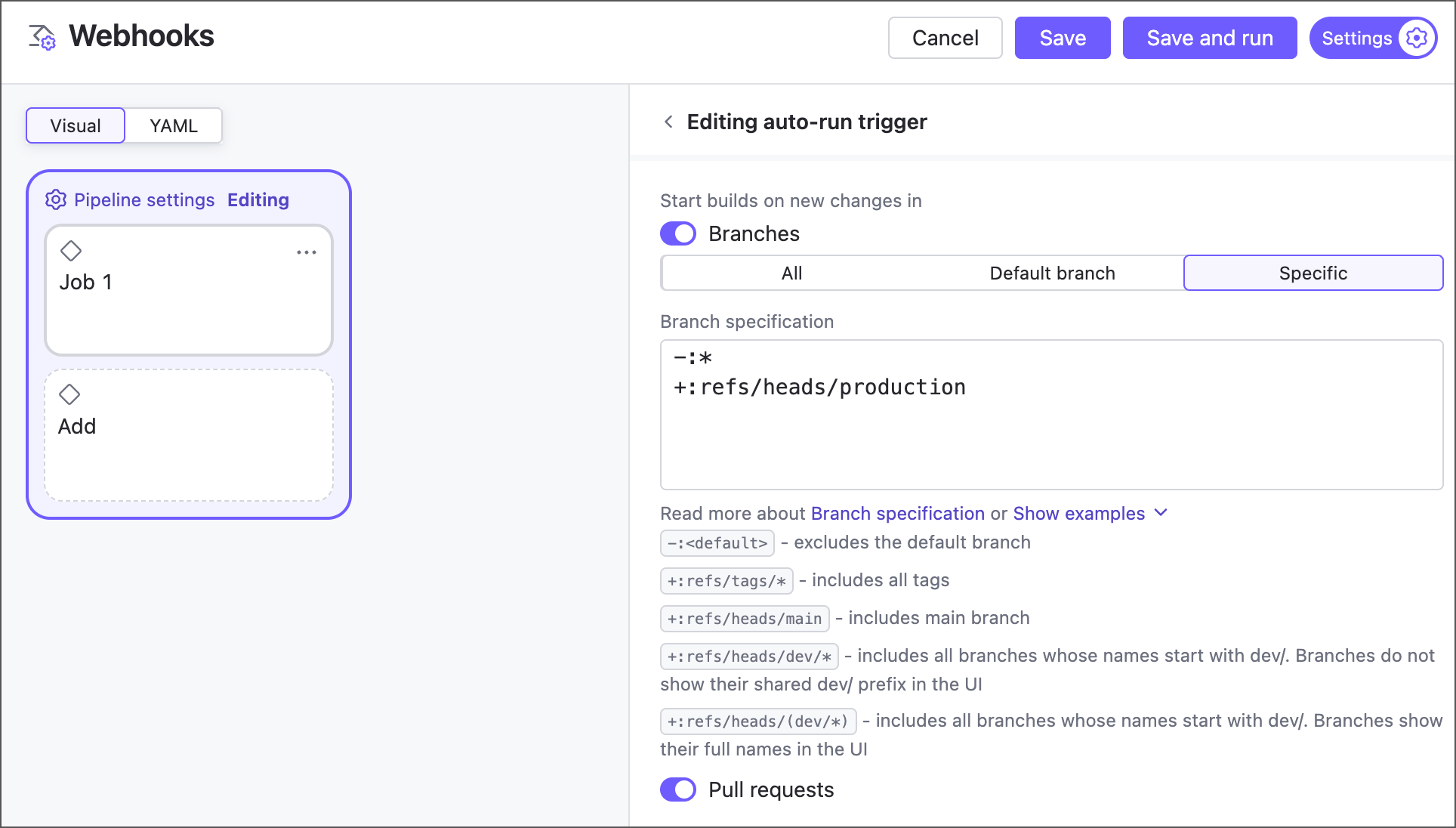
The Pull requests toggle includes pull request branches (for example, GitHub refs/pull/ branches) to the list of available sources. Note that you can enable this option only when a pipeline tracks these pull request branches (see the Repository section).
On a Schedule
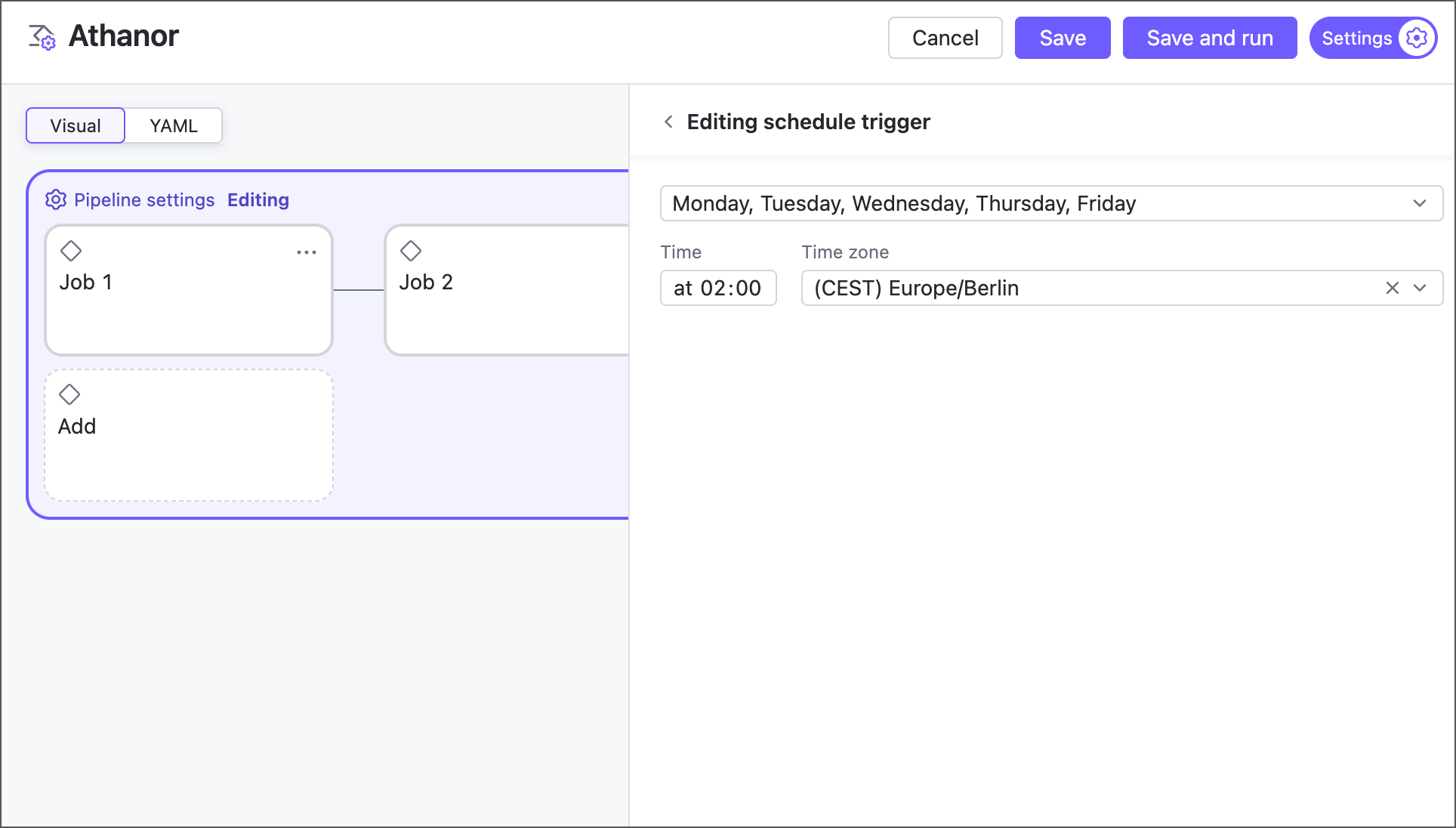
These settings, similar to a classic build configuration’s schedule trigger, let you define a date-time pattern for when TeamCity should run the pipeline.
Repository
The Repository section lets you check out multiple repositories during a pipeline run. TeamCity retrieves sources from all added repositories, even if no jobs are configured to process them.
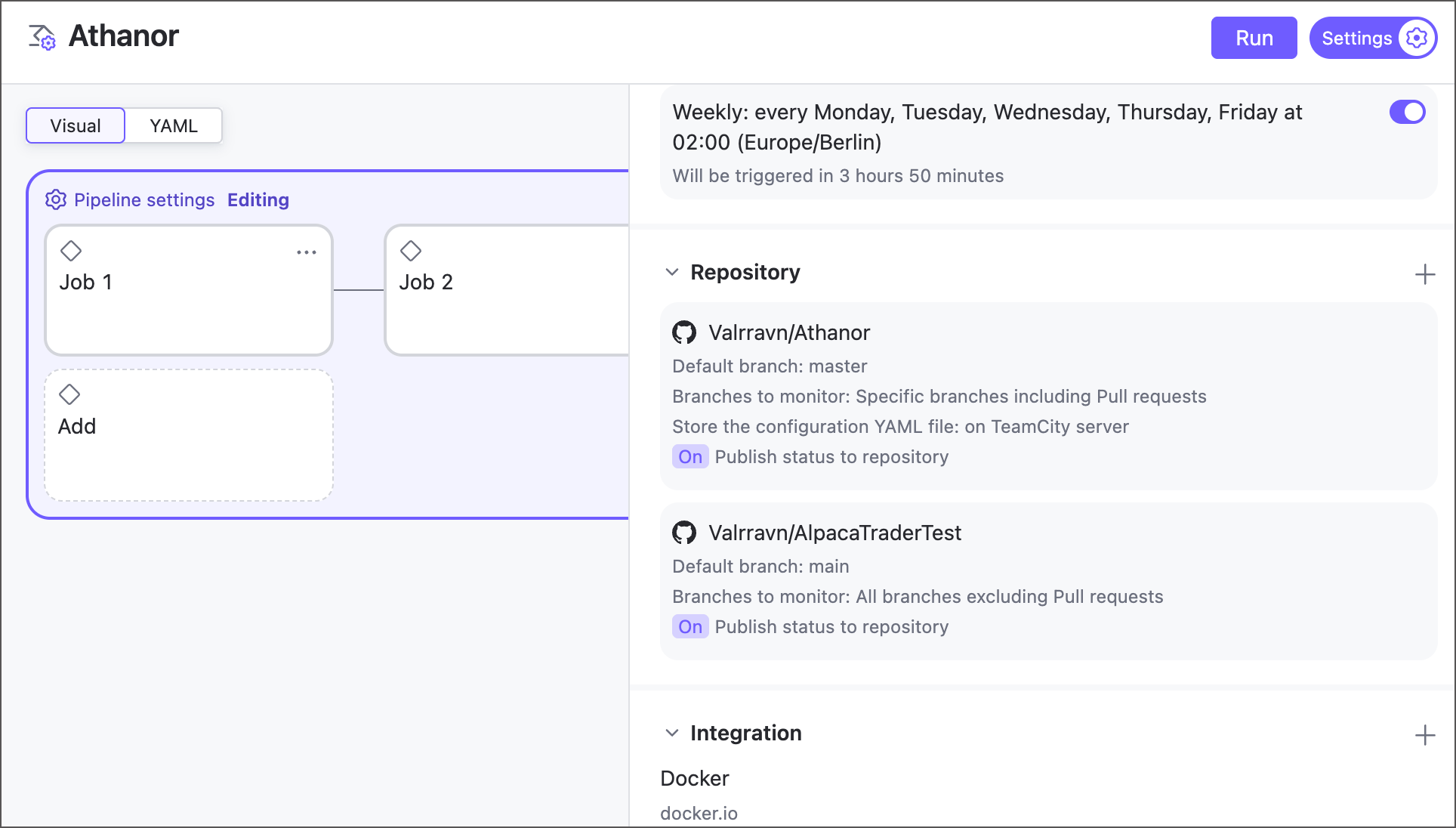
The initial repository entry, created automatically with the pipeline, is called the main repository. It cannot be deleted and includes an extra YAML file storage selector.
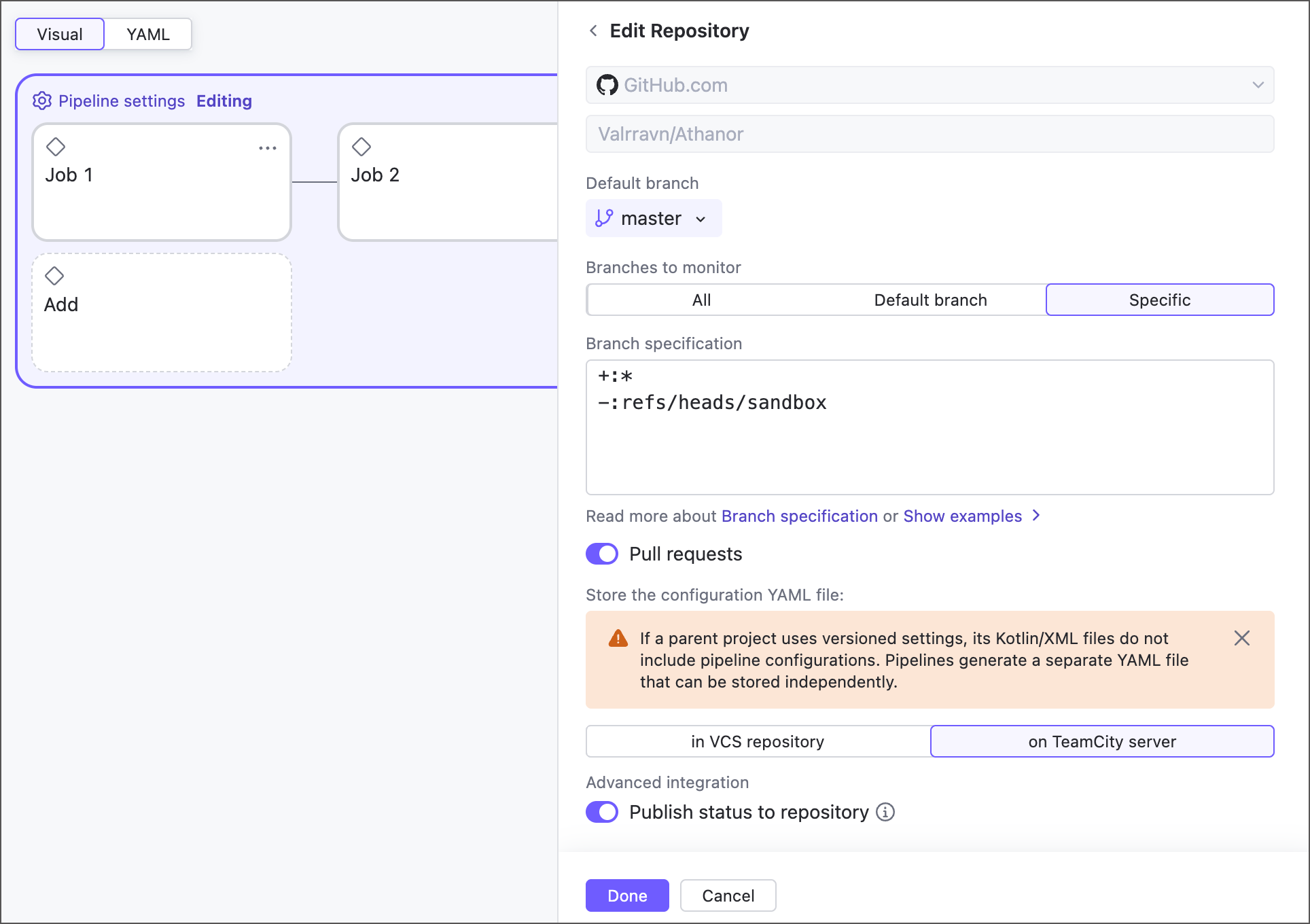
- Repository URL and source
Core repository settings that allow you to choose which repository a pipeline should check out.
Disabled for main repositories.
- Default branch and branch specification
These settings define which branches TeamCity tracks. Untracked branches are completely ignored: they do not report changes to the server, you cannot run for these branches, and so on.
See the following classic build configuration articles to learn more about branch specification syntax: Common Specification Syntax and Default Branch.
- Pull requests
When this setting is enabled, TeamCity includes pull (merge) request branches in the branch selector on the main pipeline page.
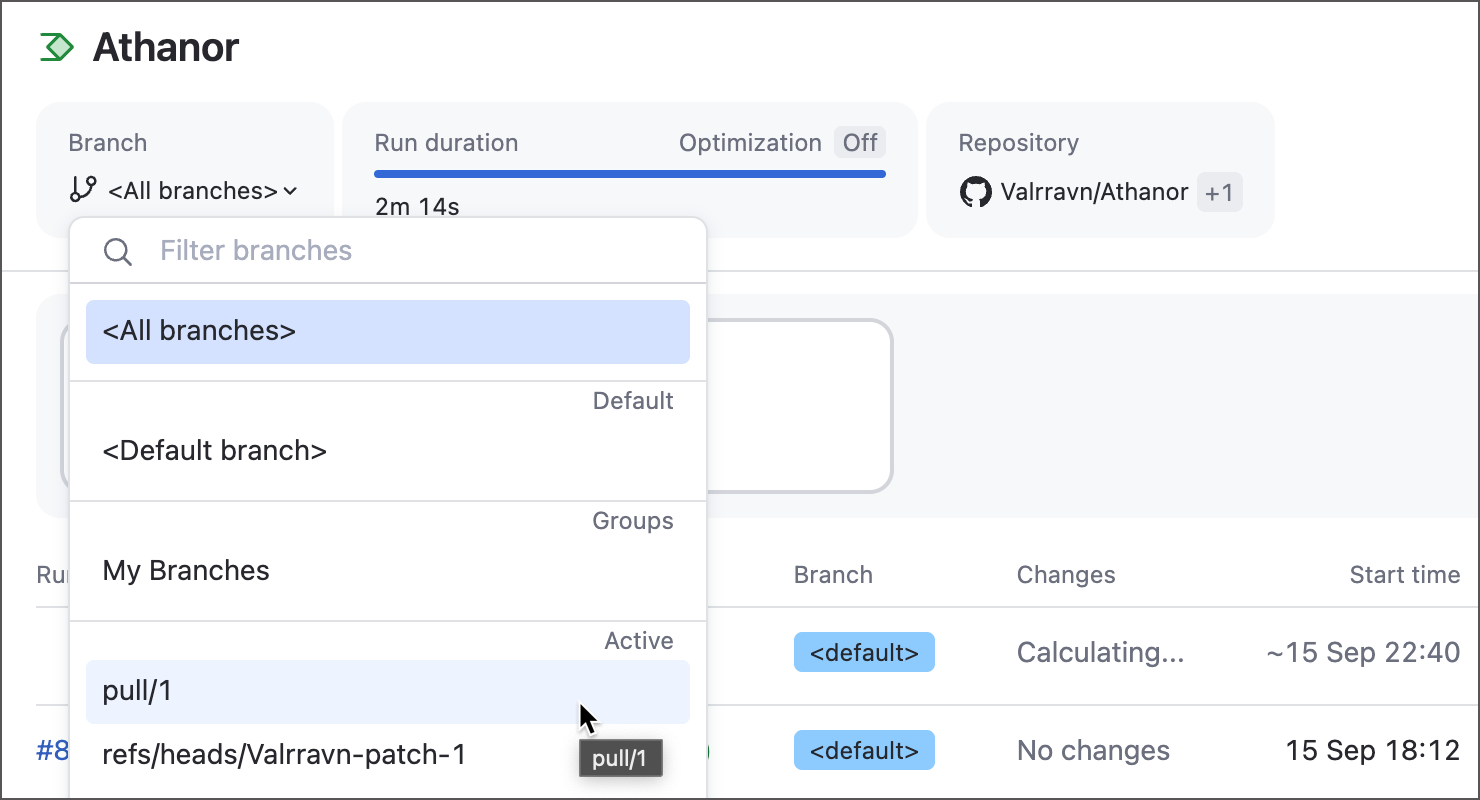
You can also enable the related toggle of the "On new changes" trigger to have TeamCity automatically build incoming pull requests.
- YAML storage
Specifies where to store the pipeline YAML configuration: on the TeamCity server or in the source repository. See also: Storing Project Settings in Version Control.
These settings are available for main repository only.
- Publish status to repository
If this setting is enabled, TeamCity reports pipeline run statuses (running, successful, failed) to the VCS hosting provider. The following image illustrates how GitHub presents this information.
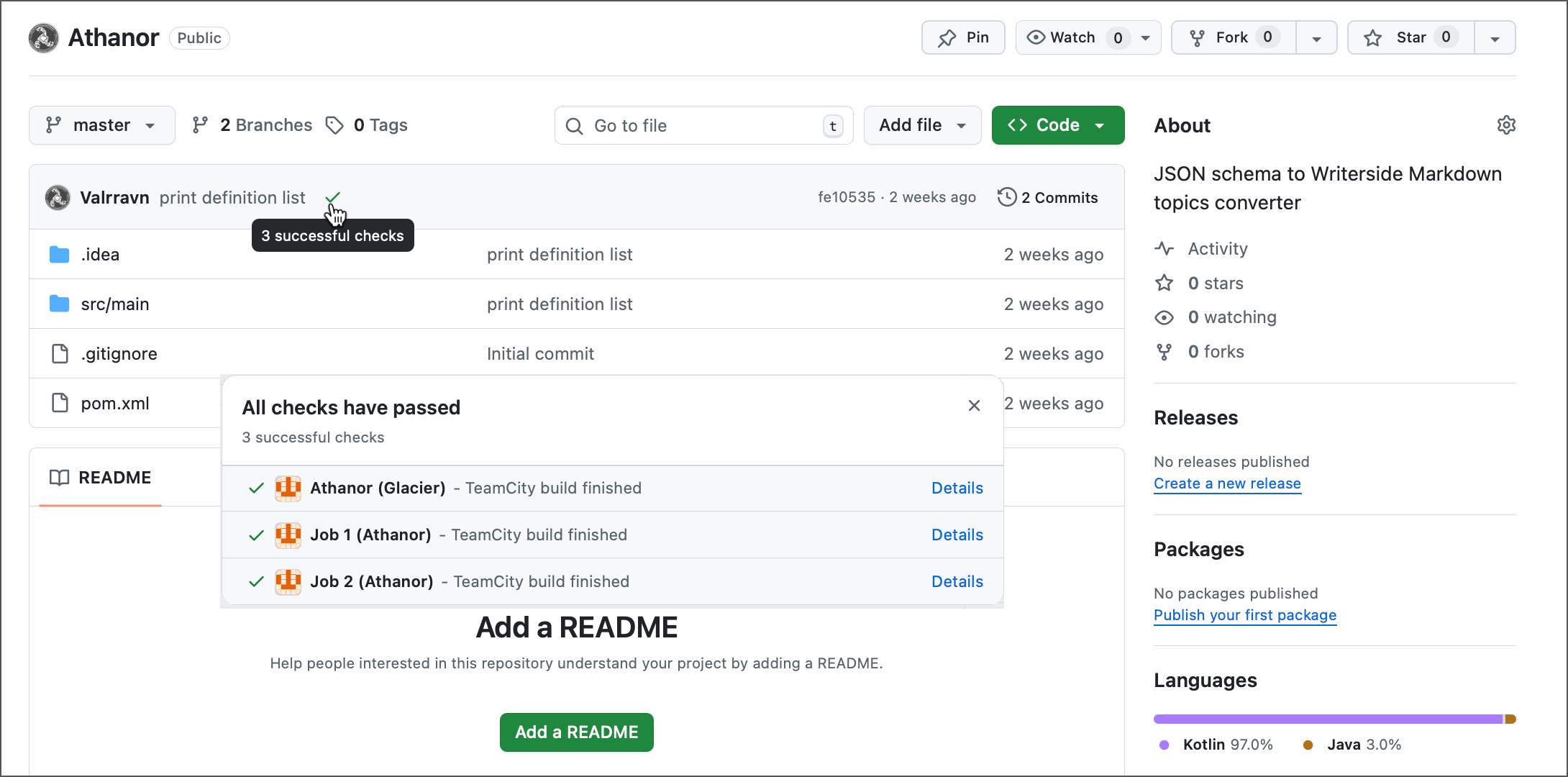
For classic build configurations, this functionality is available as the Commit Status Publisher build feature.
When adding more repositories, you can choose to reuse an existing connection or VCS root, or enter the repository URL manually.
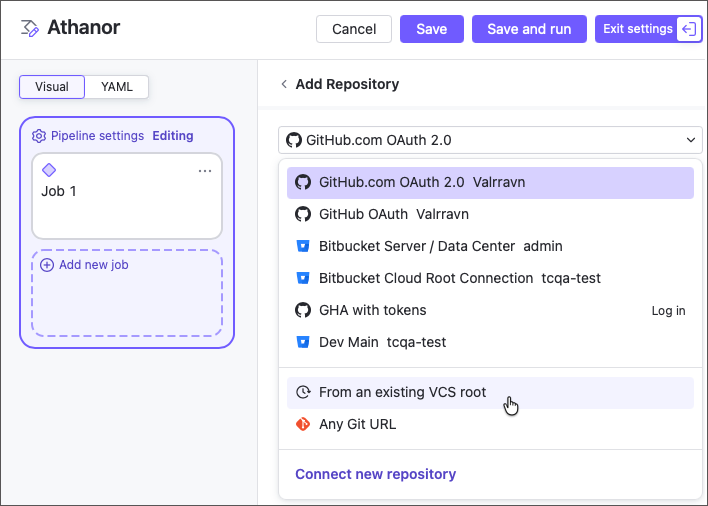
Each individual job can choose which of the pipeline repositories it will check out. See the following article for more information: Job Settings.
Integrations
Both pipeline and job settings panels include an Integrations section for connecting to private Docker and NPM registries.
In the pipeline settings, you manage the full list of available integrations for jobs.
In job settings, toggles let you select which registries the job should log in to automatically, ensuring build steps can access the required data.
Classic TeamCity build configurations support this functionality via the "connection + build feature" combinations:
Docker Registry connection and Docker Registry Connections build feature for Docker.
NPM Registry connection and the related build feature for Node.js registries.
If you already have a Docker or NPM connection in a project, a pipeline shows it under its "Integrations" section.
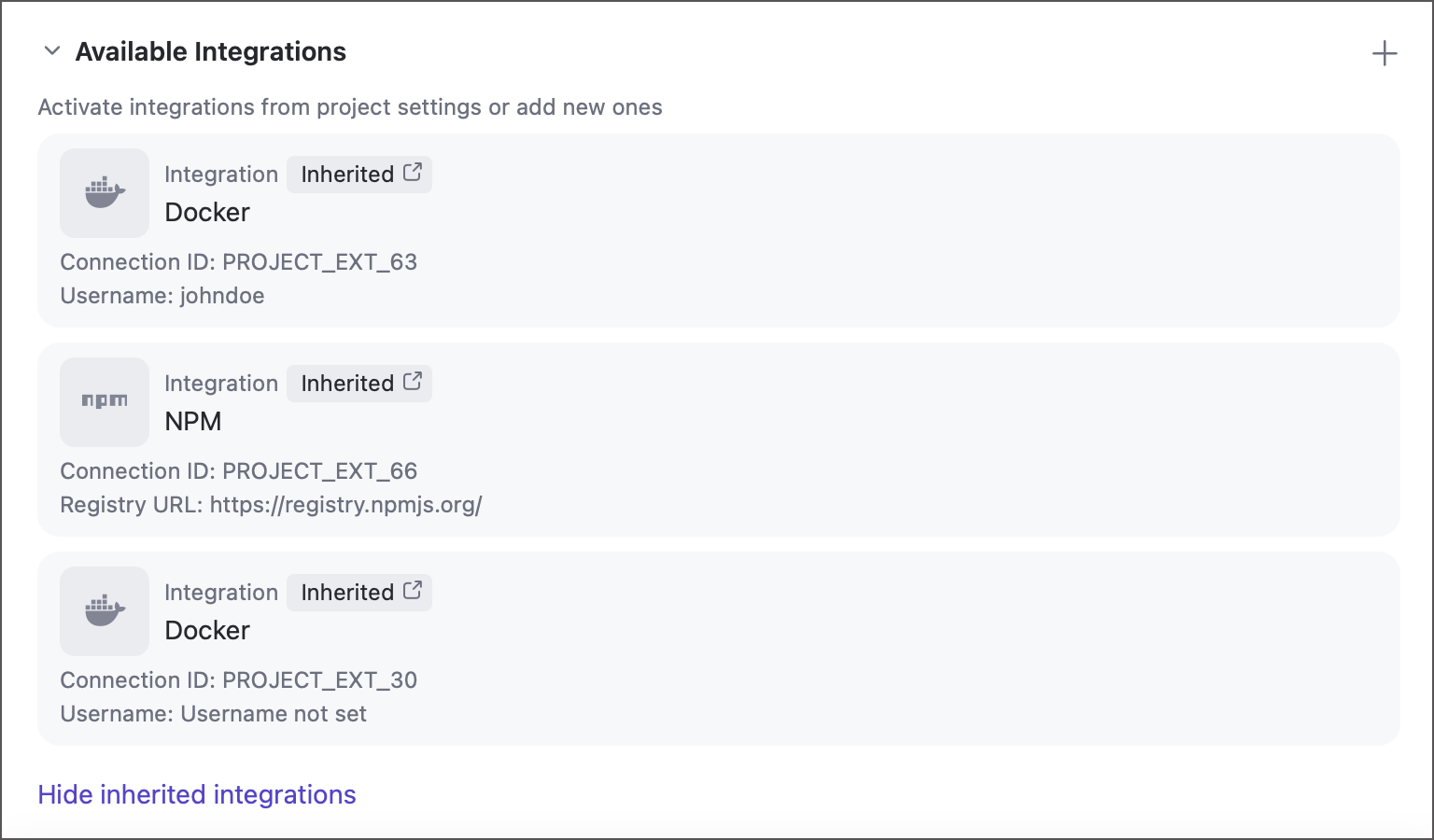
These inherited integrations cannot be edited directly via the pipelines settings panel, you need to modify the origin connection in project settings to do so.