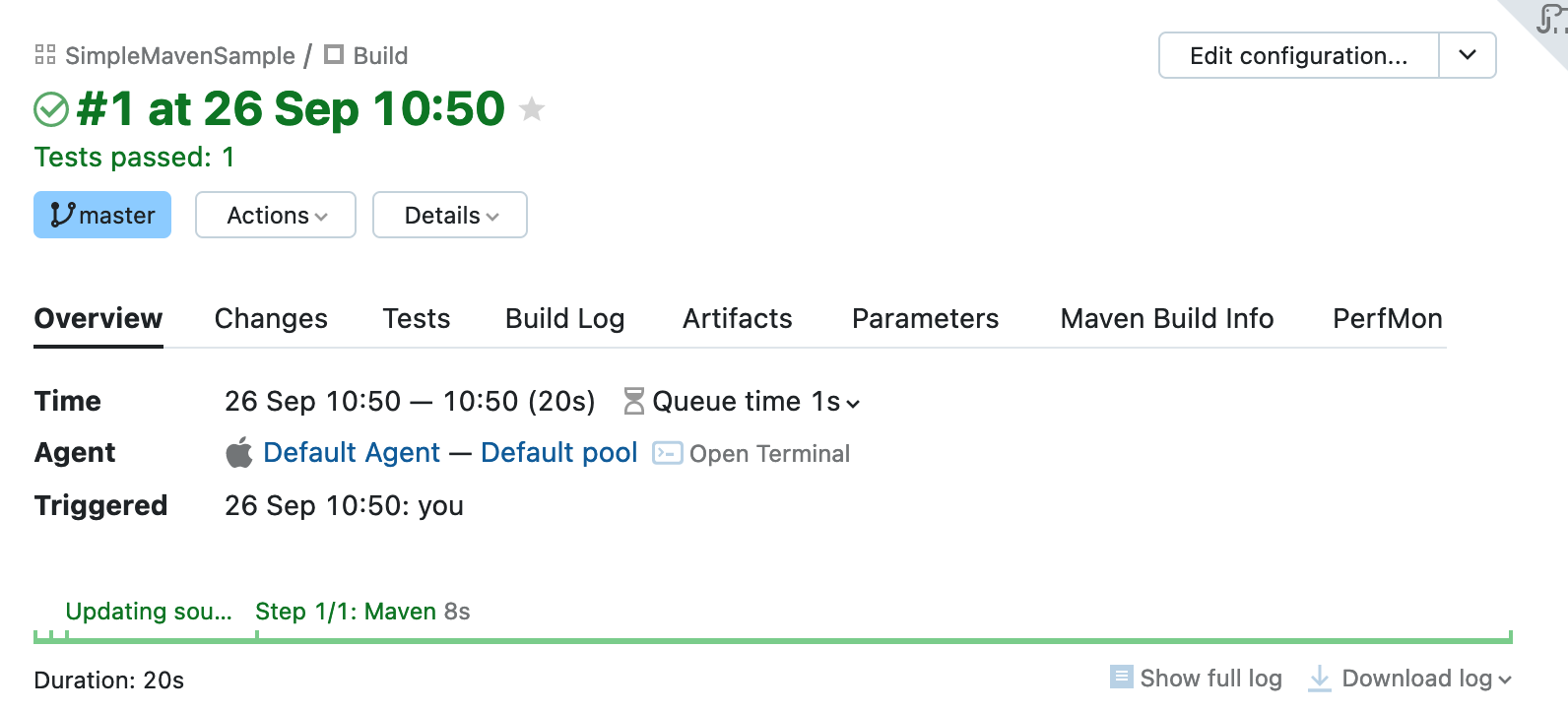
Commit Status Publisher
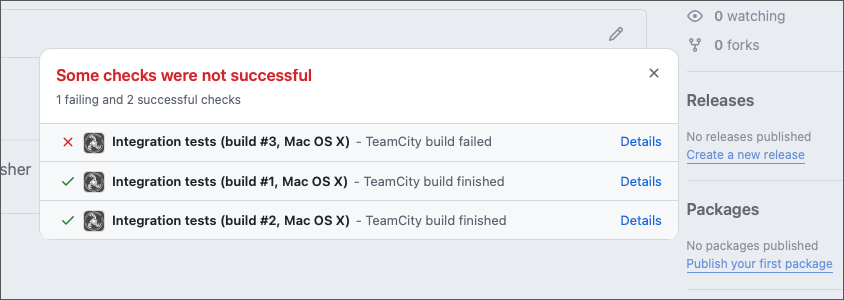
Commit Status Publisher is a build feature that posts build statuses to the VCS provider. This allows you to track the code health from the repository page, and quickly navigate to related TeamCity builds to inspect detailed build logs.
Supported VCS providers:
GitHub (the build statuses for pull requests are supported as well)
Azure DevOps (supported statuses: Pending, Succeeded, Failed, Error)
Gerrit Code Review tool 2.6+
Perforce Helix Swarm
For GitHub, GitLab, Space, Bitbucket Server and Bitbucket Cloud, Perforce Helix Swarm, and Azure DevOps, Commit Status Publisher updates the commit status in the version control system as soon as the build is added to the queue, providing you with the most up-to-date information.
Common Settings
- VCS root
The VCS root that carries out all TeamCity-to-VCS communication operations. This can be a separate VCS root, or the one that your build configuration/pipeline already uses to check out repository files.
- Publisher
The type of your VCS. Other Commit Status Publisher settings vary depending on this setting.
- Server URL
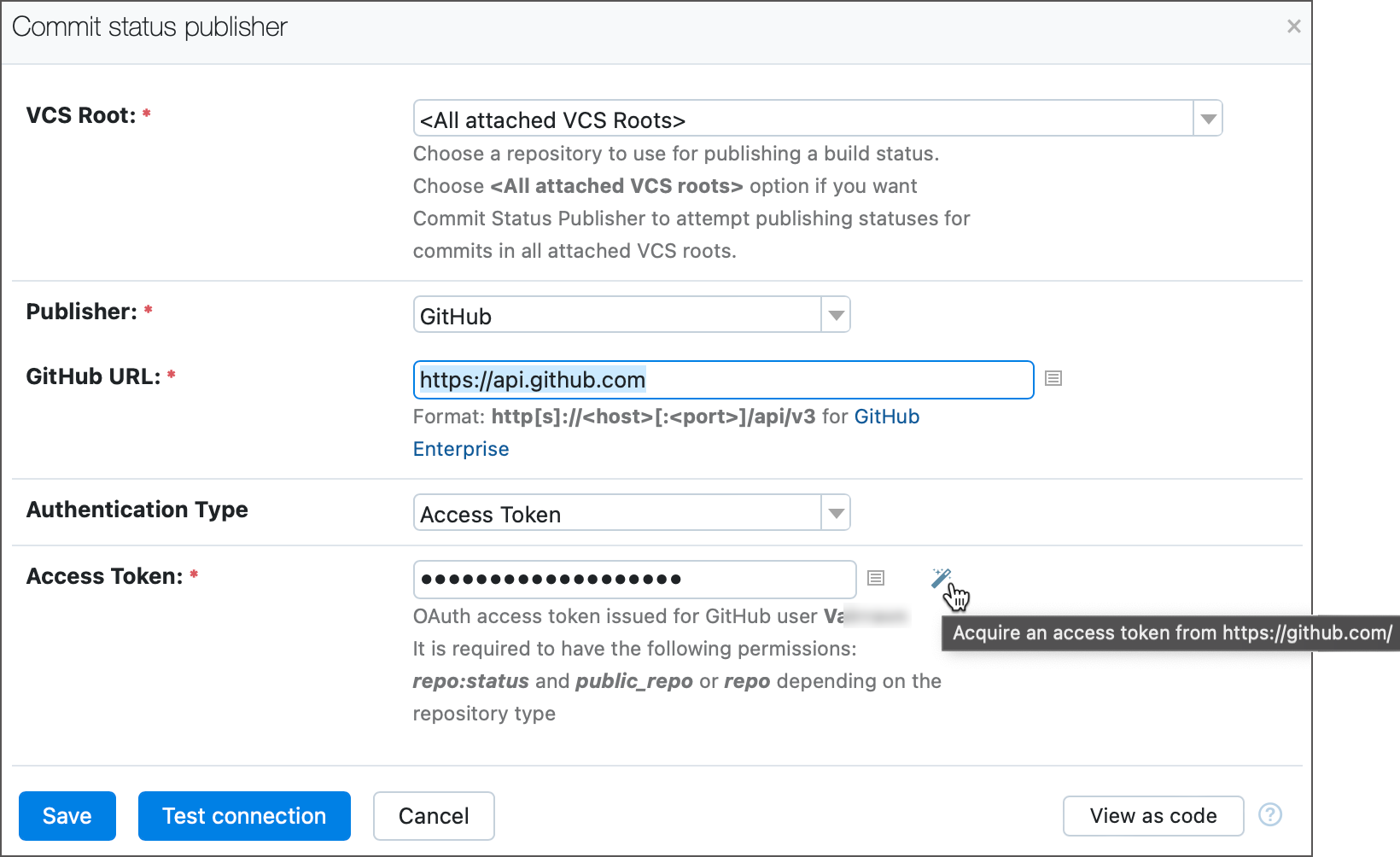
The URL of your VCS server. Use the default value for public services and enter a custom URL for on-premises solutions. For example,
https://api.github.comfor GitHub.com andhttp[s]://<host>[:<port>]/api/v3for GitHub Enterprise.- Auth settings
These settings specify how Commit Status Publisher should authenticate to your VCS before it can post build statuses. You can click the Test connection button at the dialog's bottom to verify your current settings are valid.
For most of the VCS providers, you have the following options:
Password — the classic username/password credentials pair. Note that most of the providers gradually deprecate this auth mode as least secure.
Access token — authenticate using the personal access token that you should manually issue on the VCS side. For certain providers (for example, GitHub), you can click the magic wand button to let TeamCity automatically retrieve the access token using a pre-configured OAuth connection:
Otherwise, issue with correct permissions manually. For example, for GitHub:
Classic GitHub tokens:
public_repoandrepo:statusfor public repositories;repofor private repositories. See also: Scopes for OAuth apps.Fine-grained tokens: Add the
Commit Statusespermission with the "Read and write" access type. This permission can only be added for tokens with the "All repositories" or "Only select repositories" access type. See also: Permissions required for fine-grained personal access tokens.
Refreshable access tokens — use short-lived tokens acquired by TeamCity from a required VCS provider via existing OAuth/App connections (as opposed to static PAT tokens issued manually by users on a VCS hosting side). See the following article for more information on generating and using refreshable tokens: Manage Refreshable Access Tokens.
Use VCS root credentials — TeamCity will try to extract credentials from the VCS root settings. This option is designed for VCS roots that use tokens (either static/personal or refreshable/OAuth) to pass authentication and obtain repositories using HTTP(S) fetch URLs. Choose other options if a related VCS root employs anonymous or standard username-password authentication or uses an SSH fetch URL.
- Build name
The custom build name displayed in the status message. Allows you to include
%parameter_name%parameter references. For example, overview section image shows statuses generated with the following custom build name:Integration tests (build #%build.number%, %teamcity.agent.jvm.os.name%)This setting is available for all Git-based providers: Azure DevOps, Bitbucket Cloud, Bitbucket Server and Data Center, GitHub (the "Status check name" setting), GitLab ("External job name"), and JetBrains Space ("Display name").
Provider-specific Configuration
GitHub
When using manually issued access tokens, make sure to provide sufficient permissions:
Classic GitHub tokens:
public_repoandrepo:statusfor public repositories;repofor private repositories. See also: Scopes for OAuth apps.Fine-grained tokens: Add the
Commit Statusespermission with the "Read and write" access type. This permission can only be added for tokens with the "All repositories" or "Only select repositories" access type. See also: Permissions required for fine-grained personal access tokens.
To protect a branch and ensure that only verified pull requests are merged into it, you can create a branch protection rule in your GitHub repository settings. If you set a TeamCity build as a required status check, GitHub will not allow a pull request to be merged until the build on requested changes finishes successfully.
If your VCS root connects to a GitHub using the App Token, you can leverage the GitHub Checks API to automatically post Markdown-formatted build statuses without setting up the Commit Status Publisher feature. See this article for more information: GitHub Checks Webhook Trigger.
GitLab
The GitLab credentials and the GitLab project must be set up as follows:
The credentials must belong to a user with a Developer, Maintainer, or Owner role for the project.
The GitLab user must be included in the Allowed to push list, to make it possible to change a commit status on a protected branch.
In the GitLab project visibility settings for the project, make sure that the CI/CD option (or the Pipelines option in older GitLab versions) is enabled.
The GitLab API URL field accepts URLs in the http[s]://<hostname>[:<port>]/api/v4 format. This field is optional: if left blank, TeamCity uses a value that corresponds to the fetch URL specified in VCS root settings.
Bitbucket Cloud
To be able to connect to Bitbucket Cloud, make sure the TeamCity server URL is a fully qualified domain name (FQDN): for example, http://myteamcity.domain.com:8111. Short names, such as http://myteamcity:8111, are rejected by the Bitbucket API.
Bitbucket Server
To protect a branch and ensure that only verified pull requests are merged into it, you can specify required builds in your Bitbucket repository settings. To set a TeamCity build as a required build, open the Add required builds page in Bitbucket and specify a build configuration ID as a build key in the Add builds field. In this case, Bitbucket will not allow a pull request to be merged until the build on requested changes finishes successfully.
JetBrains Space
Starting with version 2023.11, TeamCity build configurations set up via predefined Space connections do not require a configured Commit Status Publisher to post build statuses.
Set up a project using Space connections and TeamCity will automatically post build-related comments under the Automation section of Space Commits and Branches tabs.
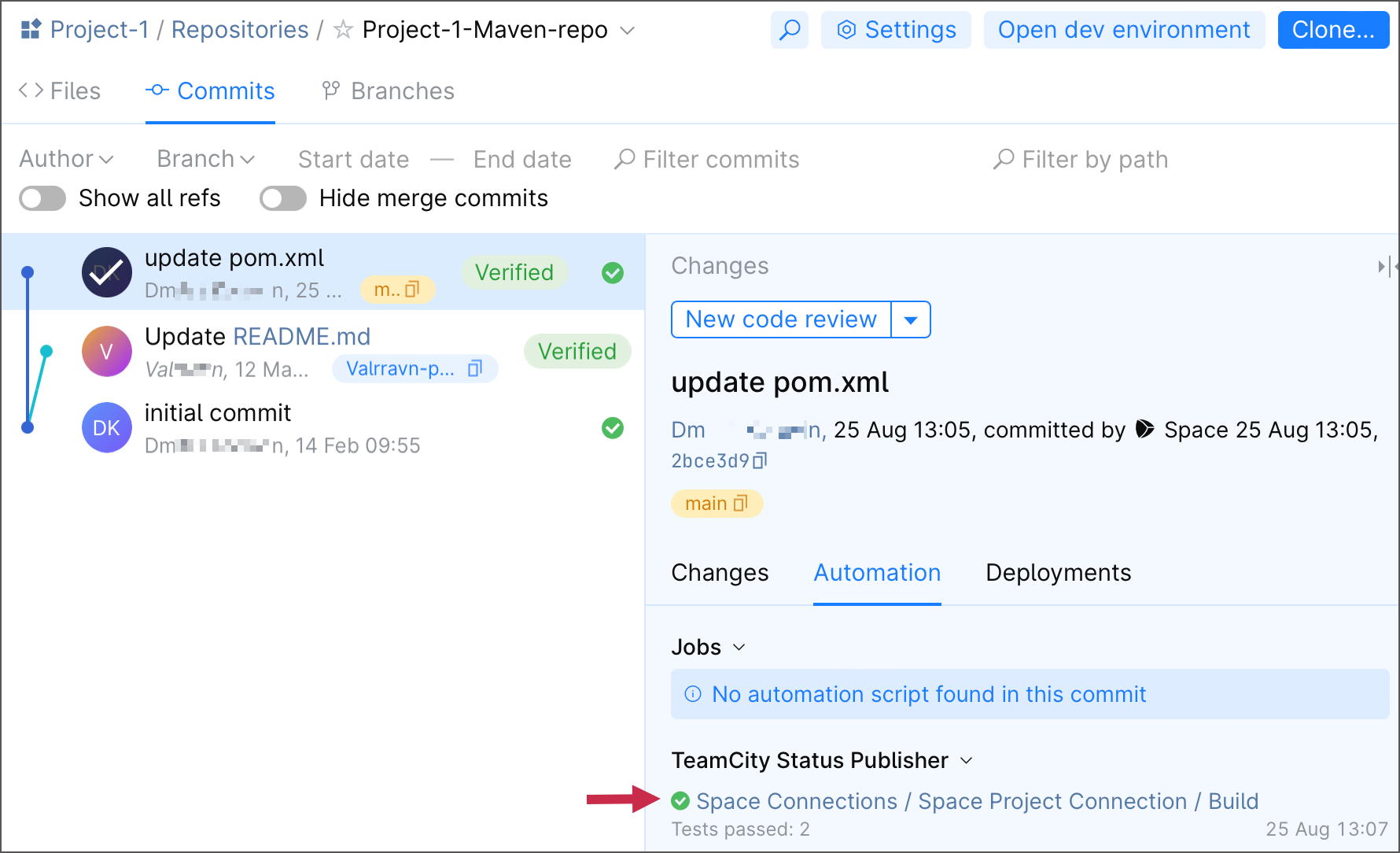
It is also possible to manually set up the Commit Status Publisher feature. You may opt a manual setup if:
you want to set up a custom publisher name and/or Space project key;
TeamCity is unable to publish build statuses automatically (for example, this may happen if you utilize an on-premises instance of JetBrains Space with a custom configuration).
To manually set up the Commit Status Publisher, you will need a predefined Space connection. If you do not have a suitable connection and your project was created manually or from the repository URL, go to Project settings | Connections and create a new one.
Then, in the build configuration's settings:
Open Build Features and add the Commit Status Publisher build feature.
Select the JetBrains Space publisher and the created connection.
Specify the name that will be displayed for this service in Space.
Save the settings.
Perforce Helix Swarm
If a build is run on changes in Perforce shelved files, TeamCity can report its statuses as comments to the respective code review in Perforce Helix Swarm.
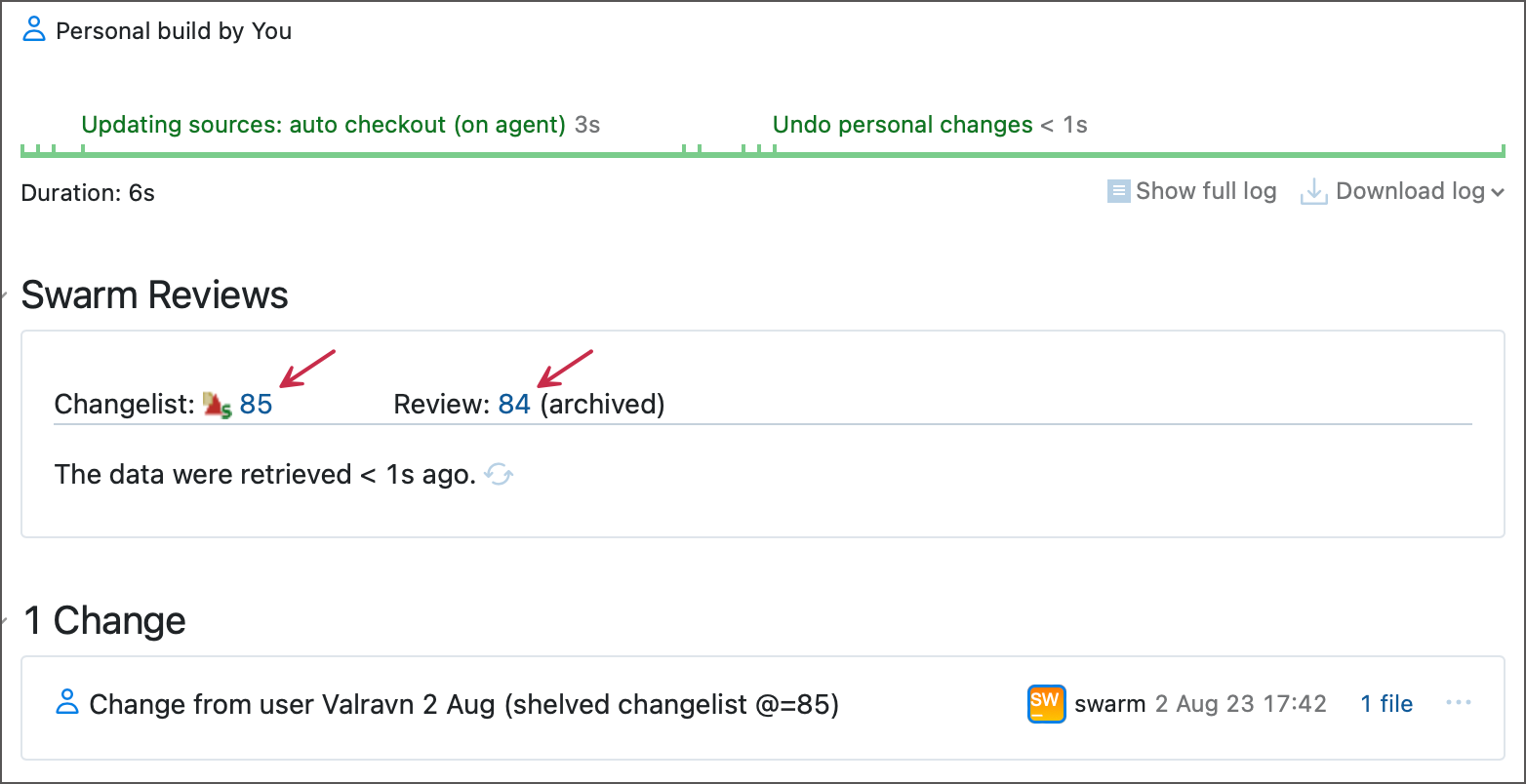
See this help article for more information: Integration with Perforce Helix Swarm.
Gerrit
Commit Status Publisher supports Gerrit versions 2.6+. For configuring integration with earlier Gerrit versions, contact our support.
Publish Pipeline Run Statuses
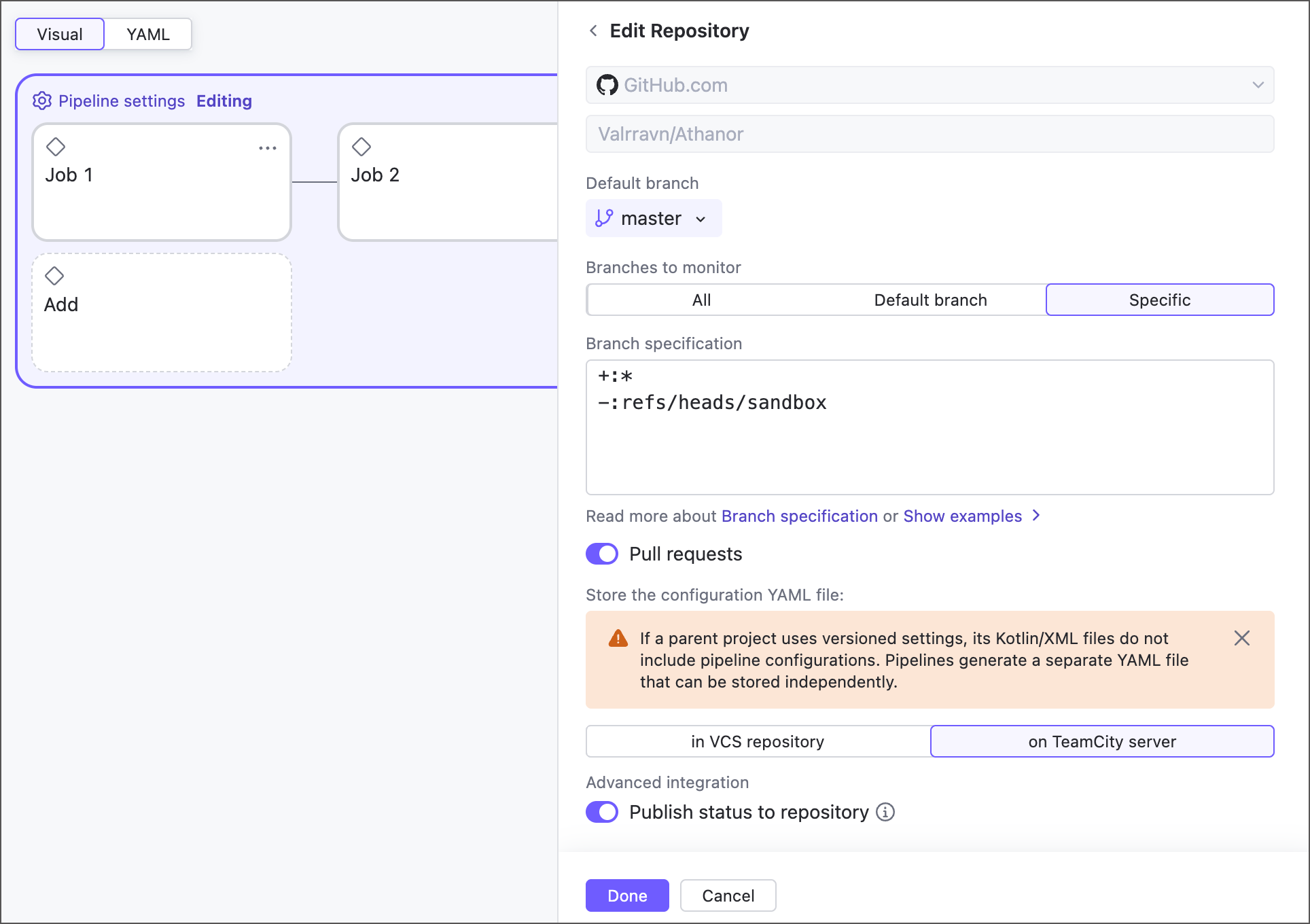
Commit Status Publisher is one of the most frequently used build configuration features, as it is easy to configure and provides a clear benefit of improving the overall observability. For that reason, we have natively integrated this functionality in pipelines: enable the Publish status to repository toggle in the repository settings and TeamCity will do the rest.
Using Commit Status Publisher with VCS checkout rules
If a build's VCS root has checkout rules configured, Commit Status Publisher will consider only commits that conform to these rules. That is, if the last commit made before the build start does not satisfy the checkout rules, it will not be labeled with the build status; the status will be displayed next to the last satisfying commit instead.
If you need to display the build status next to the last commit of the build (for example, in a pull request), you can adjust the checkout rules so this commit is included into the VCS root's scope. Or, if this is a recurrent issue, consider rearranging your build chain as follows:
Configure the main build with checkout rules.
Configure an utility composite build without build steps and checkout rules but with the Commit Status Publisher feature.
In the composite build, configure a snapshot dependency on the main build.
In the scope of such a chain, Commit Status Publisher will not be bound by the checkout rules and the build status will be displayed next to the very last commit.
Kotlin DSL
In Kotlin DSL, configure the jetbrains.buildServer.configs.kotlin.buildFeatures.CommitStatusPublisher object inside the features block of a buildType instance to set up your commit status publisher.
See this link for more information: CommitStatusPublisher | Kotlin DSL docs.
Troubleshooting
TeamCity writes events related to the Commit Status Publisher build feature to the teamcity-commit-status.log file. Apply the "debug-commit-status" preset to include DEBUG-level events to this log.
Example
The example below demonstrates how to configure sending the status of builds with changes included in your pull request from TeamCity to GitHub.
Use pull requests build feature to configure pull requests branches. Alternatively you can make the branches available by configuring the branch specification in your VCS Root while ensuring that it includes pull requests branches (see also a related blog post).
Add the Commit Status Publisher build feature:
Use the default All attached VCS roots option to publish statuses for commits in all attached VCS roots
Select GitHub as the publisher and specify its connection details and credentials and test the connection:
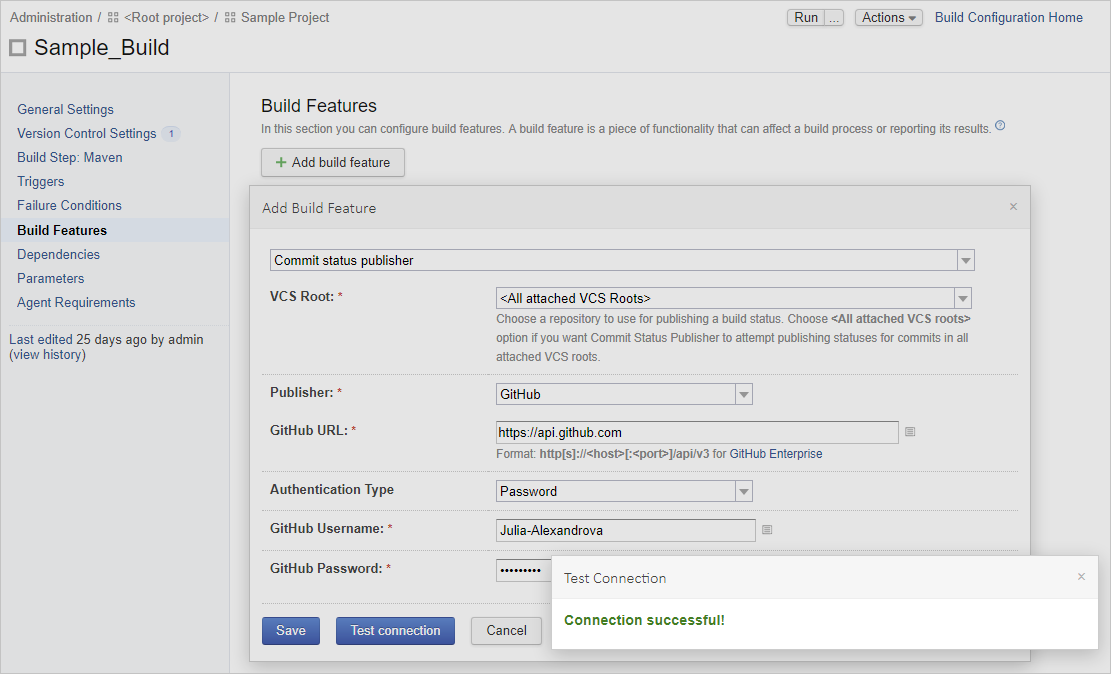
Save your settings.
Commit changes to your source code and create a pull request in GitHub, then run a build with your changes in TeamCity. The Commit Status Publisher will inform you on the status of the build with your pull request changes:
It will show you whether the check is:
in progress

failed

successful

hovering over the commit status will display the build summary
clicking the build status icon or the Details link will open the build results page in TeamCity. This information is also available on the Commits tab of your pull request details.
Similarly to the previous page, clicking the build status icon opens the build results page in the TeamCity UI: