Running Custom Build
The top right corner of build configurations and pipelines displays two buttons that trigger new builds:
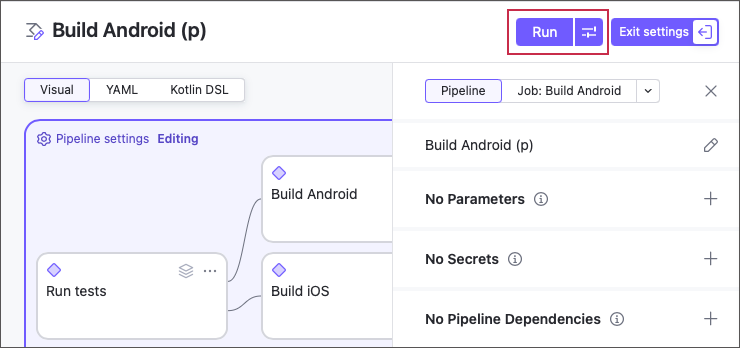
Run — starts a new build with default settings.
Run custom build — invokes the dialog that allows you to modify build settings before it starts.
This article explains available customization options, as well as mentions other ways to trigger custom builds.
Run Custom Build Dialog
This dialog pops up in TeamCity UI in either of the following cases:
When you click the Run custom build button.
When you start a normal build for a configuration or pipeline with one or multiple prompt parameters. These parameters are designed to ask for a new value whenever a build starts.
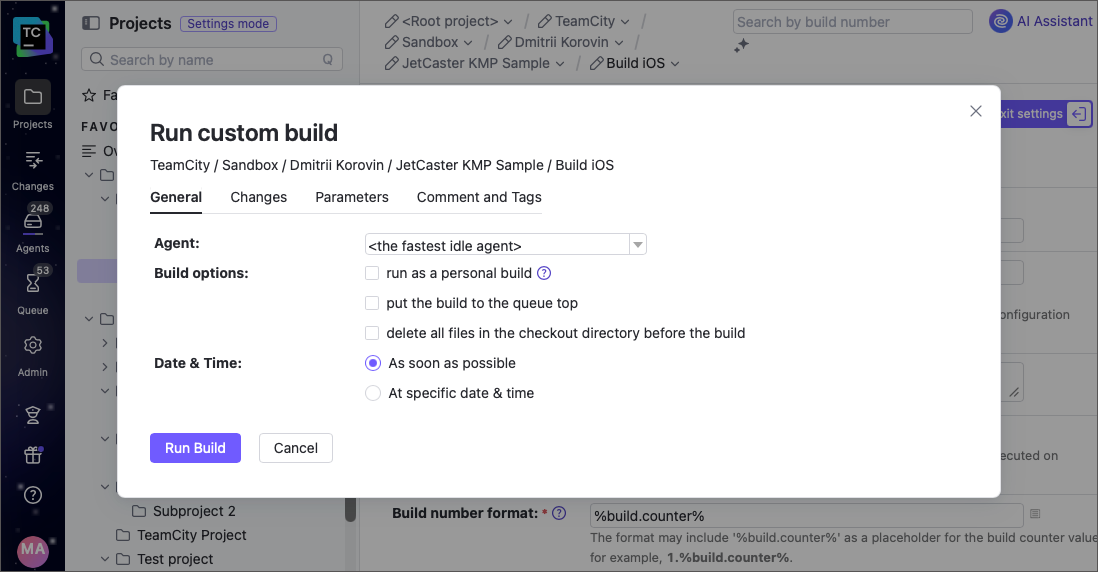
Available customization options are grouped into several tabs.
General Options
- Agent
This setting allows you to choose an agent that should run your build. The following options are available:
<the fastest idle agent> (default option) — if selected, TeamCity will automatically choose an agent to run a build.
Select a specific TeamCity agent from a list. TeamCity displays a designated agent's current state and (if it is already running a build) estimates when it will become idle.
<the fastest idle agent in the N pool> — TeamCity will run a build on an agent from a specified pool.
if cloud integration is configured, you can run a build on an agent spawned from a certain cloud image. If no cloud agents of this type are available, TeamCity will attempt to start a new one.
<All enabled compatible agents> — run a build simultaneously on all agents that are enabled and compatible with the build configuration. Use this option to:
Run a build for agent maintenance purposes (for example, you can create a configuration to check whether agents function correctly after an environment upgrade/update).
Run a build on different platforms (for example, you can set up a configuration and specify a number of compatible build agents with different environments installed.
- Build Options
Includes most common build customization options.
run as a personal build — allows you to run personal builds. Allows you to pass a patch file to test changes that were not yet committed.
put the build to the queue top — places this new build to the top of the current build queue.
delete all files in the checkout directory before the build — specifies whether TeamCity should clear the build checkout directory. If snapshot dependencies are configured, this option can be applied to snapshot dependencies as well. In this case, all the builds of the build chain will use a clean checkout.
- Date & Time
Leave the As soon as possible option to place a new build to a regular queue immediately after you click Run Build.
To schedule a build to the specific date & time, switch to the At specific date and time option. Scheduled builds remain at the end of a build queue until their scheduled date and time.
Dependencies
This tab is only available if the build's parent configuration or pipeline is a part of a bigger workflow and has upstream builds. In this case, you can specify which of these upstream builds should be rebuilt anew. By default, TeamCity attempts to rebuild all of them, including those that previously failed.
Dependency builds in the list are initially grouped by their alphabetically sorted branches. Builds of the same branch are sorted by the build date. To discard branch-based sorting and sort all dependency builds only by their dates, click Sort dependencies by date. This allows you to view the most recent builds first. To restore the default sorting, click Reset all.
Changes
The Changes tab allows you to fine-tune which exactly changes this build should process.
- Build branch
This option allows you to choose a branch for the custom build.
- Include changes
Allows you to choose which changes in the VCS roots should be included in this new build. Includes the following options:
Latest changes at the moment the build is started — TeamCity will automatically include all latest changes available at the moment.
[Date] (revision number) (Change name) — The list of individual commits. Select any commit to build the project up to this change. Note that TeamCity automatically marks builds that ignore newest changes as history builds.
If TeamCity does not show a required older commit (for example, when a corresponding VCS root is detached from a configuration or pipeline), locate it in the Change Log and use the Run build with this change action.
Manually specified revisions — Allows you to manually enter the revision number of a change to build.
- Use Settings
If a project stores its settings in a VCS, this tab allows you to choose which settings should be used for this new build:
Settings currently defined on the TeamCity server
Settings loaded from the VCS revision calculated for this build.
The default behavior depends on the currently selected Project Settings | Versioned Settings page setting (see this section for more information: Defining Settings to Apply to Builds). If you selected specific changes revision, TeamCity will also load a corresponding revision of the project settings.
Pipelines that store their settings in a server-based YAML do not show this option.
Parameters
This tab allows you to add, edit, and delete parameters. The following limitations apply:
You can only change parameter values; names are not editable.
The Delete action only appears for parameters added via the previous custom run. Other parameters cannot be removed.
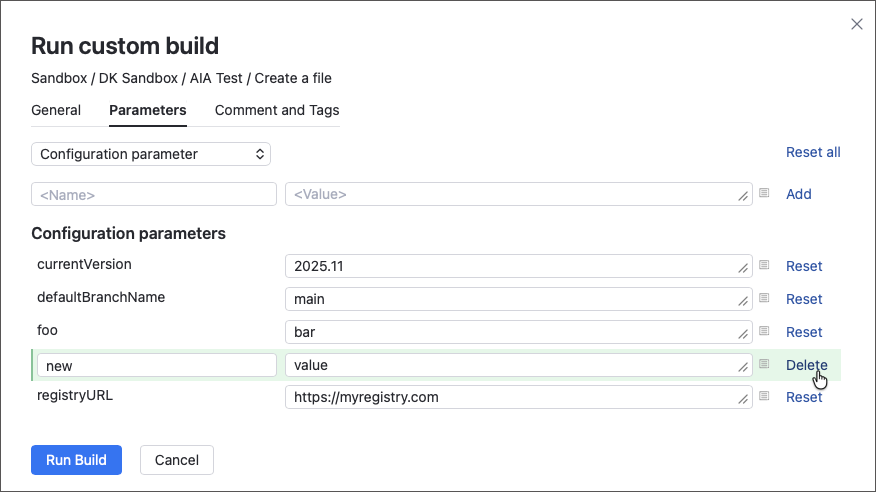
Note that previously added parameters keep showing on this tab only for your convenience, in case you need to run another custom run with same parameters. They are not silently added to normal runs.
For pipelines, you can only override pipeline input parameters. Job parameters are not accessible from this dialog.
Parameter values must not exceed 16,000 characters.
Comment and Tags
This tab allows you to comment and tag custom builds. You can also add a custom build to favorites by checking the corresponding option in this section.
Other Ways to Start Custom Builds
Along with hitting the corresponding Run... button, you can also start custom builds as follows.
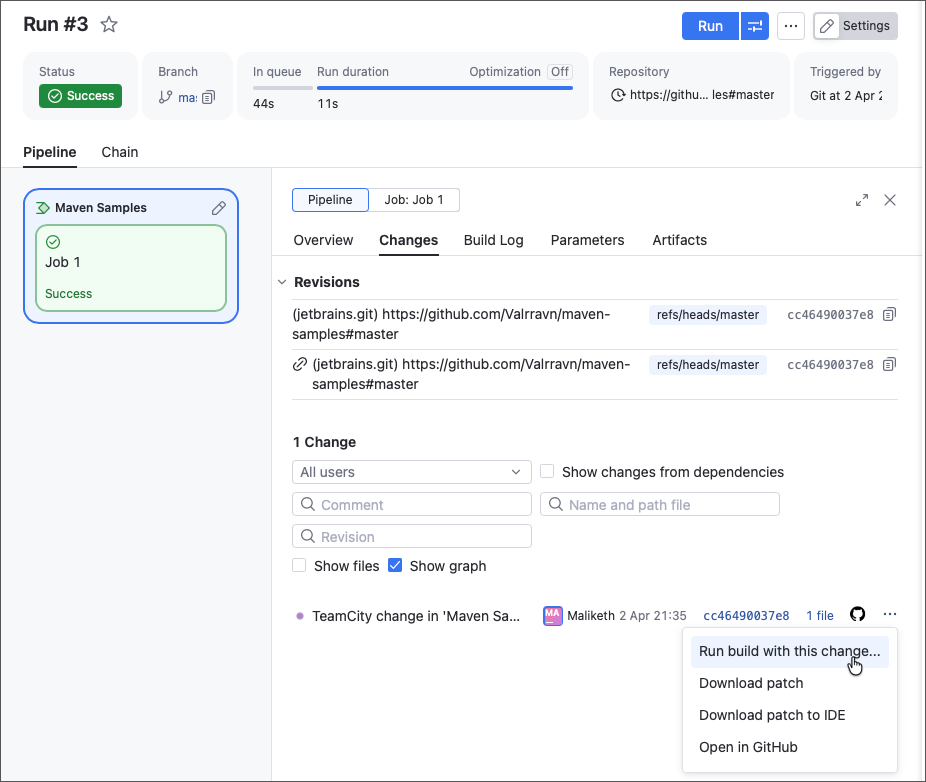
From the Changes tab of any finished build. Click the ellipsis button next to a required change and choose Run build with this change.
In REST API, send new
POSTrequest to the/app/rest/buildQueueendpoint and specify requiredBuildobject settings in the request body. See this article for more information: Start custom build.curl --location '<server-url>/app/rest/buildQueue' \ --header 'Accept: application/json' \ --header 'Content-Type: application/json' \ --header 'Authorization: <access-token>' \ --data '{ "buildType": { "id": "Config-no-2" }, "triggeringOptions": { "cleanSources": true, "rebuildAllDependencies": false, "rebuildFailedOrIncompleteDependencies": false, "queueAtTop": true, "rebuildDependencies": { "buildType": [ { "id": "Config-no-1" } ] } } }'By clicking Actions | Promote from build page. Doing so triggers the chain to which this build belongs, which allows you to run a chain with older upstream builds or run downstream builds that do not start automatically (for instance, deployment). Promotion has a one-time effect: after the current run, build configurations and pipelines revert to their default dependency logic (last successful or last pinned build). See the following blog post for more information.