Cheatsheet: Updating Java on Server and Agent Machines
This article briefly outlines the Java update procedure for agent and server machines. Refer to these articles for more detailed information.
Migration to Java 21
Starting with version 2026.1, both the TeamCity server and agents require Java 21 to start. TeamCity server supports only Java 21, while TeamCity build agents can run under newer version (for example, Java 25). We plan to officially support the latest Java versions in future releases.
Upgrade Instructions
The upgrade process boils down to two essential steps:
Install Java 21 on the machine.
Ensure TeamCity detects and uses the new installation.
The exact procedure depends on your operating system.
Update Server
The TeamCity Windows installer and server Docker images include Amazon Corretto 64-bit Java 21, so you do not need to install it manually. Simply run the TeamCity 2025.11 installer and it will provide the required JDK.
TeamCity server .tar.gz archives do not include Java, so you need to install it manually. Please note that the JDK you install matches your platform. For example, Amazon Corretto 21 offers different options for Linux and macOS running on both ARM64 and x86_64 architectures.
Once you install Java 21, assign the corresponding installation path to the JAVA_HOME or TEAMCITY_JRE environment variable. See this StackOverflow thread for the detailed instructions.
The
JAVA_HOMEis a global variable that specifies the default JDK on your machine. When set, thejava -versionterminal command should point to the corresponding version.The
TEAMCITY_JREvariable is used only by TeamCity and allows you to keep using a different Java version as a default one for other applications.
Update Agents
To locate all agents that require an update (including both local and cloud ones), navigate to Agents | Overview | Parameters report and filter agents by the teamcity.agent.jvm.specification property value.
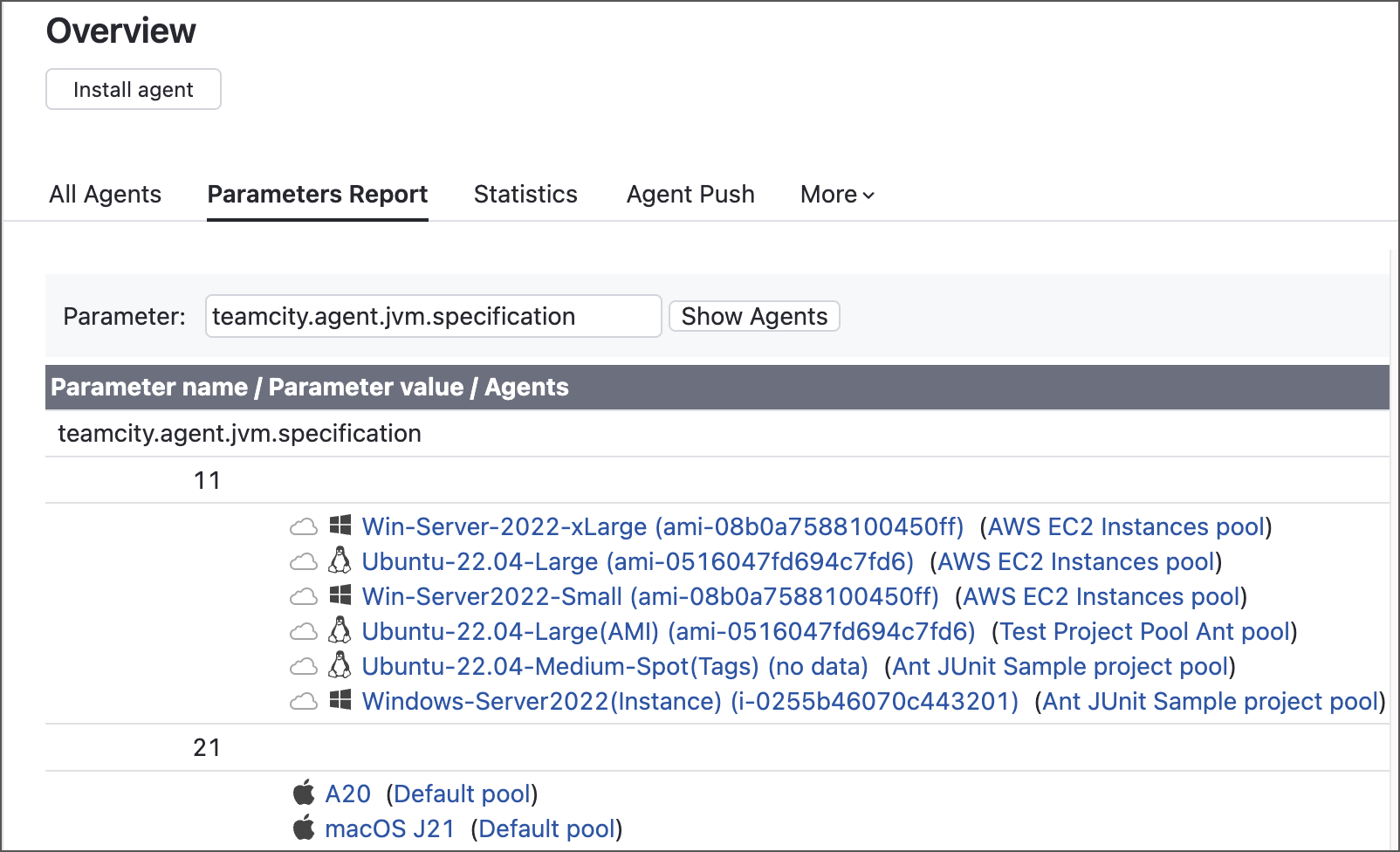
To find all oudated agents using REST API:
Update Local Agents
Before upgrading an agent machine, we recommend uninstalling the existing agent to avoid potential issues:
Go to the agent home directory, run
Uninstall.exe, leave all "Remove ..." checkboxes unchecked, and complete the uninstall.Open the TeamCity UI in your browser and log in.
In the side navigation bar, open Agents.
Click Install agent and download the .exe agent installer bundled with a JDK.
Run this installer on every agent machine that needs an update.
If a build agent runs as a service, make sure the wrapper.java.command property in the <agent_home>/launcher/conf/wrapper.conf file points to the required Java version. See the following article for the details: Upgrading the Build Agent Windows Service Wrapper.
To update agent machines, follow the same procedure as you do for the server. Alternatively, you can install an agent archive that already bundles the required JDK. To do so:
Navigate to Admin | Agent JDKs in TeamCity UI.
Click Add JDK to upload a required Java version.
Once TeamCity downloads the target JDK, a corresponding option will appear under Agents | Install agent | Agent Distributions with JDK. Full agent installations include the
/jredirectory. When launched, the agent prioritizes Java from this directory over versions returned byJAVA_HOMEandTEAMCITY_JREenvironment variables.
Update Cloud Agents
Cloud agents can reside on persistent cloud-hosted instances or ephemeral virtual machines spawned from an image. Depending on the VM type and cloud hosting provider, the update instructions may vary. For example, for TeamCity cloud profiles that target EC2 AMIs, you need to:
Update the base image as described in the Update Local Agents section and make sure this agent successfully connects to TeamCity.
Build a new AMI from this base image.
Update your TeamCity cloud profiles and images to target the new AMI.
Unattended Java Upgrades
If Java was installed via a package manager (for example, the apt-get on Linux), it may silently update your Java to the newest available version. Even if this version is supported by TeamCity, it may lead to certain issues. For example, build agents that are already running need to restart; otherwise, they are unable to locate the correct JDK and fail to run their tasks.
To avoid these potential issues, we recommend installing Java and configuring the JAVA_HOMEand TEAMCITY_JRE environment variables manually. For example, you might want to disable Ubuntu unattended upgrades by running the following commands: