Restrict Issue Visibility with Permissions
One of the most common access management use cases is to restrict access to users so that they can only see the issues that they created themselves. Issues that were created by other users are hidden. This type of setup is especially relevant when the issues can contain sensitive information that should only be available to a select group of authorized users. The original issue creator should still be able to view the original request and provide additional information when needed.
Use Case
To illustrate this use case, consider the following scenario.
Imagine that you have an accounting team whose members help other employees pay work-related invoices. The team processes payments for business trips, advertising, conferences, and the like. They use YouTrack as a means of transparent communication with other departments. Various employees create issues that contain the details of the requested payment and a copy of the invoice. The payment details and invoice are considered to be sensitive data. Therefore, each issue must be visible only to the issue creator and the members of the accounting team.
Creating a Custom Role for Issue Creators
The key to satisfying this use case is the Read Issue permission.
The Read Issue permission grants users the ability to view issues (public fields only) in a project.
The Create Issue permission not only lets users create issues in a project but also gives them inherent read access to the issues they create themselves.
To provide the level of access required for this use case, you need to create a custom role that doesn't include the Read Issue permission and grant this role to your group of issue creators.
To create a custom role for issue creators:
From the main navigation menu, select
 .
.Click the New role button.
The settings page for the new role opens.
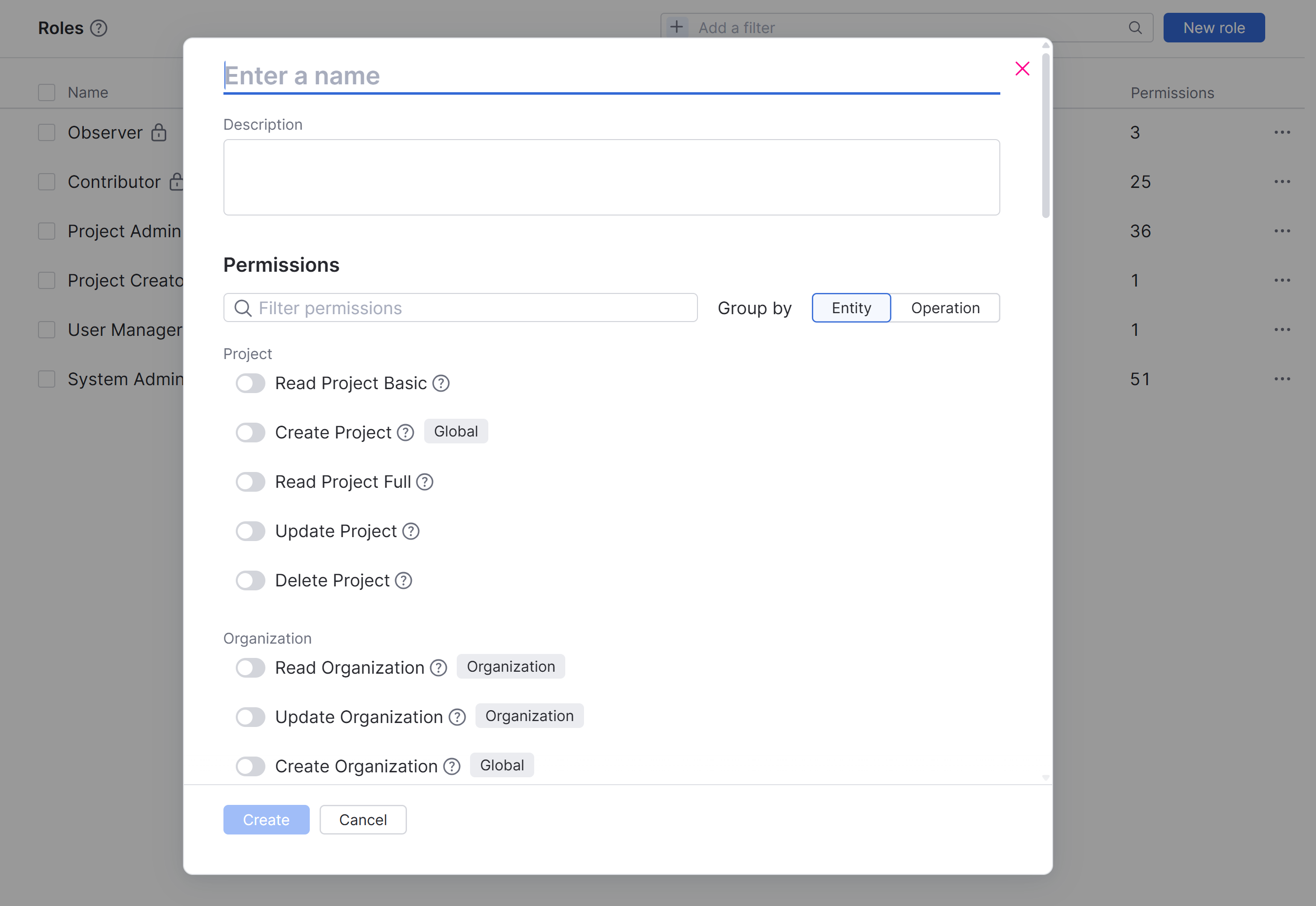
Enter a name for the new role. For example, Issue Creator.
Enter an optional description of the new role.
In the Permissions section of the form, activate the following permissions:
Entity
Permission
Project
Read Project Basic
Issue
Create Issue
Links Issues
Attachment
Add Attachment
Comment
Create Issue Comment
Read Issue Comment
Update Issue Comment
Delete Issue Comment
To apply this restriction in all projects:
From the main navigation menu, select
.Select the All Users group from the list.
Select the Roles tab in the sidebar.
Click the Assign role button.
Enter values for the following settings in the Assign Role dialog:
Setting
Value
Role
Select the name of the role you created in the previous procedure.
Scope
Global
Click the Confirm button to save your changes and close the dialog.
Revoke all other roles from the All Users group.
To apply this restriction in specific projects:
Check the All Users group for roles that contain the Read Issue permission in the Global project. If present, revoke these roles from the All Users group.
Create a dedicated group and add all the users who are allowed to create issues as members.
Create a custom role and grant it all the permissions that are required for issue creation except for Read Issue as described in the procedure above.
Assign the custom role to the dedicated group in your project.
In either case, members of the project team and other users who are assigned higher levels of access are able to view and update all issues in the project. You can grant higher levels of access to specific users on a per-project basis.
Alternatives to Permission-based Access Restrictions
To read an issue, a user must have permission to read the issue in the project and belong to the list of users for whom the issue is visible. YouTrack checks the permissions first. If they are sufficient, it then determines whether the user is a member of any group for which the issue is visible or has been added to the Visible to list as an individual.
You can use the issue visibility settings to make users only see the issues that they created themselves. If permission-based visibility restrictions alone do not support your use case, consider the following alternatives:
Alternative | Description |
|---|---|
Update issue visibility settings manually | To hide issues from other users, the issue creator can change the issue visibility from All Users to a dedicated group that excludes other issue creators. In the use case described here, the issue creator can restrict issue visibility to members of the accounting team. The limitation to this approach is that issue creators must always remember to set issue visibility correctly. For more information, see Set Issue, Comment, and Attachment Visibility. |
Update issue visibility automatically | You can update the visibility settings automatically when an issue creator creates an issue. This behavior is supported by workflows. For a detailed description with sample workflows, see Restrict Issue Visibility with Workflows. |