Flask を使った Web アプリケーションの作成
このチュートリアルでは、Flask Web フレームワークを使用して Web ベースのアプリケーションを開発する方法について説明します。 MeteoMaster アプリケーションは、データベースに保存されている気象データを処理し、次のグラフの形式で表示します。
散布図—プラハ、サンクトペテルブルク、サンフランシスコ、パリ、シンガポールの年間平均気温と湿度の累積レポート。 サンクトペテルブルク、サンフランシスコ、パリ、シンガポール。
折れ線グラフ — 各都市の月間平均気温と湿度。
「Staying Above the Weather」アプリケーション概要
以下のアプリケーション機能を実装するためにさまざまな Web テクノロジを使用します。
関数 | 技術 |
|---|---|
流星データ操作 | データを格納するための SQLite(英語) データベース、Python コードでデータベースとの操作を実行するための SQLAlchemy(英語) パッケージ。 |
グラフ表示 | グラフをプロットする matplotlib(英語) パッケージ。 |
コンテンツの表示と編集 | |
コンテンツを管理する | Flask でアプリケーションコンテンツをまとめます。 |
MeteoMaster は、次のコンポーネントで構成される Web アプリケーションです。
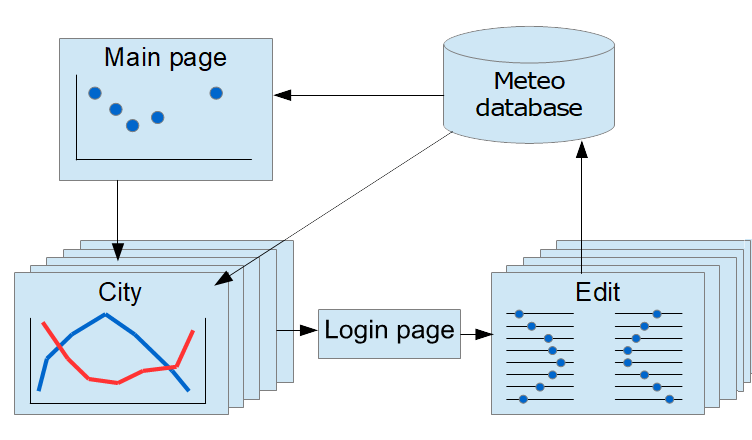
- メインページ
散布図を表示し、特定の都市の気候の詳細な概要へのリンクを提供するアプリケーションエントリポイント。
- 都市
各都市の気候に関する詳細情報を含む一連のページ。
- ログイン
認証ページ。 気象データを編集するには、有効な資格情報を入力する必要があります。
- 編集
都市固有のデータを編集するための一連のページ。
各 HTML ページには、Python コードで実装された対応する Flask ビューがあります。
PyCharm で Flask アプリケーションを作成する
Flask プロジェクトの作成 の説明に従って基本的な Flask プロジェクトを作成し、アプリケーションのプロトタイプ作成を開始します。
新規プロジェクト ダイアログで Flask を選択します。
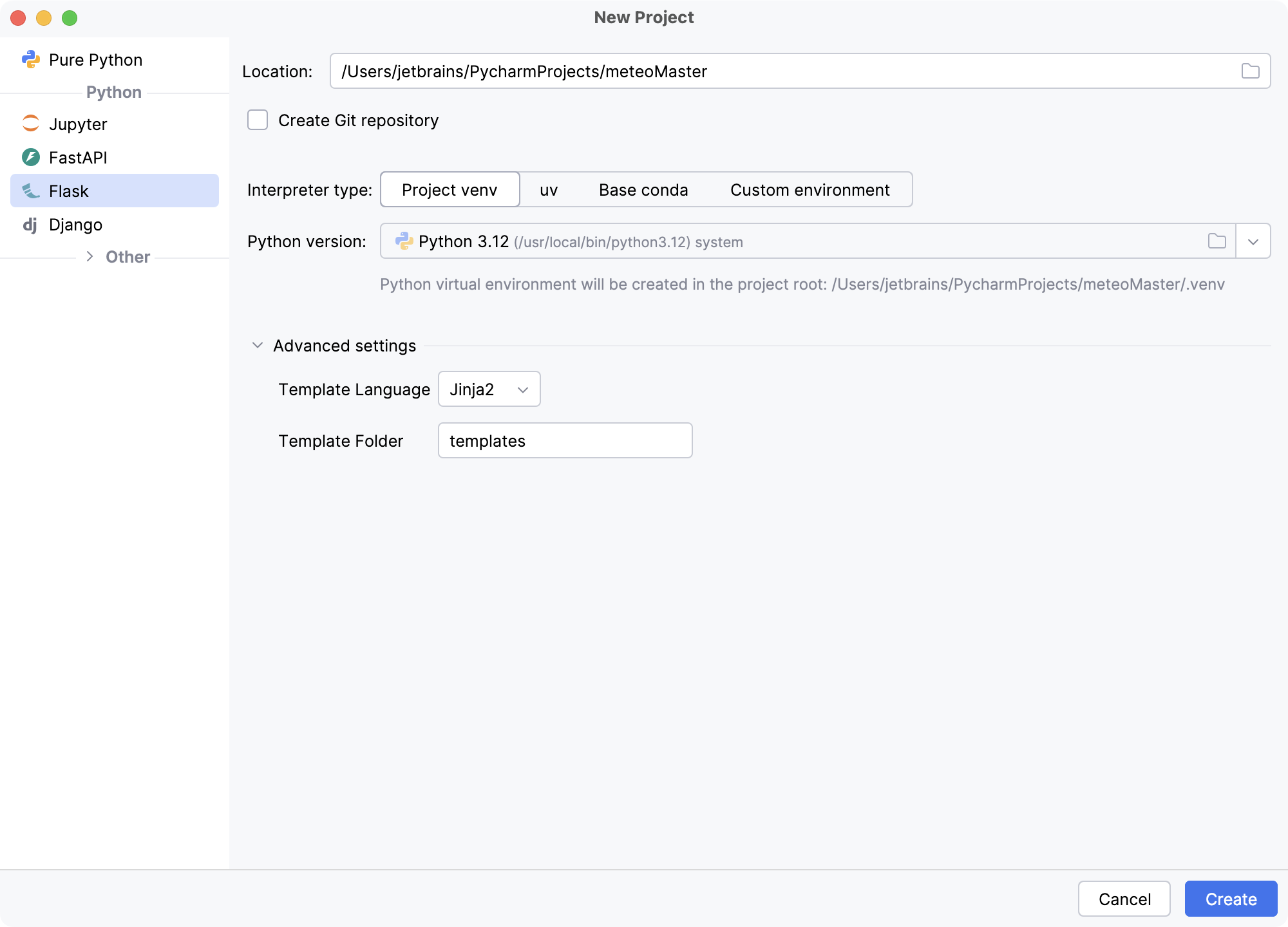
「ロケーション 」フィールドにプロジェクトの場所へのパスを入力し、プロジェクト名として 「meteoMaster」と入力します。 残りの設定はデフォルトのままにして、「作成 」をクリックします。
PyCharm は新しい仮想環境を作成し、テンプレート言語として Jinja2 を使用します。 その結果、定義済みのプロジェクト構造と基本的な「Hello World!」コードが提供されます。
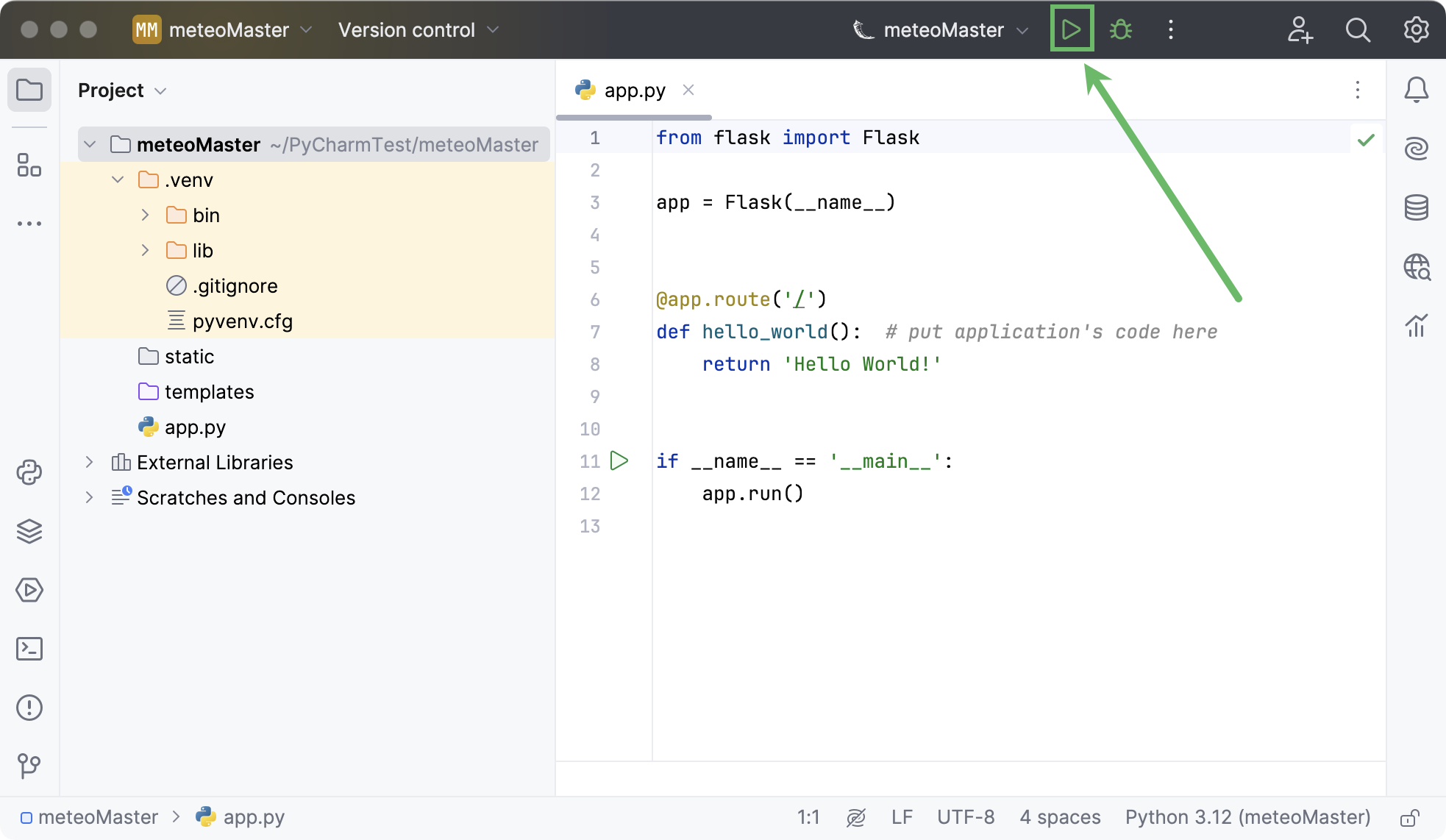
上部の 実行 ウィジェットで
 実行 'meteoMaster' をクリックして、自動的に作成された実行構成を起動します。
実行 ツールウィンドウでハイパーリンクをクリックし、基本的な「Hello, world」アプリケーションのページをプレビューします。
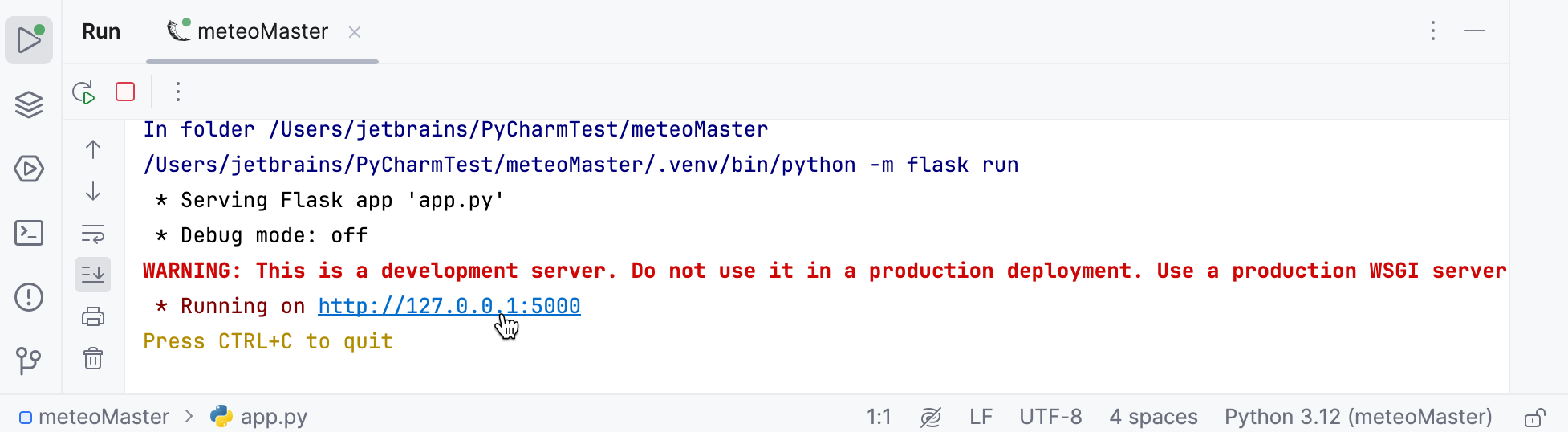
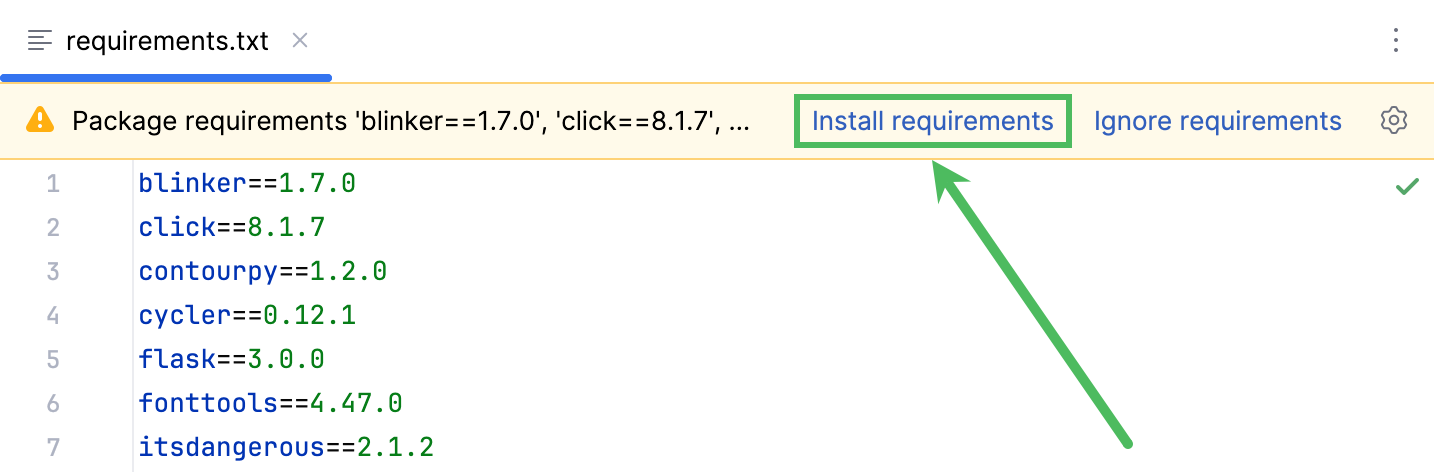
次に、MeteoMaster アプリケーションに必要なすべてのパッケージをインストールします。 これを行う最も簡単な方法は、プロジェクト依存関係を使用することです(requirements.txt を使用する を参照)。 プロジェクトルートを右クリックして を選択し、ファイル名として requirements.txt を指定して、次の依存関係のリストをそれに追加します。
blinker==1.7.0 click==8.1.7 contourpy==1.2.0 cycler==0.12.1 flask==3.0.0 fonttools==4.47.0 itsdangerous==2.1.2 jinja2==3.1.2 kiwisolver==1.4.5 markupsafe==2.1.3 matplotlib==3.8.2 numpy==1.26.2 packaging==23.2 pillow==10.2.0 pyparsing==3.1.1 python-dateutil==2.8.2 six==1.16.0 sqlalchemy==2.0.24 typing-extensions==4.9.0 werkzeug==3.0.1パッケージのインストールを続行するには、 requirements のインストール リンクをクリックしてください。
データベースのセットアップ
それでは、アプリケーション用のデータソースを設定しましょう。 PyCharm を使えば、とても簡単です。
次の場所から、5 都市の流星データを含む事前定義データベースをダウンロードします。
https://github.com/allaredko/flask-tutorial-demo/blob/master/user_database
user_database ファイルをプロジェクトのルートディレクトリに保存します。
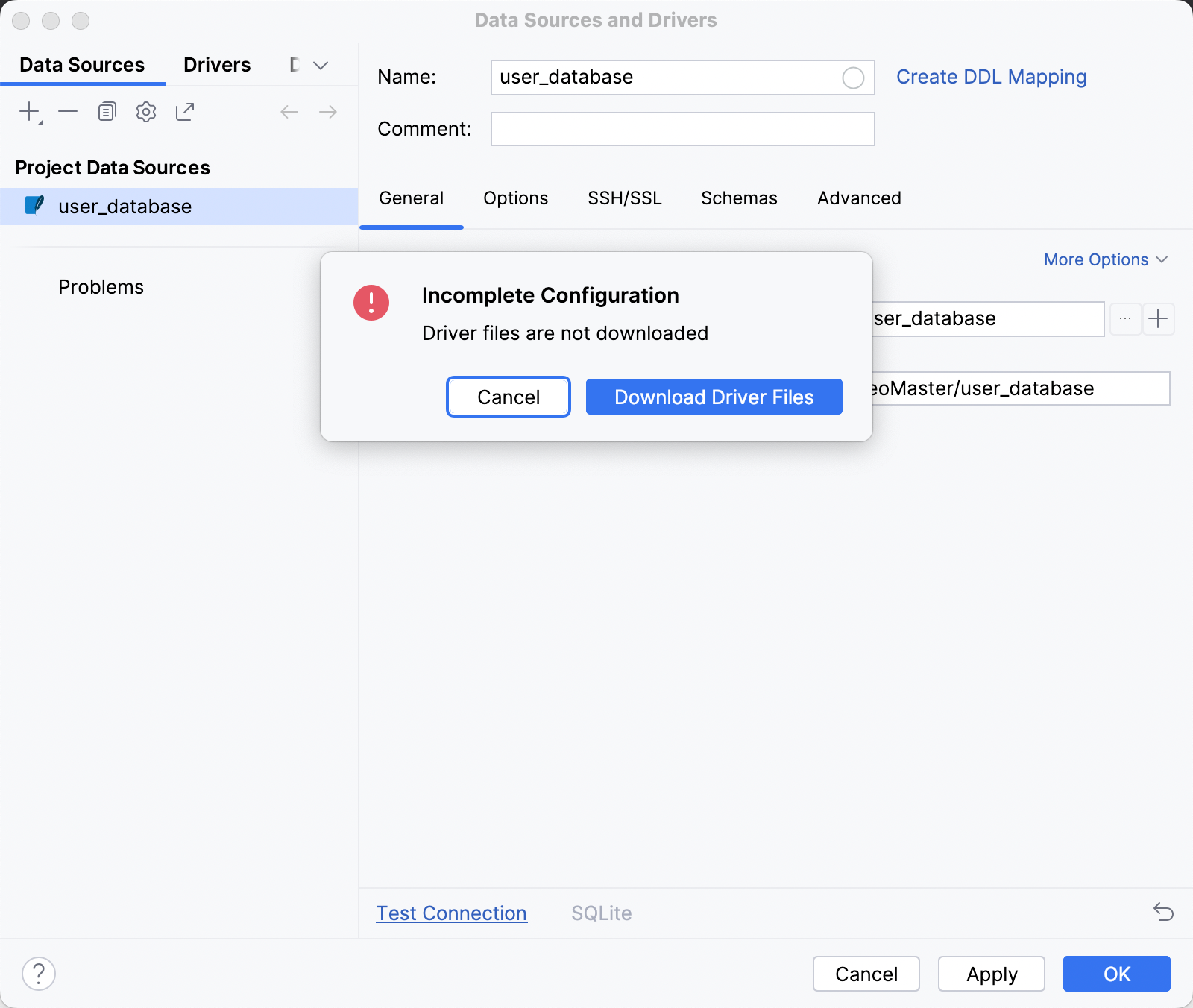
追加したファイルをダブルクリックします。 開いた データソースおよびドライバー ダイアログで、 接続のテスト をクリックして、データソースが正しく構成されていることを確認します。 不完全な構成 警告が表示された場合は、 ドライバーファイルのダウンロード をクリックします。
OK をクリックしてデータソースの作成を完了すると、 データベースツールウィンドウ が開きます。
次のテーブルが表示されます。
cityとmeteo。 各テーブルをダブルクリックしてデータをプレビューします。cityテーブルにはcity_id、city_name、city_climate(都市の気候に関する簡単な記述)というカラムがあります。meteoテーブルにはcity_id、month、average_humidity、average_temperatureというカラムがあります。 外部キーはtableのcity_idカラムに定義されており、2つのテーブル間の関係を設定します。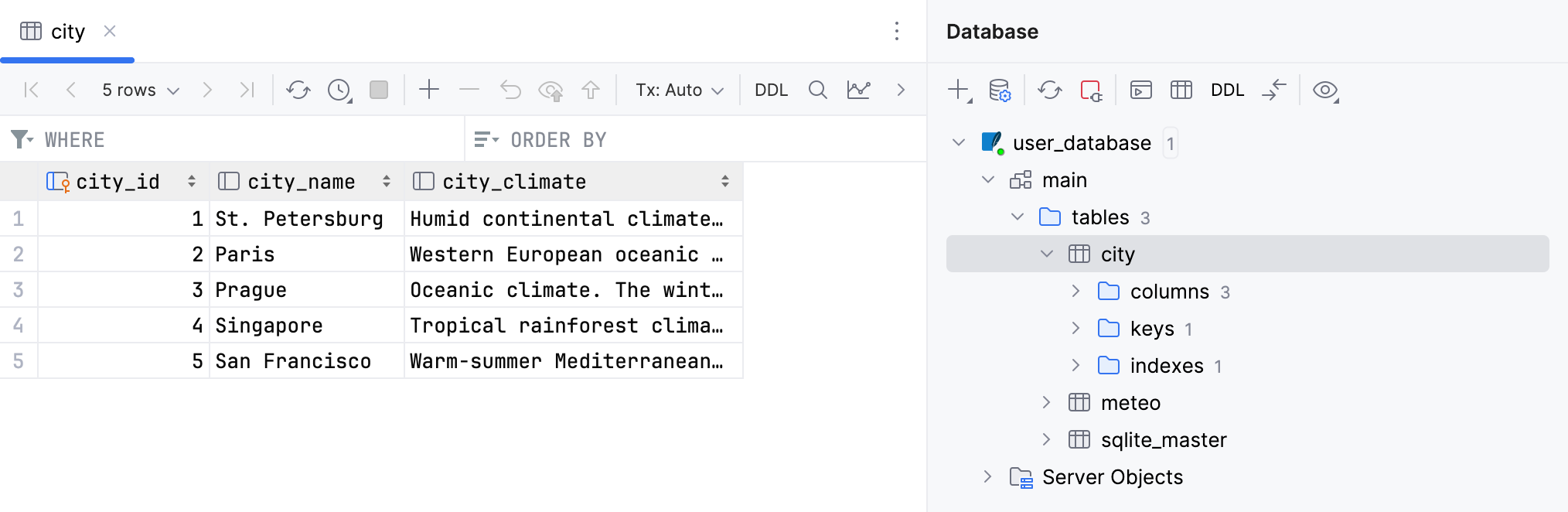
Python ファイルを作成する、 user_database.py 、新しく作成されたデータベースを操作します。 データベースを記述するために SQLAlchemy 宣言ベース(英語)構文を使用してください。
metadata = MetaData() engine = create_engine('sqlite:///user_database', connect_args={'check_same_thread': False}, echo=False) # echo=False Base = declarative_base() db_session = sessionmaker(bind=engine)() # Table city class City(Base): __tablename__ = 'city' city_id = Column(Integer, primary_key=True) city_name = Column(String) city_climate = Column(String) city_meteo_data = relationship("Meteo", backref="city") # Table meteo class Meteo(Base): __tablename__ = 'meteo' id = Column(Integer, primary_key=True) city_id = Column(ForeignKey('city.city_id')) month = Column(String) average_humidity = Column(Integer) average_temperature = Column(Float)コード箇所の import ステートメントを手動で追加する代わりに、提案された クイックフィックスを適用します。バルブ アイコンをクリックするか(または Alt+Enter を押します)。
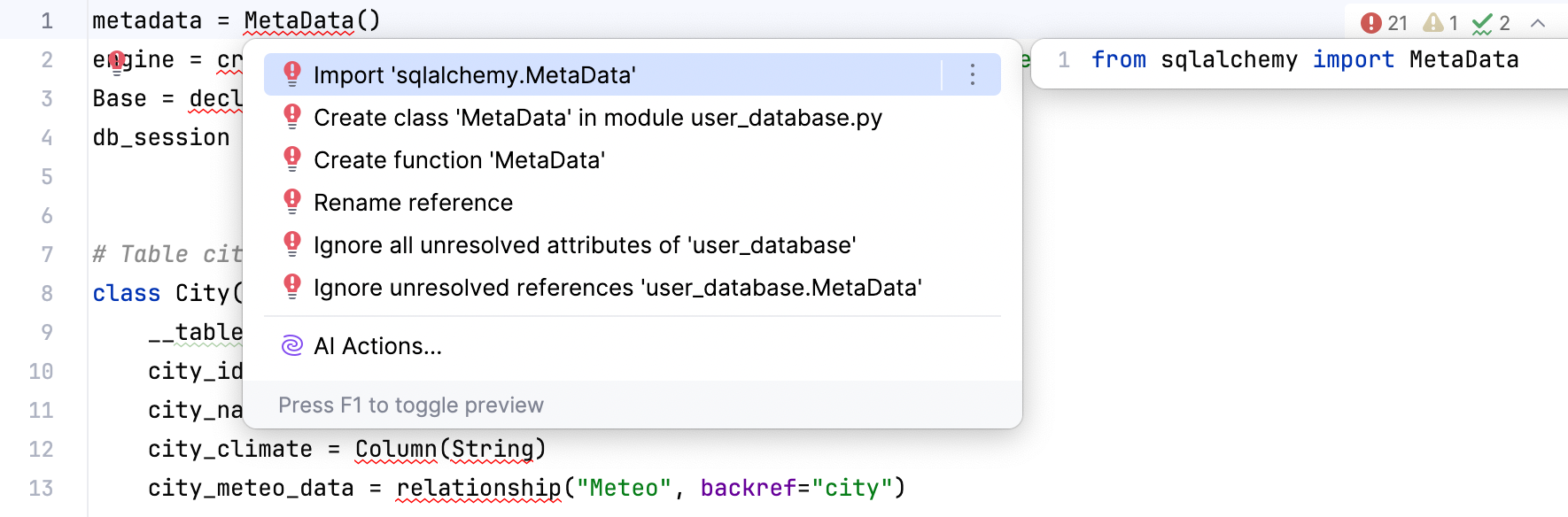
テーブルとそれらの関係を定義したため、データベースからデータを取得するために次の関数を追加します。
# Retrieving data from the database def get_cities(): return db_session.query(City) # Generating the set of average temperature values for a particular city def get_city_temperature(city): return [month.average_temperature for month in city.city_meteo_data] # Generating the set of average humidity values for a particular city def get_city_humidity(city): return [month.average_humidity for month in city.city_meteo_data] data = get_cities() MONTHS = [record.month for record in data[0].city_meteo_data] CITIES = [city.city_name for city in data]user_database.py ファイルの完全なコードは以下で入手できます。
- user_database.py
- from sqlalchemy import MetaData, create_engine, Column, Integer, String, ForeignKey, Float from sqlalchemy.orm import declarative_base, sessionmaker, relationship metadata = MetaData() engine = create_engine('sqlite:///user_database', connect_args={'check_same_thread': False}, echo=False) # echo=False Base = declarative_base() db_session = sessionmaker(bind=engine)() # Table city class City(Base): __tablename__ = 'city' city_id = Column(Integer, primary_key=True) city_name = Column(String) city_climate = Column(String) city_meteo_data = relationship("Meteo", backref="city") # Table meteo class Meteo(Base): __tablename__ = 'meteo' id = Column(Integer, primary_key=True) city_id = Column(ForeignKey('city.city_id')) month = Column(String) average_humidity = Column(Integer) average_temperature = Column(Float) # Retrieving data from the database def get_cities(): return db_session.query(City) # Generating the set of average temperature values for a particular city def get_city_temperature(city): return [month.average_temperature for month in city.city_meteo_data] # Generating the set of average humidity values for a particular city def get_city_humidity(city): return [month.average_humidity for month in city.city_meteo_data] data = get_cities() MONTHS = [record.month for record in data[0].city_meteo_data] CITIES = [city.city_name for city in data]
散布図のプロット
データを取得し、各都市の年間平均気温と湿度を示す散布図で最初のグラフをビルドする準備ができました。 グラフをセットアップし値を割り当てるには、 matplotlib ライブラリを使用します。
別の Python ファイルを作成する、 charts.py に次のコードを入力します。
import matplotlib.pyplot as plt from user_database import data, get_city_temperature, get_city_humidity, CITIES yearly_temp = [] yearly_hum = [] for city in data: yearly_temp.append(sum(get_city_temperature(city))/12) yearly_hum.append(sum(get_city_humidity(city))/12) plt.clf() plt.scatter(yearly_hum, yearly_temp, alpha=0.5) plt.title('Yearly Average Temperature/Humidity') plt.xlim(70, 95) plt.ylabel('Yearly Average Temperature') plt.xlabel('Yearly Average Relative Humidity') for i, txt in enumerate(CITIES): plt.annotate(txt, (yearly_hum[i], yearly_temp[i])) plt.show()グラフをプレビューする最も簡単な方法は、エディター内の任意の場所を右クリックして、コンテキストメニューから 実行 'charts' を選択することです。 PyCharm は プロット ツールウィンドウに散布図を表示します。
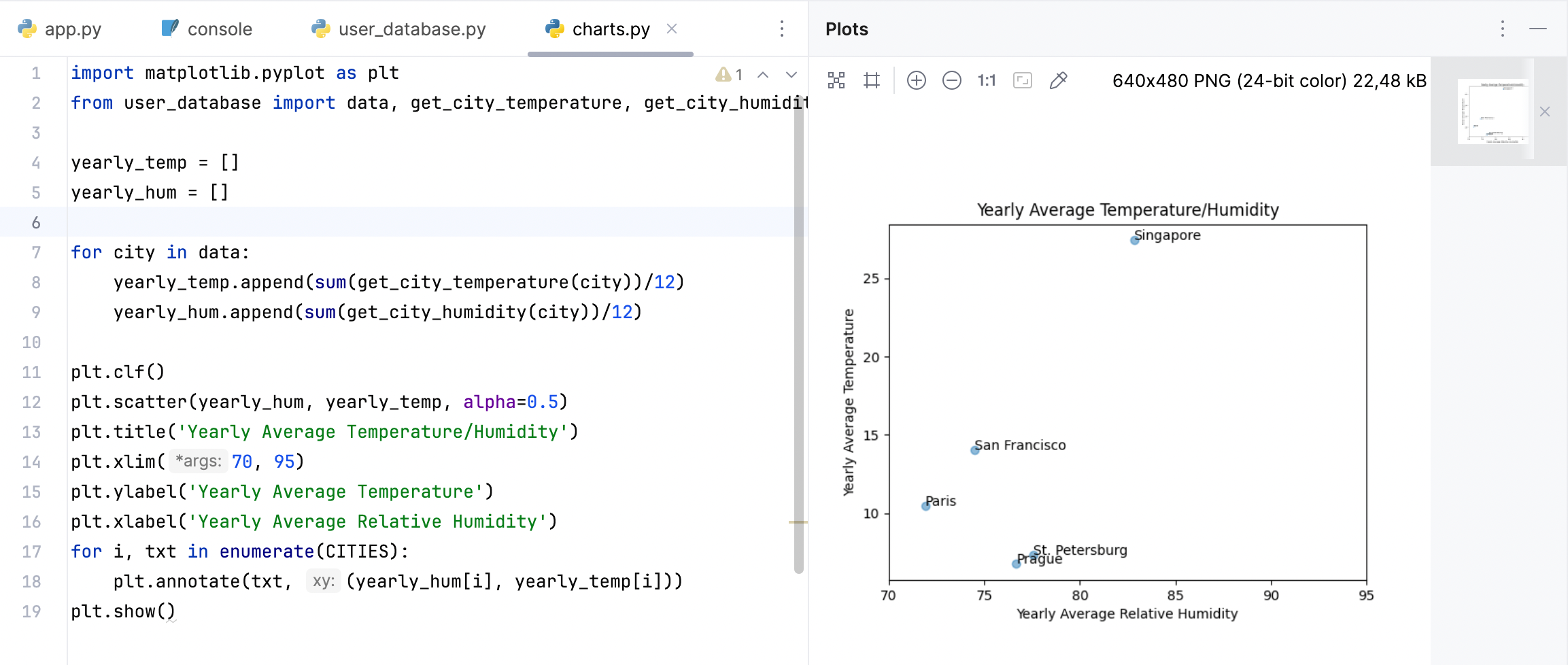
次に、アプリケーションのメインページに追加できるように、グラフをイメージに保存します。
plt.show()をsavefig(img)メソッドを使用するフラグメントに置き換え、コードをget_main_image()関数にラップします。 取得するものは次のとおりです。from io import BytesIO import matplotlib.pyplot as plt from user_database import data, MONTHS, get_city_temperature, get_city_humidity, CITIES def get_main_image(): """Rendering the scatter chart""" yearly_temp = [] yearly_hum = [] for city in data: yearly_temp.append(sum(get_city_temperature(city))/12) yearly_hum.append(sum(get_city_humidity(city))/12) plt.clf() plt.scatter(yearly_hum, yearly_temp, alpha=0.5) plt.title('Yearly Average Temperature/Humidity') plt.xlim(70, 95) plt.ylabel('Yearly Average Temperature') plt.xlabel('Yearly Average Relative Humidity') for i, txt in enumerate(CITIES): plt.annotate(txt, (yearly_hum[i], yearly_temp[i])) img = BytesIO() plt.savefig(img) img.seek(0) return img
メインページの作成
アプリケーションのメインページを設定し、散布図のビューを作成します。
app.py ファイル内の
hello_world関数の定義をapp.route()デコレータで次のコードに置き換えます。def get_headers(response): response.headers['Cache-Control'] = 'no-cache, no-store, must-revalidate' response.headers['Pragma'] = 'no-cache' response.headers['Expires'] = '0' @app.route('/') def main(): """Entry point; the view for the main page""" cities = [(record.city_id, record.city_name) for record in data] return render_template('main.html', cities=cities) @app.route('/main.png') def main_plot(): """The view for rendering the scatter chart""" img = get_main_image() response = send_file(img, mimetype='image/png') get_headers(response) return response足りない import 文を追加するために提案された素早い修正を適用してください。
このファイルはまだ作成されていないため、PyCharm は main.html をハイライトしています。
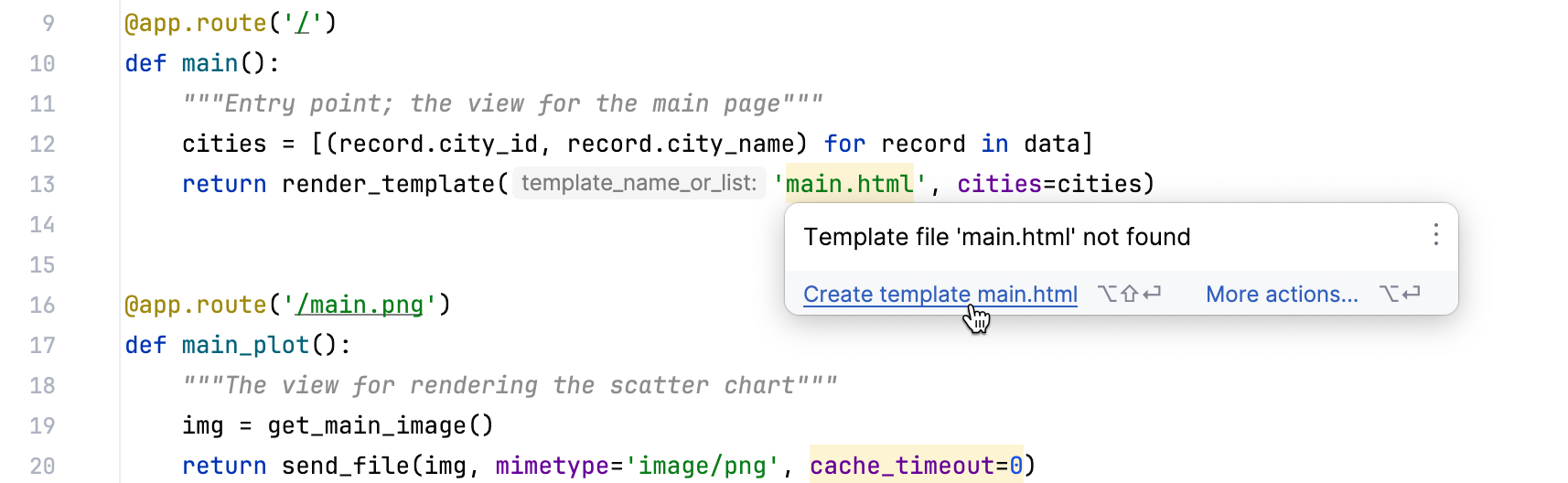
PyCharm のインテンションアクションを使えば、不足しているテンプレートファイルをすばやく作成できます。 Alt+Enter を押して、コンテキストメニューから テンプレート main.html を作成する を選択します。 テンプレートファイルの名前と場所を確認して、 OK をクリックします。 その結果、 main.html が templates ディレクトリに追加されます。 新しく追加したファイルを開き、そのファイルに次のコードを貼り付けます。
<!DOCTYPE html> <html lang="en"> <head> <meta charset="UTF-8"> <link href="../static/style.css" rel="stylesheet" type="text/css"> <title>Typical Climate</title> </head> <body> <div id="element1"> <img src="{{ url_for('main_plot') }}" alt="Image"> </div> <div id="element2"> <p>What city has the best climate?</p> <p>When planning your trip or vacation you often check weather data for humidity and temperature.</p> <p>Below is the collection of the yearly average values for the following cities: </p> <ul> {% for city_id, city_name in cities %} <li><a href="">{{ city_name }}</a></li> {% endfor %} </ul> </div> </body> </html>このフラグメントの
{{ city_name }}は、city_namePython 変数を HTML テンプレートに渡すために使用される Jinja2(英語) テンプレート変数です。また、スタイルシートを作成して、アプリケーション内のすべての HTML ページのフォントとレイアウトを設定します。 static ディレクトリを右クリックして を選択し、 css ファイルの名前 style.css を指定して、次のスタイル定義を貼り付けます。
body { font-family: "Helvetica Neue", Helvetica, Arial, sans-serif; } #element1 { display: inline-block; } #element2 { display: inline-block; vertical-align: top; margin-top: 90px; alignment: left; width: 25%; }自動的に作成された
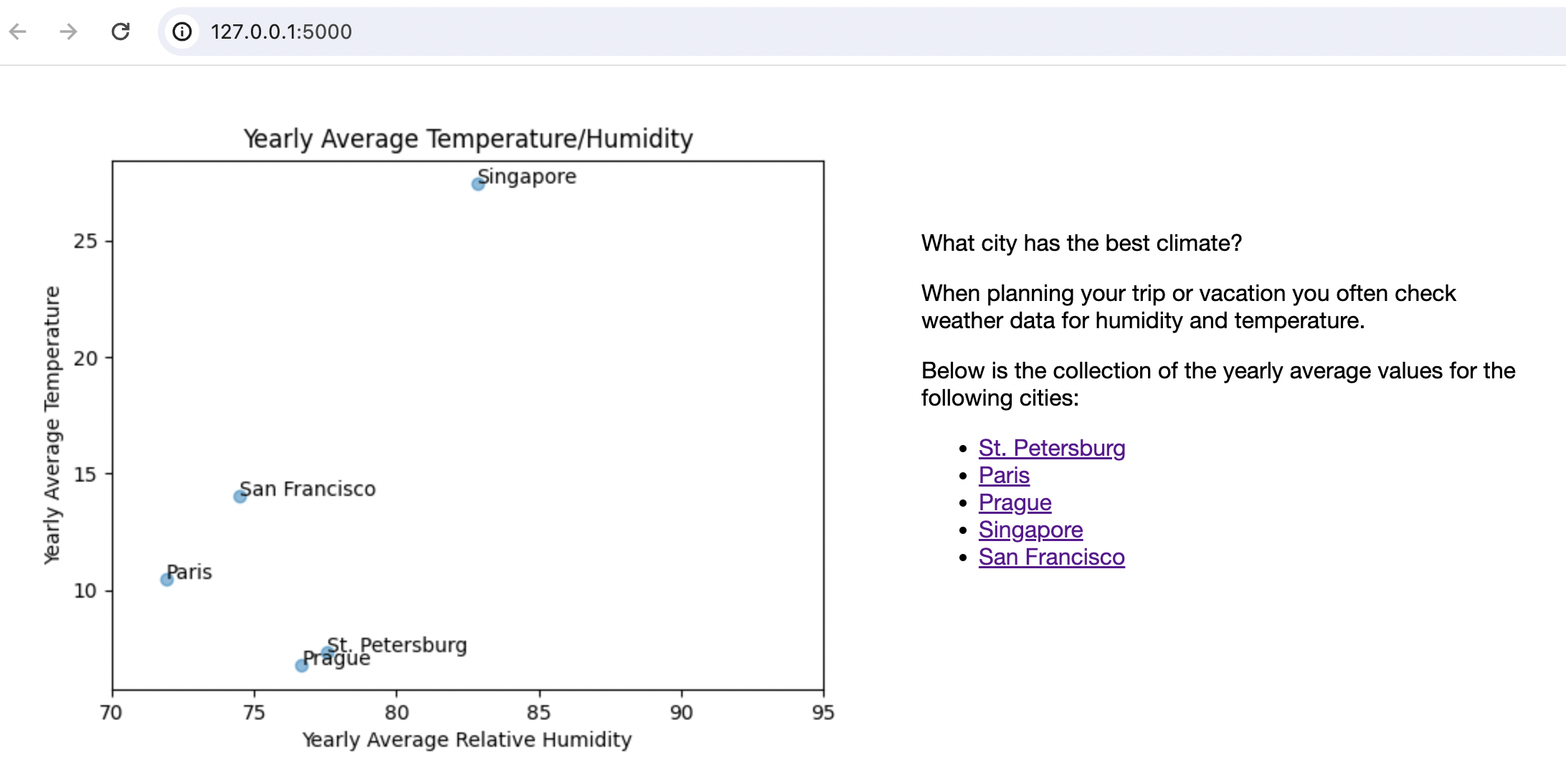
meteoMaster構成を使用して、結果を評価したいときにいつでも、変更したアプリケーションを実行できます。実行 または  再実行 をクリックし、 実行 ツールウィンドウの http://127.0.0.1:5000/ リンクに従います。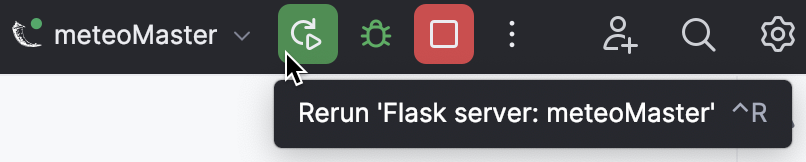
次のページが表示されます:
折れ線グラフ
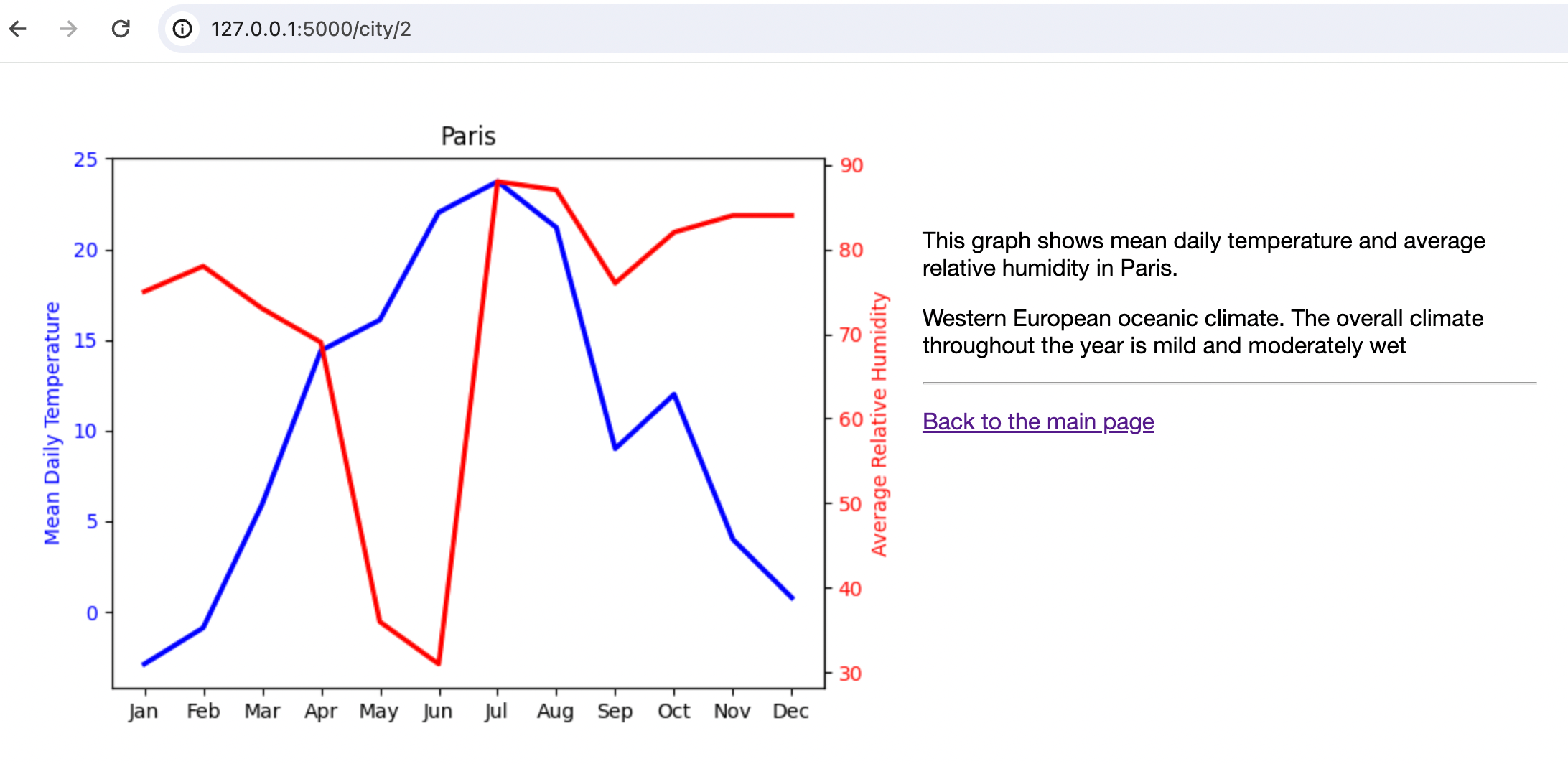
特定の都市の気候に関する詳細情報をアプリケーションユーザーに提供するには、折れ線グラフを関連情報とともにレンダリングします。
get_city_image関数を追加して charts.py ファイルを修正します。def get_city_image(city_id): """Rendering line charts with city specific data""" city = data.get(city_id) city_temp = get_city_temperature(city) city_hum = get_city_humidity(city) plt.clf() plt.plot(MONTHS, city_temp, color='blue', linewidth=2.5, linestyle='-') plt.ylabel('Mean Daily Temperature', color='blue') plt.yticks(color='blue') plt.twinx() plt.plot(MONTHS, city_hum, color='red', linewidth=2.5, linestyle='-') plt.ylabel('Average Relative Humidity', color='red') plt.yticks(color='red') plt.title(city.city_name) img = BytesIO() plt.savefig(img) img.seek(0) return imgこの関数は、各都市の月ごとの 平均日気温と 平均相対湿度の折れ線グラフをプロットします。
get_main_image関数と同様に、この関数もグラフを画像として保存します。折れ線グラフを表示するために、もう 1 つ .html ファイルを作成します。
プロジェクトルートの templates ディレクトリを右クリックして を選択し、ファイル名として city.html と入力して、新しく作成したファイルに次のコードを貼り付けます。
- <!DOCTYPE html> <html lang="en"> <head> <meta charset="UTF-8"> <link href="../static/style.css" rel="stylesheet" type="text/css"> <title>{{ city_name }}</title> </head> <body> <div id="element1"> <img src="{{ url_for('city_plot', city_id=city_id) }}" alt="Image"> </div> <div id="element2"> <p>This graph shows mean daily temperature and average relative humidity in {{ city_name }}.</p> <p> {{ city_climate }}</p> <hr/> <p><a href="/">Back to the main page</a></p> </div> </body> </html>
残りのステップは、
Flask.route関数を使用してさらに 2 つのビューを作成することです。 app.py ファイルに次のコードを追加します。@app.route('/city/<int:city_id>') def city(city_id): """Views for the city details""" city_record = data.get(city_id) return render_template('city.html', city_name=city_record.city_name, city_id=city_id, city_climate=city_record.city_climate) @app.route('/city<int:city_id>.png') def city_plot(city_id): """Views for rendering city specific charts""" img = get_city_image(city_id) response = send_file(img, mimetype='image/png') get_headers(response) return responseクイックフィックス Alt+Enter を使用して、欠落しているインポートステートメントを追加することを忘れないでください。
main.html ファイルを修正して、都市のリストに対応する シティ /* ページへのリンクを追加します。
<li><a href="">{{ city_name }}</a></li>を<li><a href="{{ url_for('city', city_id=city_id) }}">{{ city_name }}</a></li>に交換してください。
Run/Debug 設定を再実行してアプリケーションを再起動し、Paris につながるリンクをクリックします。 city/2 ページに移動されることを期待するべきです。
ログインフォームの作成
この時点までに、データベースから隕石データを取得してグラフとして表示する、完全に機能するアプリケーションが作成されています。 ただし、実際には通常、データを編集する必要があります。 当然のことながら、編集は許可されたユーザーにのみ許可されるべきなので、ログインフォームを作成しましょう。
プロジェクトルートの templates ディレクトリを右クリックして を選択し、ファイル名として login.html と入力して、新しく作成したファイルに次のコードを貼り付けます。
<!DOCTYPE html> <html lang="en"> <head> <meta charset="UTF-8"> <link rel="stylesheet" type="text/css" href="../static/style.css"> <title>Login form </title> </head> <body> <p>Login to edit the meteo database: </p> <div class="container"> <form action="" class="form-inline" method="post"> <input type="text" class="form-control" placeholder="Username" name="username" value="{{ request.form.username }}"> <input type="password" class="form-control" placeholder="Password" name="password" value="{{ request.form.password }}"> <input class="btn btn-default" type="submit" value="Login"> </form> <p>{{ error }}</p> </div> </body> </html>このコードは ユーザー名 と パスワード フィールドを持つ典型的なログインフォームを実装します。
次のコードを app.py ファイルに追加して、ログインフォーム用の Flask ビューを作成し、ログインセッションを制御します。
@app.route('/login/<int:city_id>', methods=["GET", "POST"]) def login(city_id): """The view for the login page""" city_record = data.get(city_id) try: error = '' if request.method == "POST": attempted_username = request.form['username'] attempted_password = request.form['password'] if attempted_username == 'admin' and attempted_password == os.environ['USER_PASSWORD']: session['logged_in'] = True session['username'] = request.form['username'] return redirect(url_for('edit_database', city_id=city_id)) else: print('invalid credentials') error = 'Invalid credentials. Please, try again.' return render_template('login.html', error=error, city_name=city_record.city_name, city_id=city_id) except Exception as e: return render_template('login.html', error=str(e), city_name=city_record.city_name, city_id=city_id) def login_required(f): @wraps(f) def wrap(*args, **kwargs): """login session""" if 'logged_in' in session: return f(*args, **kwargs) else: pass return redirect(url_for('login')) return wrap app.secret_key = os.environ['FLASK_WEB_APP_KEY']不足しているインポートステートメントを追加するには、 Alt+Enter ショートカットを使用します。 このコードでは、
USER_PASSWORDとFLASK_WEB_APP_KEYという 2 つの環境変数が導入されています。新しく作成した環境変数の値は、より安全にセキュリティ機密情報を保管する方法として、 meteoMaster 実行/デバッグ構成に記録できます。これは app.py ファイルにハードコーディングするよりも安全です。
実行 ウィジェットで
 をクリックし、 実行構成の編集 を選択します。 実行 / デバッグ構成 ダイアログで、 meteoMaster 構成が選択されていることを確認し、 環境変数 フィールドの
  アイコンをクリックして 2 つの変数を追加します。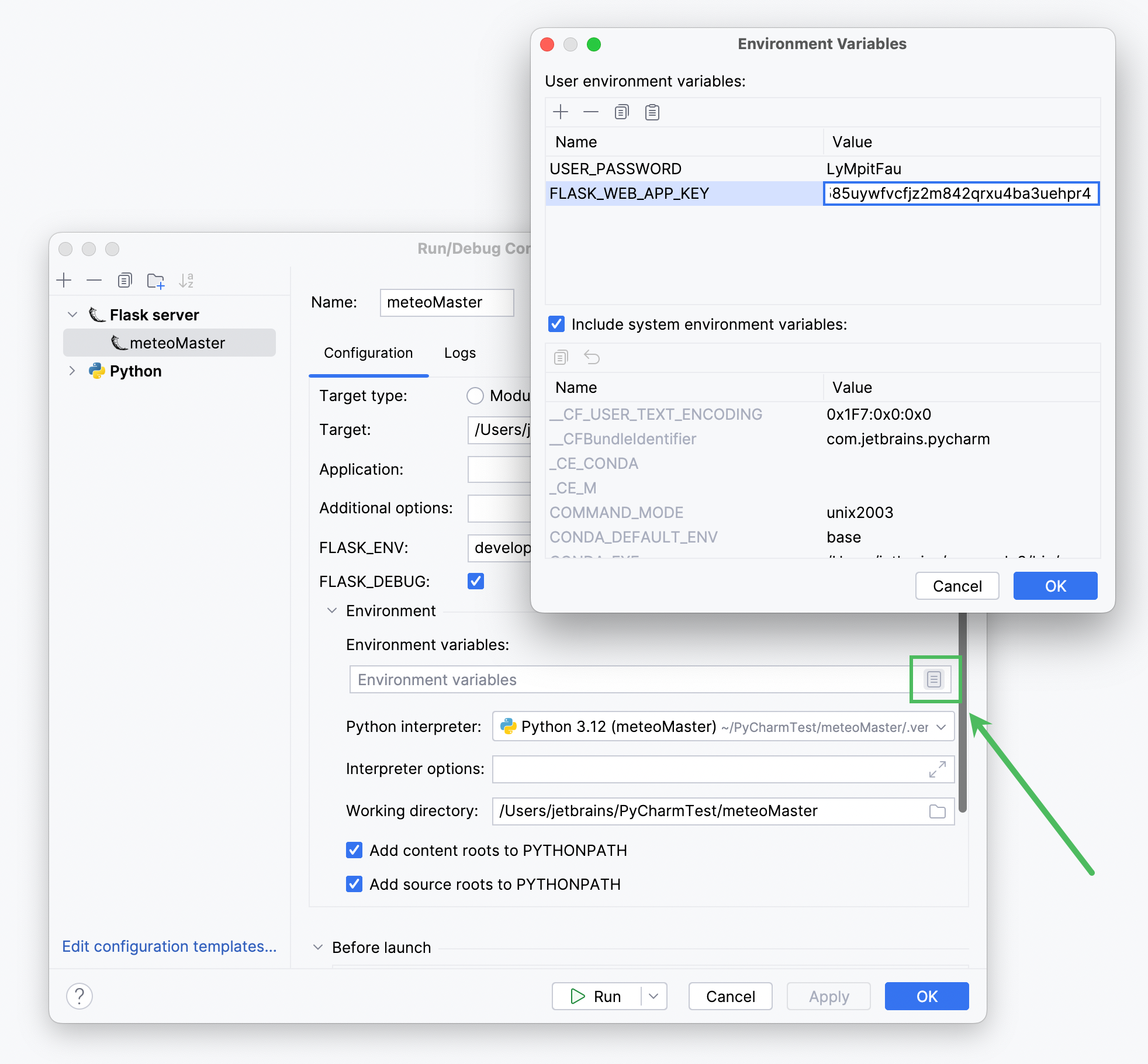
ログイン機能に対応するように city.html ファイルの
<div id="element2">要素を変更します。<p>This graph shows mean daily temperature and average relative humidity in {{ city_name }}.</p> <p> {{ city_climate }}</p> {% if session['logged_in'] %} <p>Want to add more data?</p> <p>Go and <a href="{{ url_for('edit_database', city_id=city_id) }}">edit</a> the meteo database.</p> {% else %} <p>Want to edit meteo data?</p> <p>Please <a href="{{ url_for('login', city_id=city_id) }}">login</a> first.</p> {% endif %} <hr/> <p><a href="/">Back to the main page</a></p>アプリケーションを再起動し、都市のリンクをクリックしてから、「最初にログインしてください」という文の中の ログイン リンクをクリックします。 ログインフォームが表示されるはずです。
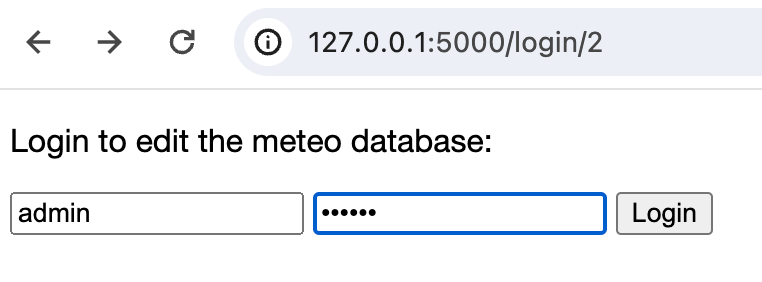
当面は、対応するページを実装していないため、このフォームでは編集できません。 一方、誤ったパスワードを入力して「無効な認証情報です。 もう一度やり直してください」というメッセージで処理されているかどうかを確認することもできます。
データを編集する
最後の残りのステップは流星データの編集を可能にすることです。
プロジェクトルートの templates ディレクトリを右クリックして を選択し、ファイル名として edit.html と入力して、新しく作成したファイルに次のコードを貼り付けます。
<!DOCTYPE html> <html lang="en"> <head> <meta charset="UTF-8"> <link rel="stylesheet" type="text/css" href="../static/style.css"> <title>Edit meteo data for {{ city_name }}</title> </head> <body> <p>Edit the data for {{ city_name }} as appropriate:</p> <div class="container"> <form name="meteoInput" action="" class="form-inline" method="post"> <table> <tr> <td>Month</td> <td colspan="2" align="center">Average Temperature</td> <td colspan="2" align="center">Average Humidity</td> </tr> {% for month in months %} <tr> <td>{{ month }}</td> <td> <input placeholder="20" class="form-control" name="temperature{{ loop.index0 }}" value="{{ meteo[0][loop.index0]}}" type="range" min="-50.0" max="50.0" step="0.01" oninput="temp_output{{ loop.index0 }}.value=this.value" > </td> <td> <output name="temp_output{{ loop.index0 }}">{{ '%0.2f' % meteo[0][loop.index0]|float }}</output> <label> C</label> </td> <td> <input placeholder="20" class="form-control" name="humidity{{ loop.index0 }}" value="{{ meteo[1][loop.index0]}}" type="range" min="0" max="100" oninput="hum_output{{ loop.index0 }}.value=this.value"> </td> <td> <output name="hum_output{{ loop.index0 }}">{{ meteo[1][loop.index0]}}</output> <label> %</label> </td> </tr> {% endfor %} </table> <input class="btn btn-default" type="submit" value="Save"> </form> <p>{{ error }}</p> </div> </body> </html>このフラグメントはまた、Jinjia2 テンプレートを利用して入力データを処理し、それをデータベースへのコミットを実行する Python コードに渡します。
編集ページ用の Flask ビューを作成し、入力データを処理し、データベースを更新する app.py ファイルに、もう 1 つコードフラグメントを追加します。
@app.route('/edit/<int:city_id>', methods=["GET", "POST"]) @login_required def edit_database(city_id): """Views for editing city specific data""" month_temperature = [] month_humidity = [] city_record = data.get(city_id) meteo = [get_city_temperature(city_record), get_city_humidity(city_record)] try: if request.method == "POST": # Get data from the form for i in range(12): # In a production application we ought to validate the input data month_temperature.append(float(request.form[f'temperature{i}'])) month_humidity.append(int(request.form[f'humidity{i}'])) # Database update for i, month in enumerate(city_record.city_meteo_data): month.average_temperature = month_temperature[i] month.average_humidity = month_humidity[i] db_session.commit() return redirect(url_for('main', city_id=city_id)) else: return render_template('edit.html', city_name=city_record.city_name, city_id=city_id, months=MONTHS, meteo=meteo) except Exception as error: return render_template('edit.html', city_name=city_record.city_name, city_id=city_id, months=MONTHS, meteo=meteo, error=error)app.py ファイルの完全なコードは以下で入手できます。
- app.py
- import os from functools import wraps from flask import Flask, send_file, render_template, request, session, redirect, url_for from charts import get_main_image, get_city_image from user_database import data, db_session, get_city_temperature, get_city_humidity, MONTHS app = Flask(__name__) def get_headers(response): response.headers['Cache-Control'] = 'no-cache, no-store, must-revalidate' response.headers['Pragma'] = 'no-cache' response.headers['Expires'] = '0' @app.route('/') def main(): """Entry point; the view for the main page""" cities = [(record.city_id, record.city_name) for record in data] return render_template('main.html', cities=cities) @app.route('/main.png') def main_plot(): """The view for rendering the scatter chart""" img = get_main_image() response = send_file(img, mimetype='image/png') get_headers(response) return response @app.route('/city/<int:city_id>') def city(city_id): """Views for the city details""" city_record = data.get(city_id) return render_template('city.html', city_name=city_record.city_name, city_id=city_id, city_climate=city_record.city_climate) @app.route('/city<int:city_id>.png') def city_plot(city_id): """Views for rendering city specific charts""" img = get_city_image(city_id) response = send_file(img, mimetype='image/png') get_headers(response) return response @app.route('/login/<int:city_id>', methods=["GET", "POST"]) def login(city_id): """The view for the login page""" city_record = data.get(city_id) try: error = '' if request.method == "POST": attempted_username = request.form['username'] attempted_password = request.form['password'] if attempted_username == 'admin' and attempted_password == os.environ['USER_PASSWORD']: session['logged_in'] = True session['username'] = request.form['username'] return redirect(url_for('edit_database', city_id=city_id)) else: print('invalid credentials') error = 'Invalid credentials. Please, try again.' return render_template('login.html', error=error, city_name=city_record.city_name, city_id=city_id) except Exception as e: return render_template('login.html', error=str(e), city_name=city_record.city_name, city_id=city_id) def login_required(f): @wraps(f) def wrap(*args, **kwargs): """login session""" if 'logged_in' in session: return f(*args, **kwargs) else: pass return redirect(url_for('login')) return wrap app.secret_key = os.environ['FLASK_WEB_APP_KEY'] @app.route('/edit/<int:city_id>', methods=["GET", "POST"]) @login_required def edit_database(city_id): """Views for editing city specific data""" month_temperature = [] month_humidity = [] city_record = data.get(city_id) meteo = [get_city_temperature(city_record), get_city_humidity(city_record)] try: if request.method == "POST": # Get data from the form for i in range(12): # In a production application we ought to validate the input data month_temperature.append(float(request.form[f'temperature{i}'])) month_humidity.append(int(request.form[f'humidity{i}'])) # Database update for i, month in enumerate(city_record.city_meteo_data): month.average_temperature = month_temperature[i] month.average_humidity = month_humidity[i] db_session.commit() return redirect(url_for('main', city_id=city_id)) else: return render_template('edit.html', city_name=city_record.city_name, city_id=city_id, months=MONTHS, meteo=meteo) except Exception as error: return render_template('edit.html', city_name=city_record.city_name, city_id=city_id, months=MONTHS, meteo=meteo, error=error) if __name__ == '__main__': app.run()
実行構成を再起動するか、 app.py ファイル (Ctrl+S) を保存して自動再起動をトリガーします。 これで、アプリのホームページでたとえば
Parisを選択し、 編集 をクリックして管理者の資格情報を入力すると、流星データを編集できるページが表示されます。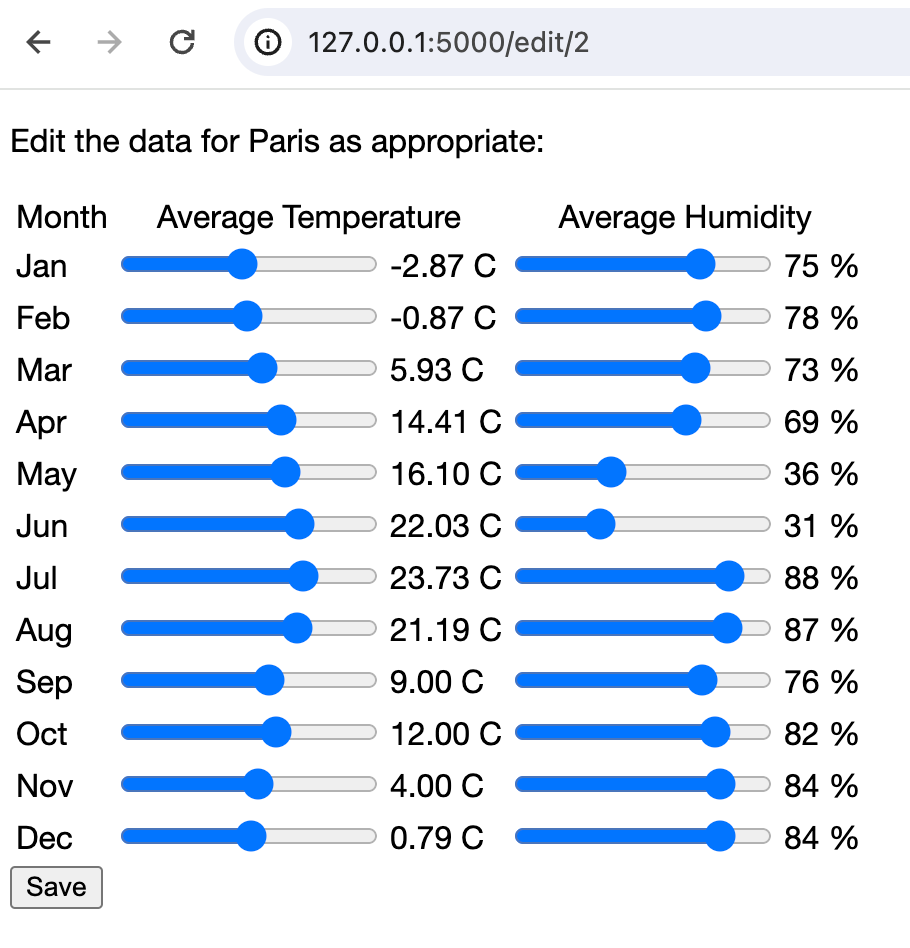
このステップで、データベースとやり取りする Flask ベースのアプリケーションを作成するタスクが完了しました。 これで、天気を完全に制御できるようになりました。 任意の都市の気象データを変更して、変更がグラフ上で目立つようにします。 次に、変更をプレビューします。