モニタリング
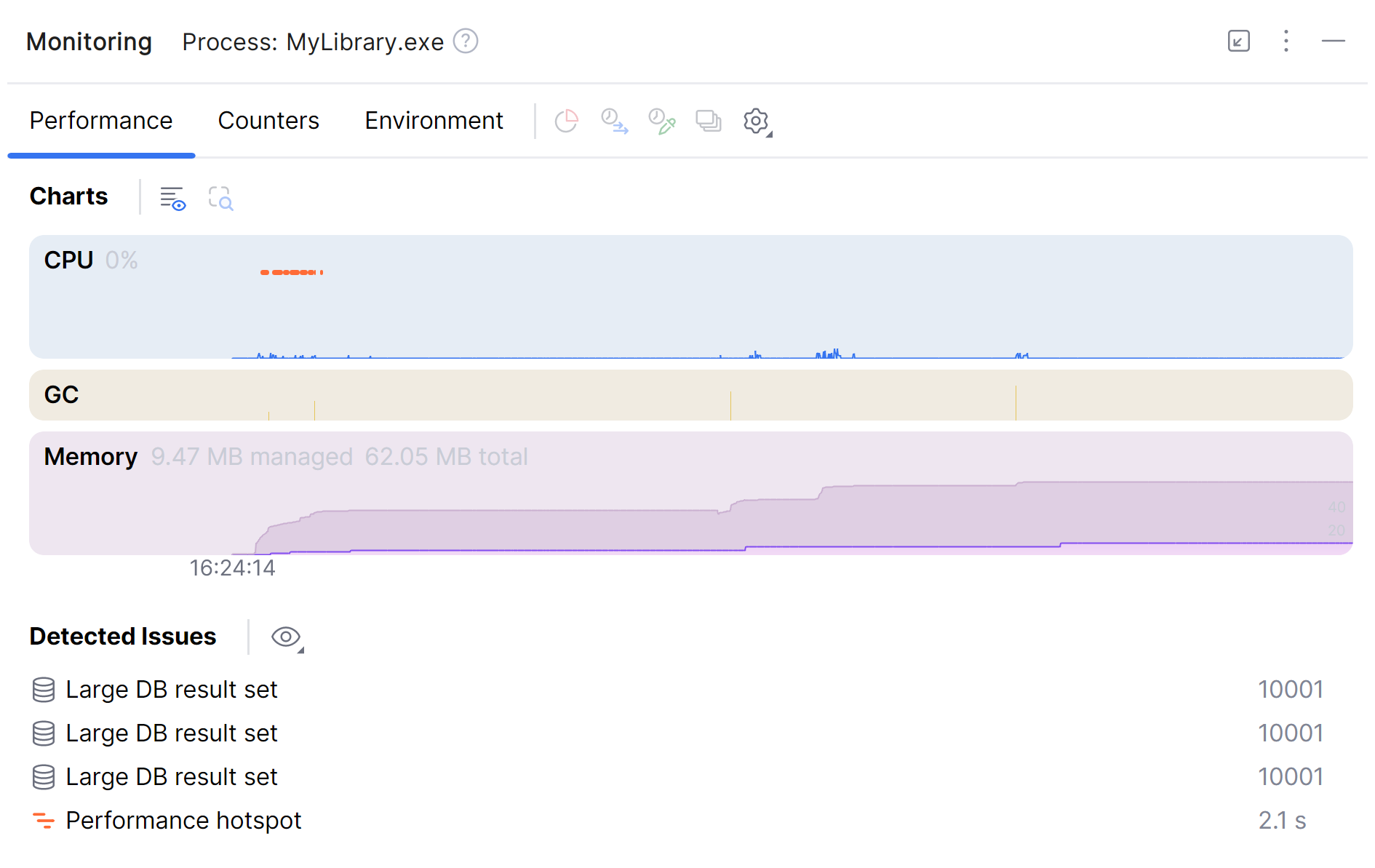
JetBrains Rider は、アプリケーションのパフォーマンスをリアルタイムでトラックし、実行時の挙動を分析できる統合監視ツールを提供します。 CPU 使用率、メモリ消費量、ガベージコレクションアクティビティ、環境変数、カウンター、メトリクスなどを確認できます。 Windows では、このツールは詳細なパフォーマンスデータをバックグラウンドで収集し、統合された dotTrace プロファイラーを使用して分析することもできます。
デフォルトでは、プロジェクトを実行またはデバッグすると、 モニタリング ツールウィンドウで監視が自動的に開始されます。
サポートされている OS とアプリケーション
オペレーティングシステム:
Windows – バックグラウンドプロファイリング、パフォーマンス問題の自動検出、タイムフレーム分析など、フル機能をご利用いただけます。 一部の機能には dotUltimate ライセンスが必要です。
Linux および macOS – リアルタイムデータのみ。 バックグラウンドプロファイリングとパフォーマンス問題の自動検出は サポートされていません。
アプリケーション:
.NET Core 3.0 以降、.NET 5.0 以降
.NET フレームワーク (カウンター、メトリクス、例外に関する情報なし)
Mono (カウンター、メトリクス、例外に関する情報なし)
Unity (CPU とメモリのチャートのみが利用可能です)
C++ (CPU とメモリのチャートのみが利用可能です)
Unreal Engine (CPU とメモリのチャートのみが利用可能です)
パフォーマンスタブ
パフォーマンス タブは、アプリケーションの実行時の動作をグラフで視覚化します。 Windows では、検出されたパフォーマンス問題のリストも表示され、統合された dotTrace プロファイラー (dotUltimate ライセンスが必要)を使用して詳細に分析できます。
グラフ
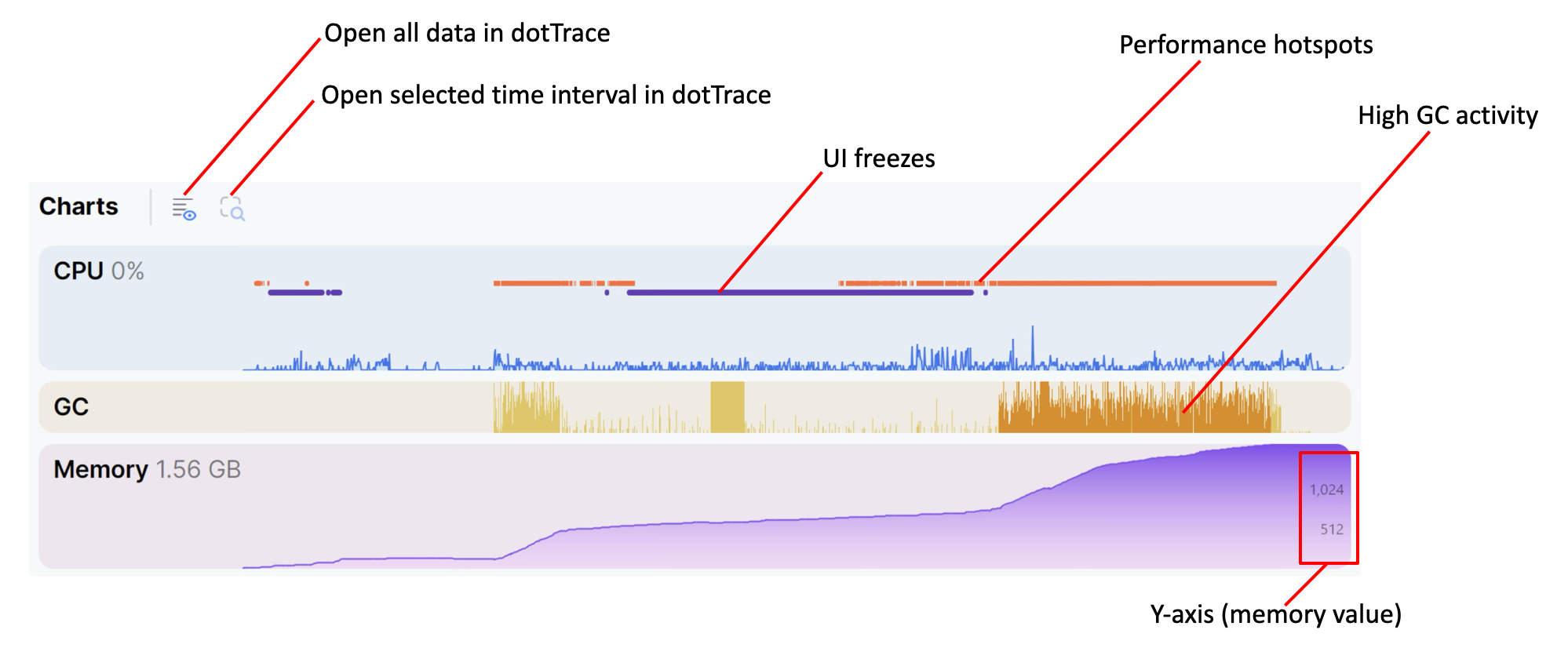
グラフ タブには、アプリケーションの CPU とメモリの使用状況が表示されます。 グラフの上にマウスを移動すると、データポイントの詳細情報が表示されます。
CPU チャートには、アプリケーションの CPU 使用率と、 UI フリーズ および パフォーマンスホットスポット の問題が検出された時間間隔が表示されます。
GC チャートには、アプリケーション内のガベージコレクション (GC) イベントと、 高い GC 活性 の問題が検出された時間間隔が表示されます。
メモリ チャートには、アプリケーションのメモリ使用量が表示されます。
- メモリ使用量の計算方法
メモリ チャートには、プロセスの プライベートメモリ (このプロセス専用で、他のプロセスと共有されないメモリ) が表示されます。
Windows: チャートではプロセスの コミットチャージの値を表示します。 プライベートページ(スワップアウトされていても)を含み、他のプロセスと共有されているページは除外されるため、他のツールで表示される「resident/working set」と比べて高くなる場合も低くなる場合もあります。 このチャートは GetProcessMemoryInfo を使用して
PROCESS_MEMORY_COUNTERS_EX.PrivateUsageを取得します。Linux: チャートは、 /proc/<pid>/smaps_rollup(英語) (ロールアップファイルが利用できない場合は /proc/<pid>/smaps(英語)) の
Private_CleanとPrivate_Dirtyを合計します。macOS: このチャートは、プロセスのメモリ領域を反復処理して、常駐プライベートバイトとスワップアウトされたプライベートバイトを追加します (vmmap(英語) ツールが報告するものと同様)。
さまざまなツールがさまざまなメトリクス (プライベートメモリと常駐 / ワーキングセット) を視覚化するため、ツール間で数値が完全に一致しないのは正常です。
検出された問題 (Windows のみ)
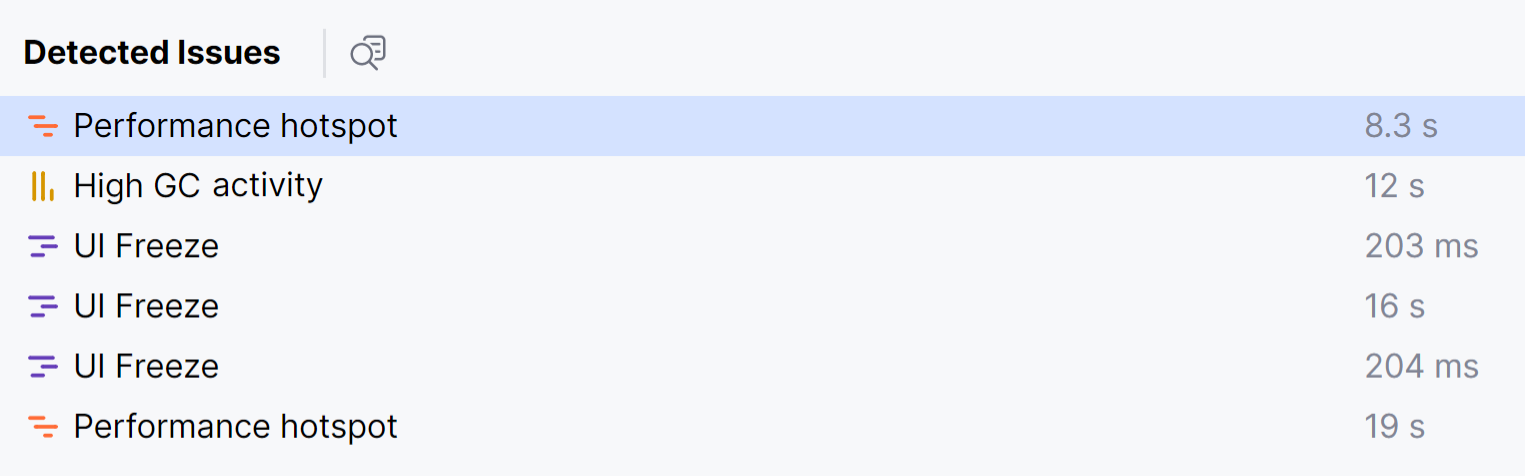
Windows では、監視ツールはアプリケーション内の様々な問題を自動的に検出できます。 検出された問題は、統合された dotTrace プロファイラーを使用して詳細に分析できます。
背景プロファイリング (Windows のみ)
Windows では、JetBrains Rider は ETW CPU サンプリングを使用して、実行中またはデバッグセッション中にバックグラウンドで詳細なパフォーマンスデータを収集します。 このプロセスは dotTrace のタイムラインプロファイリングに似ていますが、自動的に実行され、オーバーヘッドは最小限です。 収集されるデータには以下が含まれます。
メソッド実行時間を含むスタックトレース
メソッドアクティビティのタイムライン
割り当てやガベージコレクションなどの実行時イベント
バックグラウンドプロファイリングは通常、アプリケーションのパフォーマンスに 1 – 2% の影響のみをもたらします。 エッジケースでは、オーバーヘッドが最大 10% に達する可能性があります。 パフォーマンスの低下が発生した場合は、 の ETW CPU サンプリング チェックボックスをオフにしてください。
統合された dotTrace プロファイラー (下記参照)を使用してパフォーマンスデータを分析できます。 データの分析には dotUltimate ライセンスが必要ですためご注意ください。
検出された問題 機能もこのバックグラウンドプロファイリングデータによって強化されています。
監視データを分析する
統合された dotTrace プロファイラー (dotUltimate ライセンスが必要) を使用して、収集されたパフォーマンスデータを分析できます。
問題を分析する
リスト内の問題をダブルクリックするか、右クリックして 問題を分析する を選択します。
問題に関する詳細情報は、新しいエディタータブに表示されます。 検出された問題の分析について詳しくは
dotTrace の問題を分析する
リスト内の問題を右クリックし、 発行範囲を選択 を選択します。
グラフ タブの上にある
 選択した時間範囲を分析する ボタンをクリックします。
発行時間範囲が dotTrace ツールウィンドウに開き、呼び出しツリーとイベントデータが表示されます。 dotTrace を使用してデータを分析する方法を学ぶ
dotTrace の時間間隔を分析する
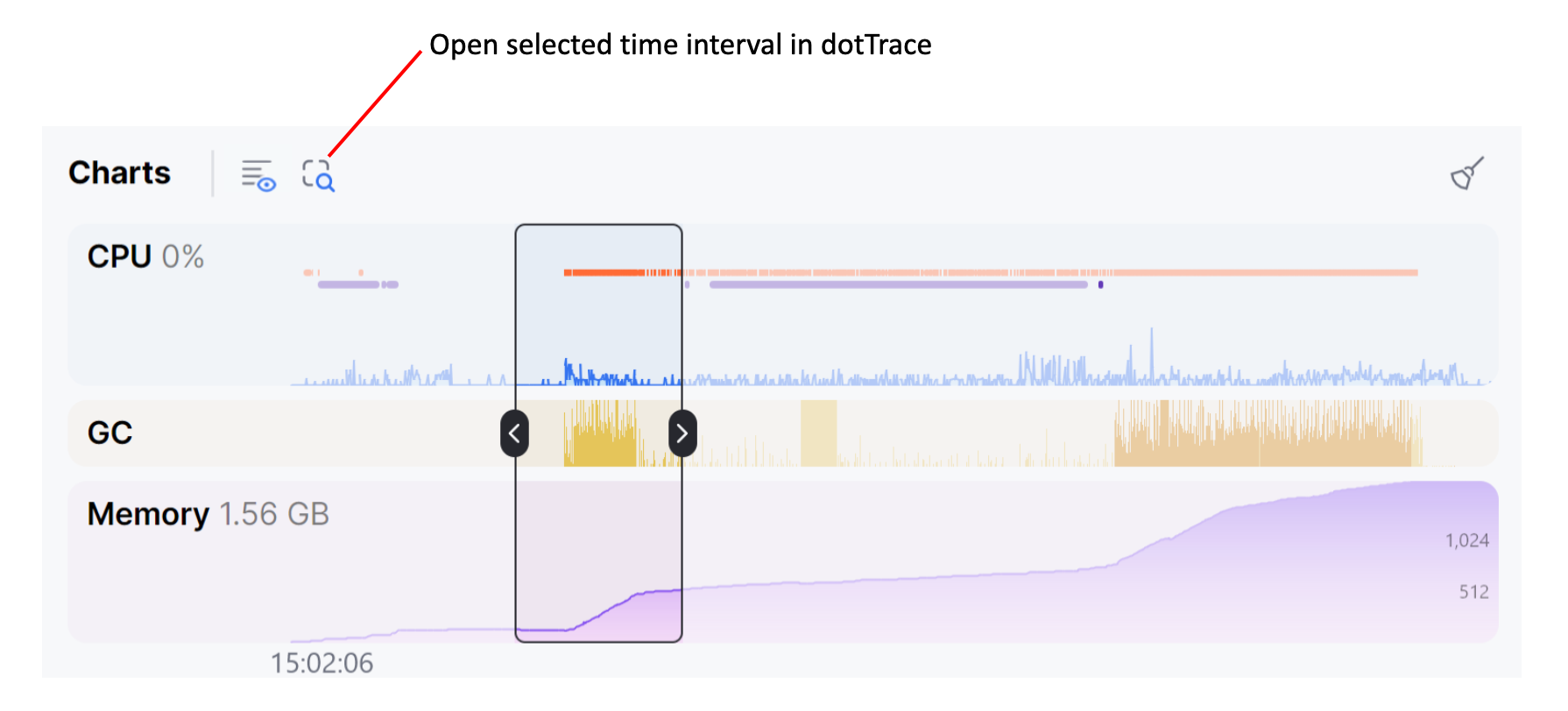
グラフをクリックして、分析する時間間隔を選択します。
グラフ タブの上にある
選択した時間範囲を分析する ボタンをクリックします。対応する時間範囲が dotTrace ツールウィンドウに開き、呼び出しツリーとイベントデータが表示されます。 dotTrace を使用してデータを分析する方法を学ぶ
dotTrace の全時間範囲を分析
グラフ タブの上にある
 全時間範囲を分析 ボタンをクリックします。
dotTrace ツールウィンドウが開き、実行またはデバッグセッション全体の呼び出しツリーとイベントデータが表示されます。 dotTrace を使用してデータを分析する方法を学ぶ
カウンタータブ
カウンター タブには、有効なすべてのカウンターおよびメトリクスプロバイダーのカウンターとその値が表示されます。
カウンター
.NET カウンターは、アプリケーションのパフォーマンスデータを取得する方法の 1 つです。 ほとんどの .NET システムアセンブリは、独自のカウンターセットを提供します。 たとえば、基本
System.Runtimeアセンブリには、CPU とメモリの使用状況、特定のヒープでのガベージコレクションの数、ロック競合数、スレッドプールキューの長さなどのカウンターが含まれています。Microsoft.AspNetCore.Hostingは、サーバーアプリケーションの監視に役立つカウンター (要求率、失敗した要求の数など) を提供します。 さらに、アプリケーションは、 EventCounters を使用して独自のカスタムカウンターを提供することができます。メトリック
メトリクスは、OpenTelemetry などのさまざまなサードパーティプロバイダーをサポートするアプリケーションデータを収集するためのより現代的な方法です。 .NET アセンブリも独自のメトリクスセットを提供します。 例:
Microsoft.AspNetCore.Hostingは、要求の期間と現在のアクティブな要求の数のメトリクスを提供します。 カウンターだけでなく、アプリケーションは独自のカスタムメトリクスを提供できます。
プロバイダーを追加または削除するには、 に移動し、 カウンタープロバイダー または メトリクスプロバイダー でプロバイダーのリストを構成します。 プロバイダーを追加する場合:
プロバイダーからのすべてのカウンター / メトリクスを追加するには、その名前を指定します(例:
MyProvider)プロバイダーから特定のカウンターやメトリクスを追加するには、次のフォーマットでプロバイダー名とカウンター/メトリクス名を指定してください:
ProviderName[CounterName1,CounterName2]。 例:OpenTelemetry.Instrumentation.Runtime[process.runtime.dotnet.gc.collections]
カウンターとメトリクスの値を更新する頻度 (秒単位) を定義するには、 の リフレッシュ間隔 パラメーターを使用します。
「環境」タブ
環境 タブには、アプリケーションの環境変数とシステムプロパティが表示されます。
監視モード
デフォルトでは、プロジェクトを実行またはデバッグすると自動的に監視が開始されます。 この動作は、 モニタリング ツールウィンドウ設定の モニタリングを有効化 セレクターで変更できます。
デバッグ時または実行時 – プロジェクトを実行またはデバッグすると、監視が自動的に開始されます。
デバッグ中 – 監視はプロジェクトをデバッグするときにのみ自動的に開始されます。
しない – 監視は無効になります。
プロファイリングデータを取得する
監視ツールで収集されたデータだけでは、アプリケーションのパフォーマンスを分析するには不十分な場合があります。 より詳細な分析を行うには、 モニタリング ウィンドウのツールバーからプロファイリングデータ (パフォーマンスプロファイリングセッションの開始やメモリスナップショットの取得など) を取得できます。
 スタックトレースを収集する – アプリケーションのスタックトレースを取得します。 スタックトレースは スタックトレースエクスプローラー で自動的に開かれます。 これは、予期しない UI フリーズが発生し、潜在的なスレッドロックを調査したい場合などに役立ちます。
 メモリスナップショットを取得する – アプリケーションのメモリスナップショットを即座に取得します。 スナップショットが収集されると、 dotMemory プロファイラーツールウィンドウで開かれます。
 サンプリングプロファイリングを開始する |
  タイムラインプロファイリングを開始する – タイムラインまたはサンプリングプロファイリングタイプを使用してパフォーマンスプロファイリングセッションを開始します。 プロファイリングデータの記録を停止し、パフォーマンススナップショットを保存するには、
  ボタンをクリックします。 収集されたスナップショットは、 dotTrace プロファイラーツールウィンドウで開かれます。