Coding assistance
ReSharper provides a variety of features to get additional info about code, select and highlight structural blocks of code, as well as apply local code transformations.
Syntax highlighting
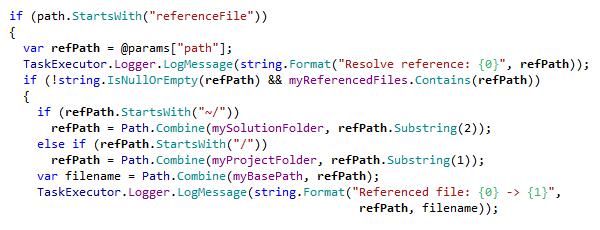
ReSharper extends the default highlighting support of Visual Studio with custom highlighting of code items in different languages. For example, you can easily distinguish between local variables and fields in your code. To switch on ReSharper's highlighting, go to and select Color Identifiers. The custom color for each item is configurable.
Context actions
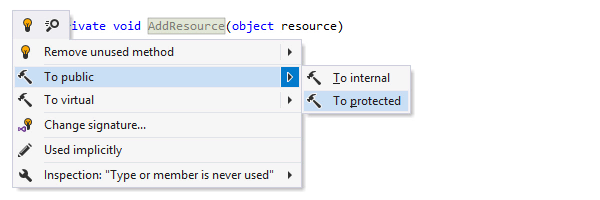
ReSharper's context actions save you a
lot of typing
by quickly introducing minor changes to the code under your caret - for example,
you can change access modifiers, generate code that checks for null,
convert foreach to for and back - all with a couple of
keystrokes.
If one or more context actions are available for the current caret position, ReSharper
displays the hammer icon
 :
you can either click the icon or press Alt+Enter to select an appropriate
action.
:
you can either click the icon or press Alt+Enter to select an appropriate
action.
Complete Statement
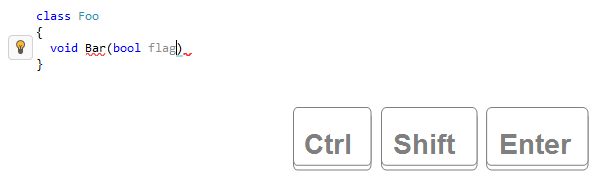
This feature inserts necessary syntax elements (braces, semicolons etc.) and sets you in position to start the next statement, saving you from excessive juggling with the caret. As you work, keep in mind the default shortcut for this feature: Ctrl+Shift+Enter.
Complete Statement (also known as Smart Enter) comes to rescue in numerous scenarios,
including auto-closing
parentheses, adding semicolons, completing if, while
and for statements, and so on.
Language injections
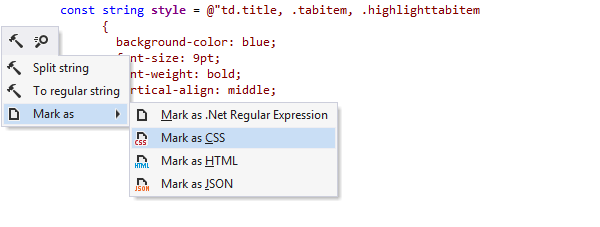
If a string literal contains some other formal language, ReSharper can provide code inspection, quick-fixes, code completion, context actions, and many other features specific to this language right inside this excerpt.
When a formal language inside a string literal cannot be detected automatically,
ReSharper allows you to manually mark the literal as containing specific language
using the Alt+Enter menu or by adding the following comment just
before the string literal: /*language=html|regexp*/
Regular expression assistance
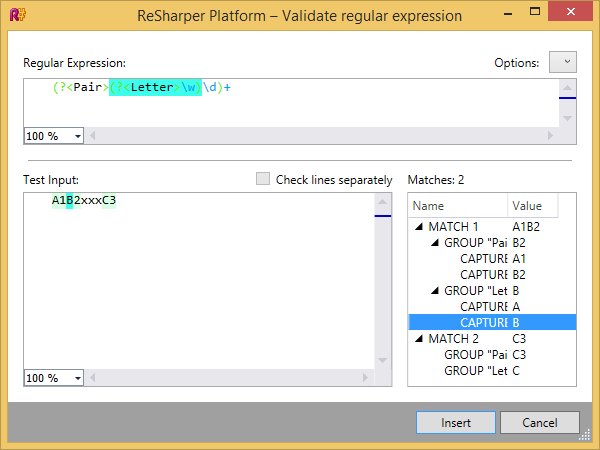
ReSharper provides a rich set of tools to work with regular expressions in C#. You can quickly analyze existing expressions, find and fix errors. When typing new expressions, ReSharper helps with automatic completion and validation.
You can choose in the menu to enter various sample strings and see how your regular expression matches these strings. Using this dialog, you can fix your expression and make sure that you get the expected match.
Parameter Info
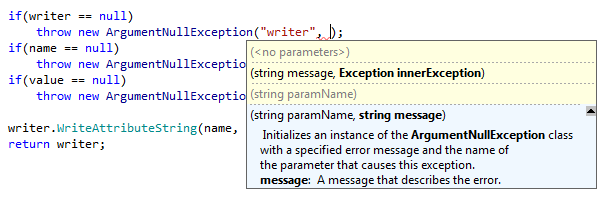
This part of Visual Studio's IntelliSense is also extended in ReSharper. When you call a method, Parameter Info shows you all available method signatures and parameters with relevant documentation in a tooltip. The tooltip appears automatically while you type, or you can display it by pressing Ctrl+Shift+Space. While you are adding new arguments, ReSharper grays out any signatures that become incompatible.
Highlighting matching delimiters
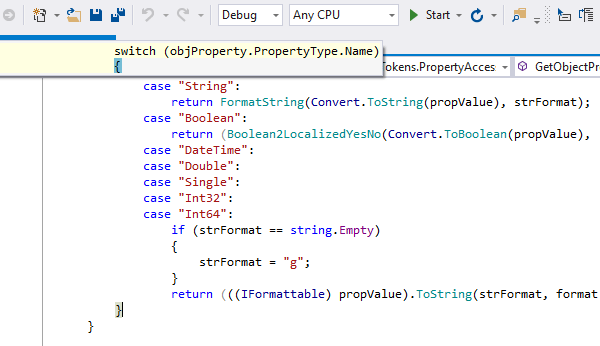
In C#, whenever you place the caret immediately before/after a closing parenthesis/bracket/brace, the matching opening character is highlighted, and vice versa (this option is configurable).
In VB.NET, the matching Sub or Function
is highlighted when the caret is placed anywhere within or after
End Sub
or End Function. The
matching keyword and its line are highlighted whenever you place the caret within
the
opening keyword (again,
you can fine-tune this feature).
In XML, matching tags are unobtrusively highlighted, letting you see the
tag structure.
If a matching piece of code scrolls off the screen, an
appropriate
pop-up
appears for your
convenience.
Importing namespaces
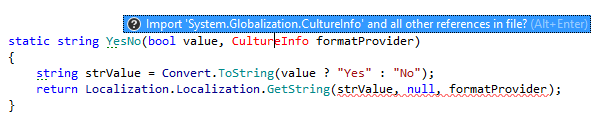
When a type name cannot be resolved because you forgot to issue the corresponding namespace import directive in the source code, a small pop-up appears to suggest one or more types to import. Simply press Alt+Enter, and the appropriate namespace import directive will be inserted automatically. Also, you will not lose your current caret position.
For markup files in web applications, ReSharper is able to auto-import user controls (ascx files) based on their usages.
Auto-insertion of delimiters
When you type (, [, ", or
' in
the
editor, a paired character is inserted
automatically (whenever appropriate). This feature may be easily switched off, but you
shouldn't be afraid of
inserting too many closing parentheses, brackets, or quotes by mistake: if the closing
parenthesis or quote
already exists, ReSharper will not add the second one.
In XML, as soon as you type
an
opening quote or
bracket, the closing one appears automatically.
Duplicating line or selection
Quickly duplicate any line (block) of code by placing the caret at this line in the editor (or, respectively, selecting a block) and pressing Ctrl+D.
Code reordering
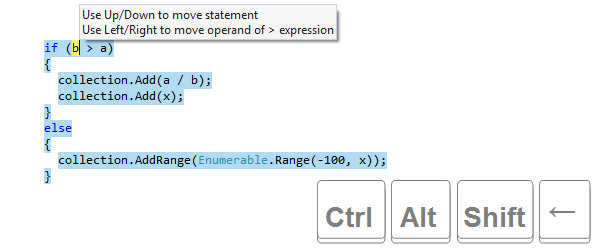
ReSharper allows you to quickly change the order of code elements with the press of a key — well, four keys: Ctrl+Shift+Alt+Up/Down/Left/Right. In particular, you can move members up and down, reorder parameters and arguments, move statements within a block, move statements out of or into a block, move XML tags up and down, as well as XML attributes left and right, and so on.
Quick Documentation
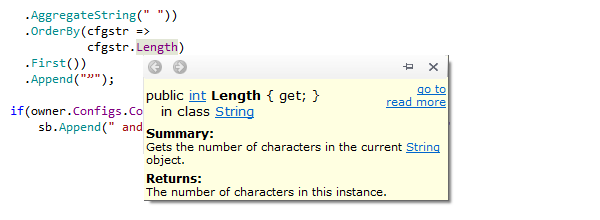
To see the documentation for a certain class, method/function or other symbol right in the editor, position the caret on a code symbol and press Ctrl+Shift+F1. The documentation shows in a pop-up window with clickable links to other resources, most notably MSDN documentation.
Commenting/uncommenting code
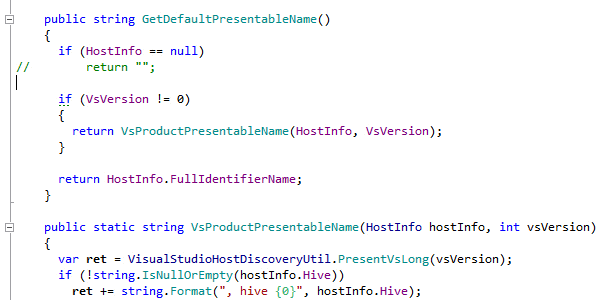
Promptly comment or uncomment any block of code by selecting it in the editor and pressing Ctrl+Alt+/ (for line comment) or Ctrl+Shift+/ (for block comments).
You can also use Ctrl+Alt+/ to quickly comment or uncomment the line of
code
where the caret is located in the editor if no block code has been selected. In the
same
circumstances, pressing
Ctrl+Shift+/ inserts the opening block comment (/*) and the
closing block comment (*/) immediately before and immediately after the
caret
position,
or removes them if the caret is positioned inside the commented code block.
Extending/shrinking selection
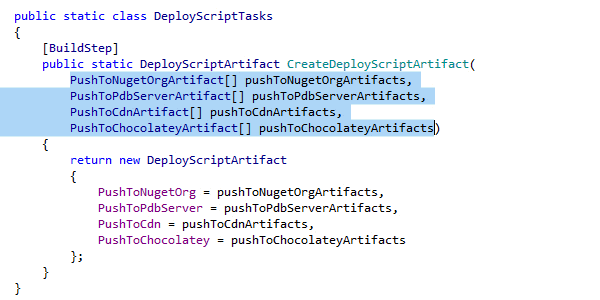
The Extend Selection feature helps successively select expanding blocks of code. That is, you can easily select any expression in the code by placing the caret somewhere inside it and pressing Ctrl+Alt+Right a few times. Shrink Selection works in the opposite way and can be applied by pressing Ctrl+Alt+Left.
You can also quickly select the member that your caret is on, or even its containing type, by pressing Ctrl+Shift+[.
Splitting string literals
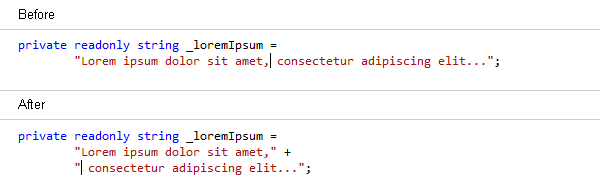
When you have to type lengthy string literals, ReSharper helps you split them into several lines by adding the necessary quotation marks and plus characters: while the caret is within a string literal, press Enter or Shift+Enter to split the string without breaking its value.
Pasting items from clipboard history
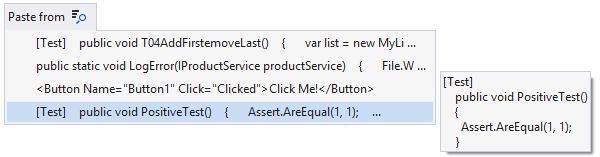
ReSharper provides a special Paste command accessible by pressing Ctrl+Shift+V, which lets you access your clipboard history and quickly paste any of the recent items copied from Visual Studio to the clipboard. ReSharper starts recording copied items to its clipboard history as soon as you start Visual Studio and clears the history when you close it.
Note on shortcuts
All keyboard shortcuts provided in this page are available in ReSharper's default "Visual Studio" keymap. For details on ReSharper's two keymaps, see ReSharper Documentation.