General
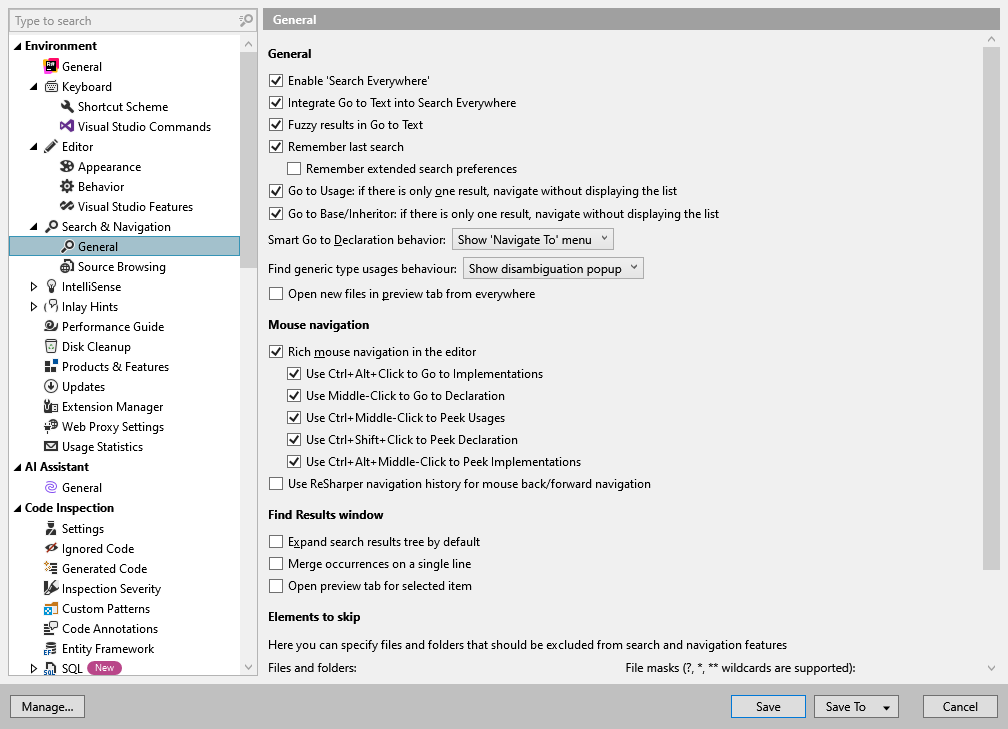
This page of ReSharper options allows you to adjust ReSharper's features related to navigation & search.
General
Enable 'Search Everywhere' | If this checkbox is selected, the Search Everywhere/Go to Type command searches for types, symbols, and files; otherwise, it only searches for types. |
Integrate Go to Text into Search Everywhere | By default, navigation to text is integrated into Search Everywhere Control+N — ReSharper will show textual occurrences matching the query string at the bottom of the result list, after all matching types, symbols, and files. You can disable this behavior by clearing this checkbox. If this option is disabled, you can navigate to text by pressing Control+N three times. |
Fuzzy results in Go to Text | When this checkbox is selected, Go to Text (Control+N 3 times) takes into account various typos and missing words. Otherwise, only direct matches will ge listed in the results. |
Remember last search | ReSharper can remember the last input that you used to find something with Search Everywhere/Go to Type, Go to Symbol, Go to File, and Go to Text actions. When this option is selected, ReSharper will also use your current selection in the editor as the initial search query. For example, you can select a filename in a string and then press Shift+Control+N to search for files in your solution that match this name. |
Remember extended search preferences | Select this option to remember search command options, such as Include library types in Go to Symbol, Include base members in Go to File Member, and Match case in Go to Text. |
Go to Usage: if there is only one result, navigate without displaying the list | If this checkbox is selected and a single usage is found by the Go to Usage feature, the pointer is transferred to the usage right away. |
Go to Base/Inheritor: if there is only one result, navigate without displaying the list | If this checkbox is selected and a single occurrence is found by either Go to Base Symbols or Go to Derived Symbols, the pointer is transferred to the occurrence right away. |
Open new files in preview tab from everywhere | If this checkbox is selected, every time a navigation or search command opens a new document, it opens in the Preview tab. The Preview tab must be also enabled in Visual Studio options: |
Smart Go to Declaration behavior | Use this selector to choose how the Go to declaration command Control+B behaves when the caret is already on a declaration. You have the following options:
|
Find generic type usages behavior | This selector allows you to choose how the Find Usages feature searches for generic type usages. When searching for usages of generic types such as |
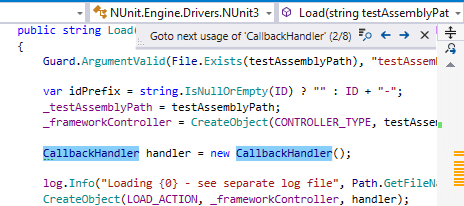
.png "ThemedIcon.SearchResults.Screen.(Gray).png") , press
, press .png "ThemedIcon.ErrorStripeFindNext.Screen.(Gray).png") icon at the top of the
icon at the top of the Mouse navigation
Rich mouse navigation in the editor | If this checkbox is selected, you can navigate to declaration of a symbol by Ctrl-clicking any of its usages in the editor.  The main menu command and the Control+B shortcut stay available regardless of this setting. |
Use Ctrl+Alt+Click for Go to Implementation | If this checkbox is selected, you will be able to navigate to implementation of a symbol by Ctrl+Alt-clicking symbols. Note that in Visual Studio 2017 and later, the Ctrl+Alt-click is used for adding multiple carets. So you may want to disable this option if you use Visual Studio's multi-caret features. The main menu command and the Control+Shift+Alt+B shortcuts stay available regardless of this setting. |
Use Middle-Click to Go to Declaration | If this checkbox is selected, you can navigate to declaration of a symbol using the middle mouse button. |
Use Ctrl+Middle-Click to Peek Usages | If this checkbox is selected, you will be able study symbol usages in the Peek Definition view by Ctrl-clicking the middle mouse button on its declaration or any of its usages in the editor. |
Use Ctrl+Shift+Click to Peek Declaration | If this checkbox is selected, you will be able to open the declaration of a symbol in the Peek Definition view by Ctrl+Shift-clicking any of its usages in the editor. |
Use Ctrl+Alt+Middle-Click to Peek Implementations | If this checkbox is selected, you will be able to open implementations of a symbol in the Peek Definition view by Ctrl+Alt-clicking the middle mouse button on its declaration or any of its usages in the editor. |
Use ReSharper navigation history for mouse back/forward navigation | When this checkbox is selected, the Back and Forward mouse buttons will be working according to the history of ReSharper navigation and search command. Visual Studio's native navigation commands are not recorded in this history, but ReSharper's commands are recorded in Visual Studio navigation history, so if you navigate using both ReSharper and Visual Studio commands, do not select this checkbox. This option only affects mouse navigation; ReSharper history navigation actions () and Visual Studio's history navigation actions on the toolbar are available independently of this option. |
Find Results window
Expand search results tree by default | If this checkbox is selected, whenever a ReSharper search feature (for example Find Usages or Structural Search and Replace) derives results that can be presented as a tree structure, all branches of that tree are expanded in the Find Results window. |
Merge occurrences on a single line | If this checkbox is enabled, several search matches on the same line are displayed as a single result in the search results list in the Find Results window. |
Open preview tab for selected item | If this checkbox is selected, the files are opened in the Preview tab when you double-click the results in the Find Results window. |
Elements to skip
In this section, you can specify a list of files, folders or file masks that will be ignored by navigation and search commands.
You can use Ant-style wildcards in file masks:
?to match a single character excluding directory separators*to match zero or more characters excluding directory separators**to match any number of characters including directory separators/or\to match directory separators regardless of the OS path format
For example a pattern **Test?\**.* will match the following files:
C:\Projects\MyTestX\data\file_one.txt
/home/projects/TestY/file_two.xml
But not:
C:\Projects\Test\data\file_one.txt
/home/projects/TestY/file_two