Run, debug, terminate tests
Run tests directly in a file or folder
If your tests do not require any specific actions before start, and you do not want to configure additional options, such as code coverage, you can run them by using the following options:
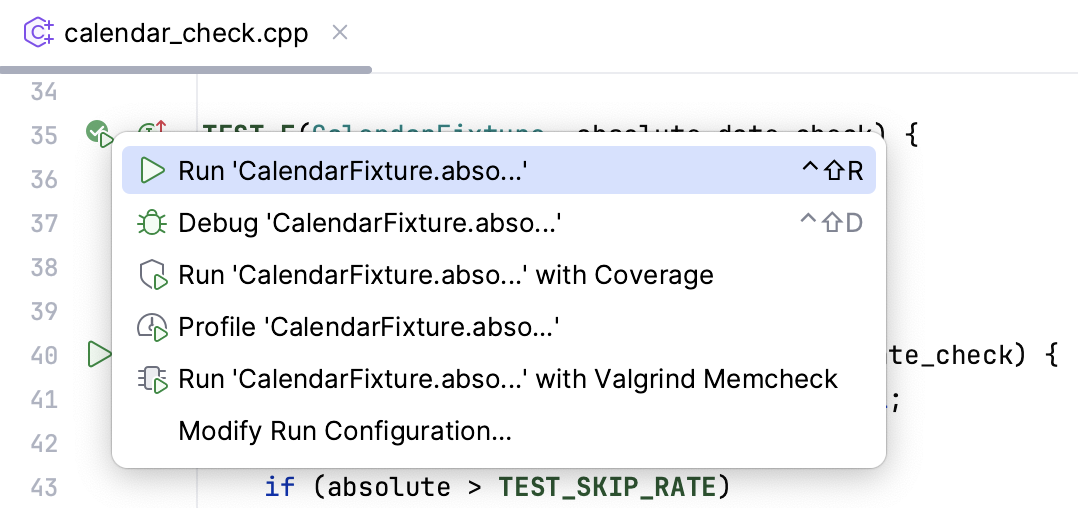
Click the gutter icon next to the test or test suite/fixture.
The gutter icon changes depending on the state of your test:
The
 gutter icon marks a set of tests.
The
 gutter icon marks new tests.
The
 gutter icon marks successful tests.
The
 gutter icon marks failed tests.
Run tests using the Run widget
Create a new test configuration or save a temporary one.
Use the Run widget on the main toolbar to select the configuration you want to run.
Click
or press Shift+F10.
Run tests from the Commit tool window
If you made changes to your test classes and want to run them before committing, you can do it from the Commit tool window. You can choose whether to run a single test class, multiple classes, or all uncommitted test classes under a directory, module, or changelist.
Go to the Commit tool window (Alt+0).
Right-click a test class, directory, module, or changelist, and select
Run '<Test Class Name>'.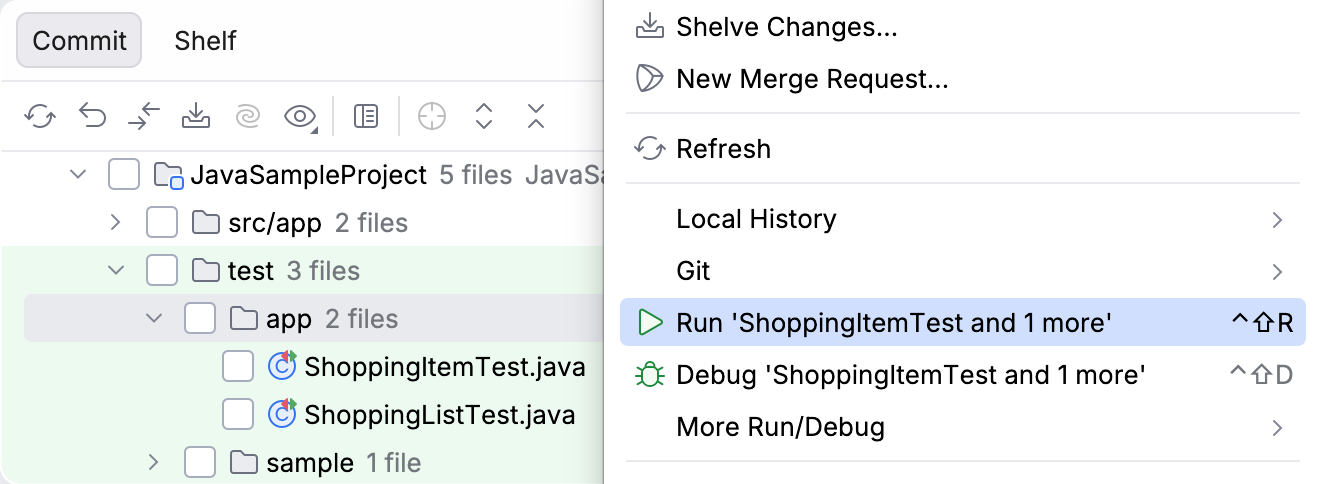
As a result, CLion creates and launches a temporary run configuration for your test selection. If you want to rerun the same tests in the future, you can save this configuration in the run widget and then customize its settings.
After CLion finishes running your tests, it shows the results in the Run tool window on the tab for that run configuration. For more information about analyzing test results, refer to Explore test results.
Stop tests
Use the following options on the Run toolbar of the tab for the run configuration:
Click
 or press Ctrl+F2 to terminate the process immediately.
Rerun tests
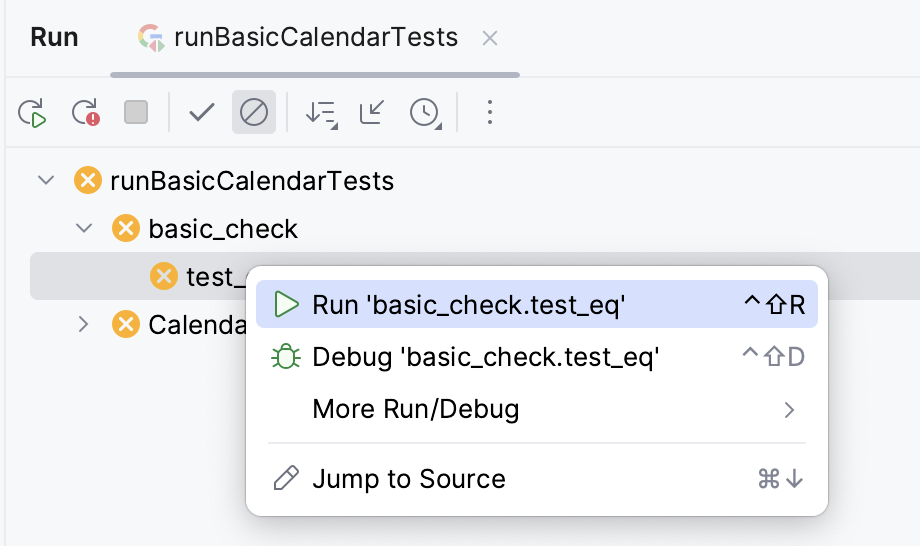
Rerun a single test
Right-click a test on the tab for the run configuration in the Run tool window and select Run 'test name'.
Rerun all tests in a session
Click
 on the Run toolbar or press Ctrl+F5 to rerun all tests in a session.
Rerun failed tests
You can rerun and debug tests that failed in your last test run without having to rerun the tests that passed.
To rerun failed tests, go to the Run tool window's toolbar and click
 Rerun Failed Tests.
To debug failed tests, hold Shift while clicking
Rerun Failed Tests and select  Debug in the popup that appears.
Debug tests
In the editor, click the gutter on the line where you want to set a breakpoint.
Right-click the
gutter icon next to the failed test and select Debug 'test name'.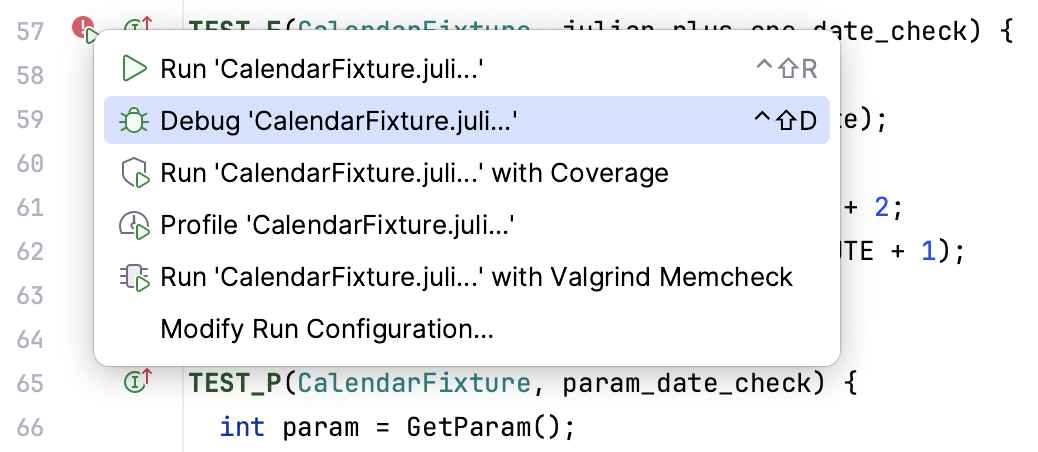
Alternatively, use the context menu of the test in the Test runner window:
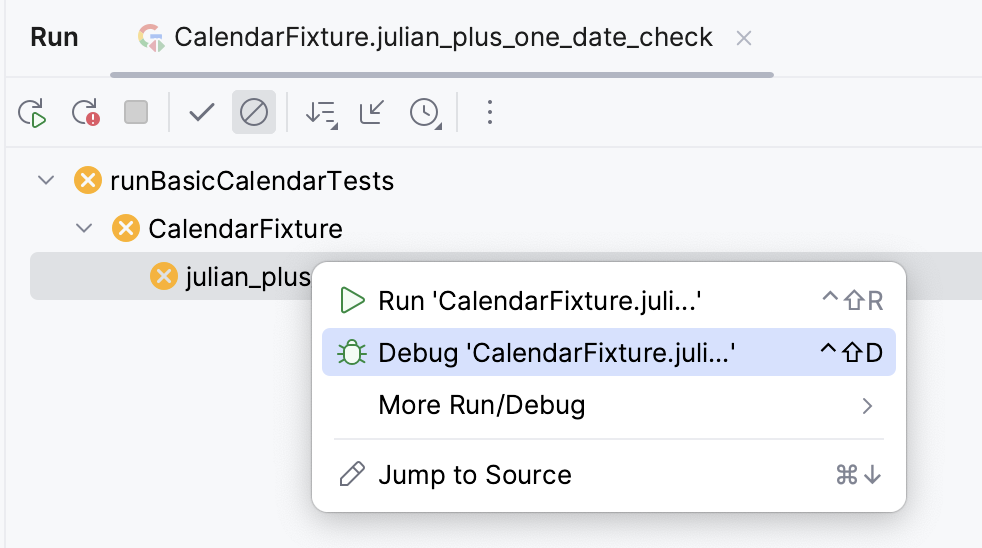
The test will rerun in debug mode. After that, the test will be suspended, allowing you to examine its current state.
You can step through the test to analyze its execution in detail.