Project analysis
CLion analyzes your project files to enable such features as finding usages, navigation, code completion, code generation, and refactorings.
CLion triggers this process after you open or clone a new project, enable or disable plugins, and switch between branches. It is also triggered after large external file updates (for example, if multiple files are created or generated when you build your project).

While the analysis is in progress, smart IDE features might be unavailable or partially available.
Tracking the project analysis progress
While project analysis is running, you can track its progress in the status bar, which is located at the bottom of CLion.
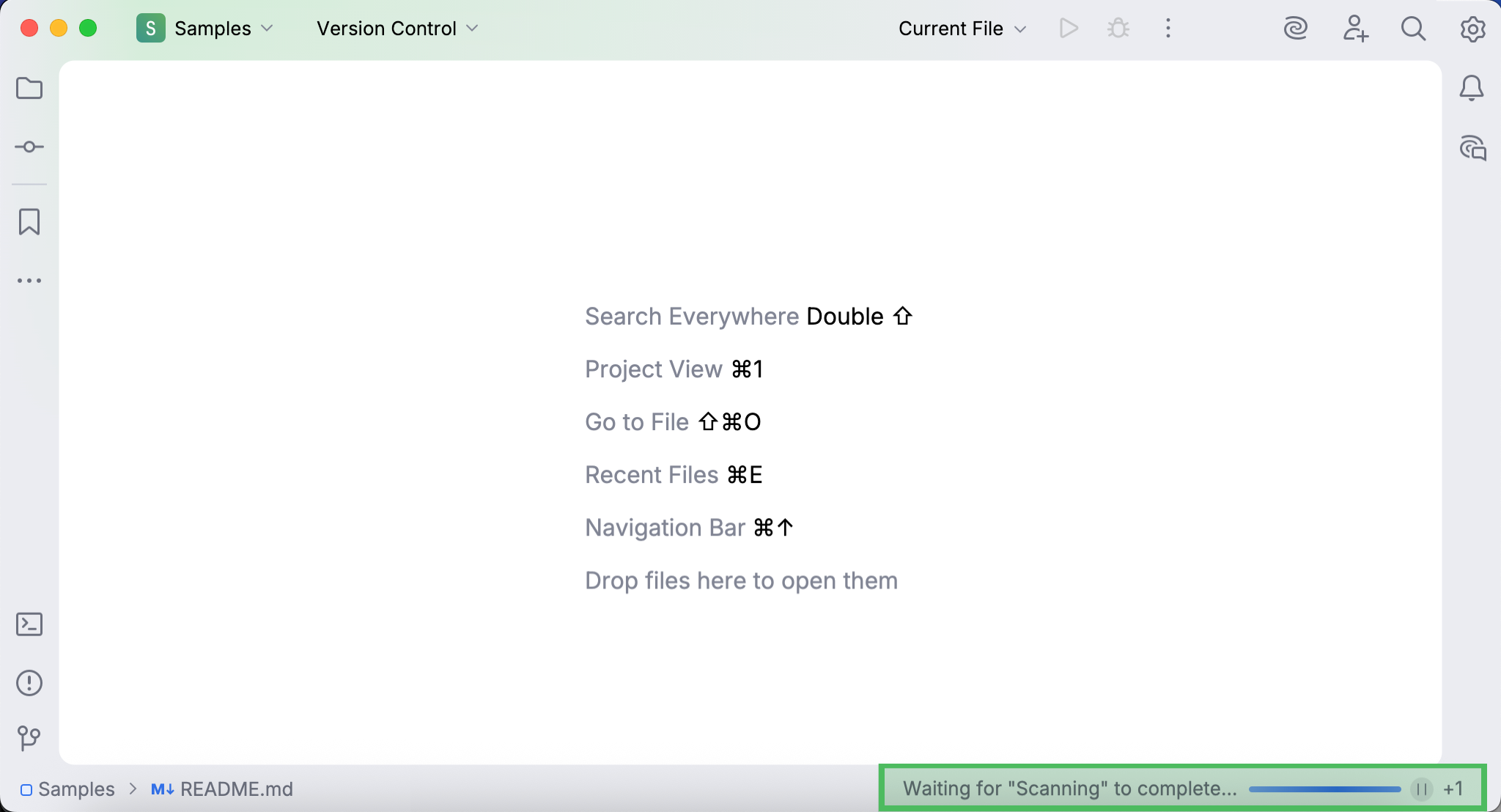
If you click the status bar, the Processes dialog opens, where you can find processes that are currently in progress or in queue.
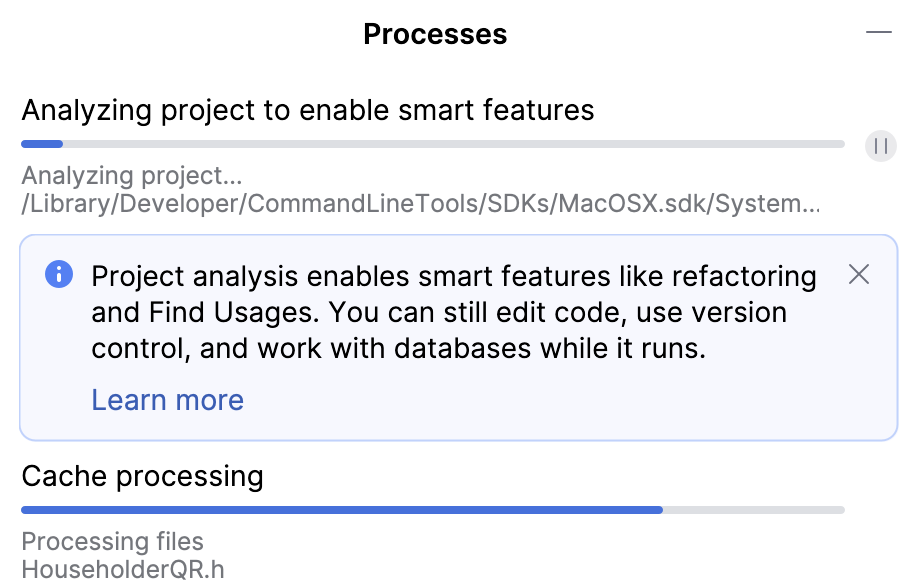
The main processes of project analysis include:
Scanning files: checking which files should be analyzed. This process cannot be paused or canceled.
Analyzing project to enable smart features: examining and indexing the file contents. This process can be paused (and resumed), but not canceled.
You can check the state of each process below its progress bar. When all processes of project analysis are completed, CLion clears the status bar. This indicates that smart IDE features (such as coding assistance and finding usages) are ready to use.
Reducing the project analysis time
The amount of time it takes to analyze your project depends on its size: the more complex your project is, the more files it contains, and the more time the IDE needs to analyze it. You can reduce the project analysis time by excluding items.
Exclude from project analysis
Your project may contain files for which you don't need the features which depend on project analysis: for example, logs, binaries, or imported libraries.
In such cases, to reduce the analysis time, you can mark the files as plain text and directories as excluded or libraries.
Exclude a file from project analysis
If you don't need specific files, but you don't want to completely remove them, you can temporarily exclude these files from the project. Excluded files are ignored by code completion, navigation, and inspections.
To exclude a file, you need to mark it as a plain text file. You can always return excluded files to their original state.
Go to the Project tool window (Alt+1).
Right-click a file and select .
Plain text files are marked with the
 icon.
icon.
To revert the changes, right-click the file and select Revert File Type Override. from the menu.
Exclude a directory from project analysis
If you don't want CLion to analyze a certain directory of your project, do the following:
In the Project tool window, right-click the directory you want to exclude and select :
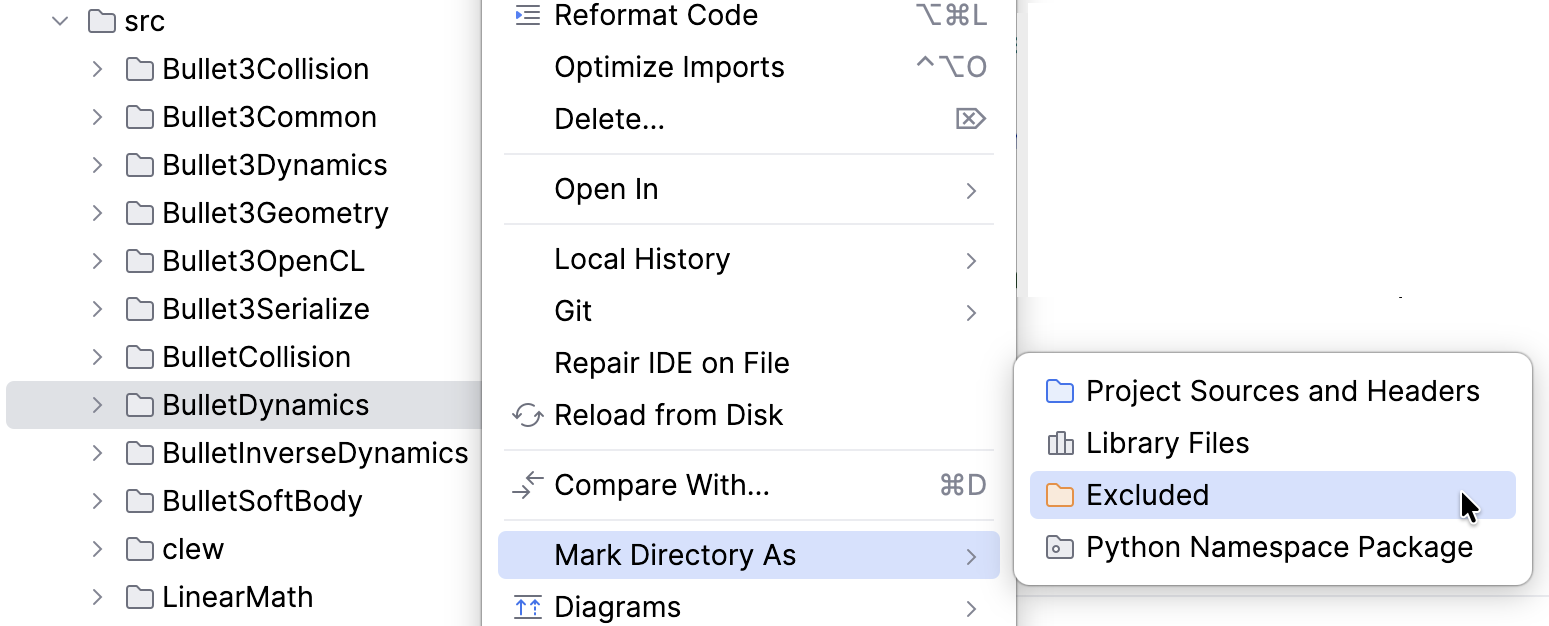
Code generation, code completion, and refactorings won't be available for this directory. The files won't appear in search results unless you select this directory explicitly in the Find in Files dialog Ctrl+Shift+F. The directory is marked as excluded  .
.
To include the directory back again, right-click it and select .
Exclude a library from project analysis
In the Project tool window, right-click the directory with the library files, and select :
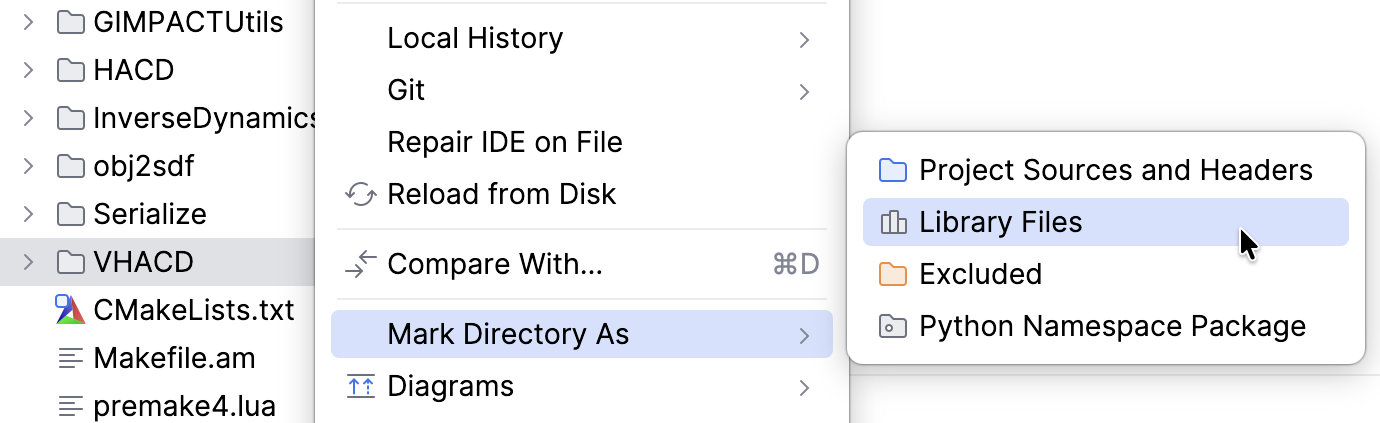
Code generation, code completion and refactorings won't be available for this directory. However, you can make these files available in search results:
In Find in Files dialog Ctrl+Shift+F: narrow down your search by selecting the Project and Frameworks scope.
When searching everywhere (press ⇧ twice): check Include non-project items or select Project and Frameworks from the list in the top right corner of the window.
To unmark the directory, right-click it and select .