Release notes
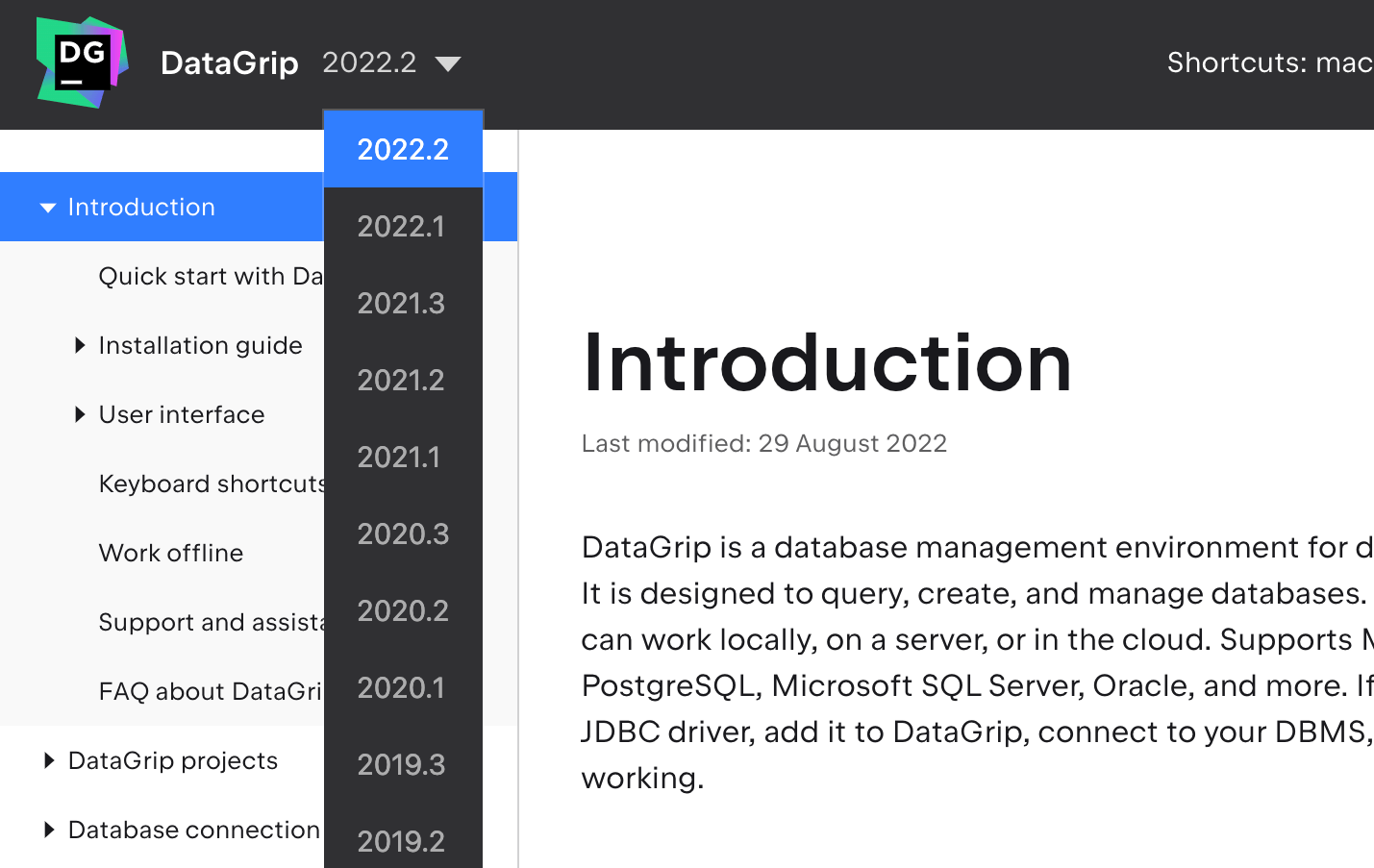
This section lists functionality added to DataGrip in the current release. To view release notes for other DataGrip versions, click the version switcher on the help site and select the version that you need.
Query files and consoles
New flow for creating a query file
It is now possible to work with query files and query consoles side by side. You can use either or both of them, depending on your tasks and workflow.
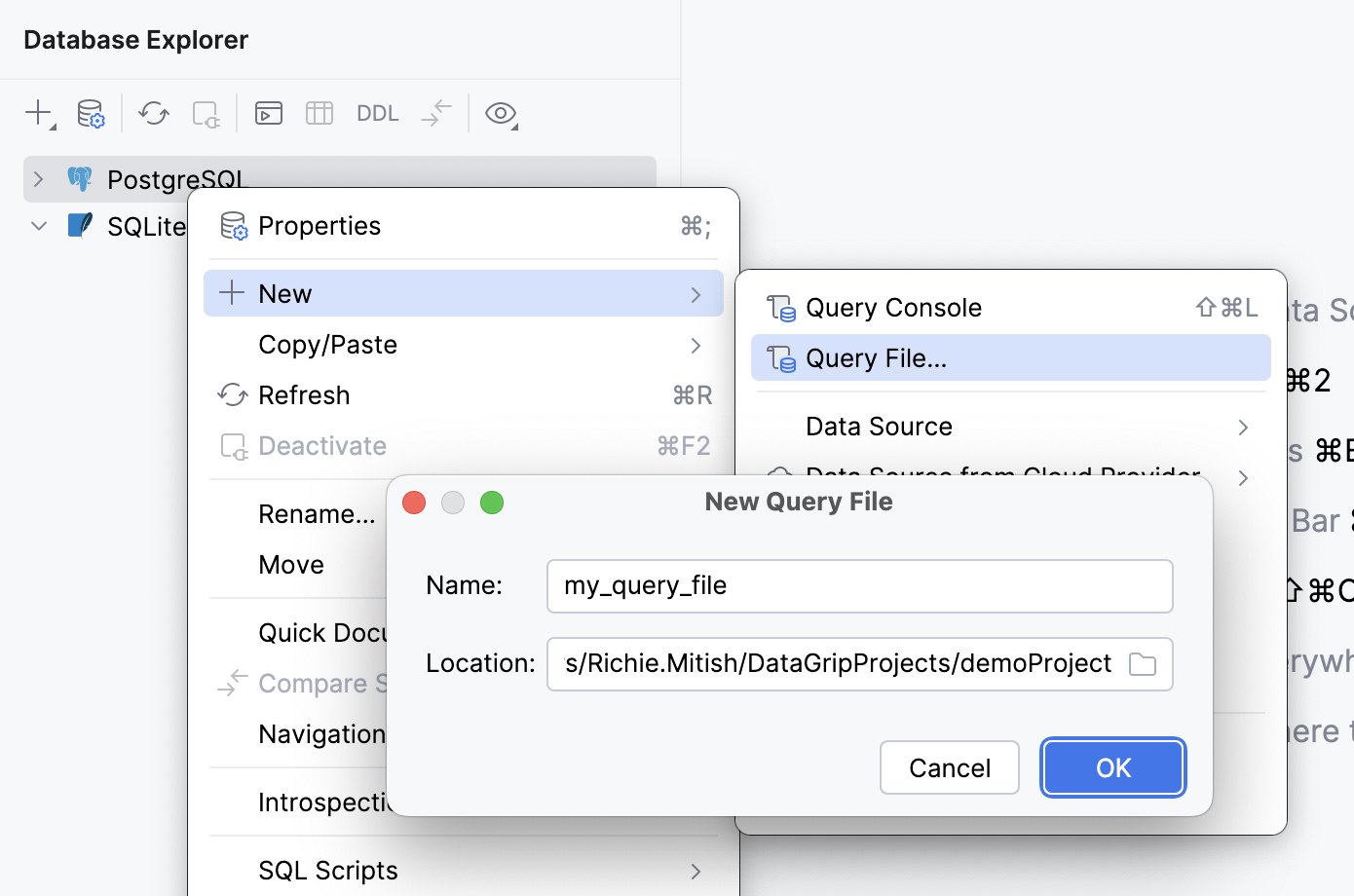
Now, to create a new query file, right-click a data source and select . Then, in the New Query File, specify the file name and the directory where you want to store your file. To store it within the current project and associate the file with it, specify the current project directory or its subdirectory.
Query Files folder in the database explorer
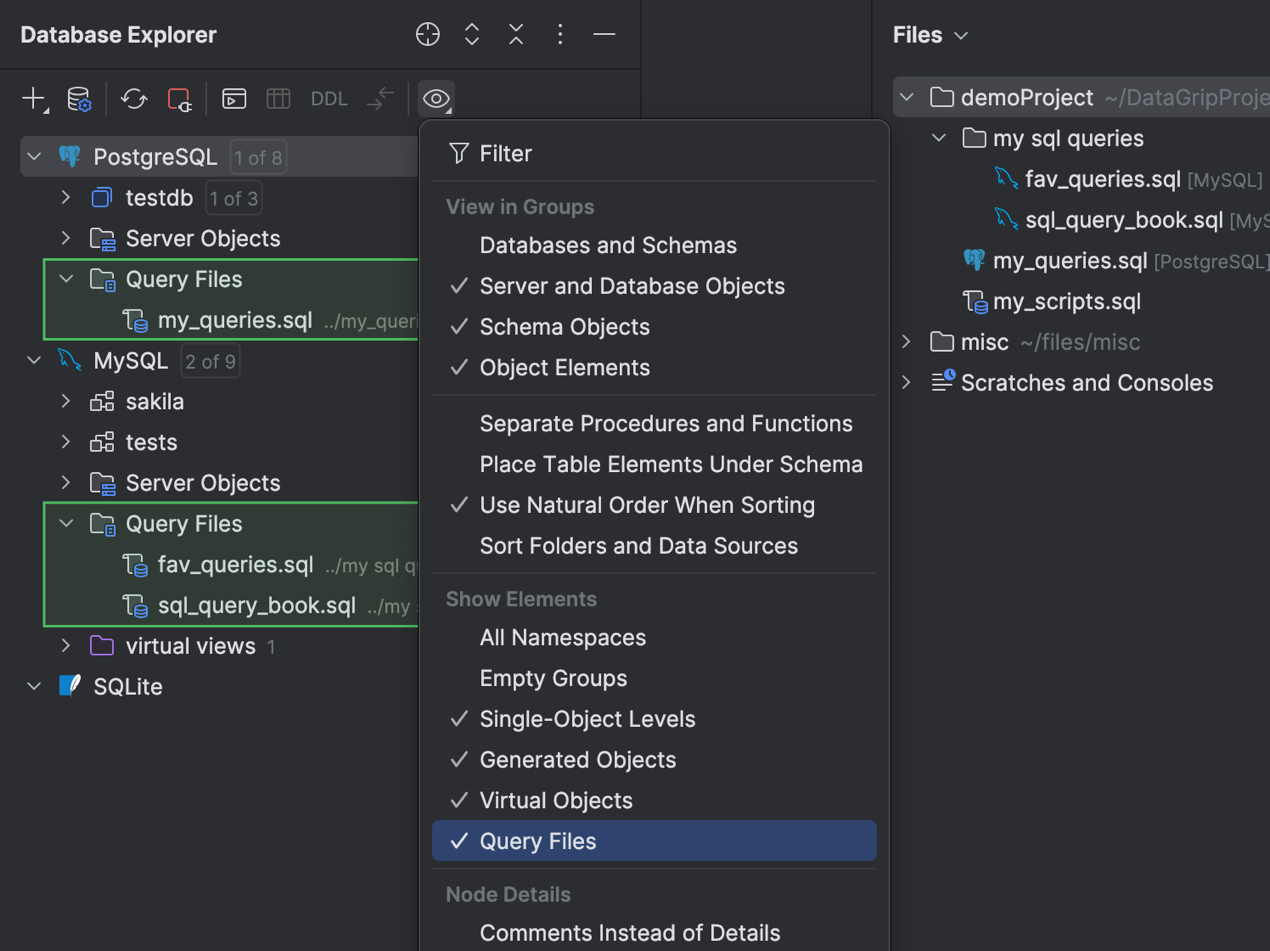
You can access your query files in Database Explorer. We have added the Query Files folder that appears under each data source node. To toggle this folder's visibility, click View Options on the tool window toolbar, and then select or deselect the Query Files option.
Various options for tailoring files display
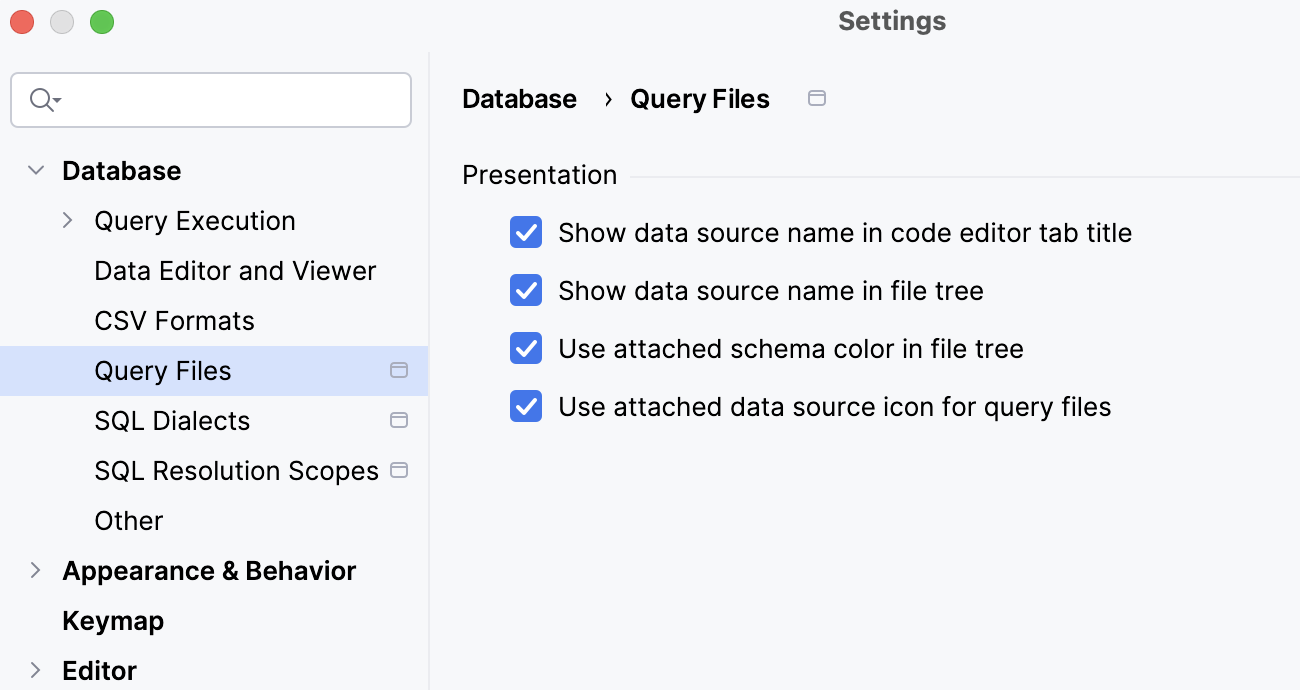
Several display settings have been implemented. With these settings, you can toggle data source name display, apply schema color, and use the icon of the attached data source with your query files.
AI
Files are created with the SQL dialect and data source attached
When chatting with AI Assistant in the AI Chat tool window, you can create a file from a code snippet.
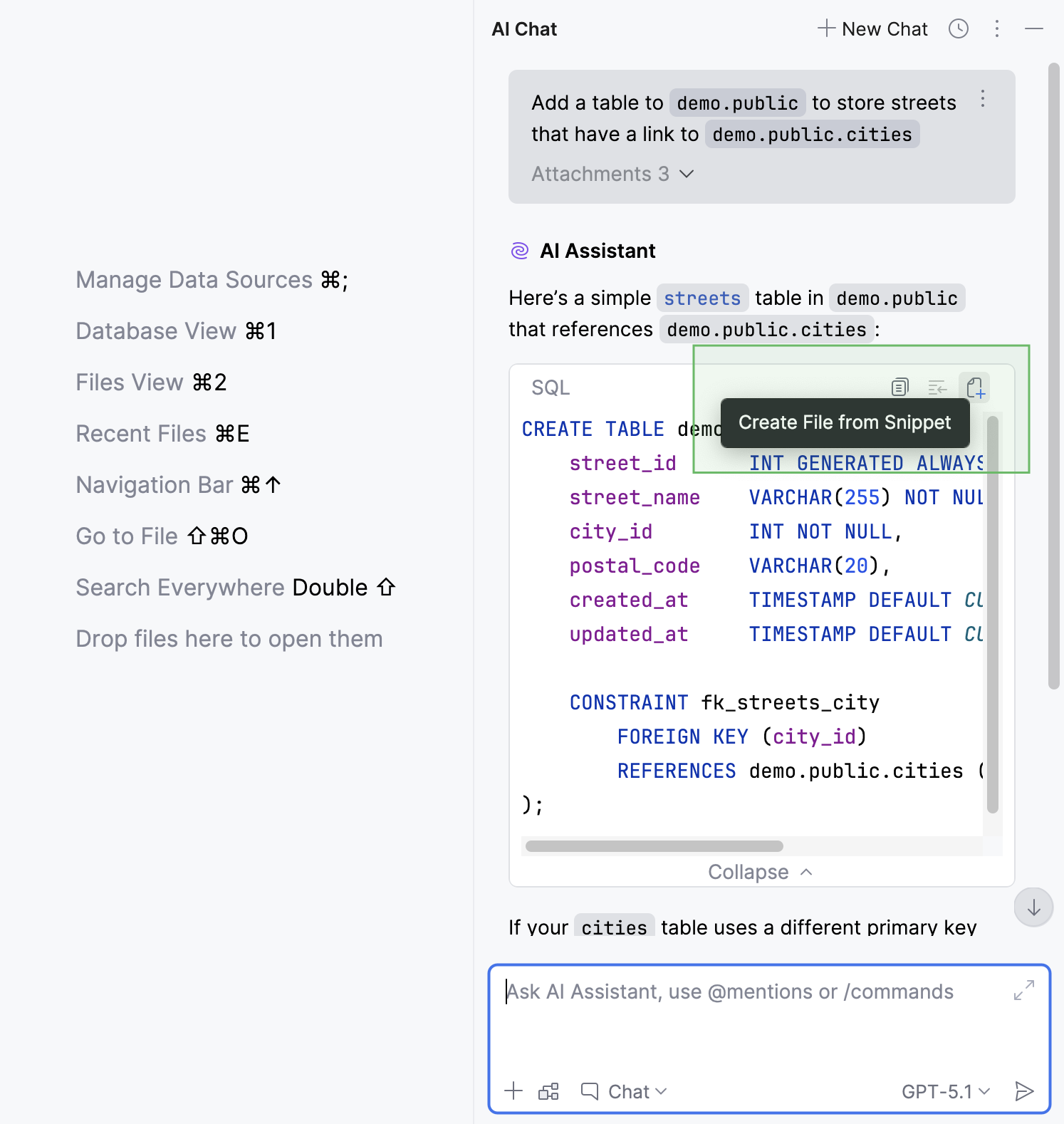
If there is any context about the SQL dialect, data source, or schema provided in the chat, DataGrip will attach it to the new file will automatically. If you are asking something about a file with an attached data source, DataGrip will attach the same data source to the newly created file.
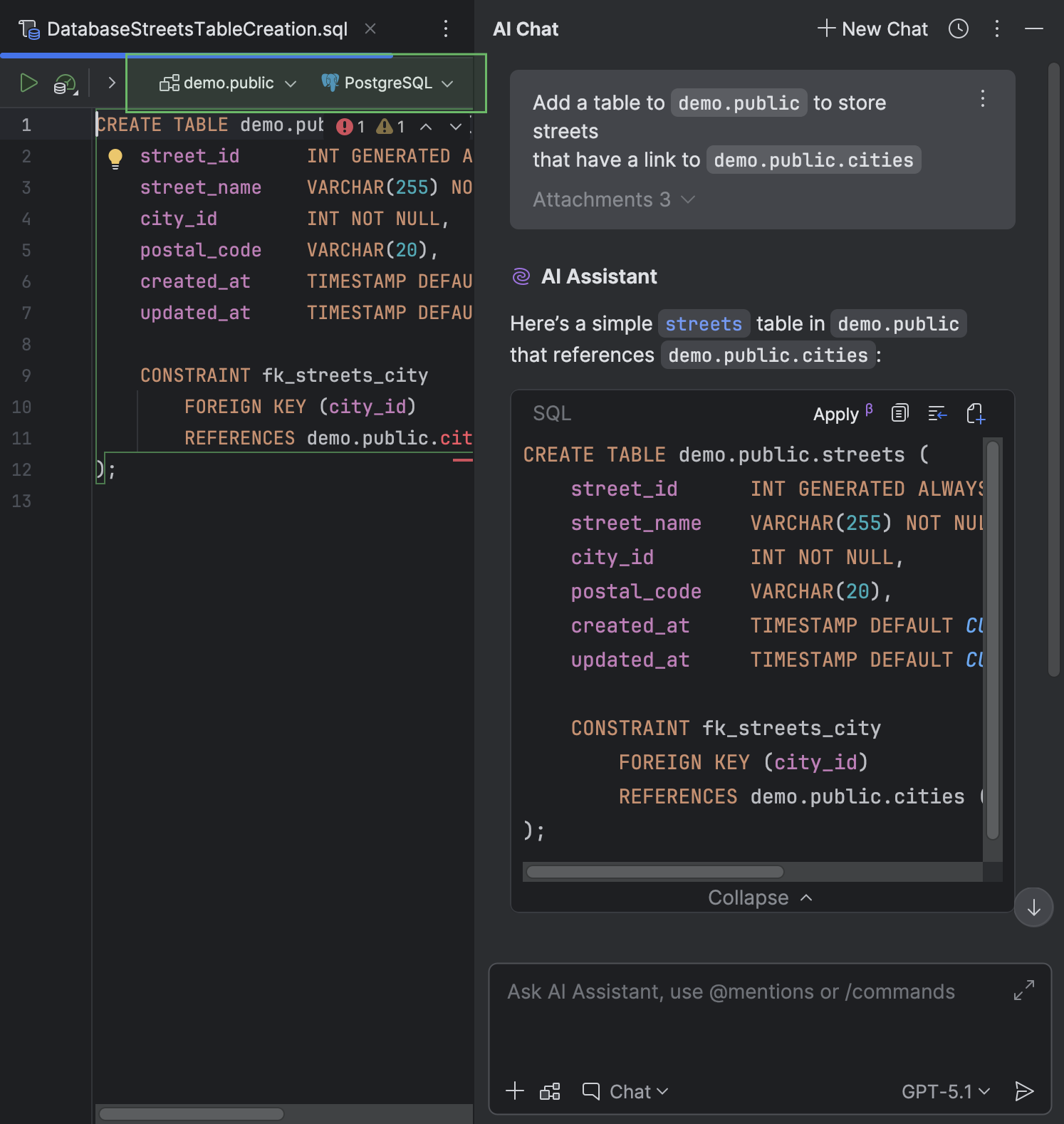
DataGrip will store the created file in the current project directory.
AI agents integration into the AI chat
Claude Agent and Codex are now natively integrated in the AI chat interface. This makes it easier to get the right kind of assistance for every task.
Find more information about the integration in JetBrains AI blog posts: Introducing Claude Agent in JetBrains IDEs and Codex Is Now Integrated Into JetBrains IDEs.
Database-specific capabilities for the MCP server
We have extended the MCP Server with database-specific functionalities. With this enhancement, built-in AI agents and third-party tools can work with databases in a more structured way.
The new capabilities include:
Obtain connection configurations and test them.
List database schemas.
Retrieve supported schema object types (such as tables and views) and browse schema objects.
View recent and currently running SQL queries.
Execute and cancel running SQL queries.
Preview table data and get result sets in CSV format.
For security, four types of user consent are required by default:
Schema access requests.
Data access requests.
Schema modification requests.
Data modification requests.
The IDE will ask for your consent when permission is required. You can change your consent preferences in the IDE settings under .
To guarantee strictly read-only access for an AI agent, use a database user with properly restricted (read-only) privileges and configure the data source to use that user.
Currently, Codex requires a manual configuration to work with database-specific tools For more information about the configuration, refer to AI Assistant documentation.
Connectivity
Data source templates
DataGrip now offers a way to store data source settings as a template in your JetBrains Account. When stored this way, the template is available in every JetBrains IDE with database functionality that you are signed in to with your JetBrains Account. These templates store all the data source settings but exclude your database credentials.
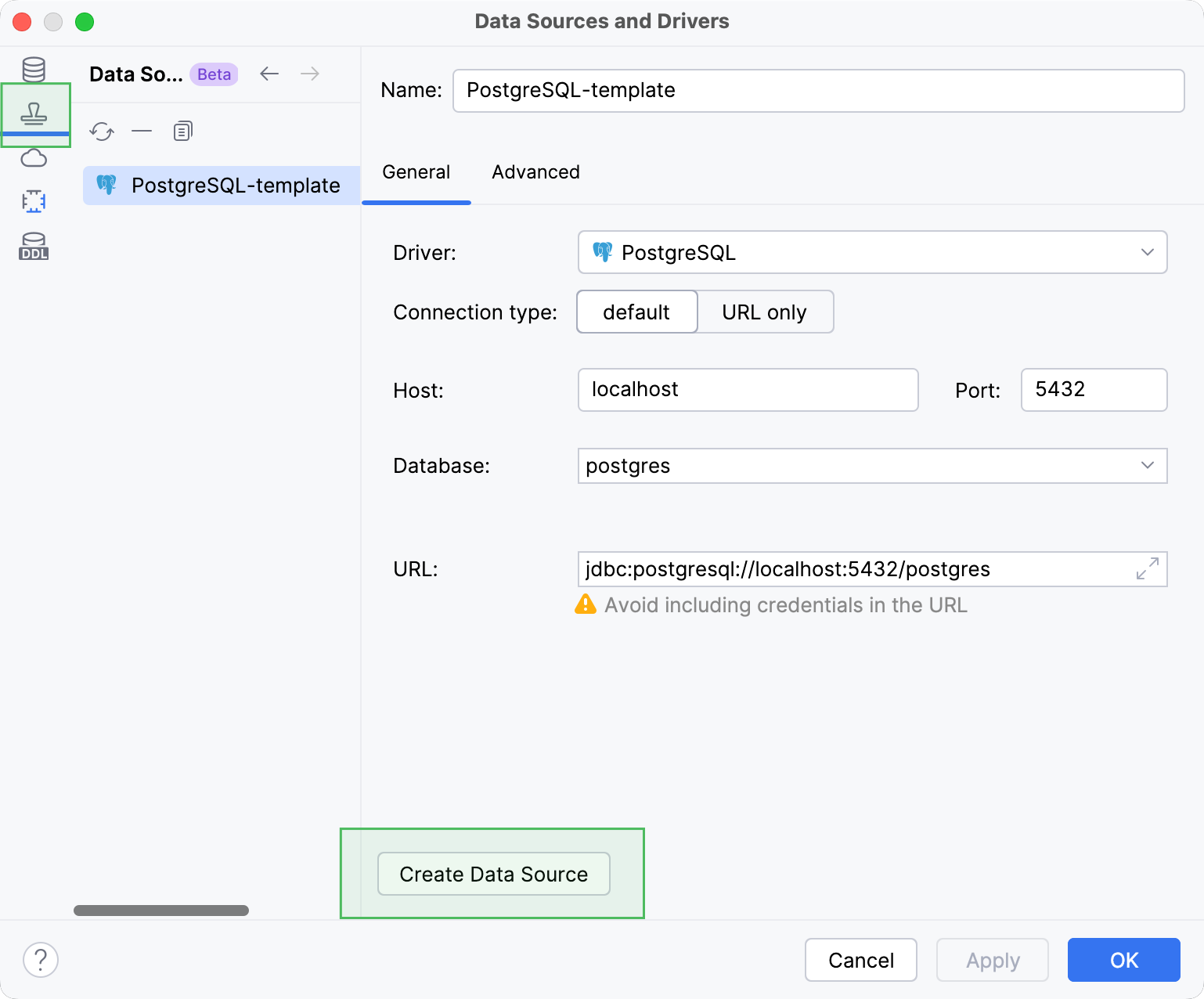
You can create a template in the Data Source and Drivers dialog. On the Data Sources tab, select the data source you want to create a template from and click Save as template.
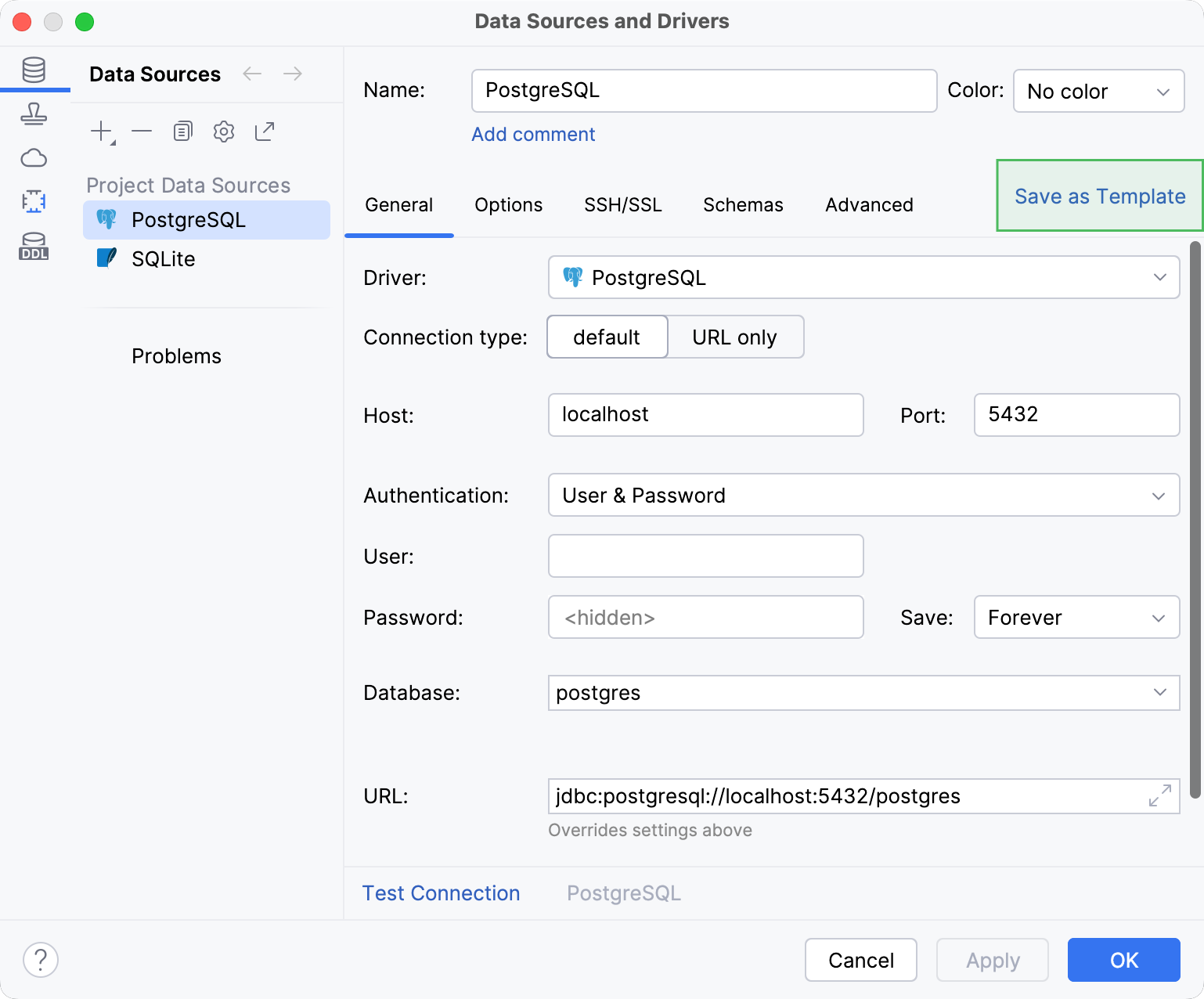
The new template will appear on the Data Source Templates tab. You can create a new data source using the template at any time using the Create Data Source button.
[PostgreSQL] PostgreSQL 18 support
DataGrip now supports PostgreSQL 18 that was released last year. Full support includes the following keywords and commands among the others:
OLDandNEWresolution in theRETURNINGclauses.WITHOUT OVERLAPSin primary and unique constraints.PERIODin foreign key constraints.GENERATED ALWAYS AS (...) [STORED | VIRTUAL]for columns.NOT ENFORCEDandNOT VALIDconstraints.
Data Source and Drivers dialog improvements
We have made a few changes to the Data Sources and Drivers dialog (Ctrl+Alt+Shift+S) .
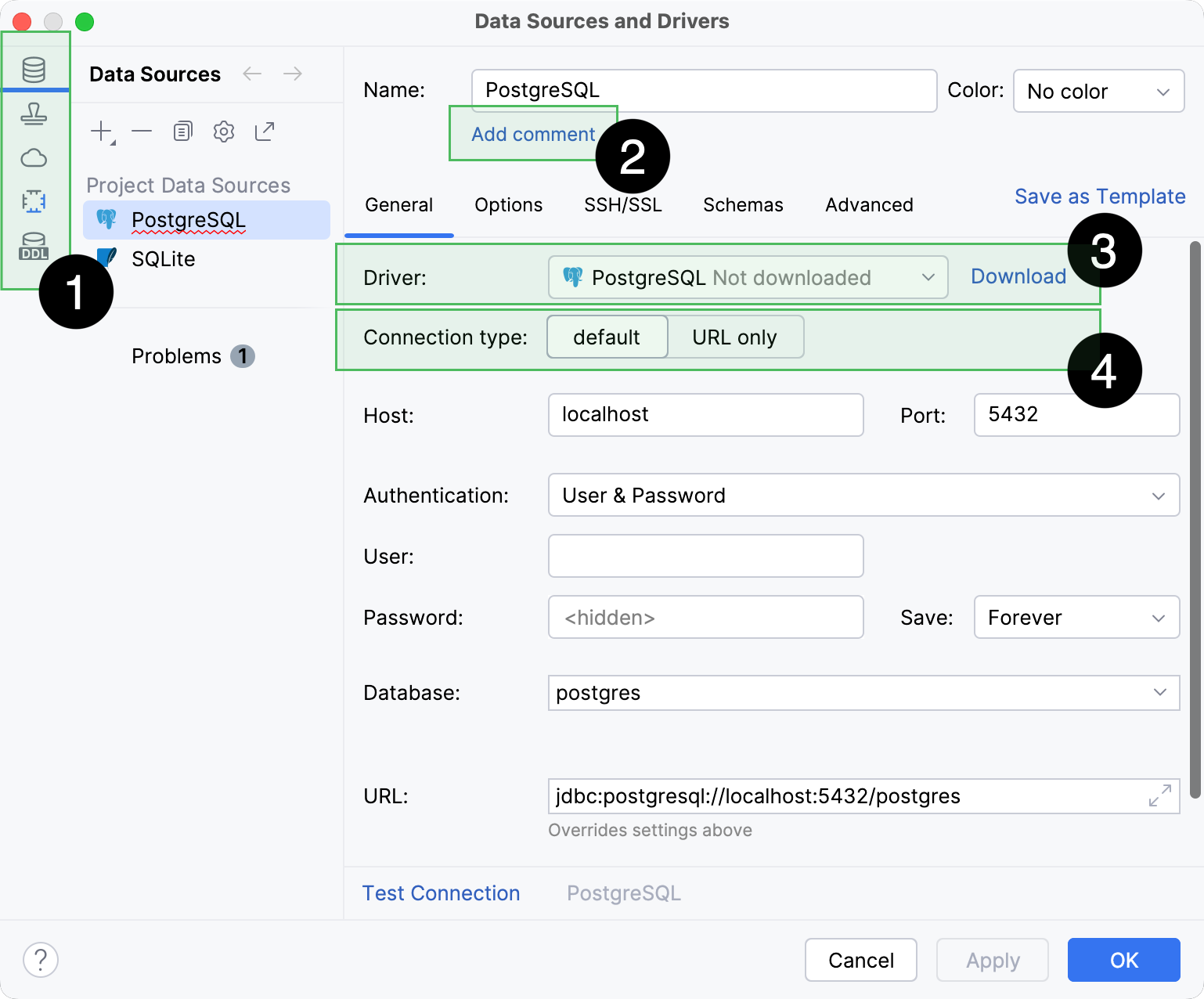
The Data Sources, Clouds, Drivers, DDL Mappings sections are now the main tabs in the dialog, located on the left-hand side.
If the Comment field is empty, it is hidden by default. To display it, click Add Comment next to the Name field.
For the Driver dropdown, if the selected driver has not been downloaded, DataGrip shows a corresponding comment. To download the driver, click Download near the dropdown.
The Connection type dropdown options are now tabs. If a data source has more than three connection types, they are displayed as a dropdown.
Also, the Create DDL Mapping action has been removed. You can create a DDL mapping on the DDL Mappings main tab.
Explain Plan
UI and UX improvements
We have made a few updates to the Explain Plan workflow to make it more discoverable, informative, and easy to use. Here are the improvements:
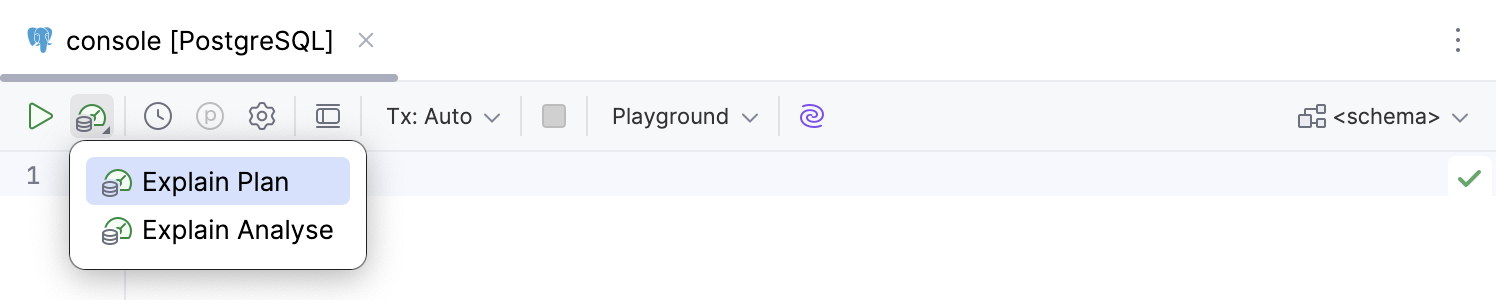
The list of options in the Explain Plan dropdown on the code editor toolbar has been shortened. Now it only has Explain Plan and Explain Analyse on it.
In the Services tool window, the Query Plan tab that displays the plan has been moved to the same level as Output and Result tabs. It also has a new icon now.
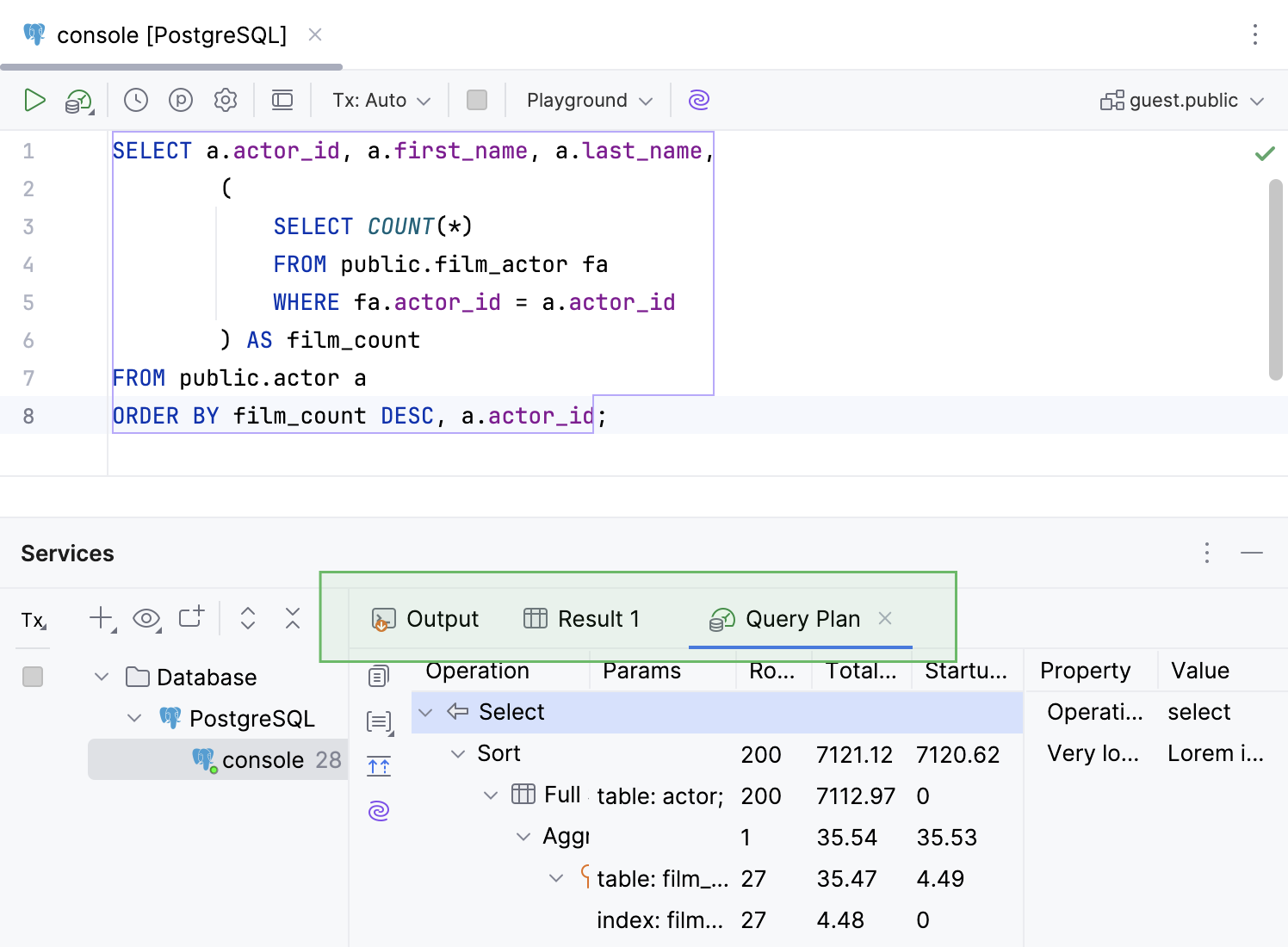
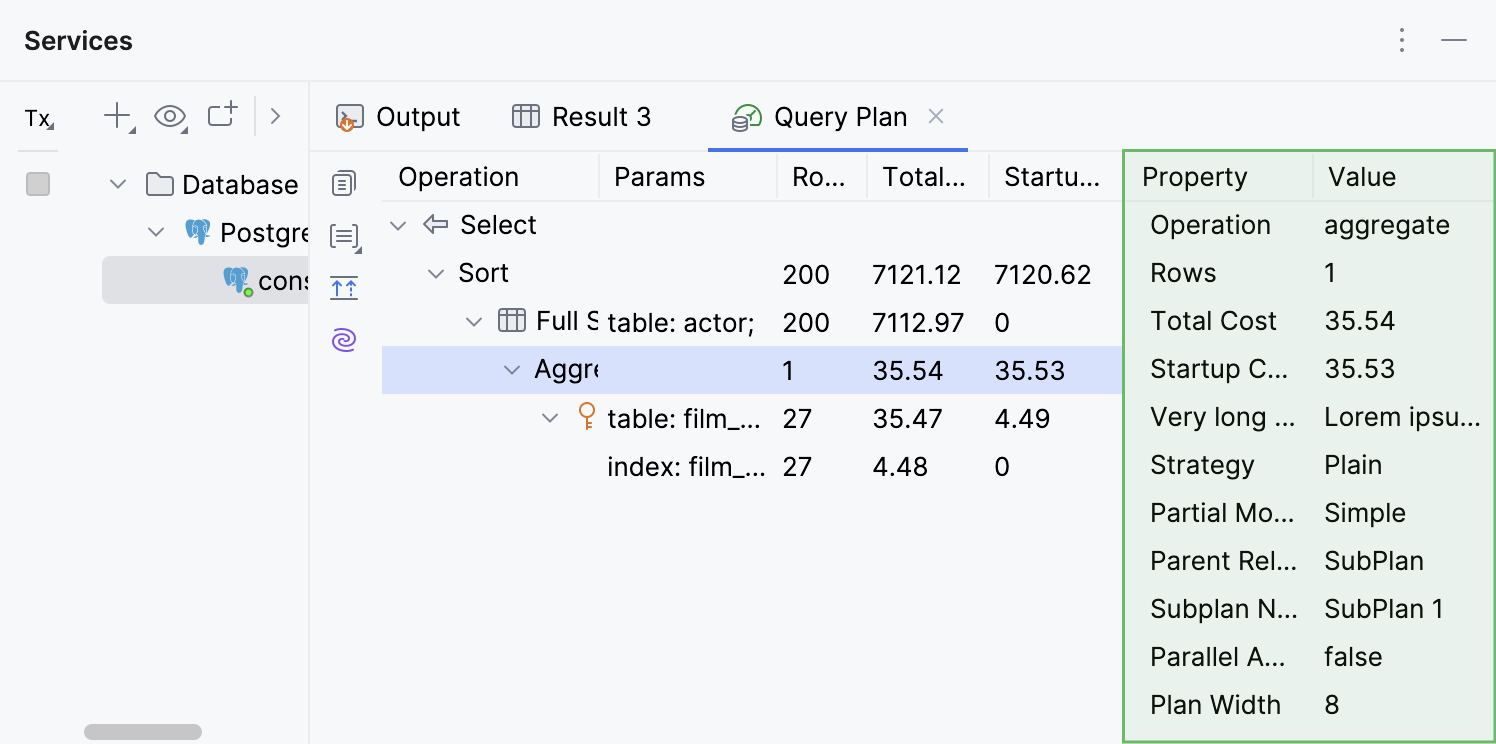
In the Query Plan tab, you can now view details of each plan row in a separate panel on the right-hand side of the tab.
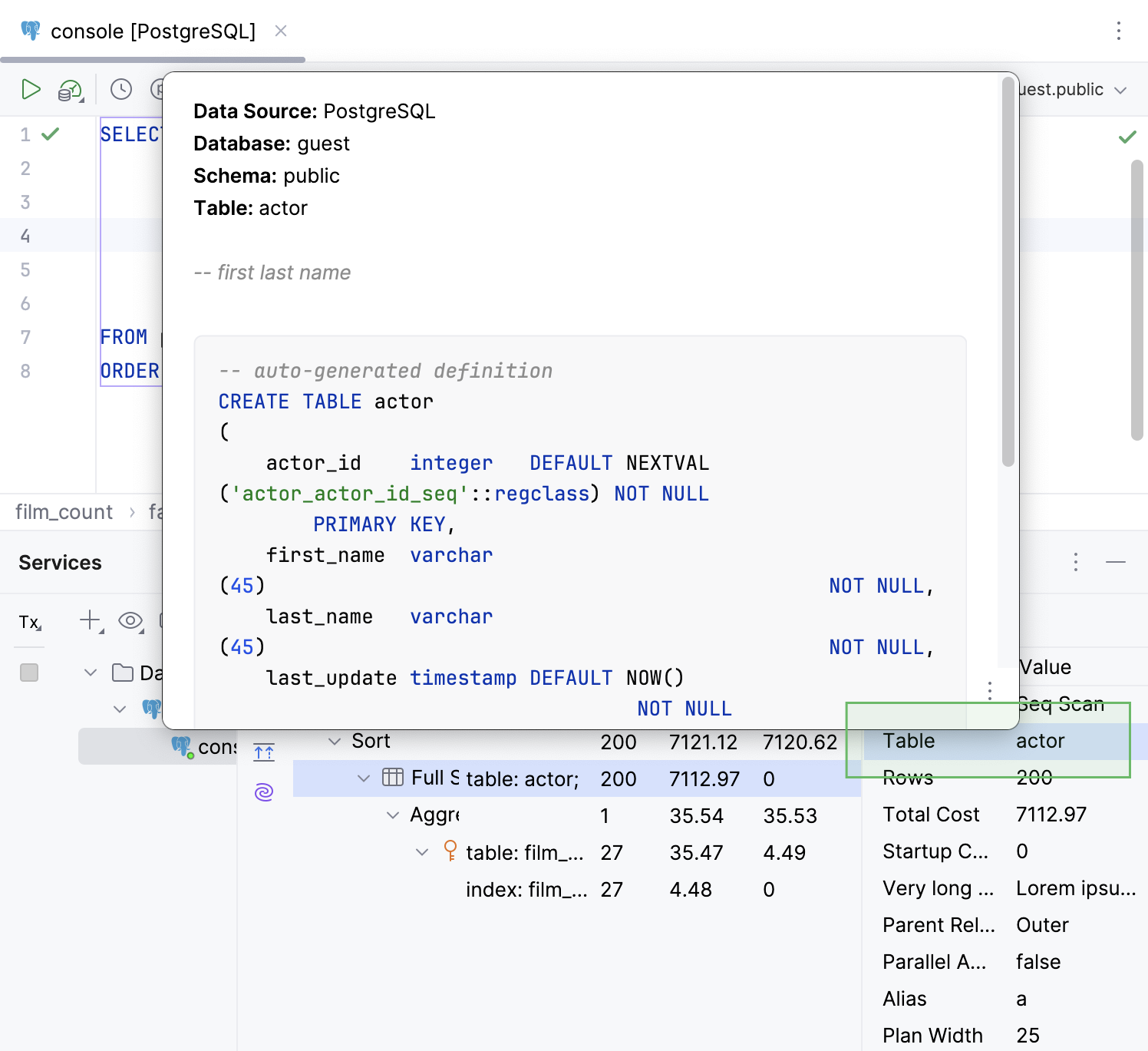
For the cells that contain a table name, Quick Documentation is available in a popup when you hover the cursor over it.
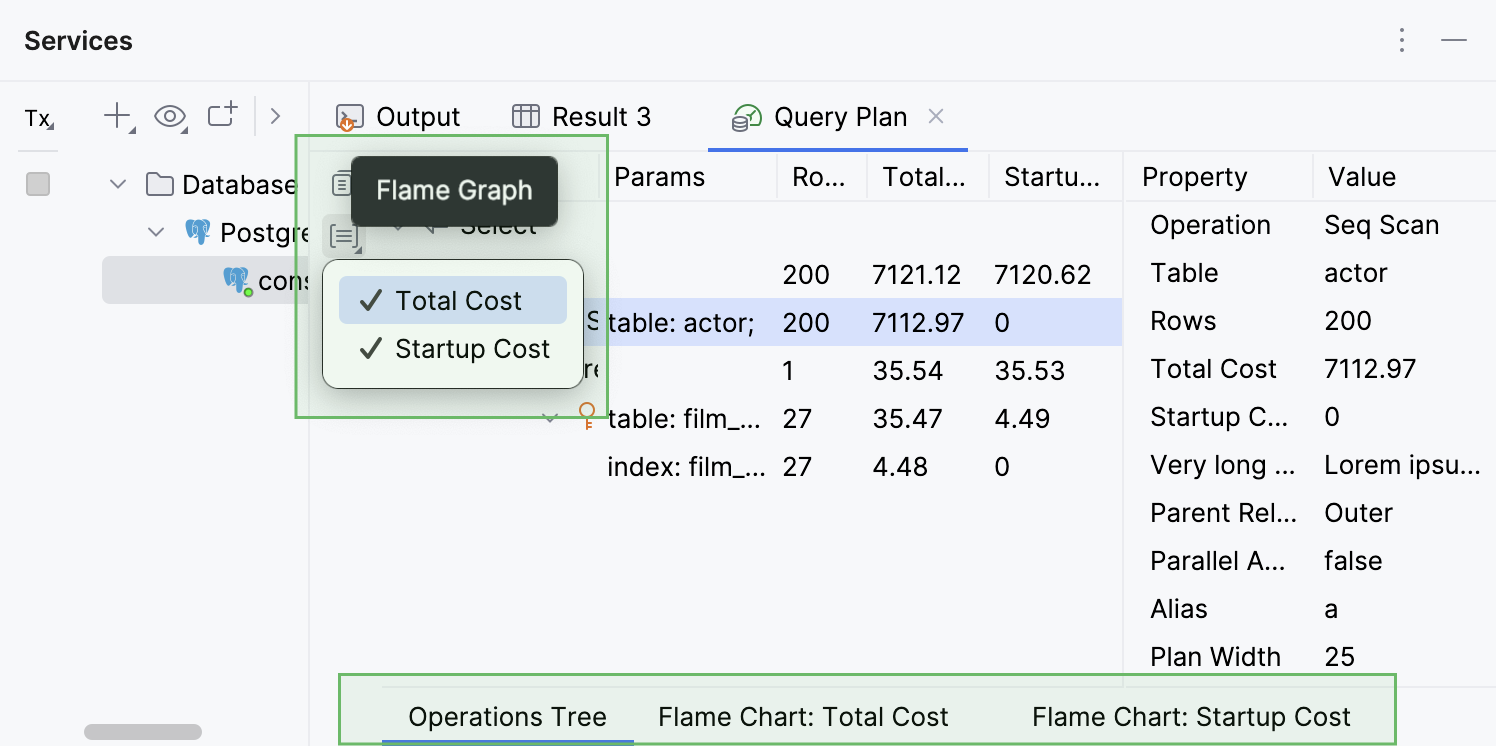
The different views available for a query plan are displayed in separate inner tabs. These inner tabs can be accessed at the bottom of the Query Plan tab. They are hidden by default and appear only when more than one tab is open. To open the Total Cost or Startup Cost tab, click Flame Graph on the left-hand toolbar and select the view you need.
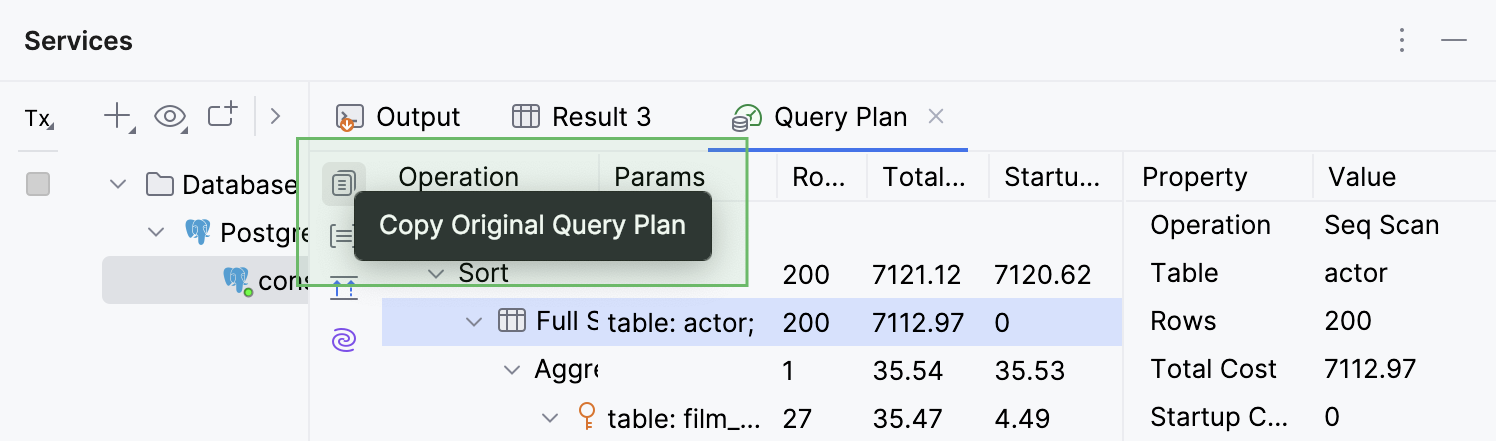
An option to copy a query plan in its native format
You can now copy the query plan in the database’s native format, for example, JSON or XML. To do this, click the Copy Original Query Plan button at the top of the left toolbar. This is supported for PostgreSQL, Amazon Redshift, MySQL, MariaDB, Oracle, Microsoft SQL Server, and Snowflake.
Code editor
[Oracle] Intention action for suppressing resolve inspection for back label references
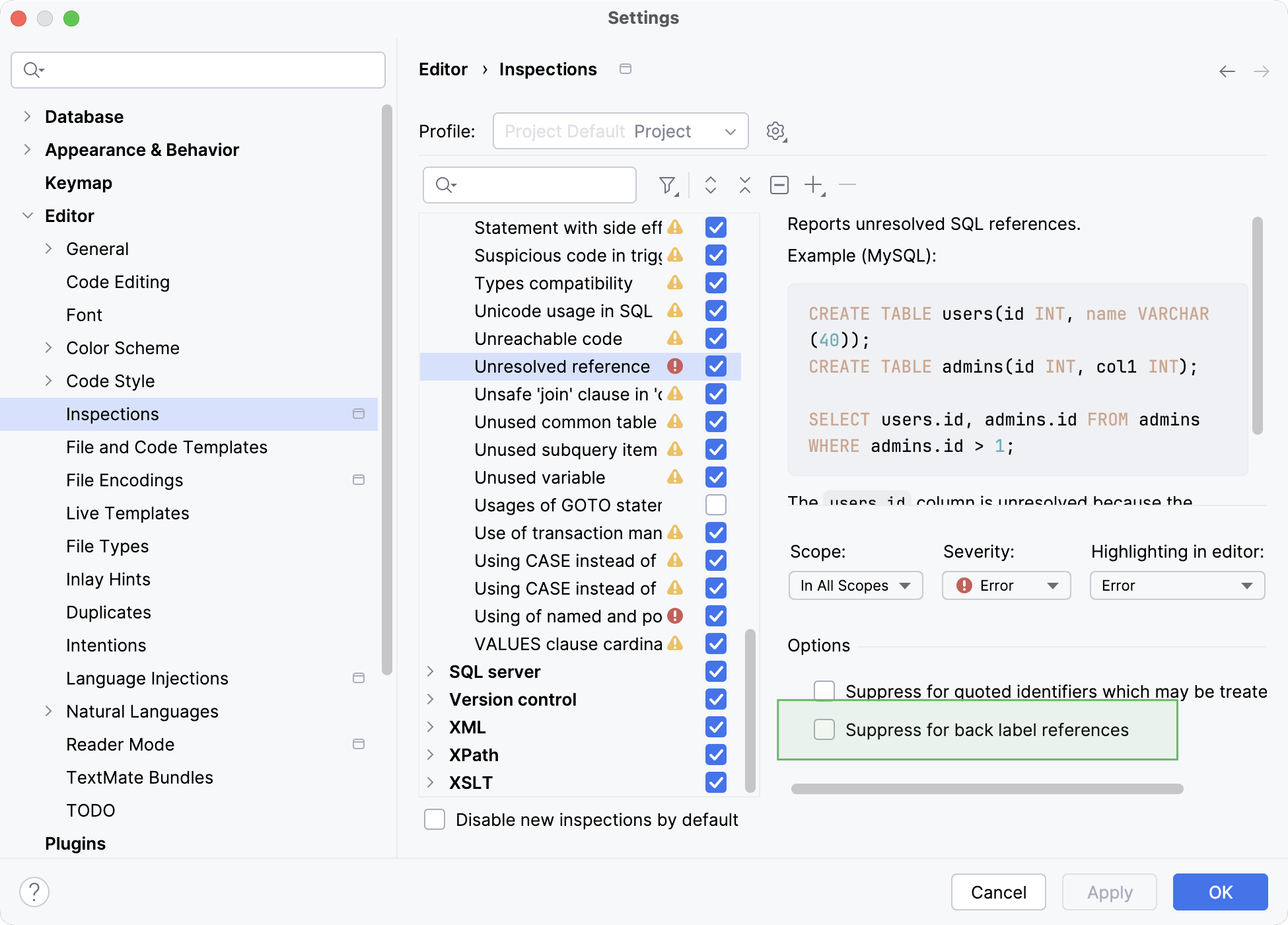
The Suppress for back label references option is now easier to find and use. Previously, it was only available in the Settings dialog under . Now, you can toggle this option in intention actions.
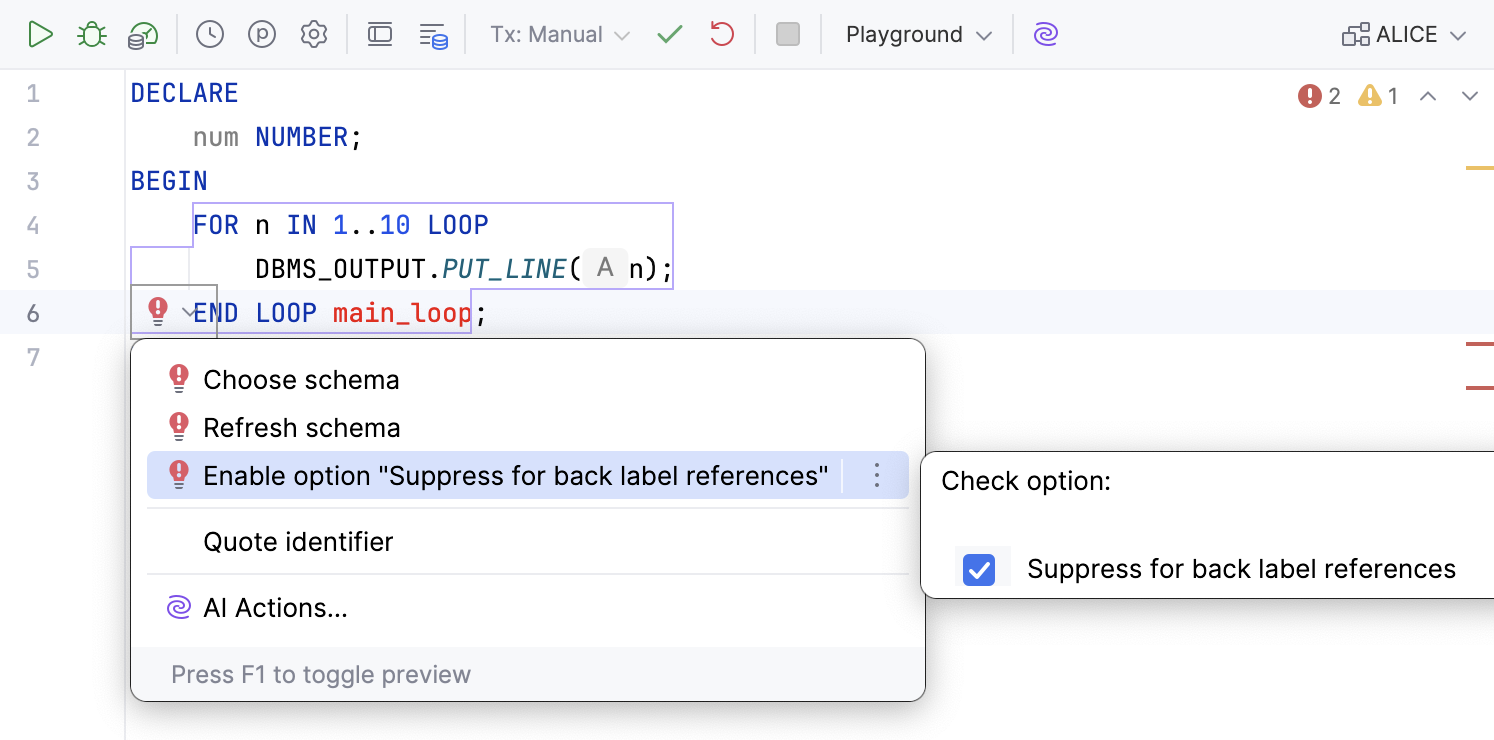
To enable or disable it, open the list of intention actions by clicking Alt+Enter / Opt+Enter, navigate to Enable option “Suppress for back label references”, and select or deselect the Suppress for back label references checkbox.
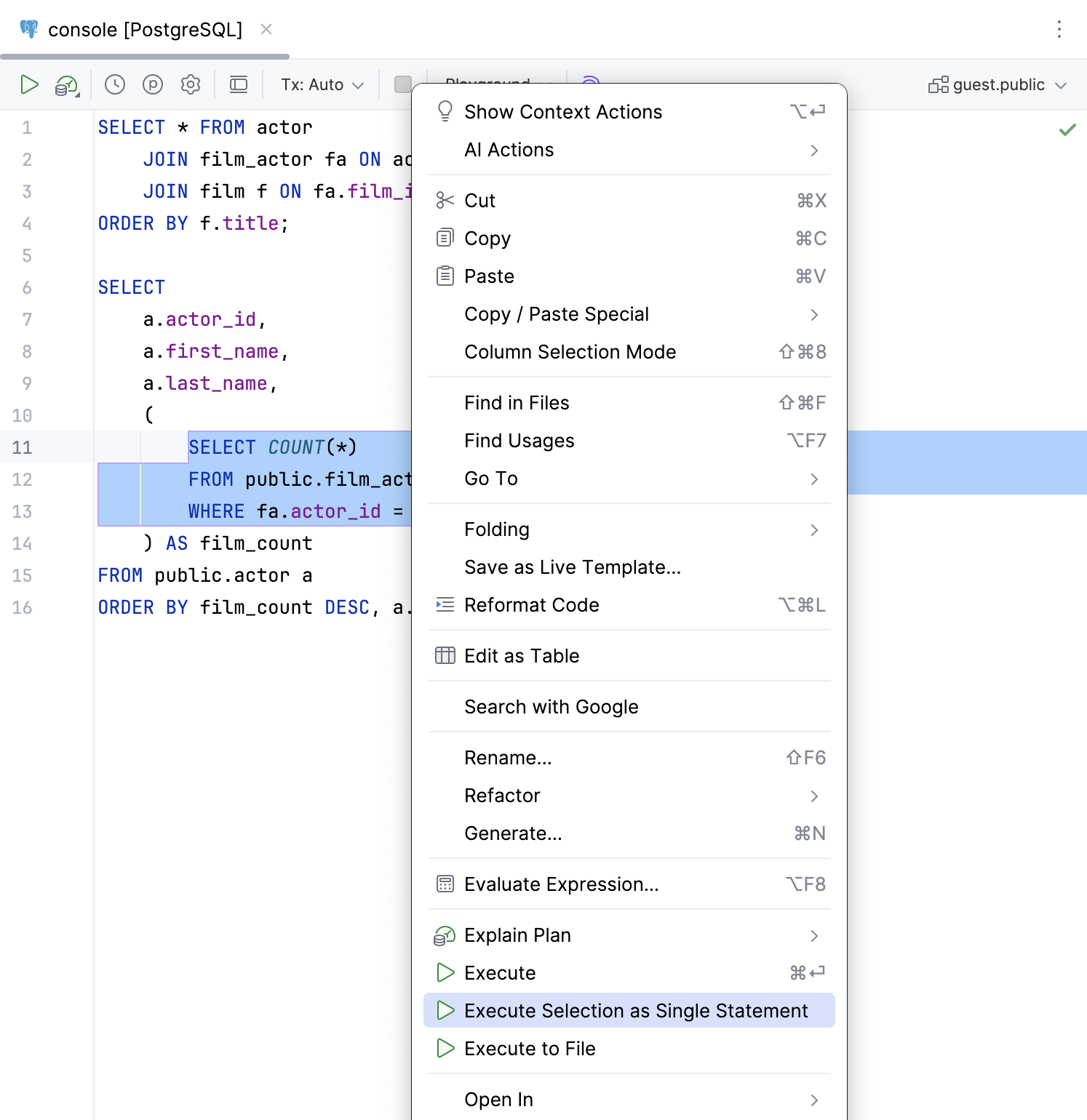
Execute Selection as Single Statement action in a context menu
We have added the Execute Selection as Single Statement action to the context menu of a code selection in code editor. Use this when you need to execute a certain chunk of code and DataGrip does not parse it properly.
Editor caret movement animation
DataGrip now offers two caret movement animation modes: Snappy and Gliding. The Snappy mode has been developed by the JetBrains team. It ensures smooth animation while not making it feel slow and unresponsive and not overloading the interface with excessive action. In this mode, the caret lands almost immediately where it should be and then settles with a smooth stop. The result feels quick yet smooth.
The Gliding mode makes the caret move smoothly, making jumps easy to follow with the user's eyes.
To enable either of these animations, open IDE Settings dialog, navigate to , select the Use smooth caret movement option, then select the mode.
Working with data
[Microsoft SQL Server] Support for JSON indexes
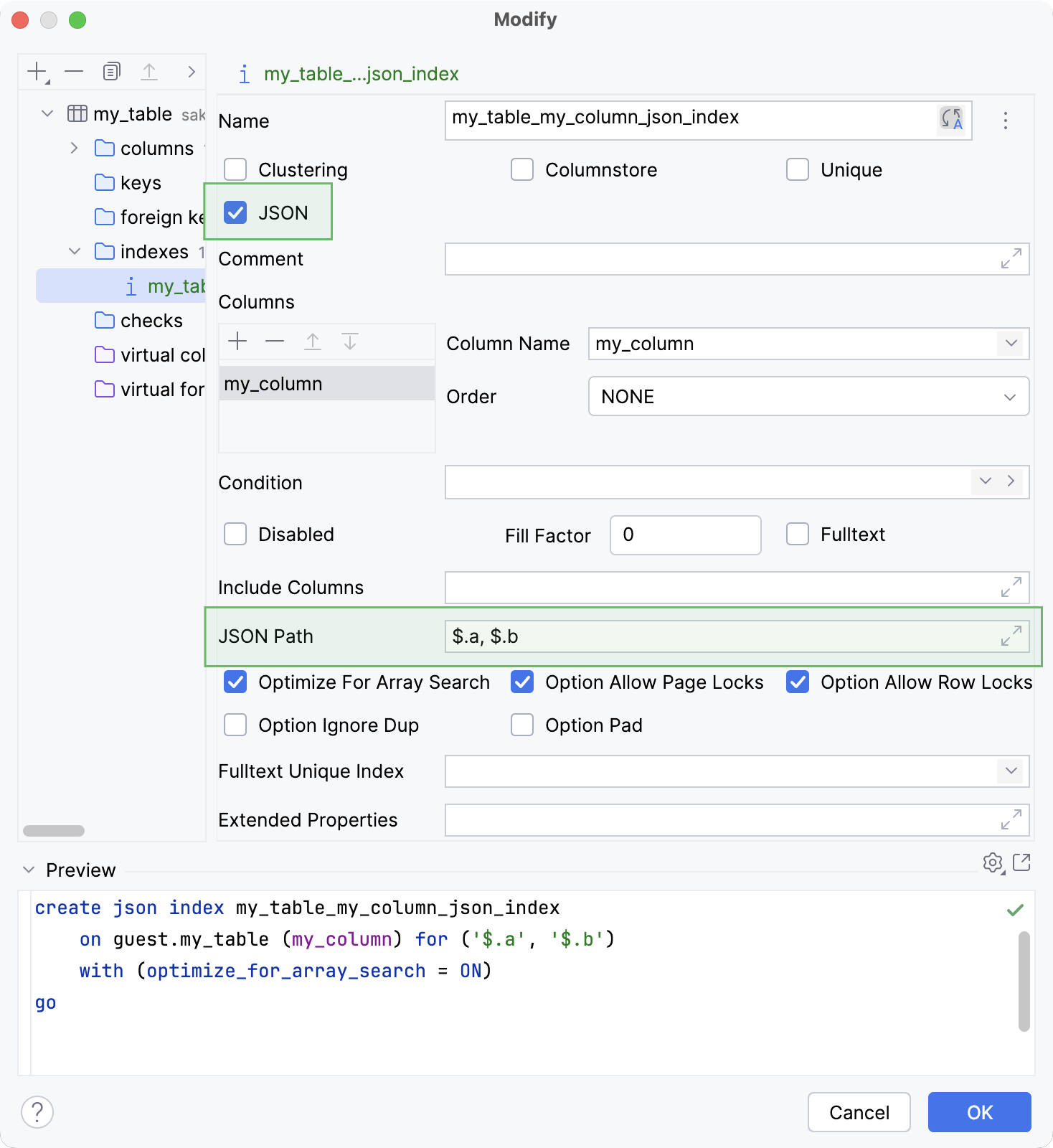
DataGrip now supports creating and modifying JSON indexes for Microsoft SQL Server. You can work with them in code generation and also use the indexes in the Create and Modify dialogs.
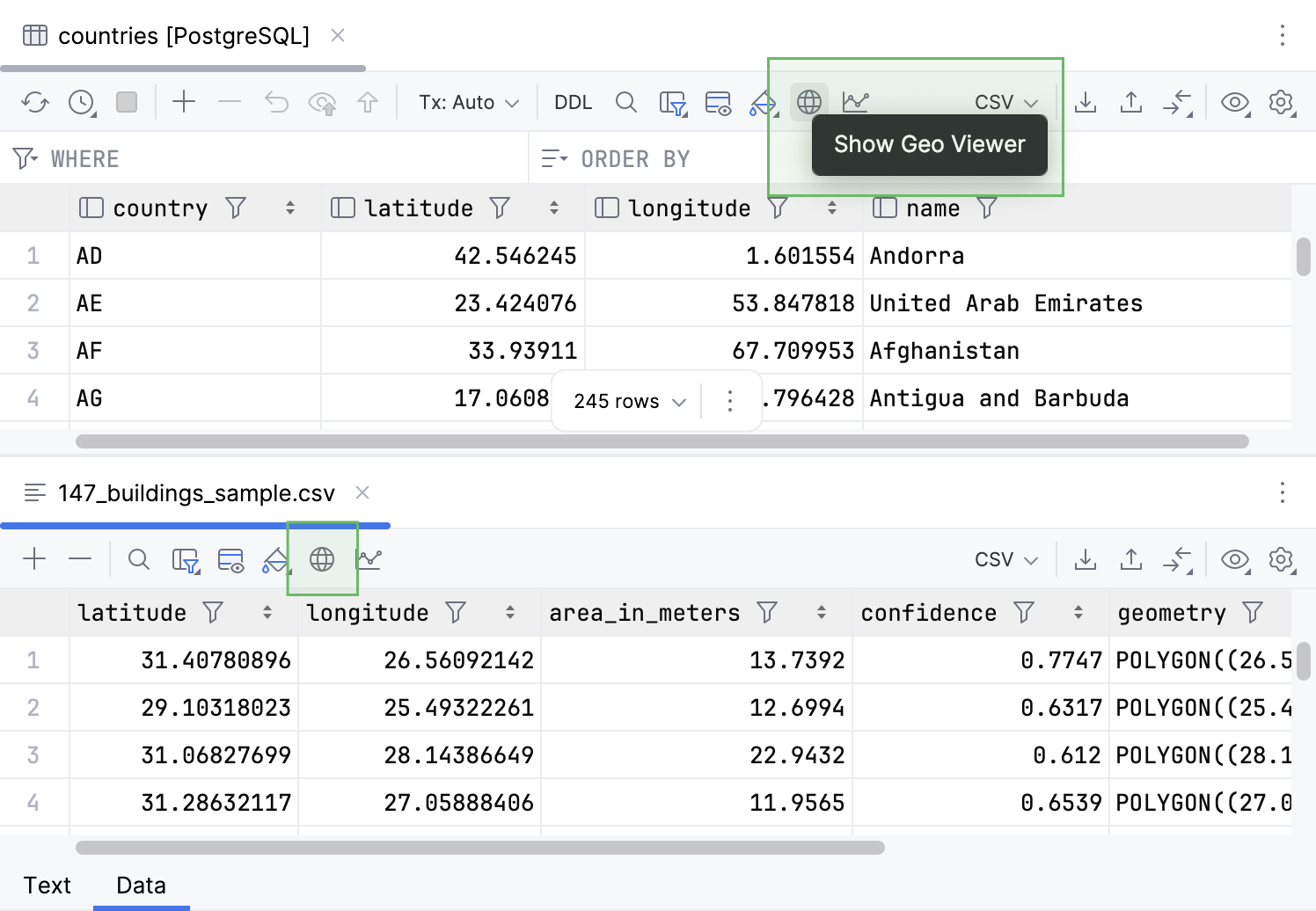
Geo Viewer button on the toolbar
For a better discoverability, we have moved the Show Geo Viewer button to the data editor toolbar.
Working with files
Deleted files go to the bin by default
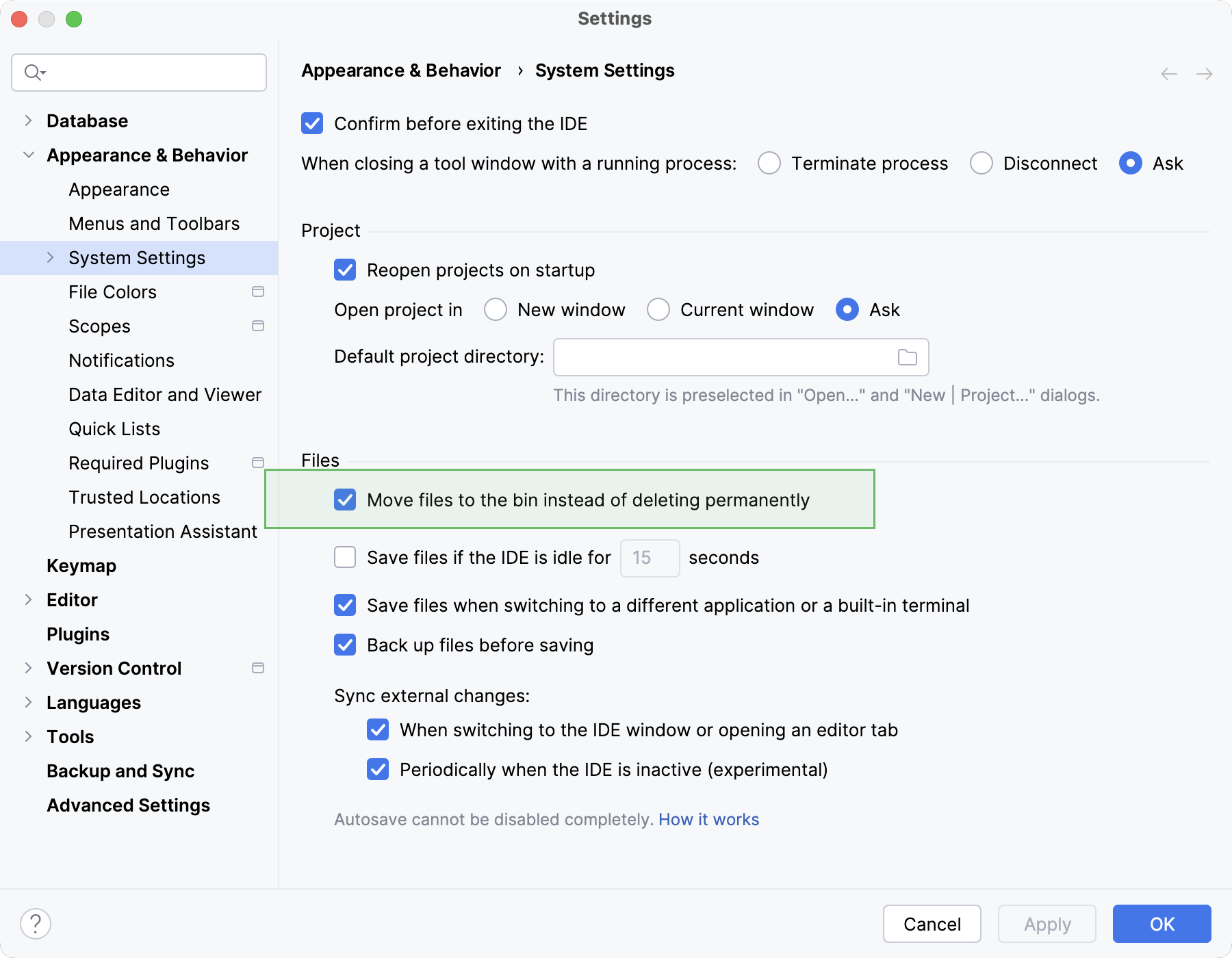
Previously, when Delete actions were invoked, DataGrip deleted files permanently instead of moving them to the bin. Now, a new setting has been implemented to make the files go to the bin. It is the Move files to the bin instead of deleting permanently setting, and it is enabled by default.
You can change this setting in .