Connect to Google Drive
Google Drive is a cloud-based storage service offered by Google that allows users to store, sync, and share files across devices.
With the Google Drive connector, Datalore allows you to access data in your Google Drive folders from your notebook environment. You can query datasets directly using SQL, Python, Scala, Kotlin, or R without the need for intermediate data exports.
- Security considerations
Once you create a connection, all the files and subfolders in the selected folder become available in the
 Attached data section. The content of this folder can be accessed by anyone who has edit permissions for the notebook or workspace. Keep this in mind when you share a workspace or notebook that uses your Google Drive connection.
Other users cannot access any content in your Google Drive beyond the selected folder, and they cannot select another folder in an existing connection.
Google Drive credentials cannot be accessed from the notebook runtime environment, for example, as environment variables.
Step 1. Create a connection
You can create a Google Drive connection either in your notebook or workspace.
To create a connection:
In the sidebar on the Home page, select the workspace where you want to add a Google Drive connection.
In the sidebar, select
 Data and switch to the Cloud storage tab.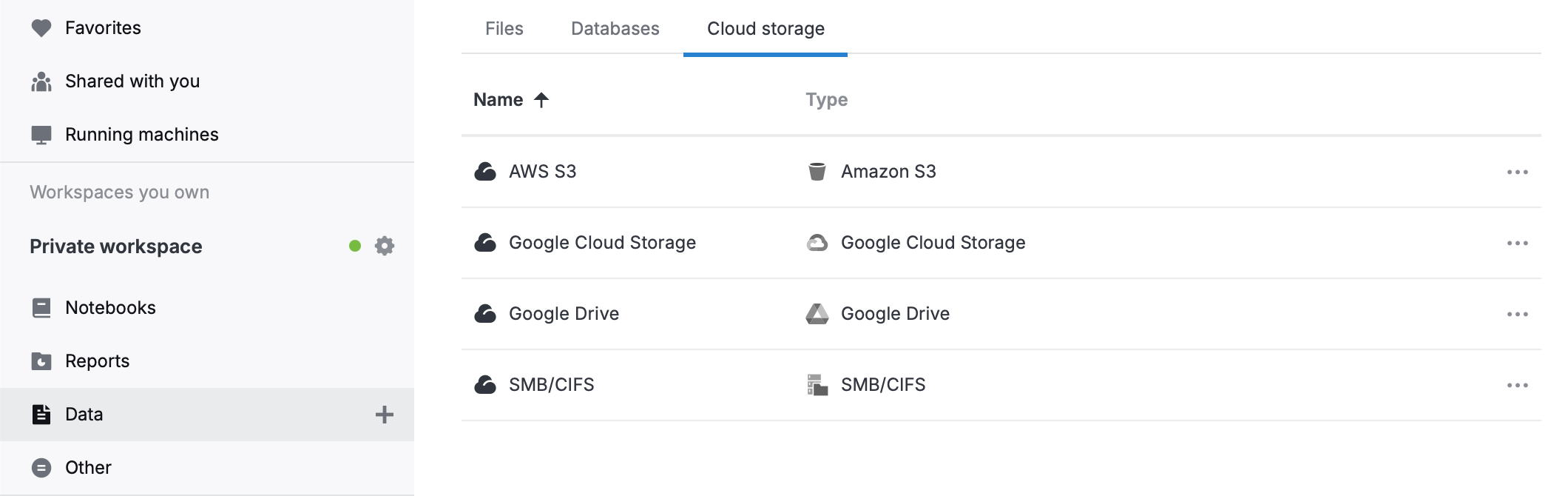
Click
 New cloud storage connection at the top right.
In the dialog, select Google Drive.
Open the notebook where you want to add a Google Drive connection.
In the sidebar, select
(Attached data) and switch to the Cloud storage tab.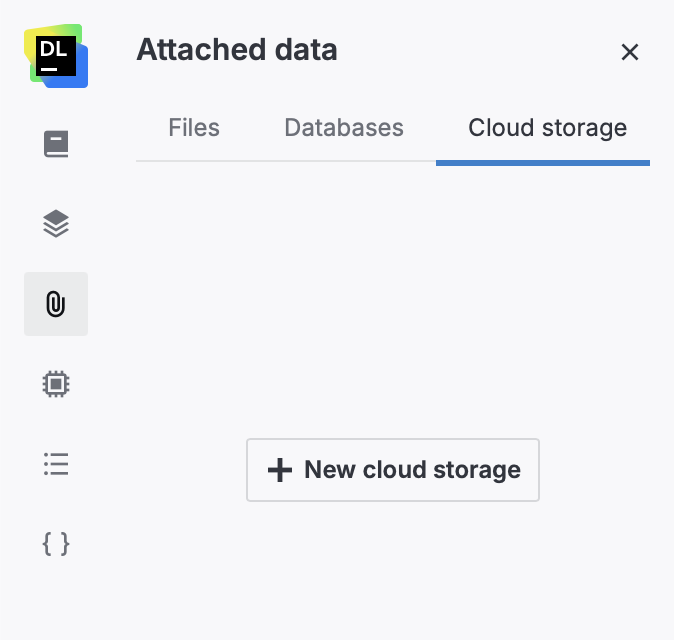
Click
New cloud storage.In the dialog, select Google Drive.
In the pop-up window, log in to the Google account you want to connect, or select it from the list if you are already logged in.
Follow the prompts and allow access to your Google Drive.
Step 2. Configure the connection
In the New Google Drive cloud storage connection dialog, enter the data source name in Display name.
This name also becomes part of the path where the connection is mounted.
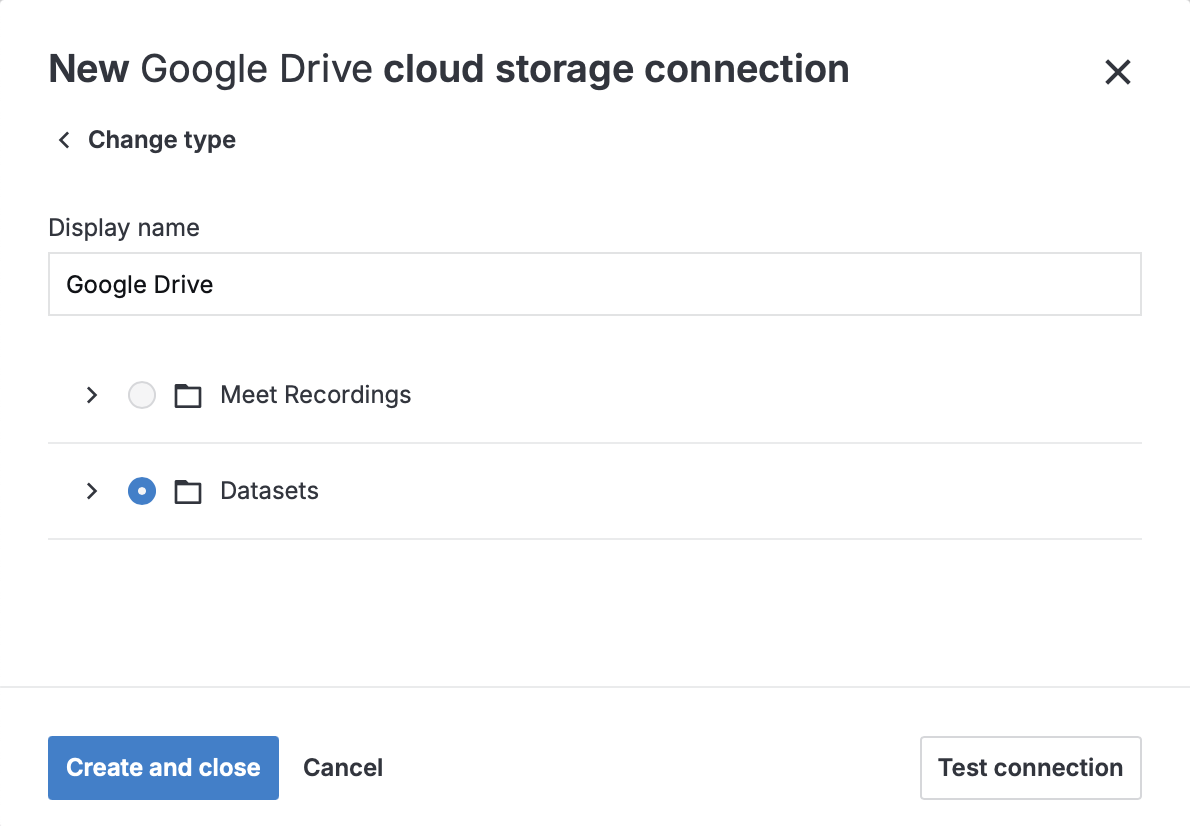
Select a folder in your Google Drive that you want to use as the data source.
Click Create and close.
Step 3. Attach the connection to a notebook
Open the notebook you want to attach the connection to.
If the notebook is not running, start it by clicking .
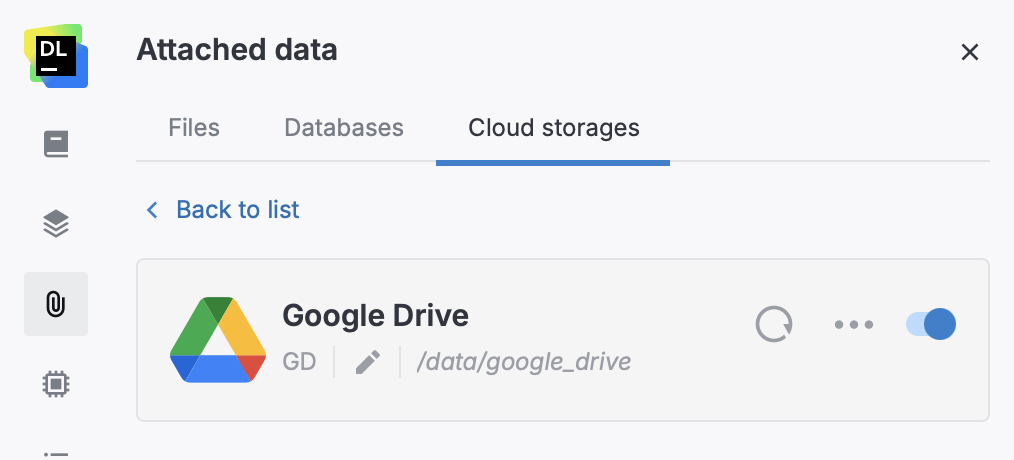
In the sidebar, select
(Attached data) and switch to the Cloud storage tab.Enable the toggle in your Google Drive connection.
Step 4. Use the connection in the notebook
After the connection is mounted, you can access files in the Google Drive folder from your notebook code:
The connection’s mount path, such as /data/google_drive/, is shown on the connection card. To copy the path, click .
Next steps
Learn how to manage and delete Google Drive connections in a workspace and in a notebook.
Keywords
cloud storage, cloud storage connection, attach data, data sources, Google Drive, connect to remote folders, connect to remote storages