IntelliJ IDEA overview
IntelliJ IDEA is an Integrated Development Environment (IDE) for Java and Kotlin development, whether you are coding manually or working with an agent. It helps you understand existing codebase, write and modify code, run applications and tests, debug problems, and verify your changes.
You can write and edit code yourself using available development tools. When you want additional assistance, you can use AI to help generate, explain, or modify code while you stay in control of the implementation. For larger tasks, you can delegate work to an AI agent. The IDE gives you the tools to review the agent's work, supervise its progress, and stay in control of the changes.
Supported languages
The development of modern applications involves using multiple languages, tools, frameworks, and technologies. IntelliJ IDEA is designed as an IDE for JVM languages, but numerous plugins can extend it.
JVM languages
Use IntelliJ IDEA to develop applications in the following languages that can be compiled into the JVM bytecode, namely:


Other languages
Plugins add support for some of the most popular languages, namely:
JavaScript (full WebStorm functionality)
C/C++ (full CLion functionality)
TypeScript (full WebStorm functionality)
Stylesheets (CSS, Less, Sass)
You can browse JetBrains Marketplace to find an official plugin that adds support for almost any language, framework or technology used today, or for third-party plugins. For more information about managing plugins, refer to Plugins.
Do I need a language plugin for IntelliJ IDEA or a separate IDE?
IntelliJ IDEA is a superset of most IntelliJ platform-based IDEs. If the bundled language plugins are enabled, it includes support for all technologies that are available within our more specific IDEs, such as PyCharm, WebStorm, PhpStorm, and so on.
So, for example, if your application's codebase is mainly in Java but it also uses Python scripts, we recommend using IntelliJ IDEA in combination with the bundled Python plugin. If your codebase is mainly in Python, PyCharm is the right IDE for you.
Frameworks
Spring
Develop Spring  applications with dedicated coding assistance for Spring and Spring Boot. IntelliJ IDEA provides Spring-aware code completion, inspections, navigation, project generation, diagrams, and tools for running and debugging your applications. Learn more from Spring.
JakartaEE
Build enterprise Java applications with support for Jakarta EE  . IntelliJ IDEA provides coding assistance, navigation, dedicated project creation, application server integration, and support for specifications such as CDI, JPA, JAX-RS, Servlets, and JSP. Learn more from Jakarta EE.
Other frameworks
IntelliJ IDEA supports a wide range of frameworks and technologies beyond Java and Kotlin. You can work with web technologies, popular JavaScript and TypeScript frameworks, Markdown, databases, build tools, and many more.
Learn more from:
Ways to work in IntelliJ IDEA
IntelliJ IDEA supports different development approaches. You can choose the style that works best for your task.
Work directly with code
Work directly with your code when you want full control over every change. IntelliJ IDEA helps you write, understand, navigate, inspect, and refactor code, as well as run, test, and debug your application.
Work with AI assistance
Use AI assistance to write, explain, test, or refactor code. AI assistance appears inline in the editor as suggestions and intention actions, and you decide what to accept or modify.
Delegate work to an agent
For larger tasks, delegate work to an AI agent. The agent can explore your project, modify files, and run commands and tests. Use IntelliJ IDEA to supervise its work, review the changes, and refine or verify the result.
Combine approaches
Switch between these approaches as you work. You might ask an agent to investigate a bug and then debug the fix yourself, or use AI assistance to write code and refine it manually. You decide when to work directly, use AI assistance, or delegate to an agent.
Understand your code
When working with unfamiliar code or a complex codebase, you need to understand structure, find where behavior is implemented, and trace dependencies. IntelliJ IDEA provides fast navigation and search to help you explore code.
Search and navigate
Press Double Shift to open Search Everywhere, then start typing. IntelliJ IDEA searches across all files, classes, symbols, and IDE actions in your project:
Common navigation tasks:
Action | Shortcut |
|---|---|
Search everywhere | Double Shift |
Go to file | Ctrl+Shift+N |
Go to class | Ctrl+N |
Go to symbol | Ctrl+Alt+Shift+N |
Go to declaration | Ctrl+B |
For more details, refer to Source code navigation.
View code structure
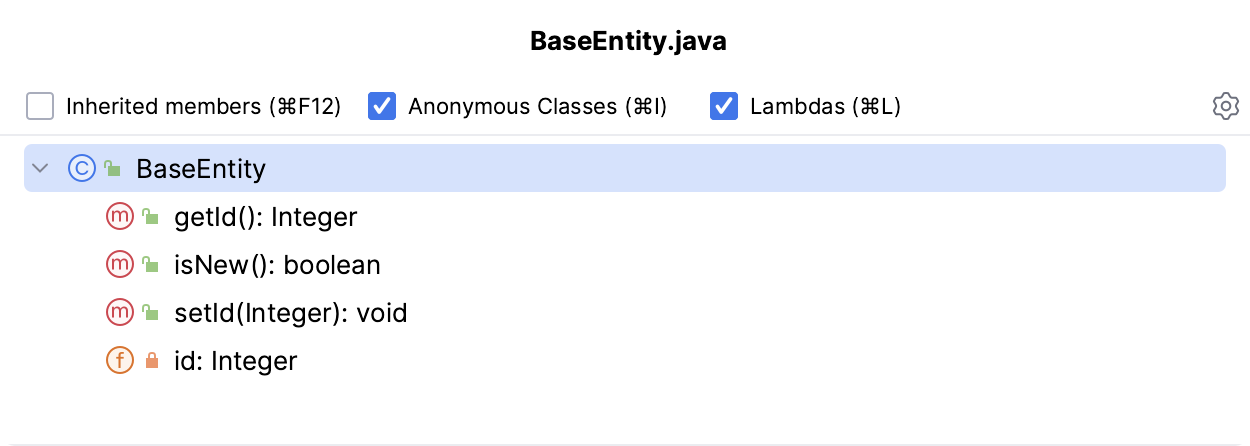
Press Ctrl+F12 to see an overview of all declarations in the current file and jump to any of them. Alternatively, use the Structure tool window (Alt+7):
Access recent files and edits
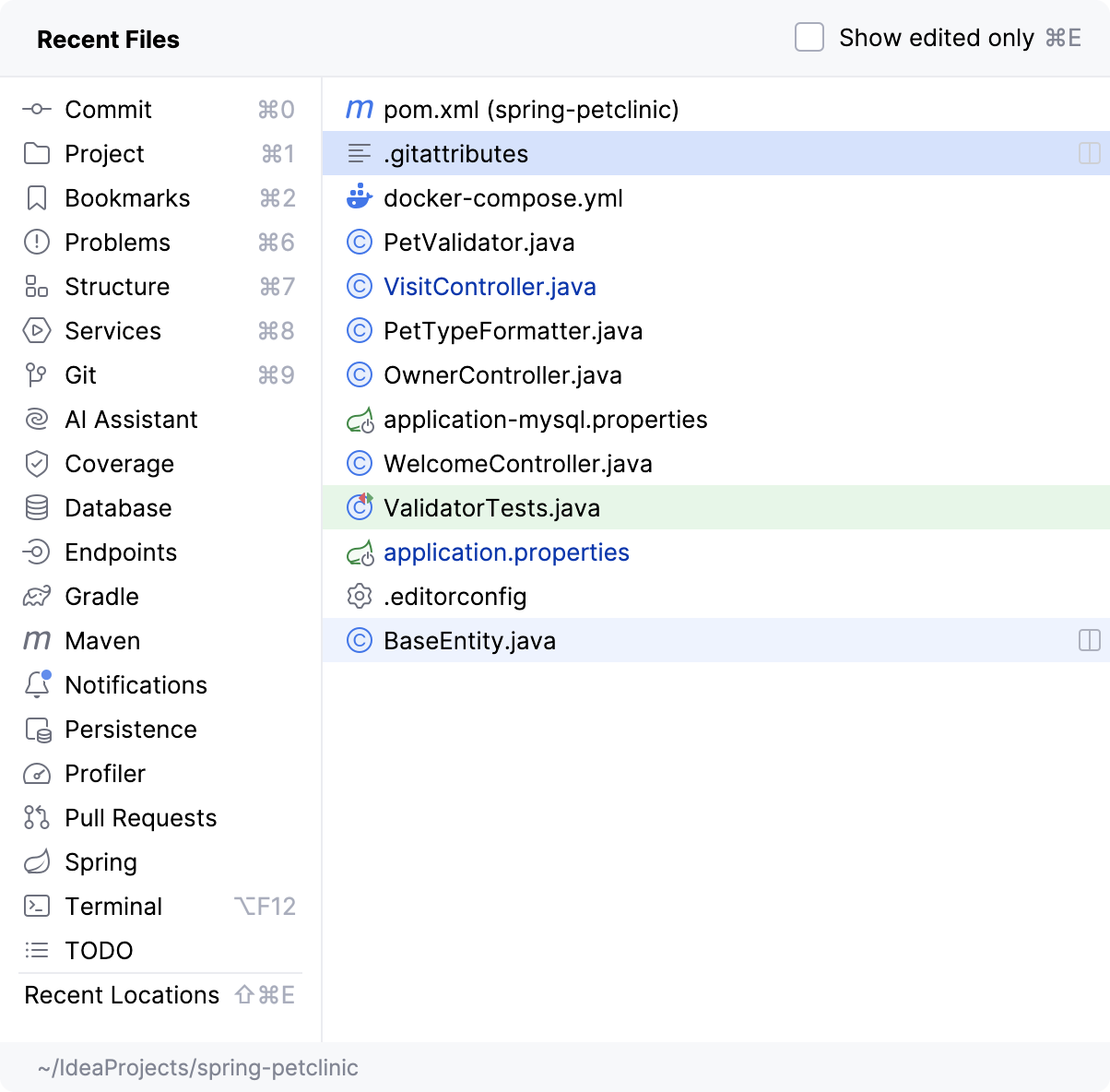
Normally, you work with a small subset of files at a time and need to switch between them quickly. The Recent Files action is a real time-saver here. Press Ctrl+E to see a list of last accessed files. Note that you can also use this action to open any tool window:
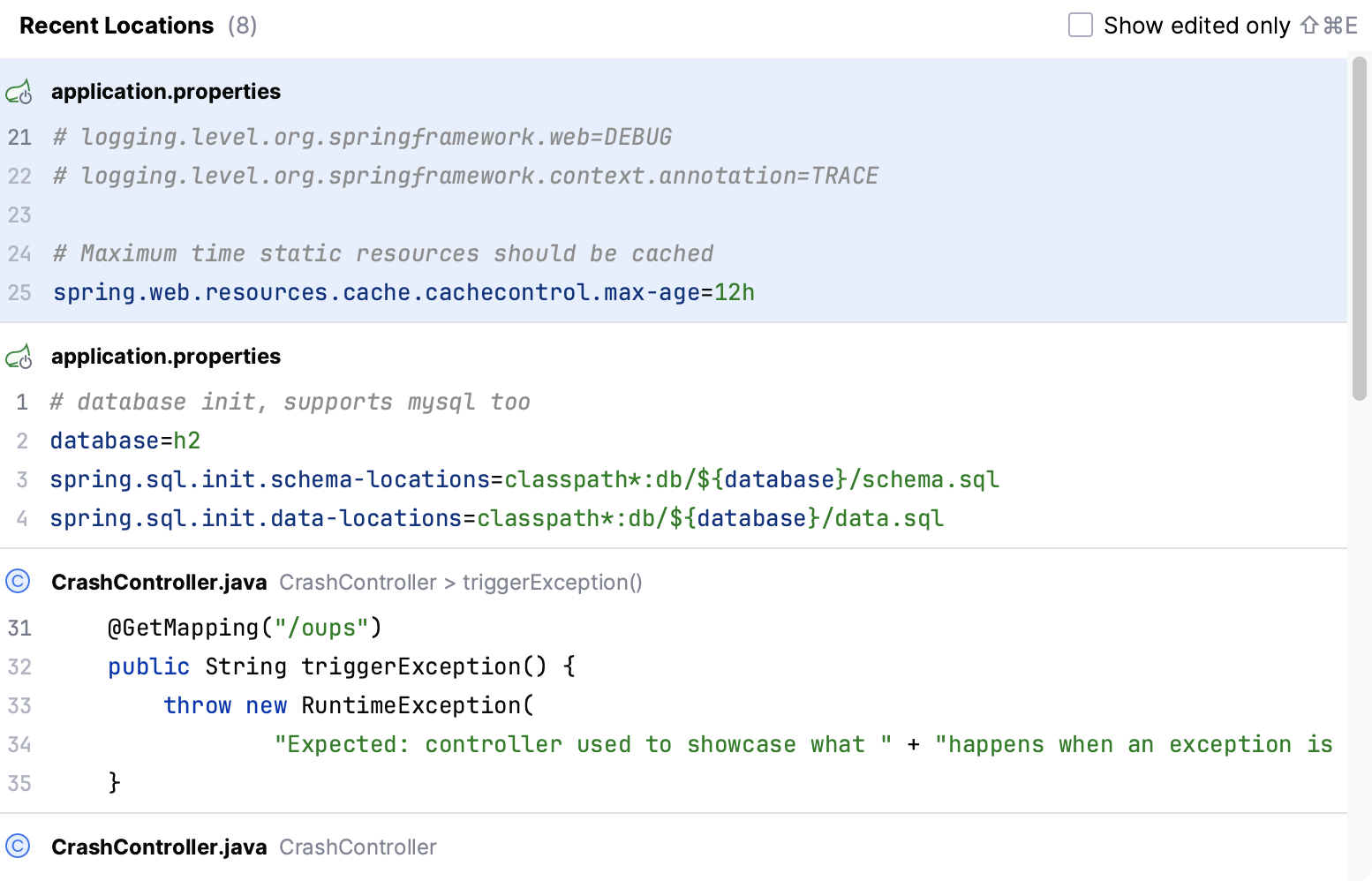
Apart from jumping to a recent file, you can also get quick access to Recent Locations: the code snippets you last viewed or edited. Press Ctrl+Shift+E and you'll be able to jump to a particular line you modified lately:
Create and change code
Edit and complete code
IntelliJ IDEA provides inline code completion, templates, and other editing aids to speed up typing. For more information, refer to Code completion and Live templates.
Inspect and fix problems
As you write or generate code, IntelliJ IDEA continuously analyzes it to find potential bugs, dead code, performance issues, and style problems. When it detects an issue, it shows a light bulb icon. Press Alt+Enter to see quick-fixes and intention actions:
Quick-fixes resolve problems across your project. Intention actions help you apply transformations like extracting code, adding annotations, or converting syntax. Learn more from Code inspections and Intention actions.
Refactor safely
Use refactorings to restructure code while maintaining correctness. Press Ctrl+Alt+Shift+T to see available refactorings for your current context:
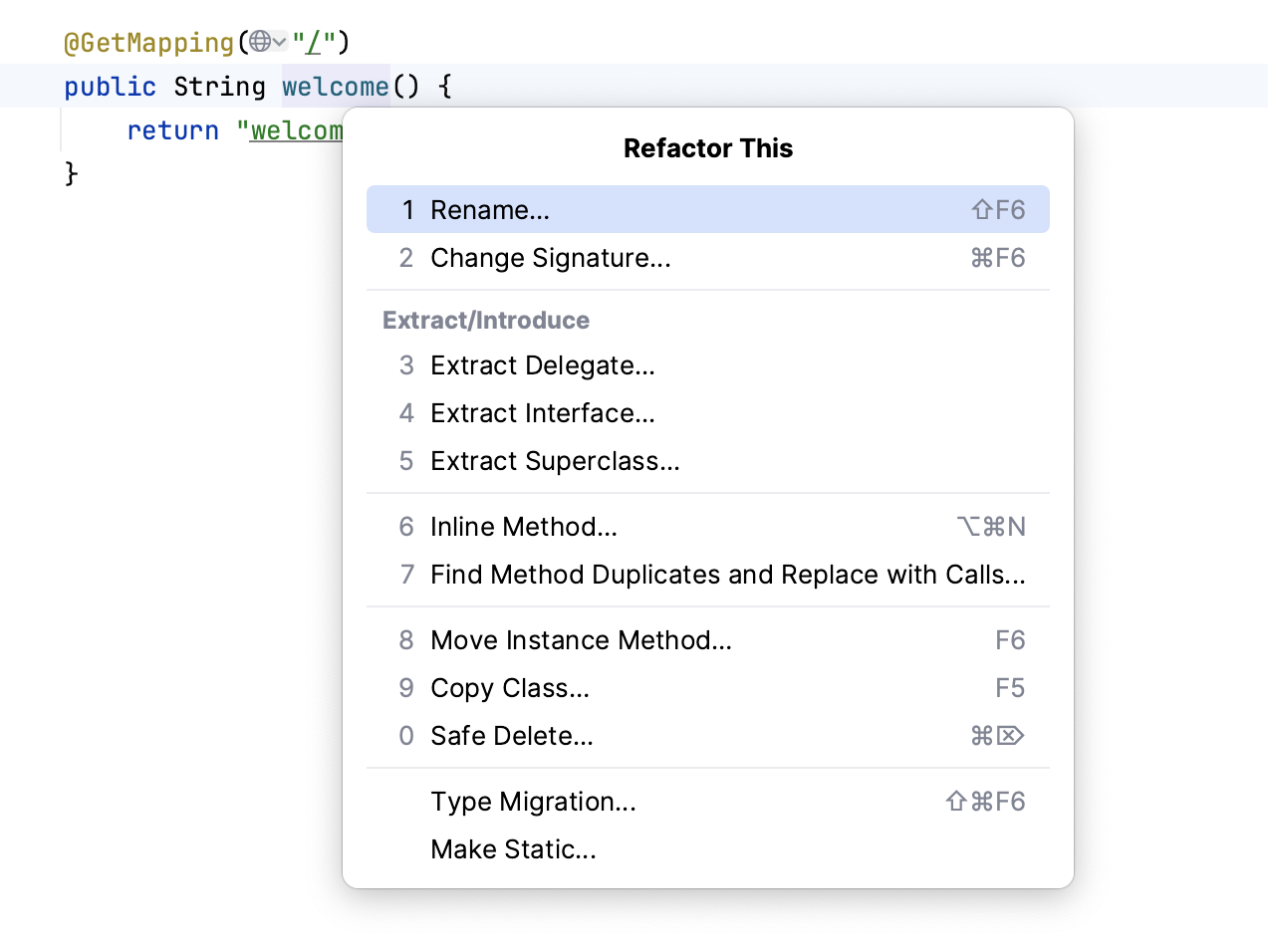
IntelliJ IDEA automatically updates all references across your project when you refactor. Learn more from Refactoring code.
Common refactoring shortcuts:
Action | Shortcut |
|---|---|
Refactor this | Ctrl+Alt+Shift+T |
Rename | Shift+F6 |
Extract variable | Ctrl+Alt+V |
Extract method | Ctrl+Alt+M |
Inline | Ctrl+Alt+N |
Move | F6 |
Delegate larger changes to an agent
For complex refactoring tasks, describe the outcome and let an agent implement the change across your codebase. You can review and continue editing the result manually afterward.
Run and investigate
Running code, tests, and debugging are essential ways to understand runtime behavior and diagnose problems.
Debug a problem yourself
IntelliJ IDEA provides a built-in JVM debugger that lets you get and analyze runtime information without running code with manual logging or trial-and-error approaches.
You can:
Suspend the program execution to examine its behavior using breakpoints. Multiple types of breakpoints, together with conditions and filters, allow you to specify the exact moment when an application needs to be paused.
Play with the program state by modifying variable values, evaluate expressions, and so on.
Examine variable values, call stacks, thread states, and so on.
Control the step-by-step execution of the program.
Refer to Tutorial: Debug your first Java application to learn the basics of debugging and play with the debugger features in the IDE.
Let an agent investigate
For complex runtime issues, describe the problem in natural language and let an agent use the debugger to investigate. The agent can set breakpoints, step through code, and collect runtime evidence without manual intervention.
This approach is especially useful when source code and logs alone do not reveal the problem. Learn more from Agentic debugging.
Verify and review changes
Whether code was written by you, a teammate, an AI assistant, or an agent, IntelliJ IDEA helps you determine whether the change is correct and safe.
Run tests
Write tests in the IDE and run them to verify your code works as expected. For more information, refer to Create tests.
Review changes with version control
IntelliJ IDEA provides integration with Git, Mercurial, Perforce, and Subversion.
You can:
Review the history and compare file versions
Access all VCS actions via Alt+`
For more information, refer to Version control.
Restore or revert changes
Local History keeps track of all edits to your project automatically. If you need to restore code that was deleted or changed, use Local History to browse your full revision history and restore any point in time:
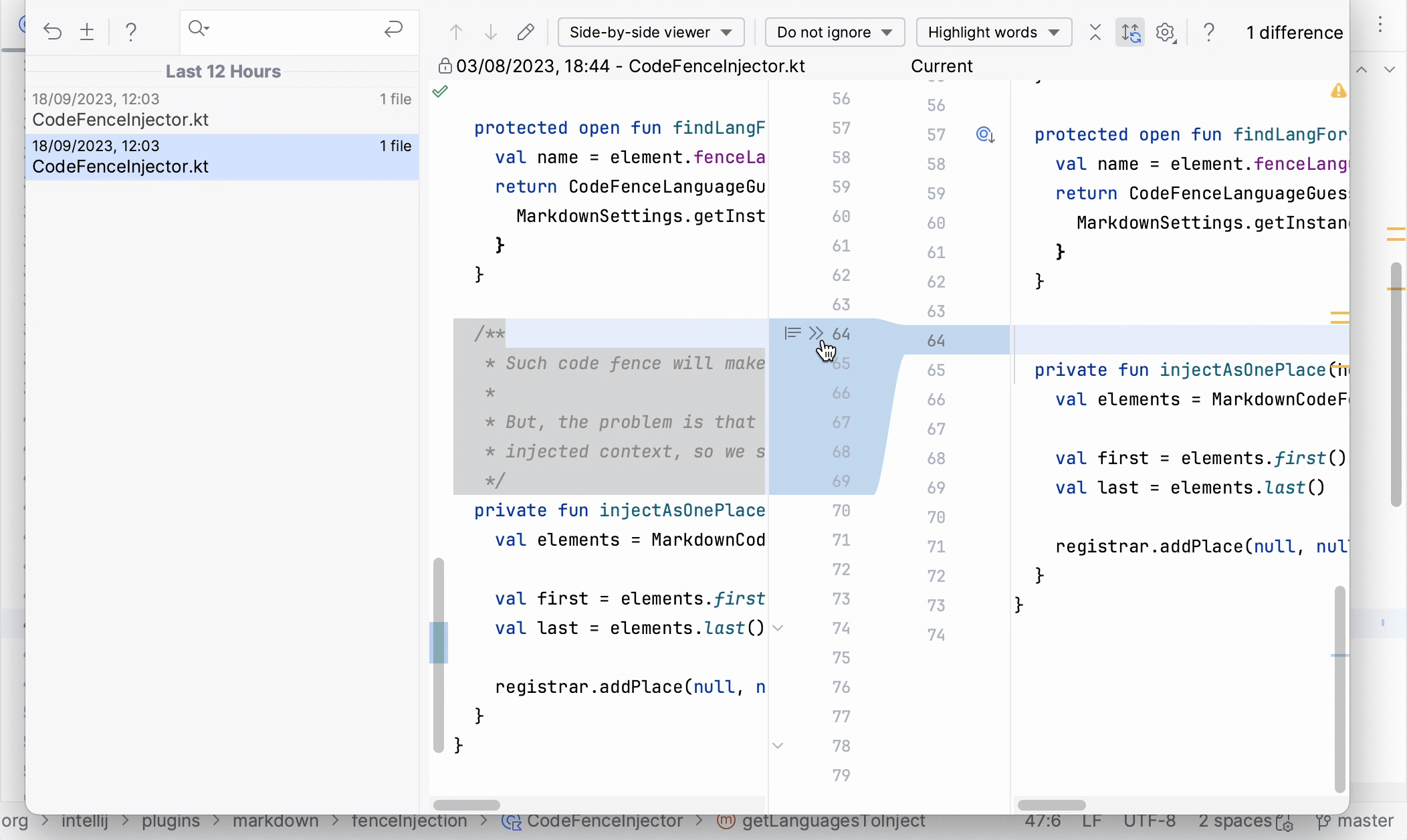
Even without version control enabled, Local History acts as your personal version control system.
Delegate and supervise agent work
When you delegate work to an agent, you remain in control throughout the process.
Choose your agent
IntelliJ IDEA supports agents through the Agent Client Protocol (ACP). Agents available in IntelliJ IDEA include Junie, Claude Agent, and Codex. You can also bring your own ACP-compatible agent. Learn more from Browse, install, and update agents (Air documentation).
Extend agent capabilities
Agents can be extended with Agent Skills and Model Context Protocol (MCP) integrations. Skills provide reusable instructions for specific tasks. IntelliJ IDEA includes bundled skills. For example, ij-debugger allows agents to investigate runtime problems.
For details, refer to MCP and agent skills.
Configure AI providers
IntelliJ IDEA allows you to configure API keys or endpoints for third-party AI providers. This means your AI setup is not limited to a single agent, model, or built-in capability. Learn more from Configure agent authorization (Air documentation).
Integrated developer tools
IntelliJ IDEA includes built-in support for essential development tasks.
Terminal
IntelliJ IDEA includes a built-in terminal for running shell commands from inside the IDE. It supports your system's default shell and others like bash and sh.
Build tools
IntelliJ IDEA provides full support for Gradle and Maven. When you open or create a Gradle or Maven project, IntelliJ IDEA automatically detects and downloads required dependencies. You can edit build files directly and configure automatic synchronization. For more information, refer to Gradle and Maven.
IntelliJ IDEA editions
Previously, IntelliJ IDEA was offered as two separate products: IntelliJ IDEA Community Edition and IntelliJ IDEA Ultimate with extended capabilities.
Starting with IntelliJ IDEA 2025.3, we're combining these two editions into a single, unified product: IntelliJ IDEA. This change allows all users to access essential functionality without needing to decide between editions.
The core functionality of IntelliJ IDEA remains free and now comes with even more features compared to the former Community Edition. Additionally, the new Ultimate subscription gives you access to advanced tooling with a free 30-day trial available for all users when installing IntelliJ IDEA.
Afterward, you can choose to subscribe or continue using IntelliJ IDEA for free.
For more information about the Ultimate subscription, refer to the comparison matrix.
The Early Access program
IntelliJ IDEAis available for free within the Early Access Program (EAP). EAP builds are published before the release of a stable product version, and you can download them to try out the new features before they are publicly available in return for your feedback. EAP builds are configured to collect feature usage statistics and are a valuable source of information for our developers. You can also report an issue if you encounter any problems.
Shortcuts for everything
In IntelliJ IDEA, you have shortcuts for nearly every action, including selection and switching between the editor and various tool windows.
Use the most useful shortcuts to invoke frequent actions without switching your focus from the editor and tune your keymap to assign custom shortcuts for your favorite commands.
Watch this video to learn about some of the most useful shortcuts:
What's next
Get started with Air to get a complete agentic development experience for directing and orchestrating agents and verifying their work inside IntelliJ IDEA.
Learn the most useful tips for working with the IDE from IntelliJ IDEA tutorials.
Learn how to use most popular Git actions in IntelliJ IDEA.