Spring Boot REST API tutorial, part 4: Store data in H2 and package a JAR
4: Store data in H2 and package a JAR
Continue from Spring Boot REST API tutorial, part 3: Upload and download files. Replace the in-memory map with an H2 database so photos survive a restart, then package the application and run it outside IntelliJ IDEA.
Configure a file-based H2 database
You added H2 and Spring Data JDBC as project dependencies when you created the project. H2 is a database written as a Java library, and it runs inside the application. Spring Data JDBC maps your objects to database rows and supplies the SQL for repository operations.
H2 can keep data in memory, but that would lose the photos on shutdown, as the map does now. Point it at a file instead, then define a table whose columns correspond to the photo fields.
In application.properties, add a file-based data source and enable schema initialization:
spring.datasource.url=jdbc:h2:file:~/photos-demo-db spring.sql.init.mode=alwaysjdbc:h2:file:tells H2 to use a local file,~stands for the home directory, so~/photos-demo-dbis the path to the file.spring.sql.init.mode=alwaystells Spring Boot to run schema.sql at startup.Let's restart the application to check whether the file was created. Open your home directory in Finder or Explorer.
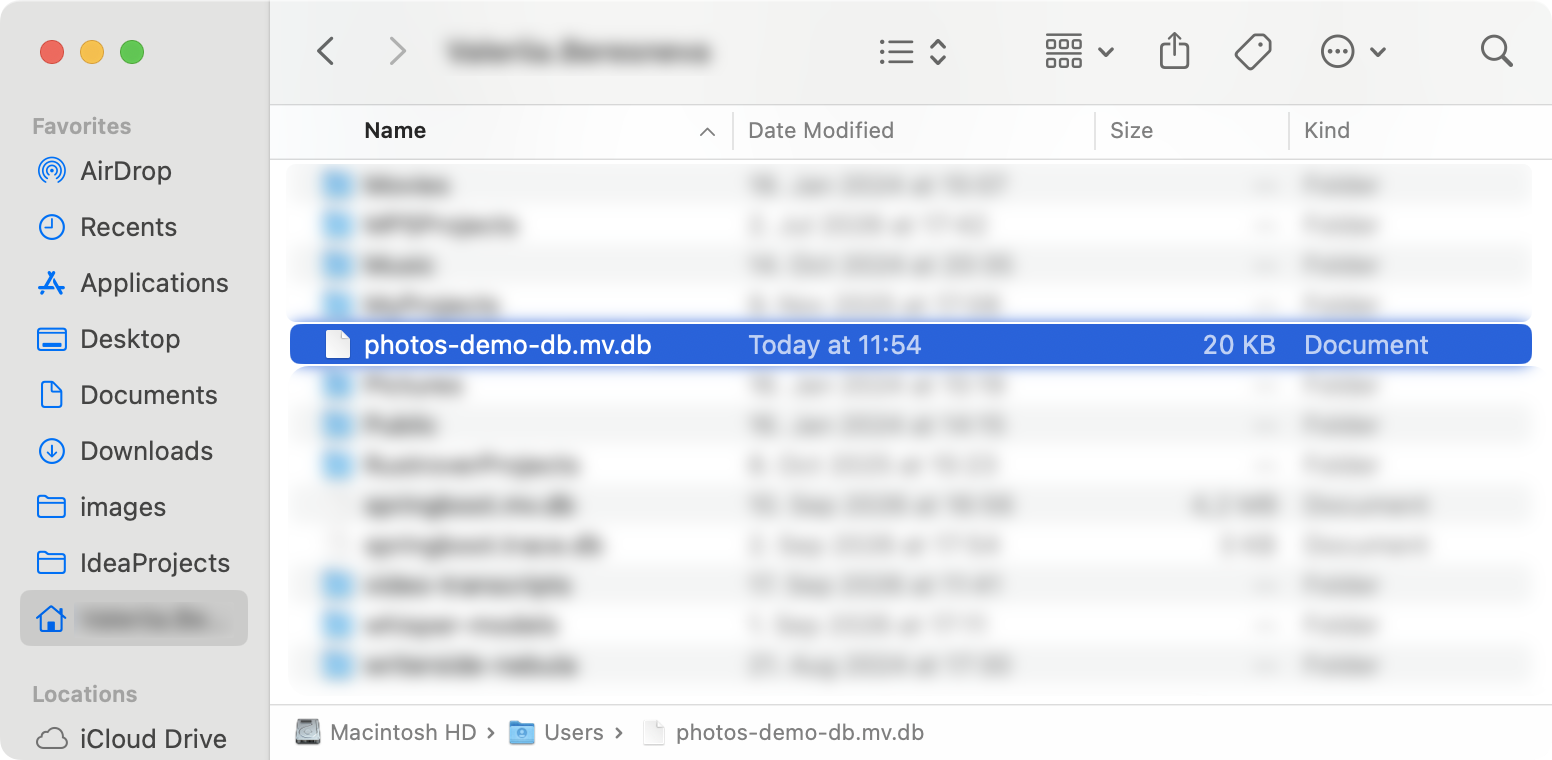
H2 appends
.mv.dbto the name you gave it, so the file is photos-demo-db.mv.db.That single file is the whole database. You can copy it and open it on another machine with Java installed, but do not forget to stop the application first.
The database has no tables yet. Spring Boot can create them at startup, and there are several ways to arrange it. This tutorial uses a single SQL file that Spring runs at startup.
In src/main/resources, create a new file called schema.sql:
create table if not exists photos ( id bigint generated by default as identity primary key, file_name varchar(255), content_type varchar(255), data blob );The columns match the fields on
Photo. The database generates the identifier, andblobstores the image bytes.To configure SQL assistance, open . Click
 Add, select your project directory in the file chooser, and set its SQL dialect to H2.
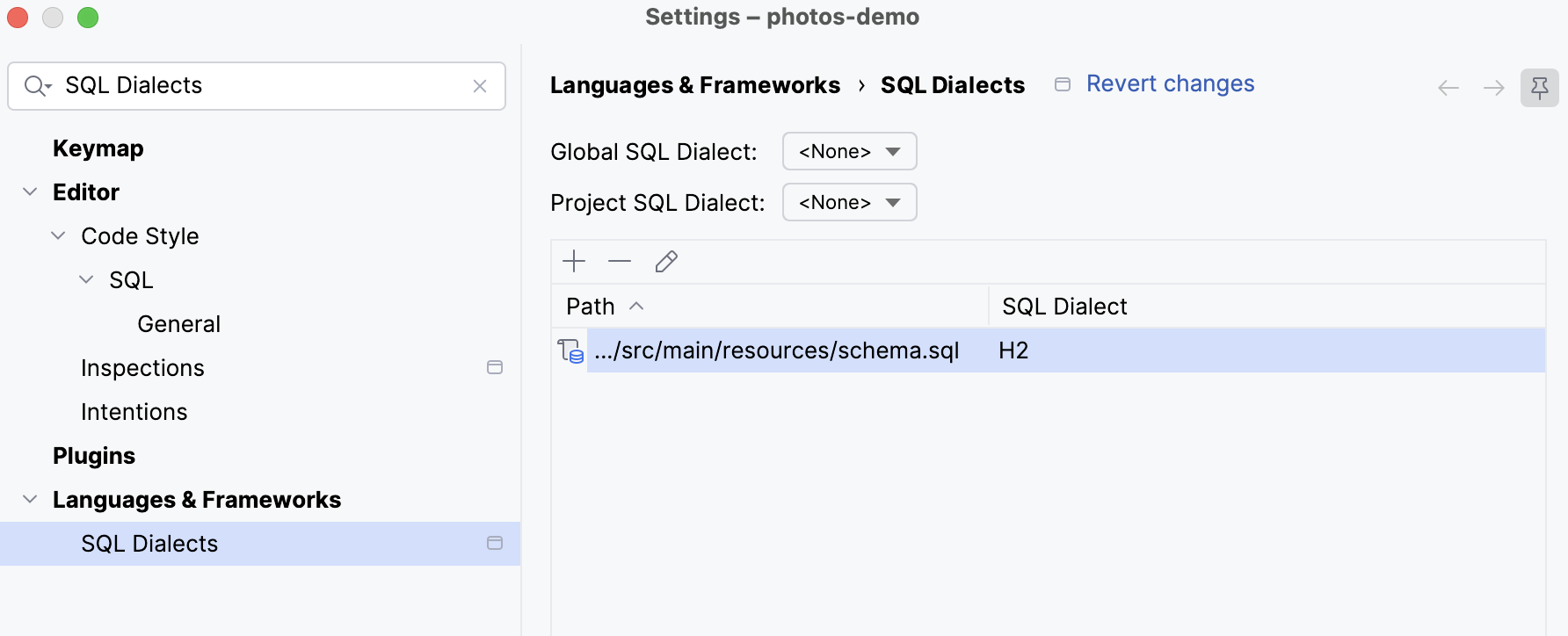
With the dialect set, IntelliJ IDEA highlights errors in the statement as you type, including missing semicolons.
Create a Spring Data JDBC repository
The schema defines where photos are stored. A repository gives your Java code operations for reading and writing them. Spring Data uses the model mapping to translate between a Photo and a row in the table.
Create a repository package next to service and add an interface named
PhotosRepository:public interface PhotosRepository extends CrudRepository<Photo, Integer> { }CrudRepositorysupplies methods for saving, finding, and deleting photos. Its type parameters specify the model and identifier types. You do not need to write an implementing class: Spring creates one for this interface and supplies the SQL for those operations.In
Photo, add the mapping annotations (@Table("PHOTOS")and@Id) and change the identifier (id) field, getter, and setter toInteger. Keep the no-argument constructor and other accessors unchanged:@Table("PHOTOS") public class Photo { @Id private Integer id; private String fileName; private String contentType; @JsonIgnore private byte[] data; public Integer getId() { return id; } public void setId(Integer id) { this.id = id; } // no-argument constructor and the other accessors unchanged }Use
org.springframework.data.annotation.Idandorg.springframework.data.relational.core.mapping.Tablefor the imports.@Table("PHOTOS")matches H2's uppercase table name, and@Ididentifies the primary key. Other fields map by name:fileNamebecomesfile_name, andcontentTypebecomescontent_type.
Replace the in-memory map with the repository
The controllers already ask the service for photos. Now change where the service gets them: each map operation becomes a repository call. When the repository saves a new photo, the database generates its identifier, replacing the UUID previously generated by the service.
In
PhotosService, remove the map field and add a repository field and constructor:@Service public class PhotosService { private final PhotosRepository photosRepository; public PhotosService(PhotosRepository photosRepository) { this.photosRepository = photosRepository; } }Spring injects the repository implementation, as it injects the service into the controllers.
Replace the service methods with these repository calls:
public Iterable<Photo> get() { return photosRepository.findAll(); } public Photo get(Integer id) { return photosRepository.findById(id).orElse(null); } public void remove(Integer id) { photosRepository.deleteById(id); } public Photo save(String fileName, String contentType, byte[] data) { Photo photo = new Photo(); photo.setFileName(fileName); photo.setContentType(contentType); photo.setData(data); return photosRepository.save(photo); }The repository methods have different return types from the map operations.
findAll()returnsIterable, so the service exposes that type too.findById()returnsOptional, which can hold a photo or be empty. CallingorElse(null)keeps the existing missing-photo checks in the controllers working.deleteById()returns nothing, soremove()can no longer return the deleted photo. The next procedure adjusts the controllers to these signature changes.save()returns the saved photo with its database-generated identifier, so the service no longer assigns a UUID.
Update the controller methods
In
PhotosControllerandDownloadController, change every@PathVariable String idto@PathVariable Integer id.In
PhotosController, update the list endpoint to returnIterable:@GetMapping("/photos") public Iterable<Photo> get() { return photosService.get(); }The response remains a JSON array.
Update the delete endpoint to call the service without checking a return value:
@DeleteMapping("/photos/{id}") public void delete(@PathVariable Integer id) { photosService.remove(id); }Deleting a missing photo now returns 200 rather than 404, because the repository delete operation does not report whether the photo existed.
Check that photos survive a restart
Uploading and listing a photo checks the repository calls. Restarting adds the persistence check: the application has to retrieve the photo from the database file after its in-memory state is gone.
Restart the application and upload an image from
http://localhost:8080/upload.html. The response contains a numeric identifier assigned by the database.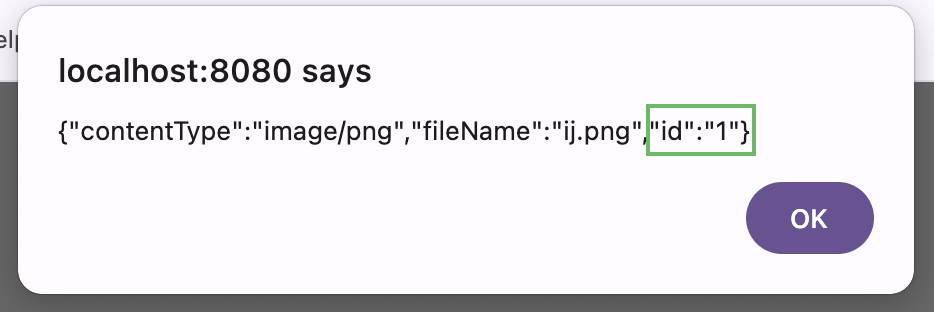
Stop the application, start it again, and open
http://localhost:8080/photos. The photo is still listed, because it is now in a file rather than in a map that the new process created empty.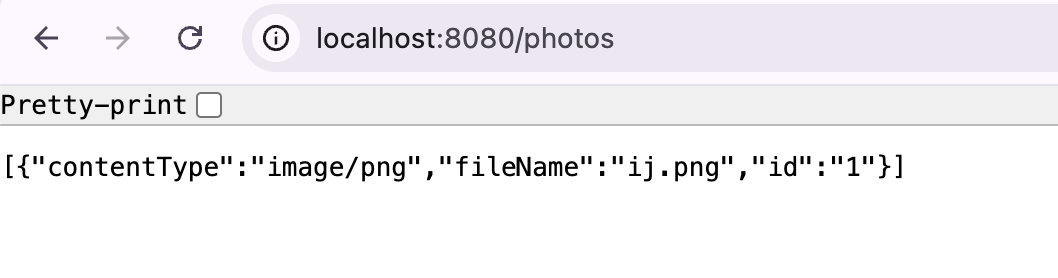
Use its identifier at
http://localhost:8080/download/<id>to download the stored image.
Package the application as an executable JAR
So far, you have started the application from IntelliJ IDEA. Packaging it produces an executable JAR containing your code, dependencies, and the embedded web server. It runs outside the IDE with a compatible Java runtime, without installing a separate application server.
Stop the application in IntelliJ IDEA to release port 8080 and the database file. The Maven build runs tests that open the same database, so leaving the application running can cause the build to fail because the database file is locked.
Open the Maven tool window, expand , and double-click package. Wait for the build to succeed.
IntelliJ IDEA runs the build and reports progress in the Run tool window. Watch for the line confirming the build succeeded — the
packagephase compiles the code and runs the tests first, so a failing test stops the build here.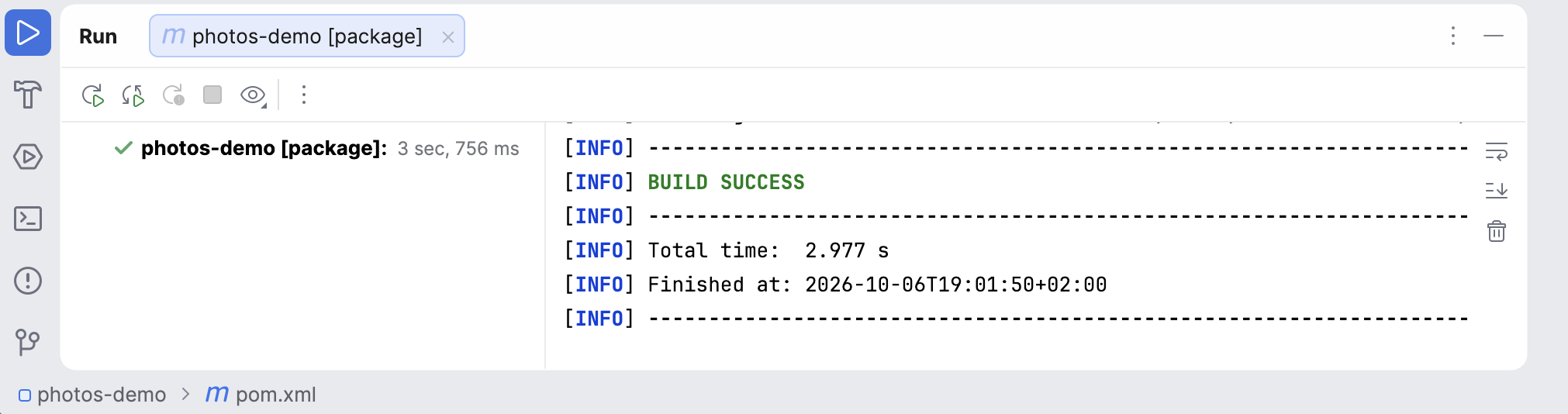
Find photos-demo-0.0.1-SNAPSHOT.jar in the target directory.
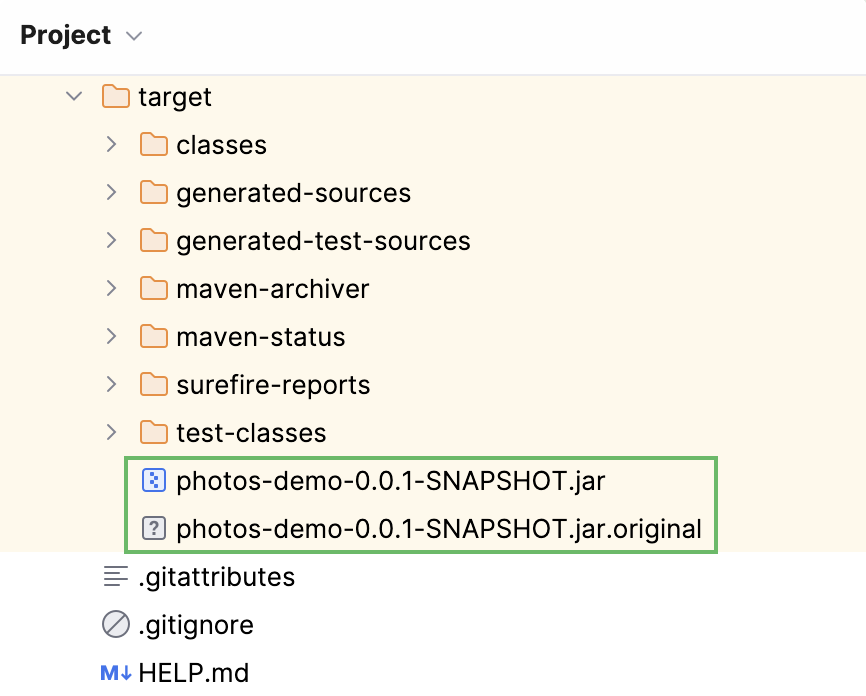
Use this executable JAR; the .jar.original file is the original archive without the bundled dependencies.
In a terminal, change to the target directory and run:
java -jar photos-demo-0.0.1-SNAPSHOT.jarOpen
http://localhost:8080/photos. The uploaded photo is still listed because this process uses the same database file in your home directory. Copying the JAR to another machine transfers the application, but not this database.
Check your code
If your application does not work as expected, compare your files with the code below. PhotosDemoApplication is not listed because it does not change after Spring Initializr generates it.
Summary and next steps
You have built a photo-sharing REST API with Spring Boot. Across the four parts of this tutorial, you:
Separated photo storage from request handling with a shared service and constructor injection.
Added file uploads and a download endpoint that returns images with their original file names.
Stored photos in H2 with Spring Data JDBC and checked that they survive an application restart.
Built an executable JAR with Maven and ran the application outside the IDE.
To continue working on the project, learn how to write and run tests in the test-driven development tutorial and track your changes with the Git basics tutorial.
For more information about configuring and extending Spring Boot applications, refer to the Spring Boot documentation.