X-Ray mode
X-Ray Mode helps you keep your editor uncluttered without losing access to valuable code insights. You can temporarily reveal all inlay hints and additional information: press Ctrl twice and keep holding it.
Configure inlay hints and other supplementary information to the level you're comfortable with. When you need more context, press Ctrl twice and keep holding it. X-Ray Mode will display hints and additional information for as long as the key remains pressed, then hide them again when you release it.
Configure X-Ray mode hints
Press Ctrl+Alt+S to open settings and then select .
Toggle each type of hint on or off as needed.
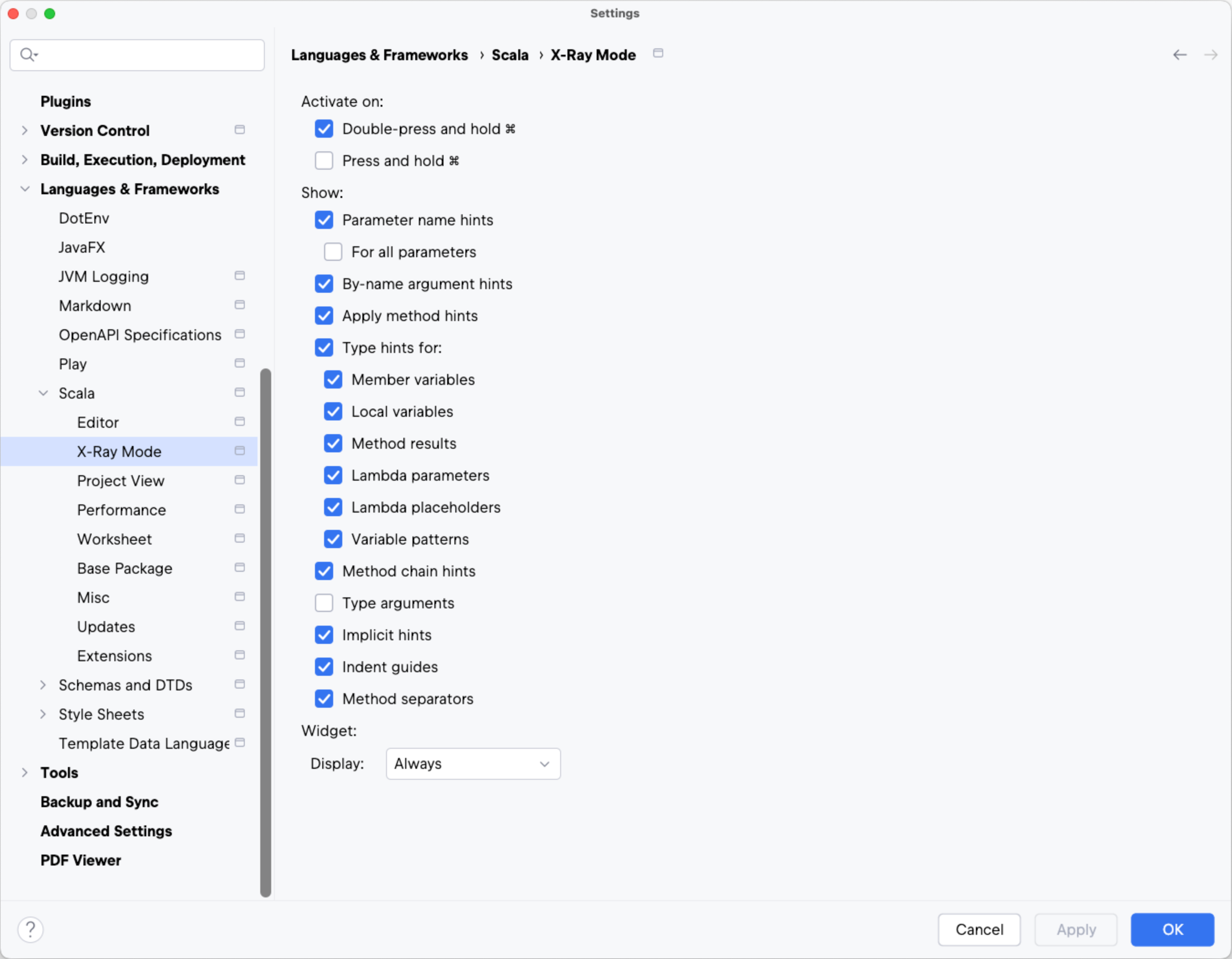
If you want to see hints in the editor all the time regardless of X-Ray Mode, you can configure them separately:
Go to to configure inlay hints.
Go to to configure method separators and indent guides.
The X-Ray mode is also an alternative to two other actions:
(Ctrl+Alt+Shift+=). Learn more from Implicit hints.
(Ctrl+Shift+P). Learn more from Type Info.
In both cases, instead of memorizing the shortcuts for each action, you can press Ctrl. On top of that, types displayed in hints are navigable: while pressing Ctrl, hover over them and navigate to the type declaration.