Assigning licenses to users manually
This article explains how to manually assign an available license to a specific user. If there are no unused licenses in your account, you can revoke a license from an existing user and assign it to another one.
If you're looking for ways to quickly assign multiple licenses, check out the bulk-assignment methods.
Assign a license manually
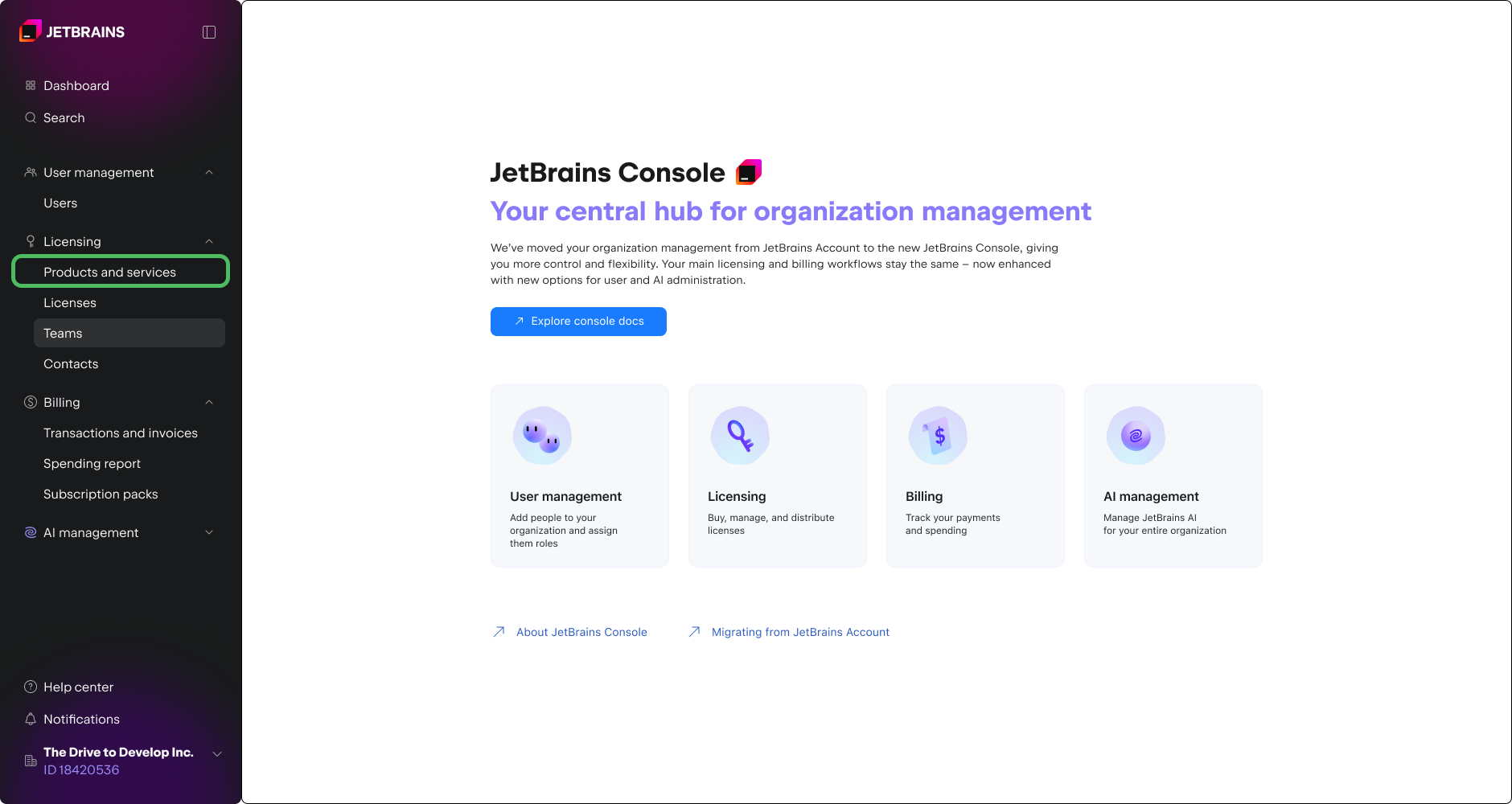
Log in to JetBrains Console.
In the sidebar under Licensing select Products and services.
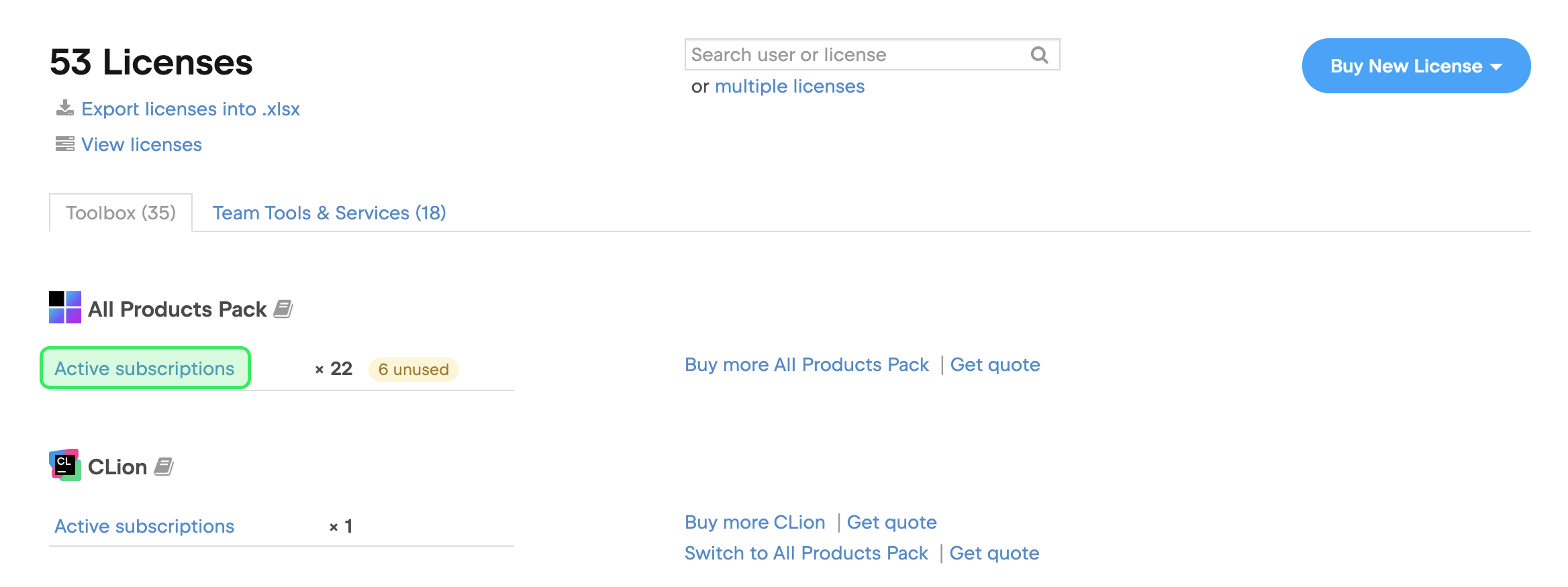
You will see a list of all licenses that belong to your company or team. Locate the product that you want to assign to a user and click Active subscriptions.
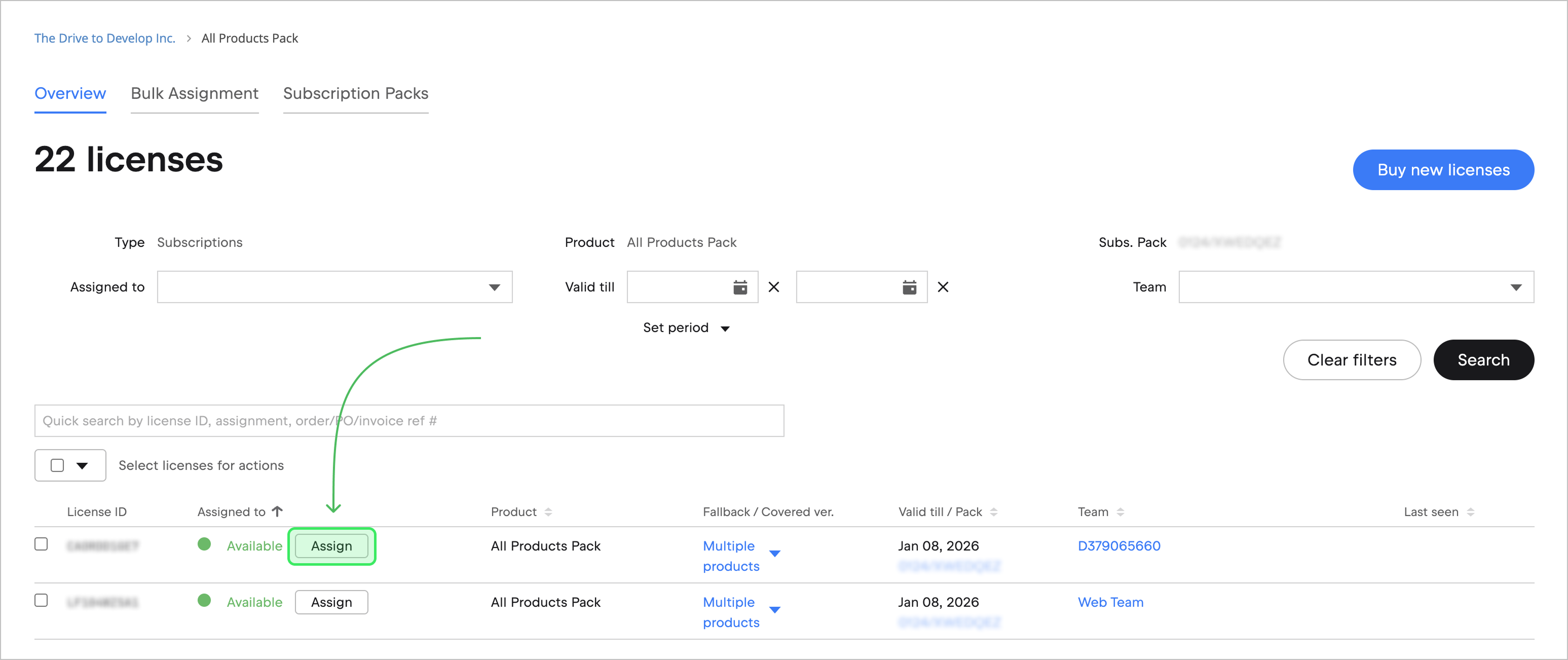
Find an available license and click Assign next to it.
In the dialog that pops up, enter the user's email address, first and last name. Then click Assign.
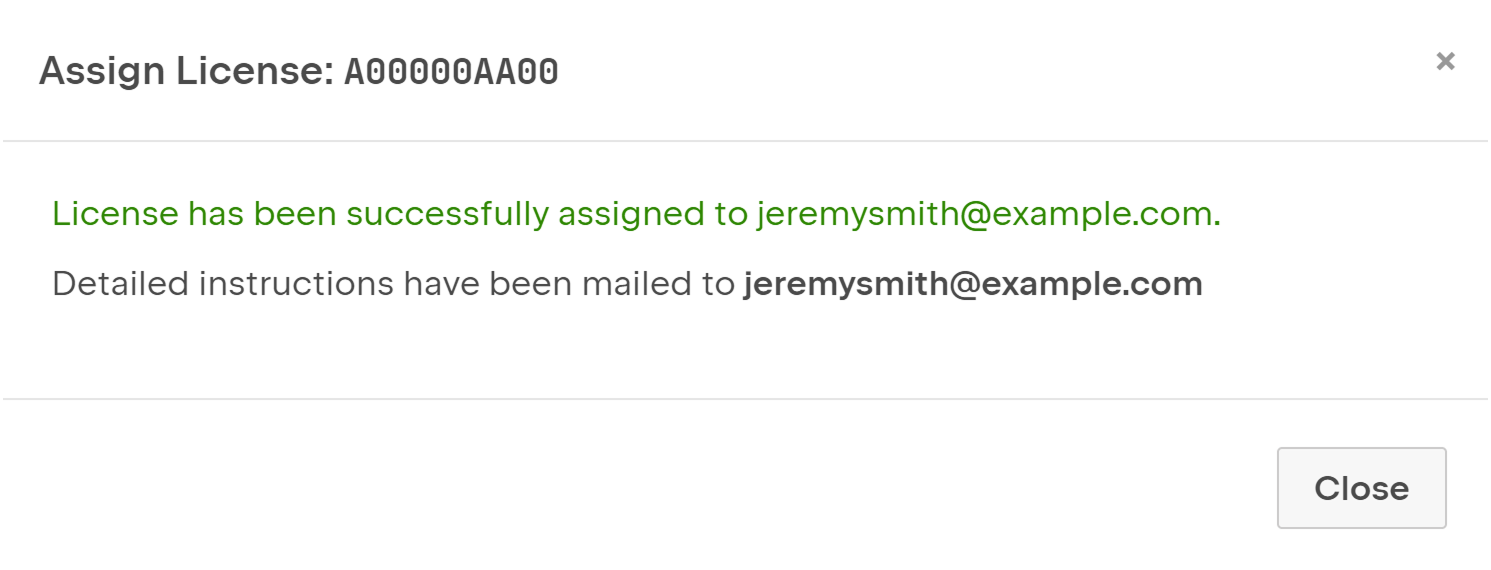
That's it! The license is now assigned. The user will receive activation instructions by email.
Bulk assignment
With multiple licenses, manual assignment can become a time-consuming and tedious job. To quickly distribute multiple licenses, consider one of these options:
Create a bulk invitation.
Use License Vault to distribute licenses automatically.