Rust
The Rust plugin equips PyCharm with full-fledged Rust support. This guide overviews the basic procedures to get you started. You can find more information about the supported features in RustRover documentation.
Install Rust plugin
Launch PyCharm. On the Welcome screen, click Plugins.
If you already have a project opened, go to .
Select the Marketplace tab and search for the Rust plugin.
Click Install and wait for the download to complete.
Restart the IDE if prompted.
The plugin is activated automatically. To check that it is active, go to and select Rust in the left pane.
Install Rust toolchain
To develop in Rust, you need several basic tools: a compiler, a package manager, a formatter, and so on. This set of tools is referred to as the Rust toolchain. You will also need the Rust Standard Library.
If you have already opened a project and the Rust toolchain is missing, you will see a notification banner right above the editor:
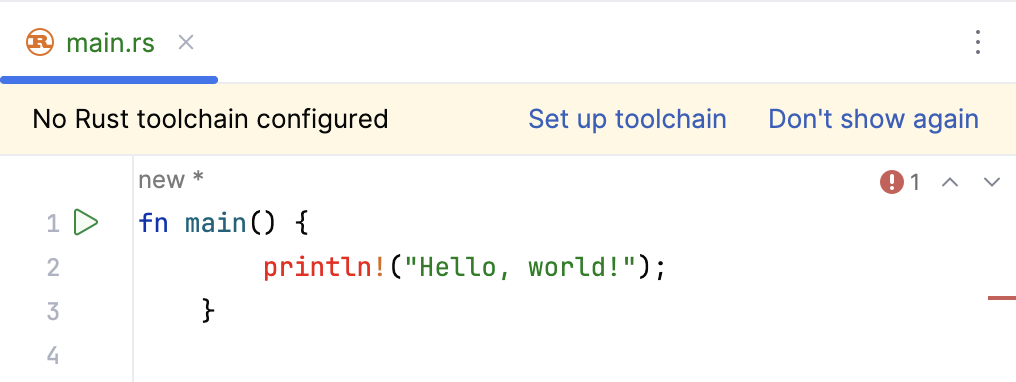
Click Set up toolchain.
Alternatively, open IDE settings (Ctrl+Alt+S) and select .
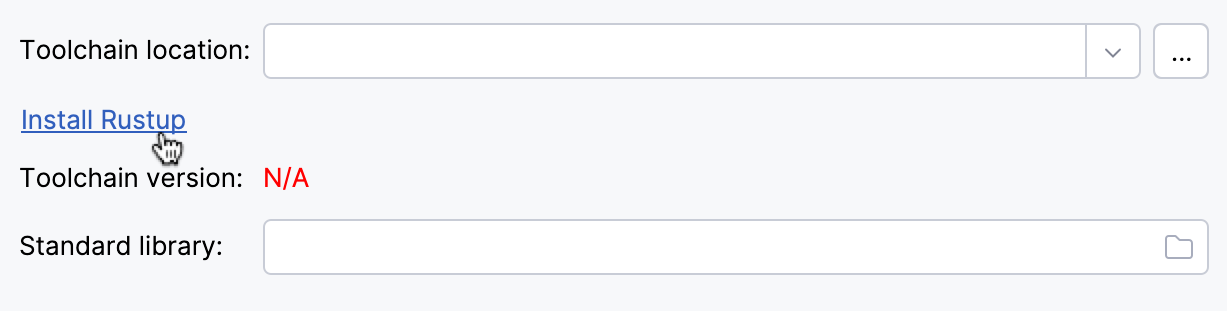
If the Rust toolchain is not detected, Toolchain version will display N/A. To install the Rust toolchain, click the Install Rustup button – PyCharm will attempt to install both the toolchain and the standard library using Rustup.
Once the installation is complete, PyCharm will automatically detect its location, populating the Toolchain version and Standard library paths.
Click OK to apply the settings.
Open or create a Rust project
You have three options to start working on a Rust project.
Create a new Cargo project
Launch PyCharm.
To start a new project, do one of the following:
Click New Project on the Welcome screen.
Select from the main menu.
Click the Project widget in the main window header and select New Project.
In the left pane, make sure Rust is selected.
Specify the project location and name.
Specify the location of the Rust toolchain and standard library.
If the toolchain and standard library are installed, PyCharm will detect them automatically. Otherwise, you will be suggested to download Rustup.
Select the required project template and click Create.
Open a local Cargo project
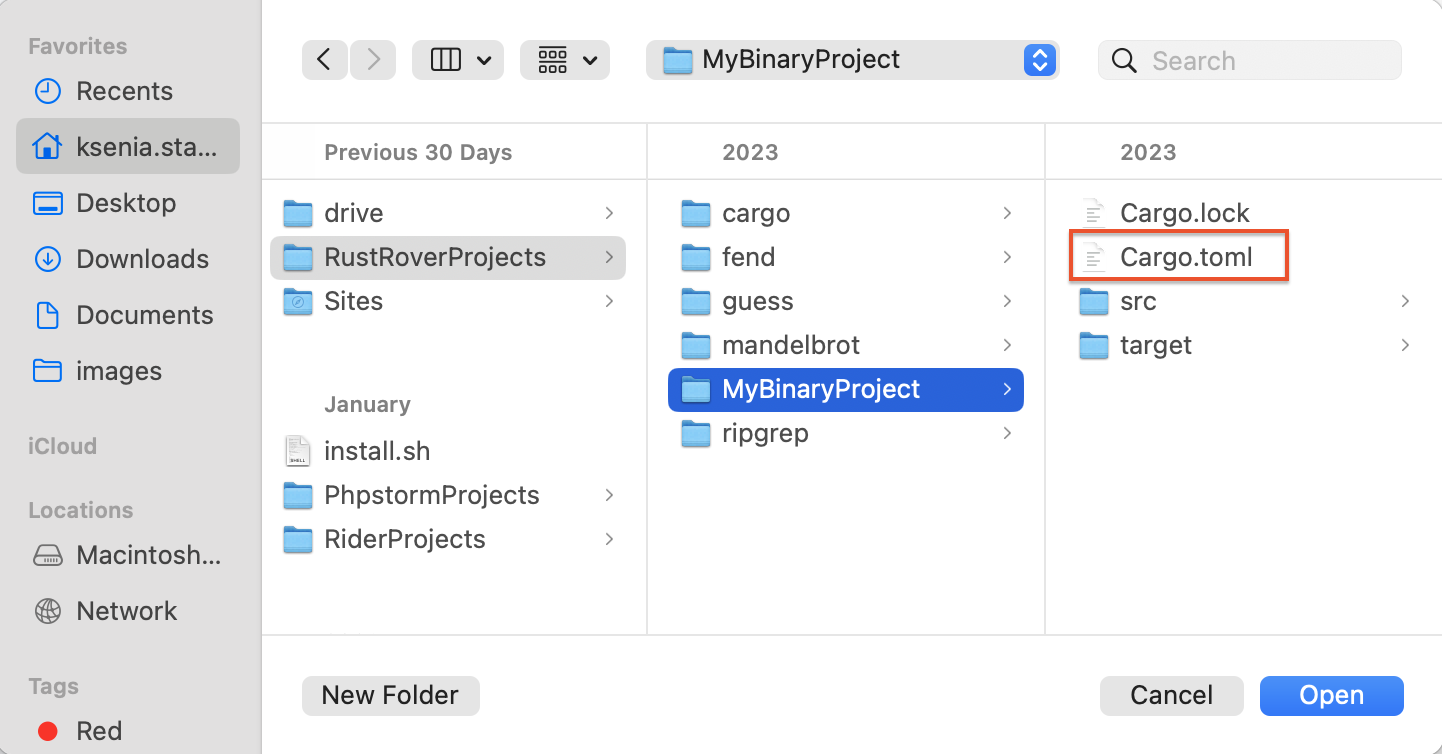
In the main menu, go to . In the file chooser, select the directory containing the root Cargo.toml file (or Cargo.toml itself) and click Open:
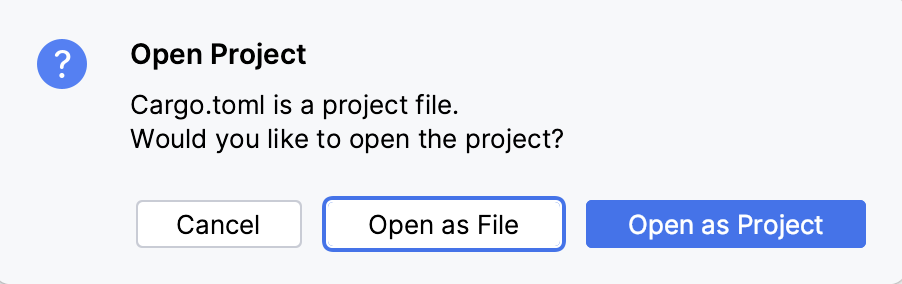
In the dialog that opens, select Open as project.
When opening the project for the first time, PyCharm will prompt you to confirm that you consider it safe.
Click Trust Project if you are certain the project poses no threats and you would like to enable all IDE features. If you have any doubts, select Preview in Safe Mode. For more information, refer to Project security.
Clone a repository from VCS
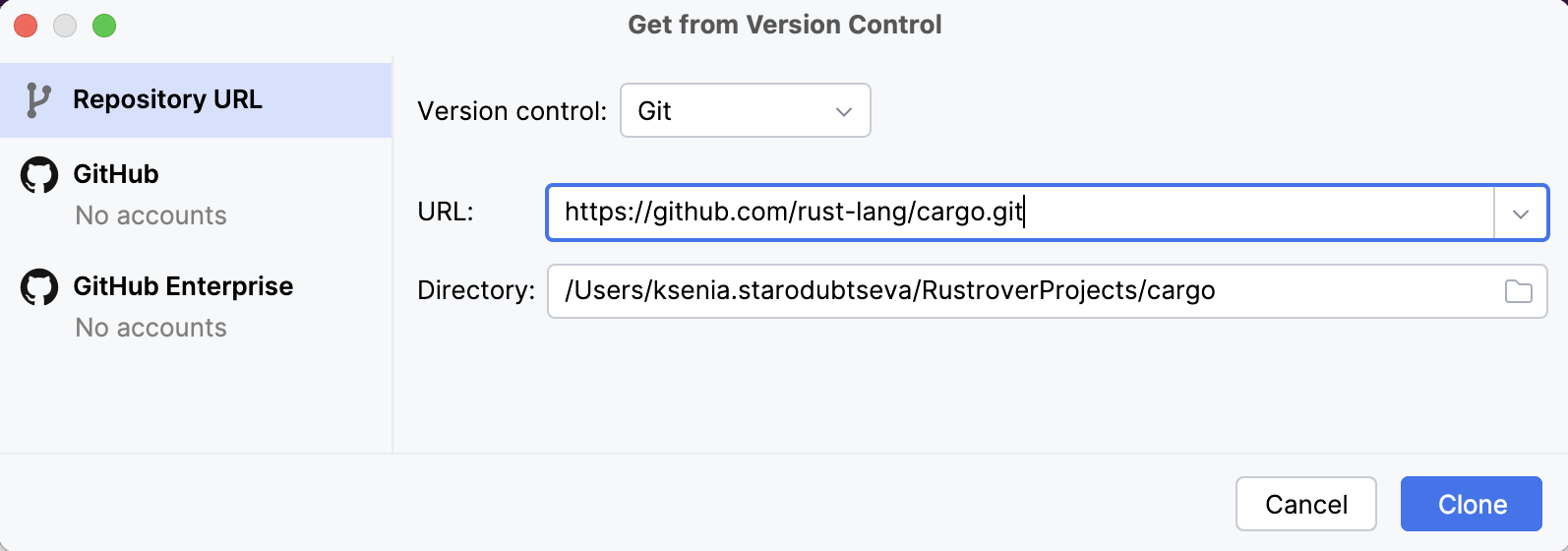
In the main menu, go to or click Get from VCS on the Welcome screen.
Specify the repository URL and the destination directory. Click Clone:
Explore the workspace and features
The plugin's feature set is designed to simplify the Rust development process. Here is a closer look at what it offers.
Syntax highlighting and code reference
To help you quickly read and understand Rust code, the plugin provides highlighting, Inlay Hints, quick access to documentation, and more.
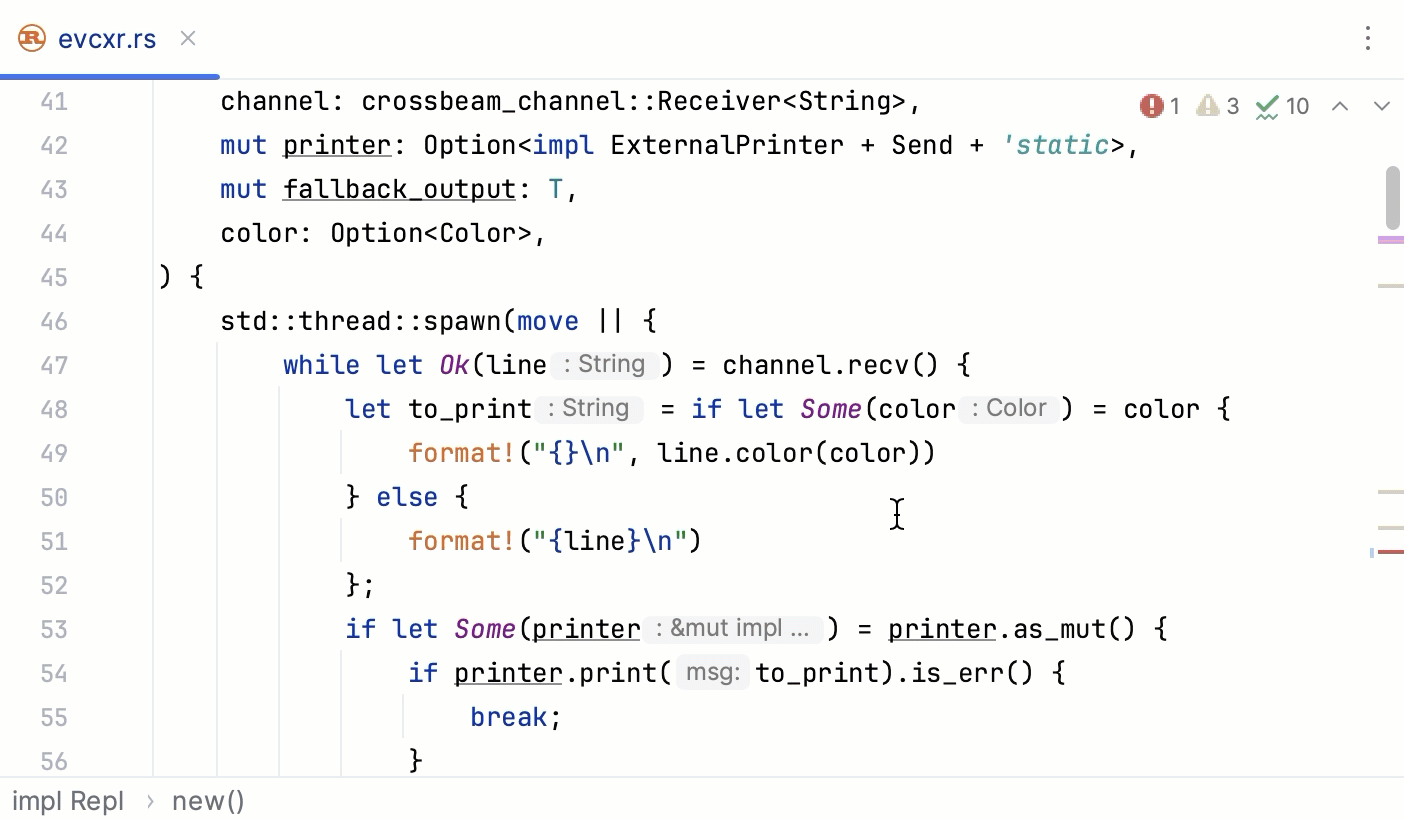
Here are some shortcuts you may find useful:
Action | Shortcut |
|---|---|
Ctrl+Click | |
Get type info | Ctrl+Shift+P |
Ctrl+Q |
For more information, refer to RustRover documentation.
Code analysis and error reporting
To help you fight errors and inconsistencies in code, the plugin offers built-in inspections and integrates with external linters.
For a summary of all detected problems, use the Inspections widget in the upper-right corner of the editor. To see the details, click the widget and refer to the Problems tool window (or select ):
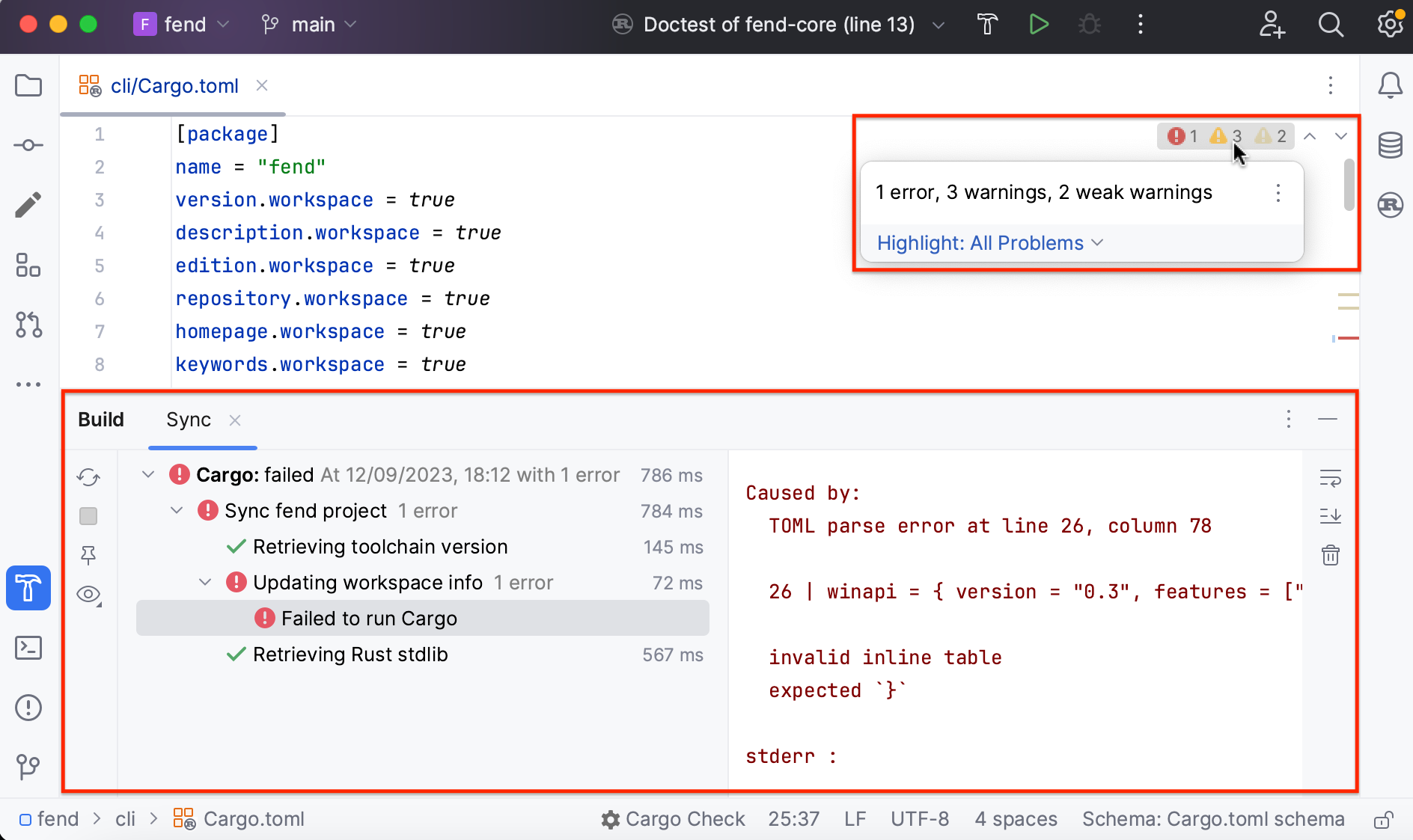
For more information, refer to Code inspections and External linters in RustRover documentation.
Formatting
You can format your code using either the IDE's built-in formatter or Rustfmt (enabled by default).
Enable (or disable) Rustfmt instead of the built-in formatter
Open settings by pressing Ctrl+Alt+S and navigate to .
To enable Rustfmt, set the Use Rustfmt instead of built-in formatter checkbox. To disable Rustfmt, clear the checkbox.
Click OK to apply the changes.
Reformat a file
Open the file you want to reformat in the editor.
Press Ctrl+Alt+Shift+L or select .
In the dialog, select additional options if necessary and click .
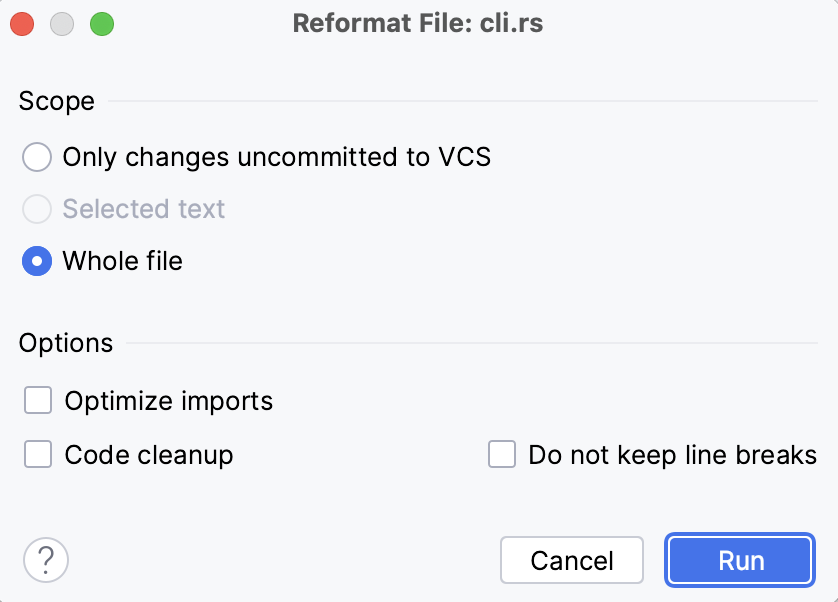
For more information, refer to Reformat and rearrange code and Rustfmt.
The Cargo tool window
The Cargo tool window is designed to help you with Cargo tasks. By default, it is pinned to the tool windows bar. You can show or hide it by clicking the window indicator on the sidebar  (alternatively, select from the main menu).
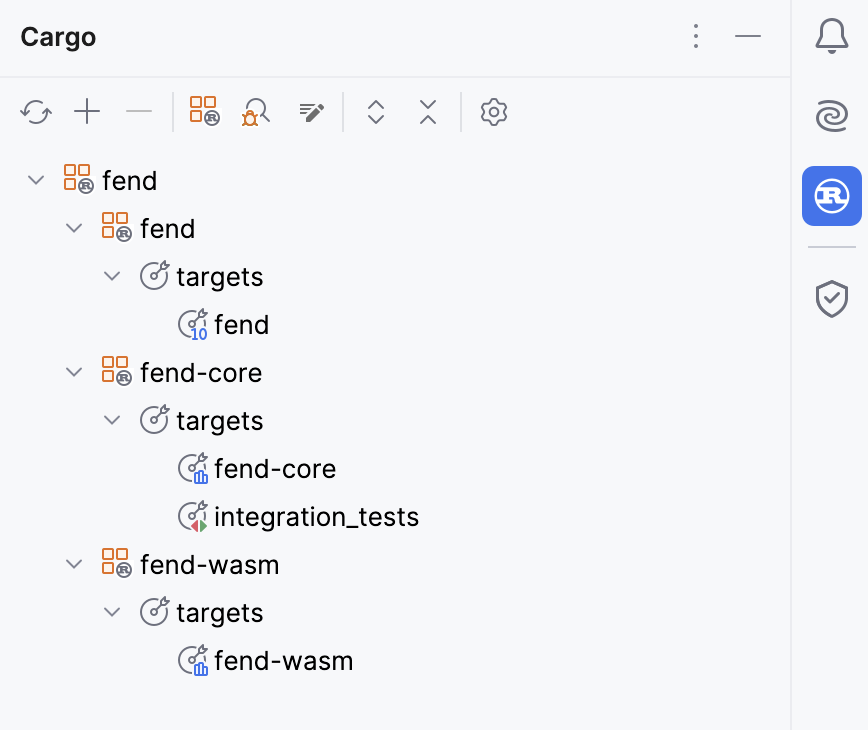
For more information, refer to RustRover documentation.
Sharing code in Playground
You can share your code in Rust Playground without leaving the editor.
Share in Playground
Select the code fragment that you want to share. If you do not select anything, the IDE copies the whole file.
Right-click and choose .
PyCharm will create a GitHub Gist and display a notification popup with a link to the playground.
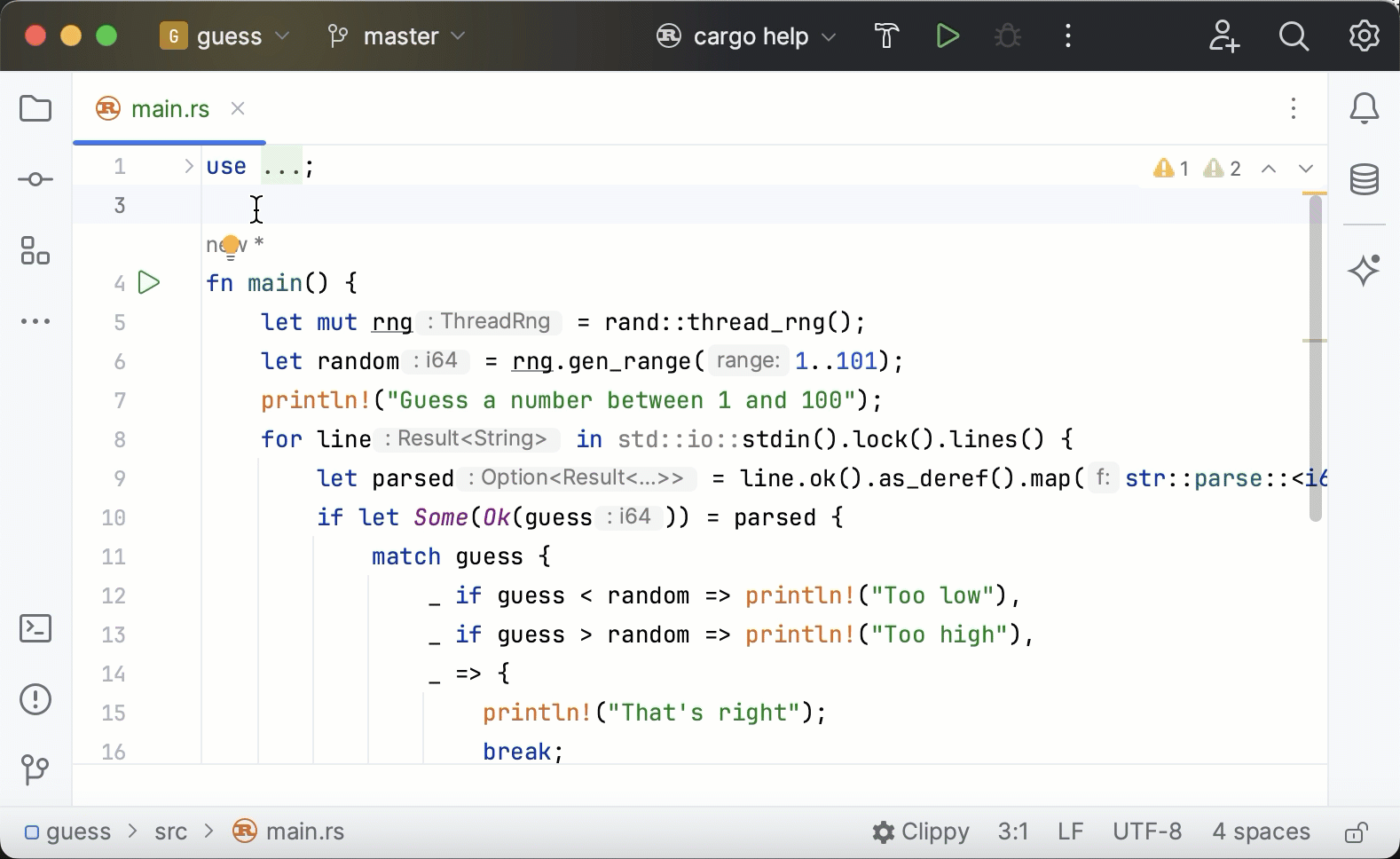
For more features, refer to RustRover documentation.
Build and run
Use the Build action to compile your code and Run to execute it. There are several ways to perform these actions:
Build/run Rust code
To build or run a particular target, open the Cargo tool window () and double-click the target.
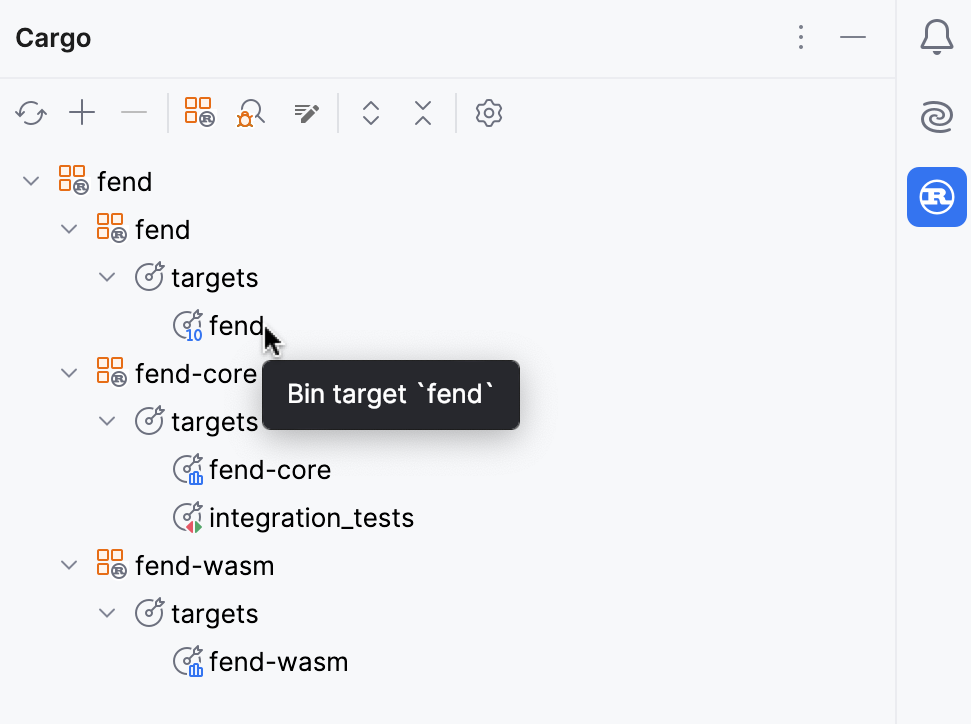
To run from a particular entry point, locate it in the editor, click
 in the gutter, and select Run: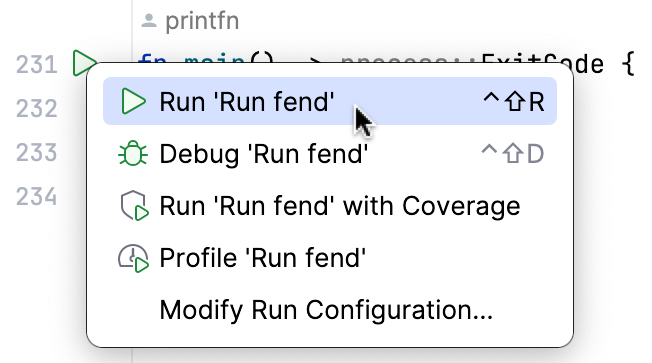
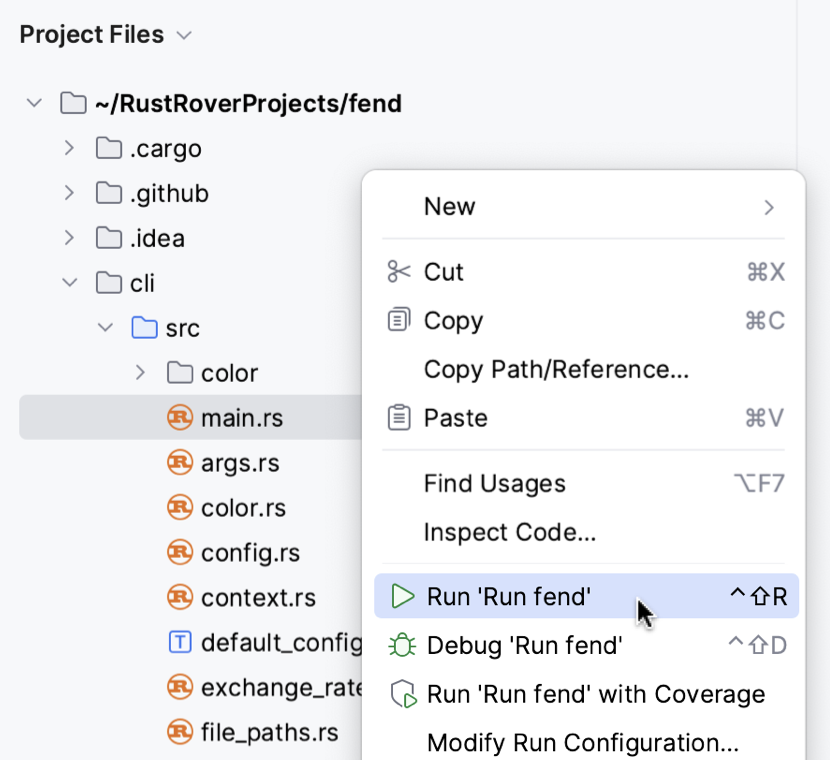
To run a particular file or module, open the Project view, right-click the necessary file or module, and select Run:
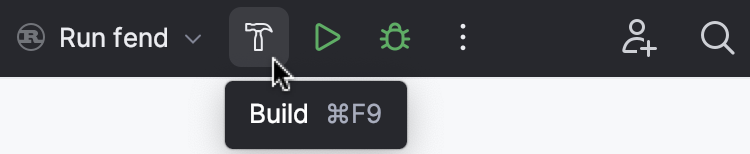
If you want to build or run code using a predefined configuration (with custom parameters and settings), select it in the switcher on the main toolbar and:
click
 to build (Ctrl+F9)
click
to run (Shift+F10)
You can always build or run using a Cargo command.
For more information, refer to RustRover documentation.
Debug
Rust plugin provides a full-fledged debugger – with breakpoints, variable monitoring, stepping, and other handy features.
Start a debug session
To start debugging from a particular entry point, locate it in the editor, click
in the gutter, and select Debug: 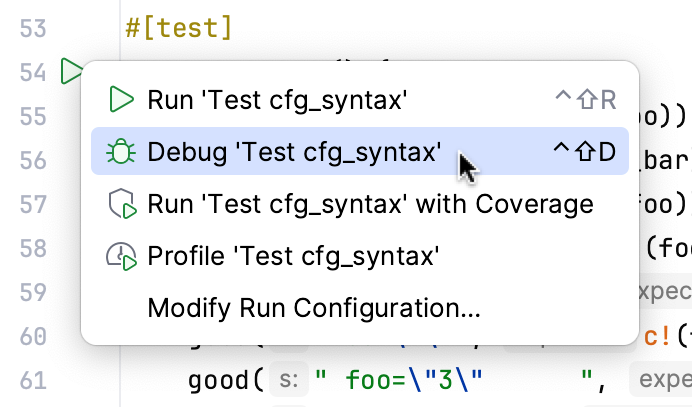
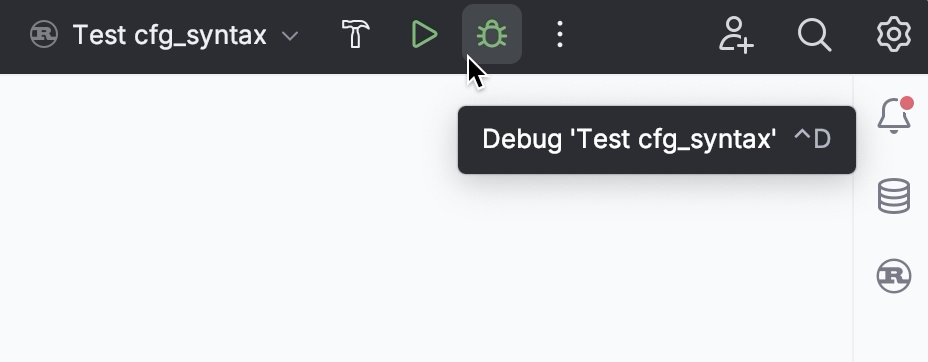
To debug code using a predefined configuration (with custom parameters and settings), select it in the configuration switcher on the main toolbar and click
 :
: 
You can always start a debug session by running a Cargo command.
For more information, refer to Start the debugger session.
Learn how to perform basic debugging actions from these guides:
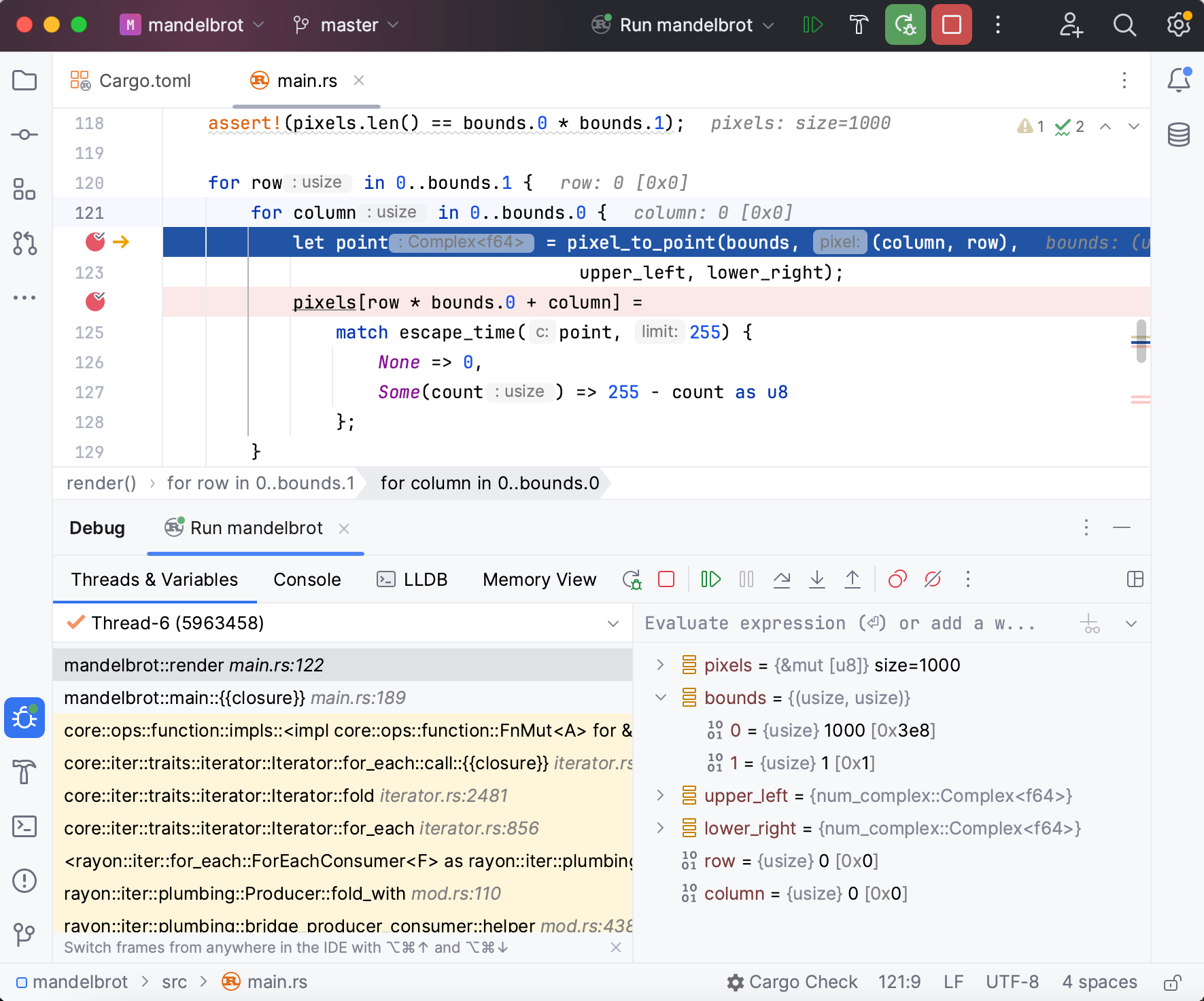
For more information, refer to RustRover documentation.
Debug Python and Rust together
By default, when a project has Rust breakpoints, debugging a Python run/debug configuration automatically attaches LLDB to the process. If there are no Rust breakpoints, or if you run the configuration without debugging, PyCharm does not attach LLDB.
Native debugging requires the Native Debugging Support plugin. If the native LLDB debugger is not downloaded yet, PyCharm shows the Download Native Debugger dialog. Click Download.
During the session, you can move between the Python and Rust debugging contexts.
To change when LLDB attaches, go to and select an option in the Attach native (Rust) debugger list: Never, Always, or When a Rust breakpoint is set. During a debug session, you can also use the Rust debug list in the header of the Debug tool window: Off, Always, or Auto.
For a maturin project with a local interpreter, PyCharm runs maturin develop before each launch of a Python run/debug configuration if the Rust code has changed. To change this, select an option in the Rebuild PyO3 extension before run list on the same settings page: Never, When Rust code has changed, or Always.
Test
You can support your code with tests, doctests, and benchmarks. Here are a few quick ways to run them:
Run tests, doctests, or benchmarks
To run a single test or doctest, open it in the editor, click
in the gutter, and select Run: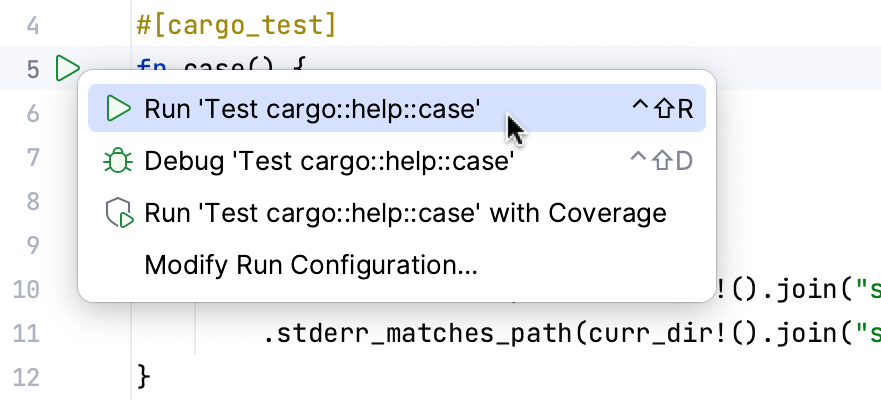
To run a test/benchmark target, open the Cargo tool window () and double-click the target:
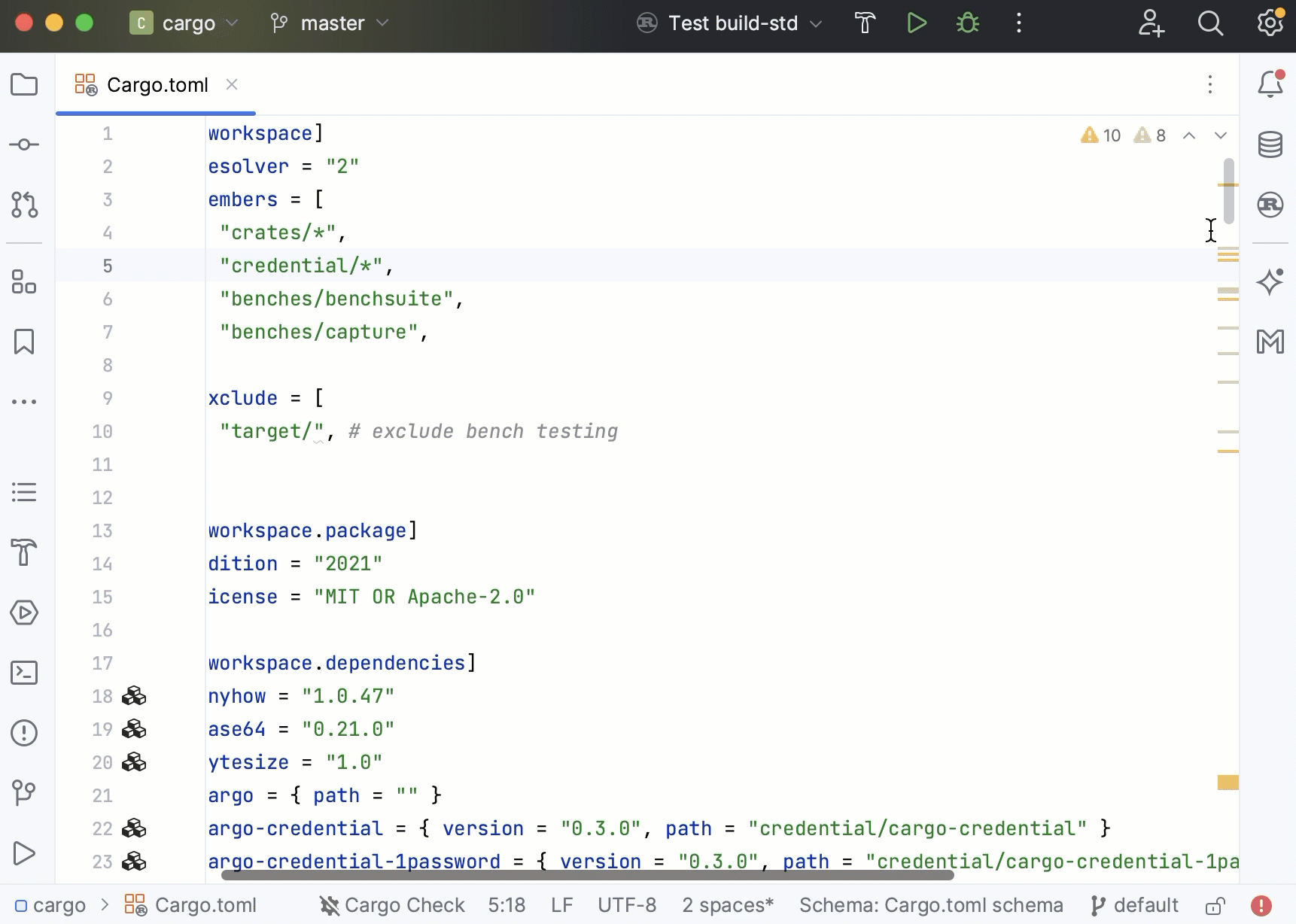
You can always run tests using a Cargo command.
The Run tool window will open, automatically displaying the results:
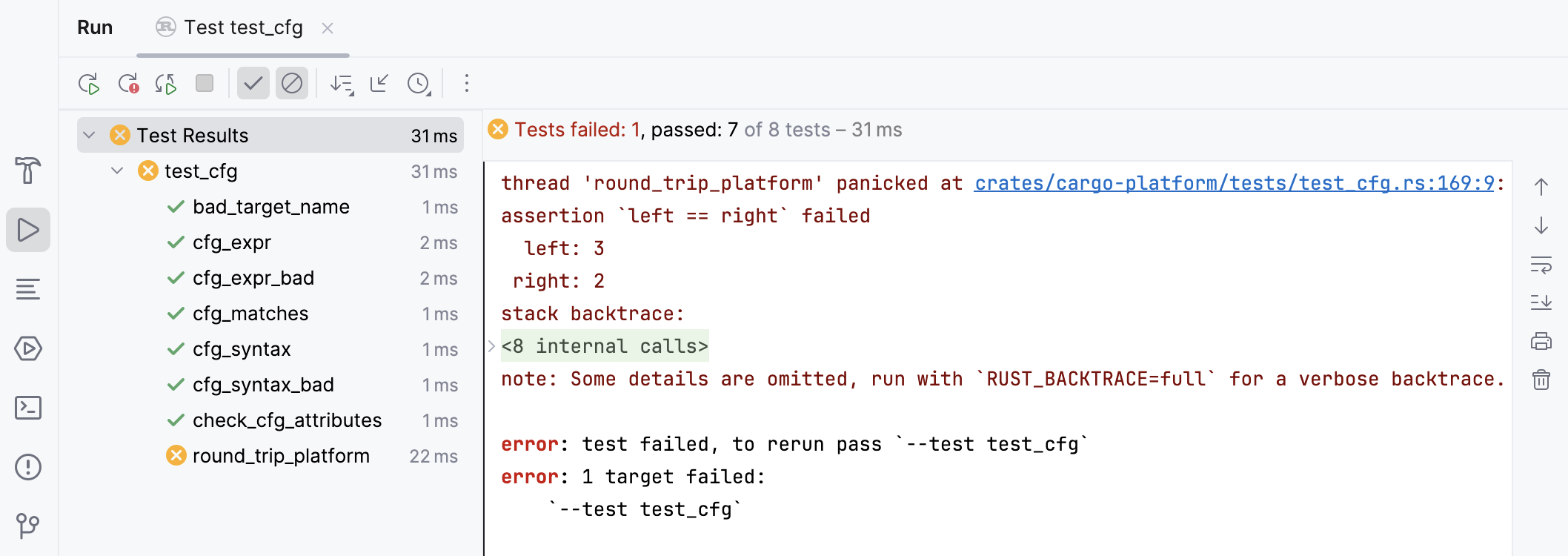
For more information, refer to RustRover documentation.
Run with code coverage
The plugin provides code coverage analysis for Rust code.
Run with Code Coverage
To get code coverage statistics, do one of the following:
Locate the required entry point, click
in the gutter, and select Run with Coverage: 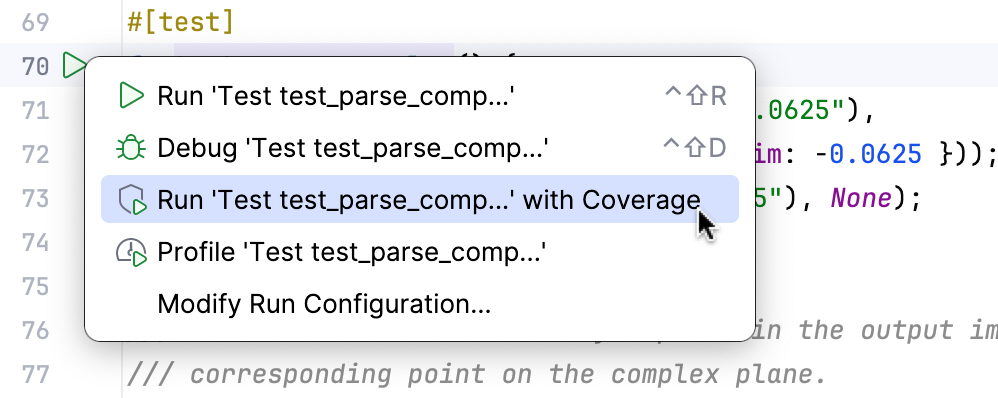
Locate the necessary file in Project view, right-click, and select Run with Coverage:
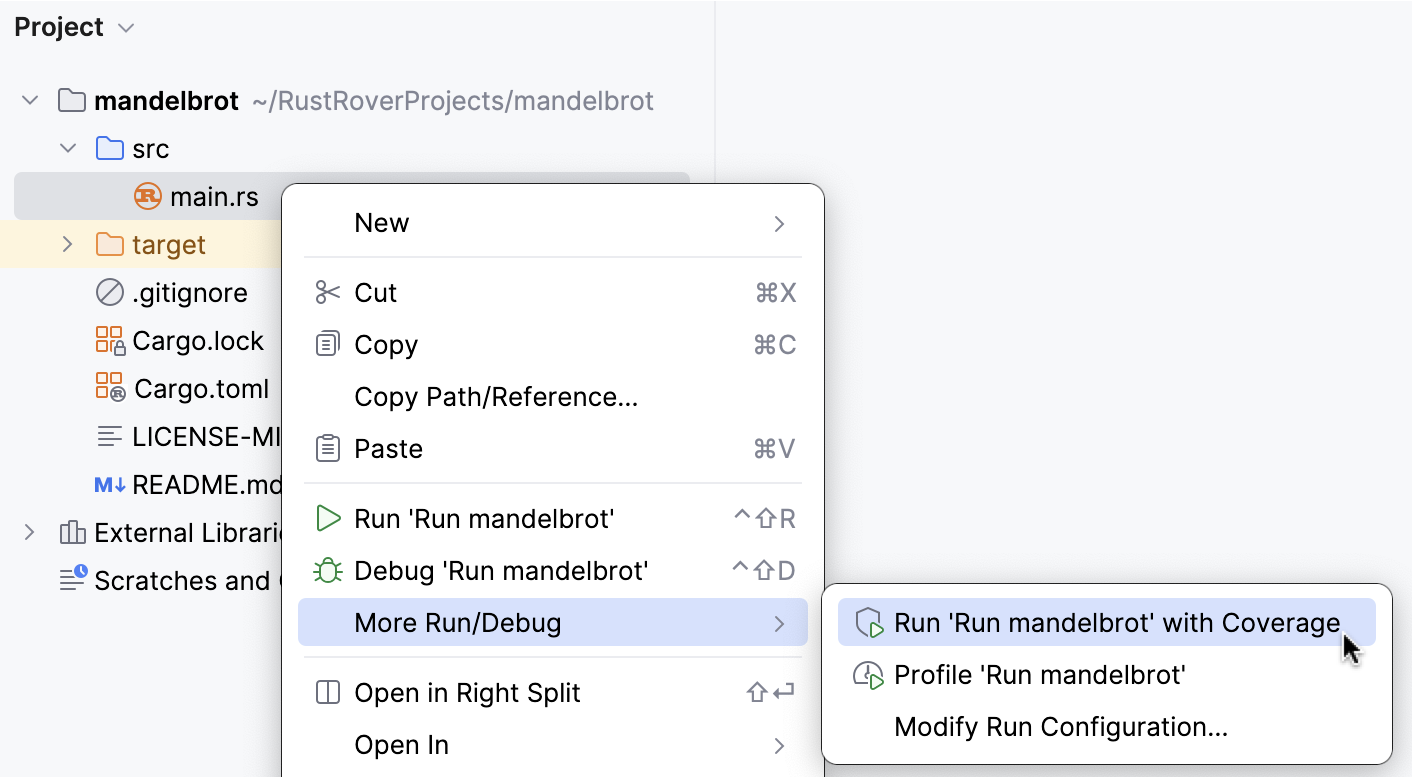
If you want to run a predefined configuration (with custom parameters and settings), select it in the switcher on the main toolbar, then press
 and select Run with Coverage: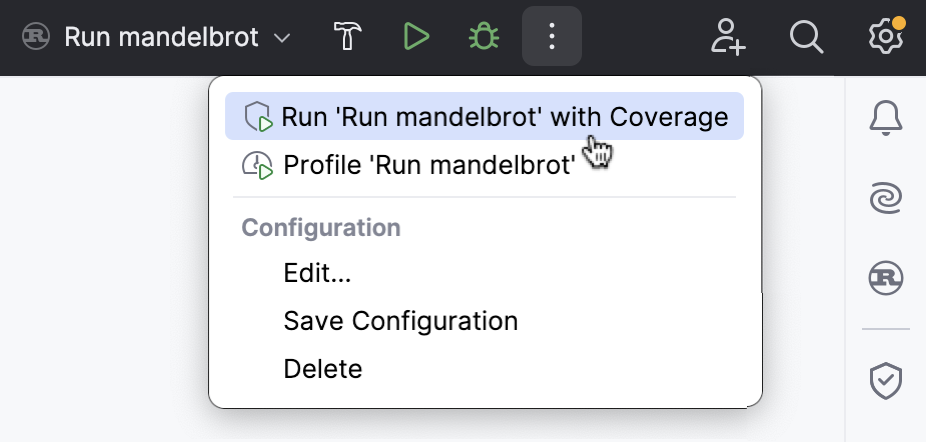
The Coverage tool window () will open, automatically displaying the results:
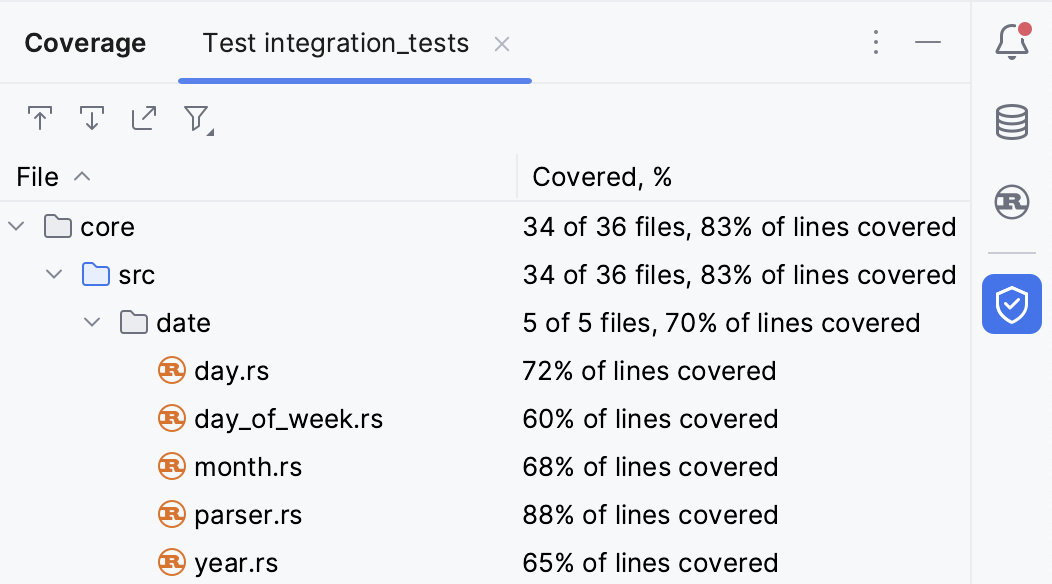
For more information, refer to Code coverage.
To learn more about Rust support, refer to RustRover documentation or contact our support team.
Navigate between Rust and Python stubs
For PyO3 projects, PyCharm provides bidirectional navigation between Rust items exposed to Python and their declarations in .pyi stub files.
Gutter icons appear next to Rust items marked with the following PyO3 attributes:
#[pyfunction]#[pyclass]#[pymethods](including#[new],#[getter],#[setter],#[staticmethod], and#[classmethod])Struct fields exposed with
#[pyo3(get, set)]or#[pyclass(get_all)]
Click a gutter icon in a Rust file to jump to the matching declaration in the corresponding .pyi stub, or click the icon in the stub to jump back to the Rust source.
In a Python file, Go to Declaration on a PyO3 symbol opens its Rust definition. Find Usages on a Rust PyO3 item also lists its Python usages.
Name and signature matching follows the PyO3 conventions, including:
Name overrides by using
#[pyo3(name = "...")],#[pyfunction(name = "...")], and#[pyclass(name = "...", module = "...")]Getter and setter prefix stripping (
get_/set_)Special methods, such as
__eq__,__hash__, and__lt__, implied by#[pyclass(eq, hash, ord)]Signatures declared with
#[pyo3(signature = (...))], including positional-only (/), keyword-only (*),*args,**kwargs, and default valuesImplicit parameters that are ignored for arity:
py: Python<'_>and theclsreceiver of#[classmethod]
Navigation is available for files under the project content roots and matches items by the enclosing #[pymodule], the Python-visible name, and arity.
Rust plugin vs. RustRover
Differences in the feature set
For Linux, both LLDB and GDB are available. For macOS, only LLDB is available. For Windows, LLDB is supported for MSVC, GDB is supported for GNU. Learn more | For Windows and Linux, both LLDB and GDB are available. For macOS, only LLDB is available. Allows to debug on-chip | For Windows and Linux, both LLDB and GDB are available (Native Debugging Support free plugin required). For macOS, only LLDB is available. | For Windows and Linux, both LLDB and GDB are available (Native Debugging Support free plugin required). For macOS, only LLDB is available. | |
Profiler | Available on macOS, Linux, and WSL | Available on macOS, Linux, and WSL |
|
|
| Available on Linux, WSL, and macOS (10.12 or later) |
|
| |
Database support |
|
|
|
|


Language support
Rust |
|
|
|
|
Java, Groovy, Kotlin |
|
|
|
|
C/C++, Objective С/С++ |
|
|
|
|
Python | Via free plugin |
|
|
|
JavaScript, TypeScript |
|
|
|
|
HTML, CSS |
|
|
|
|
Sass, SCSS, Less |
|
|
|
|
XML, JSON, YAML, XSLT, XPath |
|
|
|
|
Markdown |
|
|
|
|