Increase agent intelligence with skills and hooks
Rider provides skills and hooks that let you customize how AI agents interact with your .NET projects. By guiding the AI in the project-specific context, you can reduce token usage, improve the quality of generated code, and decrease response latency.
Agent skills
Skills are reusable units of functionality that extend an agent’s capabilities. Each skill provides a specific ability that the agent can use to perform tasks or handle specific types of requests. By adding skills, you can enable the agent to support a wider range of scenarios without changing its core behavior.
To get the detailed instructions on how to configure and work with agent skills in JetBrains Rider, refer to the JetBrains AI Assistant documentation.
Enable the JetBrains AI assistant plugin
This functionality relies on the JetBrains AI assistant plugin, which is bundled and enabled in JetBrains Rider by default. If the relevant features are not available, make sure that you did not disable the plugin.
Press Ctrl+Alt+S to open settings and then select .
Open the Installed tab, find the JetBrains AI assistant plugin, and select the checkbox next to the plugin name.
Some skills come bundled with JetBrains Rider, while others are available for installation. Below are examples of skills that can be useful for .NET developers.
debugging-code
Performs debugger-driven runtime root-cause analysis for solutions opened in JetBrains Rider, including .NET/C#, F#, VB, C++, Unity, Unreal Engine, and other GameDev or mixed-language projects. The skill triggers when runtime state or control-flow evidence is needed and cannot be derived confidently from source code or logs.
The agent sets breakpoints, steps through code, and inspects actual runtime values to pinpoint the root cause of an issue. Before making any code changes for runtime-behavior issues, it collects concrete debugger evidence such as stack traces and frame values.
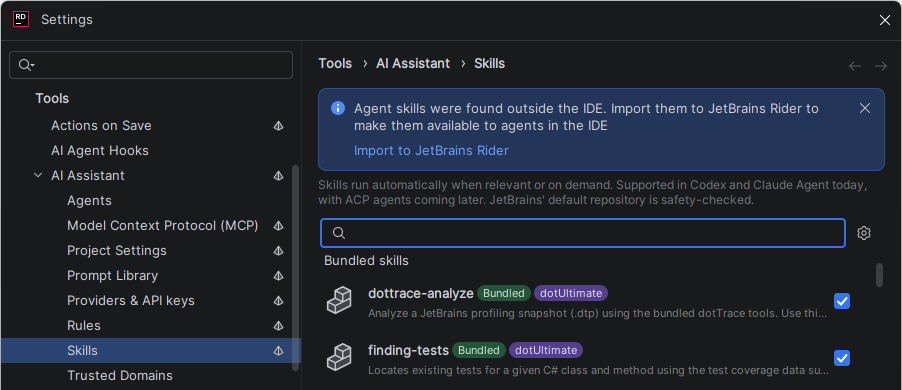
dottrace-analyze
Analyzes an existing dotTrace snapshot (.dtp file) and identifies the most significant performance hotspots in your .NET application. Instead of scanning source code for plausible inefficiencies, the agent reads actual runtime profiling data, follows the hot path, and explains what is slow and why.
To use this skill, capture a snapshot with dotTrace from inside JetBrains Rider, from dotTrace Standalone, or with the dotTrace command-line tool, then ask the agent in the AI Assistant tool window to investigate the snapshot by referencing its directory in the prompt.
The agent produces a text report explaining the detected bottlenecks and recommends actionable next steps. It can also generate an HTML report that you can open in a tab and share with your team.
For a step-by-step procedure, refer to Analyze a snapshot with an AI agent.
Requires a dotUltimate license.
refactoring-code
Performs semantic refactorings across solutions opened in JetBrains Rider using the ReSharper engine. Each refactoring tool resolves the target through the IDE's reference index and rewrites every affected site, including language-aware usages such as nameof, XML-doc references, XAML, Razor, and C++/Unreal references.
The skill supports operations such as rename, safe delete, extract method, and other structural transformations. It resolves references semantically across the solution, which a plain text edit cannot achieve.
finding-tests
Locates existing tests for a given class or method using test coverage data supplied by the IDE. The skill triggers when generating new tests, adding test coverage, finding existing tests, or when you mention uncovered lines, test files, or test suites. It runs before writing or editing any test code when finding already existing tests is necessary.
Requires a dotUltimate license.
Configure skills
Configure agent skills on the Tools | AI Assistant | Skills settings page Ctrl+Alt+S. Use the search box to find the skill you need, then select it and click Install.
Post-edit hooks
Post-edit hooks run automatically after an AI agent modifies your code, helping keep changes review-ready. Rider can catch and fix formatting inconsistencies and code issues immediately, reducing the cleanup you need to do by hand.
Enable the MCP Server plugin
This functionality relies on the MCP Server plugin, which is bundled and enabled in JetBrains Rider by default. If the relevant features are not available, make sure that you did not disable the plugin.
Press Ctrl+Alt+S to open settings and then select .
Open the Installed tab, find the MCP Server plugin, and select the checkbox next to the plugin name.
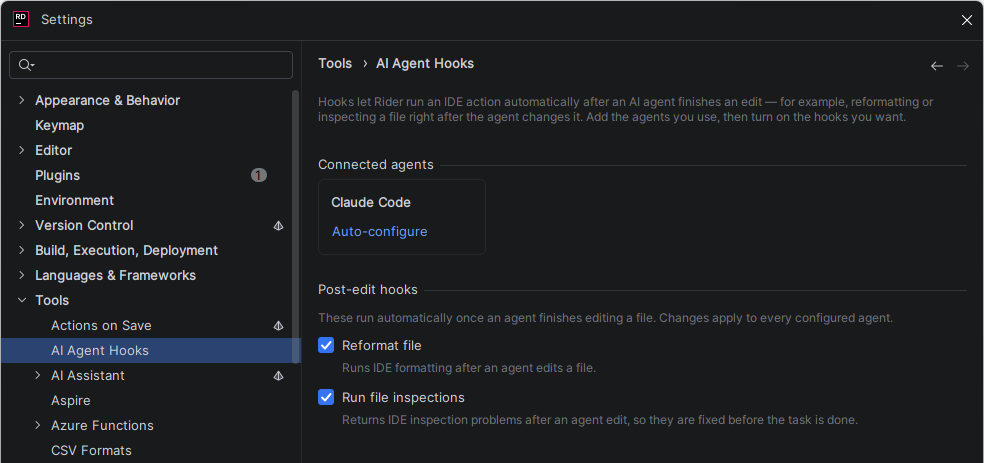
Rider 2026.2 includes two hooks:
Reformat file
Reformats the modified file according to your settings after the agent finishes editing. This ensures that AI-generated code matches the formatting conventions of your project.
Run file inspections
Runs code inspections and applies quick-fixes in the modified file after the agent finishes editing. This catches potential issues before you review the changes.
Configure hooks on the Tools | AI Agent Hooks settings page Ctrl+Alt+S.